Getting Started for People Ops Admins
Welcome to Ashby People Ops! This guide covers how to approach using the People Ops module and links out to key guides that will help you build your first workflows and enroll employees.
Prerequisites:
- Ashby's People Ops module is currently available through restricted early access. This documentation is for design partners participating in that program.
- Ashby enables the module for your organization. Once it's enabled, the app switcher appears in your Ashby navigation.
- Your People Ops environment looks empty until someone assigns you a permission set. If you don't see any content after switching to People Ops, contact your People Ops permission admin or your Ashby contact.
Before you start: mapping out your workflows
Before opening the People Ops module, review your organization's existing workflows and processes:
- If you already have your processes documented, you do not need to build a new one. You can recreate your existing steps in a workflow within Ashby using your organization's documented process as a guide.
- If you are starting from scratch, drawing out your process using your most recent hire helps to provide a guide when building your workflows in Ashby.
Check out Getting Started: Mapping Out Your ProcessGetting Started: Mapping Out Your Process for more information on mapping out your processes.
Switching from Ashby Recruiting to People Ops
People Ops and Recruiting are two apps within the same Ashby instance, and you move between them with the app switcher.
- Log in to Ashby at app.ashbyhq.com.
- Select the app switcher in the upper right corner of the navigation, next to your profile icon.
- Select Go to People Ops.
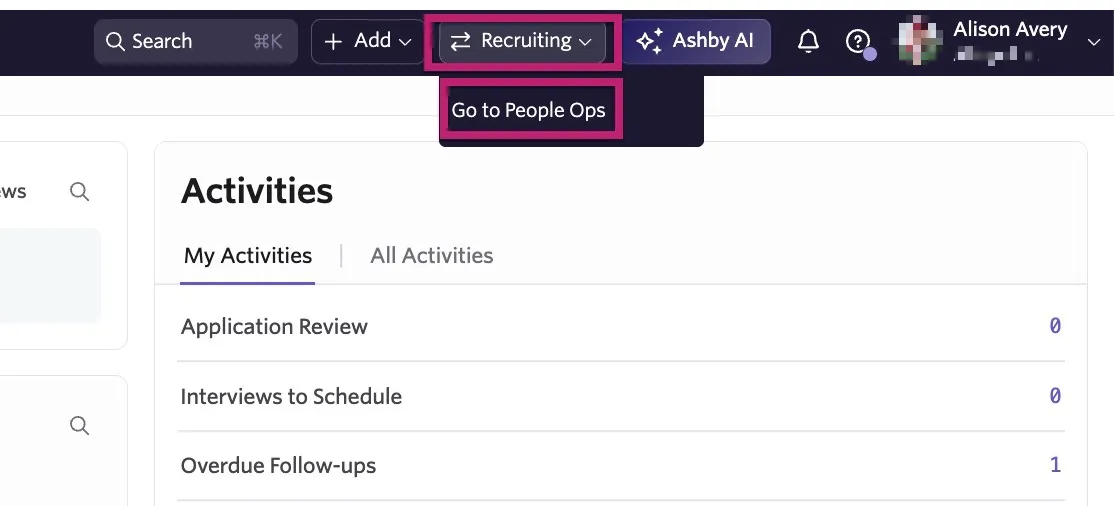
Use the same switcher to return to Recruiting. Your session, and any reports and/or dashboards carry across both apps.
Navigating People Ops
Home
The Home page lists your workflow enrollments by category and defaults to the workflow enrollments in the Onboarding category with the In Progress status.
You can view enrollments by status and category using the status options in the left-hand Workflow Enrollments sidebar.
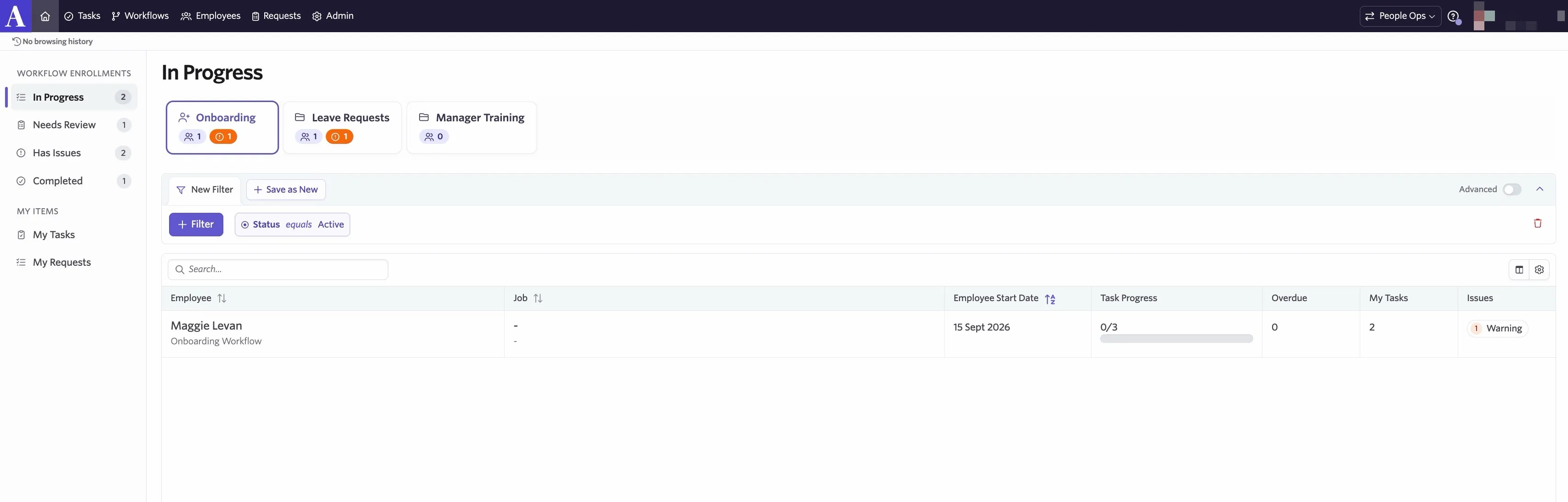
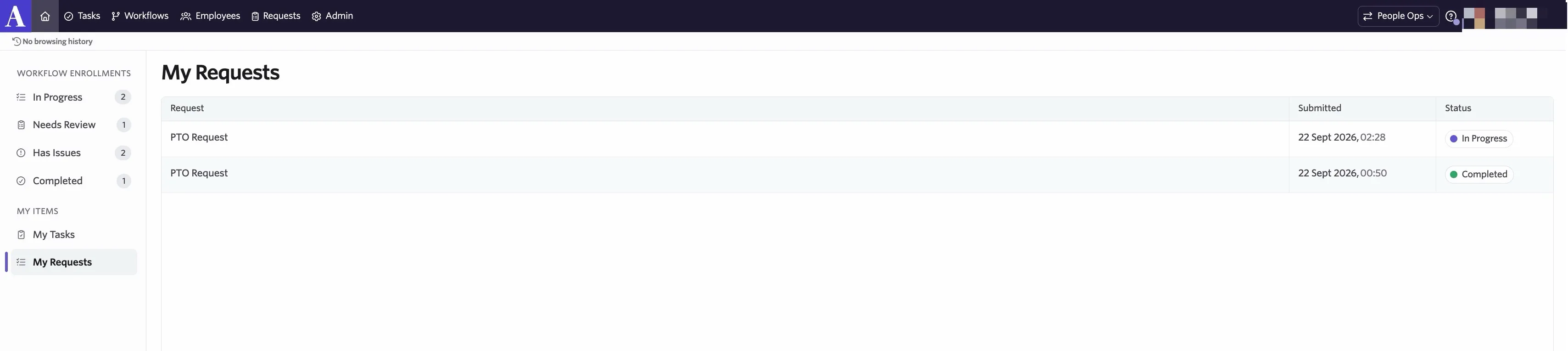
Underneath the status options, you see My Items, where you can view tasks that need your attention and any open requests you have.
Workflows
A workflow is what brings your organization's process into Ashby's People Ops module. Create workflow templates to determine your steps, the step timing and assignees, and the logic that decides which steps apply. When editing templates, Ashby creates a version and changes only take effect when you publish. On publishing, you choose whether and how the changes affect employees already enrolled.
A workflow enrollment results when an employee is enrolled in a workflow template. Enrollments have a status of Active, Completed, or Cancelled.
For further information on workflow types, check out Onboarding Workflows vs. Form-Triggered WorkflowsOnboarding Workflows vs. Form-Triggered Workflows.
Employees
The employee record is the object every workflow runs against. Navigate to People Ops > Employees to see the directory, and search by name or email to find someone.
Selecting an employee opens their profile in a pullout with four tabs:
- Basic Info: Name, Email Address, Personal Email, Location, Timezone, and phone numbers.
- Offer Details: the Offer fields you have view access to.
- Custom Fields: the People Ops and Recruiting employee custom field values.
- Profile Questions: read-only responses collected from the employee.
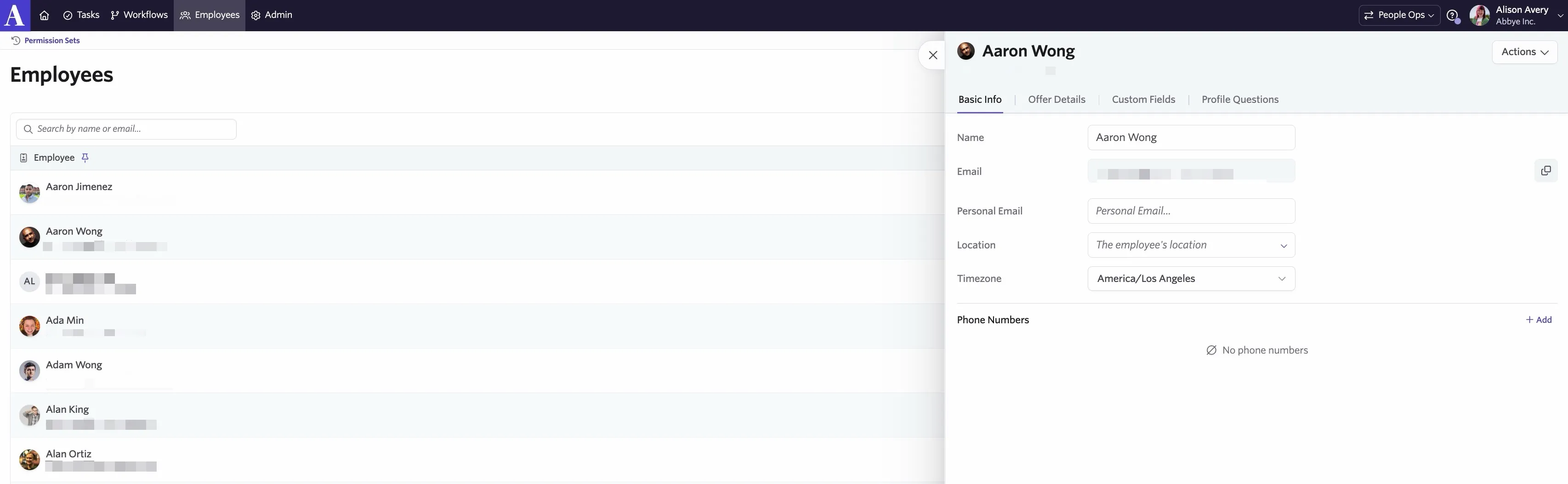
To start a workflow from here, select Actions, then select Enroll in Onboarding Workflow.

Ashby creates the employee record automatically the first time you open the onboarding enrollment wizard for a hired candidate. There's no manual employee creation in People Ops today, so an employee appears in the directory once someone begins enrolling them, or when they are added as an employee within Ashby Recruiting. Employees are shared across both Recruiting and People Ops.For more on enrolling an employee, check out Starting a form-triggered workflow.
Reports & Dashboards
Reporting in People Ops uses the same report builder as Recruiting. Users with the View Reports permission see the Reports and Dashboards sections in People Ops. Grant this at People Ops > Admin > permission sets > Add or Edit a permission set > App.
For more on reporting in Ashby's People Ops module, check out Reporting Access & PermissionsReporting Access & Permissions and People Workflows Reporting SubjectsPeople Workflows Reporting Subjects.
Admin
Everything you configure globally lives under People Ops > Admin.
Each page requires its own admin access, so the pages you see depend on your permission set.
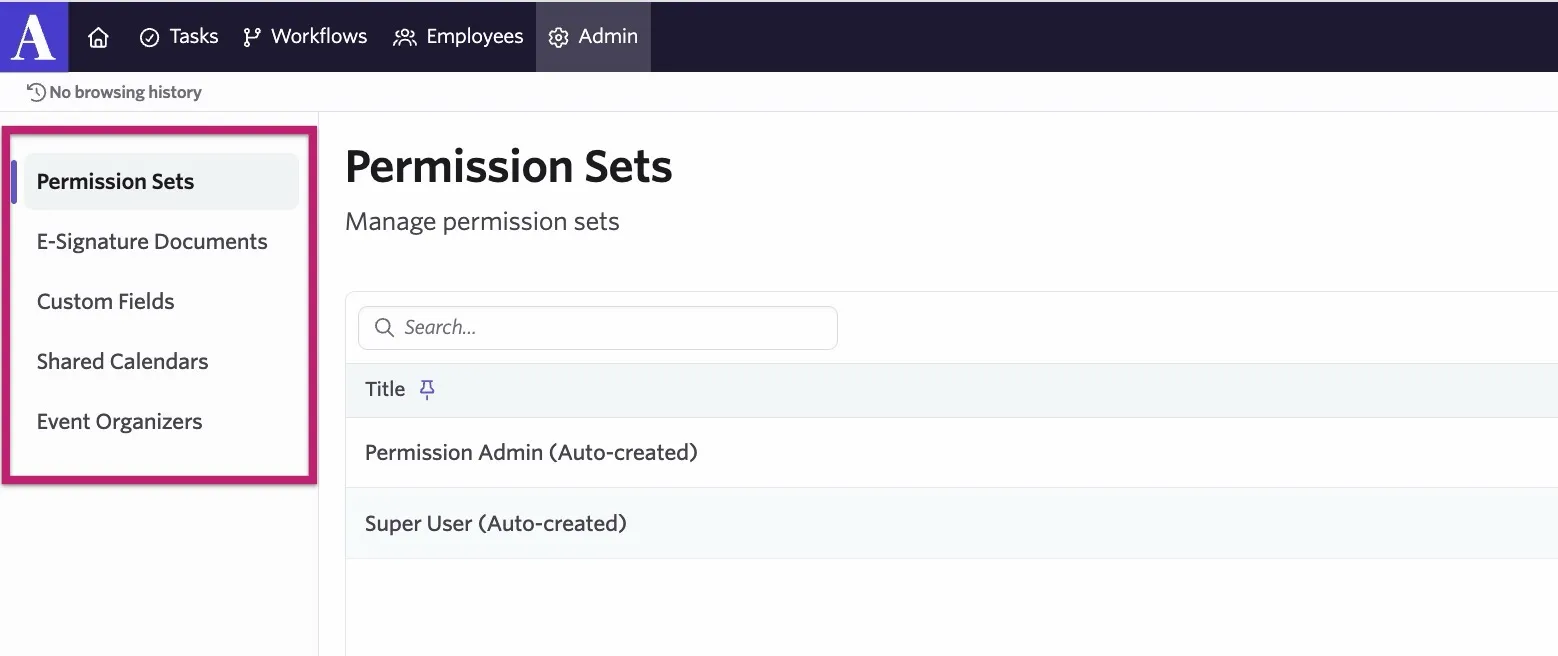
- Permission Sets: create and edit the permission sets that govern People Ops access. For more on configuring these, check out Configure Permission SetsConfigure Permission Sets
- E-Signature Documents: manage E-Signature Document Tokens and E-Signature Document Templates for use in e-signature workflow steps. For more on setting these up, check out Configure E-Signature DocumentsConfigure E-Signature Documents
- Custom Fields: create and manage employee custom fields on the Employee tab. Want to know more? Check out Configure Employee Custom FieldsConfigure Employee Custom Fields
- Shared Calendars: configure which calendars are available for hosting onboarding meetings. More on this at Setting up a Shared Calendar for Event stepsSetting up a Shared Calendar for Event steps.
- Event Organizers: configure the user Ashby acts as when it creates and updates calendar events. You can read more on this at Workflow Steps: EventsOrganizers
Enrolling new hires
Once you have configured your first workflow, you may want to test it before using it in real scenarios. For more on creating a test new hire, check out Creating a Test New HireCreating a Test New Hire. For more on enrolling new hires, check out Enroll New Hires in Onboarding WorkflowsEnroll New Hires in Onboarding Workflows.
FAQs
Do I need a separate Ashby seat for People Ops?
No. People Ops is priced on company headcount rather than seats, so there's no limit on how many users you involve in workflows. Talk to your Ashby contact about your specific plan.
Can a Recruiting Limited Access user work in People Ops?
Yes. Any user with an Ashby login can switch to People Ops, and what they see there is governed by their People Ops permission set. A Limited Access user with People Ops reporting permissions can reach Reports and Dashboards from People Ops but not from Recruiting, and they can't use Recruiting subjects that require Elevated Access, such as Jobs, Interviews, or Application Forms.
Why do I see "Access denied" on a report?
Three causes account for most cases: the report includes a sensitive column and your permission set grants no employee access, you're filtering or sorting by a field you don't have access to, or you're running a calculation on a restricted field.
Can I use Calculated Fields and Formula Fields in People Ops?
Yes. If you have access to Calculated Fields or Formula Fields in Recruiting, you can use them in People Ops. Create them ad hoc within a report, or define a reusable field from the Recruiting admin area.
Does the Reporting Assistant work with People Ops subjects?
Yes, you can use the Report Builder & AI-Assisted Report Builder to build People Ops-related reports.
Are there prebuilt reports or dashboards for People Ops?
Not currently. Build the reports your team needs from the three People Ops subjects, and save them as views your stakeholders can reference. Custom reports are available on the Legacy Plus, Plus, and Enterprise plans. More on custom reports at Custom Reports.
Why can I only complete some of the tasks I selected?
Only steps with the Task type can be marked complete from the Tasks page. Other step types complete when their action finishes, or through Skip or Retry.
Can another system push data into Ashby through a webhook?
Not today. Webhook steps send data out of Ashby only. Use the user.info API endpoint to pull employee and custom field data into an external system on your own schedule.
How does the experience look for a new hire?
For more on the new hire's experience, check out Getting Started for New HiresGetting Started for New Hires.
Can I resend a workflow step notification to remind assignees to take action?
You can, yes. For more on this, check out Resend Workflow Step Notifications.