Workflow Steps: Events
Events steps in Ashby's People Ops Workflows take the manual work out of onboarding scheduling. Event steps automatically create and send calendar invites for key meetings (from manager 1:1s to I-9 verifications) so nothing falls through the cracks. Ashby even handles the complexity of new hires who don't yet have a work email, staging those invites as pending and converting them into real calendar invites once a work email is provisioned.
Ashby's People Ops module is currently available through restricted early access. The following documentation is provided for design partners participating in that program.
Permissions and access
To add an Events step, you need view and edit access to the workflow. Your permission set grants this access to either all workflows or specific workflows.
Learn more about Ashby's People Ops permission sets: Configure Permission SetsAdminister permission sets.
Configure an Events step
To add an Events step, navigate to Ashby's People Ops module and complete the following steps:
- Open an existing People Workflow.
- Click Edit Workflow Template in the upper right, then Edit again on the Workflow overview page.
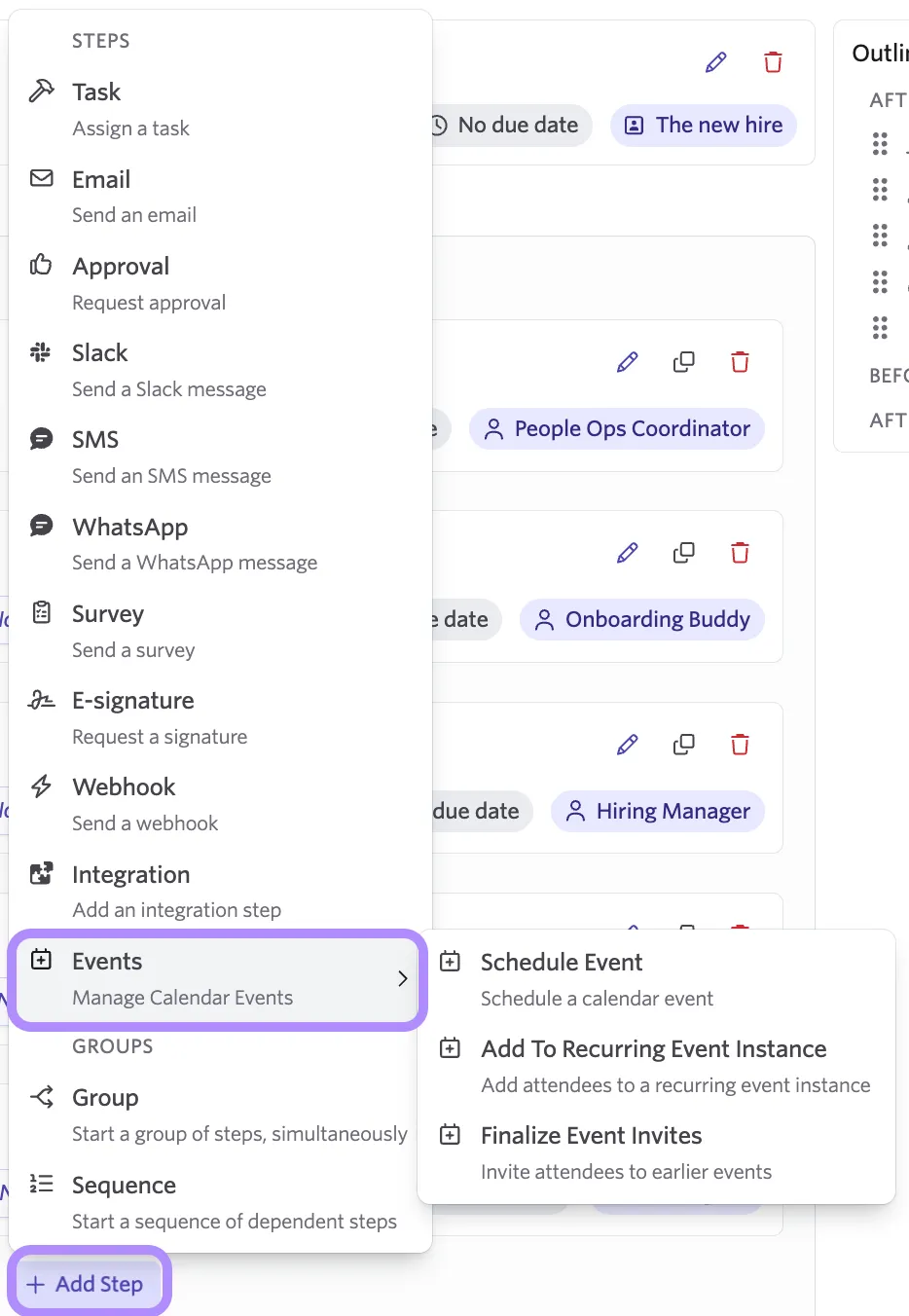
- Select + Add Step and select Events.
You see three Events step types, each configured independently:
- Schedule EventSchedule Event: Schedules and creates a calendar event for defined attendees.
- Add to Recurring Event InstanceAdd to Recurring Event Instance: Adds attendees to the next occurence of the event.
- Finalize Event InvitesFinalize Event Invites: Finalizes any pending invites from earlier Schedule Event or Add to Recurring Event Instance steps.
Schedule Event step
When the Schedule Event step runs, Ashby finds an available time within your configured constraints and creates the event. It respects organization-wide working hours and personal working hour settings, and doesn't schedule over existing calendar events.
When setting up a Schedule Event step, configure the following:
Calendar
Select the calendar where the event should be created.
You can choose either:
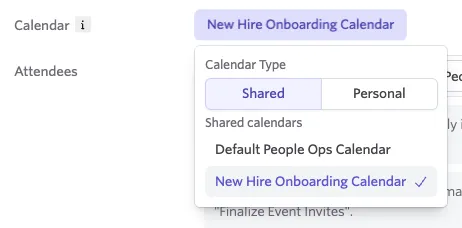
- A shared calendar configured in People Ops Admin's Shared Calendars settings.
If you select a shared calendar, Ashby creates and manages the event as the Organizer configured for that shared calendar in People Ops Admin's Event Organizers settings.
- A personal calendar.
If you select a personal calendar, Ashby creates and manages the event as that calendar's owner.
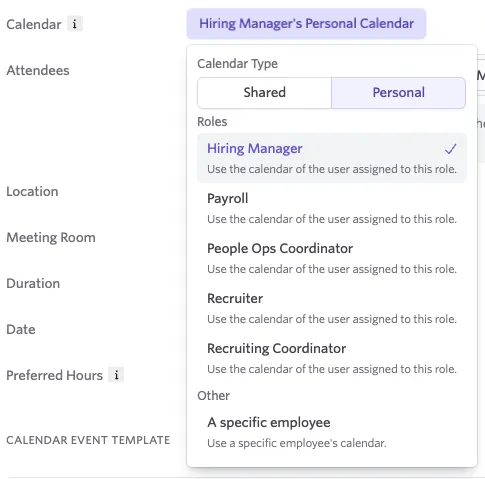
The calendar owner or configured organizer is not added as an attendee by default. Add them as an attendee if they should receive the invite.
For more on setting up shared calendars in Ashby People Ops, see Setting up a Shared Calendar for Event stepsSetting up a Shared Calendar for Event steps.
Attendees
Add everyone who should attend the event, including the organizer if they're participating.
For recipients, choose how Ashby handles their email address:
- Work: Uses the work email if it's in Ashby when the step runs. If not, the invite is staged as pending and sent later by the Finalize Event Invites step.
- Personal: Uses the personal email when the step runs. No work email is added later.
Automatic: The email used depends on the workflow type and recipient.
- For a new hire in an onboarding workflow:
- Before their start date: uses their personal email.
- On or after their start date: uses their work email. If they don’t have an active Ashby account with a work email yet, it falls back to their personal email.
“Before” or “after” their start date is based on when the step runs, not when the event happens. If the step runs before the new hire's start date, the invite goes to their personal email even if the event is after their start date.
The work email is not added to the invite later. “Work” is the only option that waits for the for “Finalize Event Invites” step.
- Everyone else (roles like People Ops Coordinator, specific users, and an employee in a form-triggered workflow)
- Uses their work email if they have one, otherwise their personal email. Start date is not taken into account.
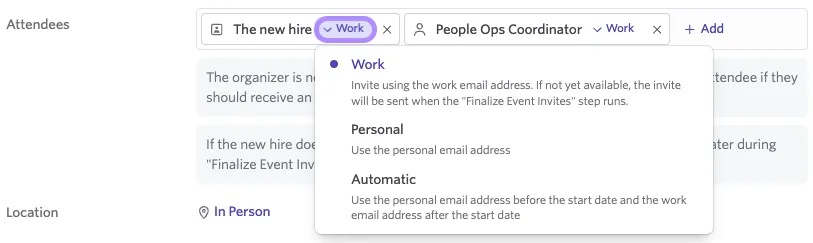
Work is the default setting for participants in Schedule Event steps.
Location
Choose where the meeting will take place:
- In Person: Set an address or meeting room for the event.
- Phone Call: Share a phone number with attendees.
- Zoom: A unique Zoom meeting link is shared with attendees.
- Google Meet: A unique Google Meet link is shared with attendees.
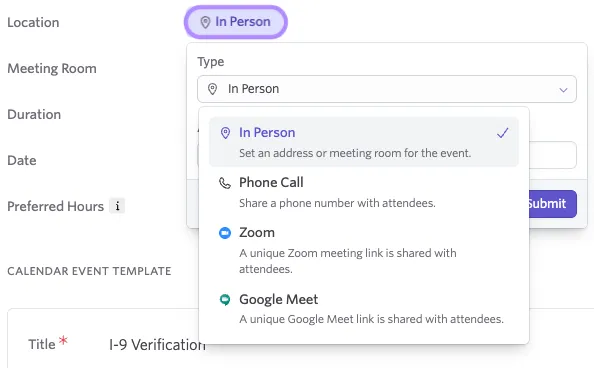
Video conferencing options depend on which integrations are enabled in Ashby Recruiting's Integrations settings. If an integration isn't configured correctly, the step fails. Check with your Ashby Recruiting admin to confirm which integrations are enabled.
The location appears in the calendar invite just as it would for any other event.
Meeting room
Optionally assign a physical room for the event. Select from specific meeting rooms synced from your calendar integration, or from Meeting Room Pools configured in Ashby Recruiting. When the step runs, Ashby checks room availability alongside attendee calendars and books an available room.
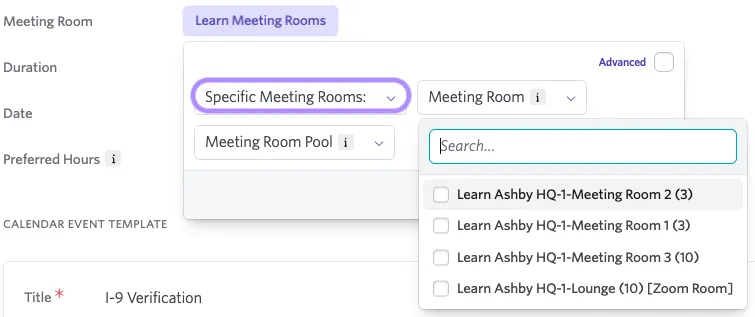
Meeting rooms and meeting room pools are managed by your Ashby Recruiting admin. Learn more at Meeting Rooms & Meeting Room Pools.
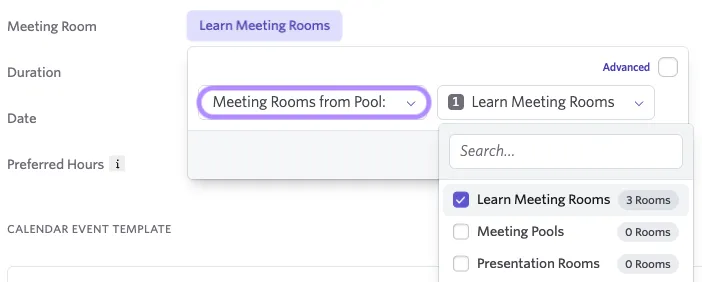
If no rooms are configured and a room is required, the step fails.
Duration
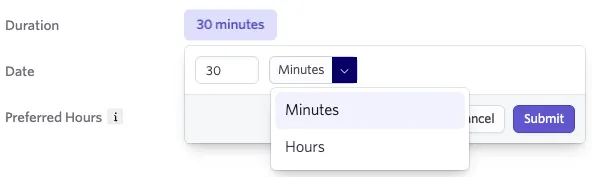
Set the event duration either in minutes or hours.
Date
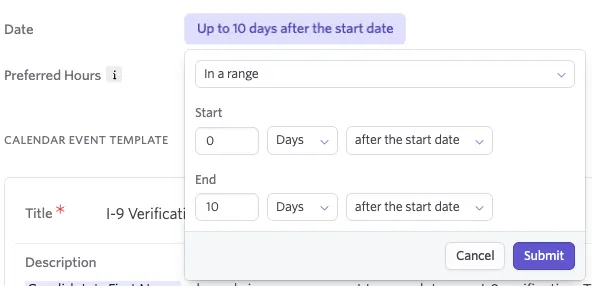
Define the scheduling window relative to a reference date in your workflow (e.g., on the start date or up to 10 days after the start date). Ashby searches day by day from the earliest eligible date.
Scheduling hours
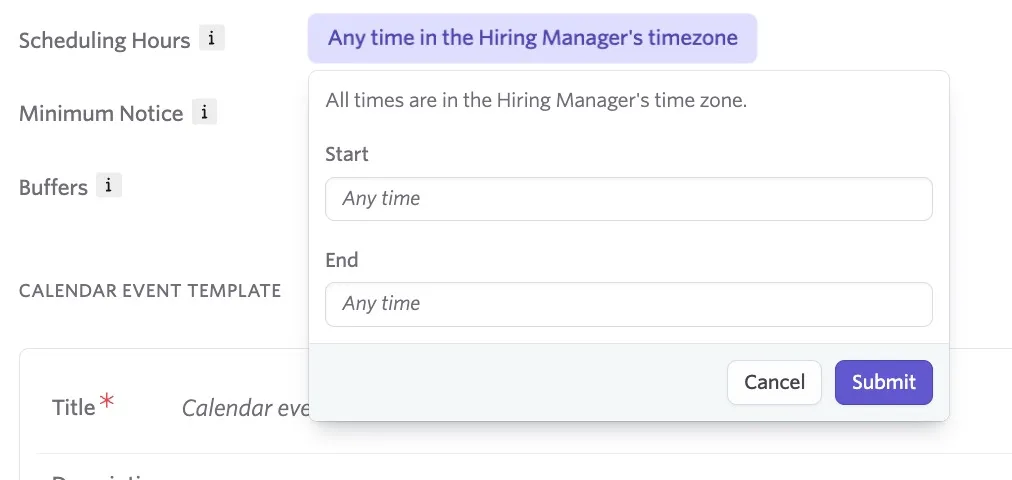
Set a preferred time-of-day window using the organizer's time zone. Ashby tries to schedule within this range. If no availability exists, the step fails and an admin is prompted to edit and retry. Learn more in Events that failed to scheduleEvents That Fail To Schedule.
Minimum Notice
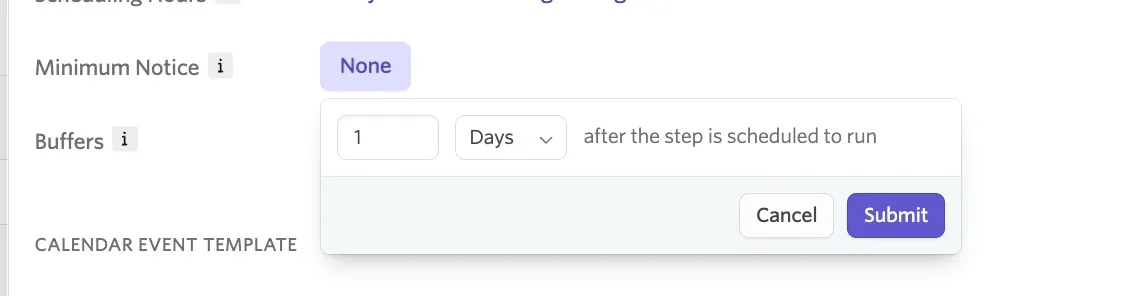
The Minimum Notion option allows you to set a delay to the event's scheduled time to avoid new hires being scheduled same-day if the step runs at a point within the scheduling window.
For example, if you had a scheduling window with a Start range of 0 days after the start date and an end of 10 days after the start date, if the step runs 2 days after the new hire's start date, then the event could be scheduled for the same day. If you have a one day minimum notice set, then the event would be scheduled three days after the start date at the earliest (so the following day), ensuring there are no last-minute events being scheduled.
The minimum notice can be set in days or hours. Click Submit to confirm your minimum notice and add it to the event step settings.
Buffers
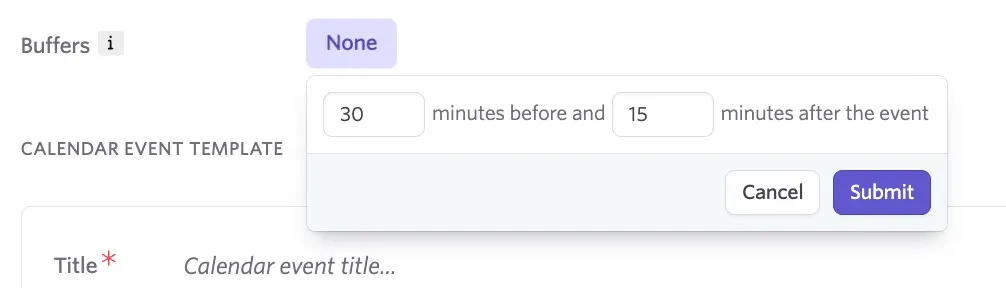
You can add buffers pre- and post-event to avoid back-to-back events on your calendar. Add in the number of minutes before and after the event, then click Submit to confirm.
Calendar event template
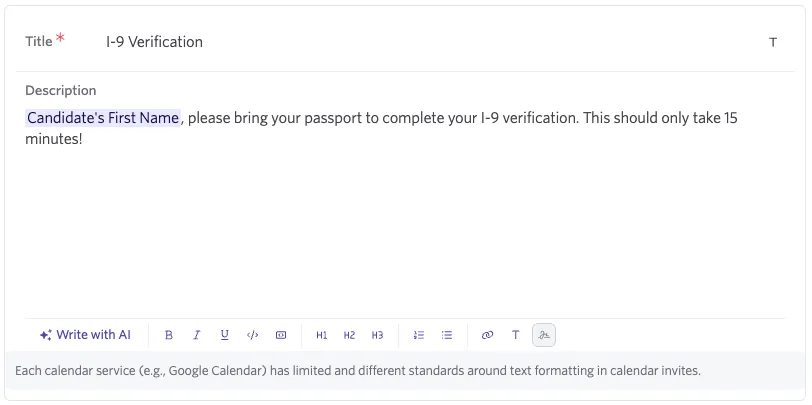
Set the title and description for the calendar invite. Both support tokens for personalization. Calendar services (Google Calendar, Microsoft 365) have limited and inconsistent support for rich text formatting in invite descriptions.
Subject and body
Write the email subject and email body using your organization's tokens to personalize the message, for example, pulling in the workflow enrollee's name or answers from an earlier survey step.
The email editor supports the following features:
- Text formatting
- Code lines and blocks
- Numbered and bulleted lists
- Hyperlinks
- Substitution tokens
- Images
For images, we recommend using a minimum resolution of 1000px on the largest dimension of the image (for example, 1024px x 256px for an image with a 4:1 ratio, or 512 x 1024 for an image with a 1:2 ratio).
- Write with AI (more on this at AI Content Assistant)
- HTML Headers and Footers
- File attachments
Add substitution tokens
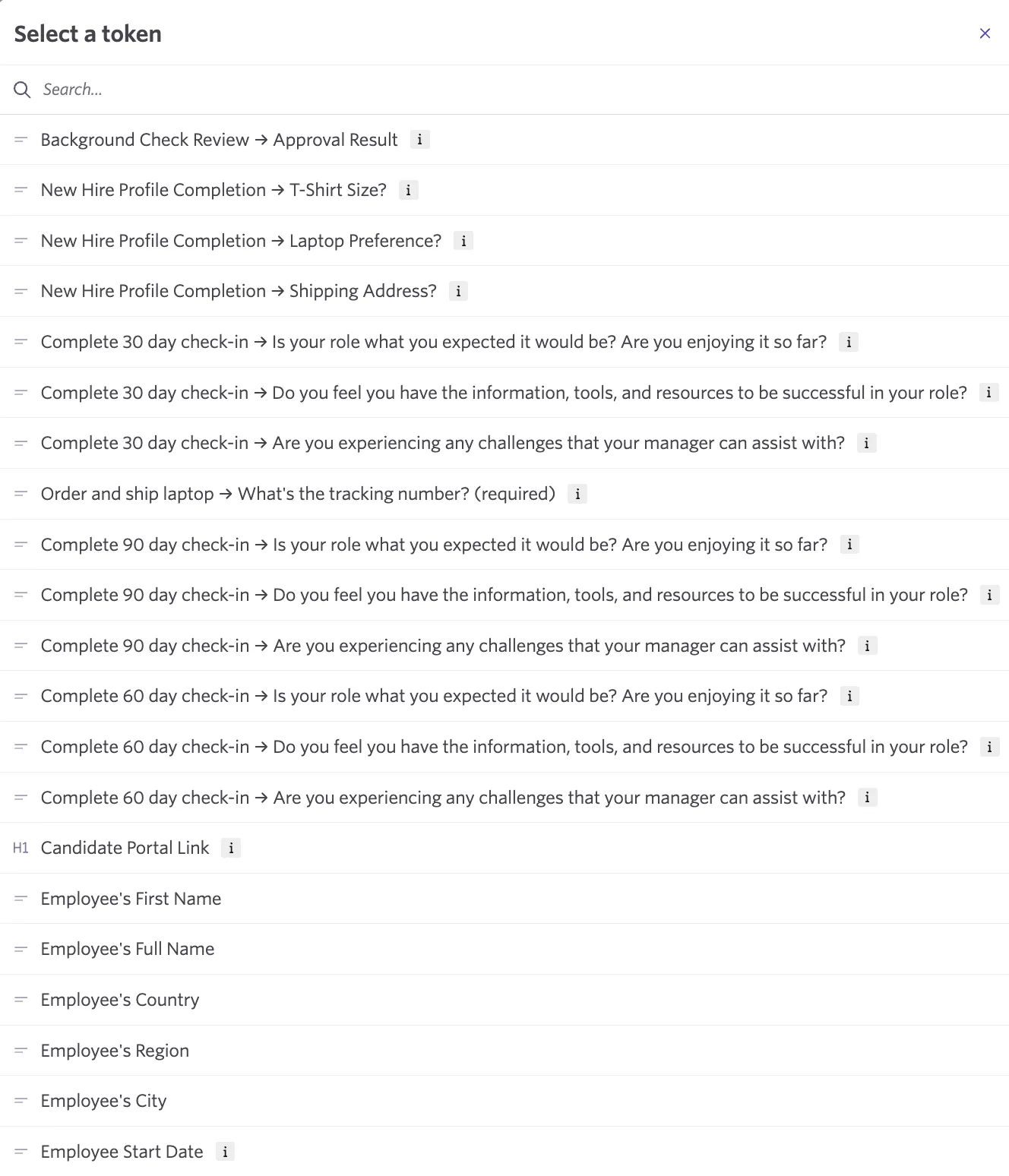
Substitution tokens allow you to pull information about the workflow enrollee into the emails you send out from Ashby. They can be added to both the email's subject and body.
To add substitution tokens, click the T icon in the toolbar either by the subject line or in the toolbar under the body of the email. From here, search for the specific token you need.
Run the Schedule Event step
Once the step runs, if the organizer is also added as an attendee, they receive an email summary of the scheduled event from Ashby.
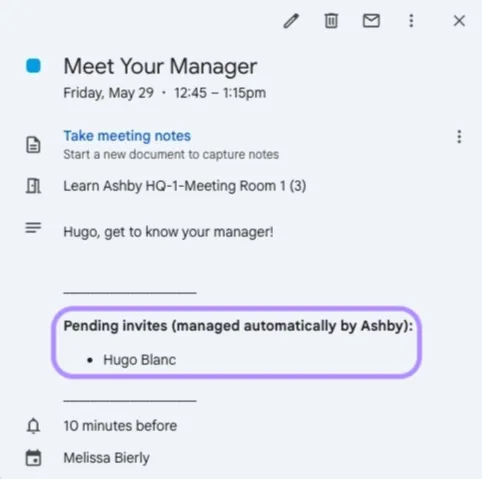
If a participant's email is set to Work but no work email has been entered in Ashby yet, their invite is staged as pending. The event is still created on the host calendar, and pending invitees are listed in the event description so the organizer has visibility. These pending invites are converted into real invites when a Finalize Event Invites step runs later in the workflow.
Add to recurring event instance
Many onboarding meetings already exist on a recurring schedule, like a weekly new-hire orientation or a Monday IT training. The Add To Recurring Event Instance step adds an employee to the next instance of one of these meetings, so you don't have to schedule a one-off event or add people by hand.
Events are matched by title
Ashby finds the recurring event by its exact title on the selected calendar, and treats every recurring event with that title on that calendar as the same meeting. Give the calendar event a unique title so this step works consistently and correctly.
Ashby adds invitees to the first occurrence of the event only
When the step runs, Ashby looks at the calendar you selected, finds the recurring event with the title you entered, and adds your attendees to the earliest instance that starts on or after the date you set. Attendees are added to that single instance only, not to the whole series or to any later occurrences.
When setting up an Add to Recurring Event Instance step, configure the following:
- Calendar
The calendar Ashby searches for the recurring event. Choose a shared calendar or a personal calendar. For a shared calendar, Ashby sends the invite as the calendar's configured organizer; configure the organizer in Admin > Event Organizers. For a personal calendar, the specific employee you choose owns the event, and it lands on their calendar.
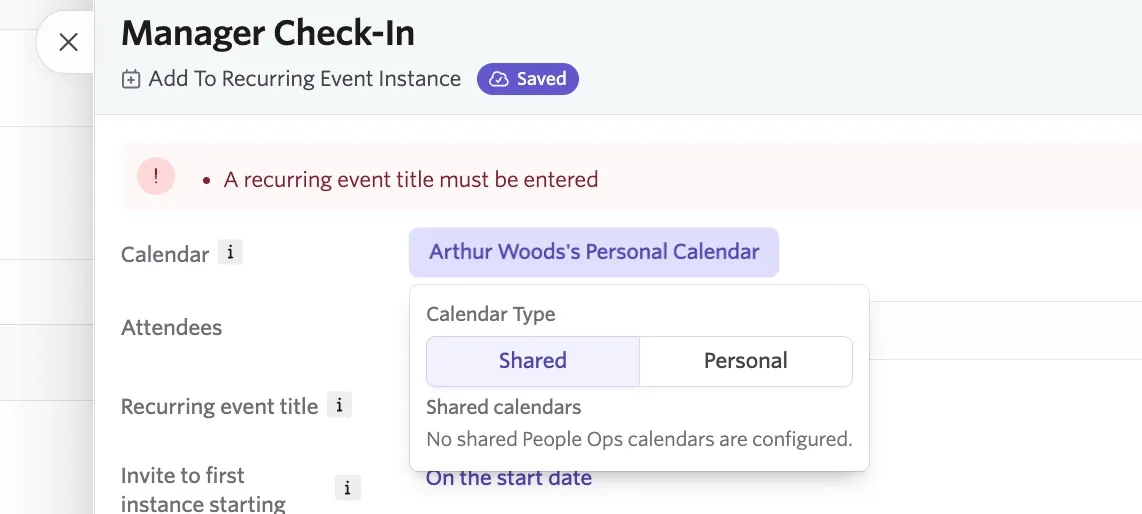
This step doesn't support the default People Ops calendar. Select a specific calendar.
- Attendees: Choose the roles, user accounts, or external email addresses to invite to the event.
- Recurring event title: Ashby matches the recurring event by this exact title on the selected calendar. Type the title exactly as it appears on the calendar. Ashby indicates whether it found the event.
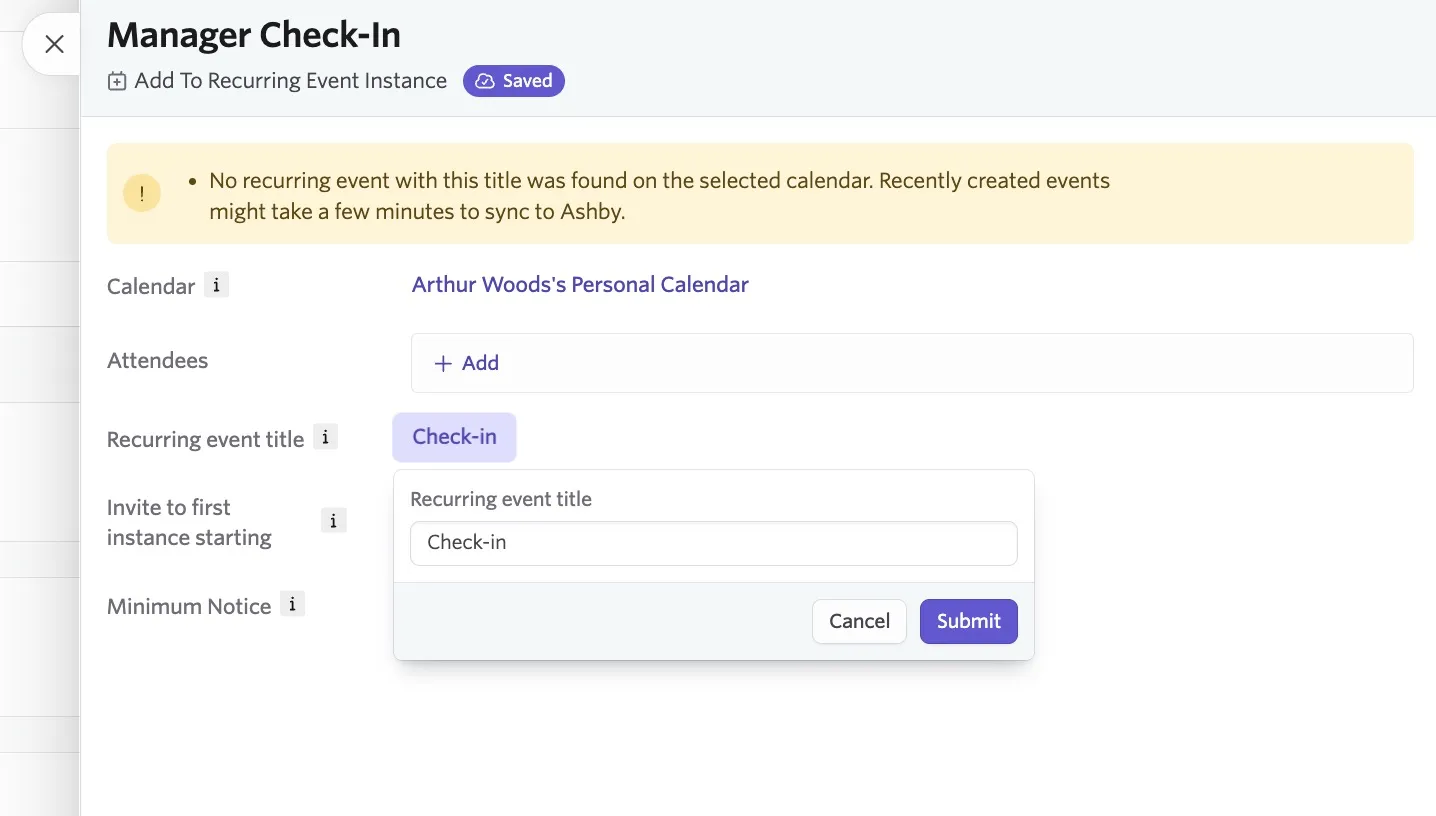
If someone changes the event's title on the calendar afterward (for example, "Welcome HR Call" becomes "Welcome HR Meeting"), Ashby can no longer match the event title and returns an error.
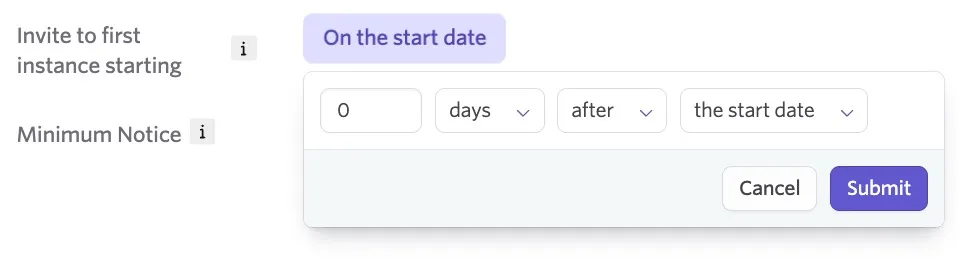
- Invite to first instance starting: Ashby adds your attendees to the first occurrence on or after this date, and only that occurrence, picking the earliest instance starting at or after the resulting date.
- For onboarding workflows, set timing relative to the new hire's start date. If the new hire's start date changes, Ashby re-runs the step: it removes the attendees from the instance it picked before and adds them to the instance that now matches the new date.
- For form-triggered workflows, set timing relative to the workflow enrollment date or the anchor date from a chosen date field for form-triggered workflows.
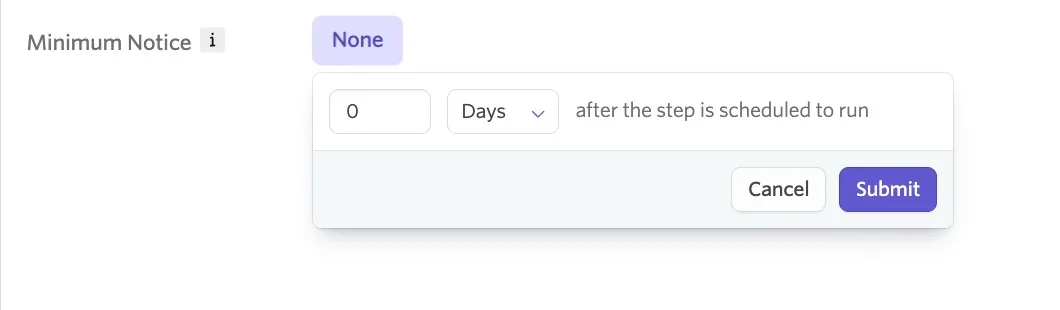
- Minimum Notice: The Minimum Notion option allows you to set a delay to the step to avoid attendees being added immediately to a recurring session.
The minimum notice can be set in days or hours. Click Submit to confirm your minimum notice and add it to the event step settings.
Using Schedule Event and Add to Recurring Event Instance together
To prioritize adding employees to the first instance of an existing recurring event, set the timing (delay) of the Add To Recurring Event Instance step to run at least one hour before the scheduled run time of Schedule Event. Otherwise, Ashby may schedule the employee for a new, separate event that conflicts with the recurring event, delaying them to the next instance of the recurring event.

Finalize Event Invites step
The Finalize Event Invites step converts any pending invites from earlier Schedule Event or Add to Recurring Event Instance steps into real calendar invites. It's designed to run after work emails have been provisioned for participants who didn't have one when the Schedule Event or Add to Recurring Event Instance step ran.
Configuring the step
Select Finalize Event Invites when adding an Events step. Aside from configuring a step title, no additional configuration is required. The step automatically identifies and finalizes any pending invites from earlier steps in the same workflow.
We recommend scheduling this step at a point in your workflow when you're confident work emails will exist (e.g., three days before the start date, or at midnight on the start date in the participant's time zone).
What happens when the Finalize Event Invites step runs
- Pending invites from earlier Schedule Event and Add to Recurring Event Instance steps are converted into real calendar invites, and the event description is updated.
- If there are no pending invites (because all participants already had work emails), the step completes successfully with nothing to finalize.
- If a previously scheduled event was manually deleted before this step runs, the step silently skips it rather than producing an error.
- If multiple events need to be finalized, Ashby processes them one at a time. If one or more fail, the overall step is marked as failed, but successful finalizations are still shown in the step summary.
After the step completes, you can view which invites were finalized in the step summary for that individual.
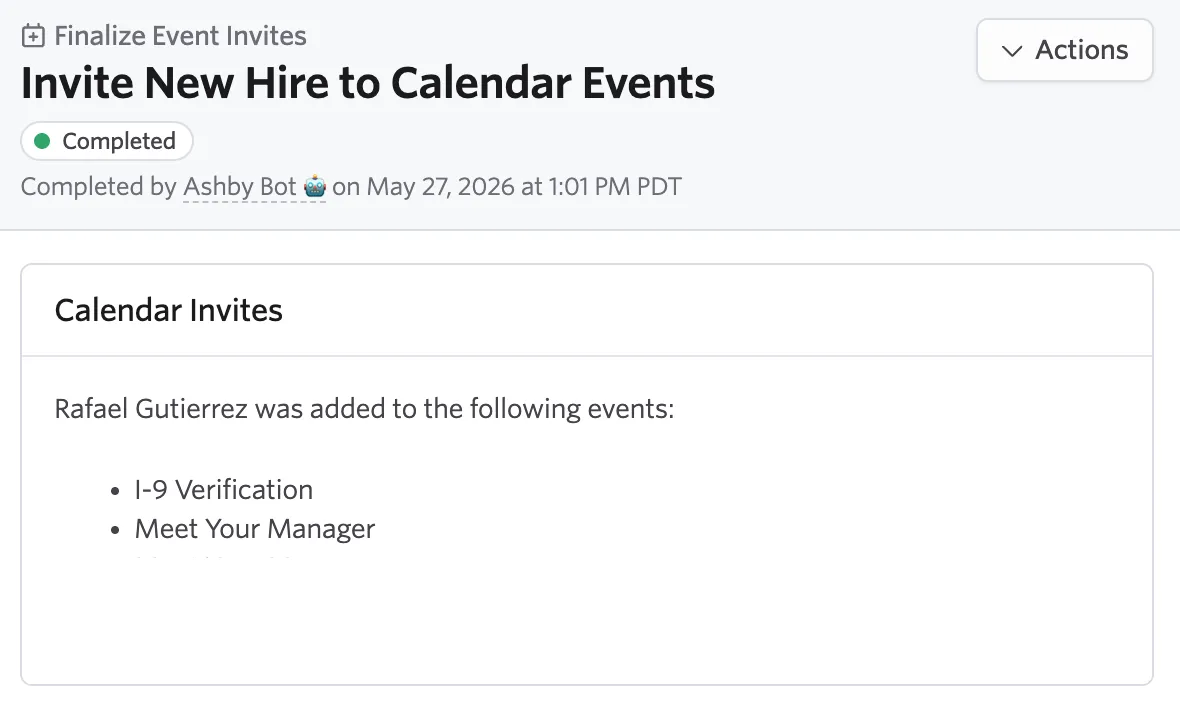
The Finalize Event Invites step may take up to 10 minutes to complete.
Viewing Schedule Event details
Once the step has run for a specific enrollee, you can verify the event in two ways:
- Within the Workflow: Click on the step in the enrollee's Workflow to view an event summary. Any changes made to the event directly in Google Calendar or Microsoft 365 are reflected here.
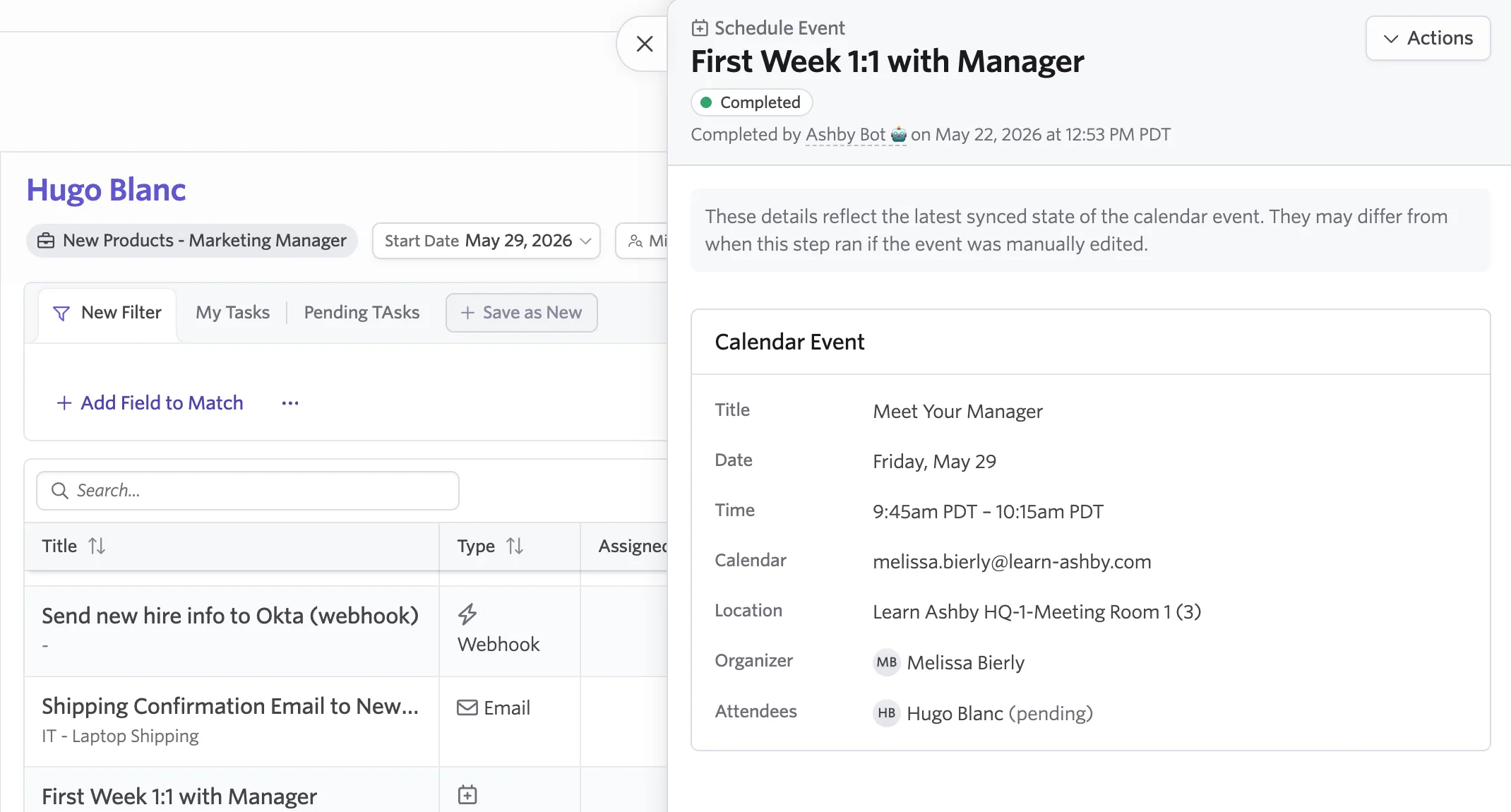
- Within the calendar: Check the calendar where the event was scheduled to confirm the details.
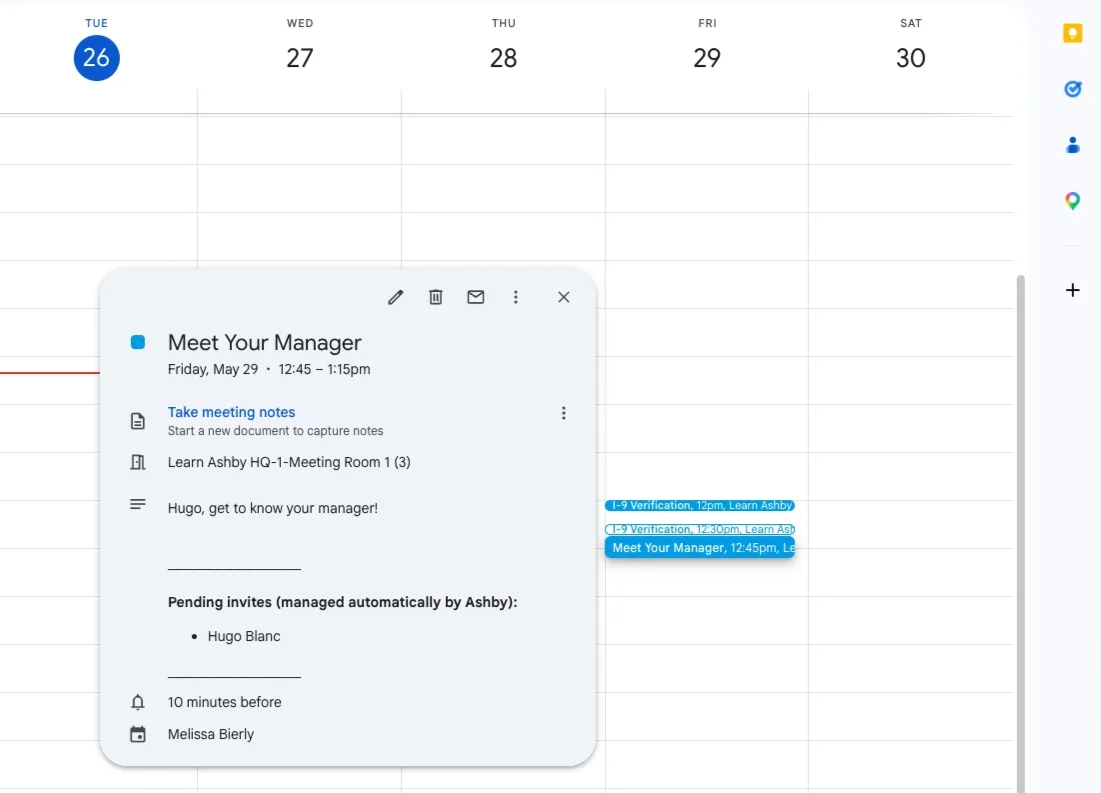
If a new hire does not yet have a work email address when the Schedule Event step runs, and their email type is set to Work, they appear as a pending attendee.
This is because Ashby cannot add a calendar invitation to their calendar until their work email has been created. The pending status is automatically removed from the list of attendees once the Finalize Event Invites step successfully runs.
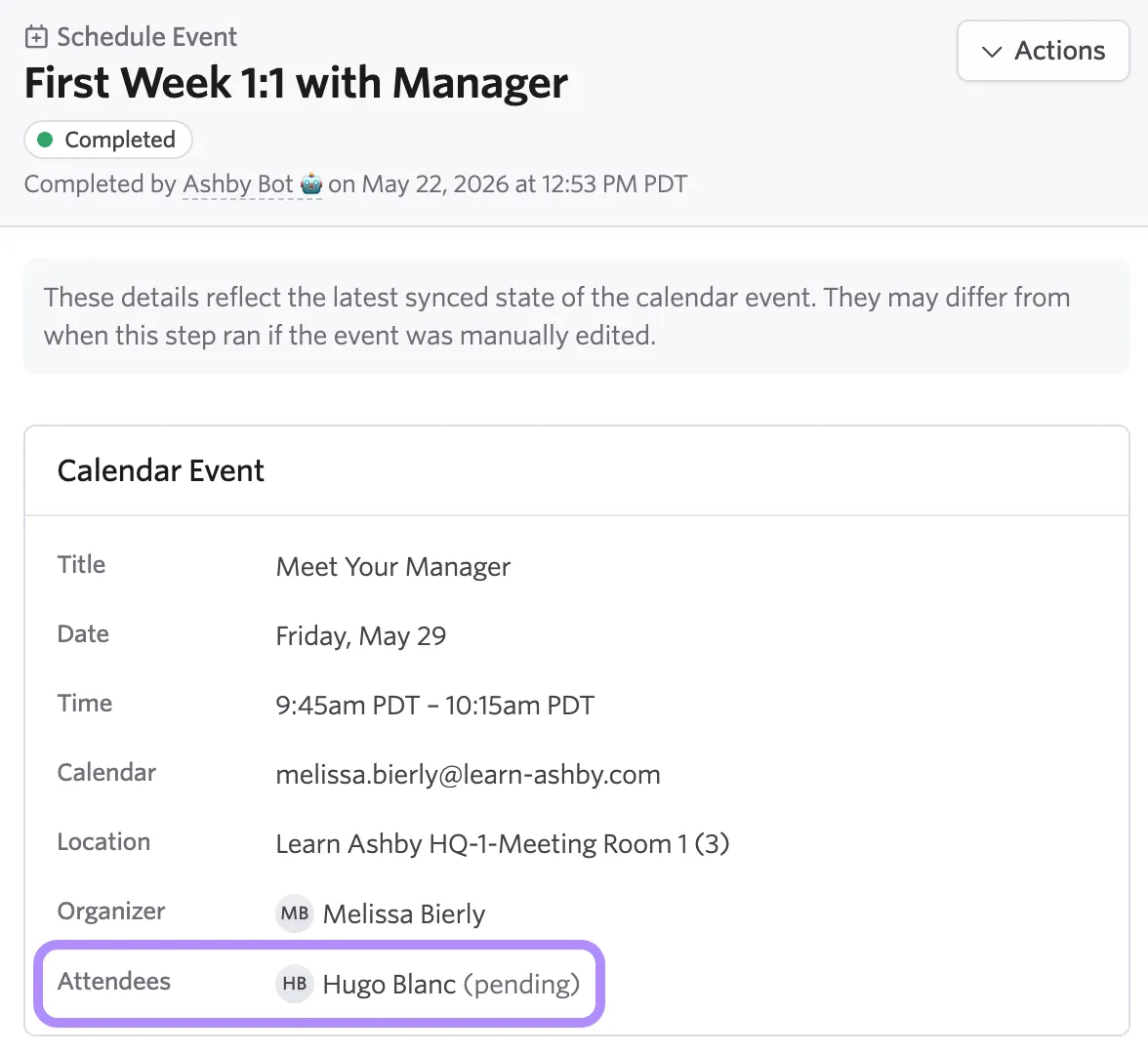
The event is still created on the host calendar, and pending attendees are listed in the calendar event description so the organizer has visibility into who will be invited once the Finalize Event Invites step runs.
Rescheduling events
Successfully scheduled events
To reschedule a successfully scheduled event, navigate to the Schedule Event step in the enrollee's Workflow, select Actions in the upper right corner, then select Reschedule Event.
When prompted "Are you sure you want to reschedule the calendar event?", select Yes.
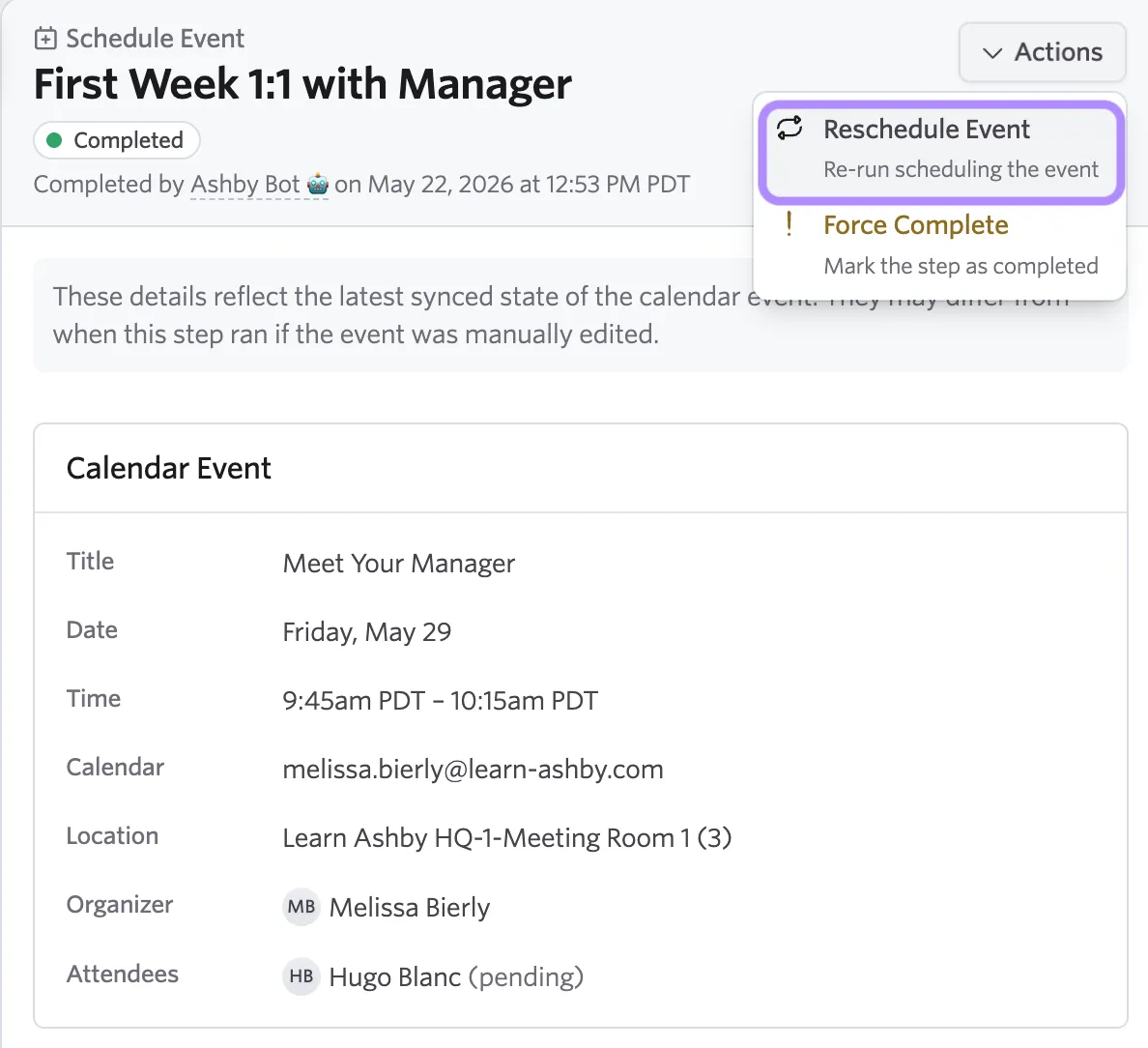
Ashby deletes the previously created event and automatically finds a new time based on current availability and constraints.
The configured organizer, or anyone with write access to the host calendar, can edit or reschedule the event directly in Google Calendar or Microsoft 365. Any changes made there are reflected in the Schedule Event step within Ashby.
Re-try Adding to Recurring Event Instance
You can re-run a completed or pending Add to Recurring Event Instance step to re-review and potentially adjust the recurring event instance the new attendee will be added to. This can be used in the following cases:
- A recipient changed (e.g. a role was reassigned, or the new hire is now past their start date, so “Automatic” picks their work email): the previous person or email is removed and the new one is added.
- The workflow’s start date changed: the target date moves, so people come off the old instance and go onto a new one.
If nothing has changes and you re-try the completed step, then the attendee list and date will remain the same.
Events that failed to schedule
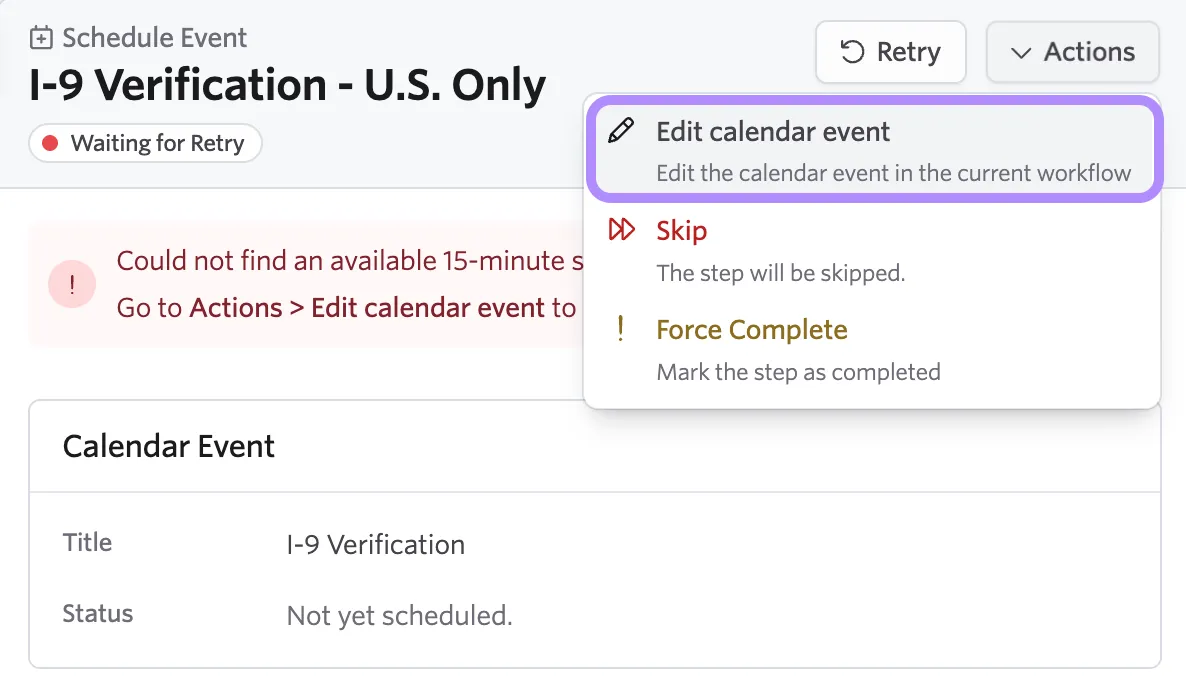
If Ashby can't find an available time slot within the configured Date/Scheduling Hours, the step fails.
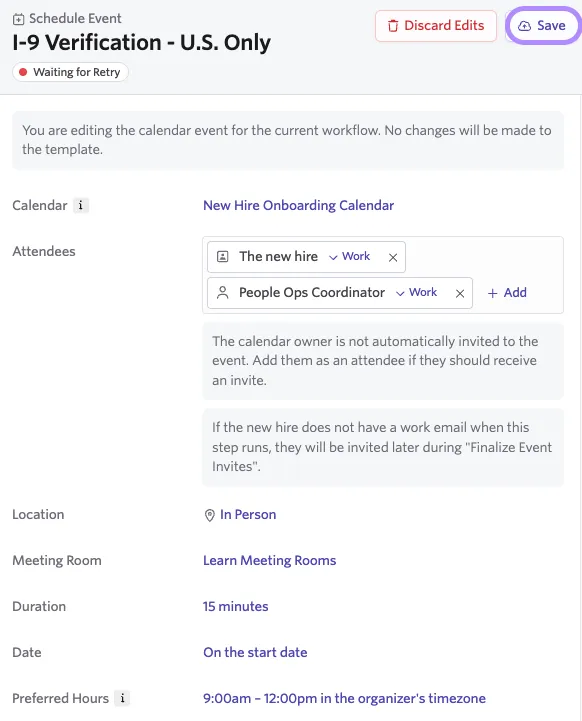
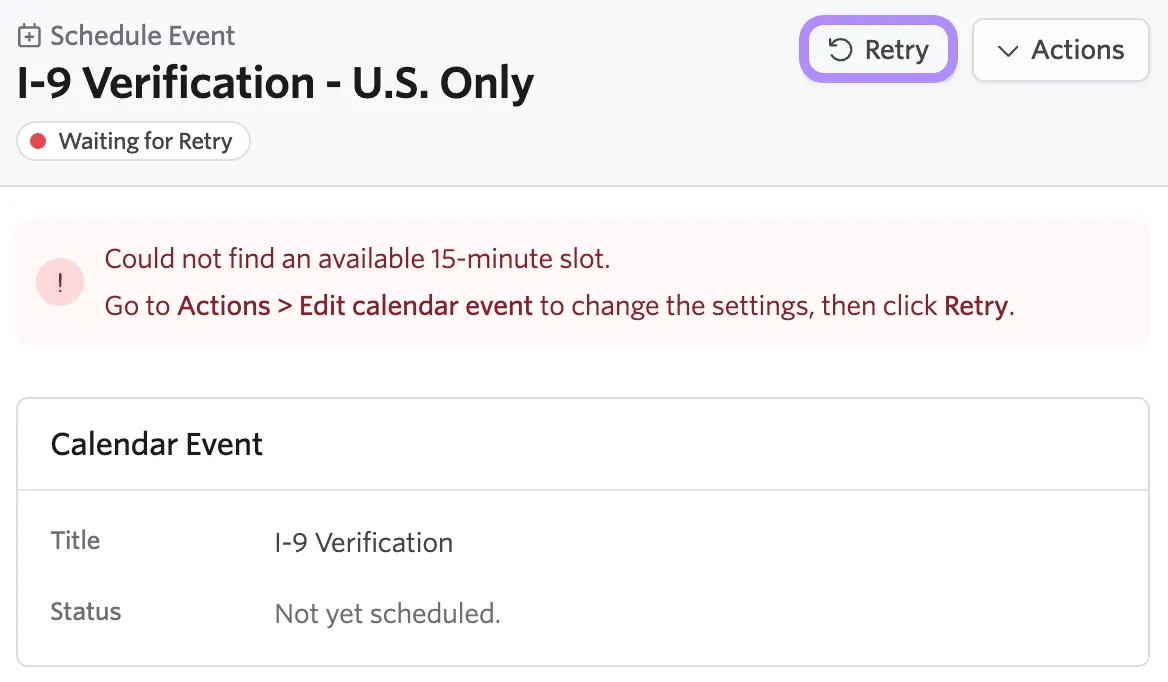
To update the Calendar Event settings and retry the step:
- Navigate to the Schedule Event step in the enrollee's Workflow.
- Select Actions in the upper right corner, then select Edit Calendar Event.
- Update the event settings and select Save.
- Select Retry to re-run the step.
Notifications
Attendees
Attendees receive standard calendar invites through Google Calendar or Microsoft 365, just as they would for any other meeting. If an attendee's invite was staged as pending, they receive the invite once the Event step runs.
Organizers
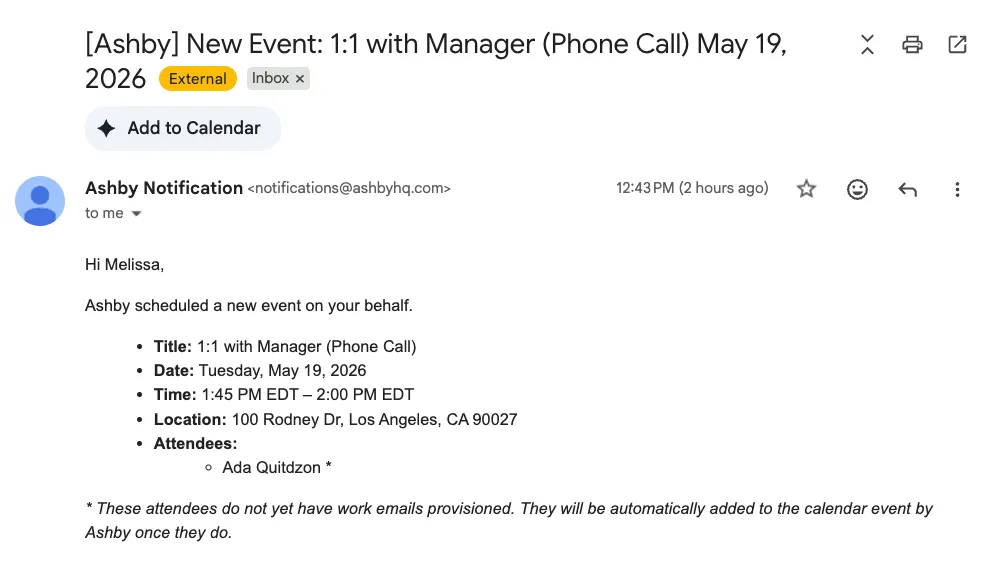
Calendar owners and configured organizers are not automatically invited to the event. Add them as an attendee if they should receive the invite. To keep organizers informed, Ashby sends a separate email summary when the event is scheduled.
This email is only sent when the organizer is also listed as an attendee on the event. If the organizer is providing their calendar for hosting but isn't attending, they don't receive the email.
Adding a new hire's work email to Ashby People Ops
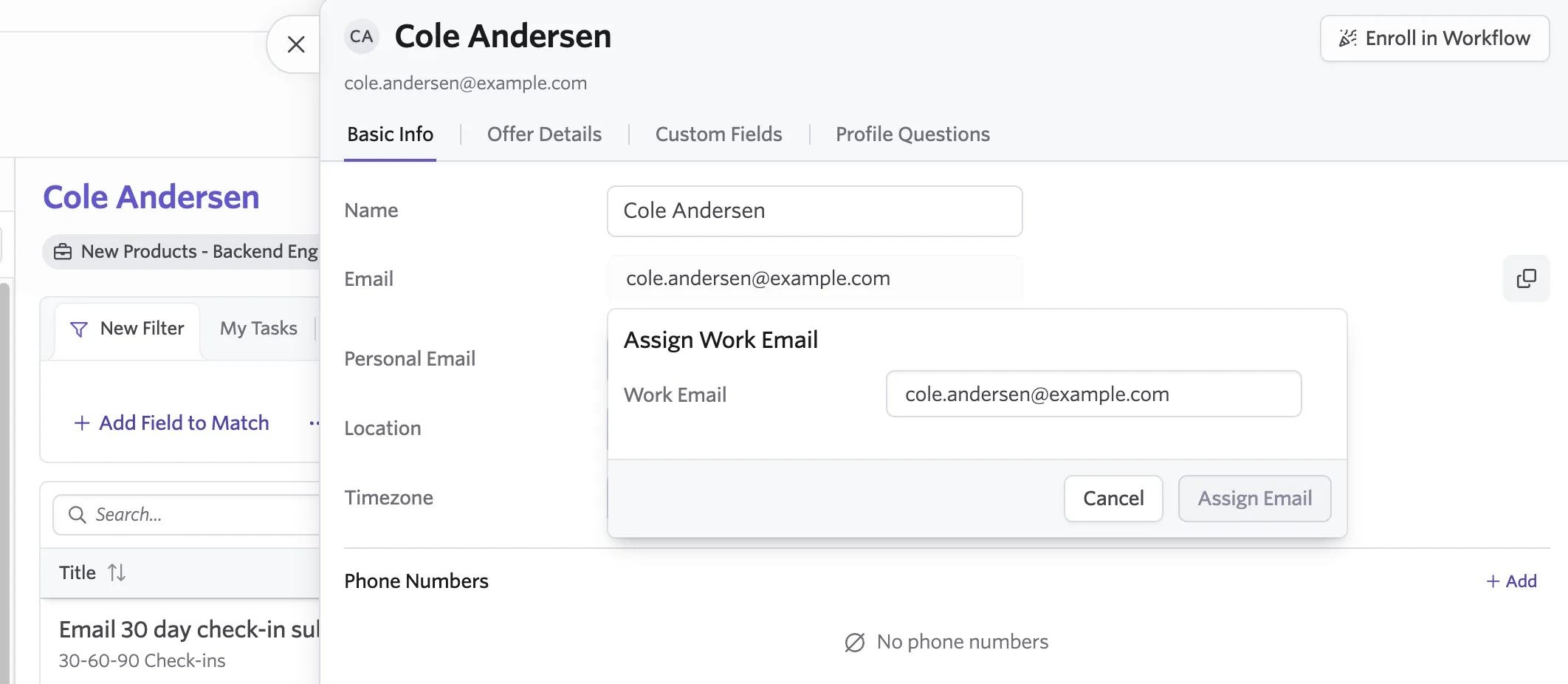
Once the new hire's work email has been provisioned, it must be entered into Ashby before the Finalize Event Invites step can run successfully. You can add it in one of two ways:
- Directly in the employee's profile
- Via a Survey step, where an admin collects and enters the email
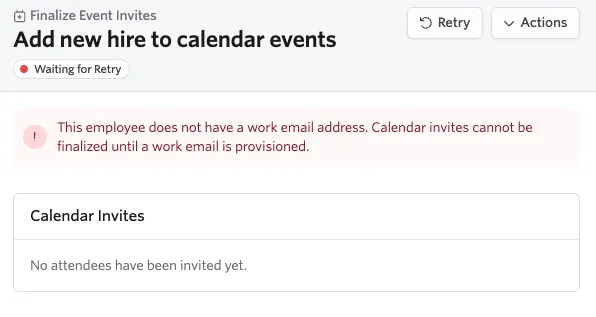
If the work email is not in Ashby when the Finalize Event Invites step runs, the step fails.
FAQ
Can I use onboarding calendars for recruiting, or vice versa?
No. Shared calendars configured in People Ops are completely separate from recruiting calendars. Changes in one module do not impact the other.
Who can edit a scheduled event within Google Calendar or Microsoft 365?
The configured organizer, or anyone with write access to the host calendar, can edit or reschedule the event directly in Google Calendar or Microsoft 365.
If you want someone to be able to reschedule directly from their calendar, either:
- Select their personal calendar in the Schedule Event step, or
- Use a shared calendar whose configured Organizer and permissions support that workflow
For example, if you're using the Schedule Event step to automate a 1:1 between a manager and a new hire, and you want the manager to be able to reschedule directly from their calendar, either set the manager as the organizer using their personal calendar, or host the event on a shared calendar the manager has edit access to.I
Can I add someone to every future instance of a recurring event?
No. The step adds attendees to a single instance: the earliest one on or after the date you configure. To add employees to every instance of an event, such as weekly standups or monthly team-wide meetings, use native calendar functionality such as Google Groups.
Two recurring events on my calendar have the same title. Which one does Ashby use?
Ashby treats same-titled events on one calendar as the same meeting. It looks at the next upcoming instance of each event and adds your attendees to the soonest one.
What happens if I change the recurring event's title on the calendar?
Ashby matches the event by its exact title. If the title no longer matches what's configured on the step, Ashby can't find the event and doesn't add anyone to it. Check the step in the workflow builder: if it doesn't show "Event Found," update the recurring event title until Ashby finds the event, then re-run any needed steps.
What happens when a new hire's start date changes?
Ashby automatically re-runs the scheduling steps. For an Add to Recurring Event Instance step, it removes the attendees from the instance it picked previously and adds them to the instance that matches the new start date. For a completed Schedule Event step, the step is set back to Pending, its dates are recalculated, and it runs again. When it runs, it cancels the event it created before and schedules a new one.
Why is the summary empty right after the Add To Recurring Event Instance step runs?
Ashby adds invites in the background, which can take five to ten minutes. The summary fills in as invites are added. Refresh the page after ten minutes if it's still empty.
Who can re-run or re-trigger a Schedule Event or Finalize Event Invites step within Ashby?
Only users with permissions to edit the workflow and access to the employee can re-run these steps. Attendees and organizers don't have access to these steps in Ashby unless granted workflow access via Configure Permission Setspermission sets. For ad-hoc rescheduling, we recommend granting edit access within the native calendar application.
What happens if a Finalize step runs but there are no pending invites?
The step completes successfully. It's safe to include a Finalize step in your workflow even if some or all new hires already have work emails.