Configure E-Signature Documents
This article explains how to configure e-signature documents in Ashby People Ops so you can collect signatures on documents like offer addendums, non-disclosure agreements (NDAs), equity letters, or compliance forms as part of an onboarding workflow. It covers adding tokens to a document template, uploading and validating the template in Admin, and adding an e-signature step to a workflow.
Ashby's People Ops module is currently available through restricted early access. The following documentation is provided for design partners participating in that program.
If you are looking for the equivalent setup in Ashby Recruiting, see E-Signature DocumentsE-Signature Documents. The template and token configuration is largely the same across both apps.
Prerequisites:
Before you configure e-signature documents in People Ops, you need a completed docx template for the document you want to send (for example, an NDA or equity letter). You should also be familiar with the Configure your Onboarding Workflowonboarding workflows guide, as People Ops sends e-signature documents to employees as a workflow step rather than ad hoc.
Permissions & access
To upload, edit, or manage e-signature document templates and tokens in People Ops, you need a permission set with the Edit e-signature templates app-access permission enabled. For more on configuring permission sets, check out Configure Permission Sets.
Since People Ops does not use paid seats, you can assign this permission to as many users as you want without affecting billing.
To keep e-signature templates locked down to a small group (for example, your core People Ops admins), assign Edit e-signature templates only to the permission sets those users belong to, rather than granting it broadly.
Users without this permission can still be assigned to complete an e-signature step within a workflow they have access to, but they cannot create, edit, or archive the underlying templates or tokens.
Add replacement tokens to your document
To create a valid e-signature document, embed replacement tokens from your document template before you upload it.
- Navigate to People Ops > Admin > Integrations > E-Signature Documents > Tokens.
- Click a token to copy it to your clipboard.
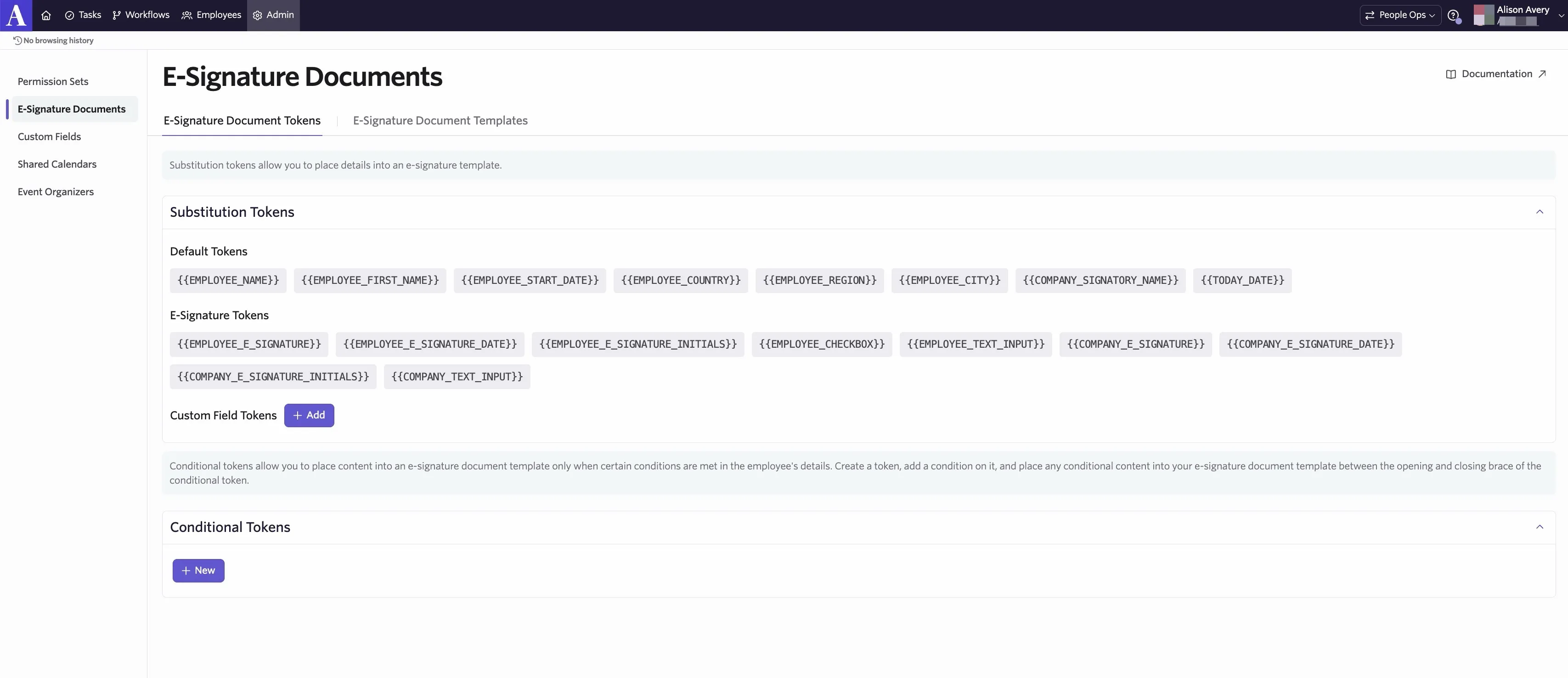
- Paste the token into the appropriate place in your document template.
- Export your document in docx format.
Ashby requires the template to be in docx format when uploaded, so export the completed template to this format before uploading it.
You can generate tokens for employee custom fields you have created in People Ops, allowing you to pull data like start date, department, or job title directly into your e-signature documents. For more on setting these up, see Custom FieldsCustom Fields.
Add text input fields
If you want the employee or company signatory to fill out additional information within the document itself, you can add text input tokens to your template:
- {{employee text input}}: provides the employee a field to add additional text.
- {{company text input}}: provides the company signatory a field to add additional text.
Text input tokens are supported for e-signature documents sent via Dropbox Sign or DocuSign.
When you click the token in the E-Signature Document Tokens tab, select the field size, either from a preset or by setting a custom width and number of lines. Select the Required checkbox if the signer must complete the field as part of signing.
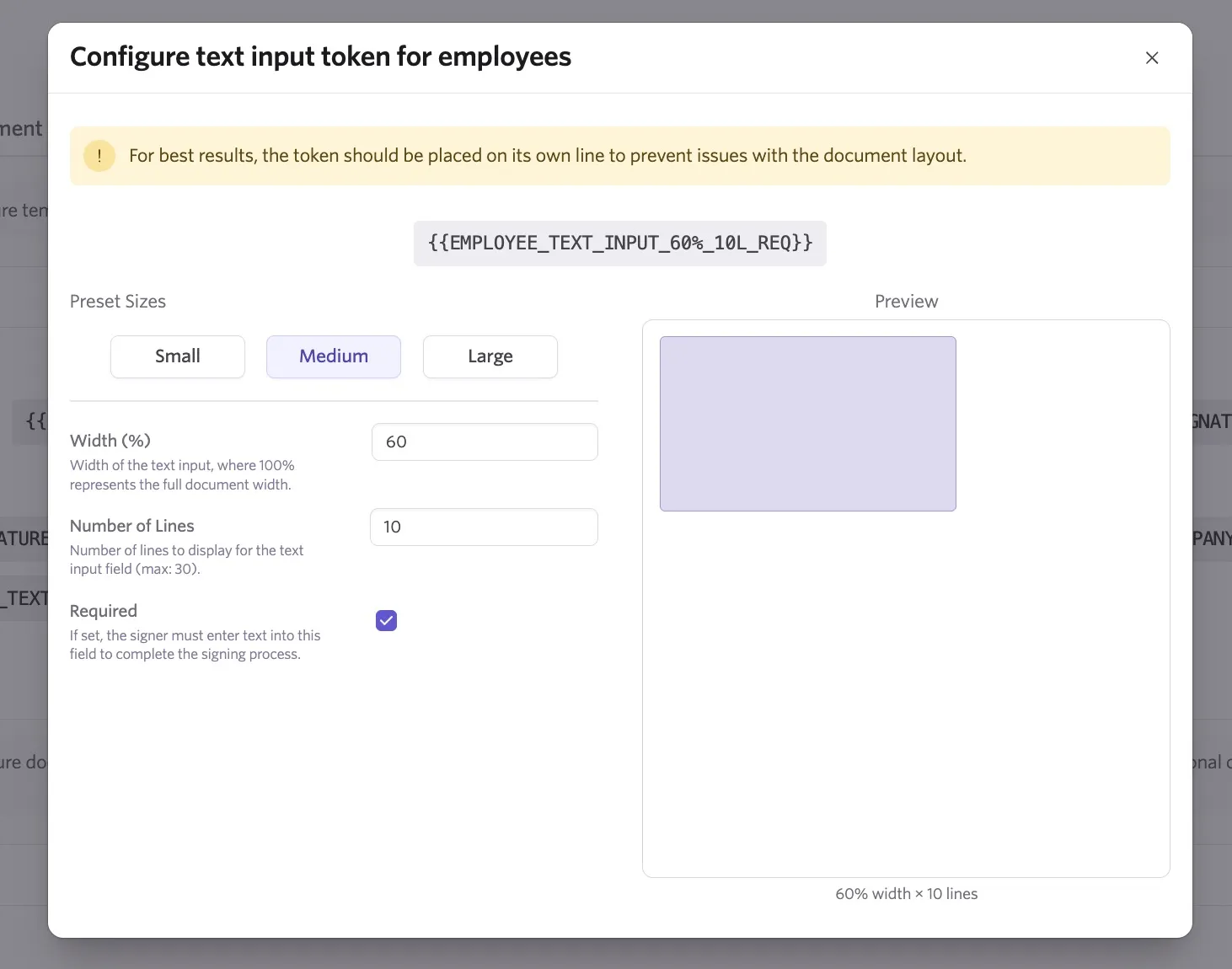
Click the generated text input token above the text input settings, then paste it into your template. Place each text input token on its own line in your document template to avoid layout issues.
Upload and validate your e-signature document template
Once your document is ready:
- Navigate to People Ops > Admin > Integrations > E-Signature Documents > Templates.
- Click + New on the right side of the page.
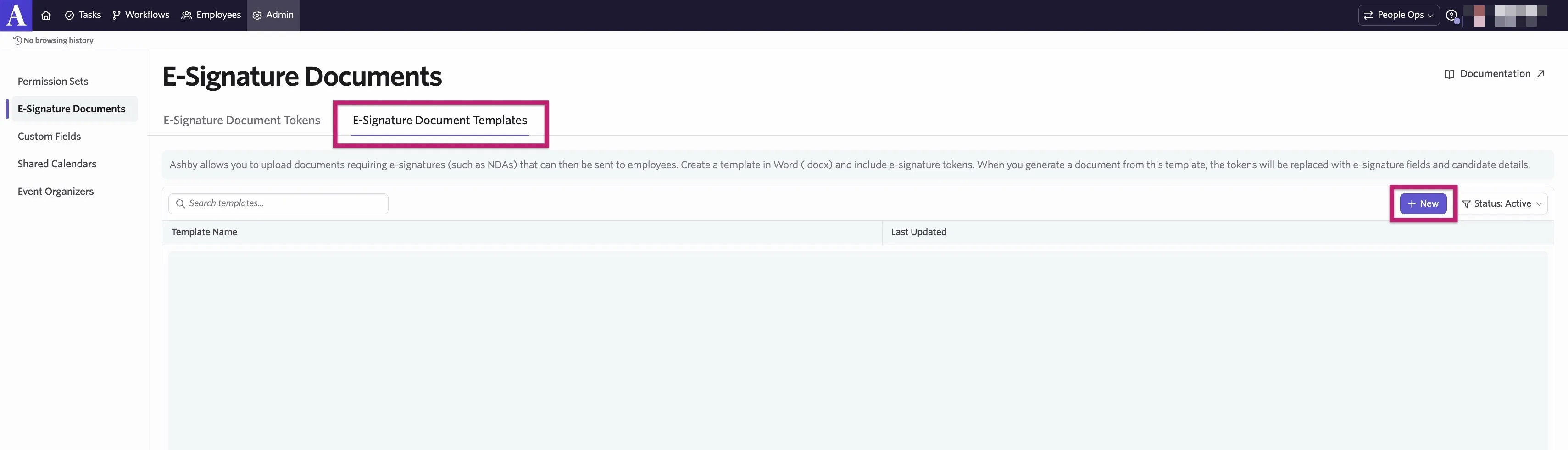
- Enter a title for the document, then click Create.
- Drag and drop the file, or browse to find it, then upload it.
Ashby checks the file automatically. If it is valid, the indicator turns green and the template is ready to use. If it is invalid, the indicator stays red and you see an error message with instructions on how to fix the file.
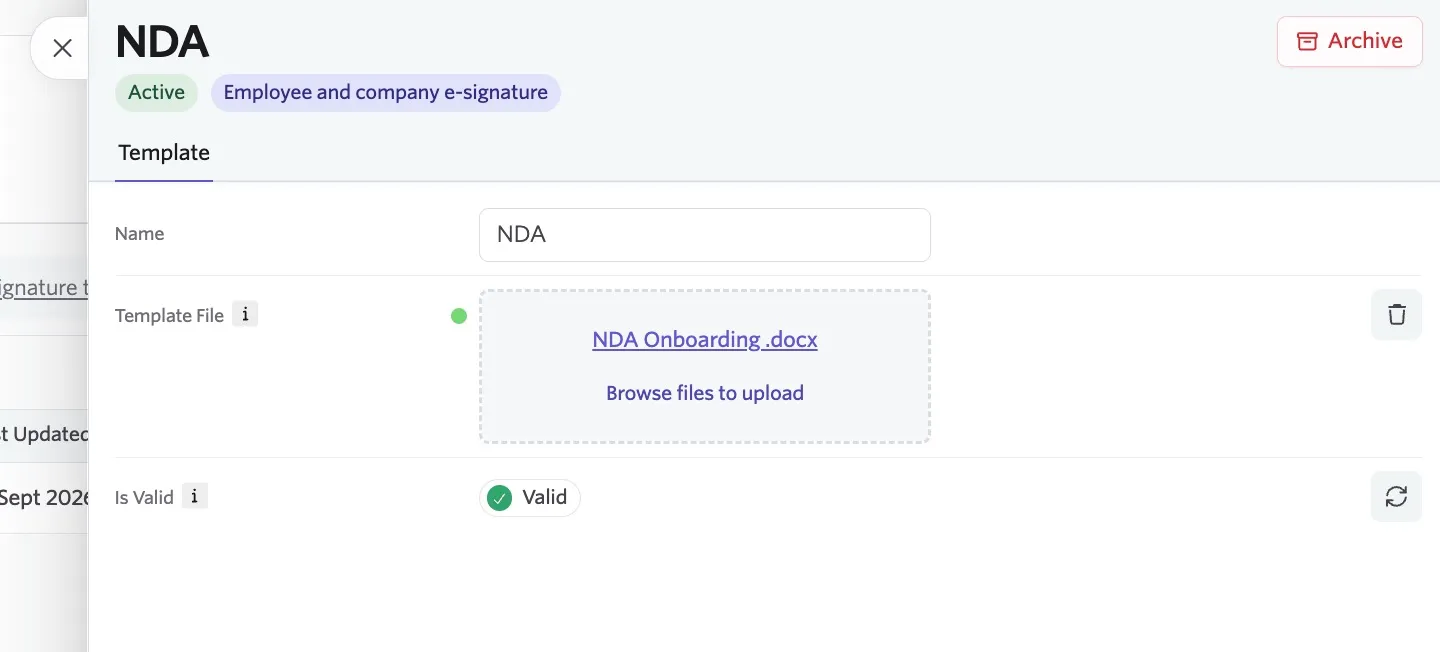
To archive a document, open it and click the red Archive button. You can reactivate an archived document by changing the filter from Active to Archived.
Set the default e-signature provider
E-signature steps in People Ops use the default e-signature provider configured in the Recruiting admin settings at Admin > Integrations > E-Signature Documents > Settings.
You can choose between Dropbox Sign and DocuSign as your default provider. If a specific document needs a different provider than your organization default, override it at the individual e-signature step within the workflow. The provider you select on the step takes precedence over the org-wide default for that step only.
Ashby's Dropbox Sign integration works automatically and does not require a separate Dropbox Sign account. If you want to connect your organization's DocuSign account instead, see DocusignDocusign.
Use e-signature documents in an onboarding workflow
Unlike Recruiting, People Ops does not support generating a one-off e-signature request from an employee's profile. Instead, you configure e-signature documents as steps within an onboarding workflow, so the workflow creates an e-signature request for every employee who reaches that step.
- Navigate to the workflow you want to add the step to.
- Click + Add Step at the point in the workflow where you want the request to trigger.
- Select the E-signature step type.
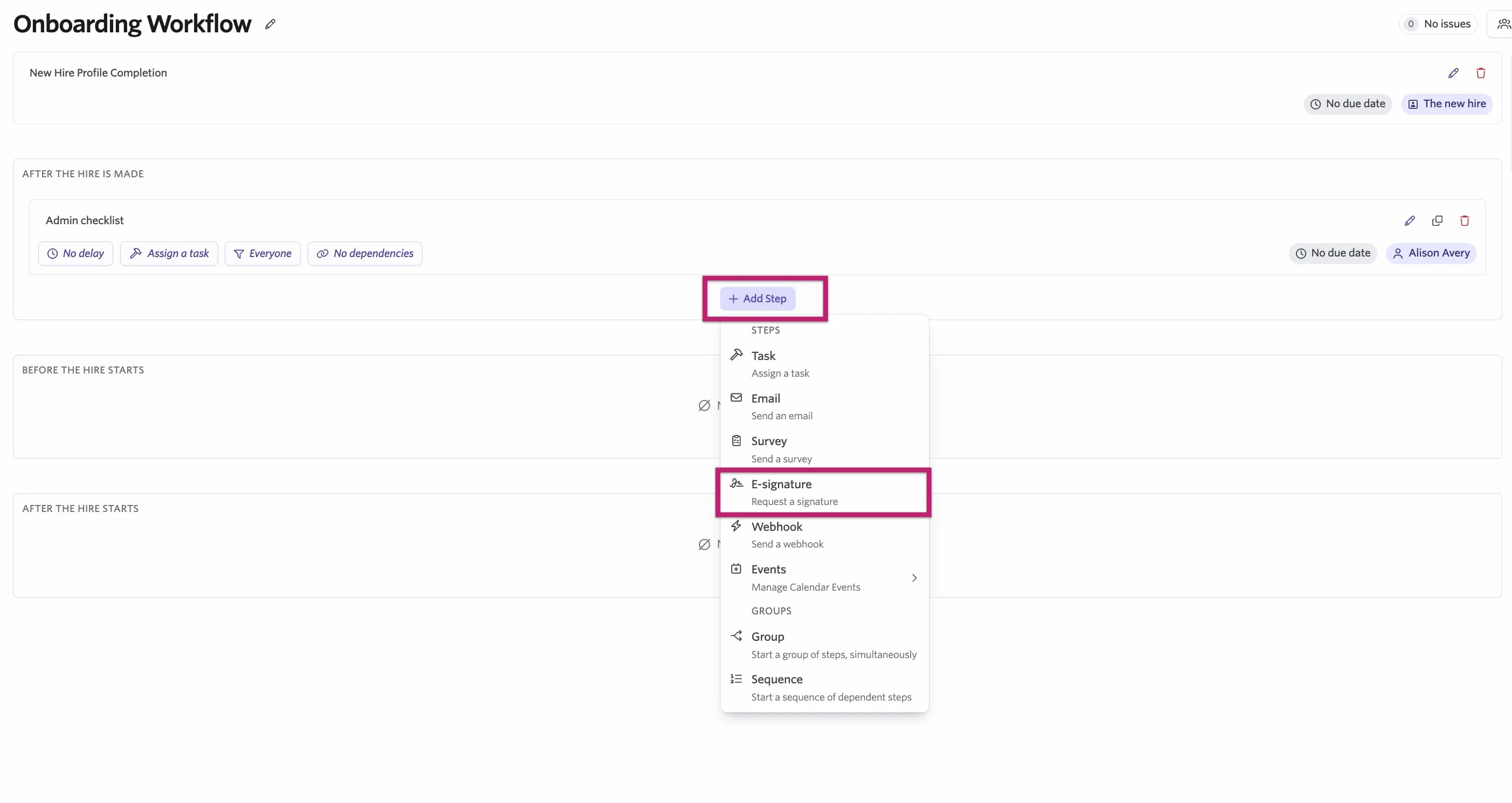
- Choose the e-signature document template you want to use.
- Choose the e-signature provider for this step, or leave it set to inherit your organization's default provider.
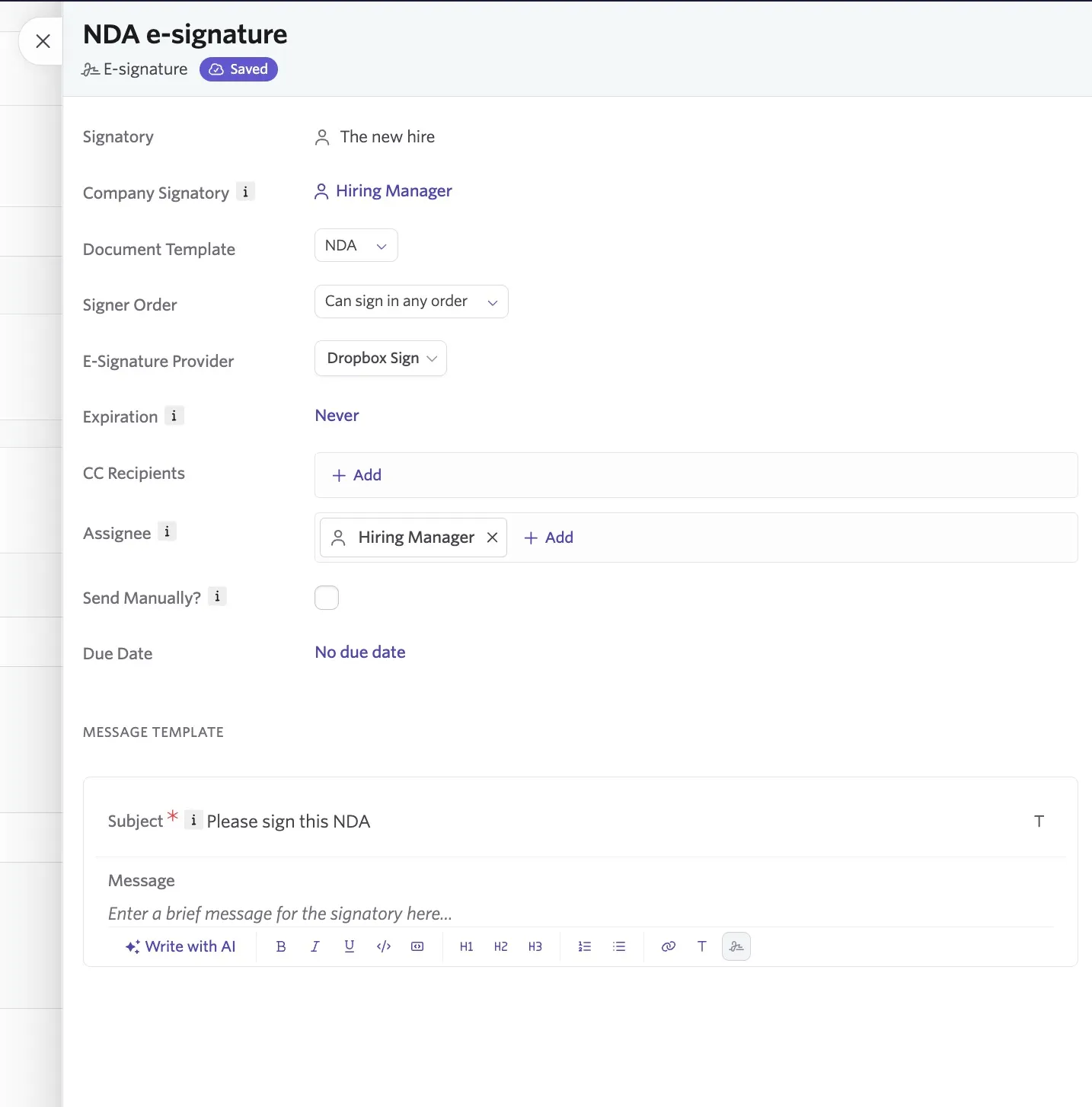
When an employee reaches this step, the workflow generates a request for review. As with Recruiting, People Ops never sends e-signature documents 100% automatically — a person needs to review and confirm the request details before it goes out. This ensures fields like signing order, expiration, and message content are accurate before an employee or company signatory receives the request.
Enable the preview editor under Admin > Integrations > E-Signature Documents > Settings within Ashby Recruiting to review the generated document in a document editor before sending. This is especially useful if you use {{employee text input}} or {{company text input}} tokens, since the preview editor lets you add or adjust those inputs before the request goes out.
Number, currency, and date formatting
You can choose between US-style and European-style formatting for numbers, and specify currency formatting for your e-signature documents.
- Navigate to Ashby Recruiting > Admin > Integrations > E-Signature Documents > Settings.
- Set your preferred defaults:
- Default number formatting: choose whether numbers display in European or US style.
- Default currency formatting: choose whether currency displays as a symbol ($) or a country code (USD).
- Default date formatting: select your preferred date display format from the dropdown list.
Review signed documents
Once all parties sign a request generated from an onboarding workflow, the signed document attaches to the employee's profile in People Ops, giving you a record of the completed document alongside the rest of the onboarding workflow activity.
FAQs
Can e-signature documents in People Ops send fully automatically?
Sending a request out to an employee or company signatory always requires a person to review and confirm the details, even when the step is triggered automatically as part of a workflow.
Which e-signature providers does People Ops support?
People Ops supports Dropbox Sign and DocuSign, the same providers available in Recruiting. Dropbox Sign works out of the box, while DocuSign requires connecting your organization's account (see Docusign IntegrationDocusign Integration). Steps use the organization's default provider unless you override it on the individual step.
Can I use employee custom fields as tokens in my e-signature documents?
Yes. You can generate tokens for any employee custom field you have created in People Ops and use them to pull that data directly into your document. See Configure Employee Custom FieldsConfigure Employee Custom Fields for more on setting these up.
How is this different from configuring e-signature documents in Recruiting?
The template and token setup is nearly identical between the two apps, but People Ops uses e-signature documents exclusively as workflow steps rather than through automation rules, job activities, or one-off requests generated from a candidate profile. People Ops also controls access differently: it gates template and token management behind the Edit e-signature templates permission set item, rather than the Recruiting access role model.