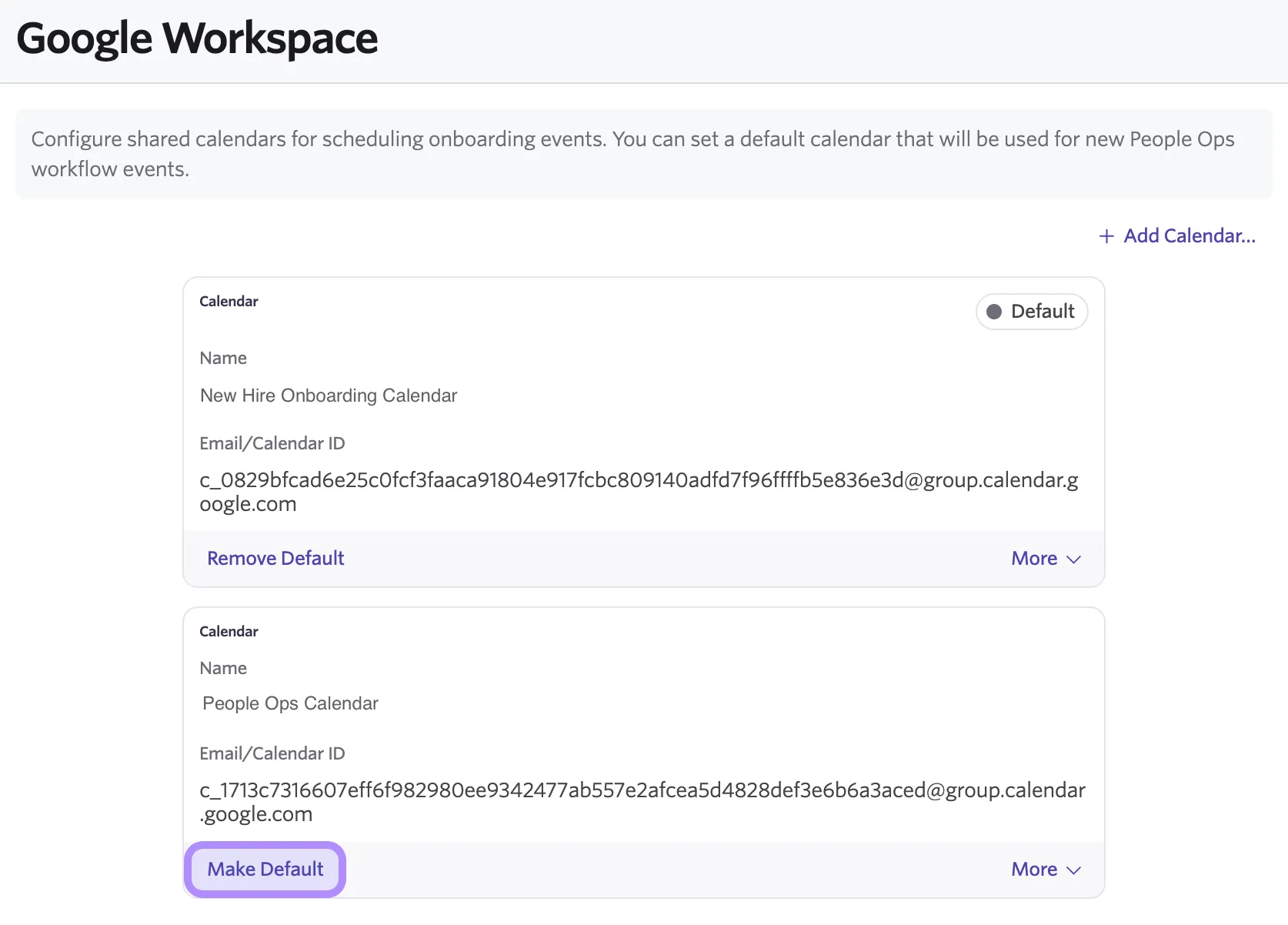
Setting up a Shared Calendar for Event steps
This guide covers setting up a shared calendar to use for Event tasks in Ashby's People Workflows tool. For information on configuring a shared calendar for Ashby Recruiting, check out What is a shared calendar?
Ashby's People Ops module is currently available through restricted early access. The following documentation is provided for design partners participating in that program.
Permissions and access
The ability to configure Shared Calendars in Ashby People Ops is only accessible by users whose permission set includes the Edit shared calendars permission.
For more on Ashby People Ops permission sets, check out Configure Permission Sets.
Configuring a shared calendar
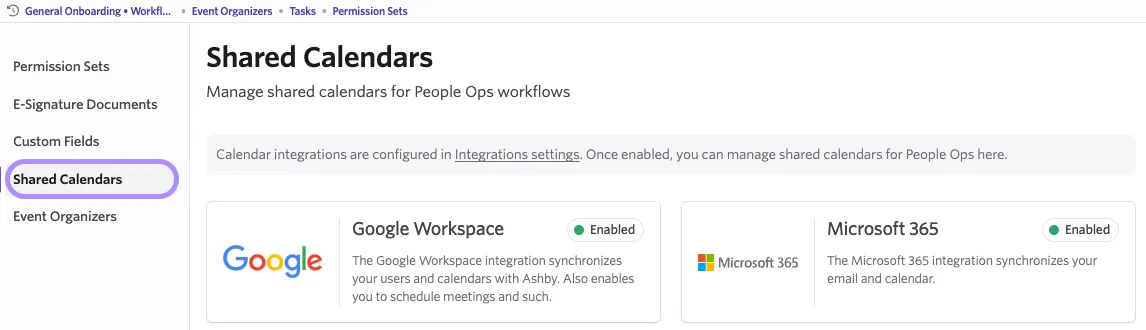
Before you can select a shared calendar in an Event workflow step, you’ll need to configure that calendar in People Ops > Admin > Shared Calendars. Click on either Google Workspace or Microsoft 365 to open up the appropriate integration tile.
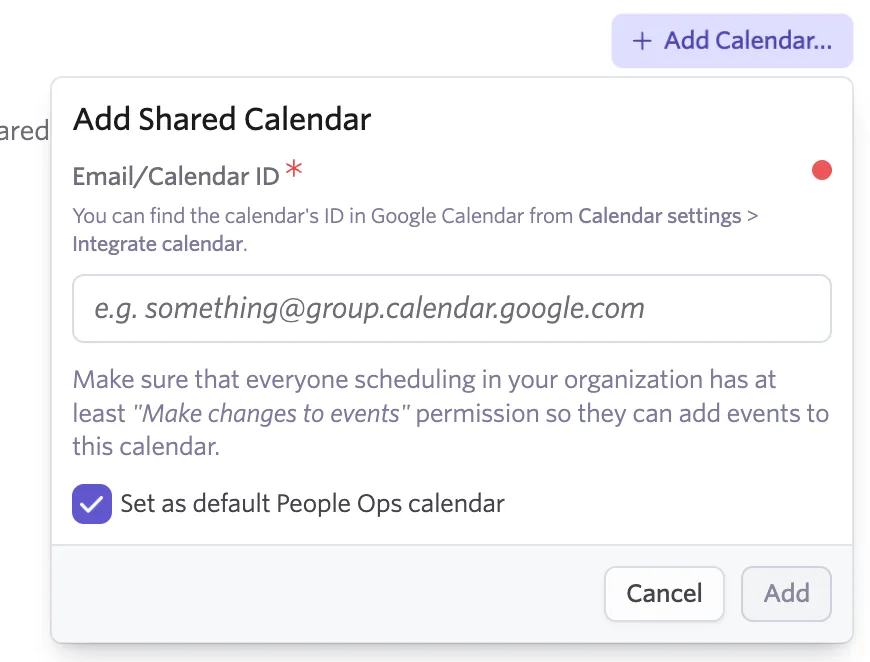
Then click + Add Calendar , enter the calendar ID, and click Add to add a shared calendar.
The Google Workspace and Microsoft 365 integrations can only be configured in Ashby Recruiting. For more, check out Google Workspace or Microsoft 365.
Each shared calendar must have an Event Organizer assigned. To do this, navigate to Admin > Event Organizers and click into the shared calendar. Then select the appropriate organizer using the Organizer dropdown.
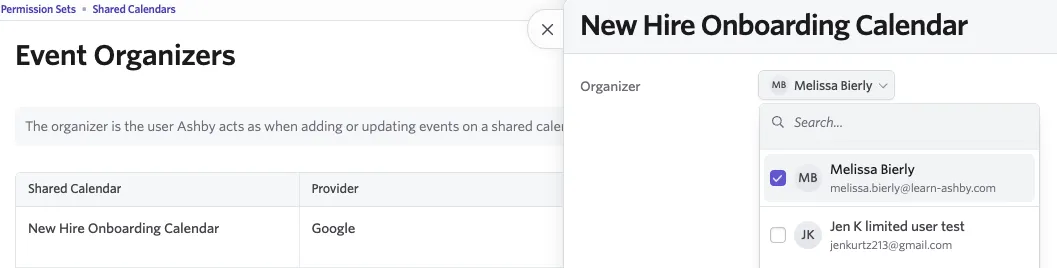
When a workflow uses that shared calendar in a Schedule Event step, Ashby creates the event with that configured Organizer.
Shared calendars for People Ops remain separate from Recruiting calendars.
Available options (Google Workspace and Microsoft 365) are based on which calendar integrations are enabled in Ashby’s Recruiting module’s Integrations. If you don’t see an expected option, connect with your Ashby Recruiting admin to confirm the integration is enabled.
For a shared calendar to work for Schedule Event steps, it must be configured in Shared Calendars and have an Organizer configured in Event Organizers.
For Ashby to schedule on a shared calendar, the assigned Event Organizer must have Edit access to it.
Default People Ops Calendar
When you configure your Shared Calendars, you will have the option to designate a shared calendar as your Default People Ops Calendar via the Set as default People Ops calendar checkbox when adding a new calendar.
To change which Shared Calendar is set as the default, go to Admin > Shared Calendars in People Ops Admin settings and select Make Default next to the calendar you'd like to use.