Enroll New Hires in Onboarding Workflows
This article explains how to enroll a new hire in an onboarding workflow. It covers manually enrolling a new hire, reviewing and confirming their workflow assignment, and enrolling a new hire in a supplementary workflow alongside their primary workflow.
For guidance on configuring automated enrollment, including the three automation modes and automation conditions, see Configure Onboarding Workflow AutomationsConfigure Onboarding Workflow Automations.
Ashby's People Ops module is currently available through restricted early access. The following documentation is provided for design partners participating in that program.
Three ways a new hire gets enrolled
Every new hire is enrolled in a workflow one of three ways, depending on how the workflow's automation is configured:
- No automation: Nothing happens automatically. A People Ops Admin manually enrolls the new hire.
- Automation with review: Ashby automatically assigns a workflow when the new hire's offer is accepted, but an admin still reviews and confirms the enrollment before workflow steps trigger.
- Full automation: Ashby enrolls the new hire and starts the workflow automatically, with no admin review step.
This article focuses on manual enrollment and on reviewing an automated enrollment. To set up or change which of these three modes a workflow uses, see Configure Onboarding Workflow AutomationsConfigure Onboarding Workflow Automations.
Permissions and access
Manually enrolling a new hire in a workflow requires specific permissions within a permission set. When configuring permissions sets, you can configure the workflow templates a user can enroll employees in.
Learn more about Ashby's People Ops permission sets: Configure Permission SetsConfigure Permission Sets.
Enroll a new hire in an onboarding workflow
Use manual enrollment when automation is disabled, or when you want to review a new hire's workflow assignment before starting it. To configure automated enrollment instead, see Configure Onboarding Workflow AutomationsConfigure Onboarding Workflow Automations for guidance on the three automation modes and automation conditions.
- Navigate to the People Ops Home page. In the left navigation, select Needs Review under Workflow Enrollments.
- Under Onboarding, locate the new hire. By default, Ashby shows new hires with a Hired At date in the last 90 days or today. Adjust the filters if you need a different range.
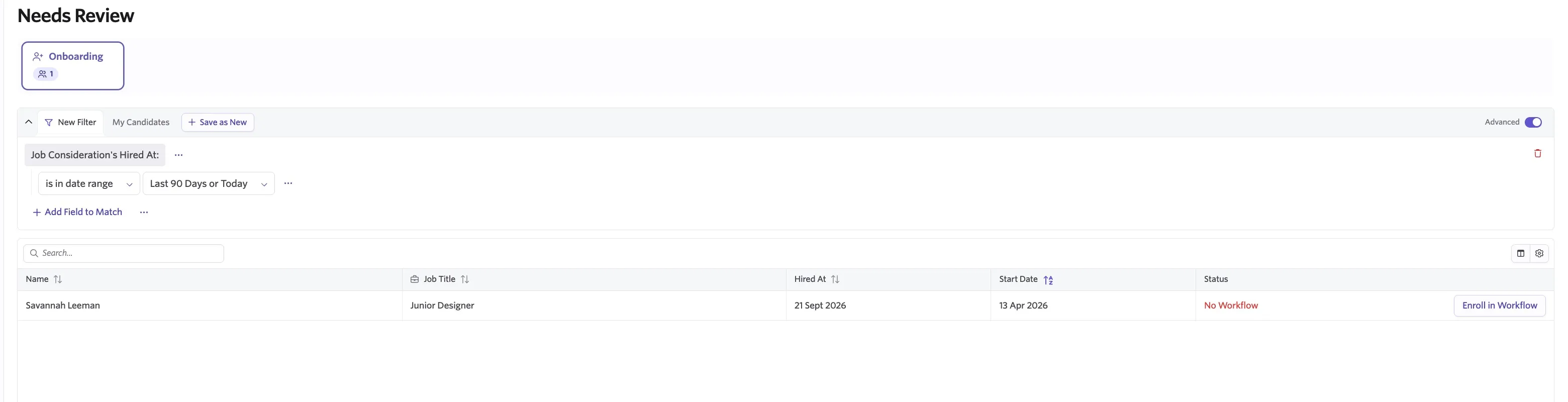
- Select Enroll in Workflow or Review Workflow (depending on your Configure Onboarding Workflow AutomationsWorkflow Automations configuration) next to the new hire.
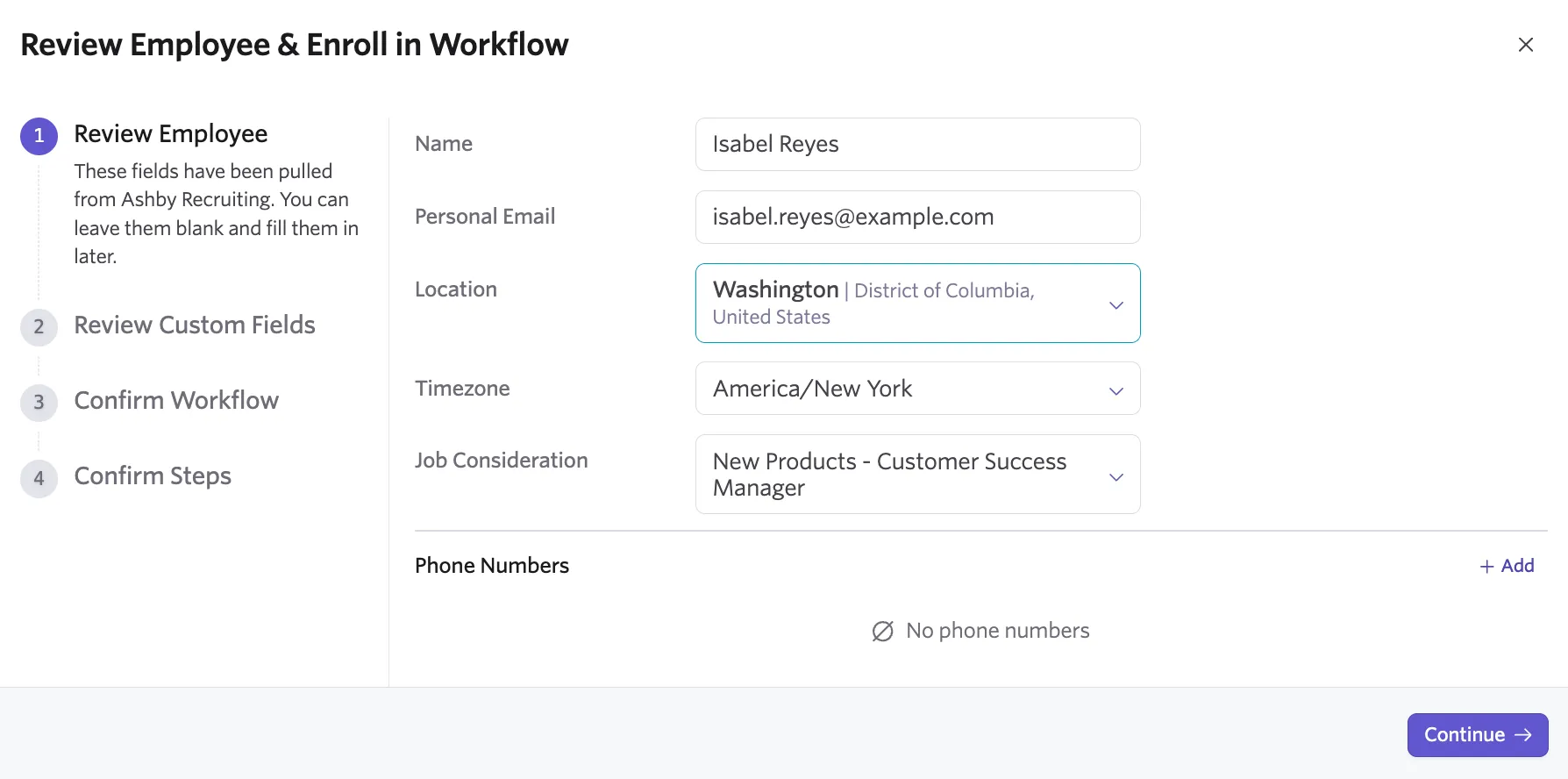
- In the Workflow Enrollment wizard, start by reviewing and confirming the employee's information. Select Continue.
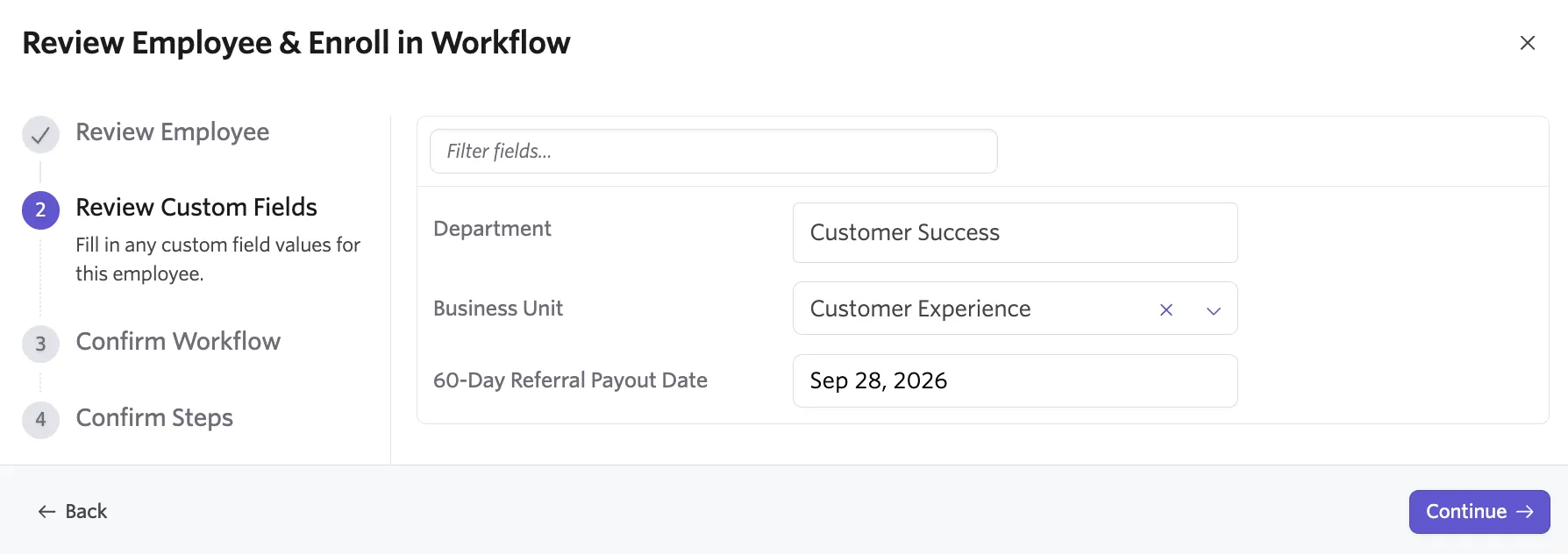
- Confirm and populate any applicable employee custom fields. Employee fields sourced from Ashby Recruiting sync dynamically from the Recruiting module. Select Continue.
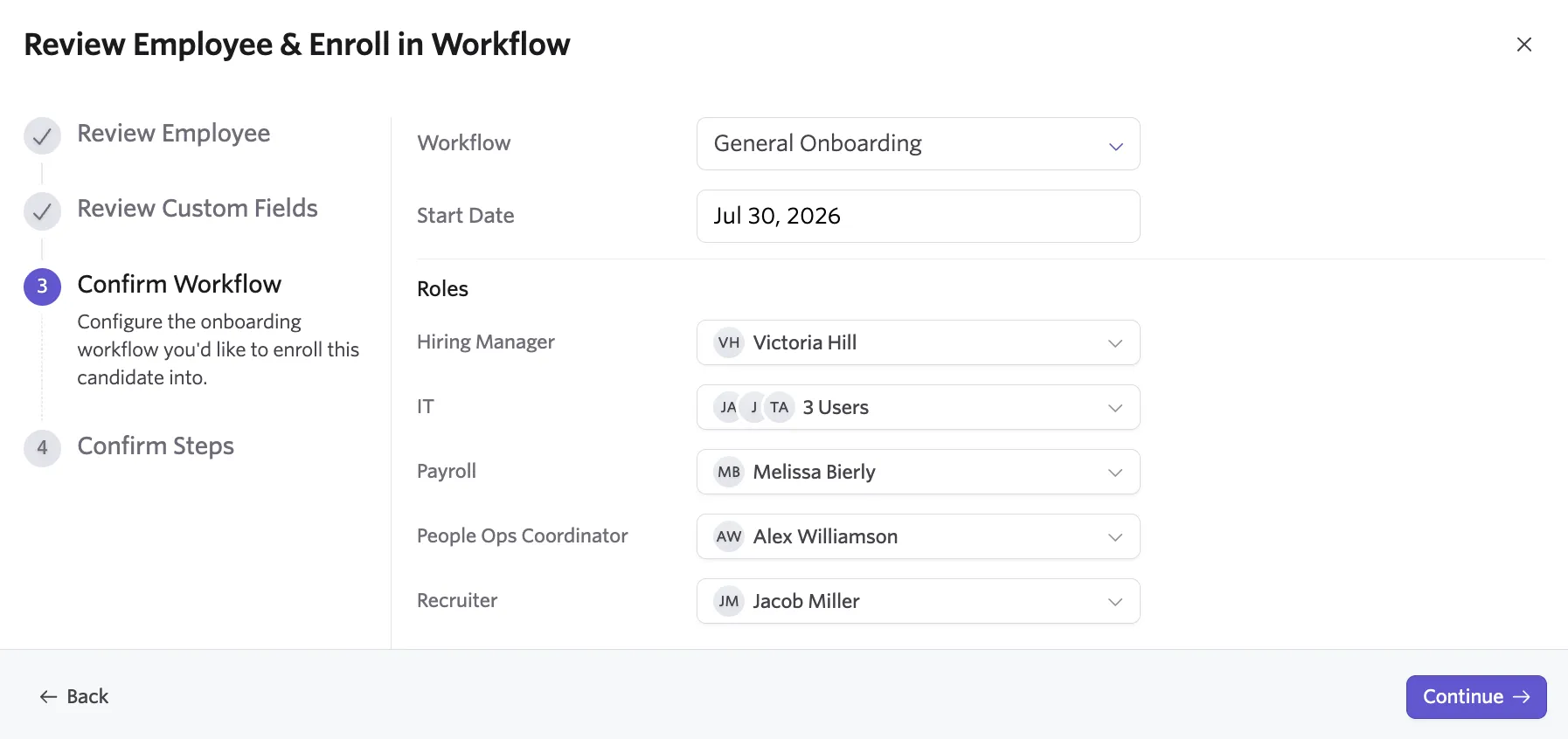
- Select the applicable workflow to enroll the employee in and confirm their start date. If you have configured Configure Onboarding Workflow AutomationsAutomation With Review, Ashby automatically associates the new hire with the applicable workflow, as defined by your automation configuration.
- Review the roles associated with the selected workflow, and confirm or update any role assignees. You can overwrite a default assignee or a dynamic role synced from the employee's job consideration; this update applies only to the employee you're enrolling. Select Continue once confirmed.
- Review the steps assigned to the new hire, including their scheduled delays. Make any one-off edits, or remove steps that don't apply to this new hire.
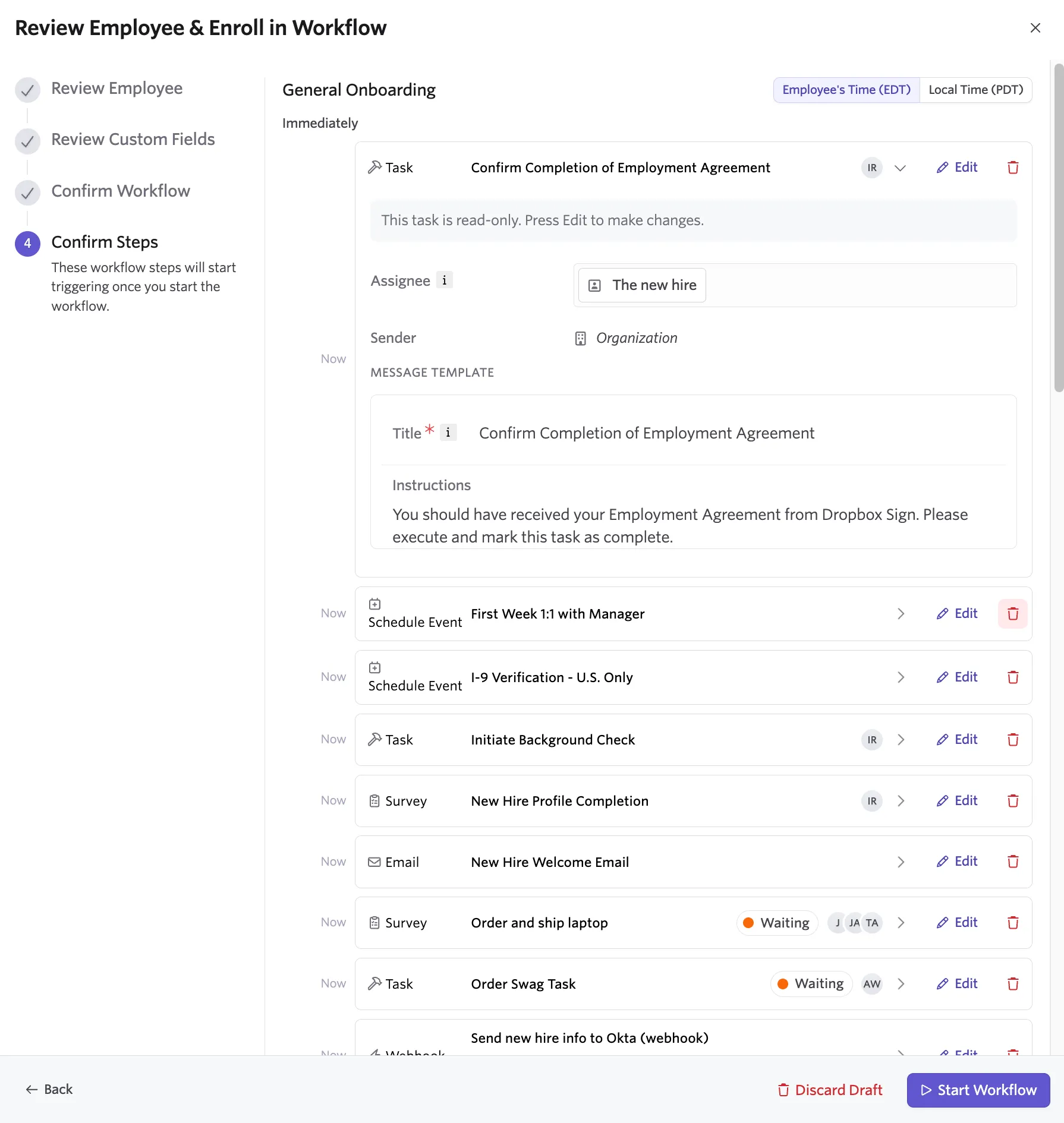
- Select Start Workflow.
Enroll a new hire in a supplementary onboarding workflow
Use a supplementary workflow when a new hire needs to complete steps beyond their primary onboarding workflow, like a department-specific workflow. You can enroll a new hire in more than one workflow at the same time, and each workflow tracks its own steps independently.
The new hire sees tasks from both workflows in a single task list. The primary and supplementary structure is visible only to admins managing the process.
Automation only auto-enrolls a new hire into a single workflow, so enroll a new hire in any supplementary workflow manually, regardless of whether their primary workflow was assigned manually or through automation:
- Locate the new hire in one of three places:
- Under In Progress > Onboarding:
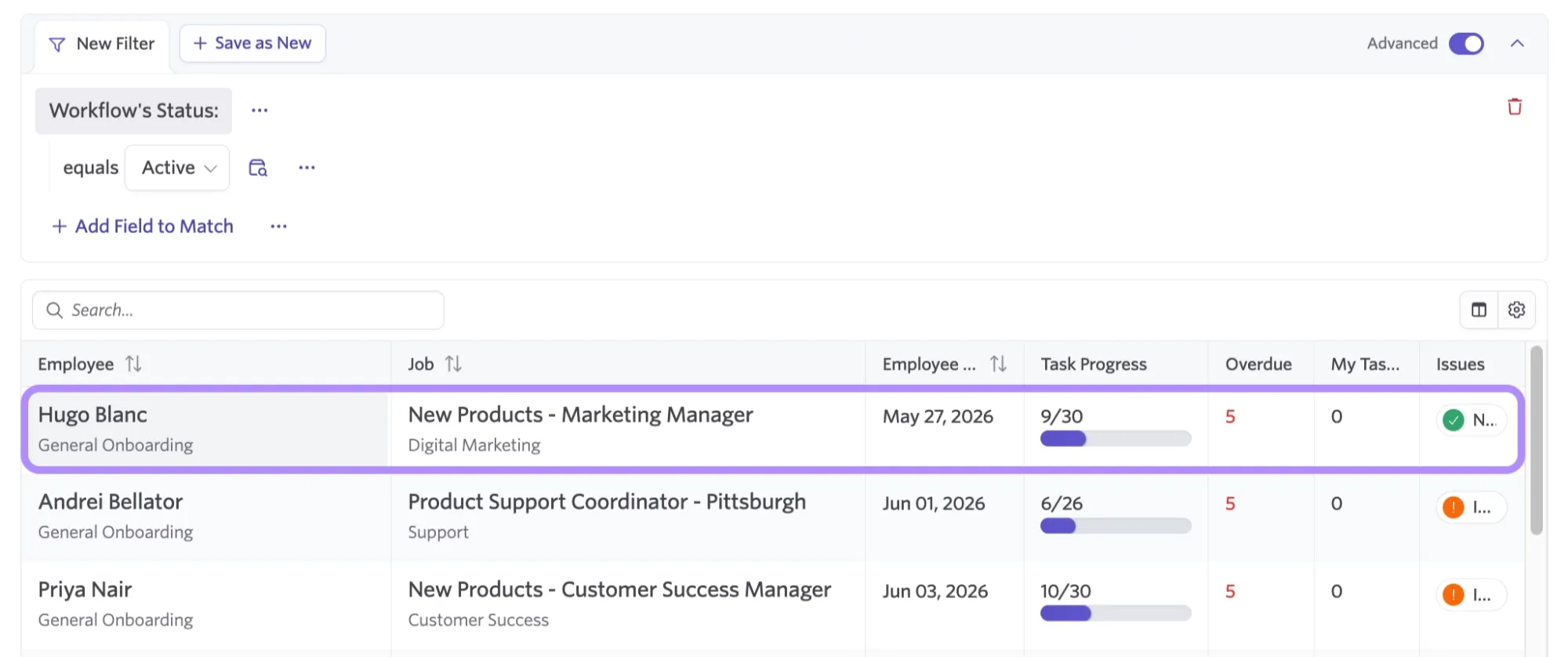
- From the new hire's Workflow Enrollment:
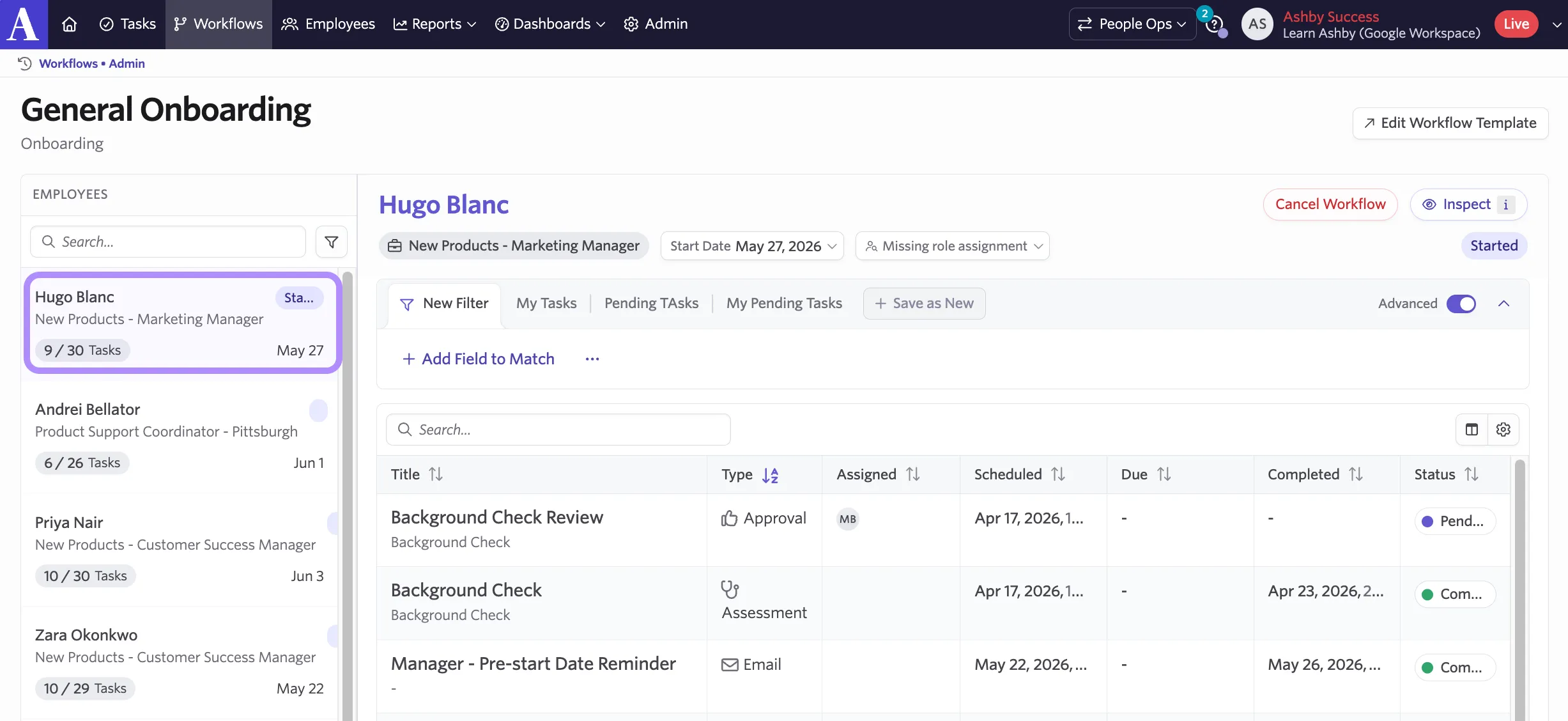
- From the Employee profile:
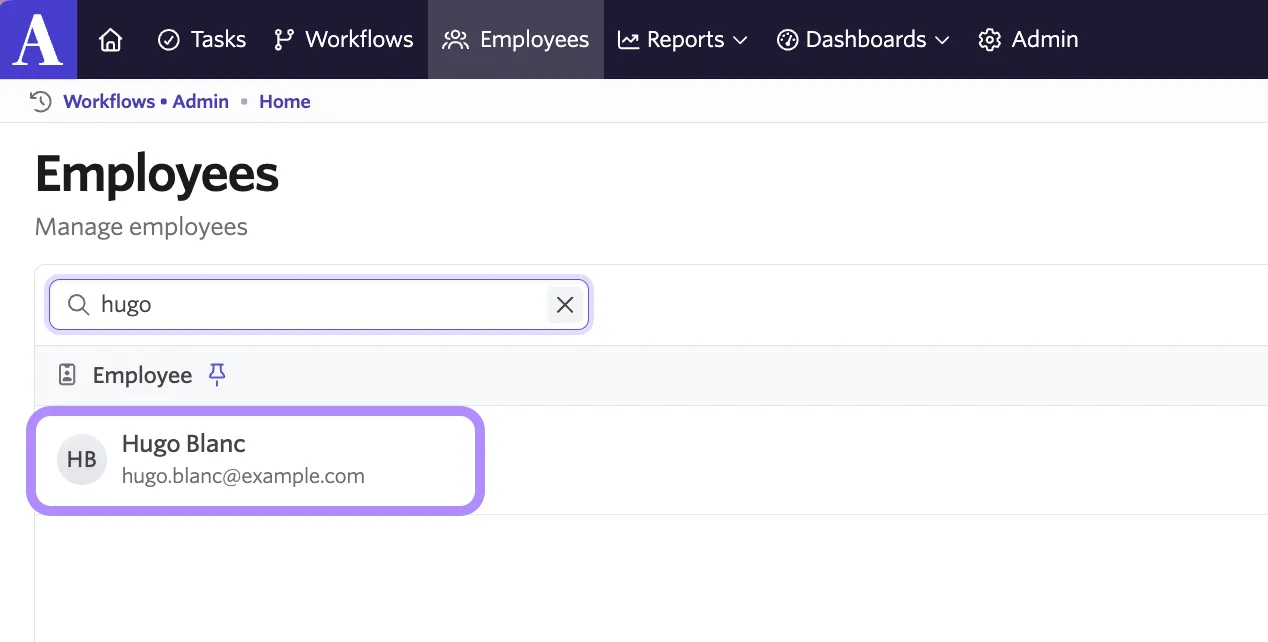
- Navigate to the employee's profile.
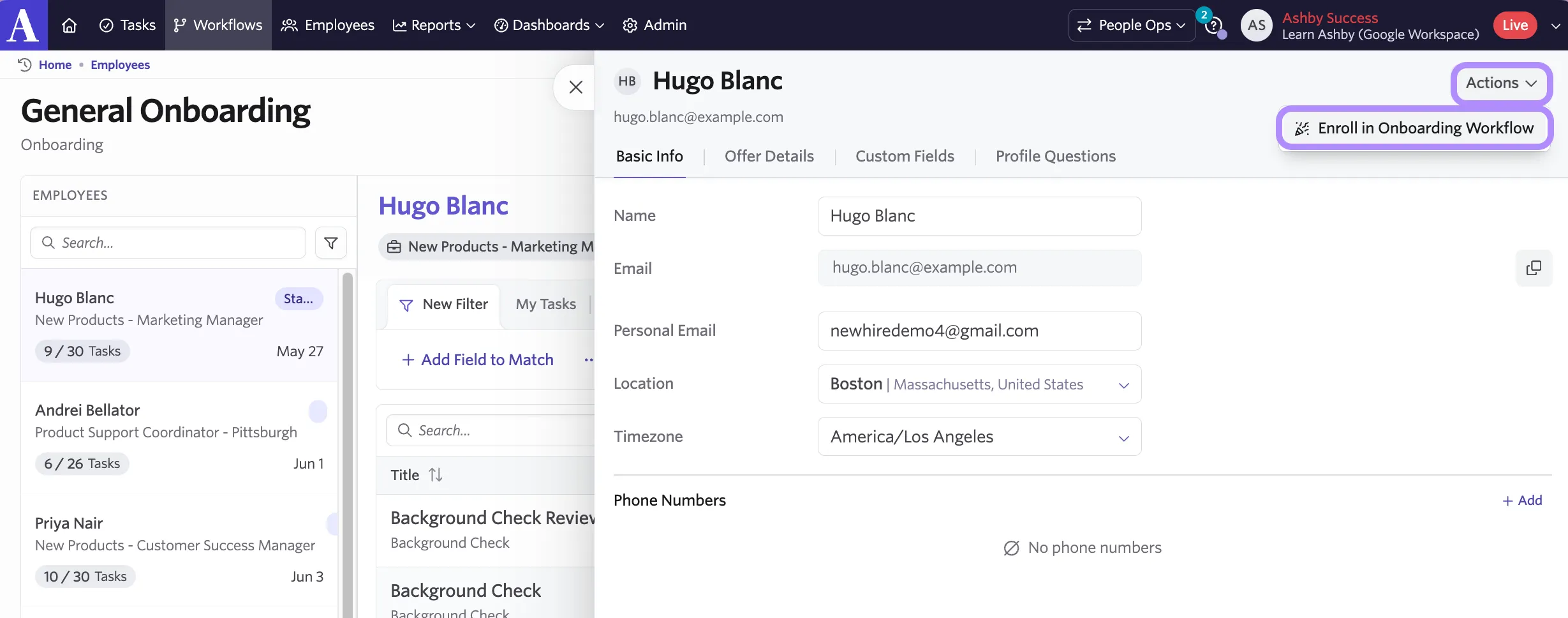
- In the upper right corner, select Actions > Enroll in Onboarding Workflow.
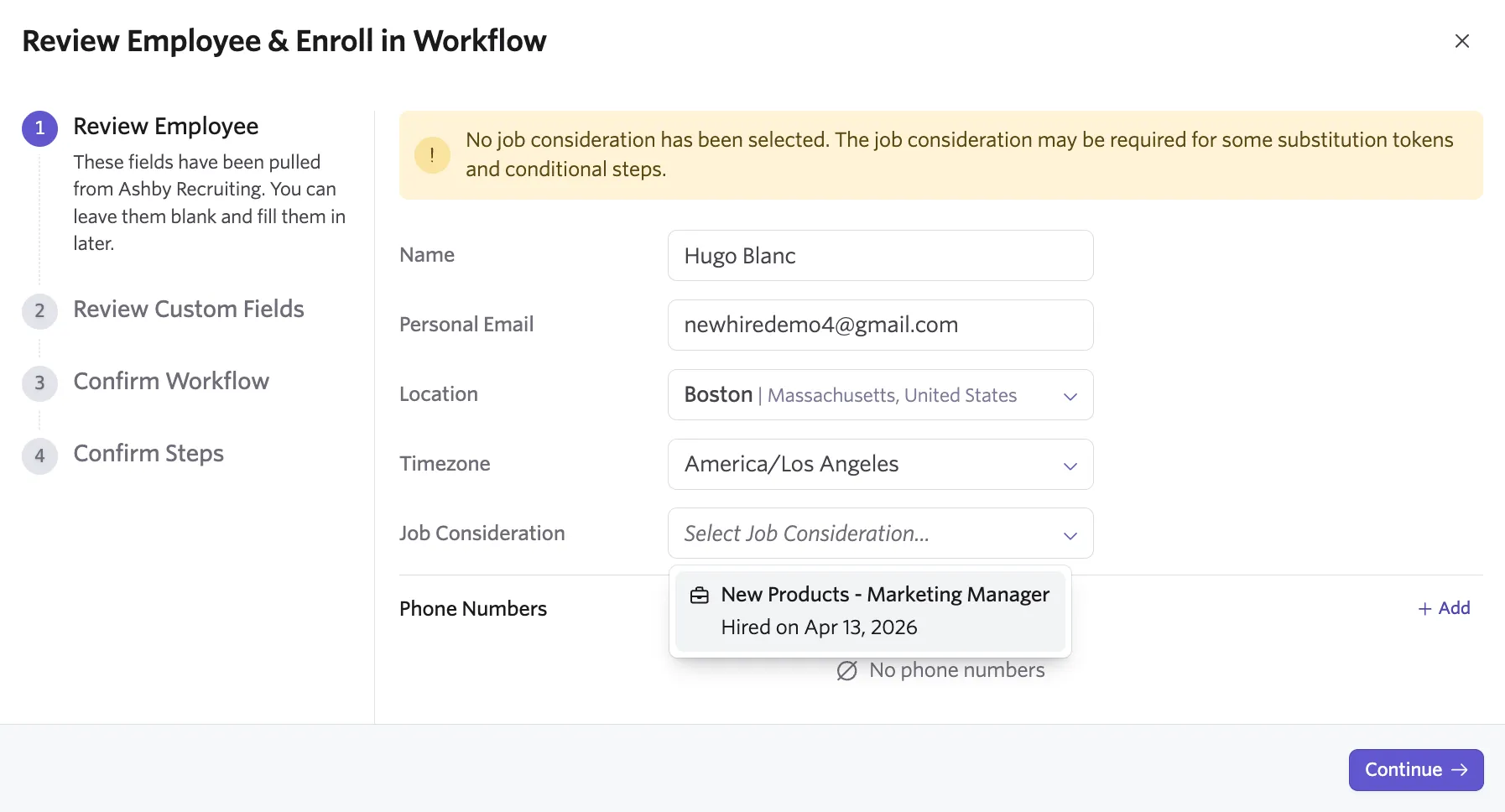
- Review the employee's information. Connect a job consideration to the employee's enrollment so that substitution and conditional steps are applied as expected.
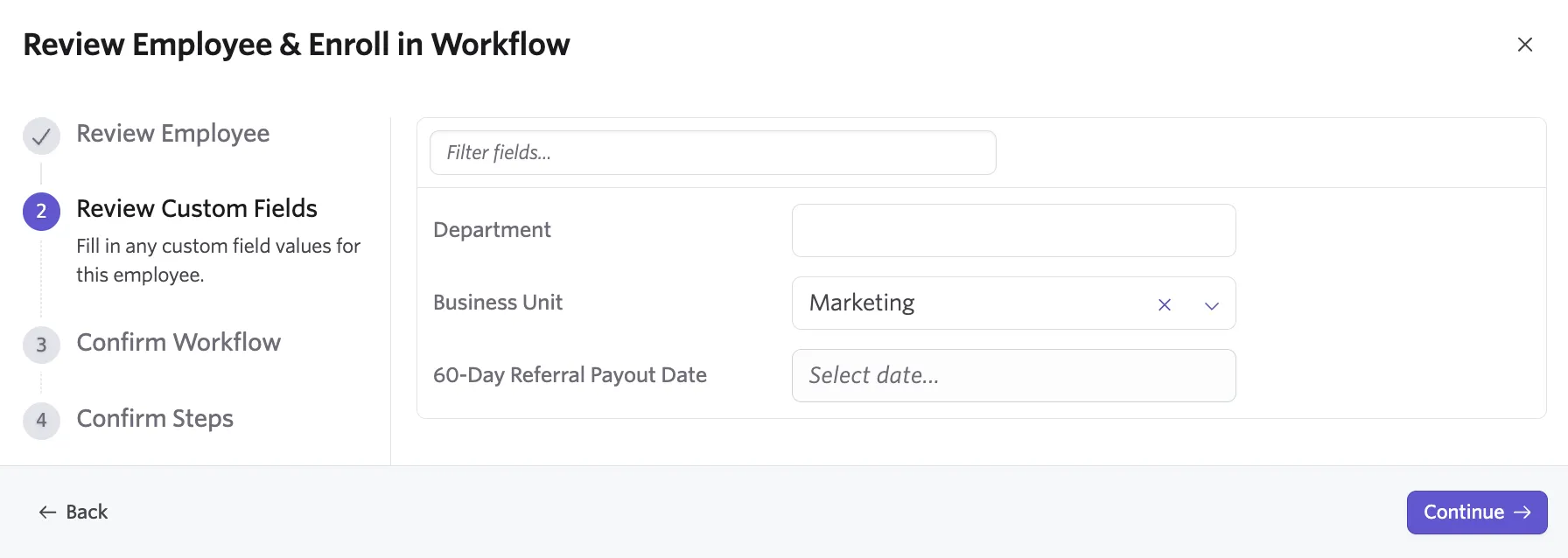
- Confirm and populate any applicable employee custom fields. Employee fields sourced from Ashby Recruiting sync dynamically from the Recruiting module. Select Continue.
- Select the applicable supplementary workflow for the employee and confirm their start date.
- Review the roles associated with the selected workflow, and confirm or update any role assignees. You can overwrite a default assignee or a dynamic role synced from the employee's job consideration; this update applies only to the employee you're enrolling. Select Continue once confirmed.
- Review the steps assigned to the new hire, including their scheduled delays. Make any one-off edits, or remove steps that don't apply to this new hire.
- Select Start Workflow.
FAQs
Can I edit a new hire's workflow steps during the review step?
Yes. From the Review Employee & Enroll in Workflow screen, you can edit a step's content or remove it entirely before selecting Start Workflow.
What happens if a new hire's offer is rescinded after they've already been auto-enrolled?
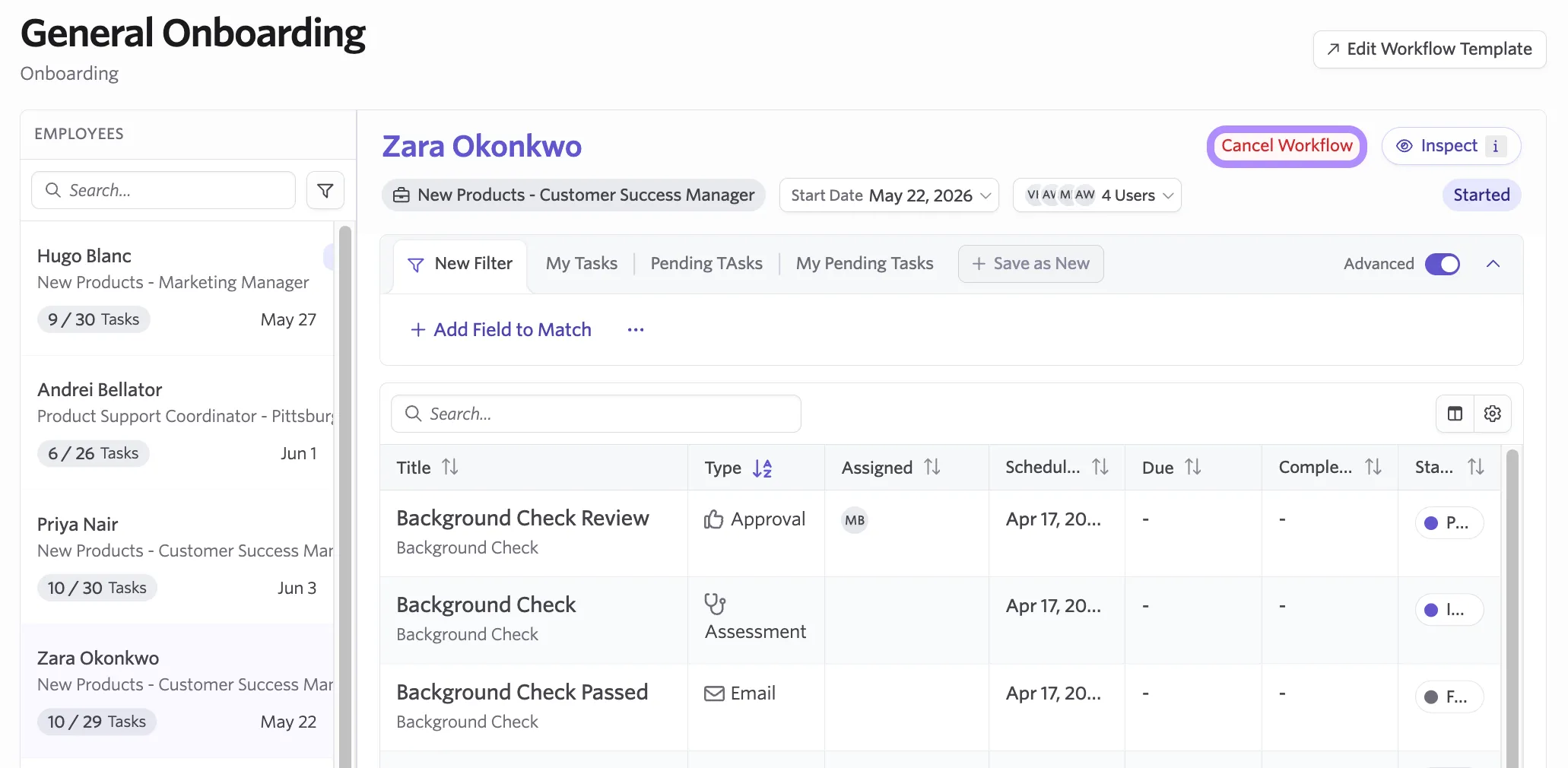
Ashby disconnects the job consideration from the new hire's workflow enrollment, but it doesn't cancel the enrollment automatically. To cancel it, navigate to the same screen where you review the new hire's live workflow and select Cancel Workflow.
How can I test a workflow before enrolling a real new hire?
Enroll a test candidate using your own email address, and set your project team as the assignee for each onboarding role. This surfaces the exact tasks, emails, and notifications a new hire and their stakeholders would receive, end to end and in the order they'd actually fire, without sending anything to real employees.
Can I enroll a new hire in more than one workflow?
Yes. See Enroll a new hire in a supplementary onboarding workflowEnroll a new hire in a supplementary onboarding workflow.