Configure Permission Sets
Permission sets in Ashby's People Ops provide granular, field-level and workflow-level access controls that enable secure, cross-functional collaboration. With flexible visibility and editing permissions, permission sets help you protect sensitive information while ensuring the right teams can keep onboarding moving. This article explains how People Ops permissions work and walks you through each step of the permission set builder.
Ashby's People Ops module is currently available through restricted early access. The following documentation is provided for design partners participating in that program.
Overview
People Ops permissions are controlled separately from recruiting permissions. This separation is intentional: post-hire employee data carries higher privacy and compliance sensitivity than candidate data, so a Recruiter with full access to the applicant tracking system does not automatically get access to People Ops data.
For more about setting permissions in Ashby's Recruiting module, see User PermissionsUser Permissions.
Everyone with an Ashby login can switch to People Ops, but what they see depends entirely on their People Ops permission set. A user with no permission set sees only the tasks assigned to them.
An employee does not need a paid recruiting seat to receive a People Ops permission set.
If an employee is not assigned a People Ops permission set, their access in People Ops is limited to the People Workflow steps assigned to them.
To access broader People Ops functionality and visibility, an employee must have a People Ops permission set.
How Permission Sets work
A permission set defines four things:
- Which employees a user can access
- Which data fields they can see
- Which workflows they can access
- Which app features they can use.
You can create as many permission sets as you need and assign them to individuals or to roles such as IT.
Access is additive. If a user is assigned more than one permission set, their access is the union of all of them. Each set can grant access to different employees and different fields, and Ashby combines them.
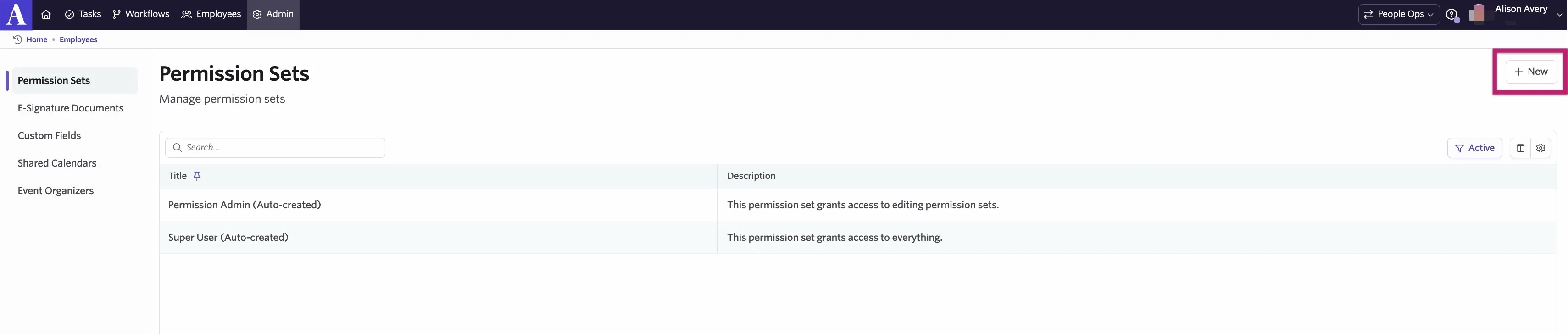
Two permission sets are created are available by default:
- Permission Admin (Auto-created) grants the ability to edit permission sets.
- Super User (Auto-created) grants access to everything except permission sets.

Manage permission sets at People Ops > Admin > Permission Sets. Only users with the permission sets admin access can view or edit this page.
Permissions: field-level access
Permission sets control which employee fields a People Ops user can view or edit.
Fields that are always visible (but can have Edit access controlled)
- Name
Fields you can restrict (with either No access, View, or Edit access)
- Personal email
- Timezone
- Location
- Phone numbers
- Assessment data (e.g background checks)
- Employee custom fields created in People Ops.
Fields you can restrict (with either No access or View access)
- Offer fields
Fields not controlled by permission sets
These are all visible to People Ops users and aren't controlled by permission sets.
- Role
- Start Date
- Manager
- Job Title
- Employee Status
- Tenure
- LinkedIn Profile URL
To check which employee custom fields are sensitive, navigate to People Ops > Admin > Custom Fields and look for fields tagged App: Ashby People Ops.
Permissions and access
To view or administer permission sets, you need a People Ops permission set that grants View or Edit access to at least one permission set. You configure this in Step five: General.
Without View or Edit access to at least one permission set, Admin > permission sets is not available to you.
Permission Set builder
To configure your permission sets in Ashby's People Ops, navigate to Admin > Permission Sets. To configure a new permission set, select + New in the upper right corner.
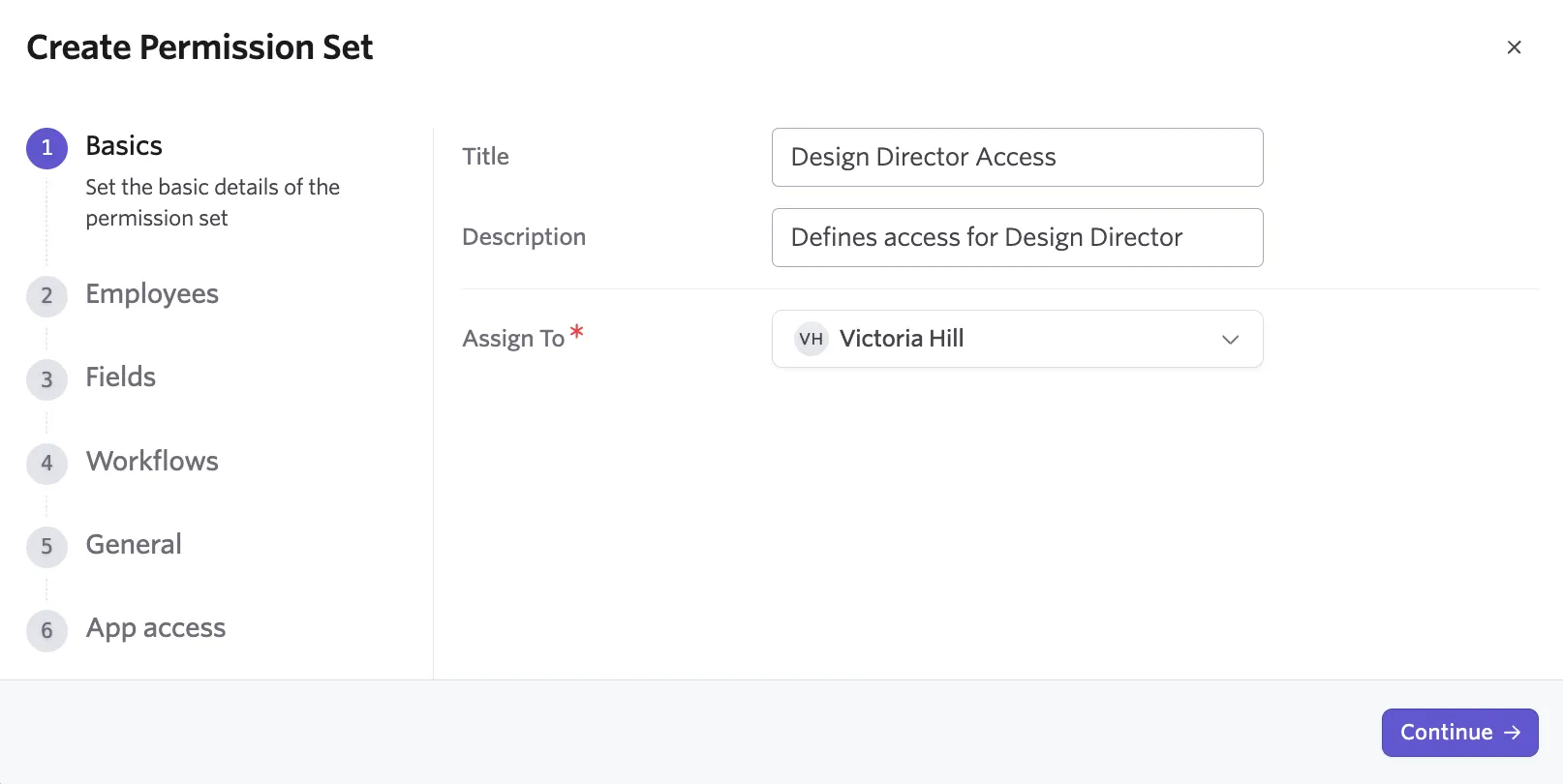
Step one: Basics
Set the core details for the permission set, including its title, a description of the access it grants, and the employee(s) it is assigned to.
Step two: Employees
Define which employees this permission set applies to. Employees assigned to this permission set have access to the selected employees. The options are:
- No access: Don't grant access to any employees.
- All employees: Grant access to all employees. Assigned users with edit access will be able to create new employees.
- Employee query: Use a query to specify which employees the user has access to. Once selected, you can set criteria using Ashby fields to determine the employees the users with the permission set have access to.
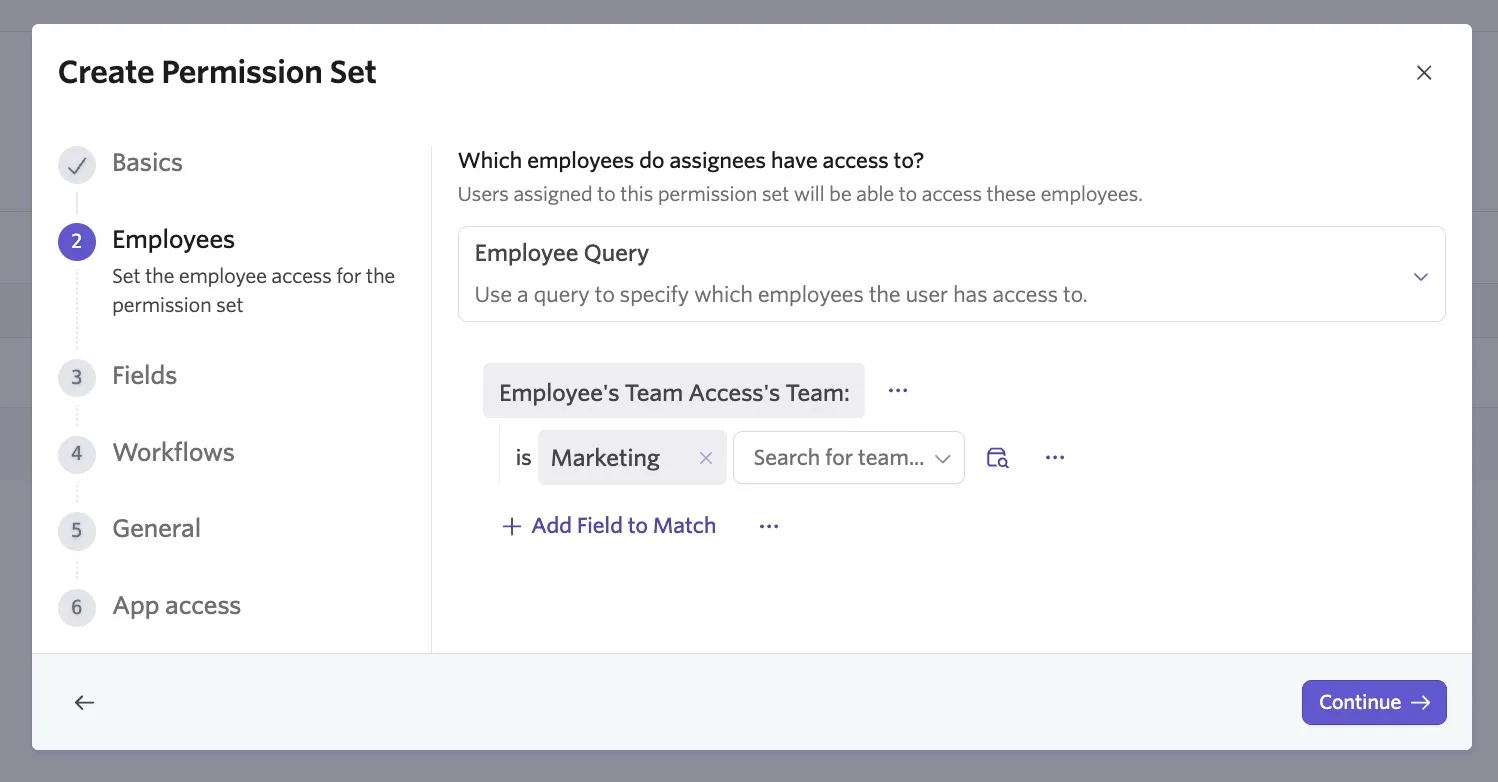
The Employees step in the permission set wizard determines which employees the user can access. The next step, Fields, determines which specific fields the user can access for the employees defined in the Employees step.
Step three: Fields
Configure employee field access for this permission set.
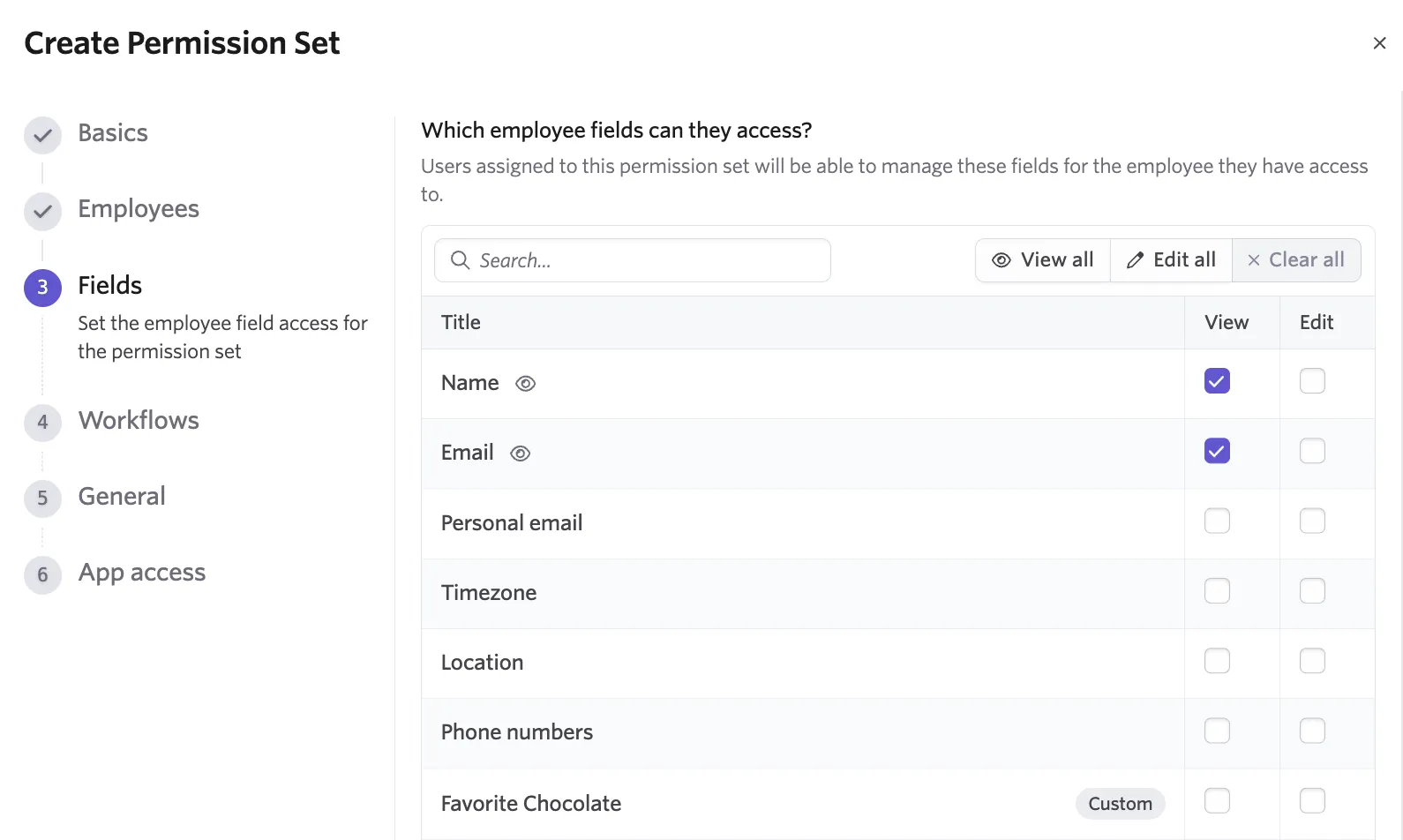
Users assigned to this permission set can view or manage the fields specified here for the employees they have access to. You can set the permission set to have no access, view access and/or edit access for each field.
View access allows users to see data associated with the field. Edit access allows users to modify data associated with the field. Leaving the View and Edit checkboxes unchecked ensure the permission set provides no access to the specified field.
You can use the View all, Edit all, and Clear all buttons to update the checkboxes for the permission set in bulk.
Ashby Recruiting remains the source of truth for offer data. As a result, offer data cannot be edited in Ashby People Ops. If an offer needs to be updated, Recruiting Admins with the appropriate permissions can make the change in Ashby Recruiting. For more information, see Offers and E-Signatures.
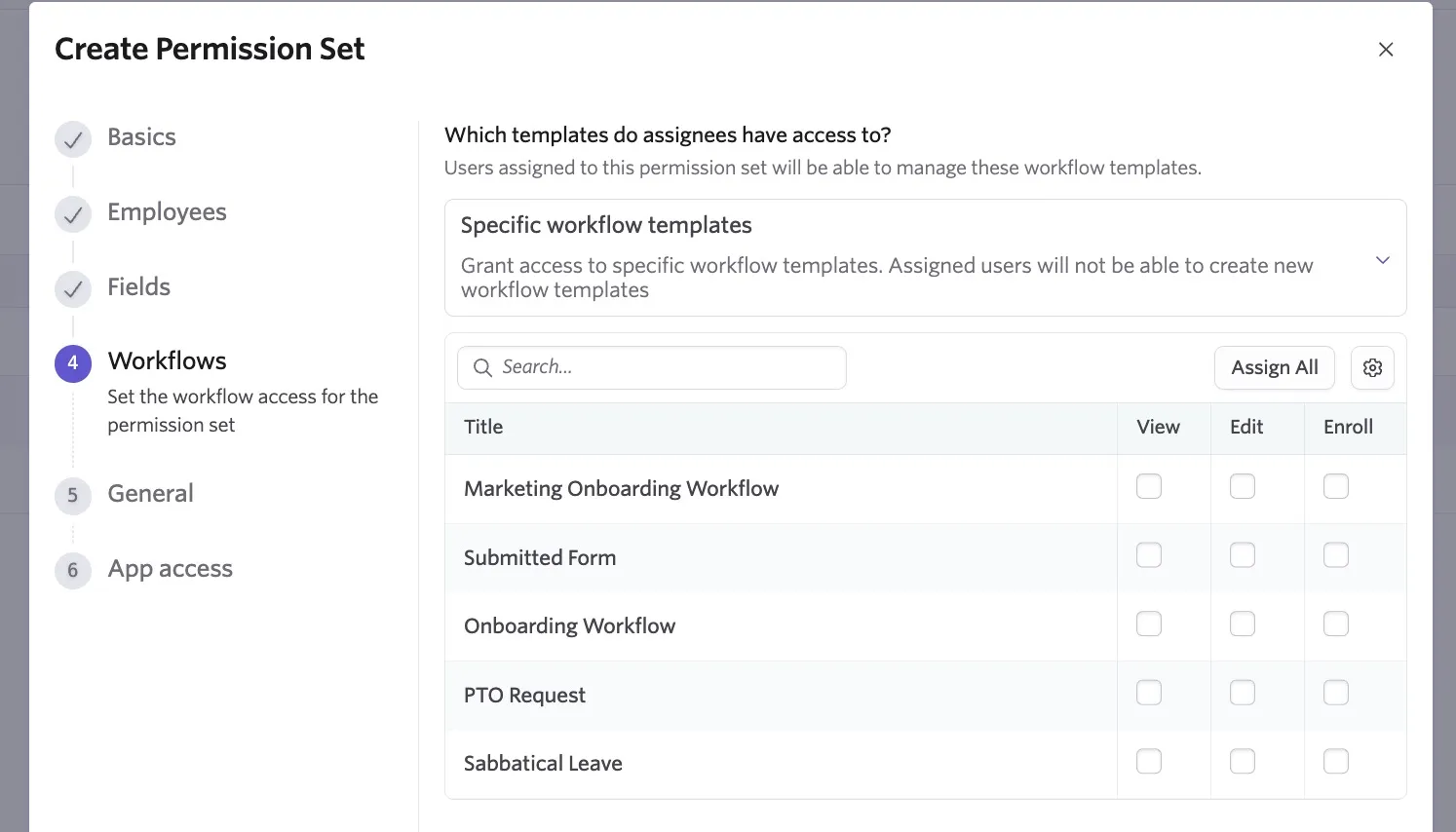
Step four: Workflows
Configure workflow access for this permission set. In this step you set access for the following:
Workflow templates: Grants access to view and/or edit workflow templates, including adding and editing steps.
The permissions can be set as follows:
- No Access: Prevents users from accessing workflow templates or viewing workflow enrollments for the employees included in the access settings defined within the permission set.
- All workflow templates: Grants access to all workflow templates, and users can view workflow enrollments for the employees included in the access settings defined within the permission set. Users with Edit access can create new workflow templates and edit workflow steps. Enroll access provides the ability to start that workflow for an employee.
- Specific workflow templates: Grants access only to the selected workflow templates. Once this option is selected, you'll be presented with the list of workflow templates and the option to provide view, edit and/or enroll access for each template. Users with edit permissions for specific workflow templates cannot create new templates.
Workflow enrollments: Grants access to view and edit enrollments into the workflow. A workflow enrollment is the intersection of an employee and a workflow, e.g. John Doe is enrolled in the engineering onboarding workflow and if you do not have view or edit access to that workflow or John Doe as an employee, you will not be able to see the enrollment details.
The permissions can be set as follows:
- No Access: Prevents users from accessing workflow enrollments.
- All workflow templates: Grants access to view or edit all workflow enrollments.
- Specific workflow templates: Grants access only to the enrollments linked to the selected workflow templates. Once this option is selected, you'll be presented with the list of workflow templates and the option to provide view and/or edit access for each template.
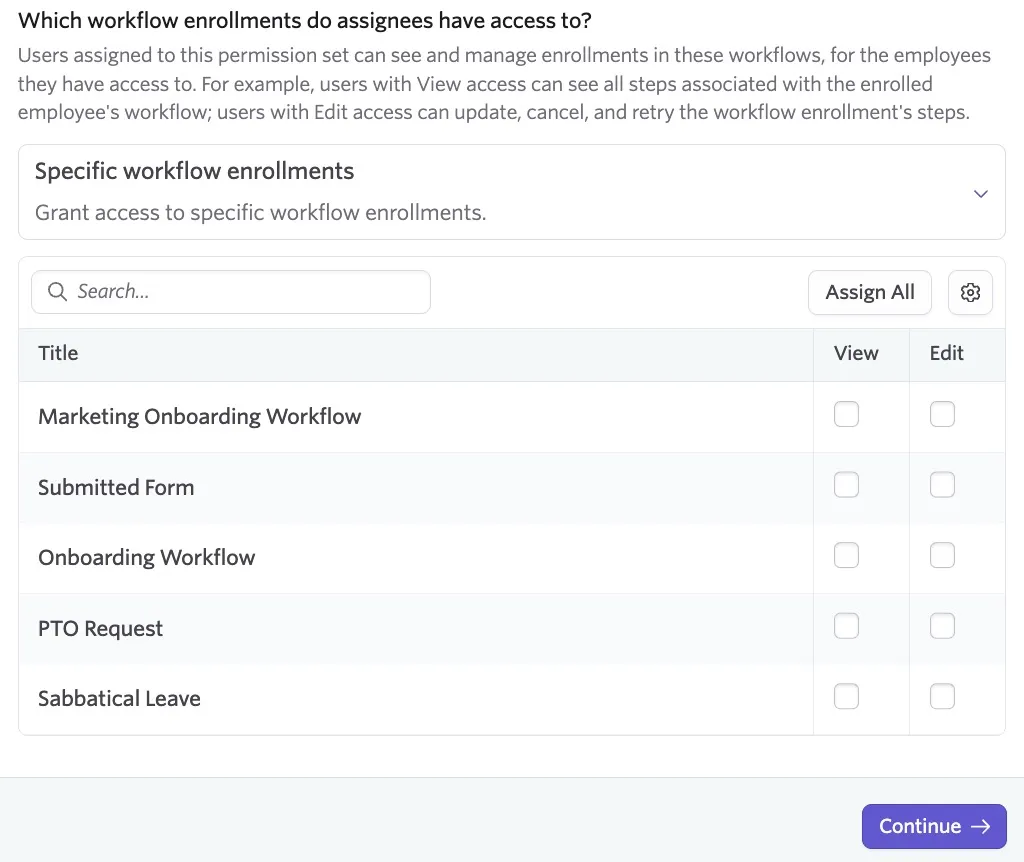
The permission set grants View or Edit access to the workflow enrollments, and that access is limited by the employee access defined in the permission set.
- Users with View access can see all steps associated with the enrolled employee's workflow, regardless if they are directly assigned to any of those steps.
- Users with Edit access can update, cancel, and retry the workflow enrollment's steps, etc.
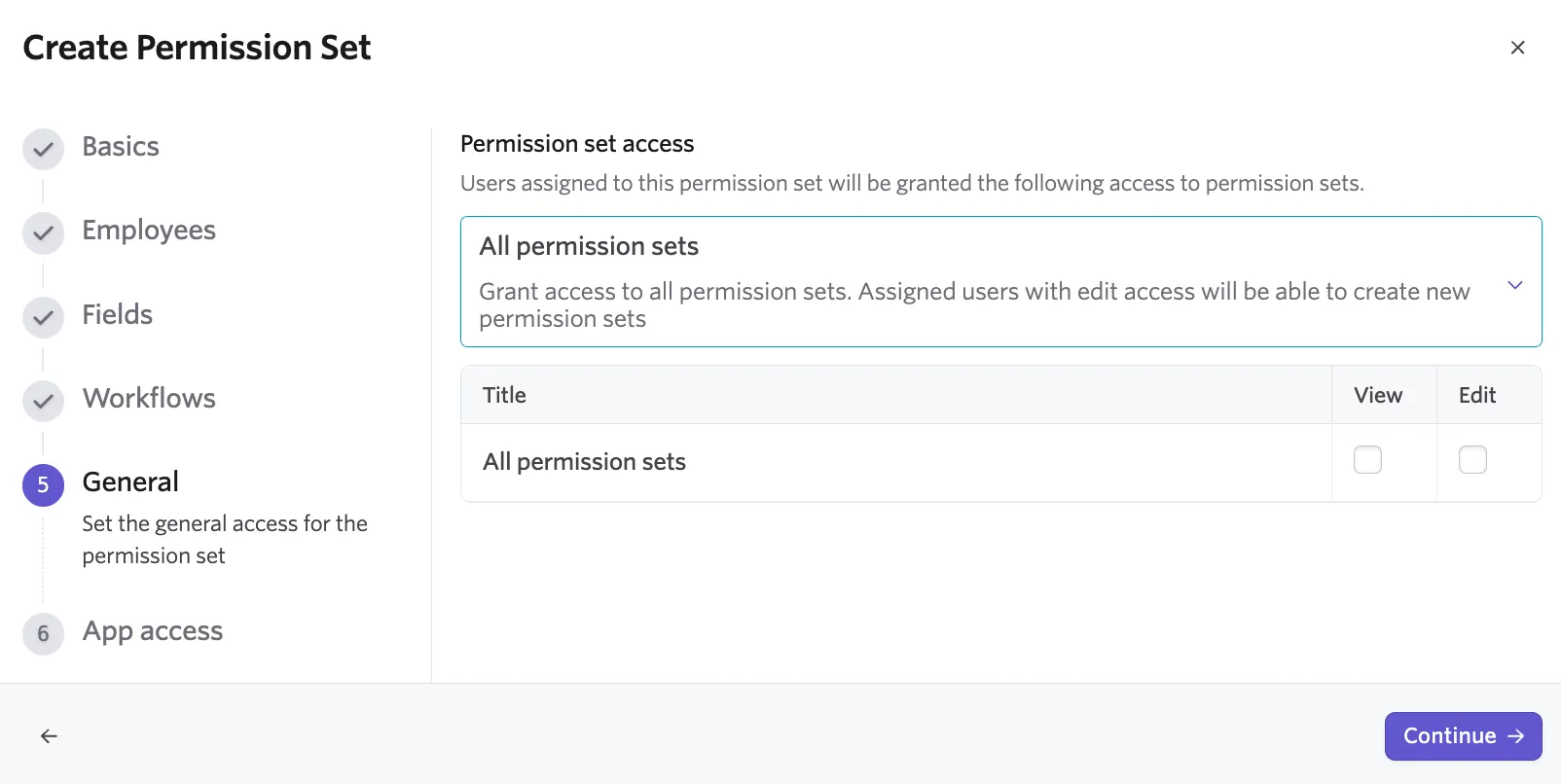
Step five: General
Configure general access to permission sets. This permission set grants users the following level of access to permission sets:
- No Access: Does not grant access to any permission sets.
- All permission sets: Grants access to all permission sets with either view or edit access. Users with Edit access can create new permission sets.
Step six: App access
App access controls which People Ops features users can access, independent of employee or workflow visibility. Here you can define which Admin features are available to users assigned to this permission set:
- Edit e-signature templates.
- Edit employee custom fields.
- Edit shared calendars: The ability to manage shared calendars for People Ops workflows.
- View reports and dashboards: The ability to view reports and dashboards in People Ops.
- Create and edit reports and dashboards: The ability to create, edit, and manage reports and dashboards in People Ops.
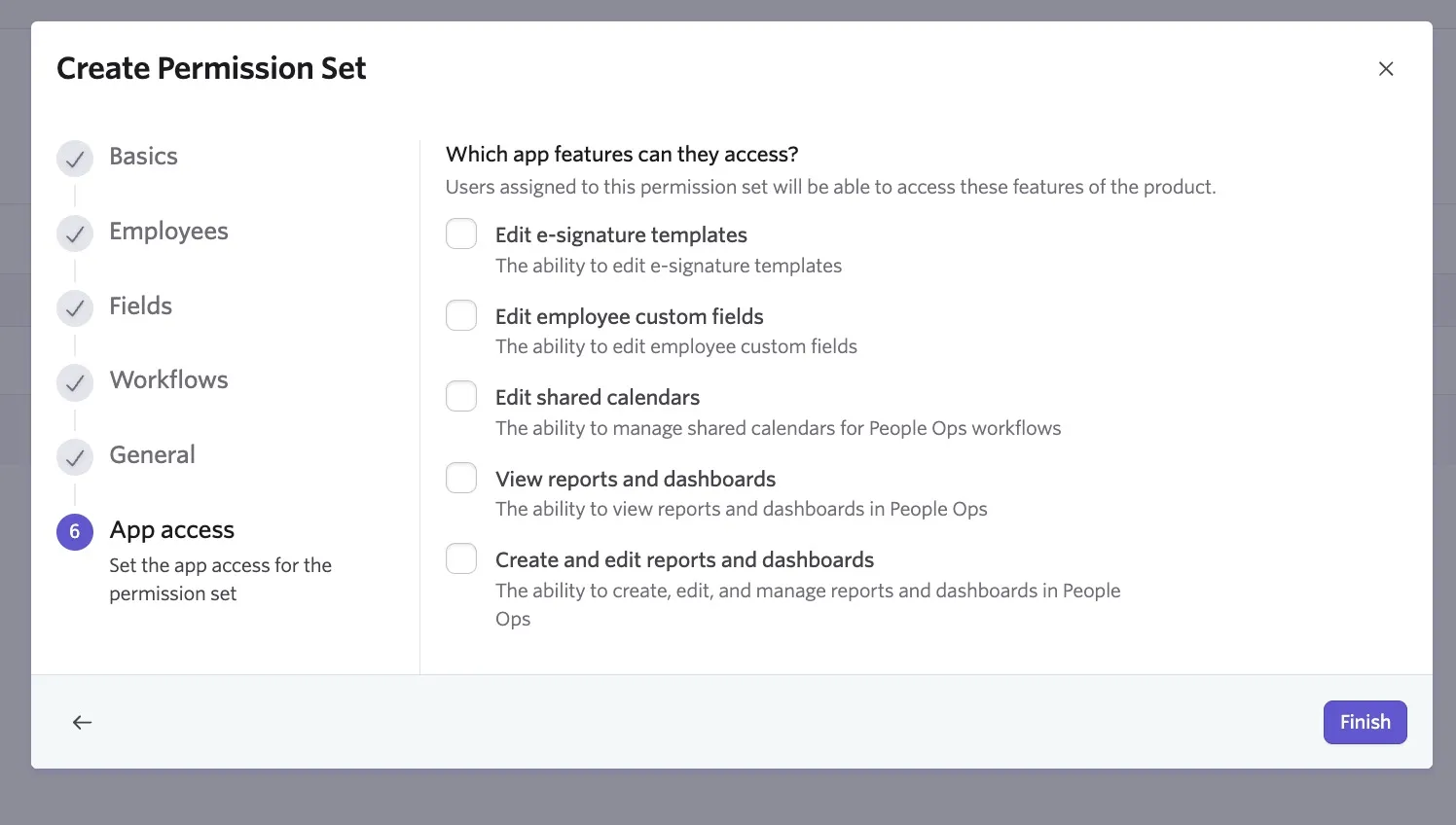
Click Finish to confirm and create your permission set.
Editing a permission set
To edit a permission set:
- Navigate to Admin > Permission Sets
- Click on the permission set in question to open up the permission set settings.
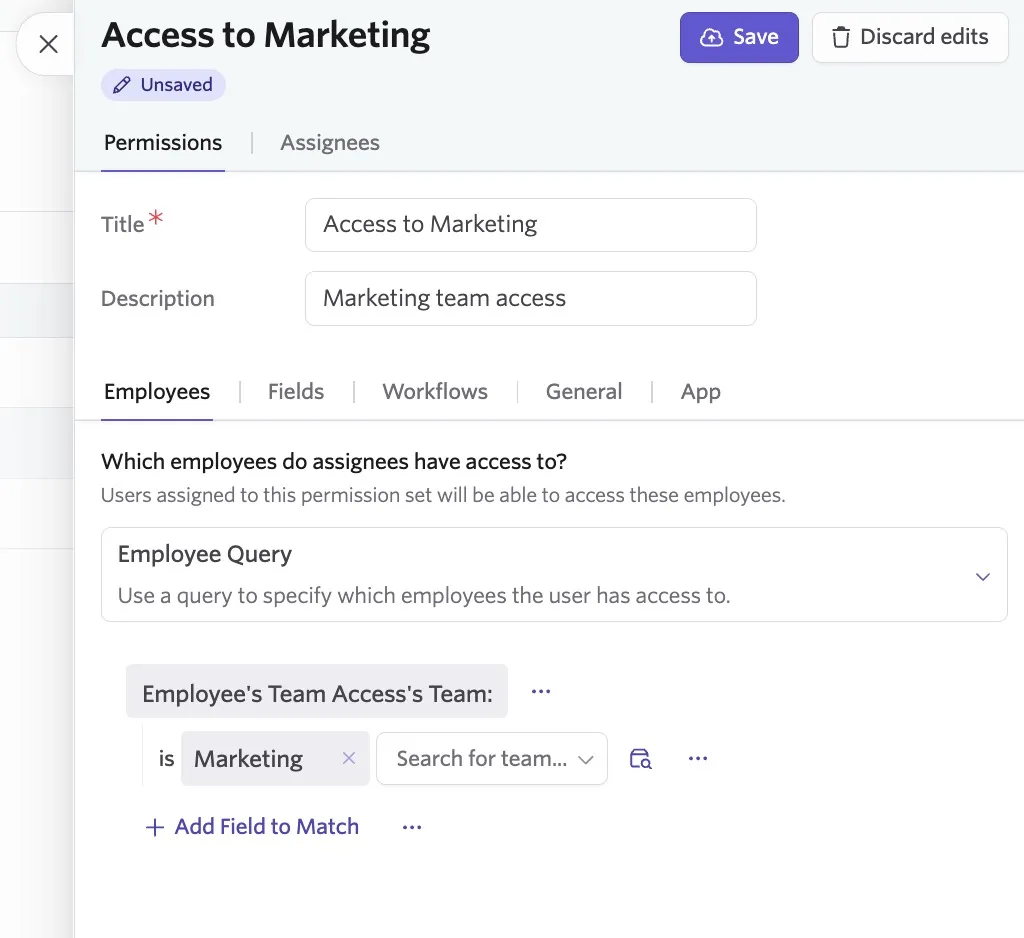
- Click Edit to enter edit mode.
- Use the Permissions tab to adjust the access the permission set provides and the Assignees tab to adjust who should have the permission set applied to them.
- Click Save to apply your changes.
Archiving a permission set
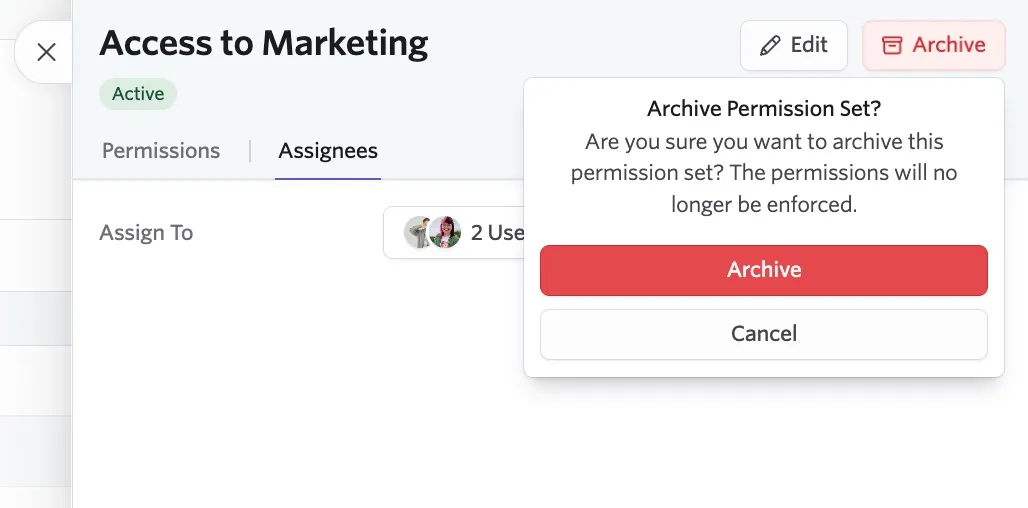
To archive a permission set:
- Navigate to Admin > Permission Sets
- Click on the permission set in question to open up the permission set settings.
- Click Archive. If there are users assigned to the permission set, the permissions will no longer be enforced.
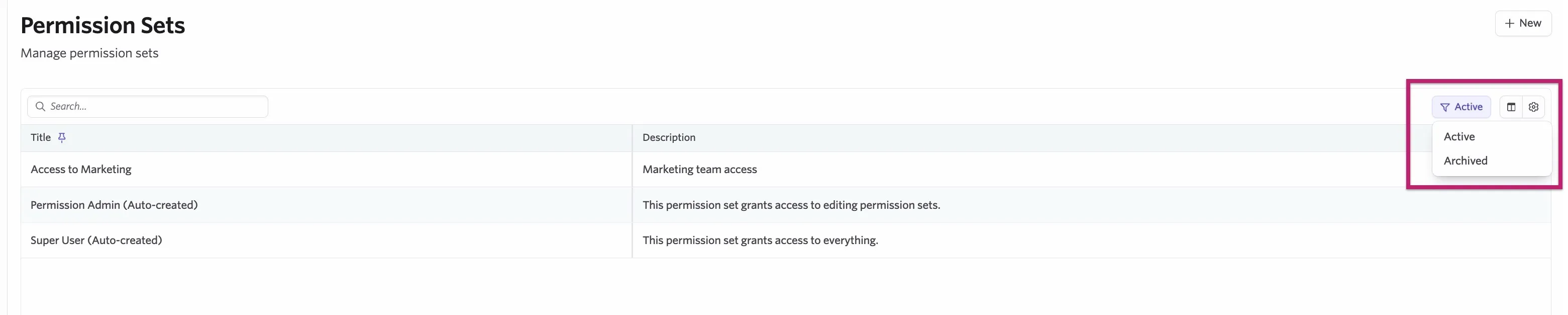
Archived permission sets can be restored. To access archived permission sets, change the dropdown on the Permission Sets page to Archived to view them. Open up the archived permission set in question and click Restore.
FAQs
If an employee isn't assigned to a permission set, what can they see in People Ops?
Employees without an assigned permission set have minimal access to Ashby People Ops and can only see tasks assigned to them in their My Tasks view.
Can a user be assigned multiple permission sets?
If a user is assigned to multiple permission sets, the access provided is the combination of all granted access across those sets.
For example, if one permission set grants access to employee names for Engineering and Product, and another grants access to Personal Email for Engineering only, the user sees:
- Engineering employees with both Name and Personal Email
- Product employees with Name visible and Personal Email blank
- Other employees excluded from the report
Can I control who has access to background check results?
Yes. The Assessment Data field set controls access to background check results. Access to this can be granted in the Fields stage when creating a permission set.