Configure your Form-Triggered Workflow
Form-triggered workflows let you run people processes beyond onboarding inside Ashby's People Workflows. Build a form and workflow for any people process, such as offboarding, onboarding contractors who weren't hired through Ashby Recruiting, leave requests, or location change requests. When someone submits the form, either an employee requesting it themselves or an admin enrolling them, Ashby starts the workflow automatically.
Ashby's People Ops module is currently available through restricted early access. The following documentation is provided for design partners participating in that program.
Form-triggered workflows are currently in restricted early access and are not available to all People Workflows customers. If you would like to use form-triggered workflows, please reach out to your CSM.
Permissions and access
- Users with permission to edit workflow templates can create and edit form-triggered workflows, and manage workflow categories.
- Users with the permissions to enroll employees in workflows can enroll employees in any active workflow the employee is eligible for, even without view or edit access to that workflow.
- Employees can submit a workflow's form themselves only if the workflow is marked self-serve and they match its eligibility criteria.
Learn more about Ashby's People Ops permission sets: Configure Permission SetsAdminister Permission Sets.
Configure workflow categories
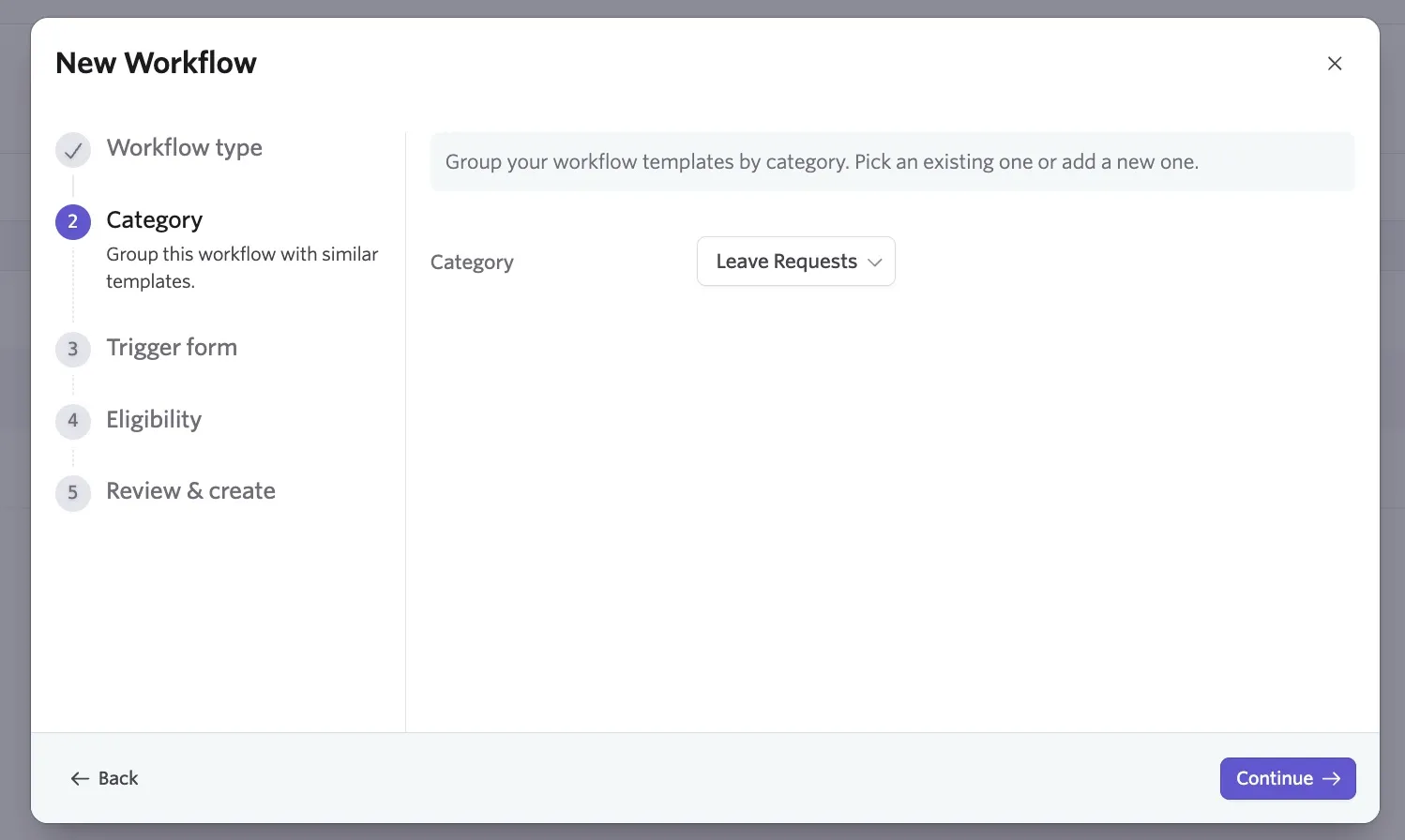
Every workflow belongs to a category, which lets you organize workflows by process type. As such, configuring categories first helps you to keep workflows in the right place from the start. Ashby includes a built-in Onboarding category that's reserved for Onboarding Workflows. You can also create custom categories for any Employee Workflow, such as Offboarding, Transfers, or Compliance Training.
To manage categories, navigate to Workflows, then select Manage Categories.

The following popover will list your existing categories with the option to amend them. To edit an existing category, click the pencil icon. To delete a category, click the trash can icon.
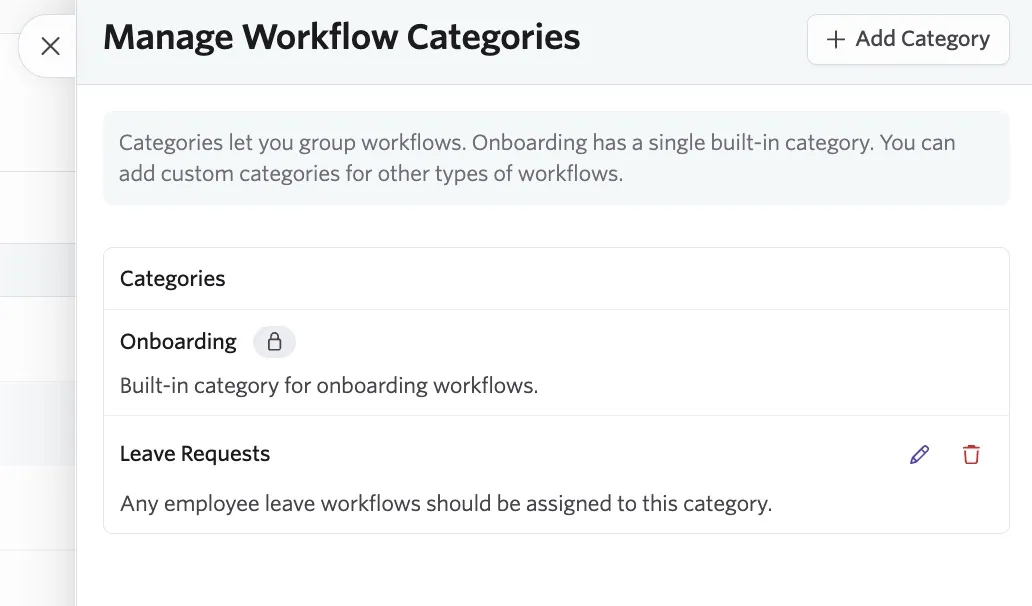
To add a new category, click + Add Category. Add a title and a description for your new category, then click Submit.
Building a form-triggered workflow
Create a new workflow
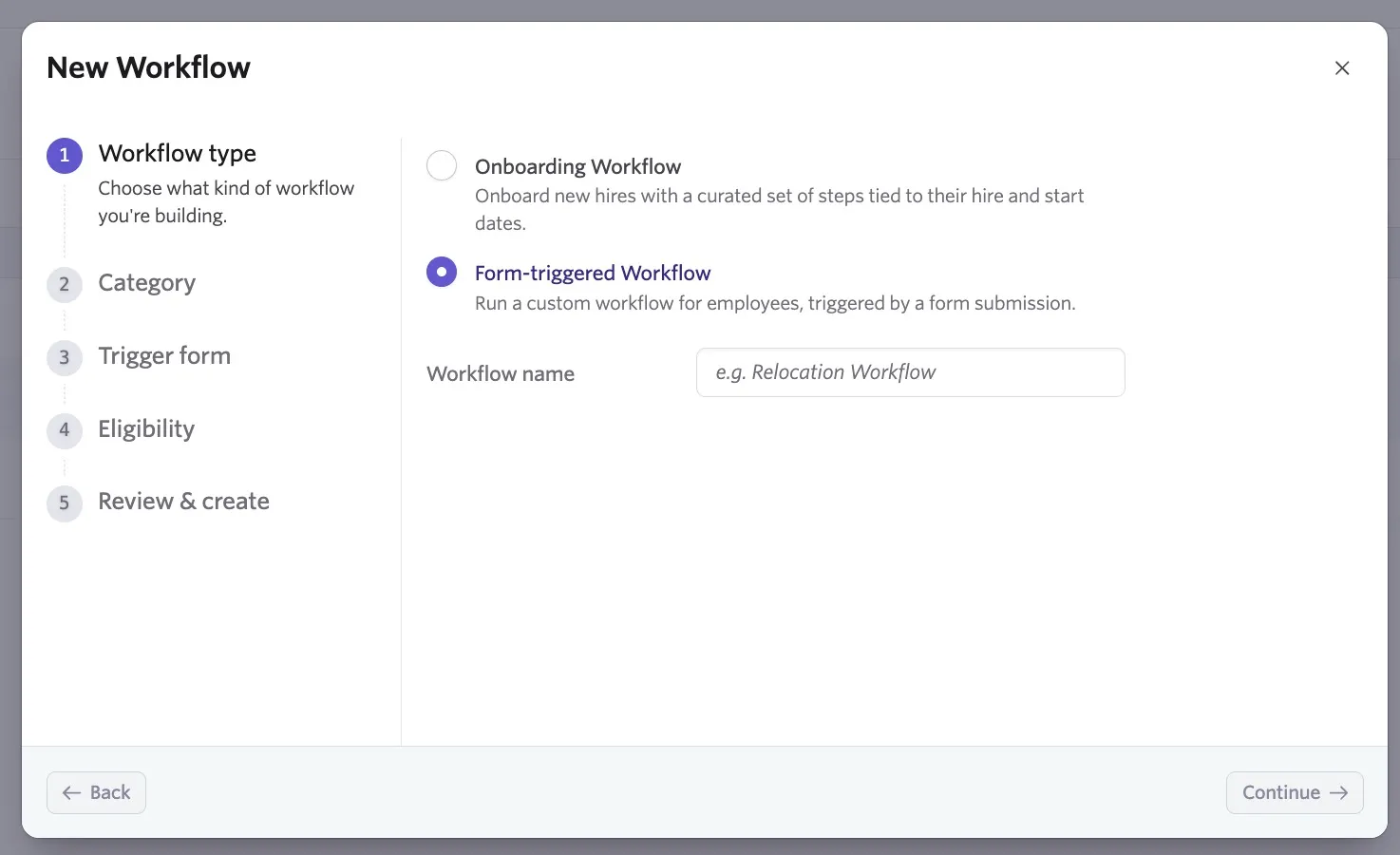
From the Workflows page, select + New Workflow, then complete the following steps:
- Workflow type: Select Employee Workflow and name your workflow.
- Category: Assign the workflow to a category.
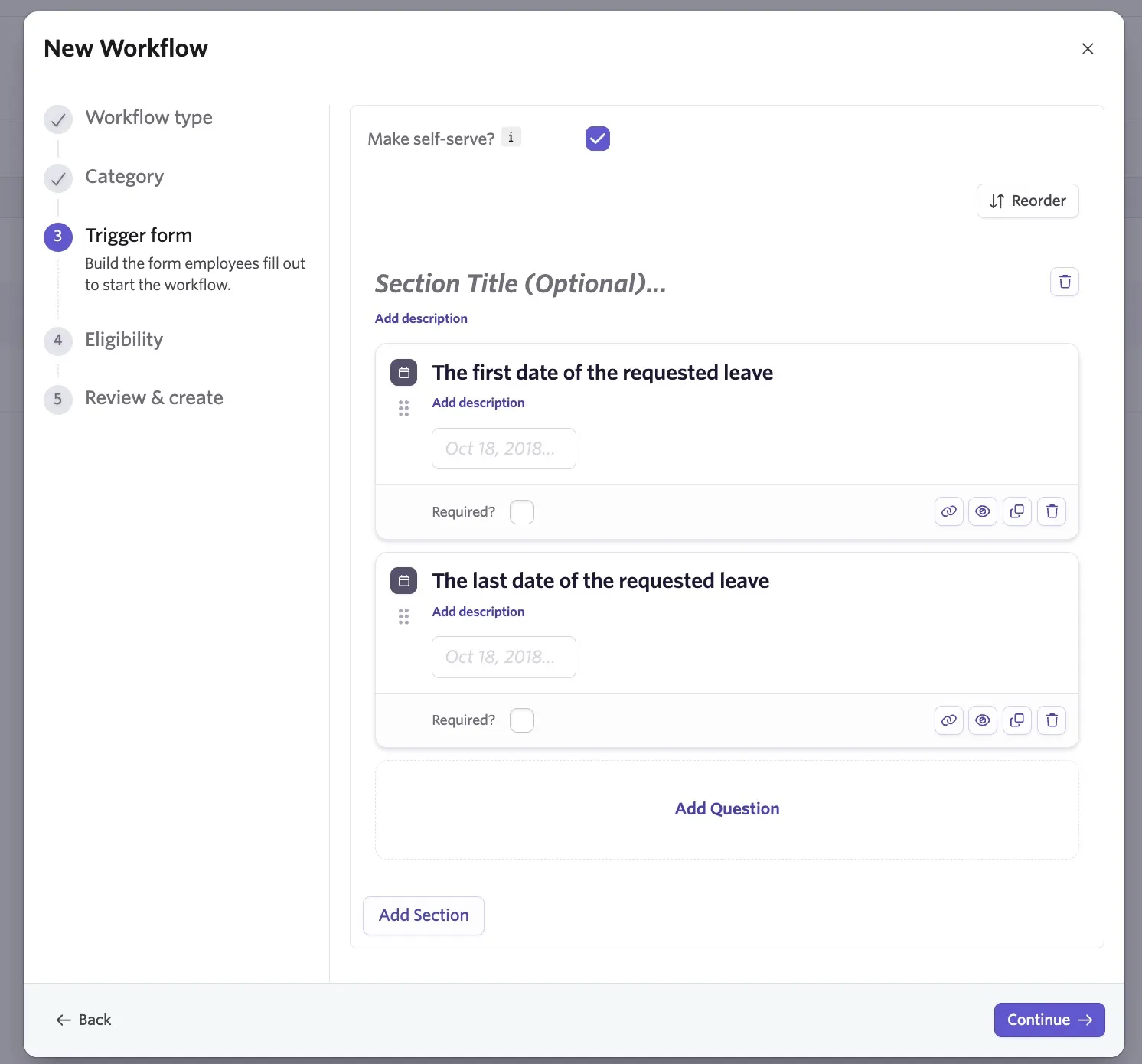
- Trigger: Choose how the workflow starts and build out the form to trigger the workflow.
The Make self-serve? checkbox determines whether or not employees can complete the form and trigger the workflow themselves:
- Self-serve on: Eligible employees see the workflow in the Requests tab and can fill out the form to submit their own request.
- Self-serve off: The workflow doesn't appear in the Requests tab. Users with the Enroll employees in workflows permission can enroll employees from the employee profile.
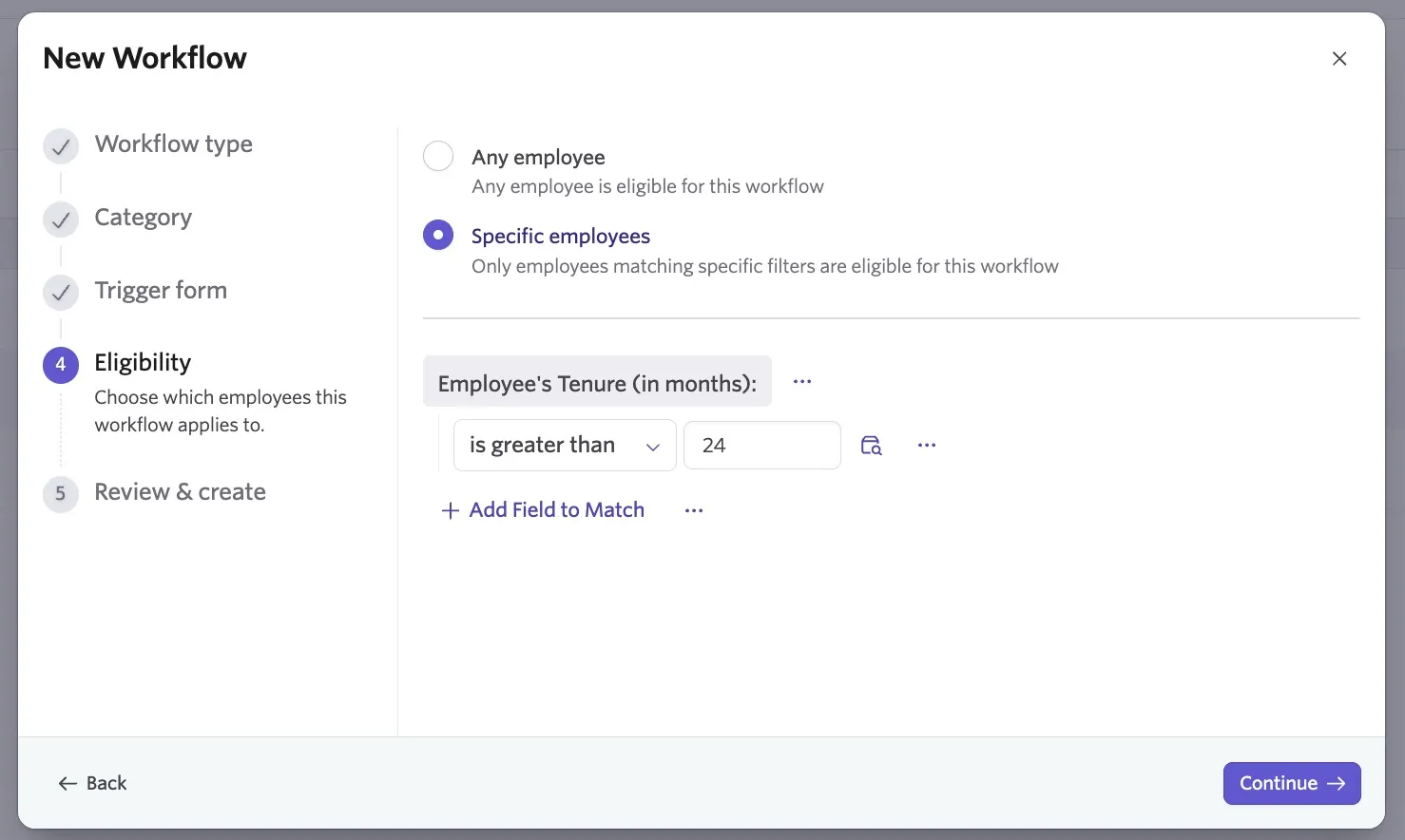
- Eligibility: Determine whether any employee is eligible for the workflow or only employees who meet a specific criteria.
You control which employees can be enrolled in a workflow. You have the following options:
- All employees: Every employee in your organization can be enrolled in the workflow.
- Specific employees: Only employees who match criteria you set, such as team, location, job title, or other employee fields, can be enrolled in the workflow.
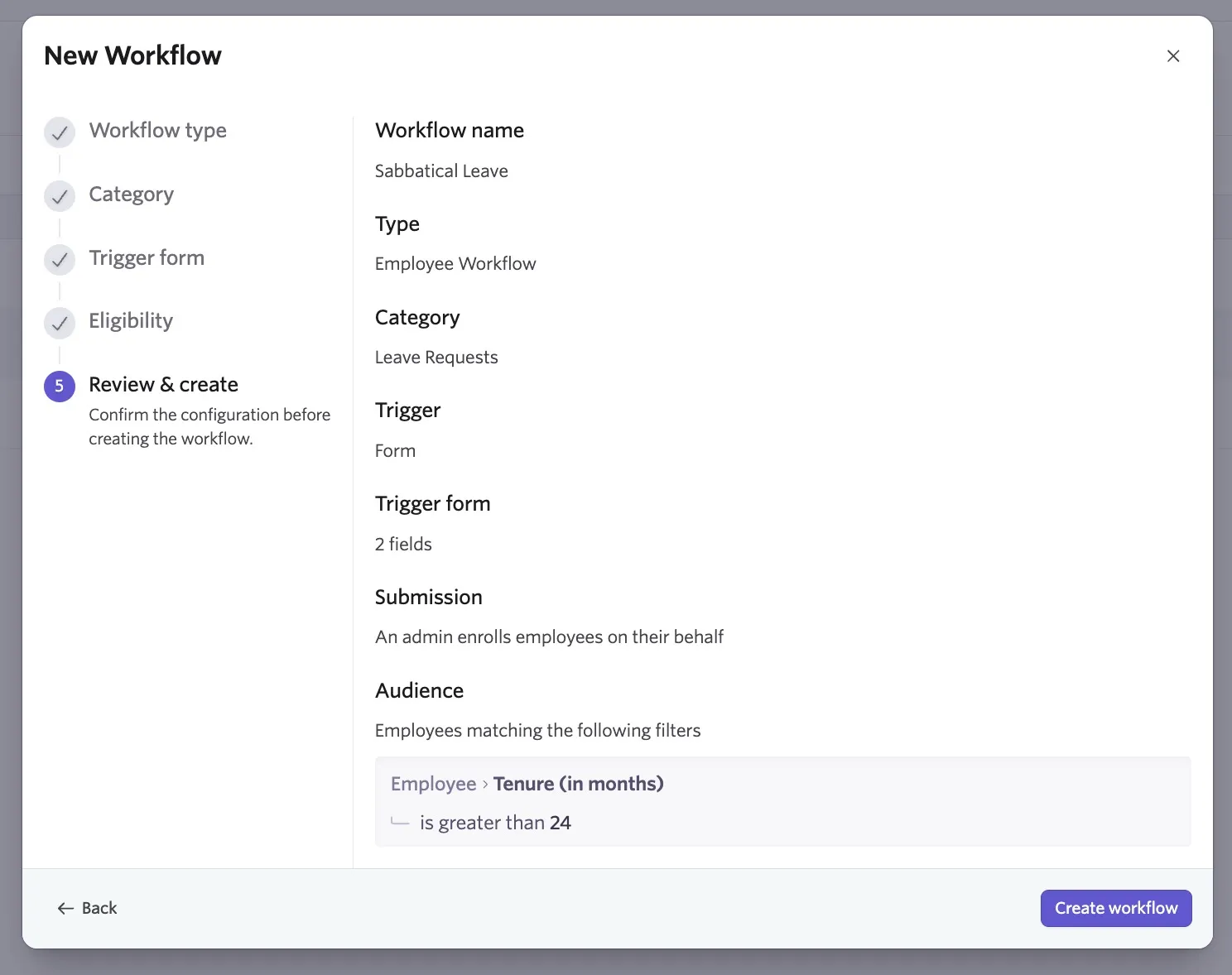
- Review and create: Review the workflow setup and click Create Workflow to confirm.
Edit the workflow
To edit a workflow:
- Navigate to Workflows.
- Click on the workflow you'd like to edit, then View Workflow Template.
- Click Edit.
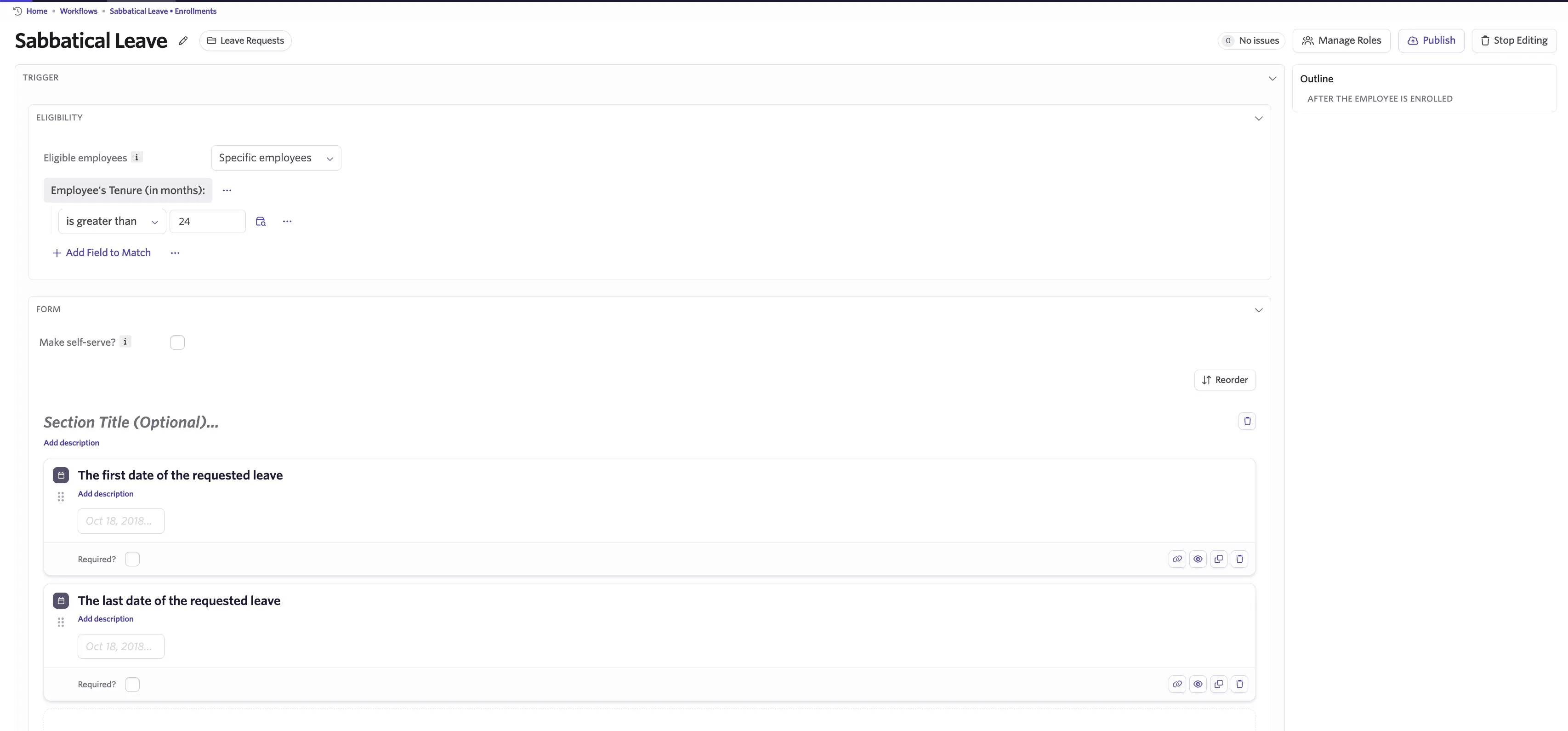
This will take you to the workflow builder where you can:
- Edit who is eligible to be enrolled in the workflow or submit its form.
- Edit the workflow's trigger form.
- Add workflow steps, including tokens, step dependencies, and filters that reference values collected in the trigger form.
For more on the step options you can add to a workflow, check out Configure your Workflow Steps.
Starting a form-triggered workflow
Submitting self-serve requests
The Requests tab lets employees submit forms to start processes such as parental leave requests and location change requests. If a workflow is self-serve, employees who match its eligibility criteria can submit a request from the Requests tab themselves.

After an employee selects, fills out, and submits a request, Ashby starts the associated workflow. The request appears under My Requests, where the employee can track its status.

Enrolling from the employee profile
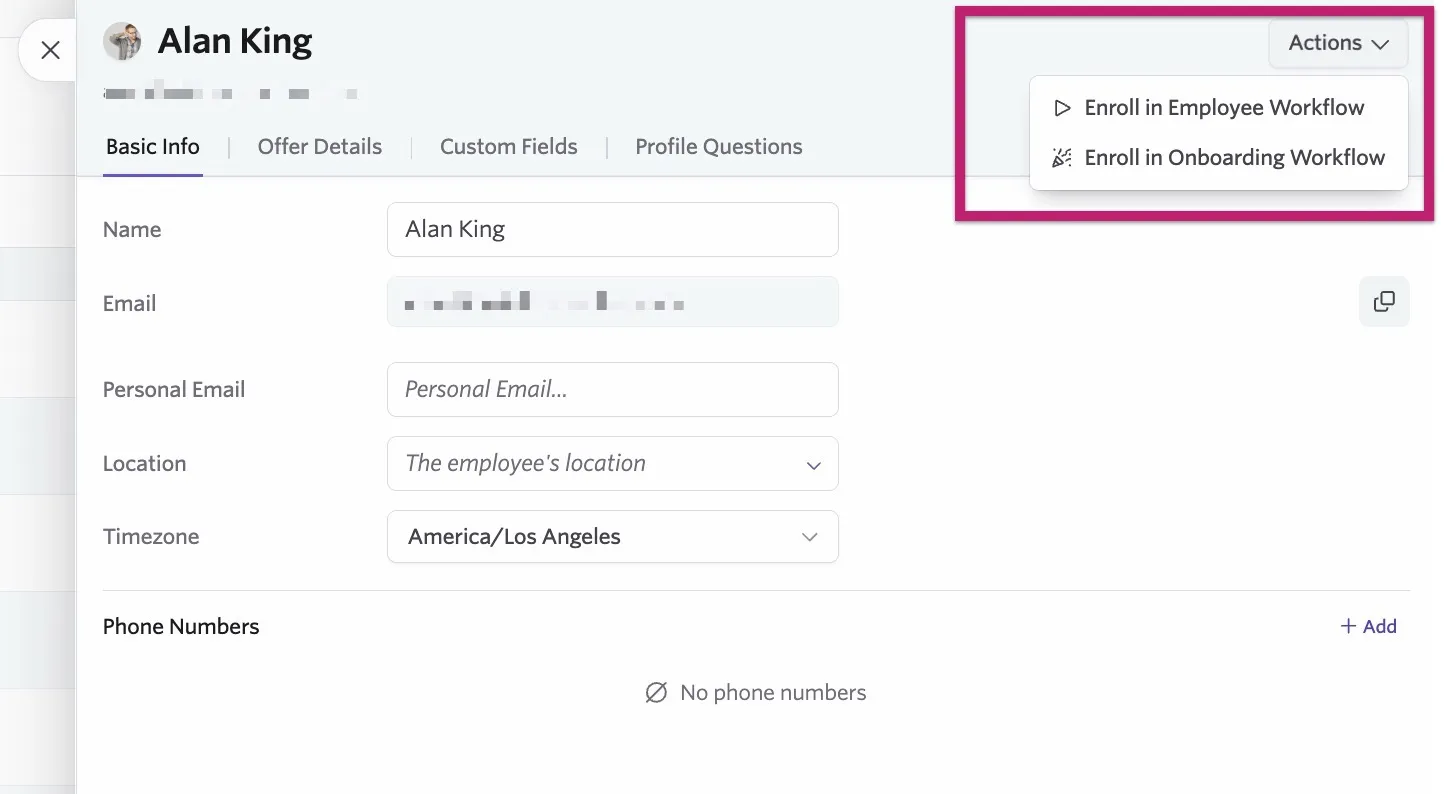
Users with the Enroll employees in workflows permission can enroll employees they have access to directly into a workflow. This is useful for admin-driven processes, such as offboarding, where the employee doesn't start the workflow themselves.
- Navigate to Employees and select the employee.
- Select Workflow or Onboarding Workflow.
- Select the workflow, fill out the form, and select Submit.
Tracking workflows
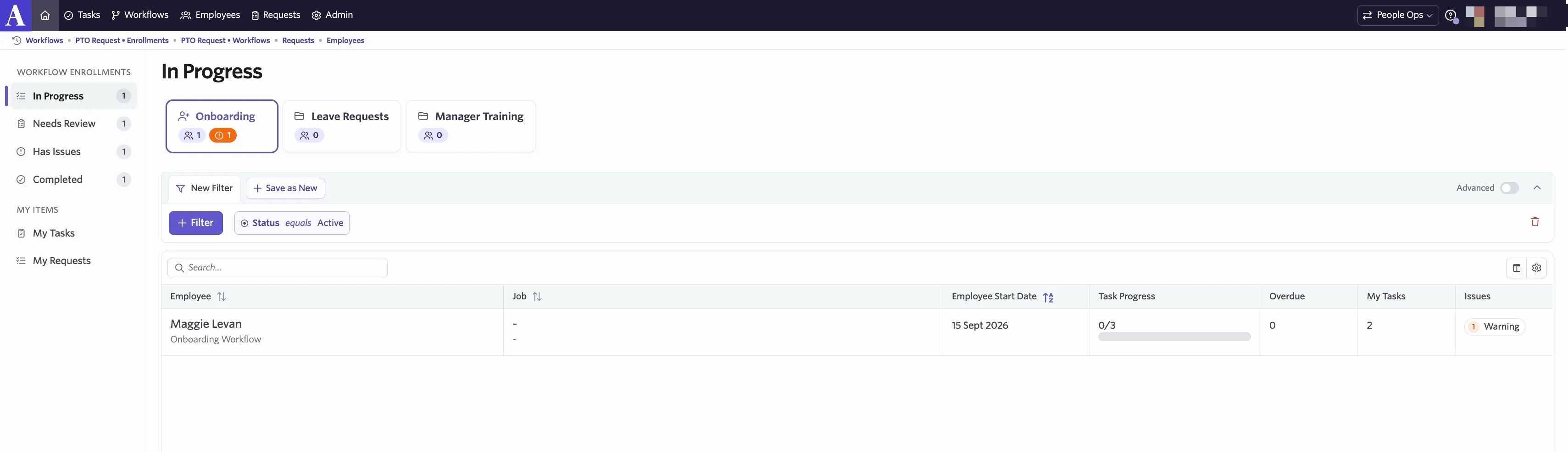
The Workflows homepage includes tabs for viewing workflows in different statuses:
- In Progress: Workflows in progress, grouped by workflow category.
- Needs Review: Hired Job Considerations that haven't yet been enrolled in an onboarding workflow. This tab is currently relevant only to Onboarding Workflows.
- Completed: Completed workflows, grouped by workflow category.
- Has Issues: Workflows with issues, grouped by workflow category.
Enrollment date and anchor date
Enrollment happens when the trigger form is submitted, either by an eligible employee from the Requests tab or by a user with the Enroll employees in workflows permission enrolling someone from their employee profile. This date is always available as a reference point.
The anchor date is a second reference point you configure on the workflow. It lets you schedule steps around a date that matters to the process itself, such as the first day of a leave, an offboarding date, or a transfer date.
Without an anchor date configured, the Before anchor date and After anchor date sections have nothing to schedule against, so all your steps belong in After the employee is enrolled.
Viewing and editing the form submission
If the initial form submission needs to be viewed edited for any reason, this can be handled by a user with edit access to the workflow.
- Navigate to Workflows and click on the workflow in question.
- Select the enrollment and click View Form Submission.
- Click Edit Submission to edit the submitted form.
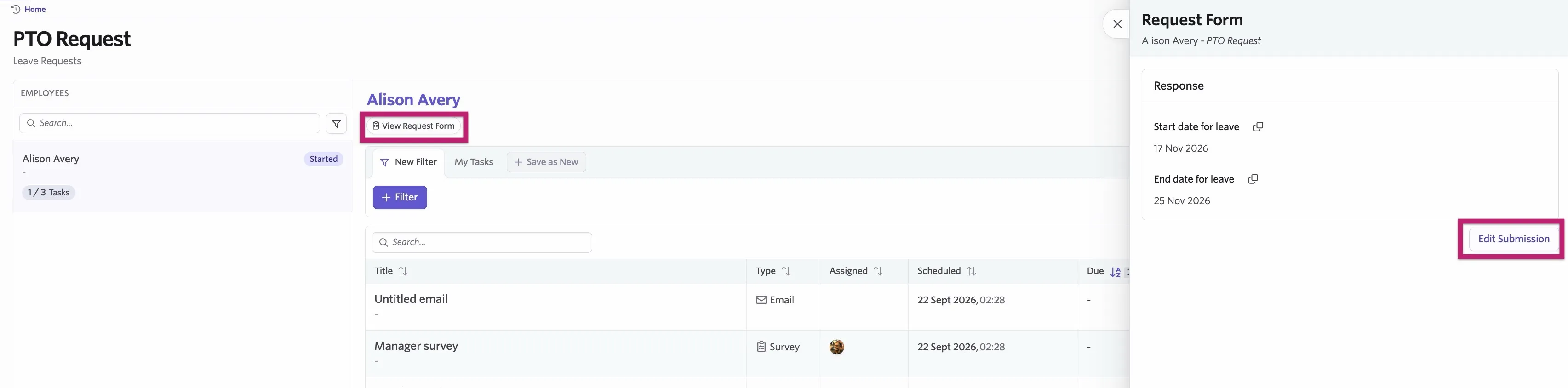
- Click Submit. A warning will show that filters will be re-evaluated based on the new information provided which may result in steps being updated, added or removed. Click Yes to confirm.
Completed steps will not re-run or be impacted and users will not be re-notified of assigned steps.
FAQs
Who can create form-triggered workflows?
Users with permission to edit all workflow templates.
Who can enroll employees in a workflow?
Users with the Enroll employees in workflows permission.
Can a user with the Enroll employees in workflows permission choose from any active workflow when enrolling an employee?
Yes. A user with this permission can choose from any active workflow the employee is eligible for, even if they don't have view or edit access to that workflow.
Who can manage workflow categories?
Users with permission to edit any workflow template can create, delete, and manage workflow categories.
Can I change the workflow type after creating a workflow?
No. The workflow type (Onboarding or Employee) and trigger type (form, form with approval, or no form) are set during creation and can't be changed afterward.
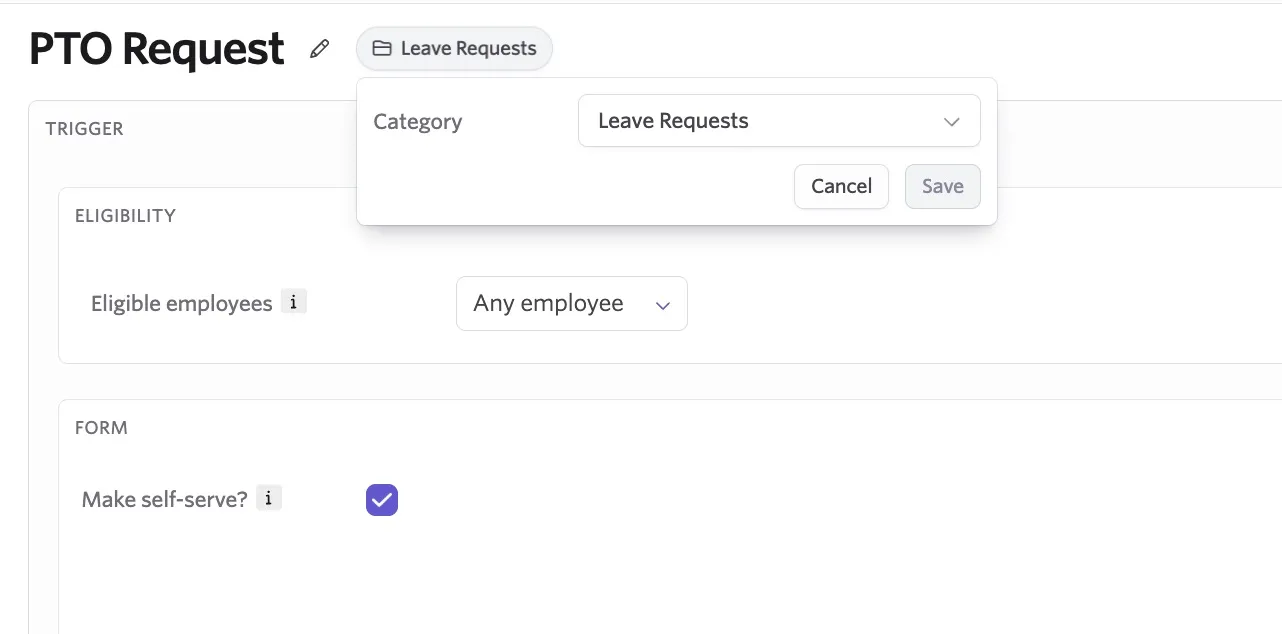
Can I change the workflow category after creation?
Yes. From the Workflow Builder, select the category name, choose a different category, and click Save.
Can I use dates other than the form submission date within my workflow?
Not yet, but we plan to support referencing date fields collected in the trigger form, such as first day of leave or date of offboarding.