Creating a Test New Hire
This guide covers how to create a test employee so you can trial a newly built workflow in Ashby People Ops. This specific case covers testing out an onboarding workflow.
Ashby's People Ops module is currently available through restricted early access. The following documentation is provided for design partners participating in that program.
Step one: create a test job in Ashby Recruiting
To avoid having a test candidate get mixed up in real candidate data, we recommend creating a test job to add your test candidate to. Check out Creating & Opening JobsCreating & Opening Jobs for a guide on creating a new role. Identify the job as a test role in the job title.
Step two: create a test candidate in Ashby Recruiting
To add a new candidate in Ashby Recruiting:
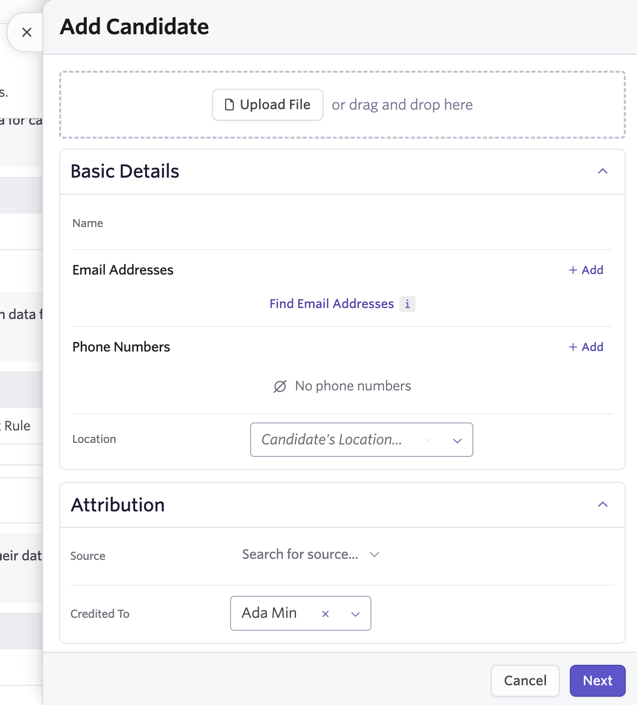
- Click + Add on the top navigation bar, then Candidate.

- Add the candidate's details, then click Next.
- If you have a dummy resume, you can upload it using the Upload File button. Ashby parses it and fills out the candidate information from the file.
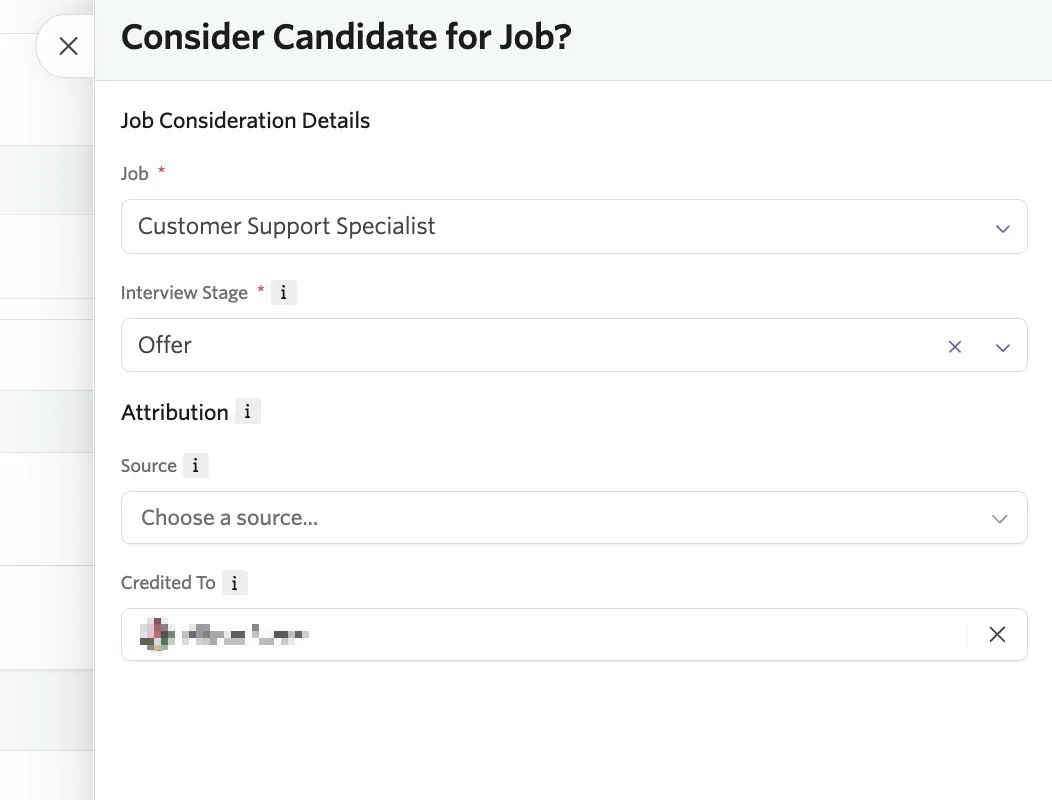
- Consider the test candidate for your test job.
- Add them into the Offer stage of the interview plan.
Step three: create an offer and accept it for the test candidate
To mark the test candidate as Hired and push them to Ashby People Ops:
- Navigate to the test candidate's profile in the Offer stage of your test job.
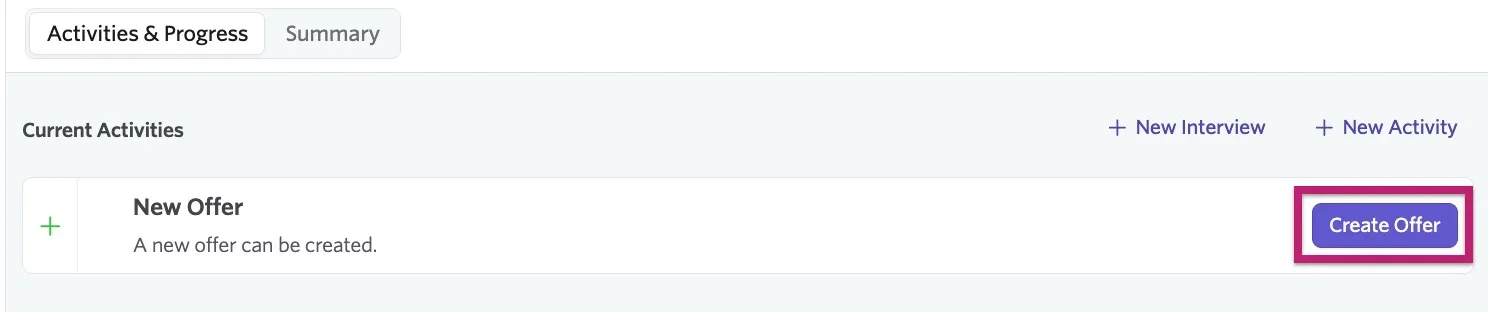
- Click Create Offer on the offer activity.
- Fill out the required offer details, then click Submit.
Depending on your organization's setup, you may need to submit the offer for approval. We recommend reaching out to the approvers to confirm this is a test role and test candidate for Ashby People Ops, or force-approving the offer.
- Once the offer has been generated, navigate into the offer details and click Set Response, then set it to Accepted.
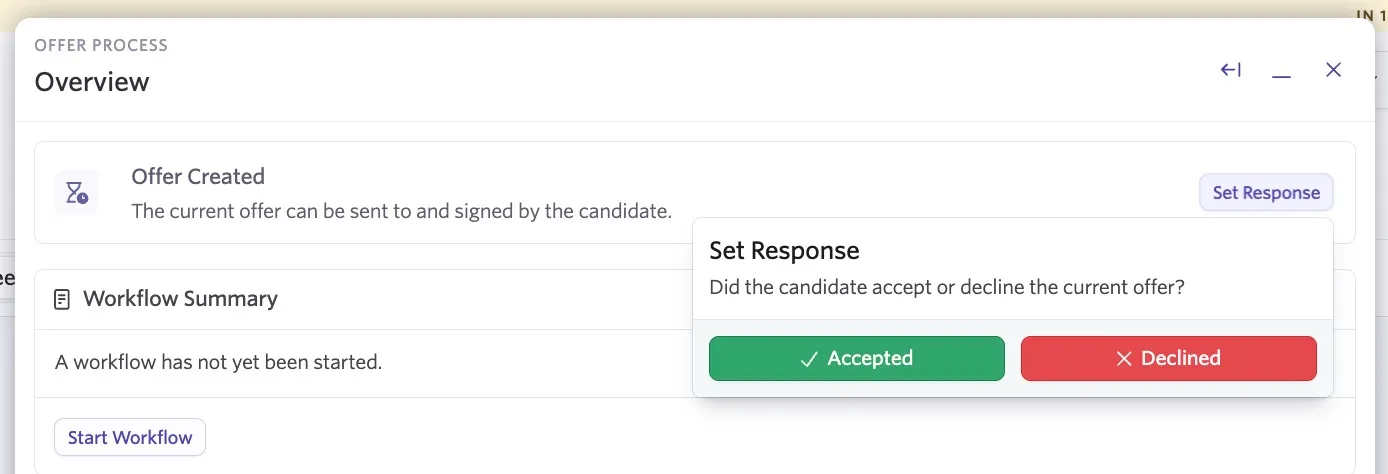
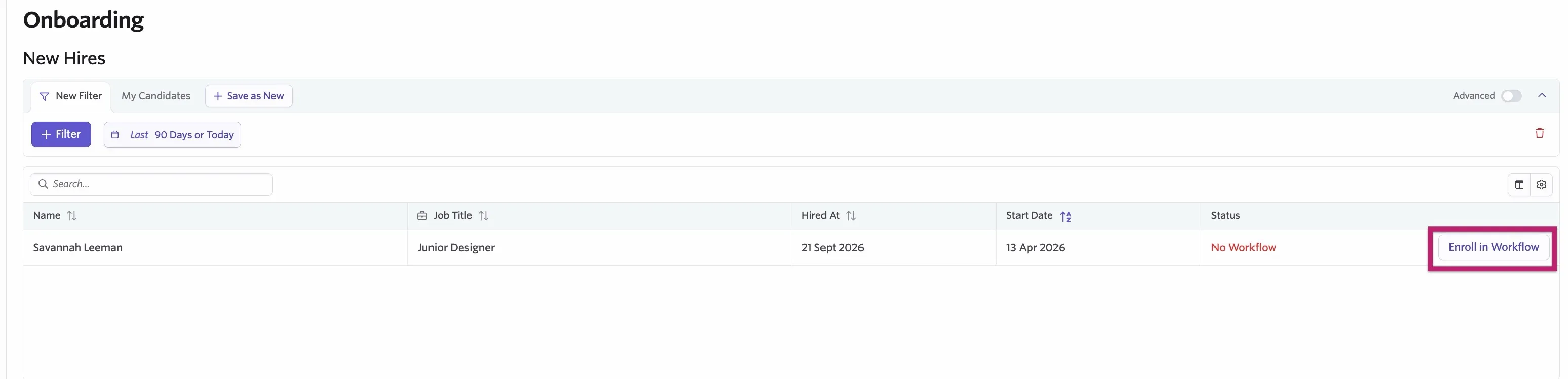
Once you accept the offer and the candidate moves to the Hired stage, they appear in Home under New Hires. To enroll them in a workflow manually, click the Enroll in Workflow button.