Configure Employee Custom Fields
Employee custom fields let you track information about your employees that Ashby does not capture by default. Once you create a field, it appears on the employee profile, and you can reference it in workflow filters, survey form field connectors, email tokens, and reports. This article explains how to create, edit, and archive employee custom fields in Ashby People Ops, and where those fields show up after you create them.
Ashby's People Ops module is currently available through restricted early access. The following documentation is provided for design partners participating in that program.
Permissions and access
To create or edit employee custom fields in People Ops, your permission set needs the Edit employee custom fields app permission. You can find this permission in the App access section of a permission set, under Which app features can they access?
Creating a field and viewing its values are two separate permissions. Users who can see the Custom Fields admin page do not automatically see the values stored on employee profiles. Grant field-level access in the Employees section of a permission set, where employee custom fields appear under the Custom group.
For more information, see Configure Permission SetsConfigure permission sets.
Where employee custom fields live
You can create employee custom fields in two places in Ashby, and the choice affects who can see the values.
Where you create it | Navigation path | Visibility in People Ops |
|---|---|---|
People Ops | People Ops > Admin > Custom Fields > Employee | Treated as sensitive data. Each field requires an explicit grant in a permission set. |
Recruiting | Admin > Organization Setup > Custom Fields > Employees | Visible to all People Ops admins, regardless of permission set configuration. |
Fields you create in People Ops carry an App: Ashby People Ops tag in the custom fields list. To check whether an existing field is treated as sensitive, look for that tag.
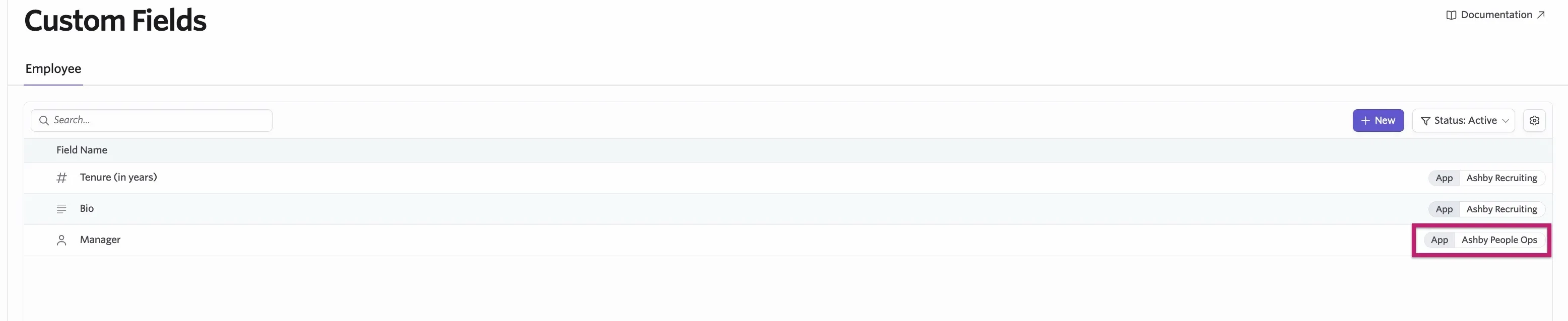
Create your field in People Ops when the data is sensitive and you want to control who sees it. Create it in Recruiting when the data is general and every People Ops user should see it.
Create an employee custom field
- Navigate to People Ops > Admin > Custom Fields and select the Employee tab.
- Select the + New button in the top right corner of the page.
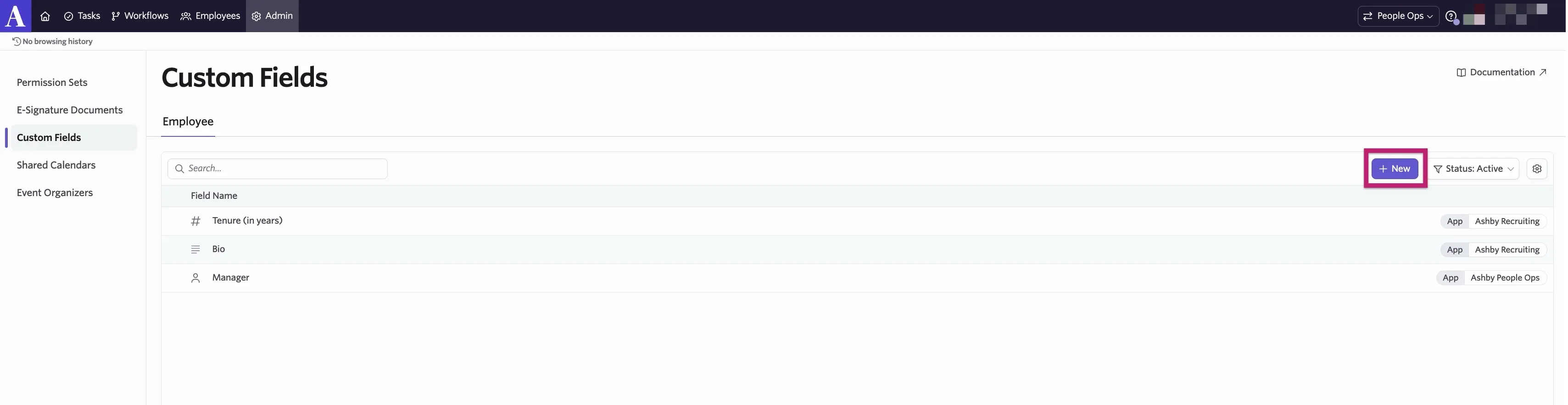
- Enter a title. This is the name that appears on the employee profile and in reports, so make it specific.
- Optionally, enter a description. The description appears below the title wherever the field is displayed.
- Select a field type from the drop-down. See the field type table below for the available options.
- If you select Multiple choice or Checkboxes, enter the options you want users to choose from.
- Select Save.
The field is now available on every employee profile in your organization.
Field types
Field type | Description |
|---|---|
Yes/No | Toggle yes or no. |
Short answer | Input a single line of text. |
Date | Select a single date. |
Multiple choice | Select a radio button. |
Checkboxes | Select one or more checkboxes. |
Number | Input a single numeric value. |
Long unformatted answer | Input multiple lines of text. |
URL | Add a URL into this field. |
Employee | A single select drop-down showing all employees in your Ashby instance. |
The Employee field type only lists active users. You cannot select a deactivated user in an Employee field.
Edit an existing field
To edit a field, navigate to People Ops > Admin > Custom Fields > Employee and select the field you want to change.
After you create a field, the following options become available:
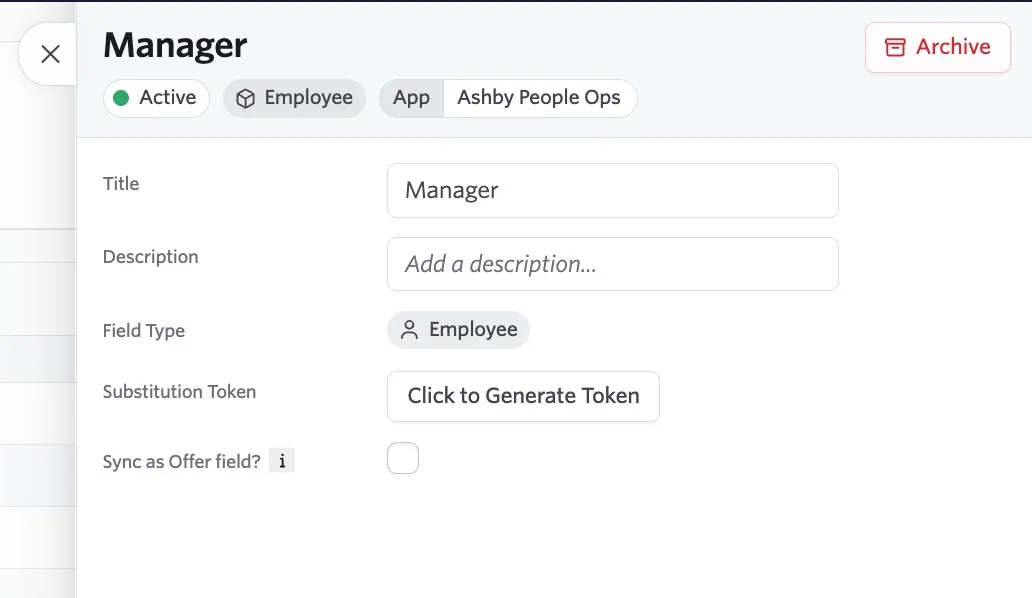
- Substitution Token: Click the button to generate a token to add to e-signature documents.
- Sync as Offer field?: When you select this option, the field becomes available as an Offer field in Ashby Recruiting. Ashby copies the offer value to the employee field when you enroll an employee in an onboarding workflow. This is a one-time sync: if the offer field changes after enrollment, the employee field does not update.
Instead, permission set field grants control visibility for employee fields created in People Ops. You cannot mark an employee custom field as private.
Archive and restore a field
Ashby archives employee custom fields rather than deleting them, so you do not lose historical data.
- Navigate to People Ops > Admin > Custom Fields > Employee and select the field.
- Select Archive and confirm.
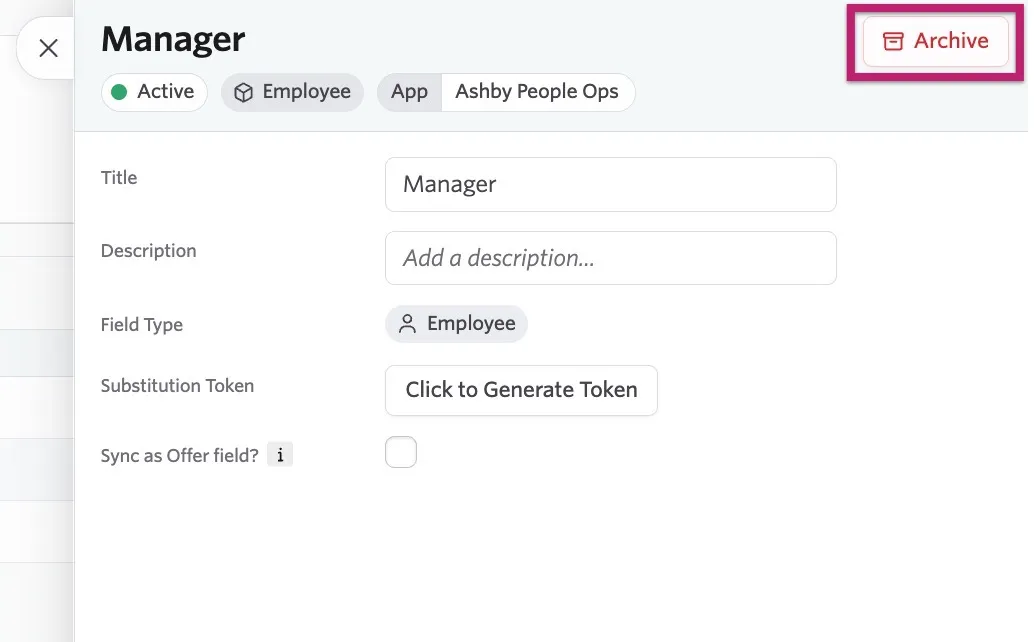
Archiving removes the field from any dashboards that use it as a filter. You can restore an archived field at any time.
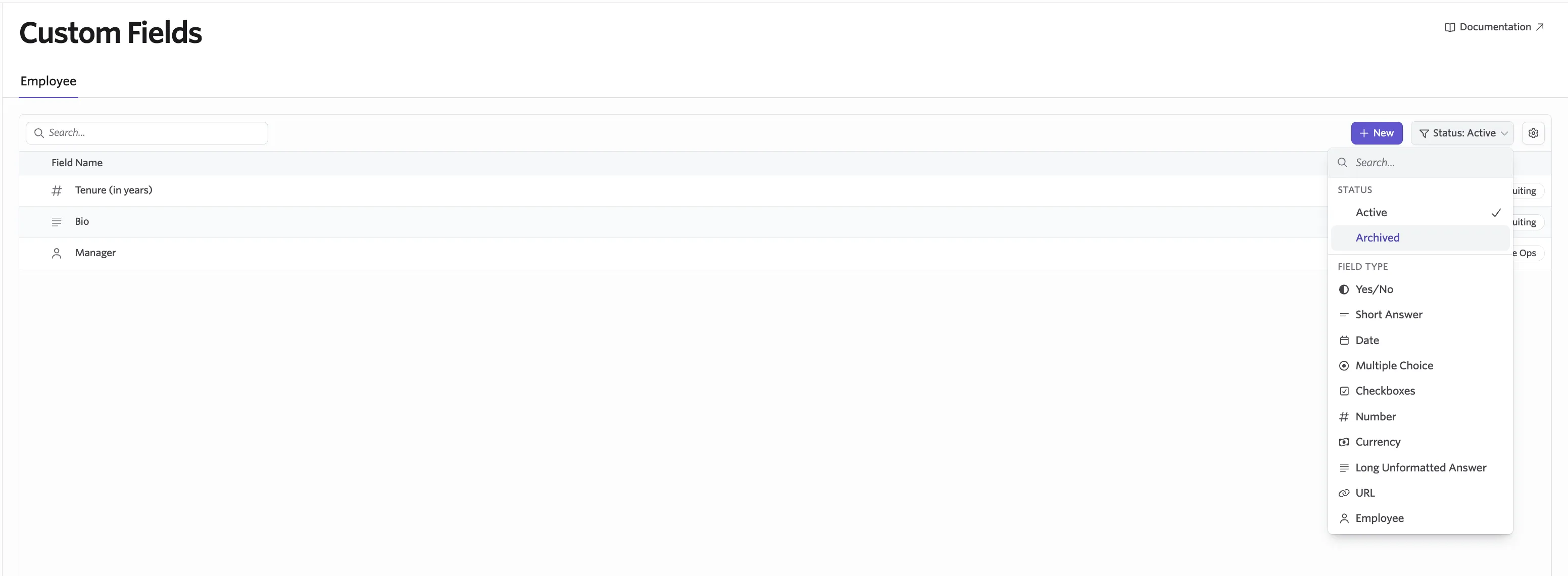
To find archived fields, filter the custom fields list by status. You can also filter by Field type and by Field source, which is useful when fields sync in from an integration. Click on an archived field, then click Restore on the following pop-up to restore it.
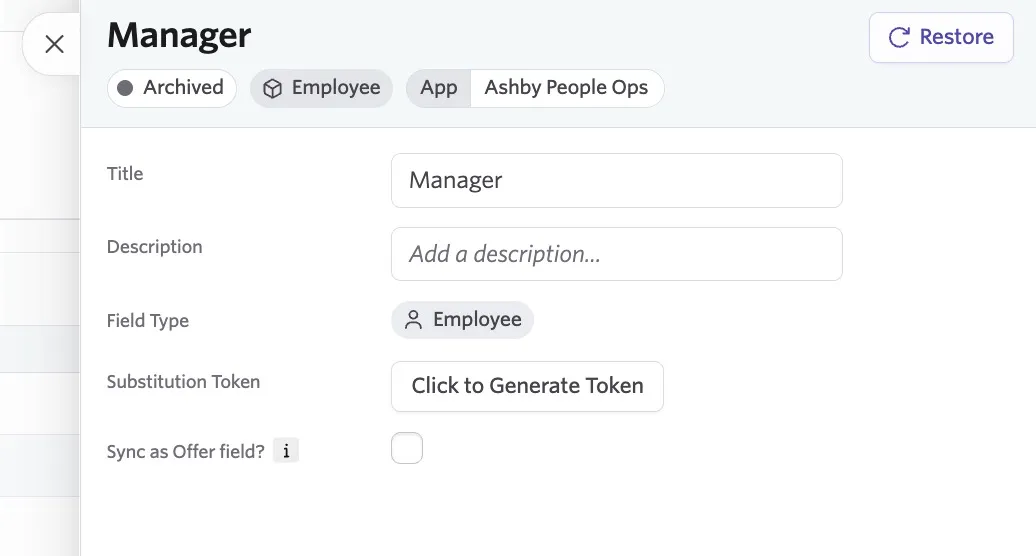
Where the field appears
After you create an employee custom field, it becomes available in these places:
- Employee profile: on the Custom Fields tab of each employee's profile in People Ops. Fields created in Recruiting appear on the Basic Info tab of the employee's profile in Recruiting.
- Surveys: you can connect a survey question to an employee field using a form field connector, so the answer writes directly to the employee record. Only users assigned to the survey and users with access to that employee field can complete the survey. See Form Field Connectors.
- Workflow tokens and filters: reference the field to personalize messages or branch a workflow based on its value.
- Enrollment: the enrollment wizard displays employee custom fields when you review an employee's details.
- Reports: the field appears in the Employees subject under Custom fields (People Ops), labeled with the title you gave it.
- Bulk import: you can populate employee custom fields through a comma-separated values (CSV) import. Separate multiple values for a Checkboxes field with semicolons, for example remote; in office; hybrid. See Bulk Import Options.
FAQ
Why is a custom field column blank in my report?
A blank cell means one of two things: the employee has no value stored for that field, or your permission set does not grant you access to that field for that employee. Employee custom fields created in People Ops are treated as sensitive data and require an explicit field grant. See Configure Permission SetsAdminister permission sets for more information.
Why can some People Ops users see a field I never granted them access to?
Employee custom fields created in the Recruiting app are always visible to all People Ops admins, regardless of permission set configuration. If you need to restrict who sees the data, create the field in People Ops instead.
Can I retrieve employee custom fields through the API?
Yes. See Retrieving Custom Fields via Ashby's user.info API endpoint for more information.
What happens to my custom fields if I switch a HRIS integration between Recruiting and People Ops?
Switching the ADP Workforce Now connector from Recruiting to People Ops archives the mapped offer custom fields in Ashby Recruiting and activates them in Ashby People Ops. See ADP Workforce Now ConnectorADP Workforce Now Connector for more information.
Do integrations create employee custom fields automatically?
Yes. Workday, System for Cross-domain Identity Management (SCIM) provisioning, and ADP Workforce Now each generate employee custom fields for the attributes they sync. Fields created this way show a source in the Field source filter, so you can tell them apart from fields you created manually.