Reporting Access & Permissions
Reporting in Ashby's People Ops Workflows allows People Ops users to analyze Onboarding Workflows, Workflow Steps, and Employee data in Ashby. Access to reports, dashboards, fields, and employees is governed by your organization's Recruiting permissions and People Ops permission sets.
Ashby's People Ops module is currently available through restricted early access. The following documentation is provided for design partners participating in that program.
Permissions and access
Access to People Ops reporting depends on two permission layers working together: your organization's Recruiting permissions and People Ops permission sets.
Permission set managers configure permission sets to control which reports, dashboards, fields, and employees each user can access. You need a permission set that grants at least the View reports and dashboards permission to open Reports and Dashboards in People Ops.
Learn more about Ashby's People Ops permission sets: Configure Permission SetsAdminister permission sets.
How permission sets control reporting
Ashby uses permission sets to control what People Ops-related data users can view in reports, including which reports and dashboards they can access and which sensitive fields they can use.
View and edit access
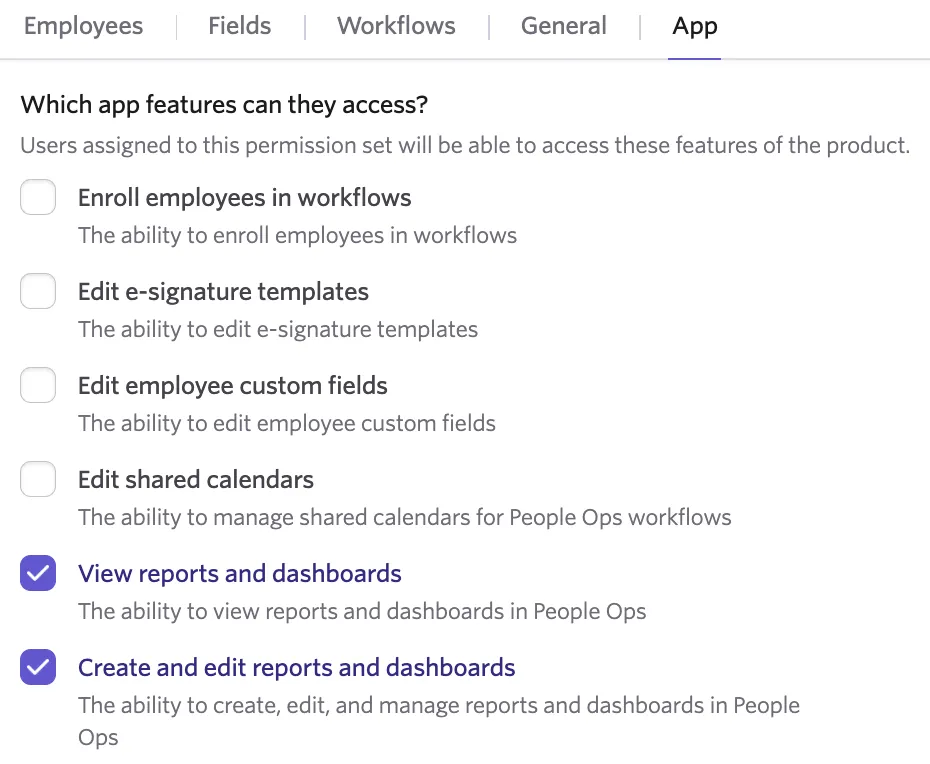
Granting reporting permissions in a People Ops permission set gives users access to the Reports and Dashboards tabs in People Ops, and lets them either view, or create and edit, reports and dashboards from there.
What counts as sensitive data
In People Ops, the following count as sensitive data:
- Employee custom fields created in People Ops
- Personal Email
- Offer fields
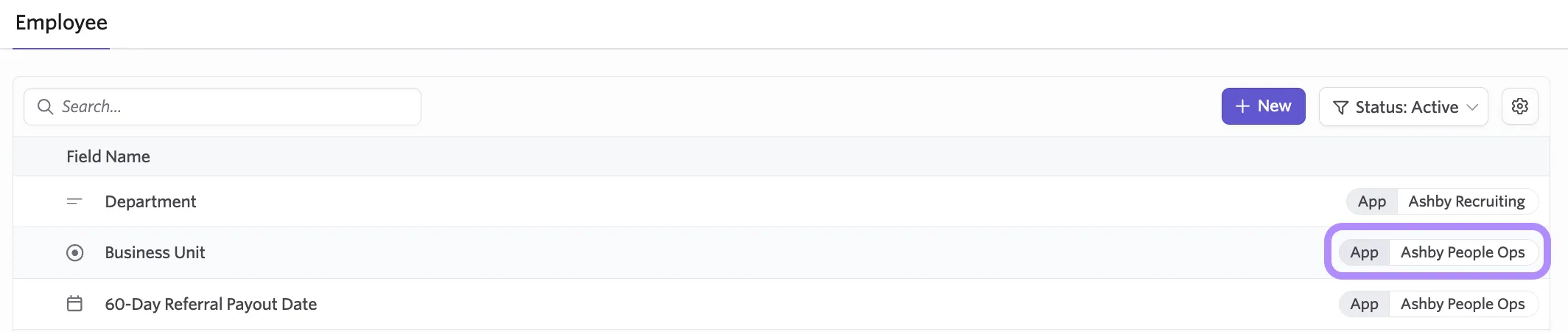
To identify sensitive employee custom fields, navigate to Admin > Custom Fields and look for fields labeled App: Ashby People Ops.
Standard employee fields such as Name, Email, Role, Start Date, and Manager, along with employee custom fields created in Recruiting, are always visible to People Ops users regardless of permission set configuration.
Offer field access
If a user has permission to view an Offer field through People Ops permission sets, they can access it from People Ops. If they also have View reports and dashboards or Create and edit reports and dashboards permission, they can use those Offer fields in reports and dashboards.
Editing Offer fields is controlled by Recruiting permissions, not People Ops permission sets. Learn more about configuring permissions in Ashby's Recruiting module: User Permissions.
How permission sets affect report results
For the People Ops reporting subjects Onboarding Workflows, Employee Workflows, Workflow Steps, and Employees, permission set restrictions apply only when a report includes at least one sensitive column.
If a report includes a sensitive column, only employees covered by your permission set appear in the report. If the report does not include a sensitive column, all employees are visible regardless of permission set coverage.
If your permission set does not grant access to any employees and you try to run a report with a sensitive column, you see an Access denied error.
Filtering, sorting, and grouping restrictions
You cannot filter, sort, or group by a sensitive field unless you have access to that field, even if the field is not displayed in the report. Ashby blocks grouping by a sensitive field you cannot access, since group labels could reveal restricted values. If you try to filter, sort, or group by a restricted field, Ashby returns an Access denied error.
Aggregations and formulas
Aggregate functions such as SUM and AVG only include values for employees and fields you are allowed to view. If you do not have access to a sensitive field at all, calculations on that field return an Access denied error.
As a result, totals and averages may not match what other users see on the same report: since calculations are limited to the employees and fields you can view, a user with broader access may see different totals for the same report.
How multiple permission sets combine
If a user has multiple permission sets, their access is the combination of all granted access across those sets.
For example, if one permission set grants access to employee names for Engineering and Product, and another grants access to Personal Email for Engineering only, the user sees:
- Engineering employees with both Name and Personal Email
- Product employees with Name visible and Personal Email blank
- Other employees excluded from the report
Access reports and dashboards in People Ops
Users need a permission set with at least the View reports and dashboards permission to access Reports and Dashboards in People Ops.
Users granted a permission set with at least View reports and dashboards permission in People Ops, and Elevated Access or higher in Recruiting, can access Reports and Dashboards from either the Recruiting or the People Ops module. Users with the correct permissions in both Recruiting and People Ops can build reports that combine Recruiting and People Ops data.

Recruiting Limited Access users
A Recruiting Limited Access user with People Ops reporting permissions can access Reports and Dashboards from People Ops, but not from Recruiting. They cannot access Recruiting-specific subjects that require Elevated Access or above. They can view Offer fields if those fields are granted through People Ops permission sets.
If that user also has permission to enroll new hires in onboarding workflows, they can see hired Job Considerations for employees they have access to through People Ops permission sets, as well as hired Job Considerations not yet linked to an employee. They cannot see Job Considerations for candidates who were not hired.
Effect on existing Recruiting reports
People Ops permission sets do not affect reports that use only standard Recruiting subjects and fields. Those reports continue to follow Recruiting permissions.
Learn more about configuring permissions in Ashby's Recruiting module: User Permissions.
Calculated fields, formula fields, and Reporting Assistant
If you have access to Calculated Fields or Formula Fields in Recruiting, you can also use them in People Ops reporting, either as ad hoc fields in a report or as reusable fields configured in Recruiting admin.
Ashby's AI Reporting Assistant does support People Workflows reporting subjects.
FAQ
Why are some cells blank in my report?
A blank cell in an employee report usually means one ofo things:
- The employee does not have a value for that field.
- You can see the employee, but you do not have access to that field for that employee through your permission sets. In this case, the row stays visible and the restricted cell appears blank.
Aggregate calculations still only include values you are permitted to view.
Why am I seeing an Access denied error?
This typically happens when you try to:
- View a report with sensitive columns but do not have employee access
- Filter or sort by a restricted field
- Run a calculation on a restricted field