Configure your Workflow Steps
Workflow steps assign tasks and build automation into your process. This article explains what each control does, how they interact with each other, and how to configure them so your workflow triggers the right step, for the right employee, at the right time.
Ashby's People Ops module is currently available through restricted early access. The following documentation is provided for design partners participating in that program.
Permissions and access
To configure workflow steps, you need view and edit access to the workflow. Your permission set grants this access to either all workflows or specific workflows. View-only access allows you to view a step's configuration, including delays, filters, and dependencies, without the ability to edit them.
Learn more about Ashby's People Ops permission sets: Configure Permission SetsConfigure permission sets.
Where steps live in an onboarding workflow
Onboarding workflows anchor steps to two dates that come from Ashby Recruiting: the hire date and the new hire's start date. Steps are organized into sections that map to the onboarding timeline.
- New hire profile completion. The first step every new hire completes upon enrollment.
- After the hire is made. Steps here trigger immediately upon enrollment or are scheduled according to the delay, filter, and dependencies you configure.
- Before the hire starts. Steps here are scheduled relative to the new hire's start date and run before it.
- After the hire starts. Steps here trigger on or after the new hire's start date.
To trigger a step as soon as the new hire is enrolled, at the same time as new hire profile completion, add it to After the hire is made with no delay configured.
For more on this, see Configure your Onboarding Workflow.
Where steps live in a form-triggered workflow
Form-triggered workflows anchor steps to the enrollment date, and to an anchor date if you configure one. Steps are organized into sections that map to those two reference points.
- After the employee is enrolled. Steps here trigger immediately upon enrollment or are scheduled according to the delay, filter, and dependencies you configure. Every form-triggered workflow has this section.
- Before anchor date. Steps here are scheduled relative to the workflow's anchor date and run before it.
- After anchor date. Steps here trigger on or after the workflow's anchor date.
To trigger a step as soon as the employee is enrolled (upon form submission), add it to After the employee is enrolled with no delay configured.
For more on this, see Configure your Form-Triggered Workflow.
Understanding step logic
When adding steps to your workflow, it's important to consider three key areas:
- When should this step happen? If the step shouldn't fire as soon as a hire is made or on the day the employee starts, consider adding a delay. More on this at Setting a delay.
- Who should the step happen for? Use filters to determine who should receive or complete the step. For more on filtering, check out Filtering on a step
- What has to happen before the step fires? If other steps need to be completed or skipped first, consider adding dependancies. More on this at Adding dependencies.
You can combine all three controls on a single step. Below is an example for reference:
Our example step is submitting a request to IT to order a laptop for a new remote hire. Laptop order requests in this example are only submitted for remote employees.
- The step waits on its dependency. In this case, we want to ensure the new hire has completed their equipment survey.
- Ashby evaluates the filter. If the new hire's job consideration's location type is set as Remote, then this step will run.
- Ashby applies the delay. The step triggers once the delay elapses. So if you have a delay configure for two days after the hire date and they were hired on September 12th, the step will not fire until September 14th.
Most workflows use a number of step types together. In this case, a survey step is used to ask the candidate about their equipment preferences. A task step is then generated for IT to order the laptop. You could also create an email step to update the candidate once IT have completed the laptop order.
Adding a step
Navigate to Ashby's People Ops module and complete the following steps:
- Open an existing Workflow.
- Click Edit Workflow Template in the upper right, then Edit again on the Workflow overview page.
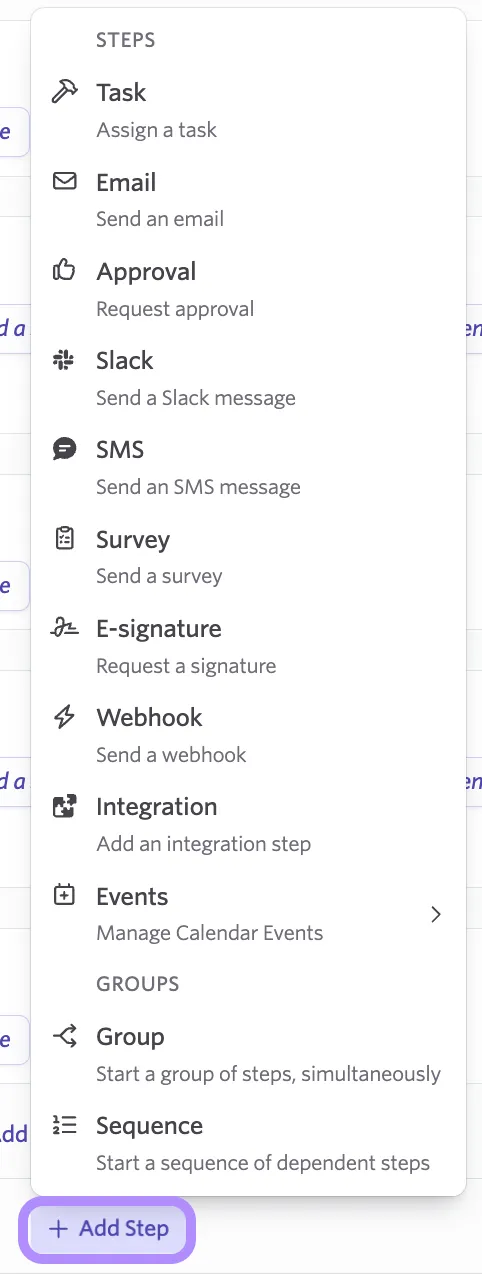
- Select Add Step in the section where the step belongs.
- Choose the step type from the dropdown menu. For instructions specific to a step type, see that step's configuration article:
- Workflow Steps: EmailEmail
- Workflow Steps: SlackSlack
- Workflow Steps: SurveySurvey
- Workflow Steps: EventsEvents
- Configure the step's delay, filter, and dependencies, along with its type-specific settings (see the step configuration articles linked above).
- Select Publish to save your changes. For more on this, see Publishing Workflow UpdatesPublishing Workflow Updates.
Setting a delay
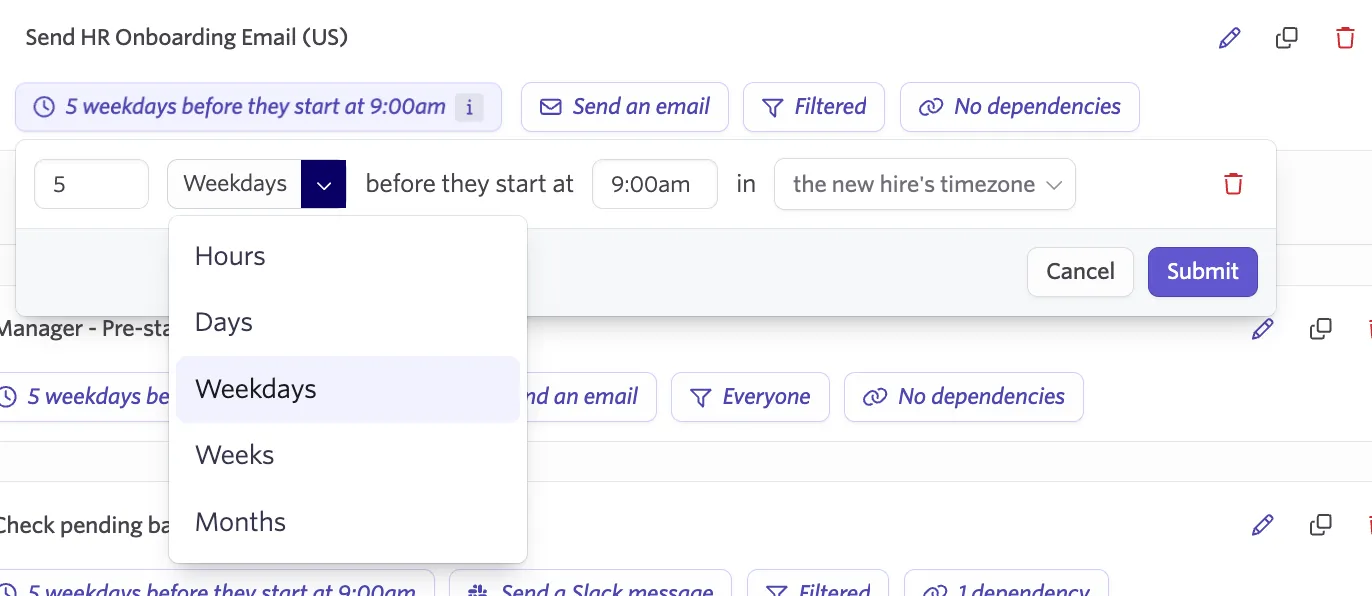
A delay is the timing rule on a step. It tells Ashby when to trigger the step relative to the section's reference point, such as the new hire's start date, the date the employee was enrolled, or the workflow's anchor date.
To set a delay, open the step's configuration and specify:
- How far before or after the reference point the step runs, in days or weekdays. For example, seven days before the anchor date, or one weekday after the new hire's start date.
- What time of day the step triggers. Setting a time is useful for steps like first-day emails, where you want the message to land in the recipient's inbox at a particular moment.
If a step doesn't need to wait, leave it set to no delay. It then triggers as soon as the section's reference point is reached and the step's filter and dependencies are satisfied.
If you enroll an employee after a step's reference date has already passed, Ashby triggers that step immediately rather than skipping it. For example, if you enroll an employee in a 30/60/90-day survey sequence on their 45th day, the 30-day survey sends right away.
Filtering on a step
A filter decides which workflow enrollees the step applies to. Use filters to branch a single workflow based on attributes like location, department, employment type, or any other field available on the new hire's profile, offer, or job consideration, instead of building and maintaining separate workflows for each variation.
To add a filter to a step:
- Open the step's configuration and select the filter control (it defaults to Everyone).
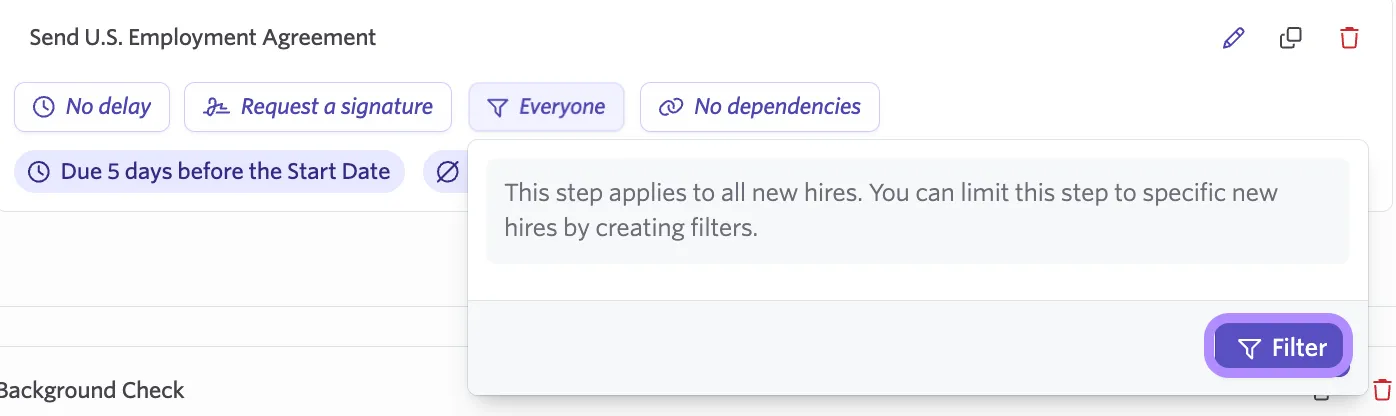
- Select Add Field to Match.
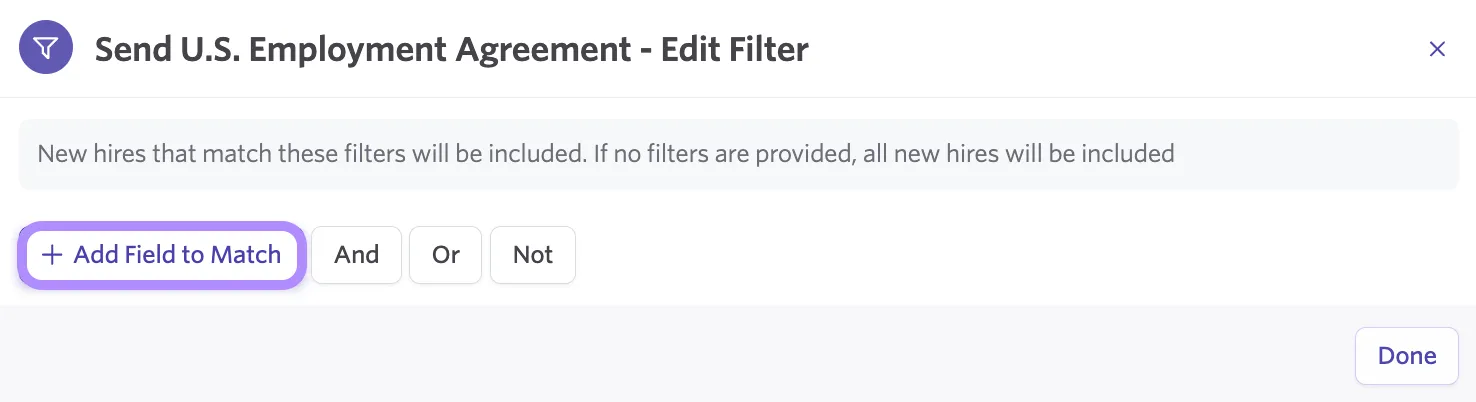
- Choose the field you want to filter on (for example, the employee's country or the job's department) and set the value or values that should include the step.
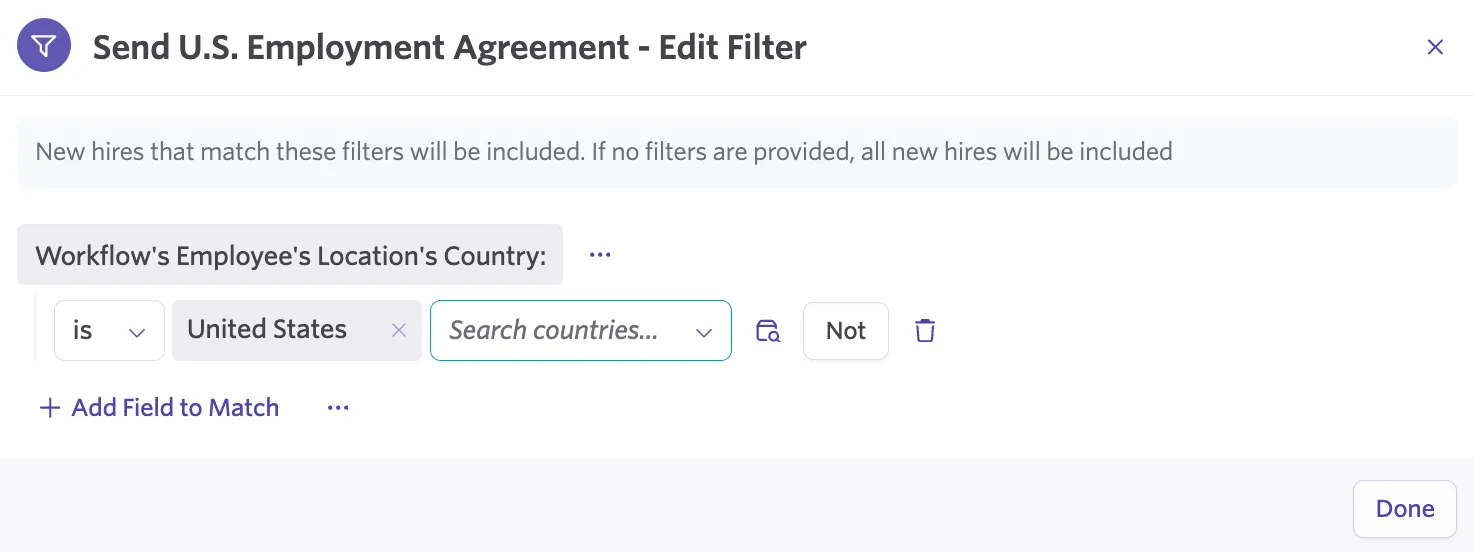
- Select Publish to save your changes. For more on this, see Publishing Workflow UpdatesPublishing Workflow Updates.
When filters are evaluated
Filters are evaluated at the point a step's dependencies are met, not necessarily at the moment the employee is enrolled:
- Steps with no dependencies have their filter checked immediately at time of enrollment.
- Steps with dependencies don't have their filter evaluated until the dependency is complete or skipped.
Because of this, a step can appear as included in a workflow right after enrollment, even if it is ultimately excluded once the dependency resolves and the filter runs.
Adding dependencies
A dependency ensures a step doesn't trigger until another step in the workflow is complete or skipped. Use dependencies to sequence work that has to happen in order, such as requiring a completed new hire profile before an IT provisioning task can trigger, or requiring a signed employment agreement before a webhook step runs.
To add a dependency to a step:
- Open the step's configuration and select the dependency control (it defaults to No Dependencies).

- Search for the step or steps this one should depend on.
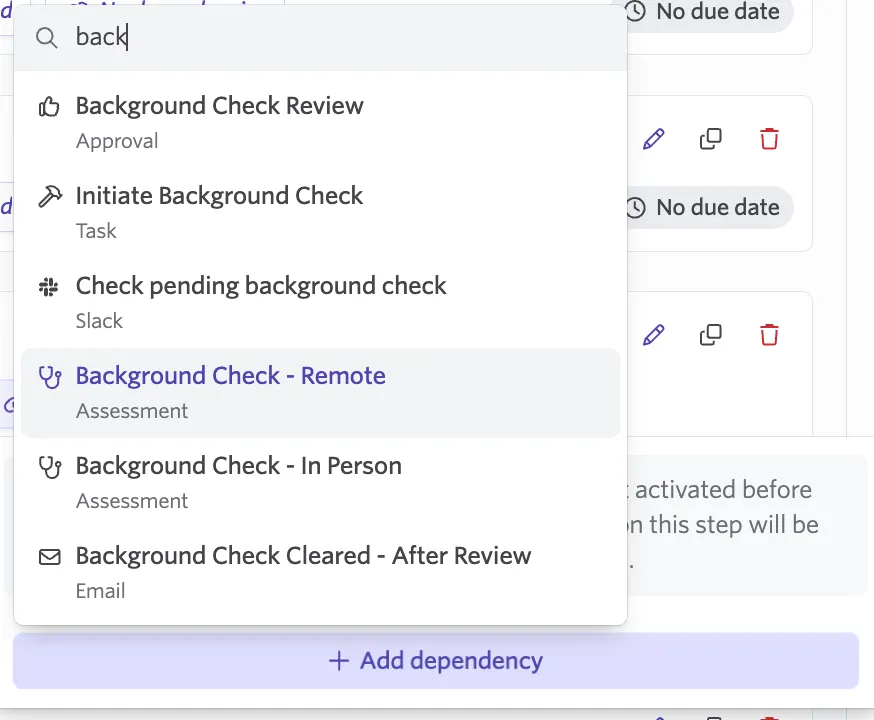
- If the step you're depending on returns structured data, such as an assessment result, you can optionally build a condition on that data using a filter (for example, trigger a Slack notification only when a background check result doesn't contain OK).
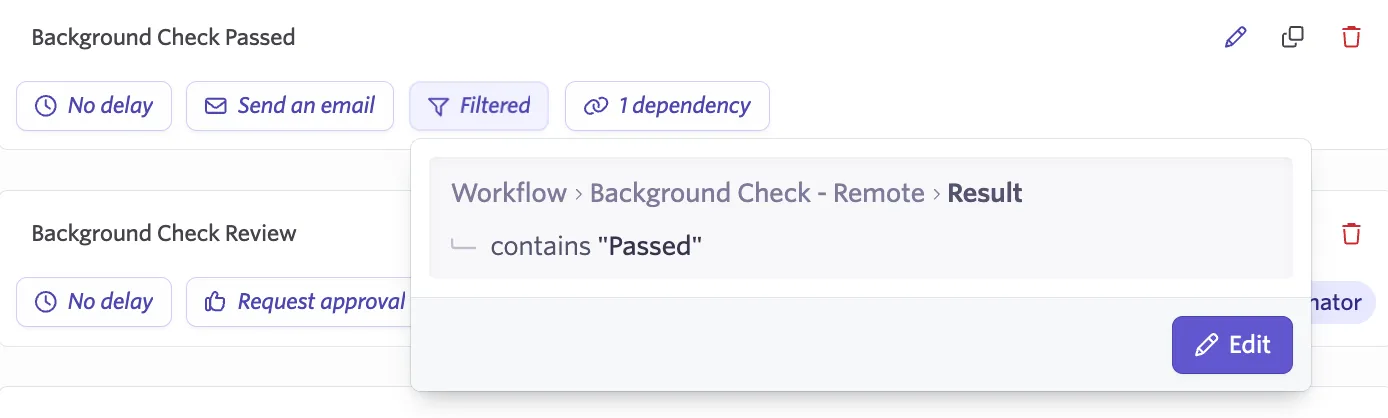
- Select Publish to save your changes. For more on this, see Publishing Workflow UpdatesPublishing Workflow Updates.
Ashby checks a step's dependencies before its delay. Once the dependencies are met, Ashby applies the delay, if one is configured. If a group of steps is set as a dependency, every step within that group must complete for the dependency to be met and for the group step to complete.
A dependency triggers based on completion state, not just on the prior step being sent. For example, a Task or Survey step's dependency isn't satisfied until the assignee actually marks the task complete or submits the survey, not simply once the task or survey has been assigned.
Editing, cloning and deleting workflow steps
When editing your workflow template, you'll see a pencil icon, a copy icon and a trash can icon for each configured step.

Click the pencil icon to edit the step, the copy icon to clone the workflow step and the trashcan icon to delete the step.
FAQs
Why does a step I filtered out still appear in an employee's workflow right after enrollment?
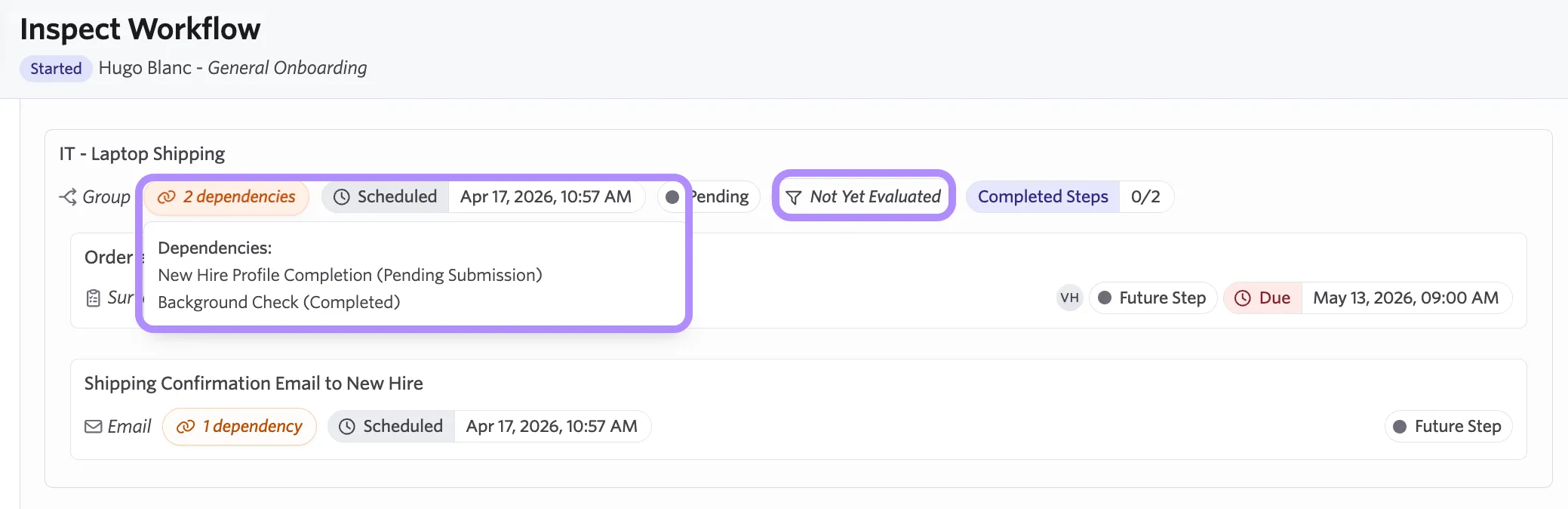
If the step has a dependency, its filter isn't evaluated until that dependency is complete or skipped. The step appears as included in the meantime, then removes itself automatically once the dependency resolves and the filter runs. Use the Inspect option at the top right of the workflow to check the status of a step's dependencies and filters if you want to confirm this ahead of time.
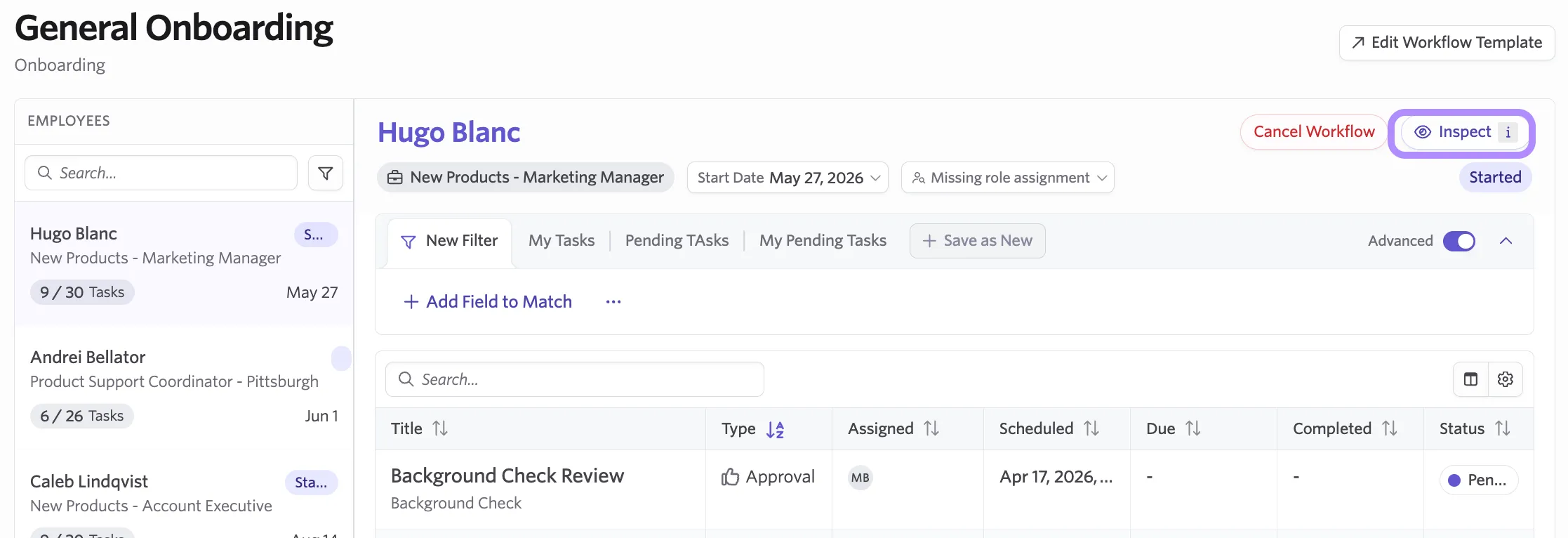
The Inspect Workflow window will show tags with the dependancies and status of the step.
Can I make a step evaluate its filter after a delay, without adding a dependency?
Not natively today, but you can build a delay into the workflow with an empty group step:
- Add an empty group step and configure it with the length of delay you want.
- Set that empty group step as a dependency on the step whose filter you want to delay.
The dependent step now evaluates its filter when the delay elapses, rather than at enrollment. Because the empty group step contains no actions, it only holds the timing; it doesn't change what the workflow does.
I removed a filter from a step, but it still isn't showing up for new hires it should now apply to. What's going on?
Removing or changing a filter on a workflow that already has enrolled new hires requires republishing the workflow. From the publish flow, select Migrate Workflow rather than applying recent changes only, so the update propagates cleanly to new hires already in progress. See Publishing Workflow UpdatesPublishing Workflow Updates for more information.
Should I build one workflow with filters, or separate workflows for each variation?
In most cases, one workflow with filters and dependencies is easier to maintain than several near-identical workflows, because shared steps only need to be updated in one place. Reserve separate workflows for processes that are materially different, such as an expedited onboarding path or a workflow for a different employment type.