Workflow Steps: Task
Task steps in Ashby People Workflows help you assign important actions to the right person or team and track their completion. Use them for tasks that require follow-through, such as ordering equipment, confirming that key onboarding setup is complete, or completing critical workflows. You can assign task steps to individual users, workflow roles, or groups, and combine them with delays, filters, and dependencies to control when they appear and who they apply to.
This article covers how to add and configure a Task step. For guidance on setting the step's delay, filter, and dependencies, see Configure your Workflow StepsConfigure your Workflow Step.
Ashby's People Ops module is currently available through restricted early access. The following documentation is provided for design partners participating in that program.
Permissions and access
To add a Task step, you need view and edit access to the workflow template. Your permission set grants this access to either all workflows or specific workflow templates.
Learn more about Ashby's People Ops permission sets: Configure Permission SetsConfigure permission sets.
Adding a Task step
Navigate to Ashby's People Ops module and complete the following steps:
- Open the workflow, select Edit Workflow Template, then select Add Step in the appropriate section.
- Select Task from the step type dropdown.
- Configure the assignee, notification settings, sender, due date, and message content as described below.
- Set the step's delay, filter, and dependencies. See Configure your Workflow StepsConfigure your Workflow Step for details.
- Publish your changes. See Publishing Workflow UpdatesPublishing Workflow Updates for details.
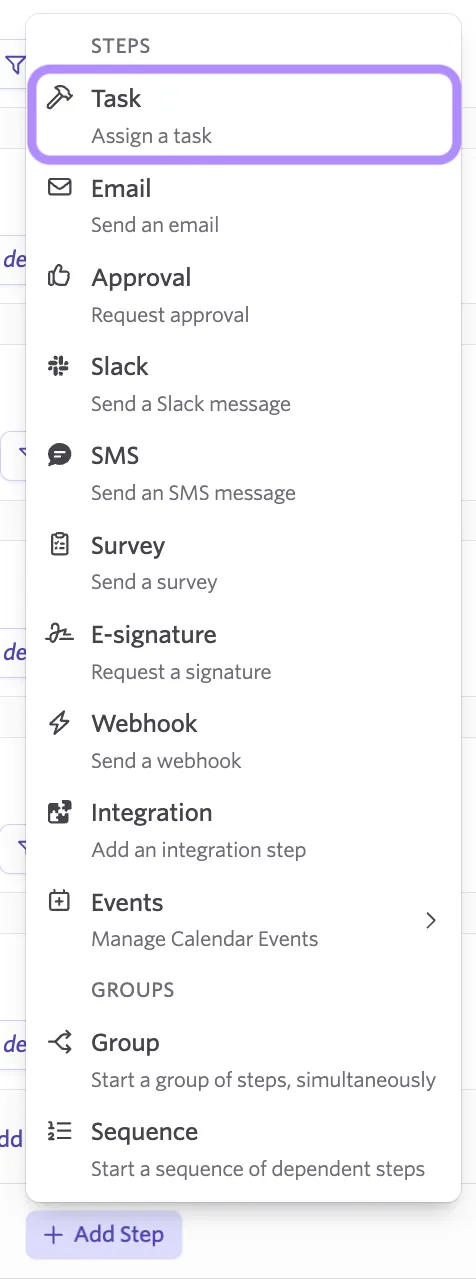
Configuring the Task step
Assignee
Set who's responsible for completing the task. You can assign a Task step to an employee, a workflow role (such as IT or People Ops Coordinator), or a specific employee or user account.
If you assign a task to a group role, such as IT, every member of that role receives the task on their task list, but only one person needs to mark it complete for it to clear from everyone's list.
If the same task needs to be completed by more than one person, create separate steps rather than relying on a single shared task.
Notify immediately
Notify Immediately? controls whether the assignee gets a standalone notification the moment the task is assigned, or whether it's added silently to their task list.
- Enabled: The assignee receives a notification with a hyperlink directing the user to the task within Ashby People Ops as soon as the step's delay and dependencies are met.
- Disabled: The task appears on the assignee's task list right away, and the assignee also receives it in the weekly People Ops digest email, sent every Wednesday, along with any other outstanding tasks.
Enable Notify Immediately? for assignees who receive relatively few tasks and aren't otherwise monitoring their task list, such as hiring managers or IT team members. Consider leaving it disabled for assignees like People Ops Coordinators, who may receive many tasks across every employee and don't need an individual notification for each one.
If several tasks land on the same assignee at once, consider sending one email or Slack message directing them to their task list instead of notifying them for every individual task.
When Notify Immediately? is enabled, you can choose whether the notification delivers by email, Slack (and SMS, where enabled for your organization). When it's disabled, the task only appears on the task list and in the weekly digest, so a delivery channel isn't applicable.
Sender
The Sender field sets who the task appears to come from when Notify Immediately? is enabled: your organization, or a specific person or workflow role. When Notify Immediately? is disabled, the task is delivered as part of the weekly People Ops digest email rather than as an individual notification, so the sender field doesn't affect delivery in that case.
Selecting a sender controls sender tokens. Any token referencing the sender resolves to the user you select, so a message that opens with {{Sender First Name}} reads as though it came from that person, even if it isn't delivered via a notification channel.
Due date
Set a due date relative to a reference point, such as the new hire's start date. The due date is primarily for visibility, helping you identify overdue tasks in reporting and on the task list.
Message template: title and instructions
The message template Title becomes the subject line if the task is delivered by email, or the task name shown on the assignee's task list.
Use Task Instructions to describe exactly what the assignee needs to do, and include tokens to pull in relevant details, such as the new hire's name, team, or shipping address collected earlier in the workflow.
The email editor supports the following features:
- Text formatting
- Code lines and blocks
- Numbered and bulleted lists
- Hyperlinks
- Substitution tokens
- Write with AI (more on this at AI Content Assistant)
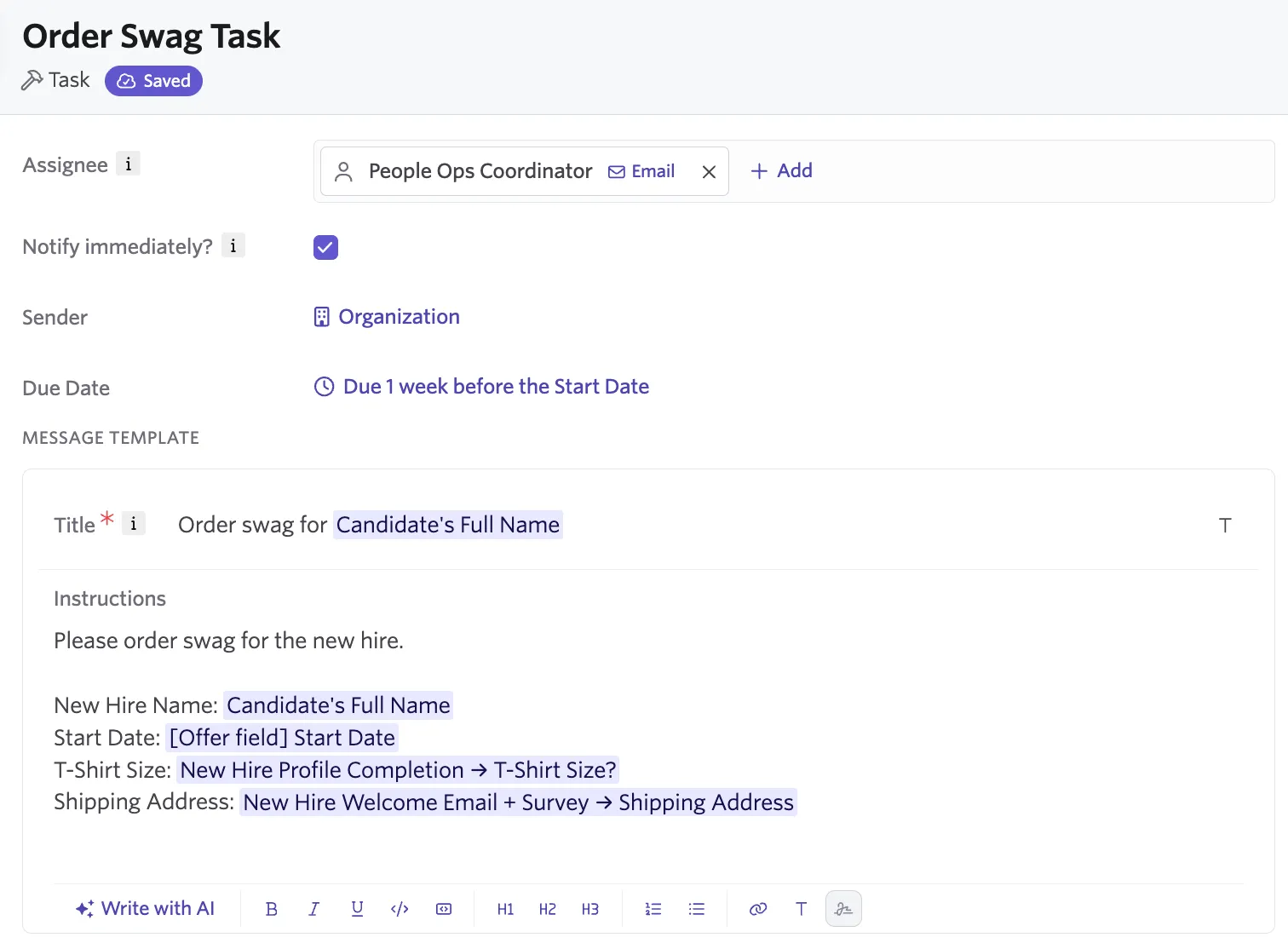
The name given to the step is internal-facing, so will not be the title the end user will see. Only users with access to the workflow template and/or workflow enrollment will be able to view this. As such, the end user will see Order swag for X, rather than Order Swag Task in the example above.
Add substitution tokens
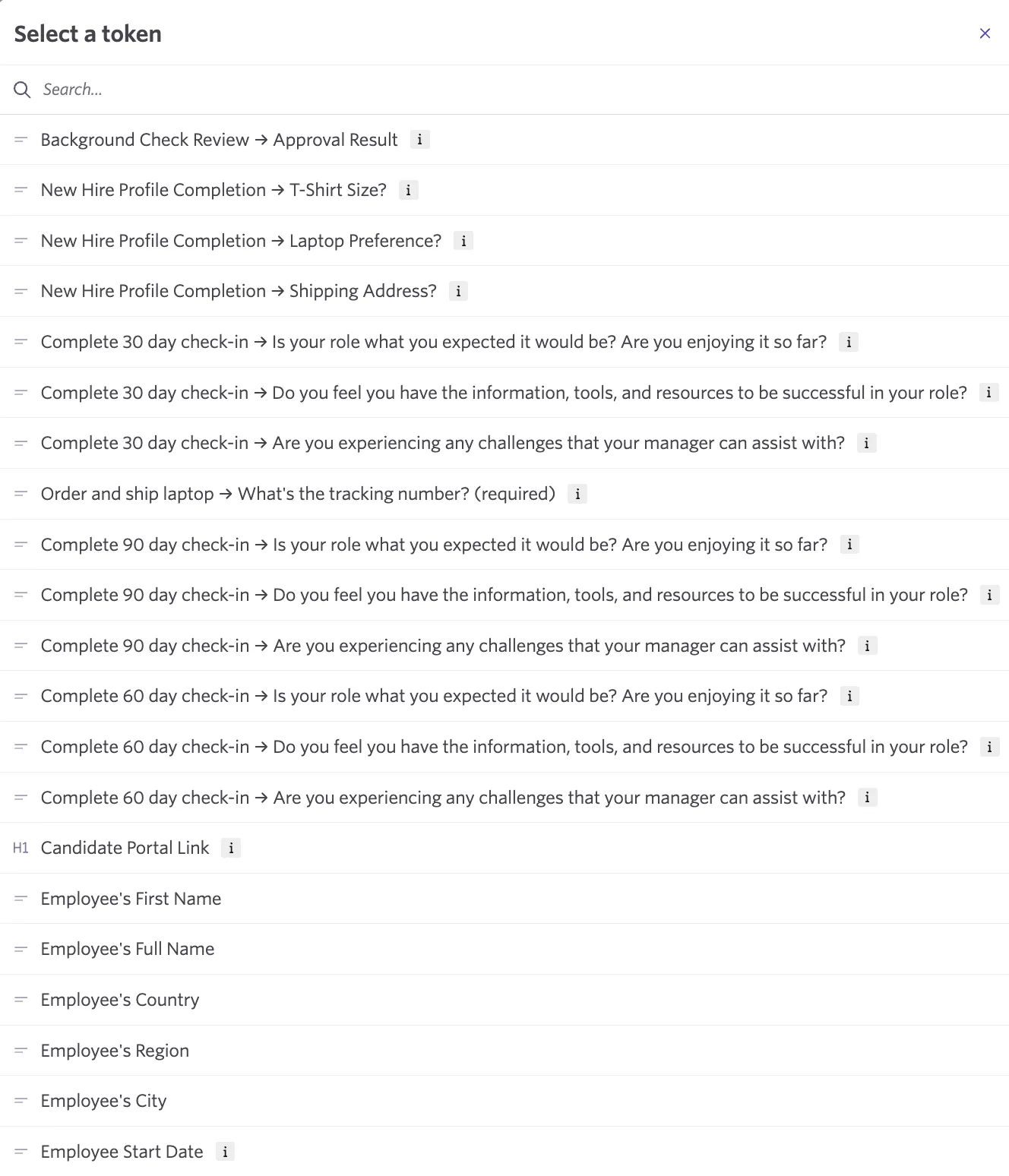
Substitution Tokens allow you to pull information about the workflow enrollee into the task title and instructions. To add substitution tokens, click the T icon in the toolbar either by the title line or in the toolbar under the body of the instructions. From here, you can search for the specific token you need.
FAQ
An assignee says they never received a notification about a task, but the task was assigned. Why?
Any task assigned to a New Hire defaults to Ashby's "Auto" send logic: Prior to their start date, New Hires' tasks send to their personal email/phone. In either case, you can specify whether to send it to the New Hire's personal email/phone, work email/phone, or Auto (see logic above).
Check whether Notify Immediately? is enabled on the step. If it isn't, the assignee only sees the task on their task list and in the weekly People Ops digest, sent every Wednesday; they don't receive an individual email or Slack message when the task is assigned.
Can I require more than one person to complete the same task before the step is marked complete?
No. If a task is assigned to multiple people or a group role, the first person to complete it clears the task from every assignee's list. If you need multiple people to independently confirm the same action, create separate Task steps.
What happens to a new hire's incomplete tasks if their hiring manager or onboarding buddy changes?
Reassign the remaining tasks to the new person. Steps that are already complete, along with any emails already sent, aren't affected by the reassignment.
Can I set a task to notify via both email and Slack at the same time?
Not on a single step; a step only supports one notification channel per assignee. To achieve a similar result, keep the task on one step and add a separate Email or Slack step, with the same delay, that links the assignee to their task list, rather than duplicating the task itself.