Workflow Steps: Email
Email steps in Ashby People Workflows automatically send templated messages to the right recipients at the right point in your workflow, reducing the need for manual outreach. You can control the sender, recipient, and any CC or BCC recipients, including the new hire, their manager, a buddy, or any other stakeholder defined in the workflow.
This article covers how to add and configure an Email step. For guidance on setting the step's delay, filter, and dependencies, see Configure your Workflow StepsConfigure your Workflow Step.
Ashby's People Ops module is currently available through restricted early access. The following documentation is provided for design partners participating in that program.
Permissions and access
To add an Email step, you need view and edit access to the workflow template. Your permission set grants this access to either all workflows or specific workflows.
Learn more about Ashby's People Ops permission sets: Configure Permission SetsConfigure permission sets.
Adding an Email step
Navigate to Ashby's People Ops module and complete the following steps:
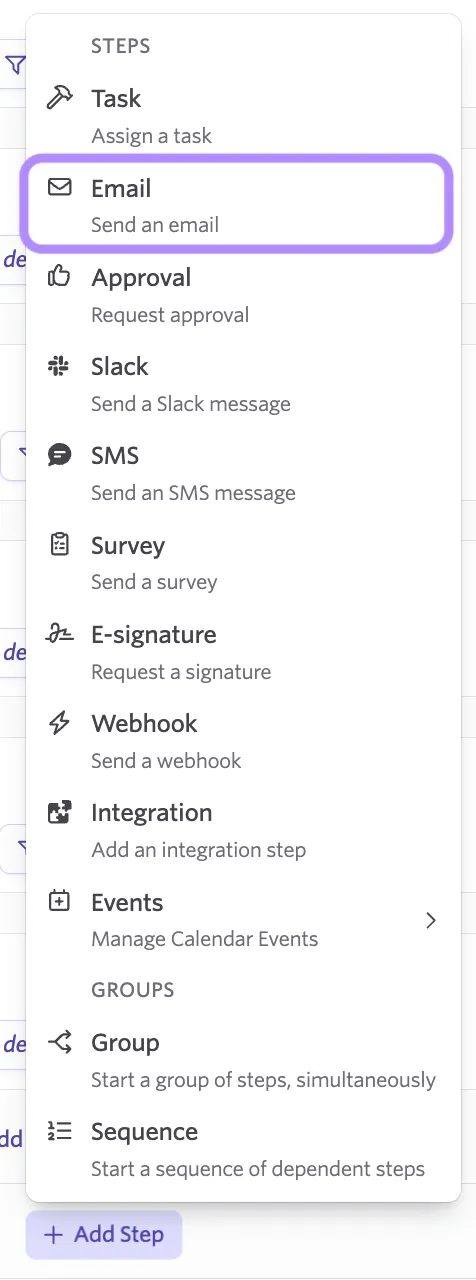
- Open the workflow, select Edit Workflow Template, then select Add Step in the appropriate section.
- Select Email from the step type dropdown.
- Configure the sender, recipient, and message template as described below.
- Set the step's delay, filter, and dependencies. See Configure your Workflow StepsConfigure your Workflow Step for details.
- Publish your changes. See Publishing Workflow UpdatesPublishing Workflow Updates for details.
Configure the Email step
Recipients
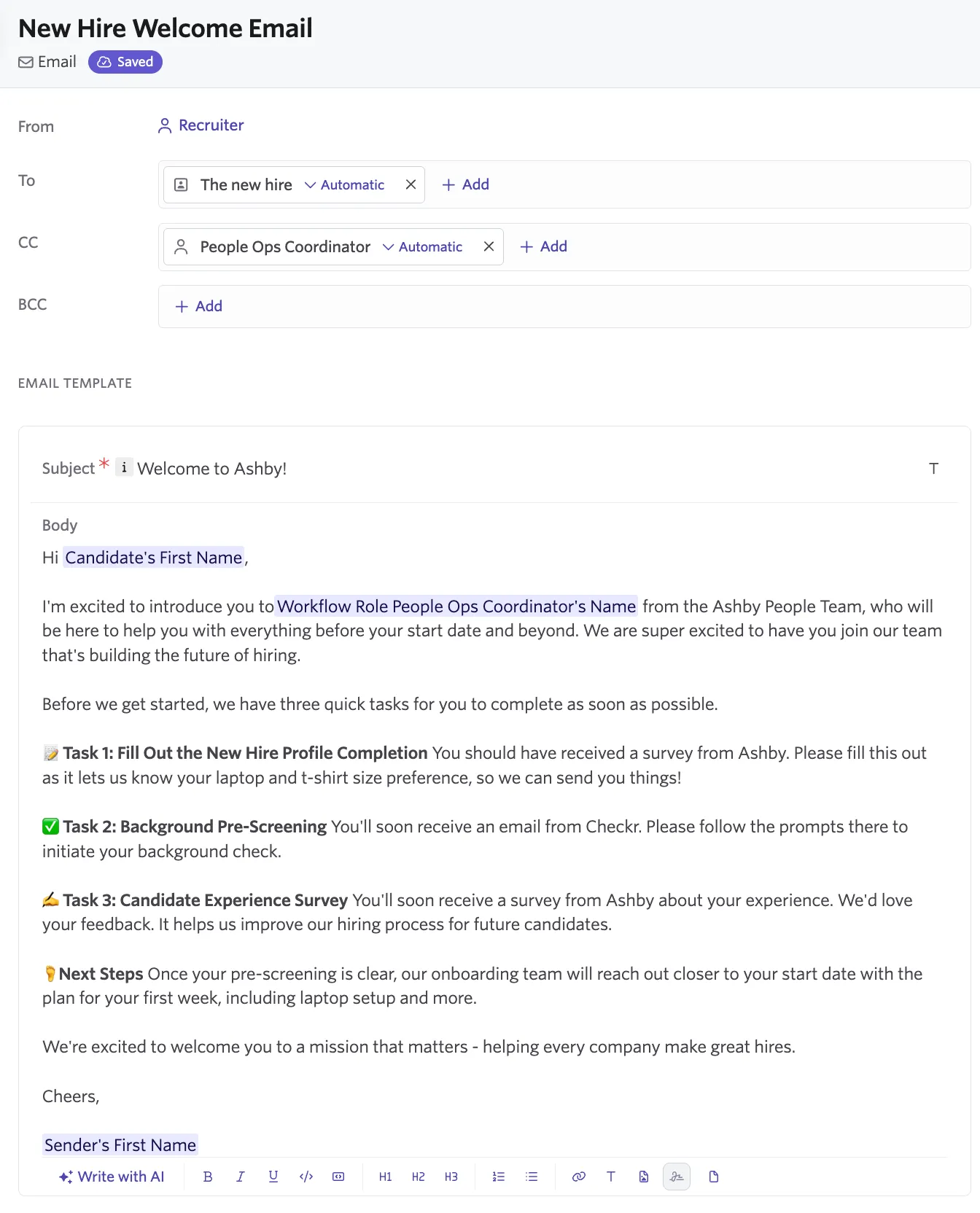
Set who receives the email in the To field. You can address an email to the new hire, a workflow role, or a specific employee or user account. Use the CC and BCC fields to loop in additional stakeholders without making them the primary recipient.
Sender
To make the email come from a specific point of contact, select that person or role in the From field. Sending from a named person gives the recipient a clear point of contact.
Subject and body
Write the Email Subject and Email Body using your organization's tokens to personalize the message, for example, pulling in the workflow enrollee's name or answers from an earlier survey step.
The email editor supports the following features:
- Text formatting
- Code lines and blocks
- Numbered and bulleted lists
- Hyperlinks
- Substitution tokens
- Images
- Write with AI (more on this at AI Content Assistant)
- HTML Headers and Footers
- File attachments
For images, we recommend using a minimum resolution of 1000px on the largest dimension of the image (for example 1024px x 256px for an image with a 4:1 ratio, or 512px x 1024px for an image with a 1:2 ratio).
Add substitution tokens
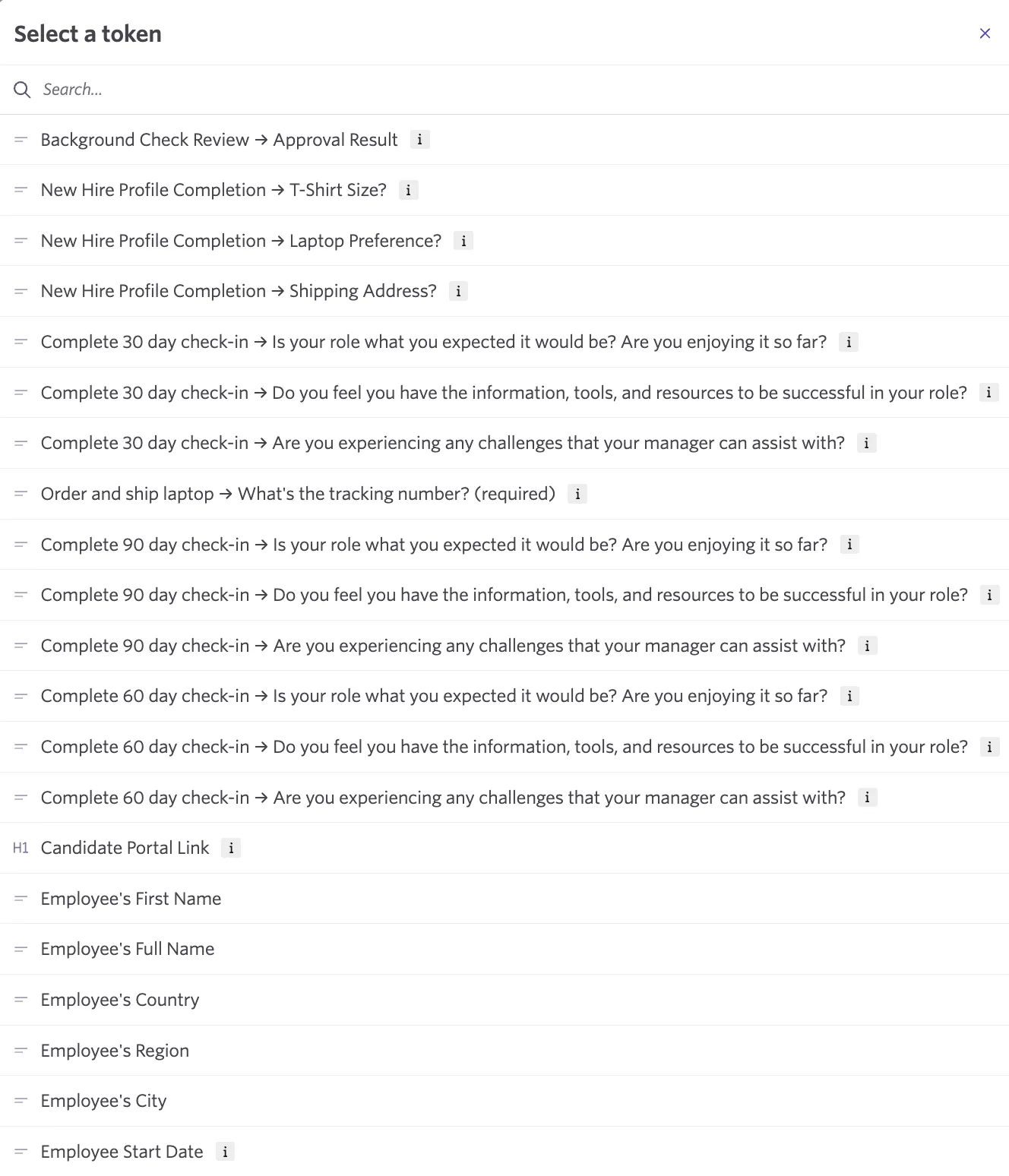
Substitution Tokens allow you to pull information about the workflow enrollee into the emails you send out from Ashby. They can be added to both the email's subject and body and can be used to pre-fill new hire information, organization information or pull helpful links like the new hire's portal link.
To add substitution tokens, click the T icon in the toolbar either by the subject line or in the toolbar under the body of the email. From here, you can search for the specific token you need.
FAQ
What permission does a user need configured for a workflow email step to send on their behalf?
Workflow emails send from a real person rather than from Ashby, so the user needs read and send email permissions enabled on their own Ashby account. They enable these in their personal settings, on the page that matches your organization's email provider:
- Google Workspace: Personal Settings > Google Workspace Settings
- Microsoft 365: Personal Settings > Microsoft 365 Settings
Without both permissions, the email step fails when it runs.
A recipient says they never received a workflow email, but Ashby shows it as sent. What should I check first?
Confirm the exact recipient, subject line, and approximate send time, then have the recipient's IT team check their email security or spam-filtering layer. Ashby can successfully hand a message off to a mail provider that still filters or scores it after that point. Allow-listing both ashbyhq.com and in-app-mail.ashbyhq.com can help prevent this.
How do I add a new hire's portal link to an email workflow step?
When writing the body of your email step, click the T icon to access substitution tokens and select Candidate's Portal Link. The portal link will allow candidates to sign in and view their tasks. More on what the new hire will experience at Getting Started for New Hires.