Workflow Steps: SMS
A Short Message Service (SMS) step in Ashby People Workflows sends an automated text message to a specified recipient at a defined point in your workflow, so you can reach people on mobile without manual outreach.
This article covers how to add and configure an SMS step. For guidance on setting the step's delay, filter, and dependencies, see Configure your Workflow StepsConfigure your Workflow Step.
Ashby's People Ops module is currently available through restricted early access. The following documentation is provided for design partners participating in that program.
Permissions and access
To add an SMS step, you need view and edit access to the workflow. Your permission set grants this access to either all workflows or specific workflows.
To send SMS, Candidate Texting must be configured in Ashby Recruiting. See Candidate Texting OnboardingCandidate Texting Onboarding for more information.
Learn more about Ashby's People Ops permission sets: Configure Permission SetsConfigure permission sets.
Adding an SMS step
Navigate to Ashby's People Ops module and complete the following steps:
- Open the workflow, select Edit Workflow Template, then select Add Step in the appropriate section.
- Select SMS from the step type dropdown.
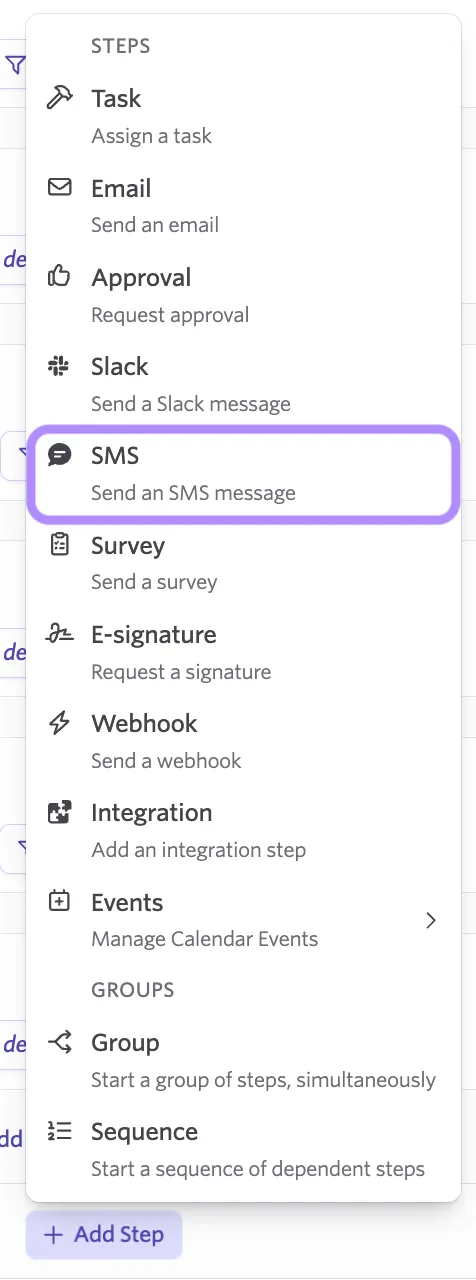
- Configure the recipient and write the message body as described below.
- Set the step's delay, filter, and dependencies. See Configure your Workflow StepsConfigure your Workflow Step for details.
- Publish your changes. See Publishing Workflow UpdatesPublishing Workflow Updates for details.
Configuring the SMS step
Sender
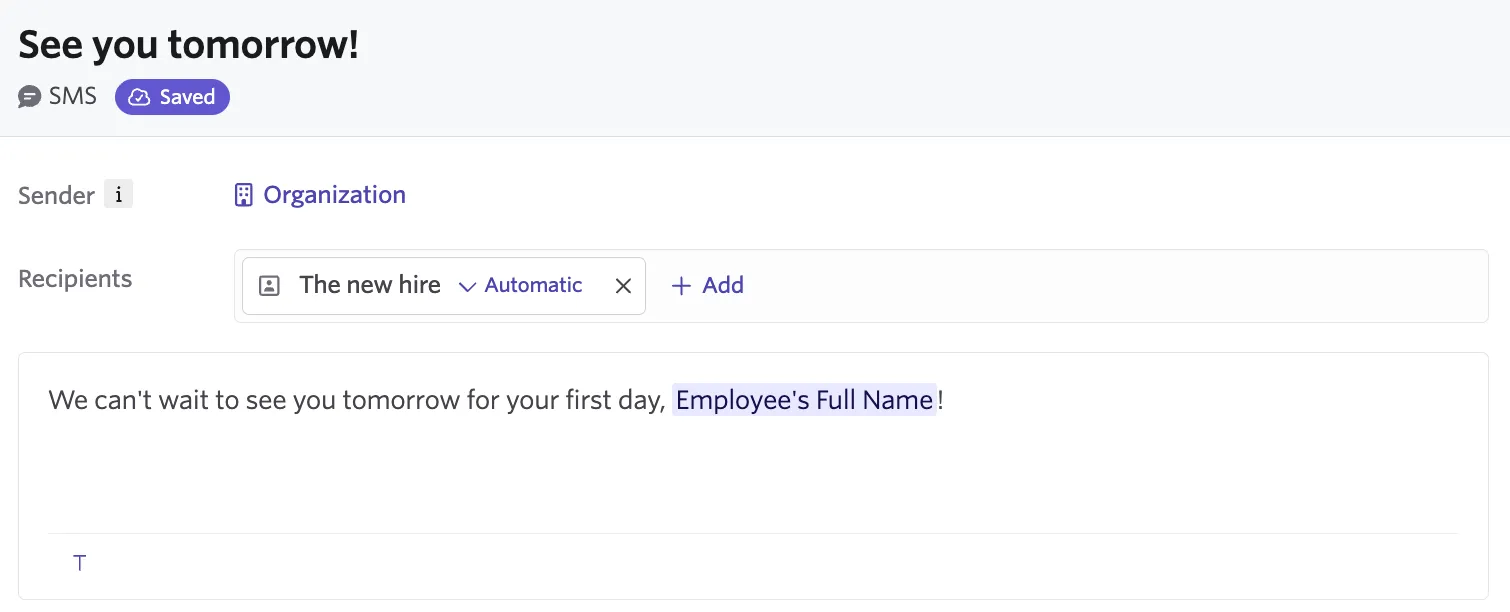
Ashby sends every text message from your organization's phone number, configured in Ashby Recruiting, regardless of which sender you select on the step. The sender you select doesn't change the number the recipient sees.
Selecting a sender does control sender tokens. Any token referencing the sender resolves to the user you select, so a message that opens with {{Sender First Name}} reads as though it came from that person even though it arrives from the shared organization number.
Message body
An SMS step has a message body only; text messages don't have a subject line. Write the body using your organization's tokens to personalize the message, for example, pulling in the workflow enrollee's name or answers from an earlier survey step.
Add substitution tokens
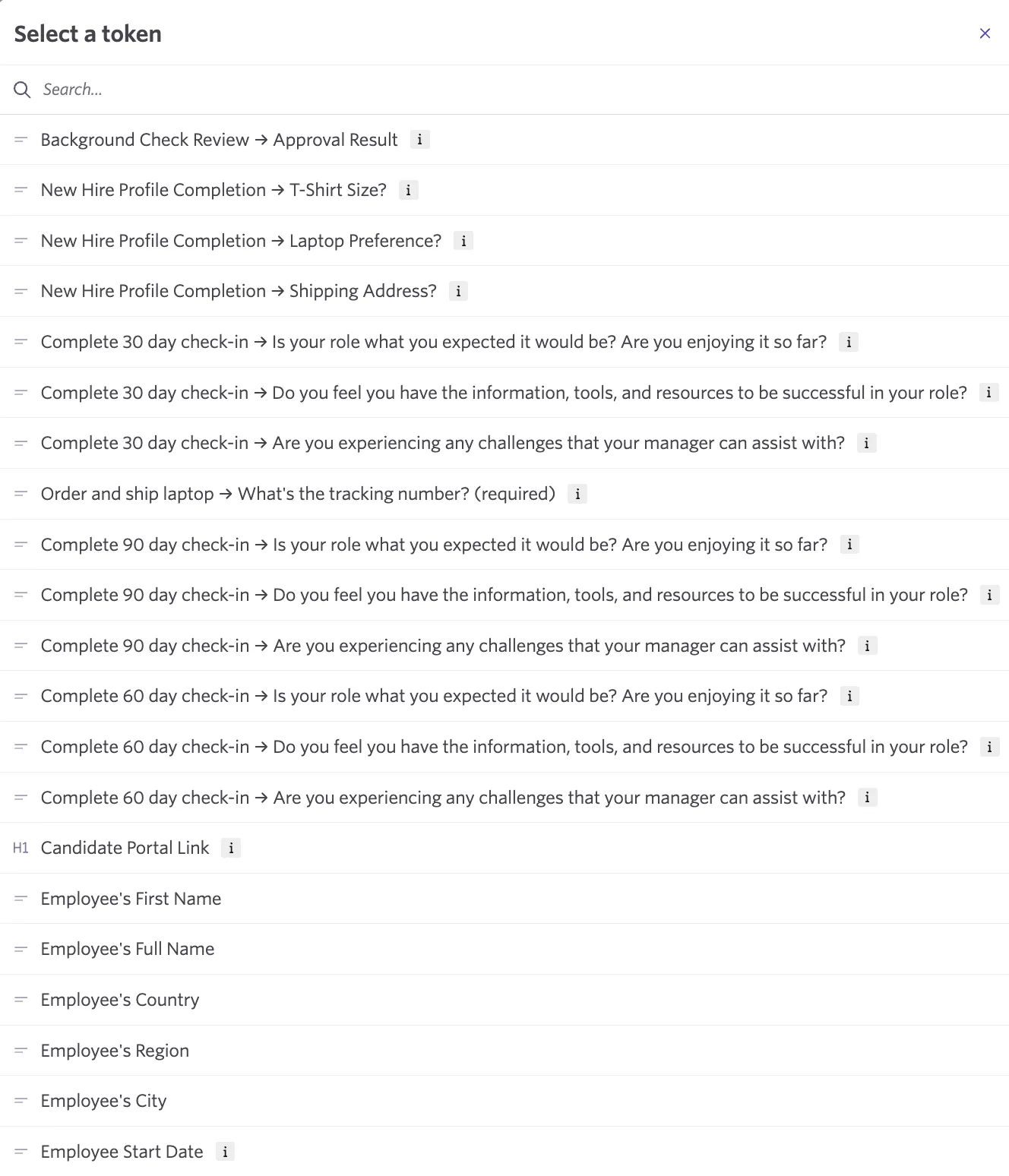
Substitution tokens allow you to pull information about the workflow enrollee into the texts you send out from Ashby. To add substitution tokens, click the T icon in the toolbar under the body of the SMS. From here, you can search for the specific token you need.
When to use SMS
Choose SMS for assignees or new hires who:
- Don't have access to a work computer and use a mobile as their work device.
- Are unlikely to check email or Slack promptly
- Need time-sensitive reminders while away from a desk.
Because SMS messages are short, keep the task or survey's title and instructions concise; the recipient still completes the underlying task or survey inside Ashby.
FAQs
Do People Ops texts use the same texting credits as candidate texting?
Yes. Text messages sent from workflow steps draw from your organization's shared pool of texting credits. If your organization runs out of credits, SMS steps fail to send, so monitor your balance in Admin > Billing and purchase additional credits before you run low.
Do employees need to consent before receiving texts?
No. Employee texting in Ashby People Ops doesn't require a consent request, which differs from candidate texting in Recruiting.
Does the recipient need a mobile number in a specific field for SMS to work?
Yes. The recipient needs a valid phone number on their profile in Ashby. If the number is missing or invalid, the SMS notification will fail to send.