Organizing Workflow Steps with Groups & Sequences
As a workflow grows, you often want several steps to share the same timing, or to run strictly one after another, without configuring a delay or dependency on each step individually. Ashby's Group and Sequence step types let you organize related steps together in your workflow outline. This article explains the difference between group steps and sequence steps, when to use each, and how to configure them.
Ashby's People Ops module is currently available through restricted early access. The following documentation is provided for design partners participating in that program.
Permissions and access
To add or edit group and sequence steps, you need View and Edit access to the workflow. Your permission set grants this access to either all workflows or specific workflows.
Learn more about Ashby's People Ops permission sets: Configure Permission SetsAdminister permission sets.
Group steps
A group allows you to organize your steps and build out more structure in your workflow. Groups also gives the option to set dependencies and delays for all steps in the group, but this is optional. You can set separate dependencies, filters and timings for child steps within a group too.
When to use a group
Use a group to organize steps without putting them in a strict order.
You can also set group-wide dependancies, filters, and delays to apply to all steps in a group. For example, instead of setting a two-day delay on multiple steps, you could add them in one group and then set the delay on the group. That delay applies to every step grouped inside it; you do not need to set it individually on each one.
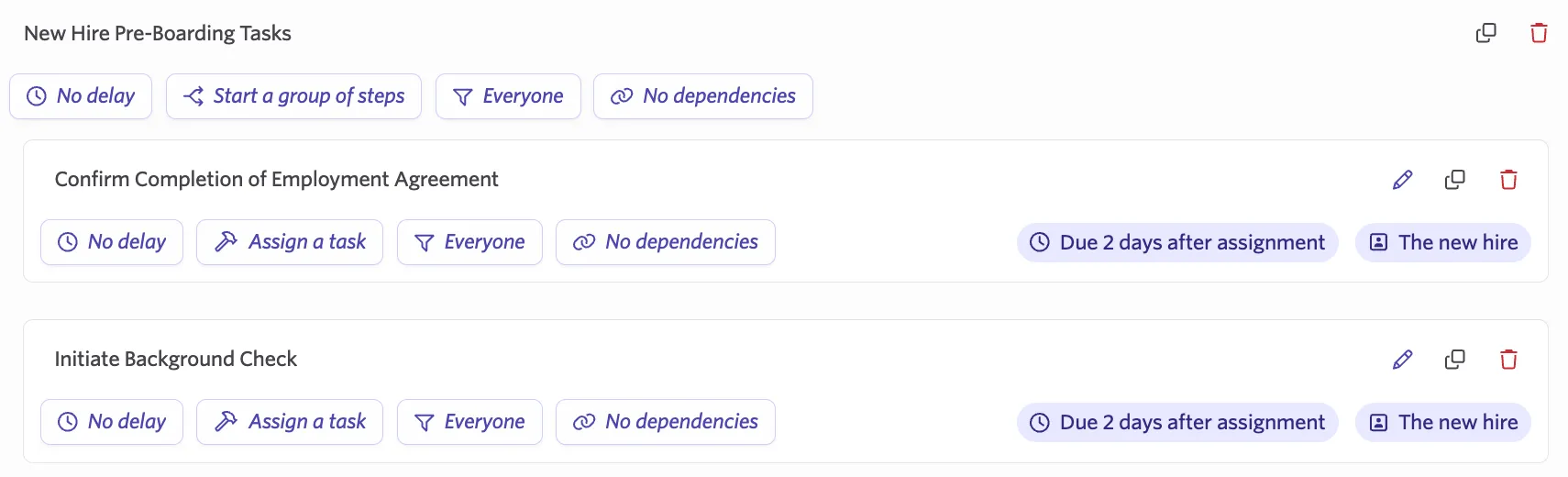
Configuring a group
- Open the workflow, select Edit Workflow Template, then select Add Step in the appropriate section.
- Select Group from the step type dropdown and give the group a name.
- Add the steps that belong in the group.
- (Optional) Set the delay, filter, and dependencies on the group itself. See Configure your Workflow StepsConfigure your Workflow Step for details.
- (Optional) Adjust the delay, filter, and dependancies on child steps within the group where needed.
- Publish your changes.
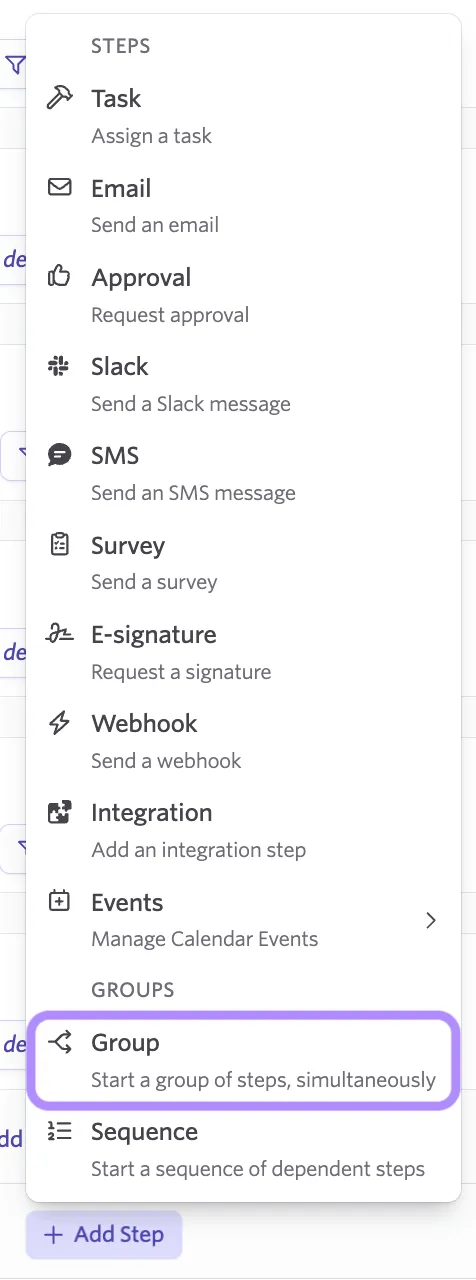
Group steps as dependencies
You can set an entire group as a dependency on a later step. If a group is used as a dependency, every step inside that group must be completed, or be skipped, before the dependency is considered met and the group step itself completes.
Sequence steps
A sequence starts a set of dependent steps that must complete strictly in order. The step before a given step in the sequence must be completed before the next one can trigger.
When to use a sequence
Use a sequence when steps depend on one another in order, and you do not want to manually configure a dependency between each pair of steps.
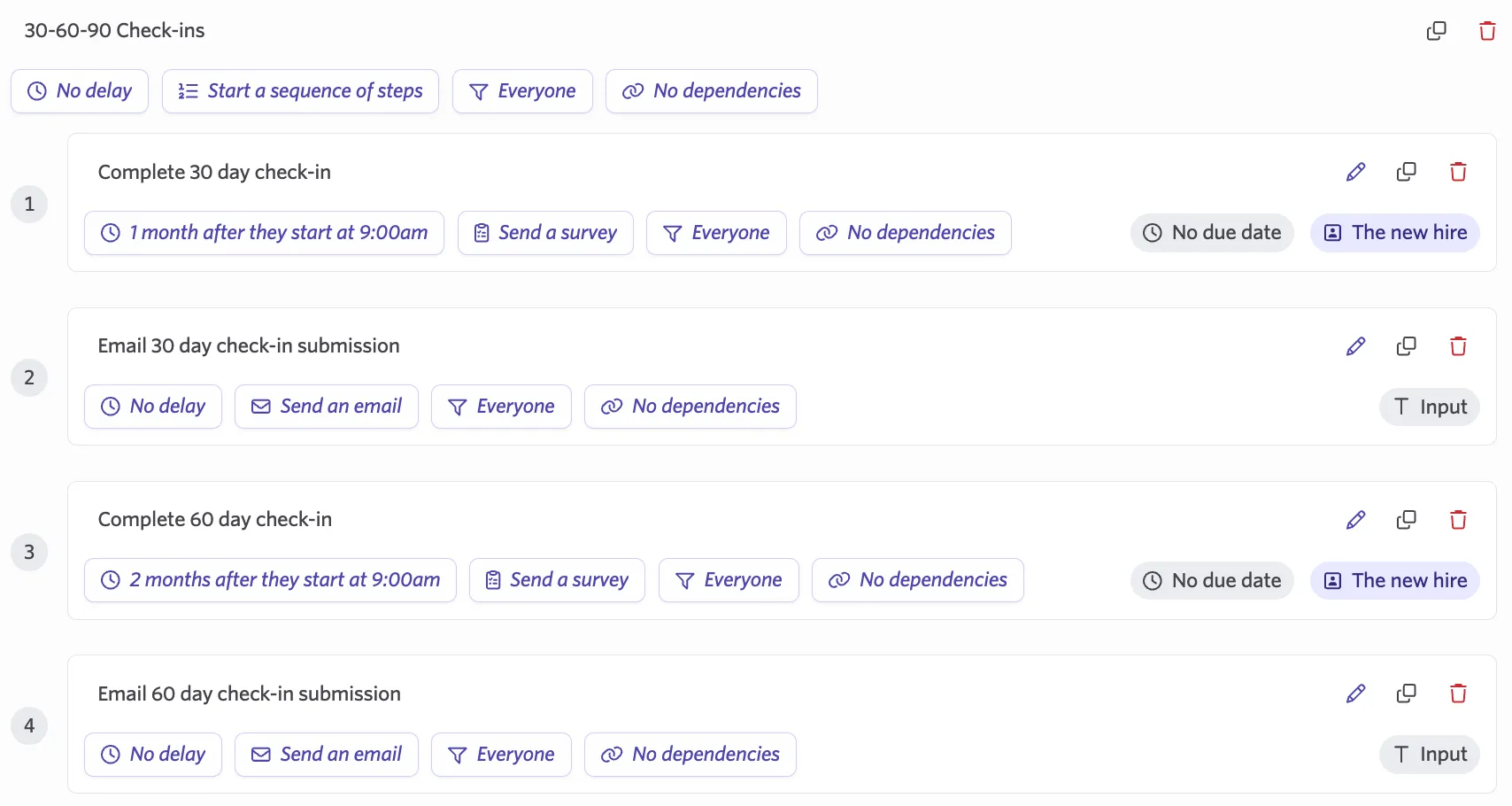
Configuring a sequence
- Open the workflow, select Edit Workflow Template, then select Add Step in the appropriate section.
- Select Sequence from the step type dropdown and give the sequence a name.
- Add the steps that belong in the sequence.
- Set the delay, filter, and dependencies on the sequence itself. See Configure your Workflow StepsConfigure your Workflow Step for details.
- Publish your changes.
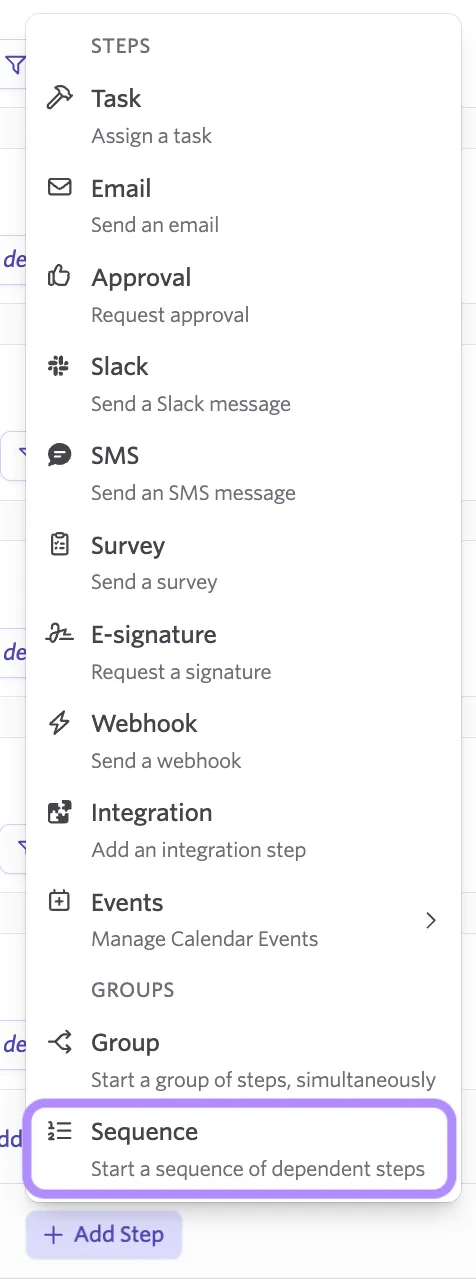
Choosing between a group and a sequence
| Group | Sequence |
|---|---|---|
Timing | Set multiple steps with dependancies at once. You can either set delays at the group level or for each child step. | Steps trigger one after another, each depending on the one before it. |
Best for | Steps that share timing but do not depend on each other (for example, several Day 1 tasks). | Steps that need to happen in order (for example, a document that must be signed before a payroll sync can run). |
Visibility | If you have a timing set at the group level, then all steps in the group will show at the same time. If you have delays set for child steps in the group, they will show based on the delay set for that step. | Only the current step in the sequence is visible; later steps stay hidden until earlier ones complete. |
FAQs
Can I set a group as a dependency on another step?
Yes. If you set a group as a dependency, every step within that group needs to complete, or be skipped, for the dependency to be considered met.
What is the difference between "Pending Submission" and "Pending Completion" on steps inside a group or sequence?
These statuses reflect the individual step type, not the group or sequence itself: Pending Submission applies to Survey steps, and Pending Completion applies to Task steps. Both indicate the step has been assigned and is awaiting action from the assignee.