Workflow Steps: E-Signature
An E-Signature step sends a document, such as an employment agreement, to a new hire or another stakeholder for signature as part of an employee workflow.
This article covers how to add and configure an E-Signature step, including document templates, signatories, and provider options. For guidance on setting the step's delay, filter, and dependencies, see Configure your Workflow StepsConfigure your Workflow Step.
Ashby's People Ops module is currently available through restricted early access. The following documentation is provided for design partners participating in that program.
Permissions and access
To add an E-Signature step, you need view and edit access to the workflow. Your permission set grants this access to either all workflows or specific workflows.
Learn more about Ashby's People Ops permission sets: Configure Permission SetsAdminister permission sets.
Creating an E-Signature document template
E-Signature documents for People Ops are configured in Admin > E-Signature Documents. For a full walkthough, check out Configure E-Signature Documents.
Adding an E-Signature step
Navigate to Ashby's People Ops module and complete the following steps:
- Navigate to Workflows
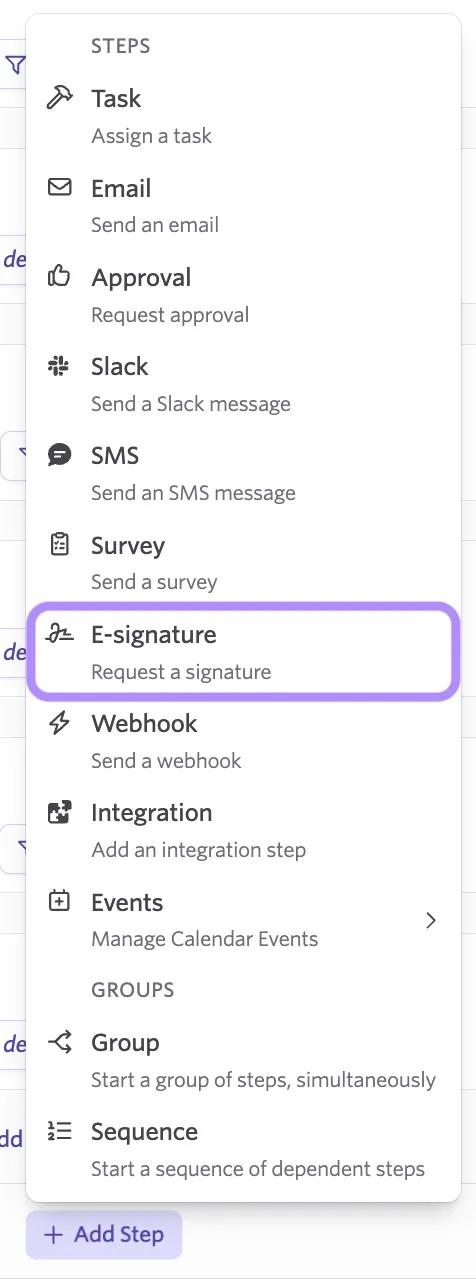
- Open the workflow, select Edit Workflow Template, then select Add Step in the appropriate section.
- Select E-signature from the step type dropdown.
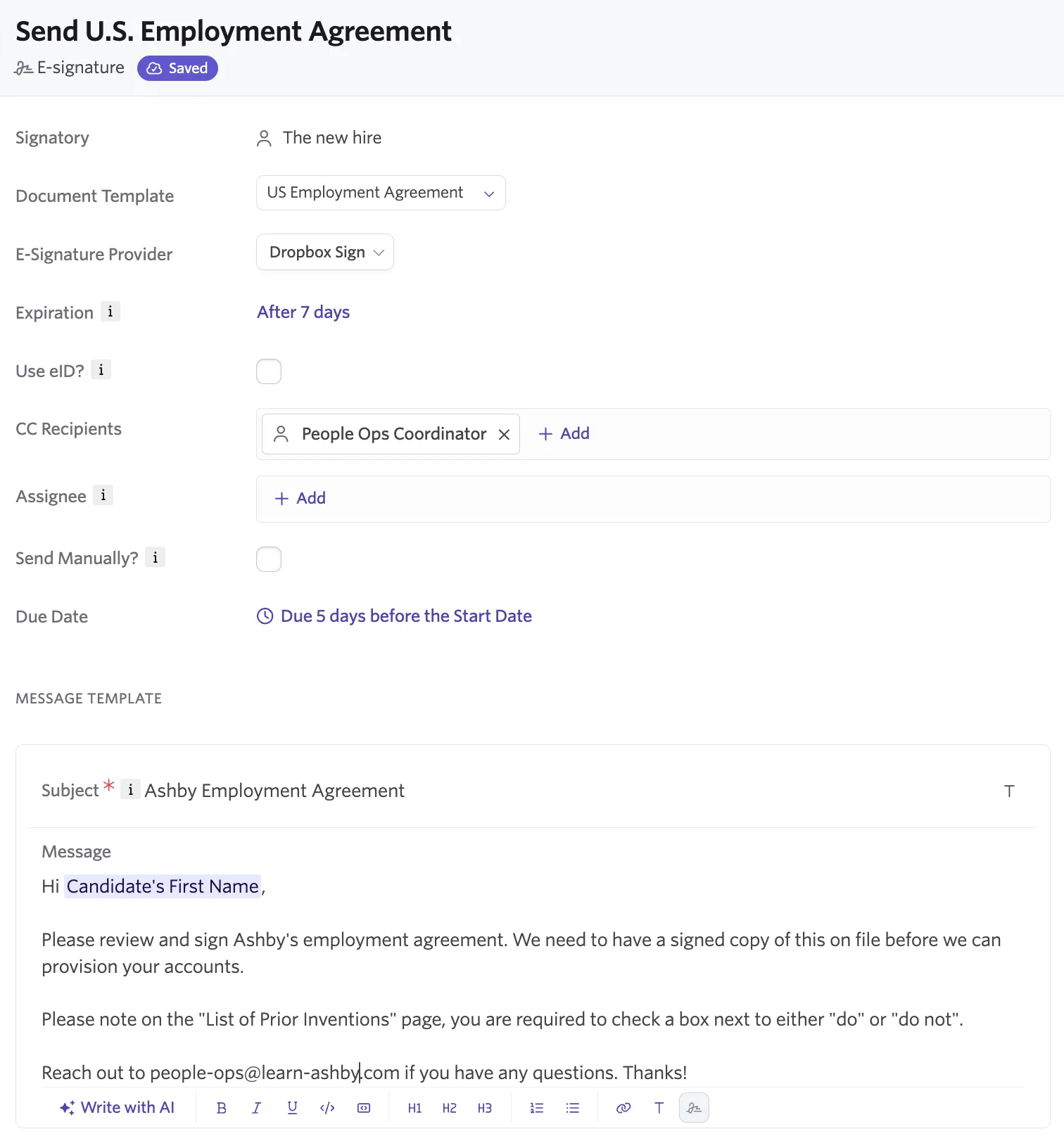
- Configure the document template, signatories, and expiration as described below.
- Set the step's delay, filter, and dependencies. See Configure your Workflow StepsConfigure your Workflow Step for details.
- Publish your changes. See Publishing Workflow UpdatesPublishing Workflow Updates for details.
Configuring the E-Signature step
Signatories and assignee
Set the Company Signatory who countersigns on your organization's behalf, and the Assignee, typically the new hire, who needs to sign the document. Some documents may need to route to more than one signatory in sequence; check your document template's configuration for details.
Document template
Select the document template you want sent for signature, for example, a country-specific employment agreement. E-Signature steps support DocuSign and use the default E-Signature provider configured in your Recruiting admin settings. You can override the provider on the specific step template if a document needs to route through a different provider.
Expiration and due date
Set an Expiration Date for the signature request and a Due Date for tracking. If a document expires without a signature, the step's status reflects that so your team can follow up.
Message subject and body
Write the message the signatory receives, including any tokens needed to personalize it, such as the new hire's name or start date.
FAQs
Can I use a different E-Signature provider for a single document, if my organization's default is different?
Yes. Override the provider on that specific E-Signature step configuration rather than changing your organization's default provider.
Can a completed e-signature document from Recruiting carry over to People Workflows automatically?
Not currently. If you want the added flexibility of delays and dependencies around a signature, such as gating downstream steps on a signed agreement, configure the E-Signature step directly in People Workflows rather than relying on a document signed in Recruiting.
Can I sent completed e-signature documents to other systems?
No, they need to be downloaded from the completed step. We recommend customers add the appropriate person as a cc recipient because they will receive an email when the document is signed and can access it that way.