Workflow Steps: Webhooks
Webhook steps send data from Ashby to your external systems at a specific point in a workflow. When a step completes, Ashby sends the fields you choose to the URL you specify, so a downstream system can act on it right away, for example by opening an IT ticket to provision a laptop the moment a background check clears, instead of waiting for someone to send that request manually.
This article explains how Webhook steps work, how to add one to a workflow, and how to choose which fields to send.
Ashby's People Ops module is currently available through restricted early access. The following documentation is provided for design partners participating in that program.
Permissions and access
Adding the step and configuring the webhook itself take two different permissions:
- Configure the webhook in Ashby Recruiting: you need Organization Admin access, because webhooks live in Admin > Integrations > Webhooks.
- Add a Webhook step to a workflow: you need view and edit access to that workflow. Your permission set grants this access to either all workflows or specific workflows.
Learn more about Ashby's People Ops permission sets: Configure Permission SetsConfigure permission sets.
Setup instructions
See Ashby's Developer Guide on Setting up Webhooks for additional details.
Configure the webhook in Ashby Recruiting
To use Webhooks in People Ops workflows, first create the webhook endpoint in Ashby Recruiting. Navigate to Admin > Integrations > Webhooks and complete the following steps:
- Select + New in the upper right corner.
- Enter a Title (this helps you find it later).
- Select Workflow Step as the webhook type.
- Enter the URL of the external system's endpoint.
- Optionally add a Secret Token for request verification.
- Select Save.
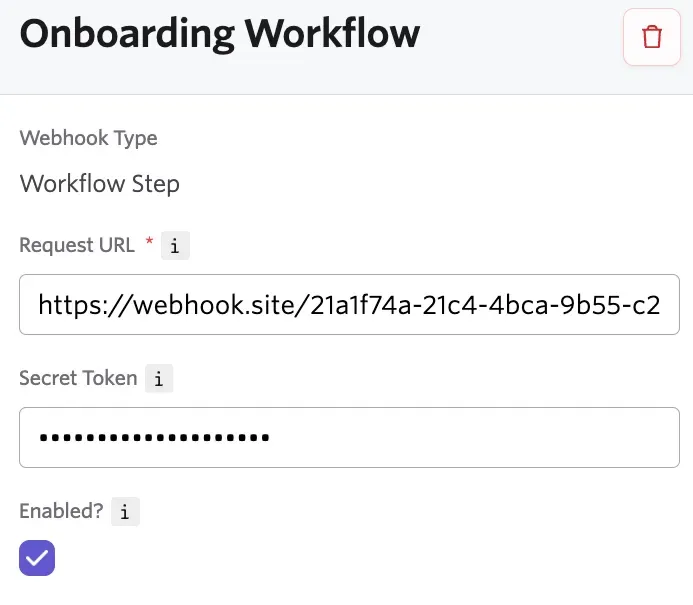
Webhook custom headers
Custom HTTP headers added to your webhook configurations allow you to pass additional authentication credentials, API keys, or other identifying information that your webhook endpoint requires.
Custom headers are key-value pairs that are included with every webhook request Ashby sends to your configured endpoint. Each header has a name (e.g., X-Api-Key) and a value (e.g., your secret token).
To add custom headers to a webhook:
- Configure the webhook as described in Configure the webhook in Ashby Recruiting.
- Under Custom headers, select Add Header.
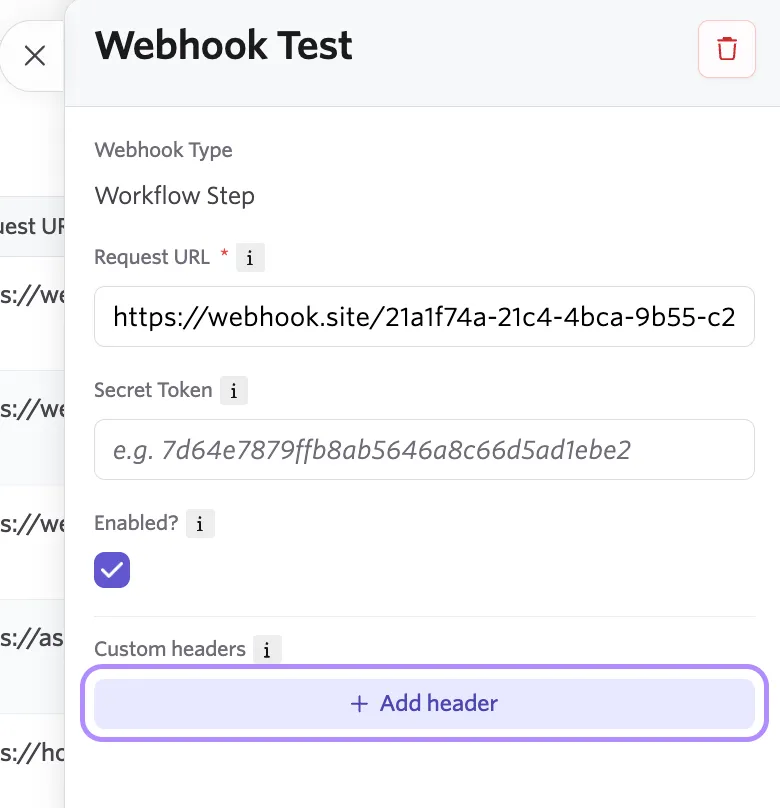
- Enter a header name and value. Header values are encrypted at rest and are not displayed in the UI after they are saved.
- Header names must start with X- (e.g., X-Api-Key). This follows HTTP conventions for custom/non-standard headers.
- Custom header limitations:
- Header names: Maximum 128 characters.
- Header values: Maximum 2,000 characters.
- Header values must contain only printable ASCII characters (no control characters or non-ASCII characters).
- Select Save. Your custom headers are now included in all webhook requests to this endpoint.
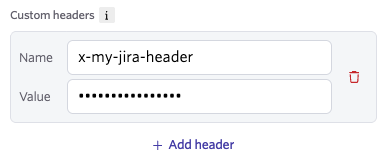
You can add up to five custom headers. To remove one, select the trash icon to the right of the header.
Adding a Webhook step
Once you've completed the above steps, navigate to Ashby's People Ops module and complete the following steps:
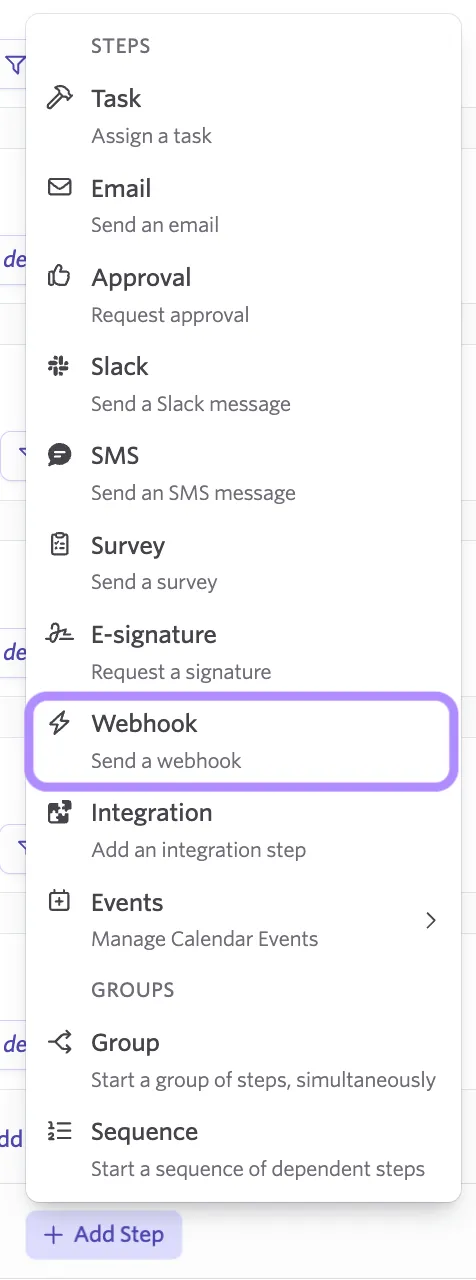
- Open the workflow, select Edit Workflow Template, then select Add Step in the appropriate section.
- Select Webhook from the step type dropdown.
- Configure the payloadConfigure the Payload as outlined below.
- Set the step's delay, filter, and dependencies. See Configure your Workflow StepsConfigure your Workflow Step for details.
- Publish your changes.
Configure the payload
The Webhook step includes a payload builder, a flexible tool that allows you to fully define the content and structure of the JSON payload sent to your external system. With the Payload Builder, you can configure:
- The structure and hierarchy of the outgoing JSON body
- Which fields from Ashby should populate each value
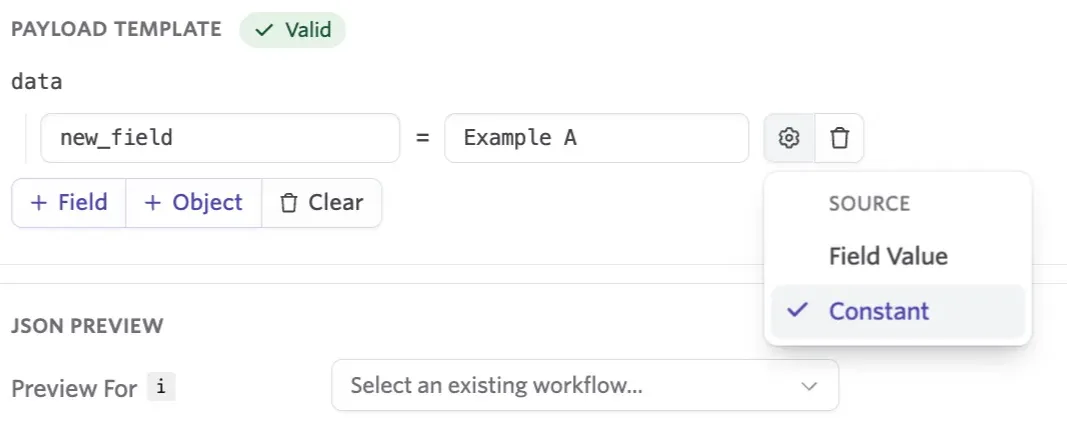
- Fixed (constant) values that are always sent
- Whether each field is required or nullable
- Nested objects for more complex payloads
The Payload Builder provides access to all relevant data associated with the onboarding workflow, including:
- Employee profile fields (standard and custom)
- Job Consideration fields (standard and custom)
- Workflow fields (status, start date, step information including survey answers
This gives your team the flexibility to design highly customized payloads tailored to your downstream systems and automation needs.
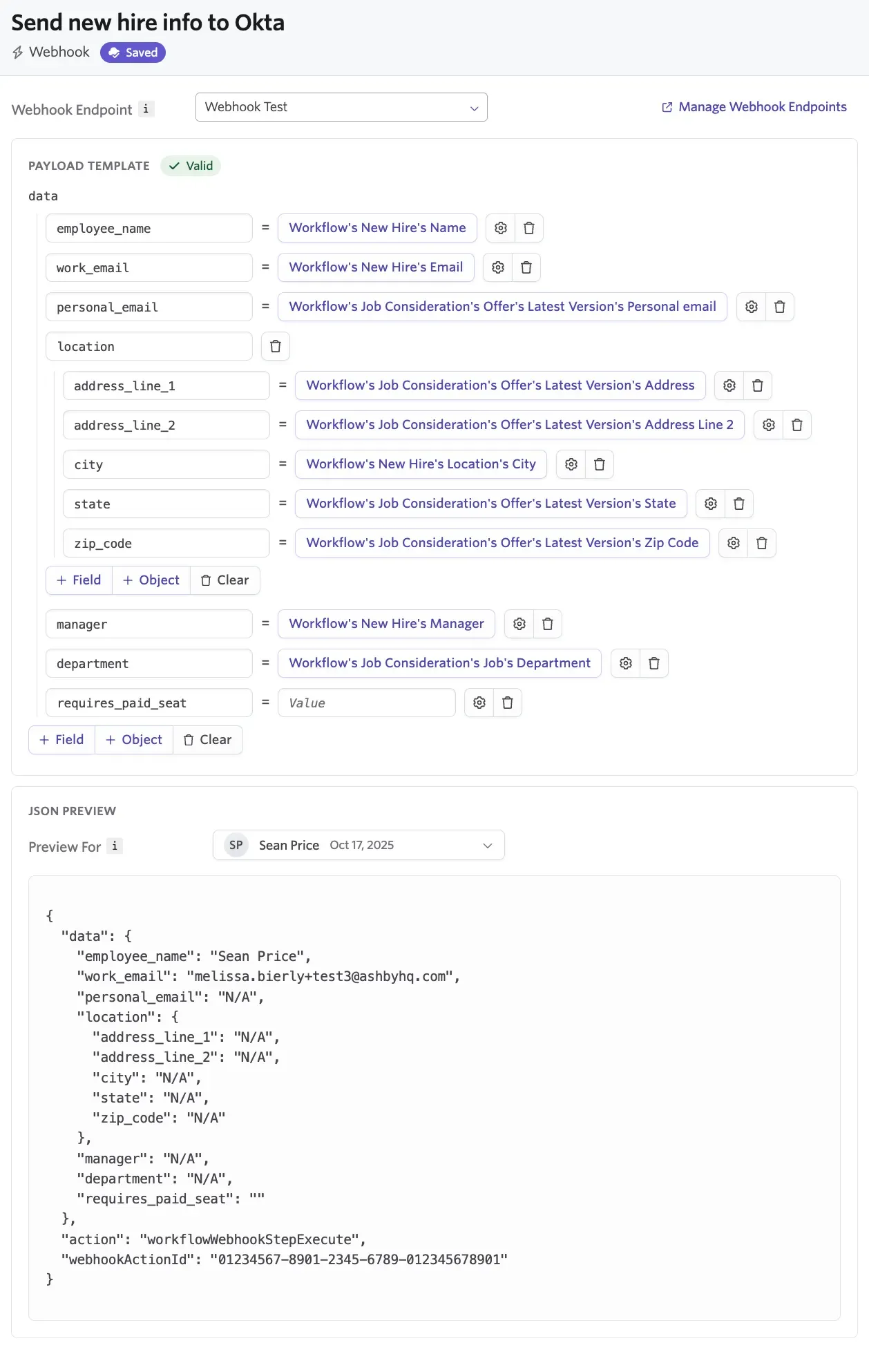
The Payload Builder
The Payload Builder lets you construct a JSON message from any onboarding-related data inside Ashby.
Sending individual fields or objects
You can:
- Send single fields like employee.email, employee.startDate
- Send objects such as an entire employee or job object
- Compose hybrid nested structures
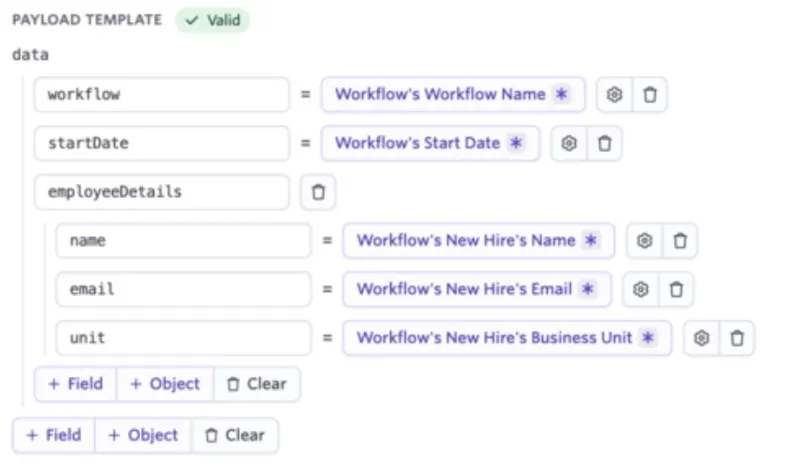
Field-level configuration
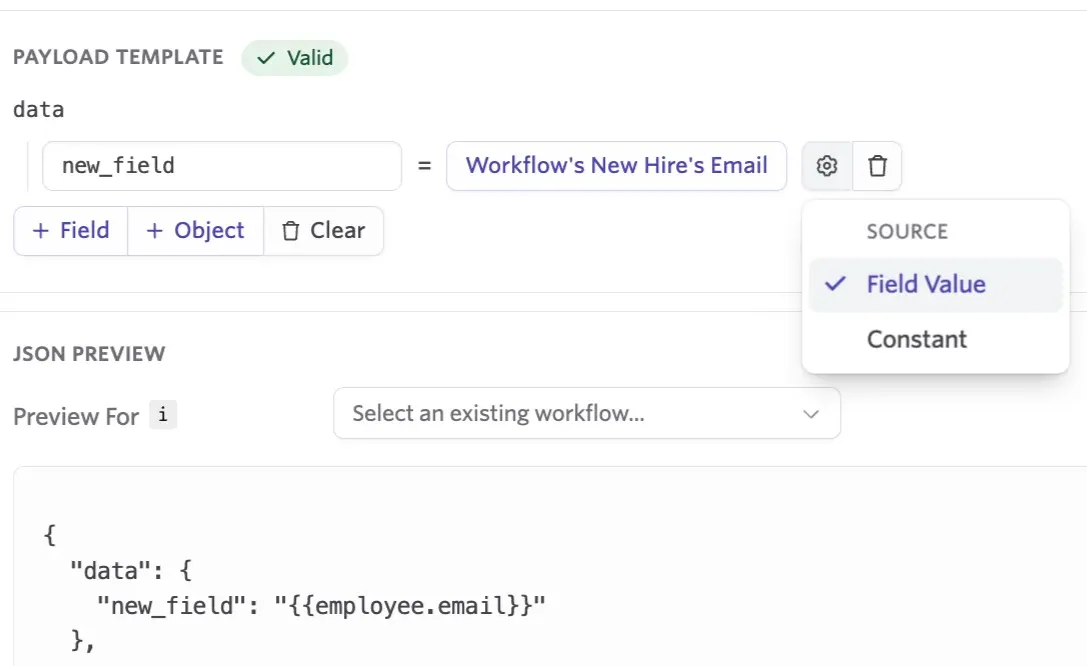
Each field added to the payload supports the following configuration options:
Source: Choose what populates the field:
- Existing field value (e.g., Employee Manager, Business Unit)
- Constant (fixed value sent for every employee)
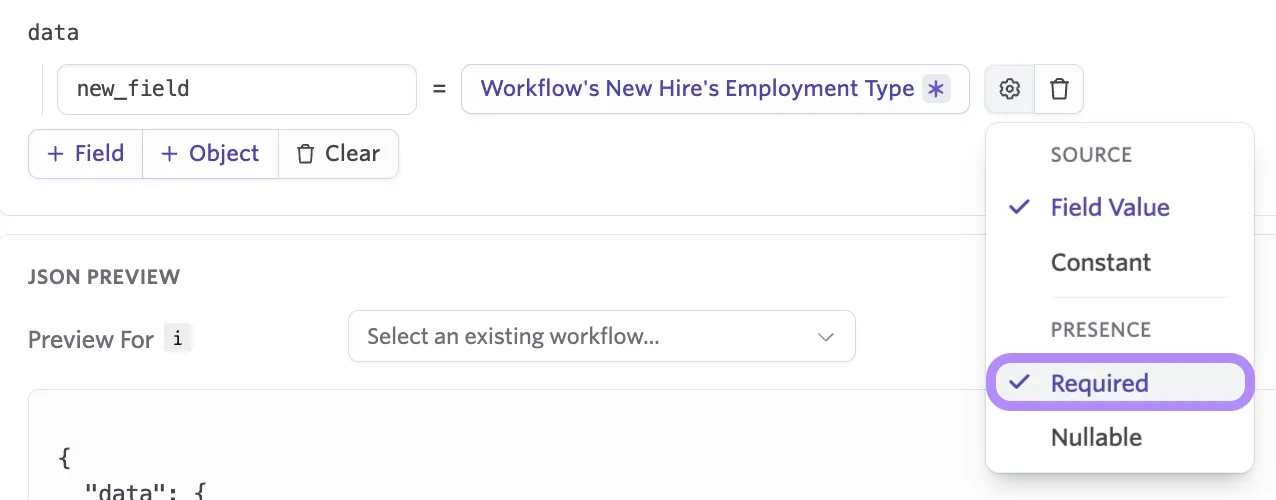
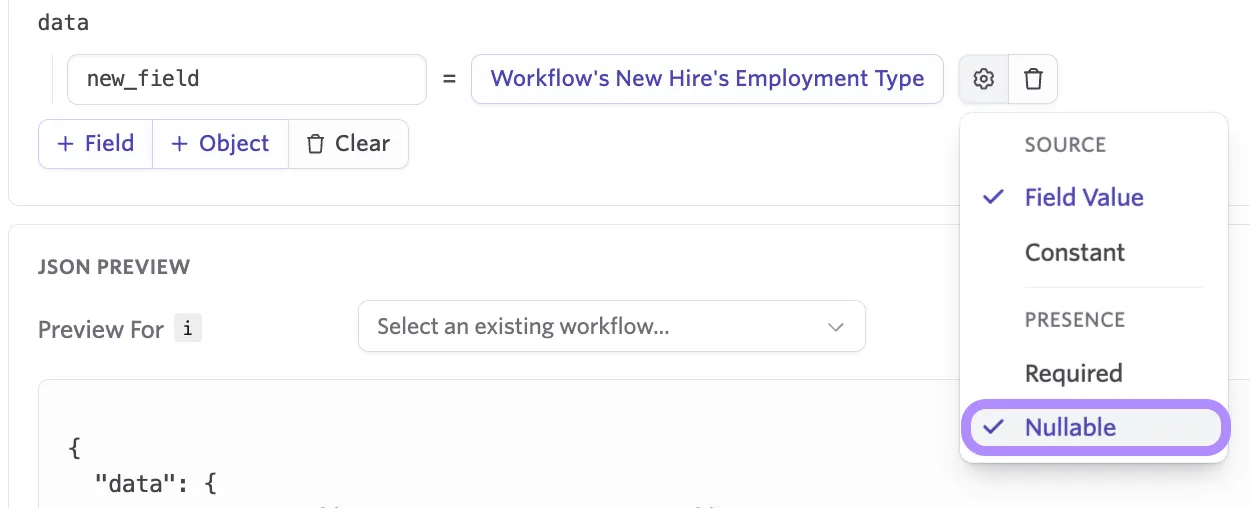
Required vs nullable
Required fields must be resolvable; otherwise the Webhook step fails.
Nullable fields allow the webhook to send even if the value is missing (value becomes null).
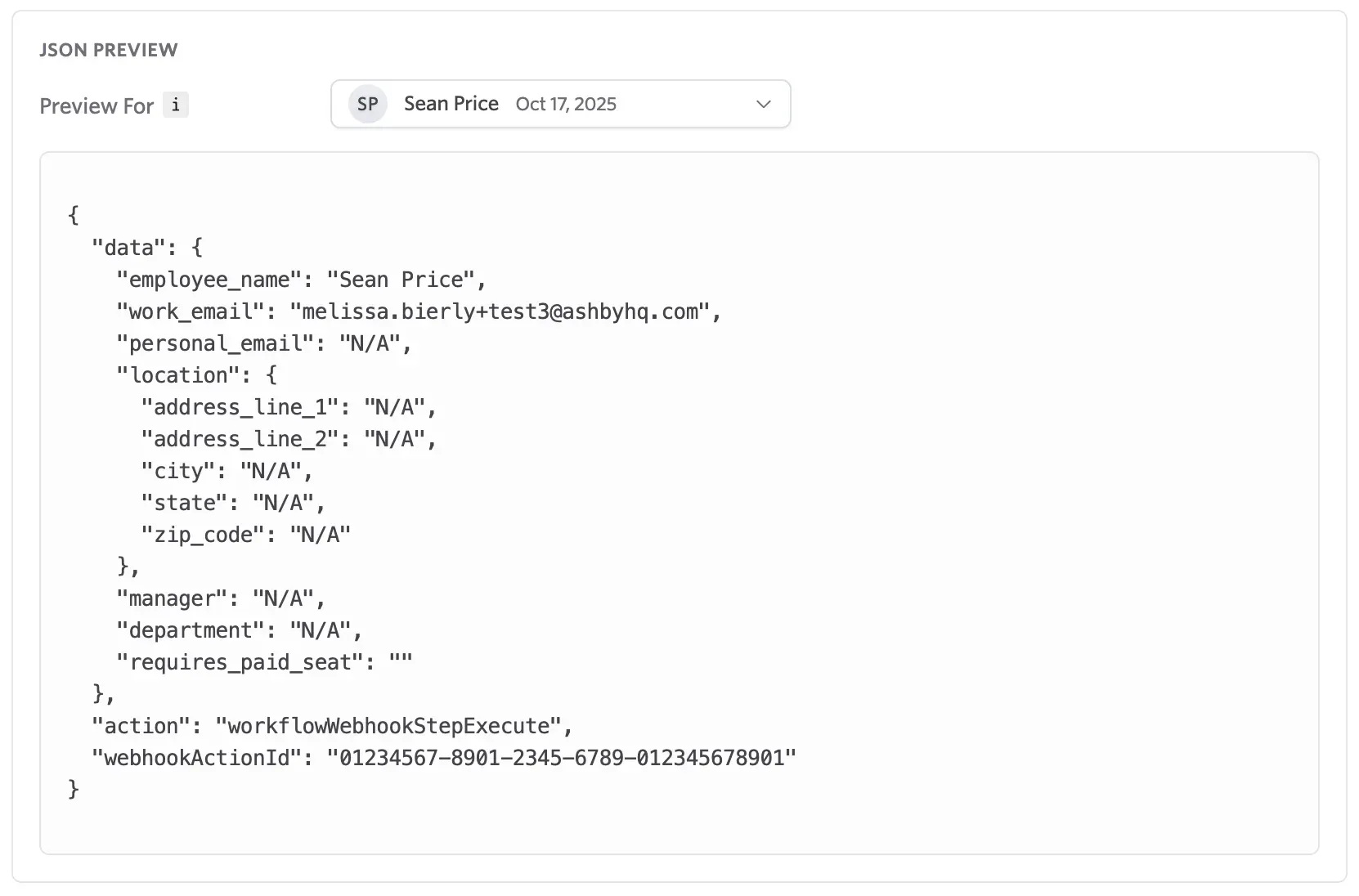
JSON preview
The builder shows a live JSON preview of the payload structure.
What happens when a webhook sends
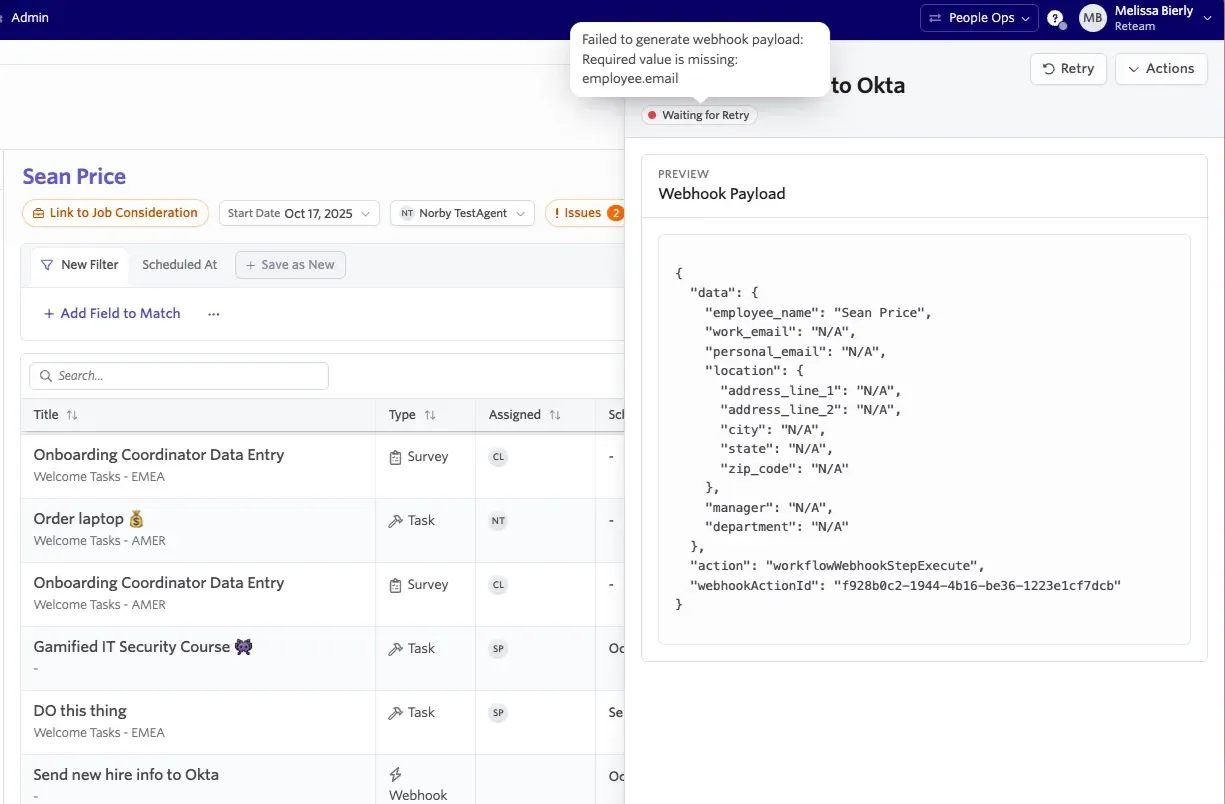
Once a Webhook workflow step completes, Ashby marks the step as completed and displays a payload snapshot.
The snapshot shows the current field values, not the exact payload that was sent. Ashby does not store the potentially sensitive data that was sent to the external system.
Error handling & retries
If a Webhook workflow step successfully completes, Ashby marks the step as Complete and no retries are attempted. Webhook responses are classified as follows:
Non-recoverable errors (not retried)
Codes:
- 401 Unauthorized
- 403 Forbidden
- 404 Not Found
- 405 Method Not Allowed
- 410 Gone
- 413 Payload Too Large
Ashby marks the workflow step as Failed and details are shown in the UI.
Errors that trigger automatic retries
Ashby automatically retries all other non-2XX error responses up to 10 times using exponential backoff (meaning the time between retries increases after each attempt). If all retries fail:
- Ashby marks the step as Failed.
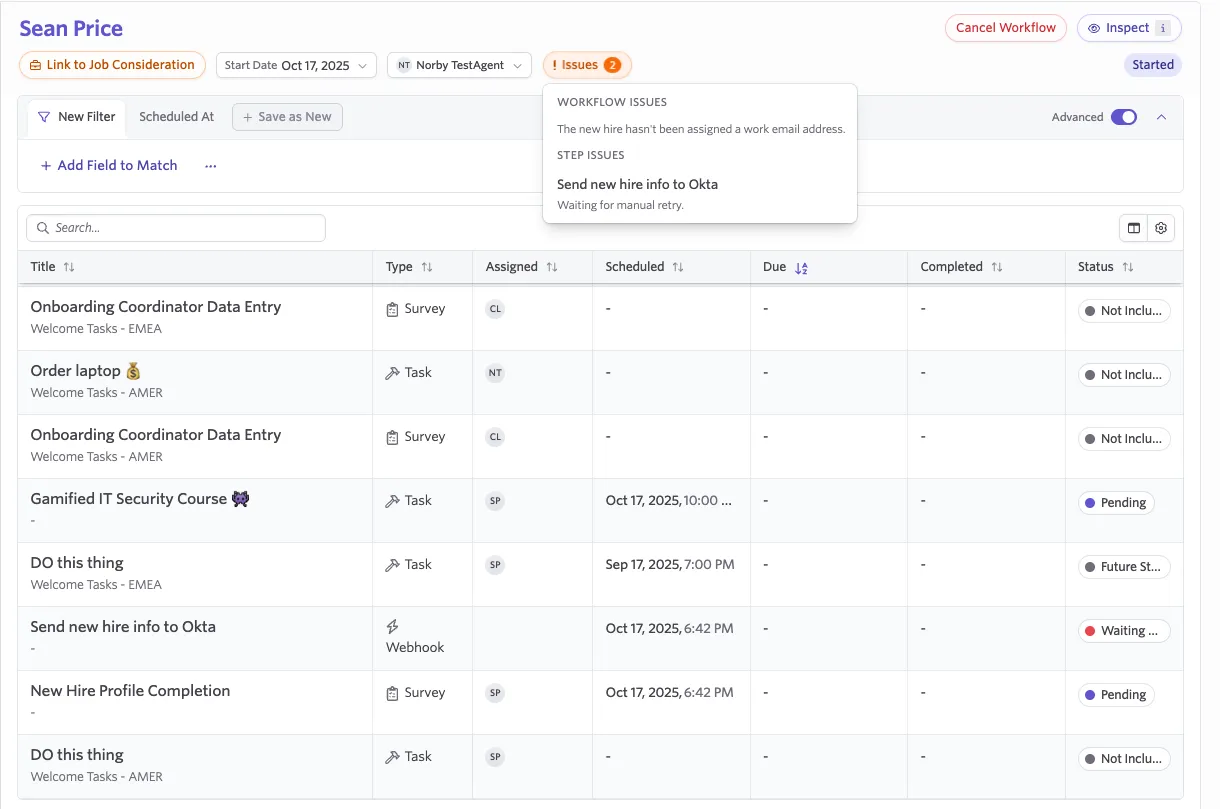
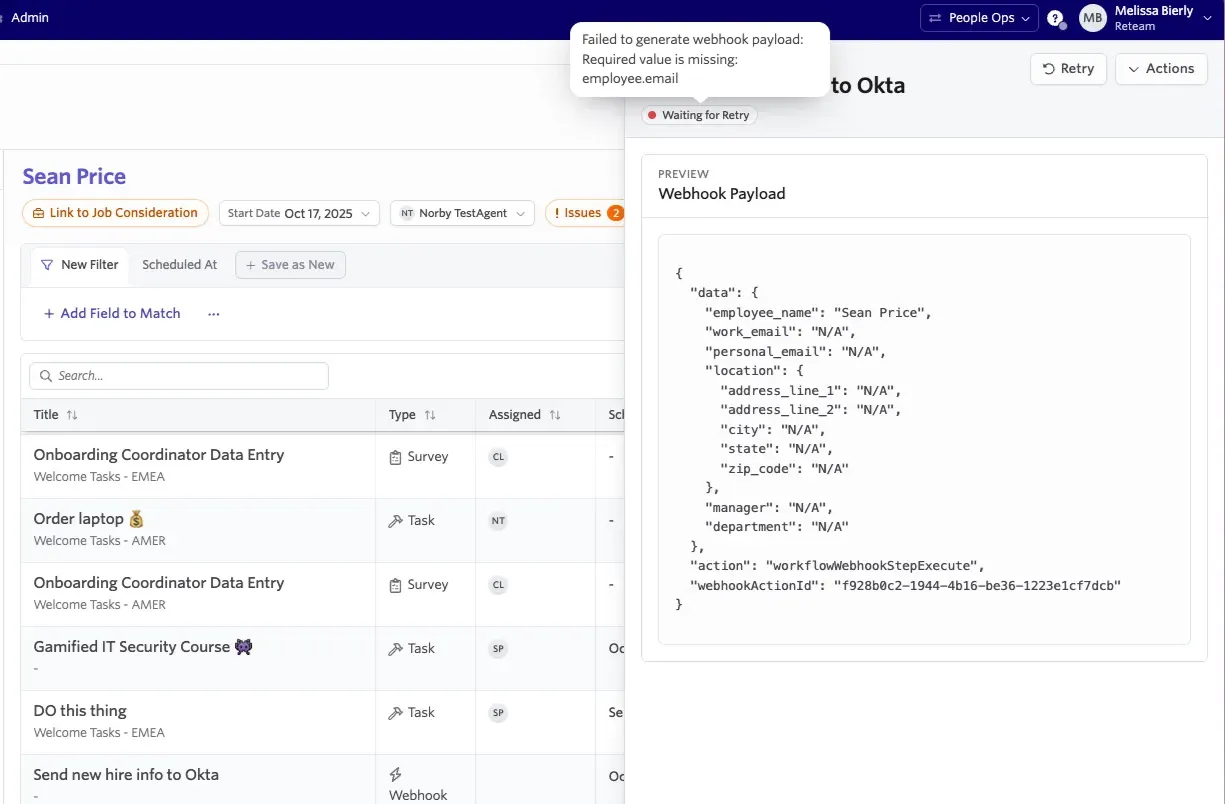
- A user with access can manually retry from the UI. To do this, click Retry within the Webhook step popover.
Timeout requirement
The receiving system must respond within 10 seconds. Otherwise, Ashby considers the request failed and begins retry logic.
Managing webhook data collection in People Ops
To ensure accurate and complete data is sent via the webhook, all required fields must be populated before the Webhook step runs in your workflow.
In addition to passing Job Consideration data through webhooks, People Ops offers three additional mechanisms for gathering employee information, depending on your team's workflow and preferred data-collection point:
Through a Survey step
One of the most flexible ways to collect field data is through a survey step in your onboarding workflow. Surveys can be configured to be completed by new hires or internal team members, depending on who the survey is assigned to within the survey step configuration.
When setting up the workflow:
- Add a survey step to your workflow and select the relevant recipient. This can be the new hire or another employee or a custom role (for example, a People Ops Coordinator).
- Configure your survey questions.
- If you did not configure survey responses to be included as part of your webhook payload, you can use Ashby's Form Field Connectors to link the question directly to the corresponding custom field. When the respondant completes the survey, their answers automatically populate the linked employee custom field.
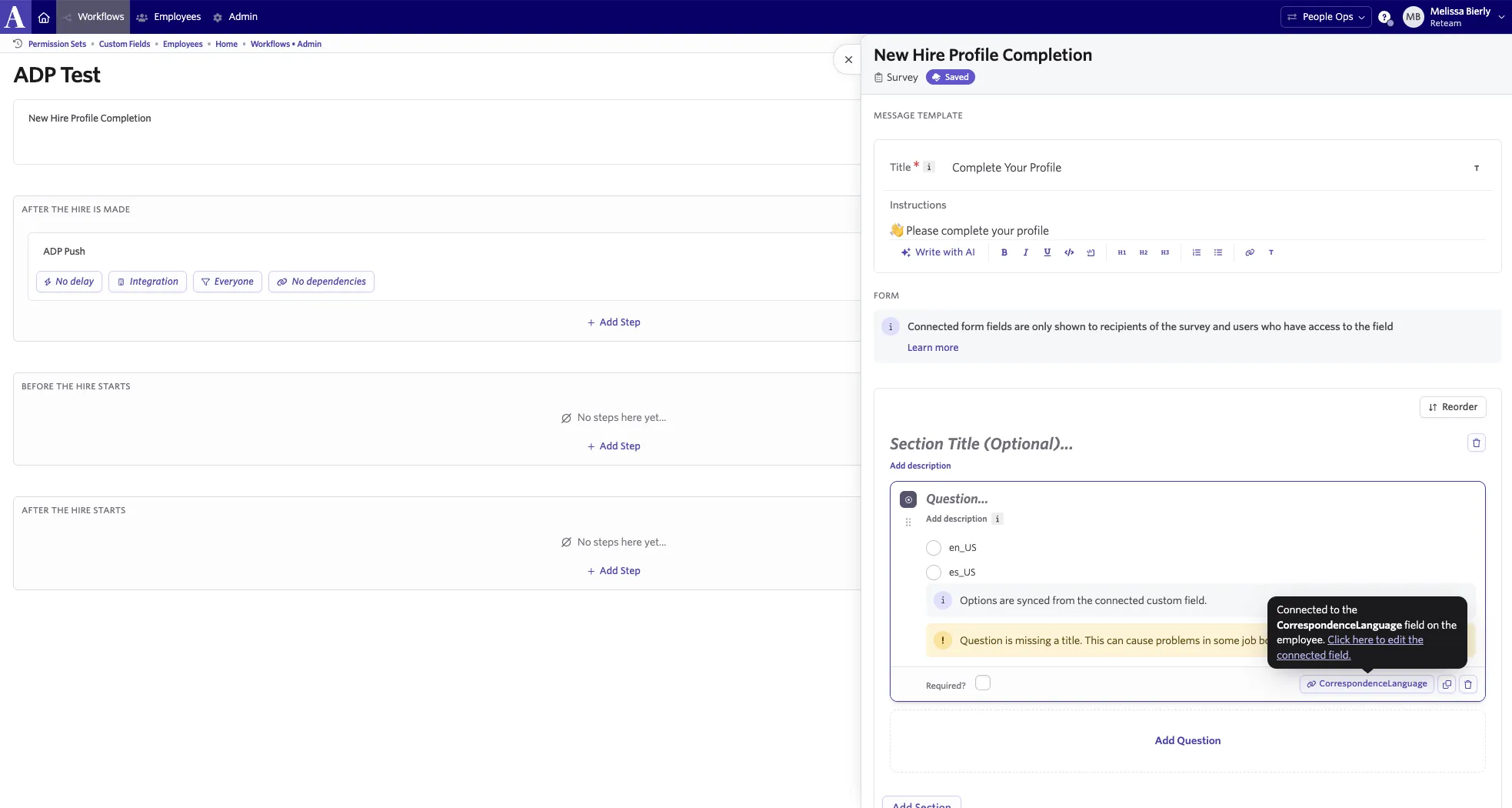
You can create multiple surveys if data needs to come from different sources, for instance, one survey for the new hire to provide personal details and another for the People Ops team to complete company or job-specific information.
You can also send survey responses collected in the workflow via the webhook
- To ensure all data is collected before the Webhook step, make survey completion a dependency for the Webhook step. This ensures the integration doesn't run until all required surveys have been submitted and mapped fields are complete.
Using surveys provides flexibility across teams and roles, ensures accuracy by pulling responses directly into fields, and minimizes manual data entry during onboarding.
During workflow enrollment
Another way to capture field data is during workflow enrollment. When you manually enroll a new hire into an onboarding workflow, you have the option to review and populate custom fields as part of the enrollment process.
This method works best for fields that should be completed by internal team members, such as People Operations or HR coordinators, rather than by the new hire. It allows your team to confirm or add information before the workflow begins.
To configure this:
- Enroll a new hire in a workflow.
- During the Review Custom Fields step, you see the applicable custom employee fields.
- Enter the necessary details before launching the workflow.
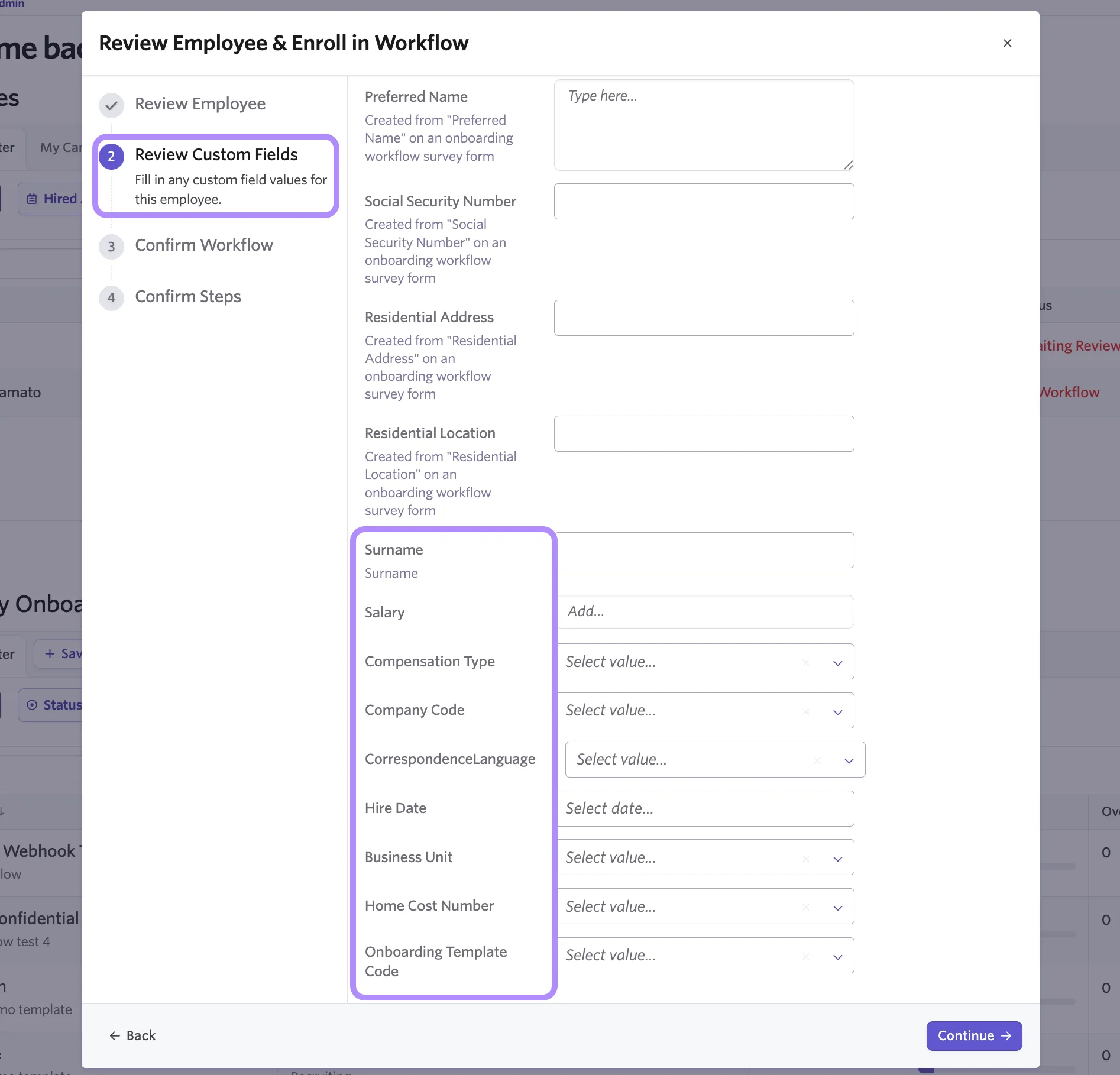
If you use automations to auto-enroll new hires without review, this manual enrollment step is skipped.
On the employee profile
Field data can be entered directly on the employee profile at any time before the Webhook step runs.
This approach is ideal for quick edits or last-minute updates, such as correcting an address.
To do this:
- Navigate to the employee's profile in People Ops.
- Navigate to the Custom Fields section of the employee's profile and locate the applicable field.
- Enter or update the information as needed.
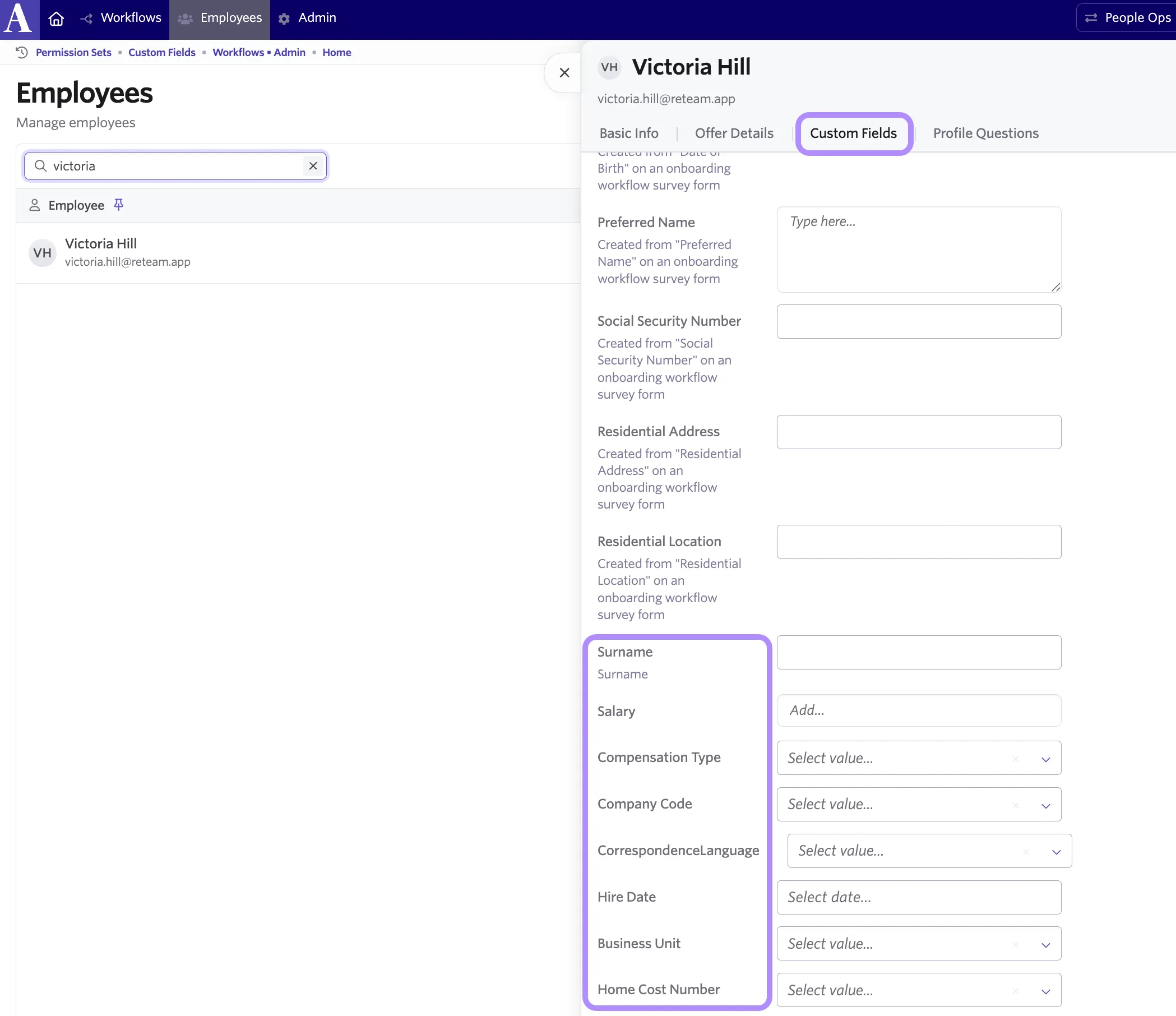
All changes made here are included when the Webhook step runs.
By syncing as an Offer field
You can sync a People Ops Employee custom field to Recruiting as an Offer custom field, so information captured during the offer process flows to the employee record automatically. This approach works best for job-specific details your recruiting team already collects on the offer, such as compensation or start date, and removes the need to re-enter that data in People Ops.
To configure this:
- Navigate to Admin > Custom Fields.
- Locate the applicable Employee field.
- Enable the Sync as Offer Field? toggle for that field.
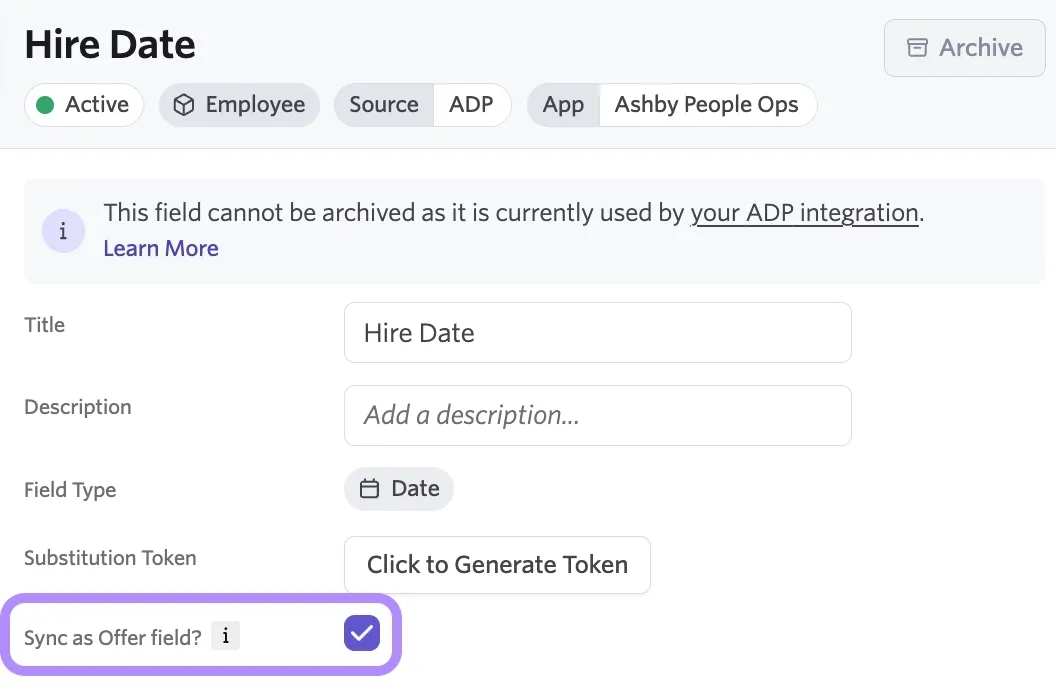
Once enabled, the custom field in People Ops syncs as a custom Offer field in Ashby Recruiting. From there, you can set a default value from Job data, or populate it when generating a new hire's offer.
For more on syncing Employee fields as Offer fields, see Sync Employee Custom Field as Offer FieldSync Employee Custom Field as Offer Field.
FAQ
Can other systems send information back into Ashby via webhooks?
At this time, Ashby supports only outbound webhooks and cannot receive data from external systems.
What happens if the webhook returns an error?
Ashby automatically retries retryable errors up to 10 times. Non-retryable errors fail immediately, and the workflow step displays the relevant error information.
See Error handling & retries for additional information.
Can I manually retry a Webhook step?
If a step is marked Failed, a user with access can manually retry directly in the UI:
How can I test my webhook?
We recommend:
- Hiring a test employee in Ashby Recruiting
- Enrolling them in an onboarding workflow
- Using a test endpoint or a webhook viewer tool like RequestBin
What does the warning: "A 'Ping' webhook will be sent to your Request URL before the webhook is enabled" mean?
When you save a webhook, Ashby sends a test request to your Request URL to verify that it's reachable and accepts your configuration (including any custom headers). If your endpoint returns a success response (2xx), the webhook is enabled. If the ping fails, the webhook is still saved but disabled until the issue is resolved and the webhook is saved again.