Publishing Workflow Updates
Workflows change as your onboarding, offboarding, and other people processes evolve. This article explains what happens when you publish changes to a workflow template, including how to apply those changes to workflows that are already in progress.
Ashby's People Ops module is currently available through restricted early access. The following documentation is provided for design partners participating in that program.
Permissions and access
To publish updates to workflow configurations, you need view and edit access to the workflow. Your permission set grants this access to either all workflows or specific workflows.
Learn more about Ashby's People Ops permission sets: Configure Permission SetsAdminister permission sets.
How publishing works
Editing a workflow template creates a draft. Draft changes have no effect on workflow enrollees until you publish them. Publishing commits your draft changes to the workflow template so that version becomes the live version of the workflow going forward.
If employees are already enrolled in the workflow when you publish, Ashby prompts you to decide how you want the update to affect them. This is where you decide whether the changes apply only to those being enrolled in the future, or also to the people already enrolled in the workflow.
Publishing when no one is enrolled
If no one is currently enrolled in the workflow, publishing is straightforward. Select Publish in the upper right corner of your workflow configuration, and Ashby saves your draft as the new live version of the template.

You do not see the options for updating inflight workflows, since there are no active enrollments for the update to affect.
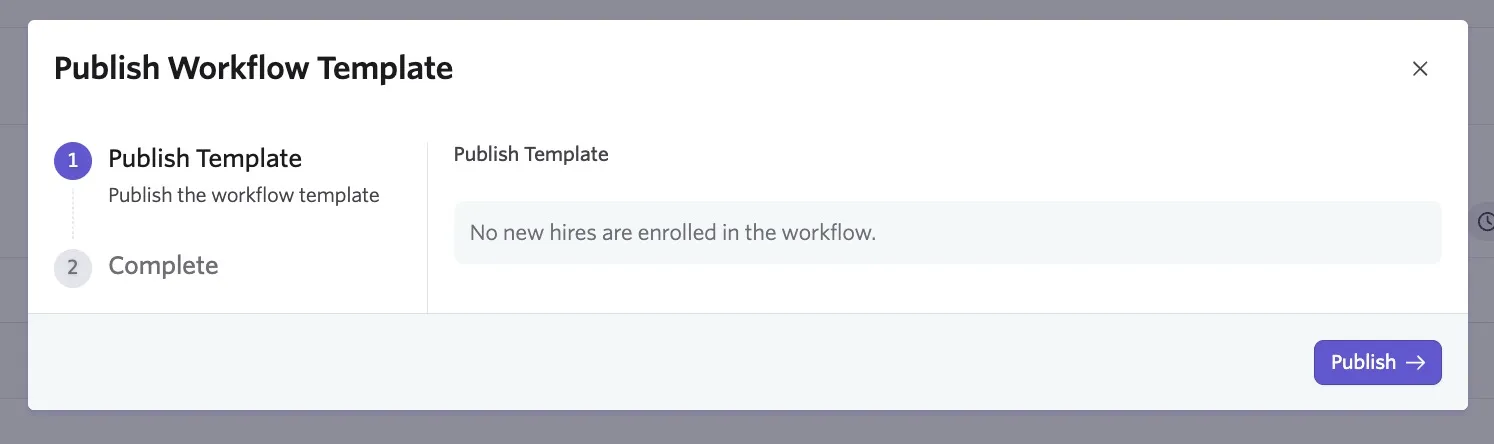
The new version applies to every employee enrolled from that point forward. This is the most common case when you are still building out a workflow.
Applying updates to inflight workflows
When you select Publish on a workflow with active enrollments, Ashby presents the following choices on the Publish Workflow Template pop-up.
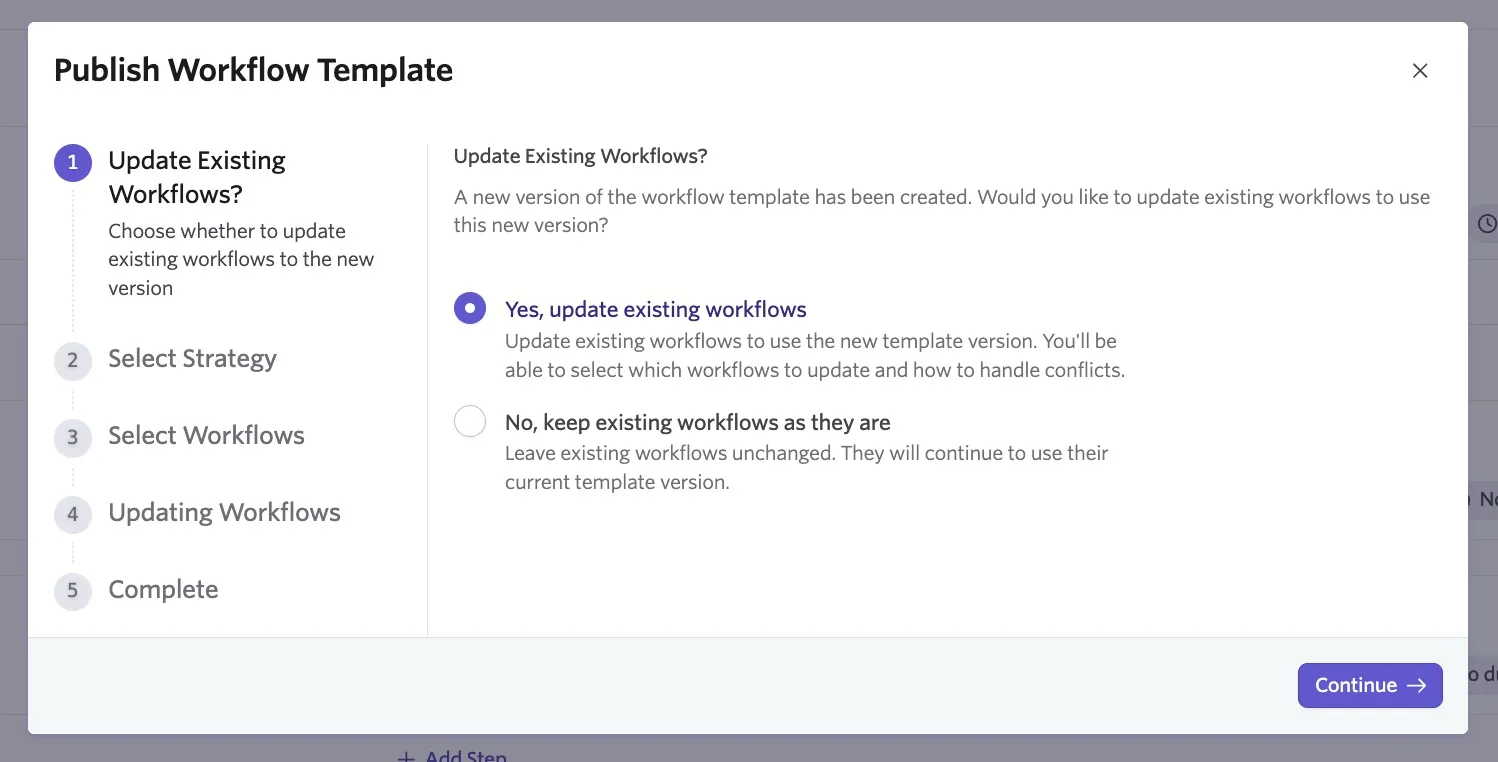
Update existing workflows?
At the first step, you can pick from the following options.
Yes, update existing workflows: This option applies your changes to people already enrolled. Selecting it presents two further choices for how to apply the update.
No, keep existing workflows as they are: This option applies your changes only to future enrollments. Anyone currently enrolled continues on the version of the workflow they started with. Use this option when your changes are for people moving forward and you do not want to disturb workflows already in progress. If you select this, Ashby takes you to the step to publish your changes.
Click Continue to go to the next step.
Select strategy
To ensure the changes are applied appropriately, you can select from the following options if you opt to update your existing workflows.
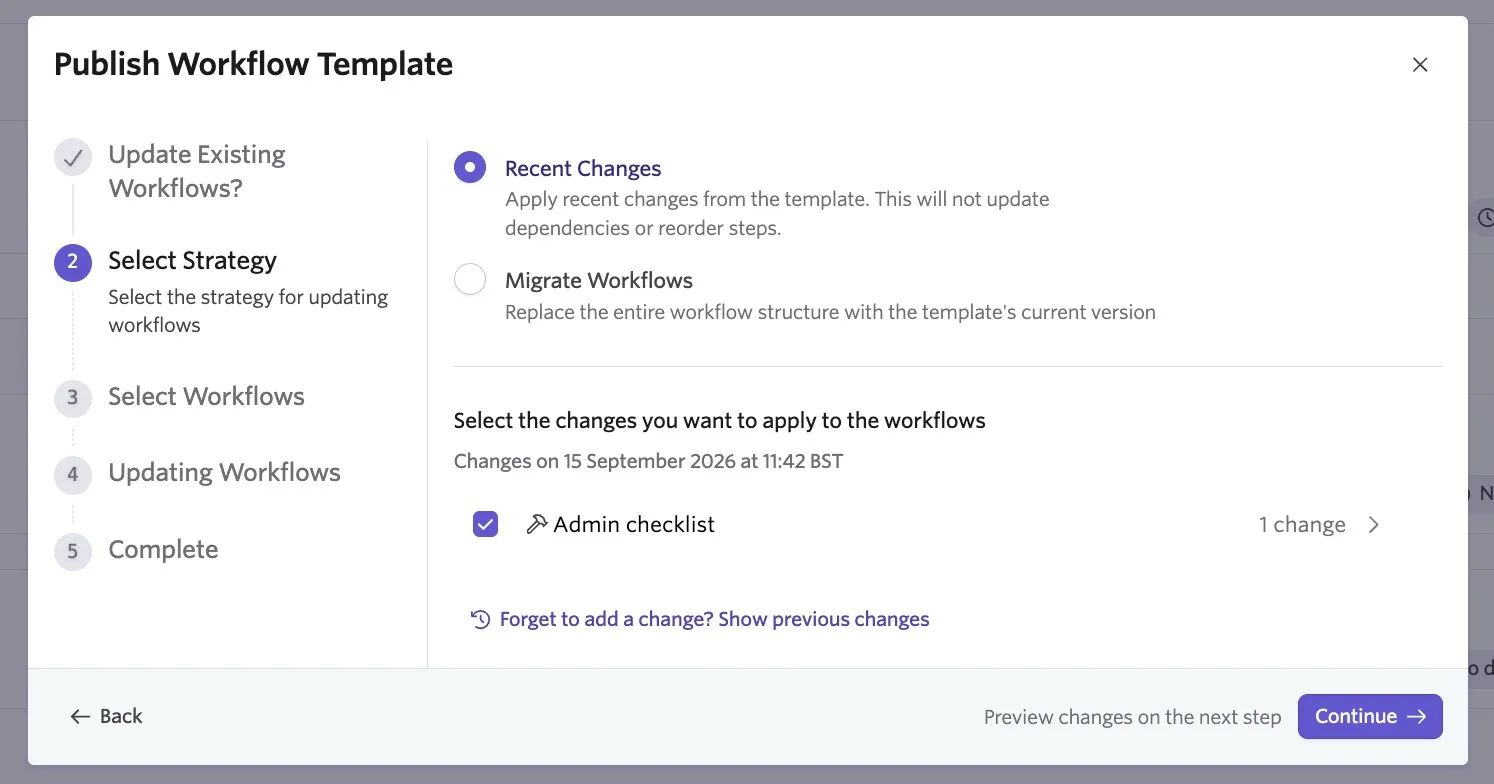
Implement recent changes: Use this option for simple edits, such as updating a step's title or description. Implement recent changes does not update dependencies, reorder steps, or revise filters on steps that are already part of an employee's inflight workflow. If your update includes any structural change, use Migrate workflow instead.
Migrate workflow: Use this option when you have made structural changes, such as adding or removing filters, adding or removing dependencies, or reordering steps. Migrate workflow replaces the structure of each affected employee's workflow with the new version of the template.
Migrating a workflow does not retrigger steps that are already complete or resend communications that already went out. Migration only affects steps that have not yet run. This means employees who already completed a step, or already received an email, do not receive it again.
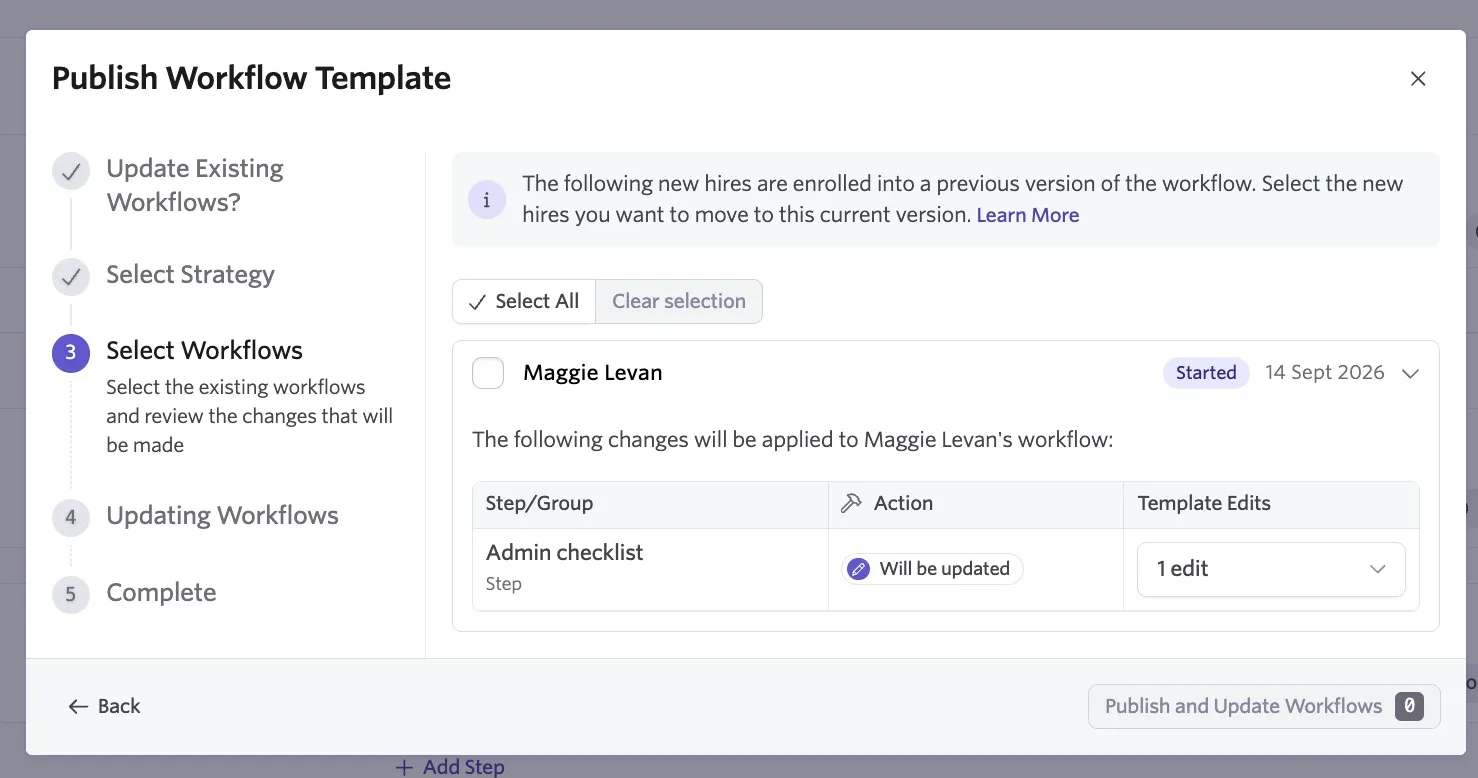
If you choose Migrate workflow, Ashby lets you review the affected workflows and select which ones to update in the Select Workflows step, so you can choose to apply the change to everyone or only to employees enrolled within a specific time frame.
Choosing the right option
Use the table below as a quick reference.
Situation | Recommended option |
|---|---|
Change should only affect future enrollments | No, keep existing workflows as they are |
Minor edit (e.g., a title or description change) that should also apply to inflight workflows | Yes, update existing workflows → Implement recent changes |
Structural change (filters, dependencies, step order) that should also apply to inflight workflows | Yes, update existing workflows → Migrate workflow |
If you need a newly added step to reach employees who have already completed earlier steps in the workflow, migrating does not resend anything they have already received. In that case, create a separate workflow for that one-off need and enroll the affected employees there.
FAQs
What happens if I mix "Implement recent changes" and "Migrate workflow" across multiple publishes?
Applying different update types across successive publishes to the same inflight workflows can create inconsistent results, since each option handles structural changes differently. If you have made structural changes, migrate the workflow rather than implementing recent changes, even if you have used recent changes for that workflow before.
Will migrating a workflow resend steps that already went out?
No. Migrating a workflow updates the structure of the workflow going forward but does not retrigger steps that have already completed or resend communications that have already been sent.
Can I choose which employees receive an inflight update?
Yes. When you migrate a workflow, Ashby lets you review the affected workflows and select which employees to apply the update to, rather than updating everyone automatically.
I published an update, but changes to filters or dependencies don't seem to have taken effect for existing employees. What should I check?
Confirm you selected Migrate workflow rather than Implement recent changes. Filter, dependency, and step-order changes only propagate to inflight workflows through migration. If you already migrated and the change still has not taken effect, contact support.
Can I resend a workflow step notification to remind assignees to take action?
You can, yes. For more on this, check out Resend Workflow Step Notifications.