AI Features in Ashby
This guide provides an overview of the AI-powered features in Ashby and the best practices for using them.
Enabling AI features in Ashby
Navigate to Admin > Organization Setup > Opt-In Features to opt in and enable some or all of the following AI features in Ashby:
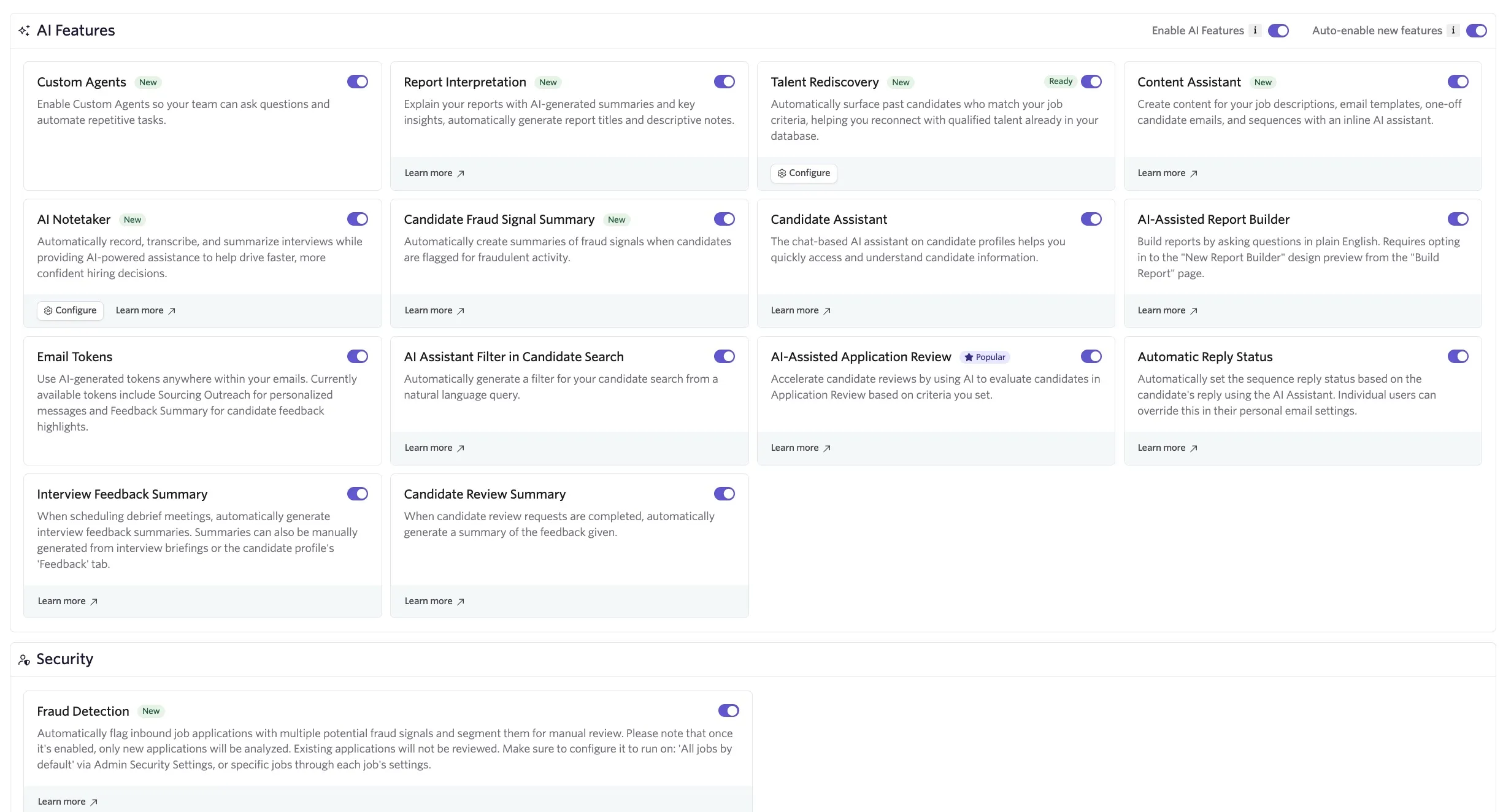
- Custom agents as part of Ashby AgentsAshby Agents
- AI Report InterpretationAI Report Interpretation
- AI Talent RediscoveryAI Talent Rediscovery
- AI Content AssistantAI Content Assistant
- AI NotetakerAI Notetaker
- AI-generated fraud signal summaries as part of the Candidate Fraud Detection Overview & Admin SettingsCandidate Fraud Detection Overview & Admin Settings tool (enabled separately from the Fraud Detection tool)
- AI Candidate AssistantAI Candidate Assistant
- The AI-assisted report builder within Report Builder & AI-Assisted Report BuilderReport Builder & AI-Assisted Report Builder
- Substitution tokens that generate sourcing content for AI Tokens in Outreach Emailssourcing emails and Substitution Tokensfeedback summaries for candidate emails
- Filter Assistant in Candidate SearchCandidate Search
- AI-Assisted Application ReviewAI-Assisted Application Review
- Automatic reply status classification for SequencesSequences
- AI-Generated Feedback SummariesAI-Generated Feedback Summaries to provide a feedback summary on the candidate's profile
- AI-generated summaries for Candidate ReviewsCandidate Reviews
Use the toggles beside each AI feature to activate or deactivate the features as needed. Select the links above to open guides with more information on each feature.
To enable future AI features by default as Ashby releases them, switch on the Auto-enable new features option. If your organization prefers to review new AI features before enabling them manually, switch this option off or leave it off.
Best practices
Keep the following best practices in mind when using the AI features in Ashby.
AI Content Assistant
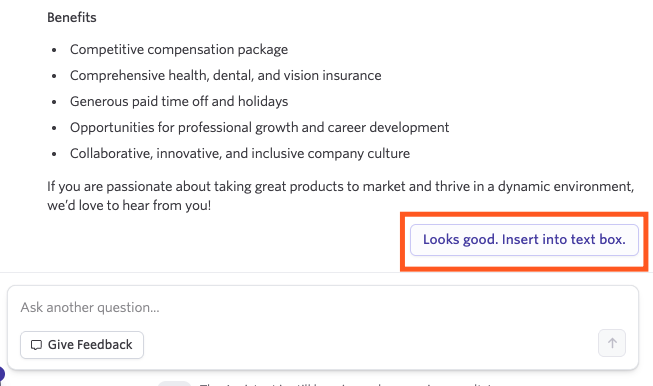
After Ashby generates your content, review it fully. If you're happy to use that content moving forward, select Looks good. Insert into text box.
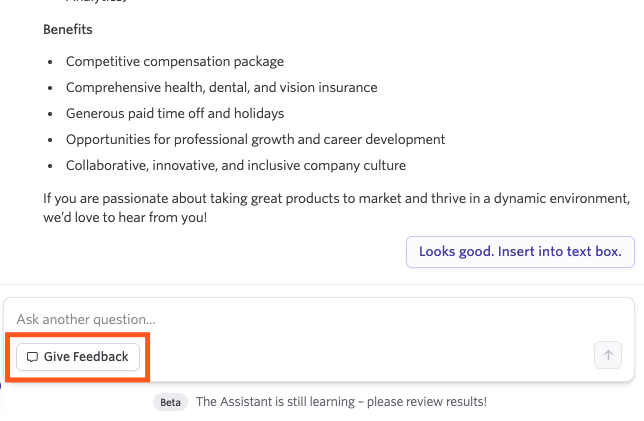
Alternatively, you can ask another question. To give feedback on the generated content, select Give Feedback. You can provide a rating (positive or negative) and add comments.
AI Notetaker
- For more on consent management and data retention, see AI Notetaker: Recording Consent Management.
AI Candidate Assistant
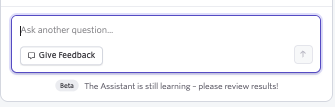
The AI Candidate Assistant is still learning, so review results when asking questions about candidates to confirm accuracy. To provide feedback on the assistant, select Give Feedback. You can add a rating along with any comments.
AI-Assisted Report Builder
Both Ashby All-In-One and Ashby Analytics users can opt in to use this feature.
The AI-Assisted Report Builder is only available on the Plus and Enterprise plans:
Foundations | Legacy Plus | Plus | Enterprise |
|---|---|---|---|
❌ | ❌ | ✅ | ✅ |
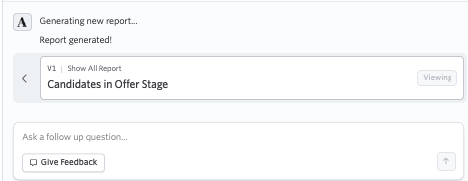
Review all generated results carefully. If the AI-Assisted Report Builder does not build the report you're looking for from your prompt, select Give Feedback to provide a rating and add any comments.
AI-generated email tokens
When you place an AI-generated email token in an email template or sequence, the token is context-aware of its placement within the email body. As such, you can use it within a sentence or to generate an entire sentence or paragraph within the email.
When you draft your email, the token automatically starts generating content in the body of the email. After generation completes, review the content and either:
- Accept and add the generated content to the draft by selecting the checkmark icon
- Regenerate the content using the regenerate icon
- Remove the content and the token by selecting the trash can icon

After you take action on the generated content, you can send the email to the candidate.
AI Filter Assistant
Both Ashby All-In-One and Ashby Analytics users can opt in to use this feature.
Use a plain language prompt to generate filters in Candidate Search or in the Report Builder, or select from examples beneath the Describe your filter field. After Ashby generates your filter, review it to confirm the filters provided match your prompt.
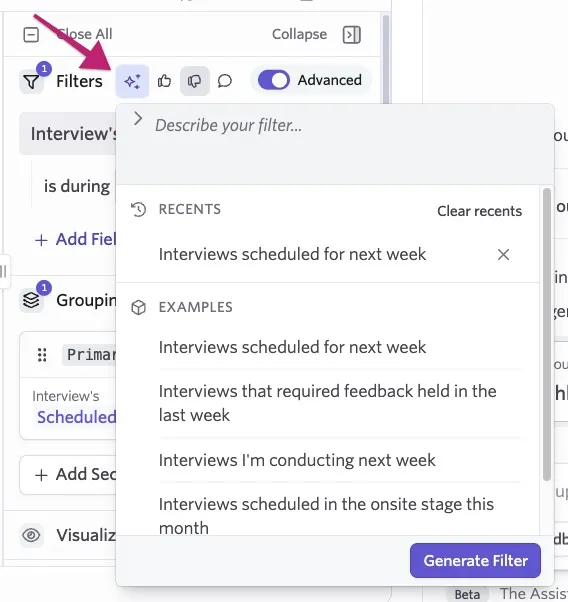
Use the thumbs up and thumbs down icons to provide feedback on the results. After selecting either option, you can select the Tell us more… chat bubble icon that appears to add further detail.
See Custom ReportsCustom Reports and Candidate SearchCandidate Search for more information on using this feature for report building and candidate search, respectively.
AI-Assisted Application Review
For more information on setting good job criteria, see AI-Assisted Application ReviewAI-Assisted Application Review.
Any application form criteria you configure determine only whether the question was answered, not the quality or accuracy of the answer. Ashby flags blank or unrelated answers as not meeting the criteria.
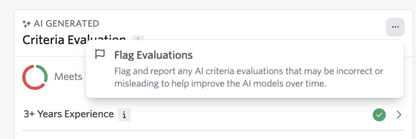
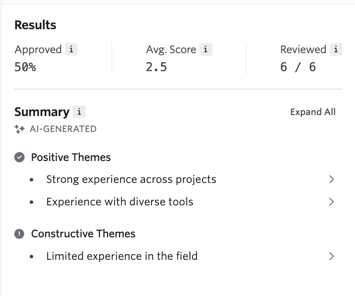
Review the application along with the criteria evaluation to determine the evaluation's accuracy. To flag an inaccurate evaluation, select the three dots on the evaluation, then select Flag Evaluation.
Automated reply status
Review any AI-generated classifications to ensure accuracy. All AI-generated classifications have an icon beside the reply status to indicate that the feature classified them.
You can override the auto-classification for up to one week after Ashby makes the classification. Select the response drop-down to change the reply status as needed.

Feedback summaries
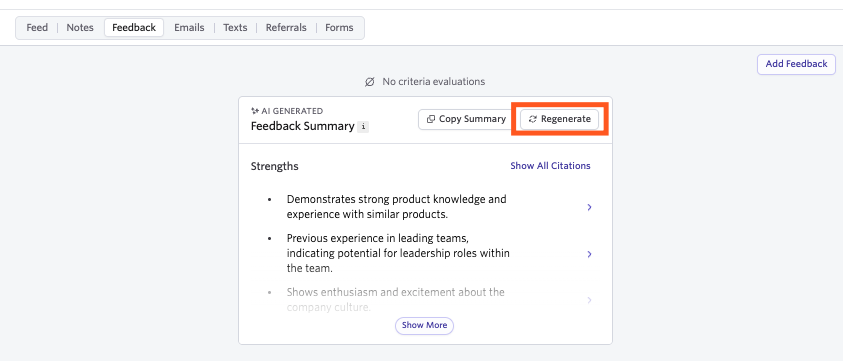
After Ashby generates summaries, check all completed feedback forms to ensure the generated summary accurately represents each reviewer's viewpoint.
To generate a new summary, select Regenerate on the feedback summary within the candidate's profile.
Candidate review summaries
After Ashby generates summaries, check all completed reviews to ensure the generated summary accurately represents each reviewer's viewpoint.
Candidate Fraud Detection
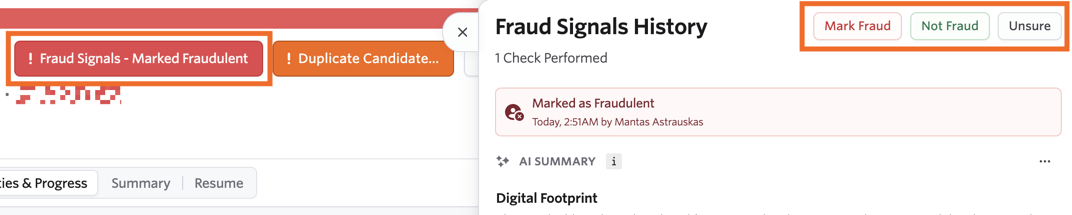
When reviewing AI-generated summaries, carefully review each signal too. As you review each signal, hover over the signal title to see more information about what the signal evaluates. Ashby lists any flagged signals above the signals checked so you can easily see what needs review.
After you review the data provided, choose from the following options to confirm the candidate's fraud status:
- Mark Fraud: Flag this as a fraudulent application. This triggers the process to archive the candidate with the Rejected by Organization: Fraudulent Candidate archive reason applied.
- Not Fraud: Mark the flagging as a false positive and confirm the application is not fraudulent. Ashby adds a Fraud Signals - Cleared label to the candidate's profile.
- Unsure: Mark the application as Uncertain - Flagged for Monitoring so you can review it again later.
To update the fraud signals status on a candidate's profile, select the Fraud Signals label applied to the candidate's profile to reopen the Fraud Signals History popover, then select the correct status.
AI report interpretation tool
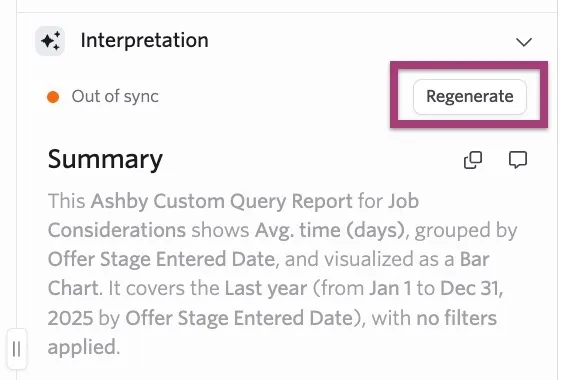
When generating your interpretation, open each generated insight to see further information about your results. If the insights don't match up, or you're seeing an Out of Sync status for the interpretation, select Regenerate to update the interpretation. An interpretation status shows as Out of Sync when you amend the filters or fields shown on a report.
Enhanced resume parsing
When you enable enhanced resume parsing, the tool extends the range of supported languages for parsing resumes (for example, it supports Korean and Hebrew). It also improves parsing for resumes with more complex layouts or formatting.
You don't need to take any further action after enabling this feature. Ashby uses it to parse resumes added going forward, either by candidates applying to jobs or by an Ashby user adding resumes within the platform. For more on adding a candidate directly in Ashby, see Candidate Profileguide on candidate profiles.