AI Content Assistant
You can opt-in to use the AI content assistant to help you draft content for job descriptions, email templates, sequence emails, and one off emails.
Enabling the AI content assistant
To enable the AI notetaker in your Ashby account:
- Navigate to Admin > Organization Setup > Opt-In Features.
- If you’ve yet to opt-in to AI features using the Enable AI Features option, you will need to opt-in to then enable the AI Notetaker tool.
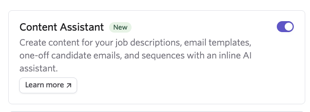
- Check the AI Content Assistant checkbox
Accessing and using the AI content assistant
You can use the AI content assistant to generate content for the Description section of your job posting and to generate content for emails and sequences.
Accessing the AI content assistant to generate description content for a job posting
Navigate to the Job Postings tab of your job, then click on New Draft to create a new job posting, or click on an existing job posting if you’d like to make amendments instead.
On the Description tab, navigate to the Description field and click Write with AI in the toolbar. This will open up the content assistant.

Accessing the AI content assistant to generate email content for an email template
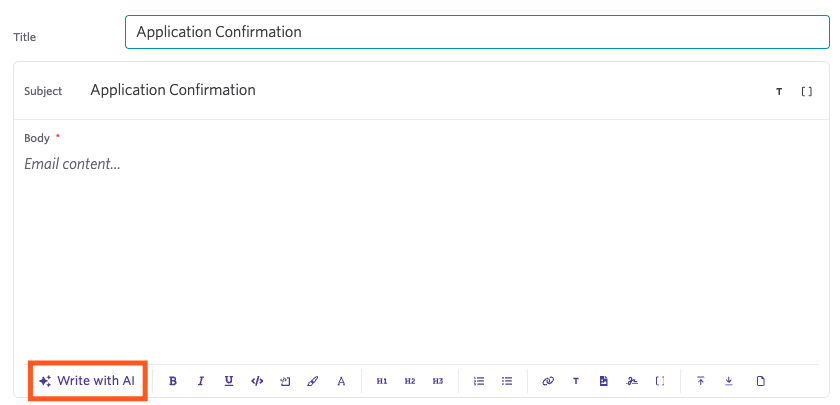
Head to Admin > Organization Setup > Email Templates and either click New Template to create a new email template or select an existing template to amend.
In the toolbar under the Body section of the template, click Write with AI to access the AI content assistant.
Accessing the AI content assistant to generate email content for a one-off email
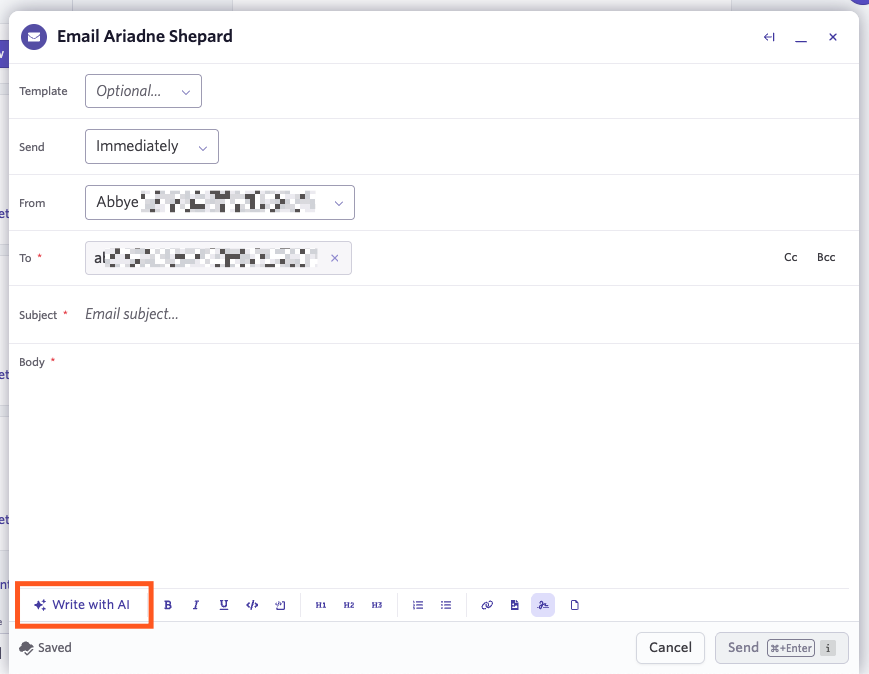
When on the candidate’s profile, click Email to create an email activity for the candidate. In the toolbar under the Body section of the email, click Write with AI to access the AI content assistant.
Accessing the AI content assistant to generate email content for a sequence stage
Select a sequence template within Sourcing > Sequences or click New to create a new sequence. When editing or creating the sequence template, click the Write with AI option in the toolbar underneath the Body section of the sequence stage to access the AI content assistant.
Please note that the AI content assistant can only generate content within each stage of your sequence. It’s not currently possible to generate an entire sequence using the AI content assistant.
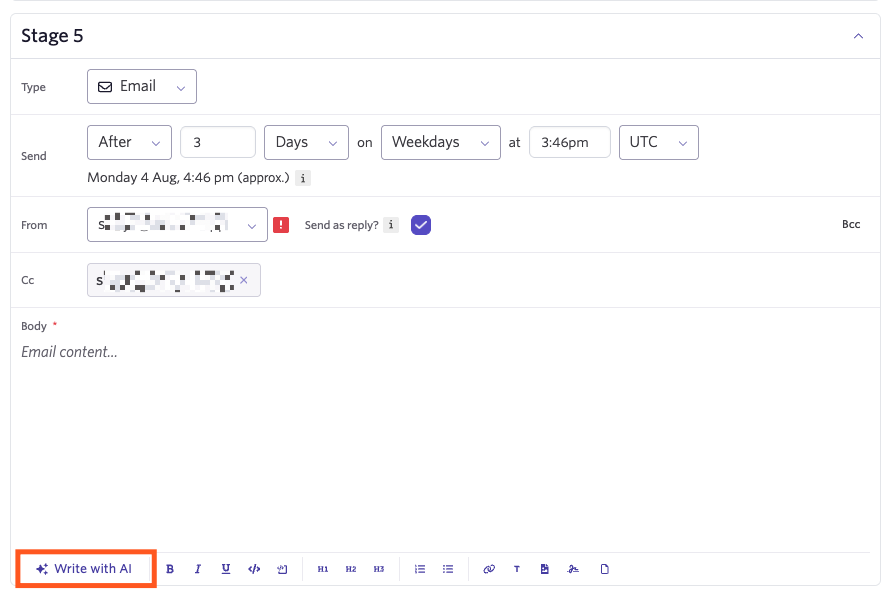
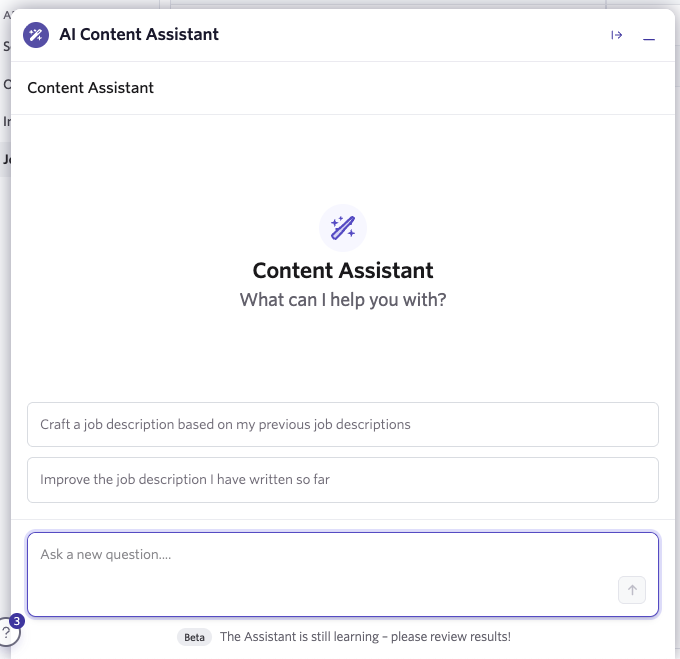
Generating content using the AI content assistant
Type your prompt in the Ask a new question… field to then generate your content.
Once your content has been generated, review it fully. If you’re happy to use that content moving forward, click Looks good. Insert into text box.
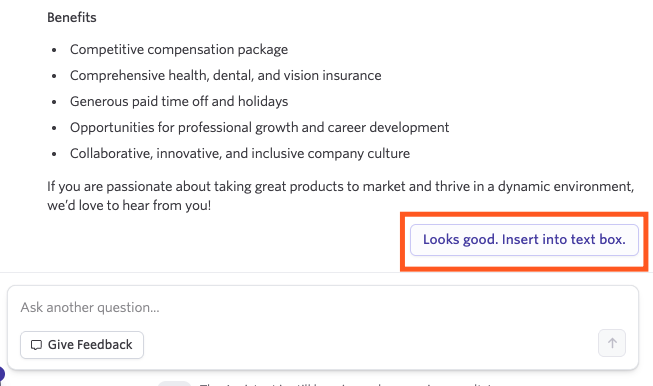
Alternatively, you can also ask another question. If you’d like to give feedback on the generated content, click Give Feedback. You’ll be able to provide a rating (positive or negative) and also add comments.
Refining existing content
If you have existing content and would like to refine it using the AI content assistant, this is also possible wherever there is a rich text editor.
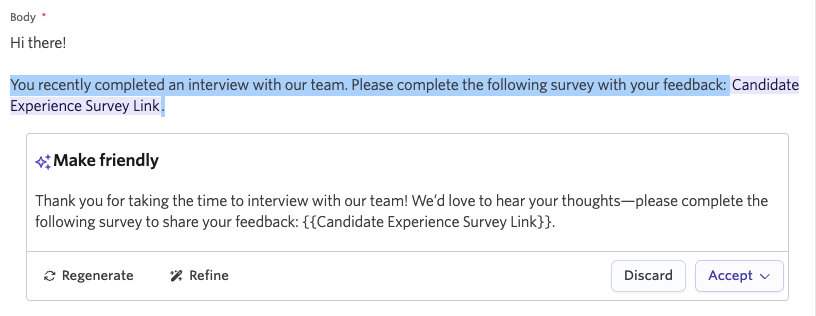
To refine content using the AI content assistant, highlight the content you’d like to refine, then click the Refine option that will pop up. From here, you can select from the following options:
- Fix spelling and grammar
- Improve writing
- Make professional
- Make casual
- Make friendly
- Make longer
- Make shorter
- Bulletize
- If you can’t find a suitable option on this list, you can add your own custom prompt in the Ask AI to edit or generate field
Once you select an option, the AI content assistant will then generate a suggestion. Once generated, you can opt to accept the suggestion and add it to your email, sequence or job description, or you can discard it. You also have the option to regenerate the content or refine it further.