Candidate Search
Ashby's Candidate Search allows you to specify filters and pull a list of candidates that meet that criteria, then take bulk action on them if needed. You can also easily save and pin a candidate search to your home page (like any report) so you can access it quickly in the future. This guide covers how to search for candidates, the filters available, and how to save regularly used candidate searches.
Permissions and access
See the chart below for more information on the permissions needed to view candidate profiles.
Access Role | Has Access? |
|---|---|
Limited Access | ❌ |
Agency Users | ✅* |
Elevated Access - External Recruiter (not linked to an agency) | ✅* |
Elevated Access - Analyst | ✅* |
Elevated Access - Hiring Team Member | ✅* |
Elevated Access - Hiring Manager | ✅* |
Elevated Access - Admin | ✅* |
Elevated Access - Admin Private | ✅* |
Organization Admin | ✅ |
*Elevated Access users have access for the roles and departments they have been given the access role for. Agency users can only view the candidate profiles that have their agency listed as the source.
Overview
Navigate to Candidates > Search in the top navigation bar to create a candidate search.
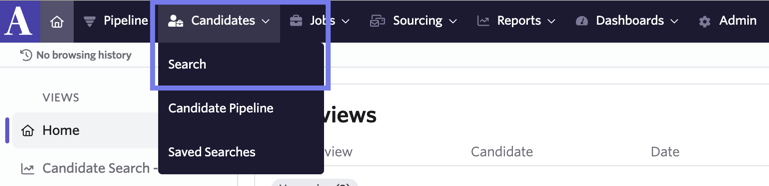
You can also create a candidate search by navigating to Reports > Build. Select Candidate List as the report type.

Basic filters
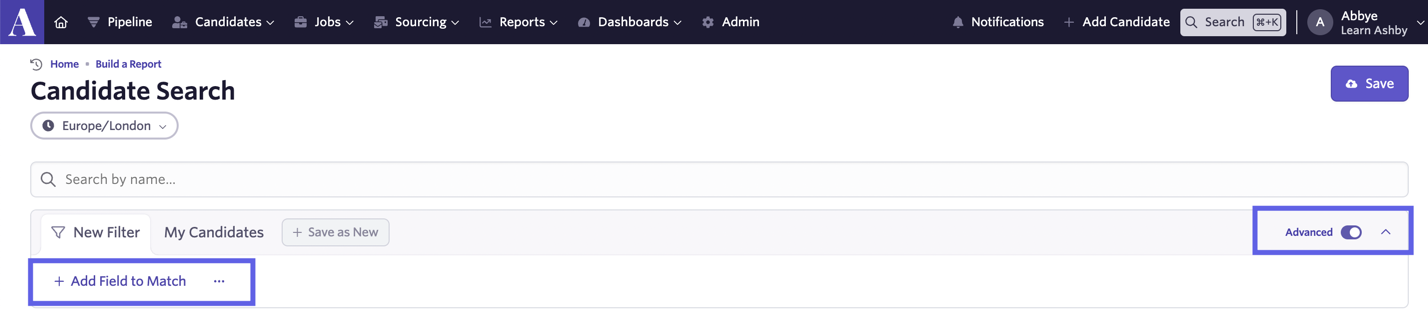
When it comes to setting the criteria for your candidate search, Ashby has basic filters. These are the most commonly used filters. Basic filters are enabled when the Advanced toggle is switched off.

- Advanced — This toggle allows you to switch between basic and advanced filters.
- + Filter — Click this to open a list of commonly used filters. These include a full-text search of the candidate's resume, location, current interview stage, tags added to the candidate profile, and projects they have been added to.
- Job is… — Click this to select a job to filter by. All candidates considered for the job or roles selected show in the search results.
- Department is… — Click this to select a department to filter candidates by. All candidates considered for a job or jobs in that department show in the search results.
- Candidate Source is… — Click this to select a source to filter candidates by. All candidates that have this source applied to their profile show in the search.
Advanced filters
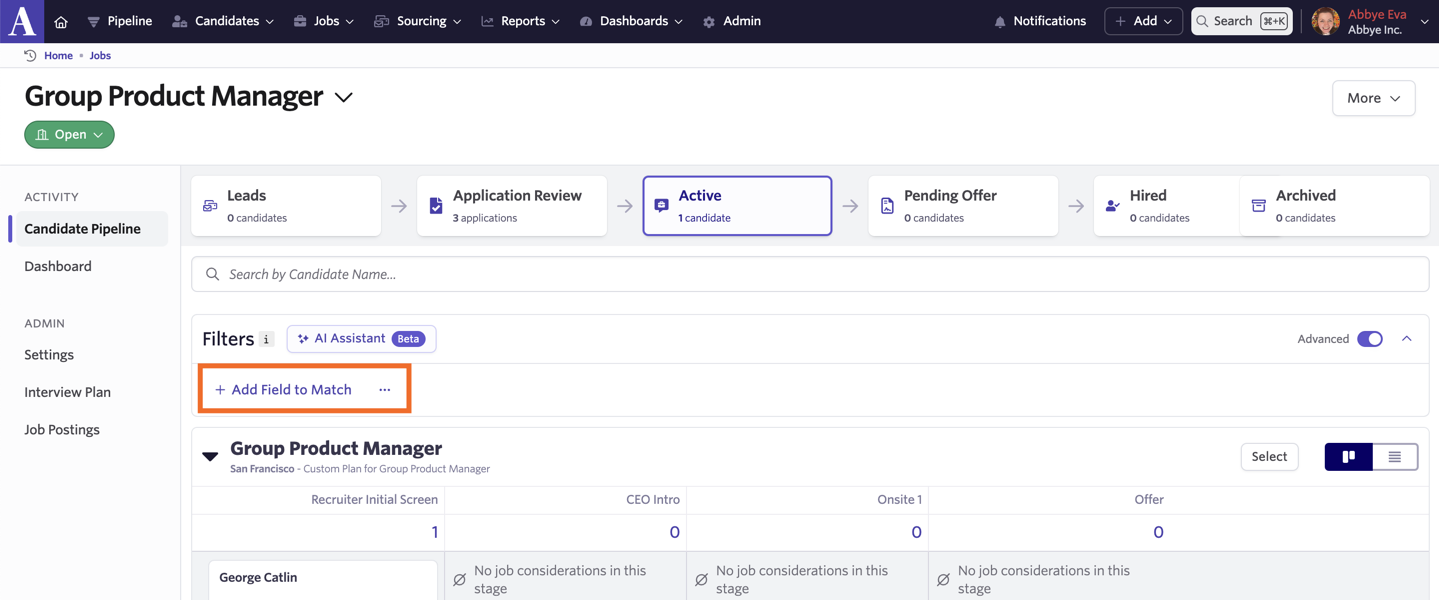
Switch on the Advanced toggle to search through a wider range of filters. When you turn on this toggle, you see an option to + Add Field to Match instead. Click this to search through the full range of filters available. Examples of advanced filters include filtering by a value added to a custom field on the candidate's profile or by the answer to a question on an application form.
Yes/No fields and empty or unassigned filters
Yes/No fields have three possible states:
- Yes
- No
- Empty or unassigned, when no value is stored
The is NOT empty/unassigned filter includes both Yes and No because both are assigned values. The is empty/unassigned filter only includes candidates whose field has no stored value.
A field that looks unchecked can contain a stored No value. To clear the value, open the candidate profile and select the currently selected Yes or No value again.
Saving and pinning a candidate search
To save and pin a candidate search:
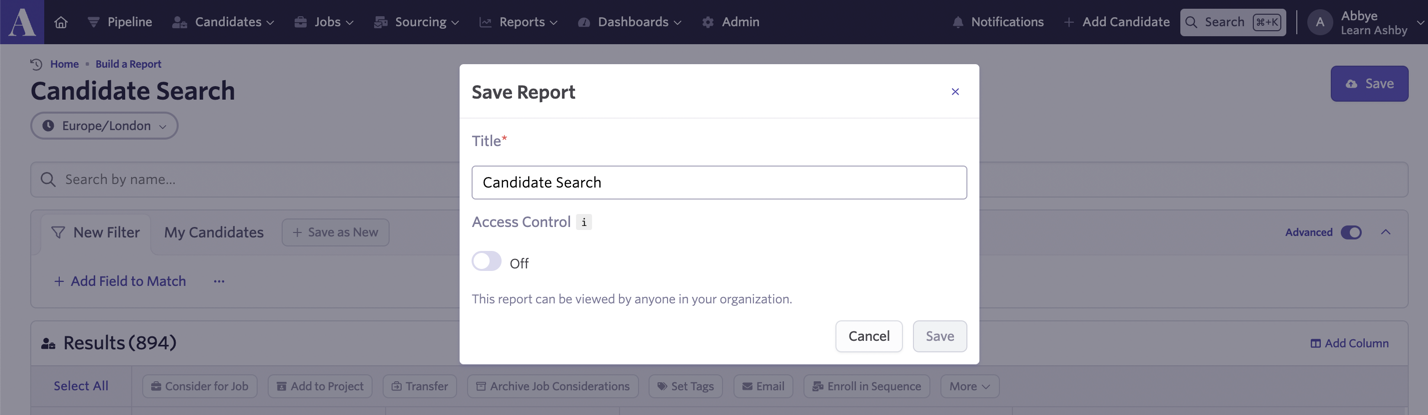
- Click Save on a candidate search. It is added to your Saved Reports.

- Enter a title for your candidate search and determine whether other users can access it using the Access Control toggle.
- On the home page, click the + Add button under Views on the left side to pin the report to your home page.
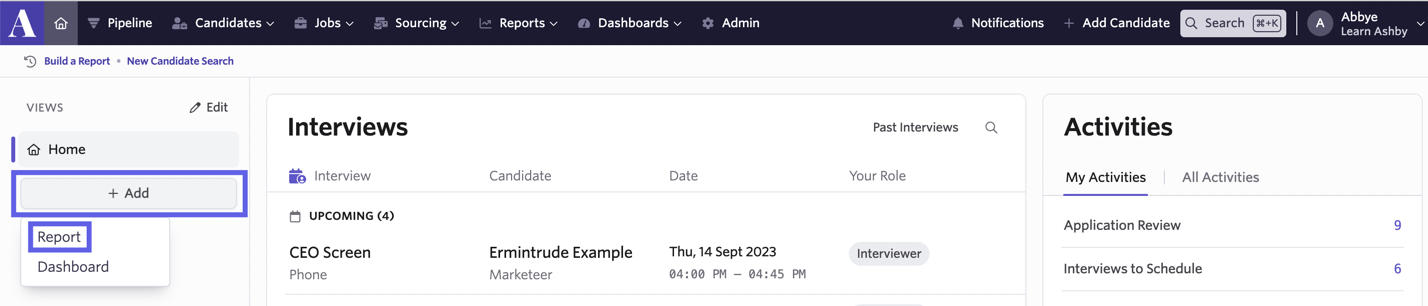
- Search for and select your candidate search to pin it. You can then click on it to pull it up immediately.
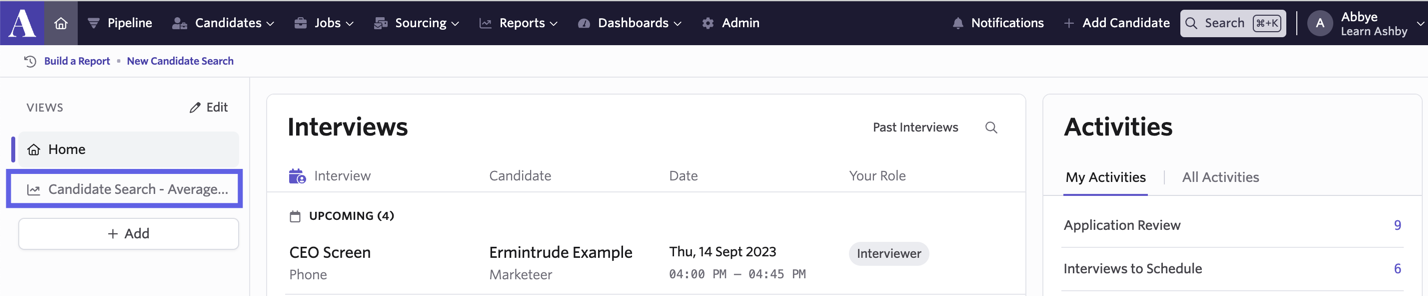
To remove a pinned report:
- Click Edit.
- Click the trashcan icon next to the report you'd like to remove.
- Click Done to confirm the changes.

Save as 'New'
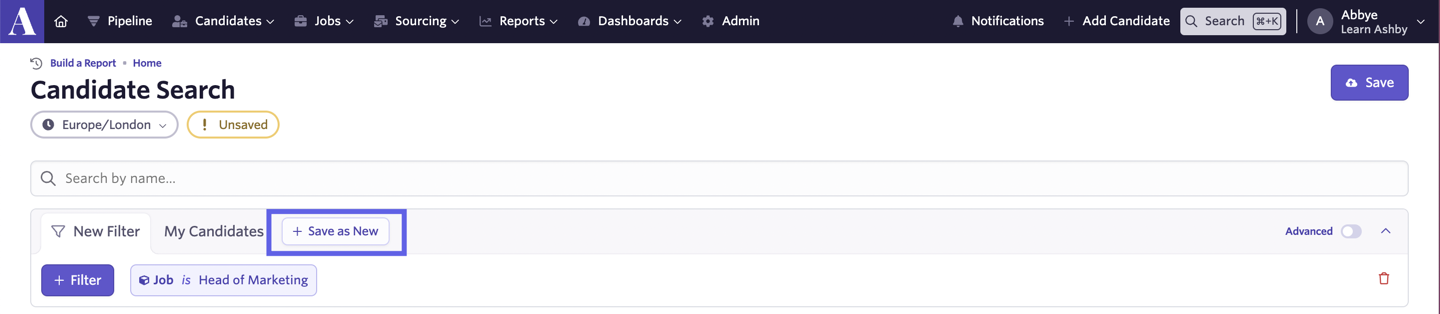
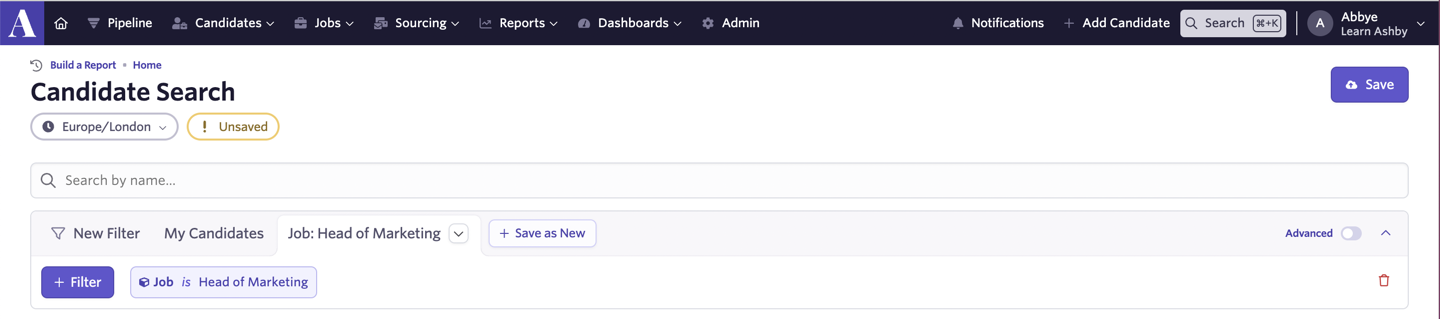
You can also save a specific set of filtering criteria as a filter tab on the Candidate Search page. Once your filters are set up, click the Save as 'New' tab option. You are asked to name this filter. This can be particularly helpful when you are looking to jump between multiple candidate searches.
Once named, this shows as an additional filtering option beside the My Candidates tab.
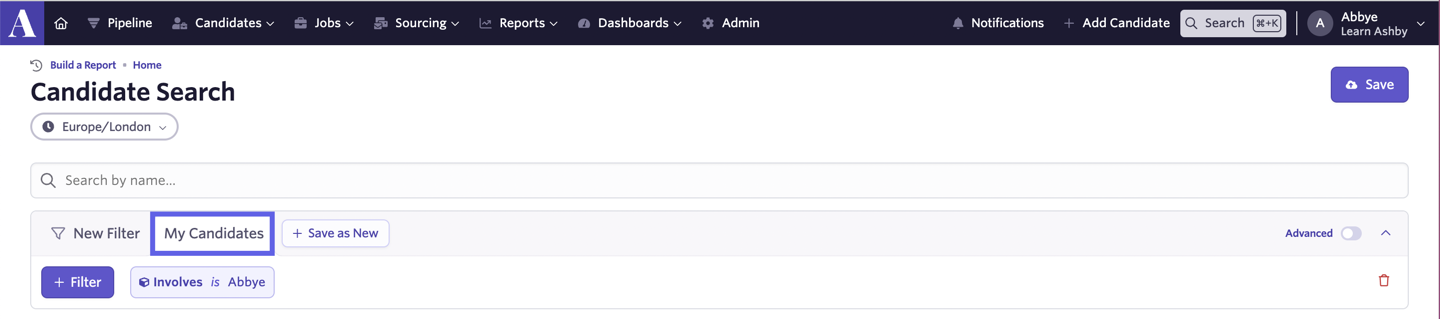
My Candidates
Along with the New Filter tab and saving new filters, you can also use the My Candidates tab. This pulls all candidates that you are following, or candidates who are being considered for a role you are on the hiring team for.
AI Filter Assistant for candidate search
To opt in to this feature, navigate to Admin > Organization Setup > Opt-In Features and toggle AI Filter Assistant on. Both Ashby All-In-One and Ashby Analytics customers can opt in to use this feature. For information on using the AI Filter Assistant with reports, see Custom ReportsCustom Reports.
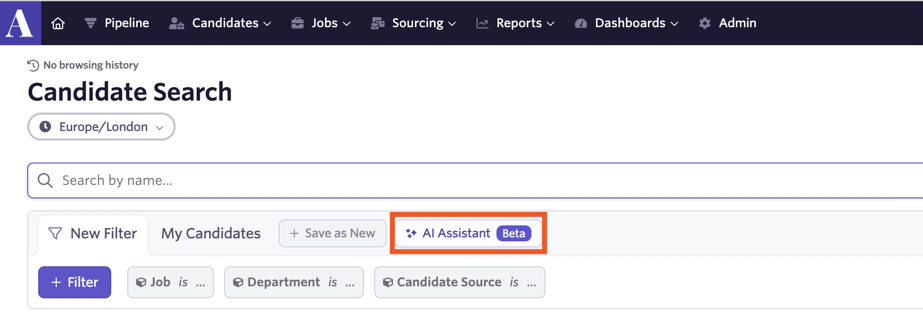
You can use the AI Filter Assistant to automatically generate a filter for your candidate search.
- Click the AI Assistant option and start typing the filter you are looking to set up.
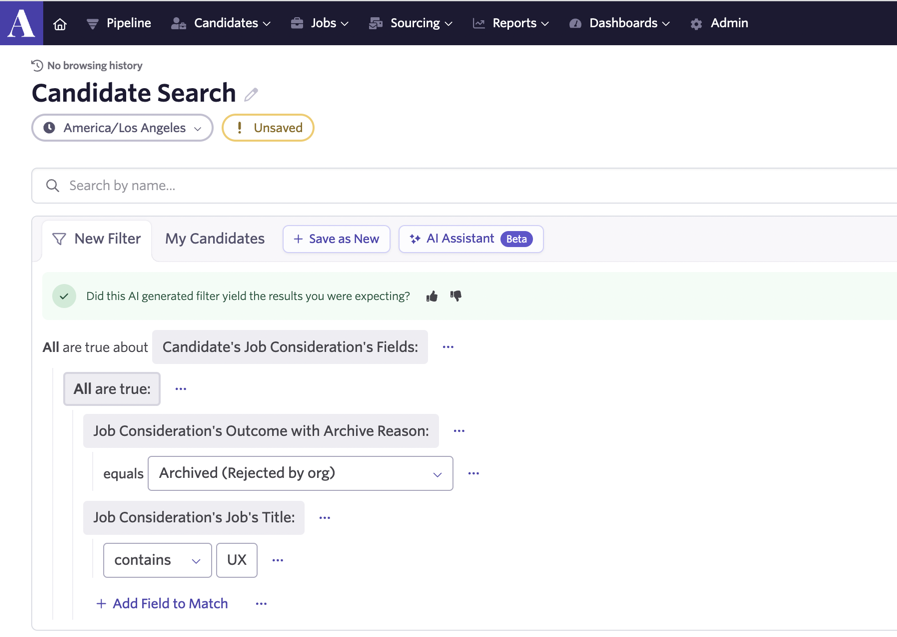
- Click Generate Filter. The assistant adds filters based on your prompt.
- If your filters look good, click the 👍 icon to provide your feedback. If the filters don't match what you were expecting, leave feedback by clicking the 👎 icon.
Taking bulk actions on candidates
Once you have created a list of candidates that meet your criteria, you can take action on them in bulk (for example, sending a mass email).
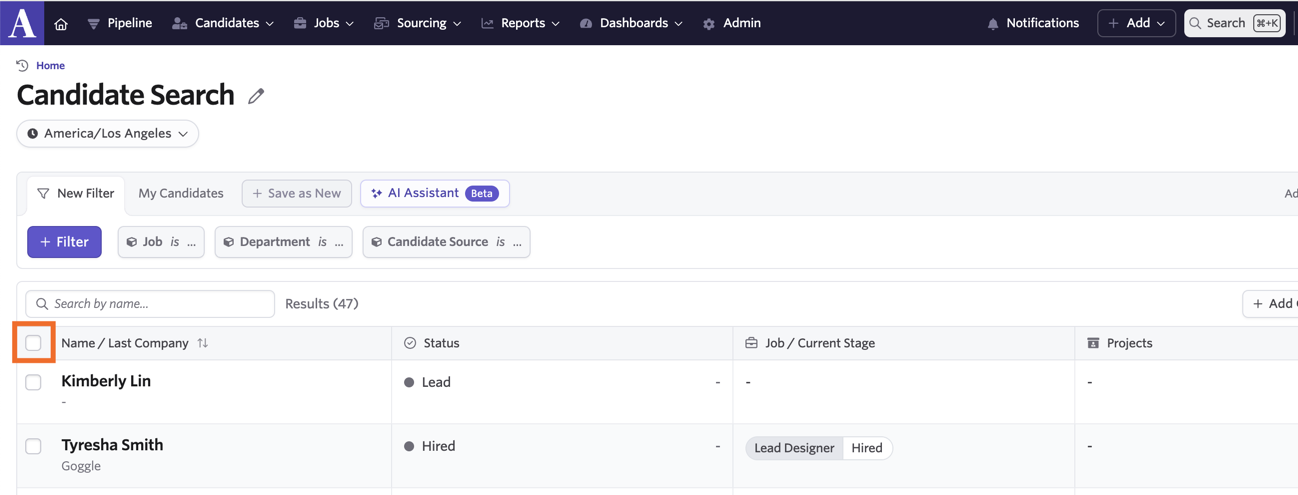
- Check the checkbox beside each candidate you'd like to take this action on. To select all candidates on the list, check the checkbox within the list's header.
- Once candidates have been selected, the buttons relating to the actions you can take appear. Select the action you'd like to perform.
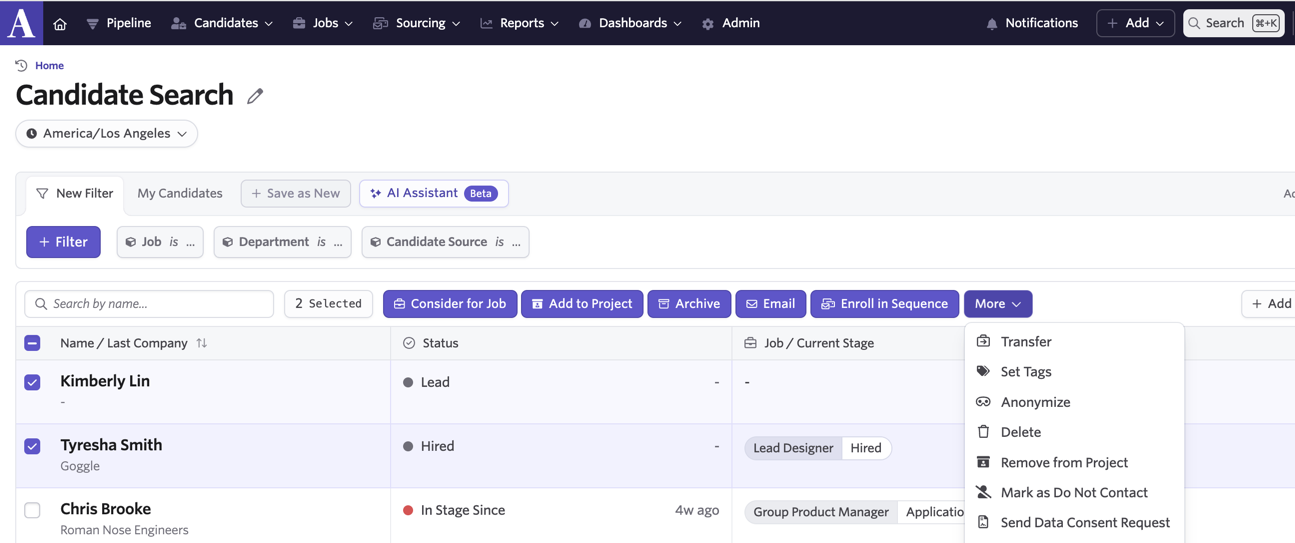
You can take the following actions in bulk on your selected candidates:
- Consider for Job
- Add to Project
- Archive
- Email (emailing the selected candidates in bulk)
- Enroll in Sequence
- Transfer (more on this at Can I transfer a candidate’s job consideration to another job or interview plan? )
- Set Tags
- Anonymize or Delete (more on these at Anonymizing and Deleting Candidates)
- Remove from Project
- Mark as Do Not Contact (more on this at Can I mark a candidate as Do Not Contact? )
- Remove Do Not Contact status
- Send Data Consent Request (more on this at Data Privacy and Compliance)
- Add to an Event
- Check for Fraud (more on this at Bulk fraud detection on multiple candidates)
- Add Follow Up
- Update Follow Up
- Resolve Follow Up
- Next, the bulk action wizard opens. In the Selection section, review the criteria you have set and the number of records that match. Take time to review this information.
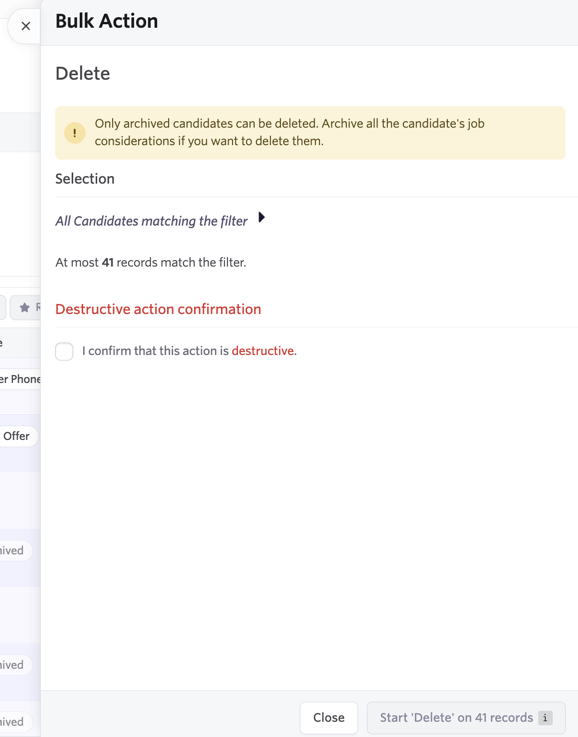
If the action is destructive (for example, deleting candidates), check the I confirm that this action is destructive checkbox.
- Click Start [action] on [number] records to continue.
- Confirm the bulk action.
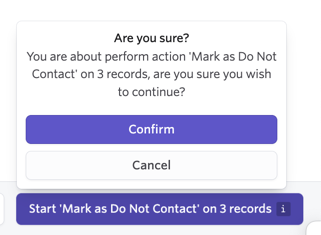
- If performing the action on a small set of records, you are asked to Confirm the bulk action and the number of records.
- If performing the action on a large number of records, type the action into the specified field. The number of records impacted is also listed in the prompt window. Click Perform to complete the bulk action.
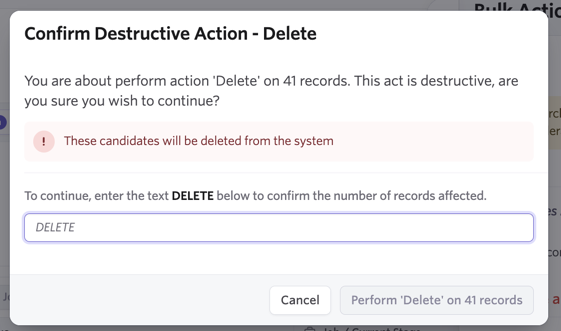
The bulk action type and the number of records included in the bulk action determine the number of confirmation prompts you receive:
Deleting or anonymizing candidates
- Up to 24 candidates: Inline prompt.
- 24+ candidates: Confirmation window with typing prompt.
Archiving, marking as Do Not Contact, or sending a survey
- Up to 24 candidates: Inline prompt.
- 24+ candidates: Confirmation window with typing prompt.
With any other bulk actions, if you are taking the action on 24 candidates or more, you see the inline prompt to confirm your bulk action before it is performed.
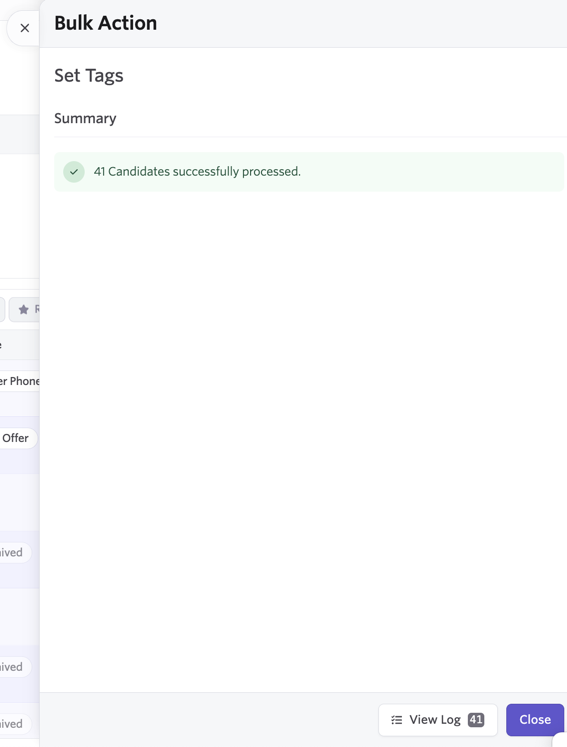
- The bulk action will run in the Bulk Action pullout menu. If you close the bulk action wizard window while bulk actions are being processed, you can see the progress in a minimized version of the wizard.
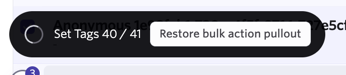
To open the wizard back up, click the Restore bulk action pullout button. Once the bulk action has been performed, you can view a log of all the changes on the confirmation page. Click Close to close the bulk action wizard when you are done.
Boolean search
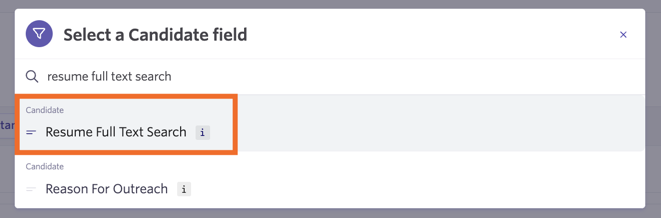
You can use the Full Text Resume Search filter option to search for specific terms and pull candidates based on the text in their resume.
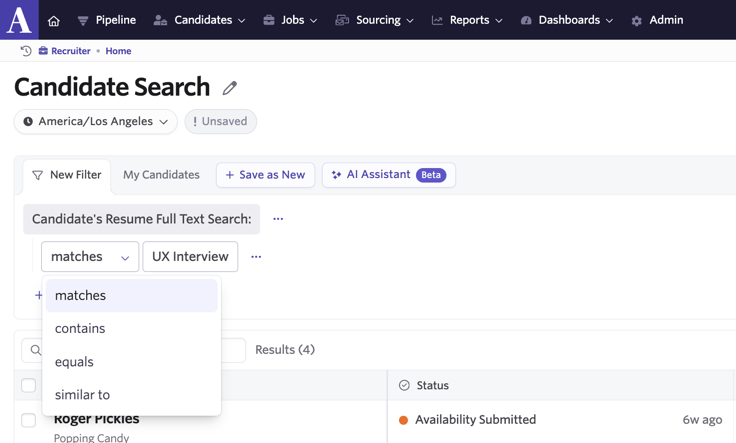
Type your chosen term into the provided field and select from the following options in the drop-down to further build out your search filters.
Boolean Search Option | Description | Example |
|---|---|---|
Matches (supports the boolean functions OR, NOT) | A case-insensitive exact match of all the individual words, regardless of order. Use this when the resume needs to mention multiple exact keywords but order does not matter. | Searching javascript coder brings resumes containing both javascript and coder anywhere. |
Contains (supports the boolean functions AND, OR, NOT) | Returns records that contain the exact phrase, in the exact order. Not case-sensitive. | Searching javascript coder brings resumes containing javascript coder and Javascript Coder as a phrase, but not javascript code. |
Equals (supports the boolean functions OR, NOT) | Returns records that contain the exact phrase with exact capitalization. | Searching javascript coder brings resumes containing javascript coder as a phrase, but not Javascript Coder. |
Similar (supports the boolean functions AND, OR, NOT) | Returns records with variations of the word. Not case-sensitive. Good for partial matches or different word forms. | Searching localization may bring resumes containing localized or localize. |
Boolean operators
Boolean operators help you connect multiple terms as part of your search. Below you can find a list of commonly used operators for reference.
Boolean Operator | Description | Example |
|---|---|---|
OR (use any of |, ,, OR, or) | OR allows you to search for multiple terms and have results that match one or multiple terms searched. | contractor, freelance, or consultant — A candidate is returned if the resume contains any of the terms listed above. |
AND (use any of &, +, :, AND, and) | AND requires both terms (or all terms following AND) to be included in the results. | python & react & nodejs — Results are returned for candidates who have all three terms in their resume. software engineer — The search finds instances containing the words software and engineer in any order, together or separately. |
NOT (use any of !, -) — using the text NOT/not will not work for this operation. | NOT excludes records with the specified terms from being included in the search result. | !remote — Excludes records with remote included in the resume. |
WORDS (combine multiple words to match the term exactly by wrapping in " ") | Combine multiple words to match the desired search term exactly. This helps to ensure results contain a full phrase, rather than single words from the term. | "software engineer" — The quotation marks ensure that results contain software engineer, rather than only software or engineer. |
Boolean modifiers
Boolean modifiers allow you to create searches that include the stem of words or searches with sub-queries.
Modifier | Description | Example |
|---|---|---|
PREFIX (use *) | Searches for results where the term is included as part of a word in the candidate's resume. | *script — Matches javascript, typescript, etc. *end — Matches frontend, backend, etc. |
GROUPING (use either ( ) or [ ]) | GROUPING allows you to form sub-queries to pull results that meet criteria from multiple groups. | (remote or hybrid) AND [backend and python] — Pulls results for candidates who have either remote or hybrid included in their resume AND backend and python. |
More advanced Boolean search examples
Below are some search examples with clarification in natural language on the results expected.
Boolean Search | Search Clarification |
|---|---|
"senior software engineer" AND (python OR java) AND (remote OR hybrid) AND !(junior OR intern OR contractor) | Find resumes that contain "senior software engineer" AND mention either "python" OR "java" AND indicate they've held either "remote" OR "hybrid" roles AND exclude any resumes that mention "junior" OR "intern" OR "contractor" roles. |
"full stack developer" AND react AND nodejs AND !remote AND !(freelance contractor) | Find resumes that contain "full stack developer" AND mention "react" AND mention "nodejs" AND do NOT mention "remote" work AND exclude any that mention "freelance" OR "contractor" roles. |
(frontend & react) | (backend & python) & *cloud & -junior | Find resumes that contain either (both "frontend" AND "react") OR (both "backend" AND "python") AND mention any cloud technology (like "AWS cloud", "cloud computing", "cloud architecture") AND exclude any that mention "junior" roles. |
FAQ
Can I filter for candidates who meet a specific criteria from within a job?
If you'd like to filter candidates within the Candidate Pipeline section of a job, click + Add Field to Match to add filters and specify your criteria. The candidates who meet that criteria are then displayed in your pipeline.
What is the difference between Application Review Average Score and Average Overall Recommendation?
The Application Review Average Score is the average score given by all users in application review. If an application passes through application review multiple times, this considers all scores. The Average Overall Recommendation filter considers scores given across all interviews for the job consideration. Both scores reflect human reviewer input only and are independent from AI-Assisted Application Review criteria evaluations. If you are looking for a measure of AI criteria fit, refer to the AI Job Criteria Met Percentage column in the application review pipeline. See AI-Assisted Application Review for details.
Can I search for terms or keywords used in notes added to the candidate profile?
No, it is not currently possible to search for candidates based on content within notes on their profile.
Can I bulk schedule interviews for multiple candidates at once?
This is not currently possible. If you are looking for a way to streamline your scheduling process, check out Setting up Schedule Interview ActivitiesSetting up Schedule Interview Activities.
I've added a candidate search/candidate list report to my dashboard and just see a number, rather than a list. What can I do?
If you add a candidate list to a dashboard, the candidate count is displayed rather than the full candidate list. If you would like to display a customized table on your dashboard, you can create a custom list report on the candidate subject (or any subject) and select the desired columns to be displayed. More on custom list reports at Custom ReportsCustom Reports.
Why does a candidate with an unchecked-looking Yes/No field appear when I filter for is not empty/unassigned?
An unchecked-looking Yes/No field can contain a stored No value. The is NOT empty/unassigned filter matches any field with a stored value, so a field set to No is expected to match this filter.
To return a field to empty or unassigned, open the candidate profile and select the currently selected Yes or No value again to clear it.