AI Report Interpretation
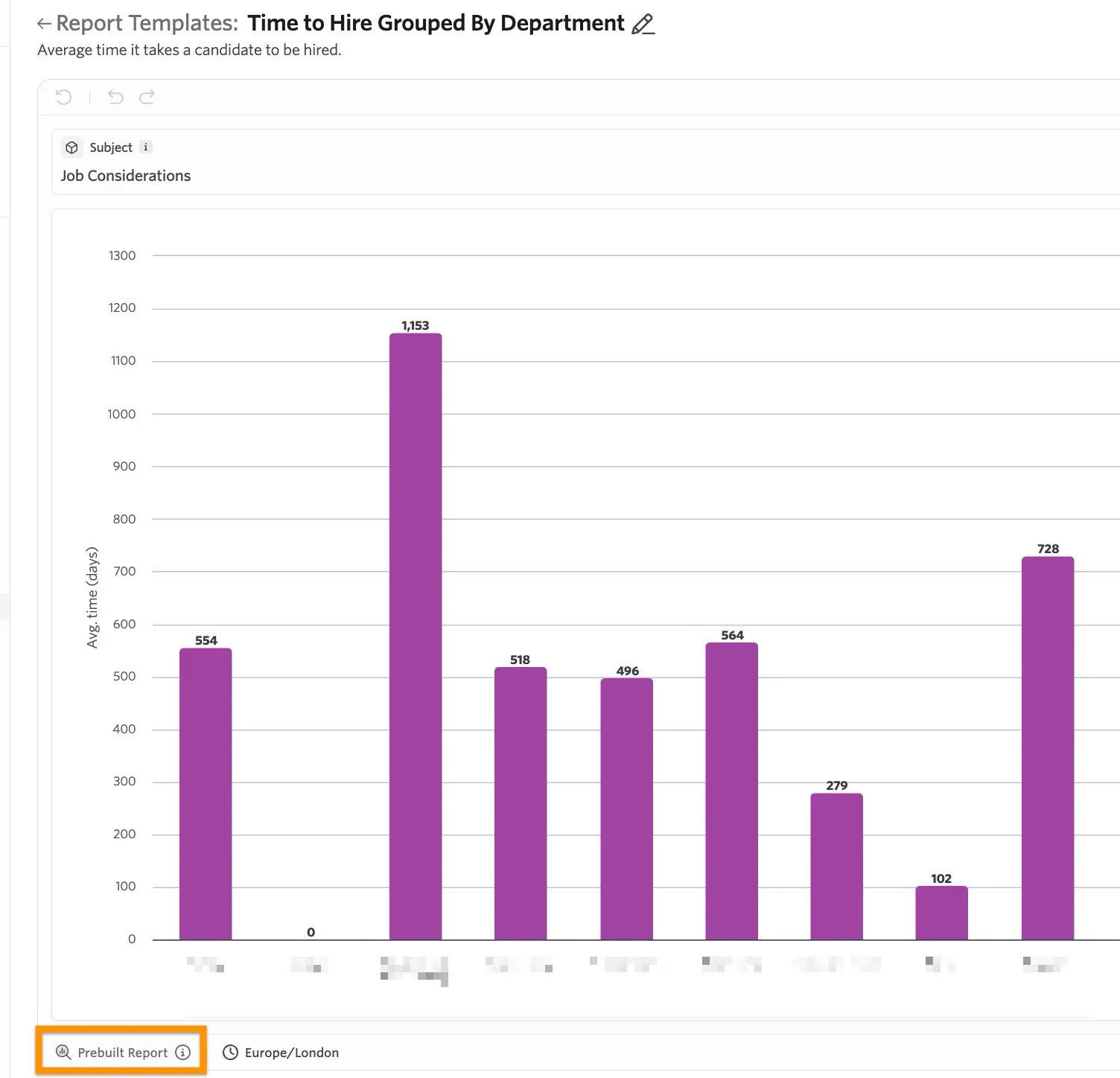
When drawing up a report, you may want to generate a summary of the results to assist with interpreting your data. If you're generating advanced reports, the AI report interpretation tool can help with comprehending the report you've built.
The AI report interpretation tool is available on the Foundations, Legacy Plus, Plus and Enterprise plans.
Foundations | Legacy Plus | Plus | Enterprise |
|---|---|---|---|
✅ | ✅ | ✅ | ✅ |
Overview
Enabling the AI report interpretation tool
If you'd like to enable the AI report intepretation tool:
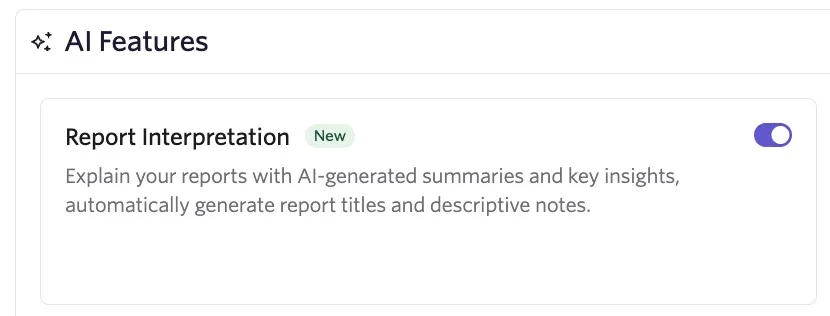
- Navigate to Admin > Organization Setup > Opt-In Features.
- Enable the Report Interpreter option
Using the AI report interpretation tool when viewing a report
Once you have the report interpretation tool enabled, when you navigate to a report or create a new report, you will see an additional Interpretation option.
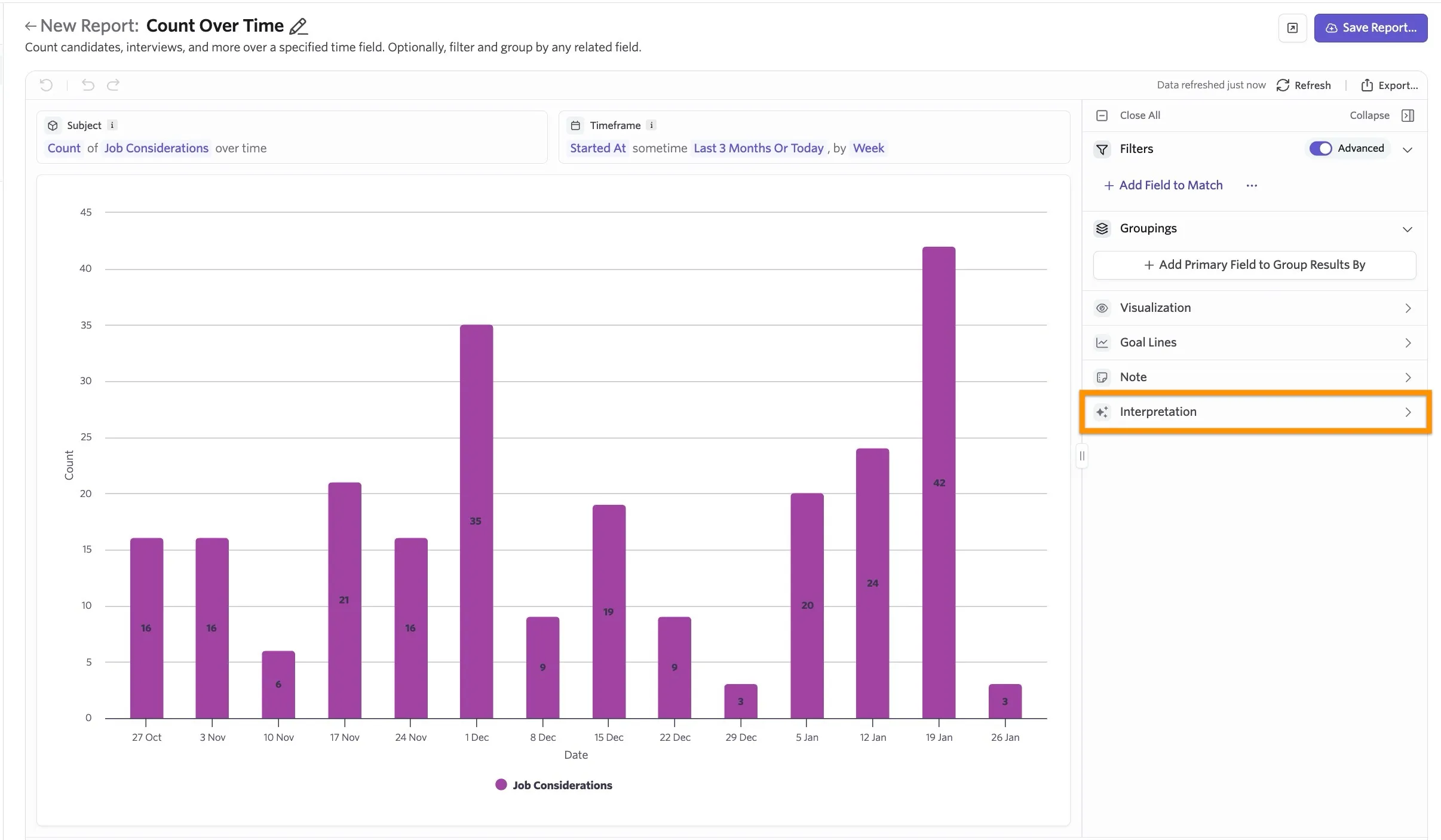
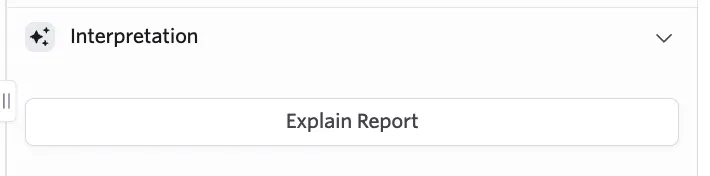
Click Interpretation, then Explain Report to generate the report summary.
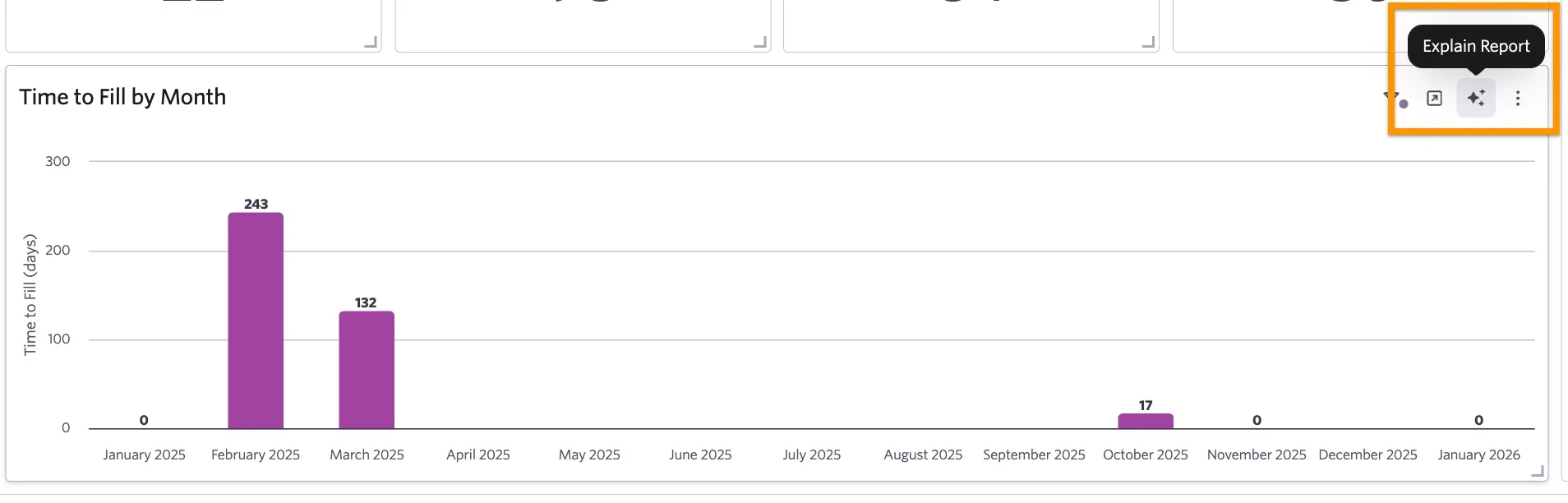
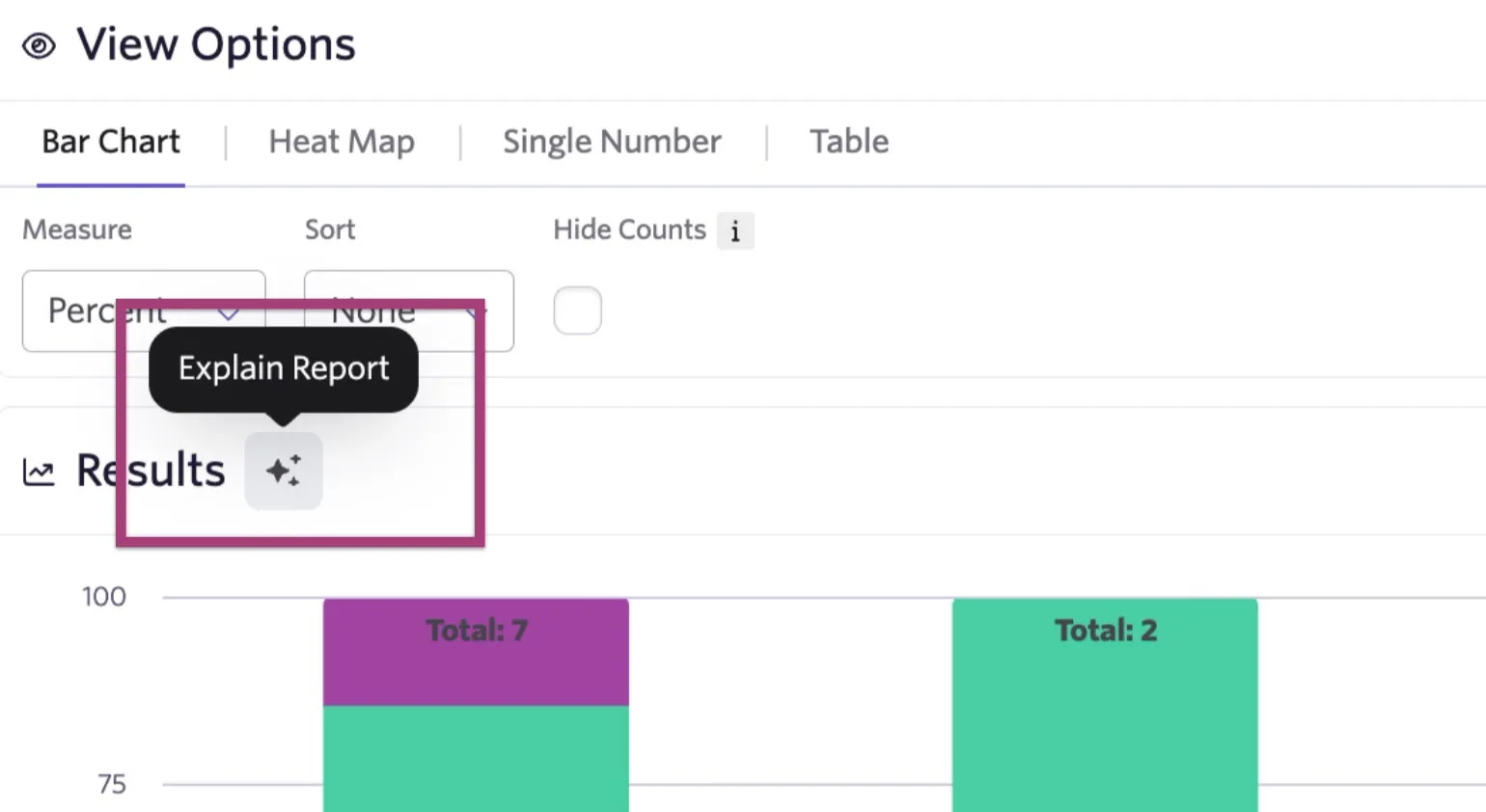
Please note that the AI report intepretation tool will appear differently on reports using the old report builder view. When viewing report results in the old report view, click the sparkle icon to access the AI report interpreter.
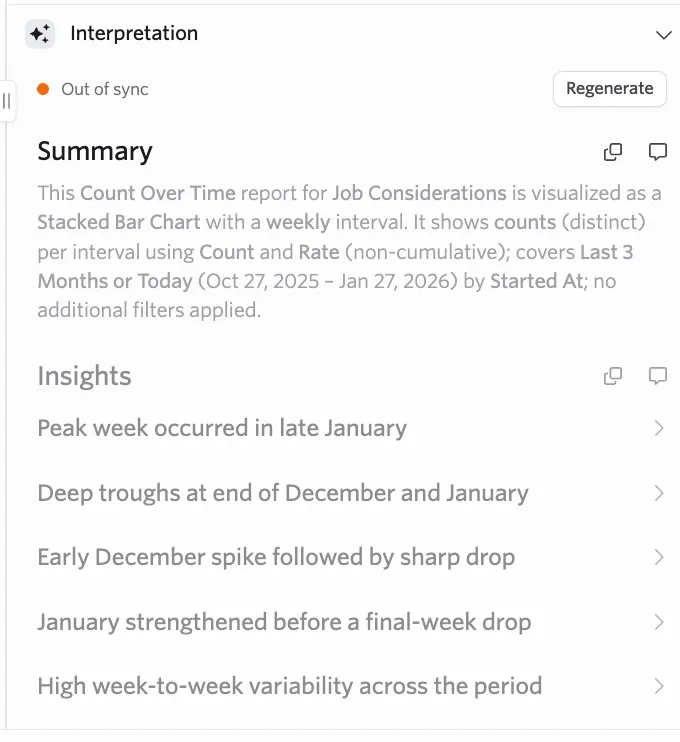
The summary and insights will appear on a pop-up on the right-hand side of the screen.
The AI report interpretation tool will then provide a summary of the report and some insights. The summary can help you confirm the report is configured correctly and the insights will help you interpret your results.
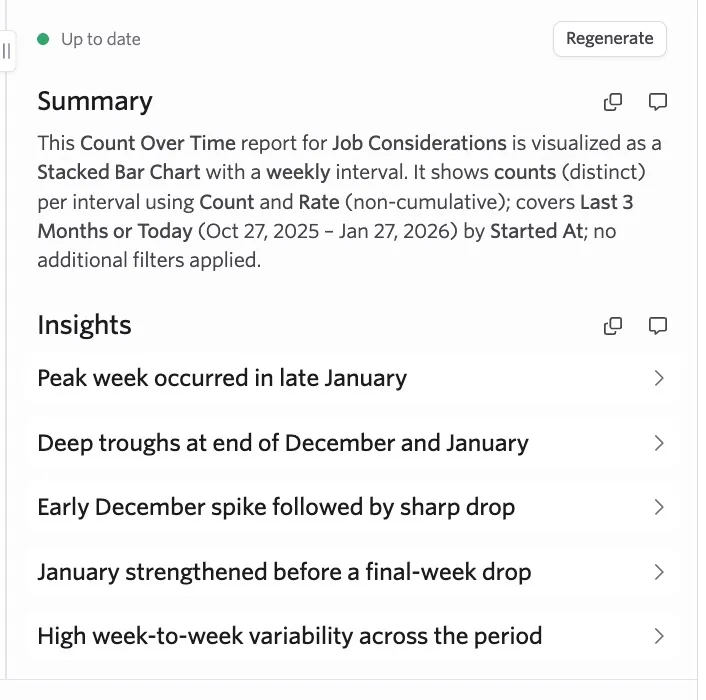
You can use the arrows to the right of each insight to open it for further information. The insight will also refer back to specific results to explain the interpretation.
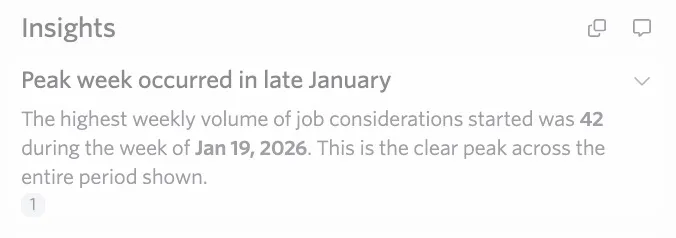
If you make adjustments to your report (for example, adding or removing a filter), then the report will show as out of sync. In these cases, we would also recommend regenerating the summary and insights. Click Regenerate if you'd like to run the AI report interpretation tool again.
Related reports
When AI Report Interpretation generates insights for a report, a Related Reports section also appears in the interpretation panel. Each suggested report highlights a follow-up analytical question based on your results so you can keep exploring your data without building the next report from scratch.
Related reports are available on the Legacy Plus, Plus, and Enterprise plans. This feature is not available on Foundations, as it relies on the AI-assisted report builder .
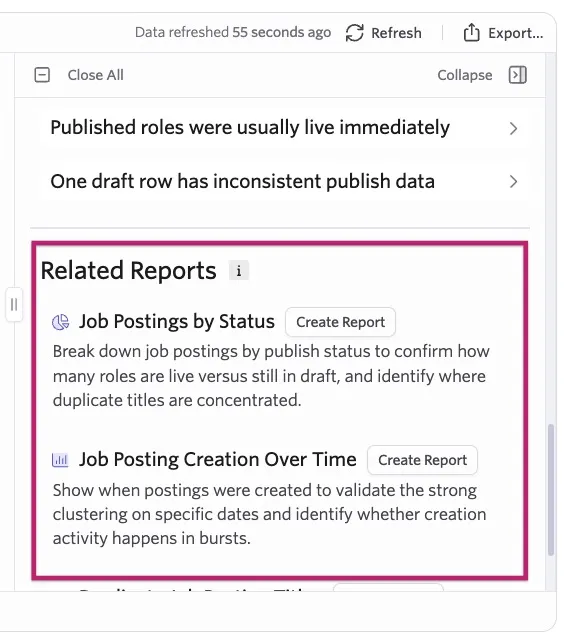
To generate a related report:
- In the interpretation panel, scroll to the Related Reports section.
- Review the suggested topics to find one you'd like to explore.
- Select Create Report next to the report. The report opens automatically in a new tab using the AI-assisted report builder, ready for you to review or adjust.
Generating report titles and notes with AI
Please note that the AI Report Interpretation tool must be enabled if you'd like to generate report titles and notes with AI.
You can also use Ashby's AI Report Interpretation tool to generate your report titles and a descriptive note to your report. When building a report, click on the pencil icon to edit your report title. From there, click the AI Autofillsparkles icon to generate a report title based on the report type, filters applied and the fields set to be shown.

If you'd like to re-generate the report title, click the pencil icon to edit the title, then click the AI Autofillsparkles icon again.
If you're looking to add a descriptive note to your report, click the Note tab, then Add Note. From here, you'll have the option to add your own note but you can click AI Autofill on the note toolbar to generate an AI suggestion.
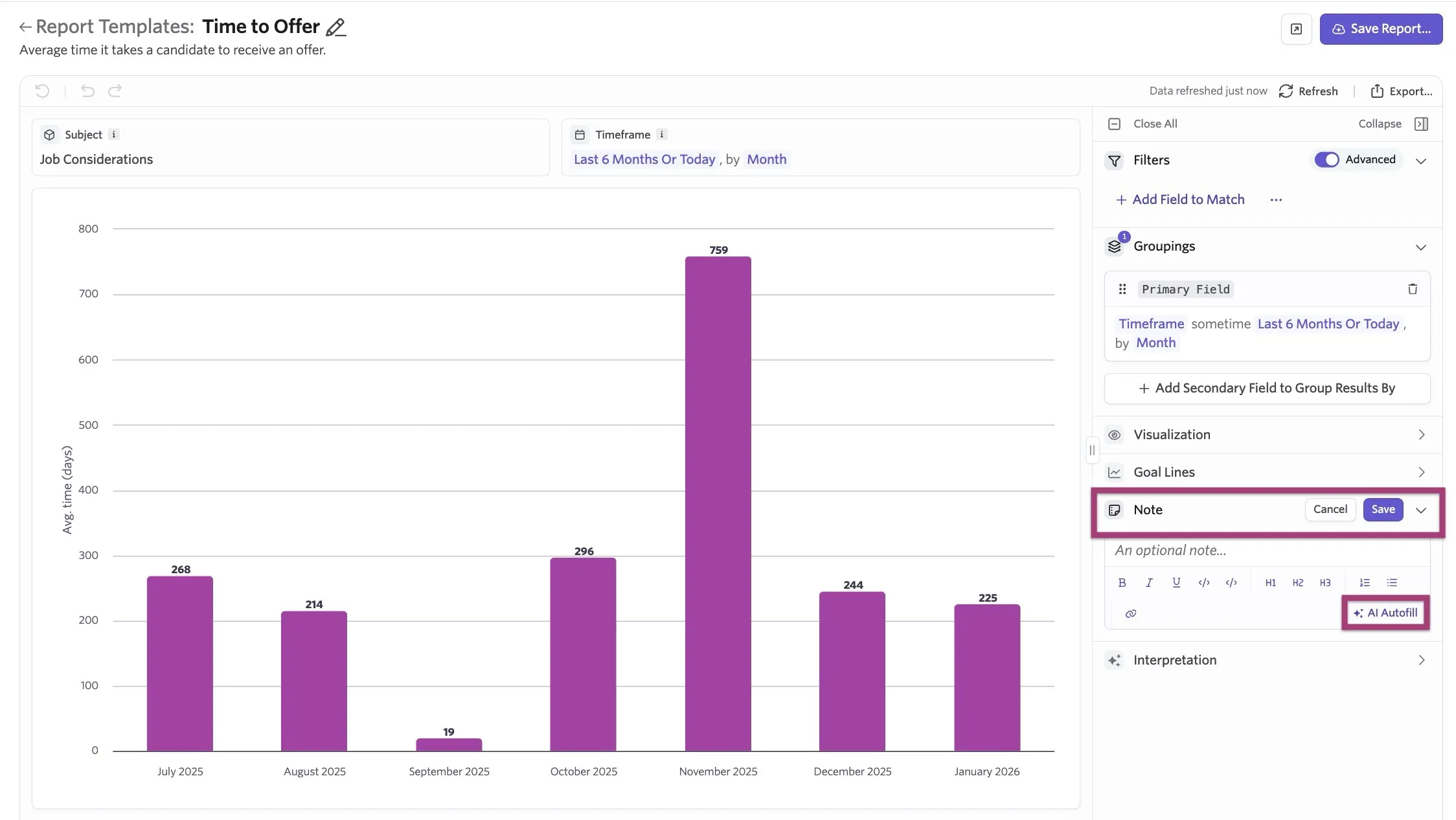
You can click Insert the suggestion to add it to your report. Don't want to include the Ai suggestion? Click Discard instead.
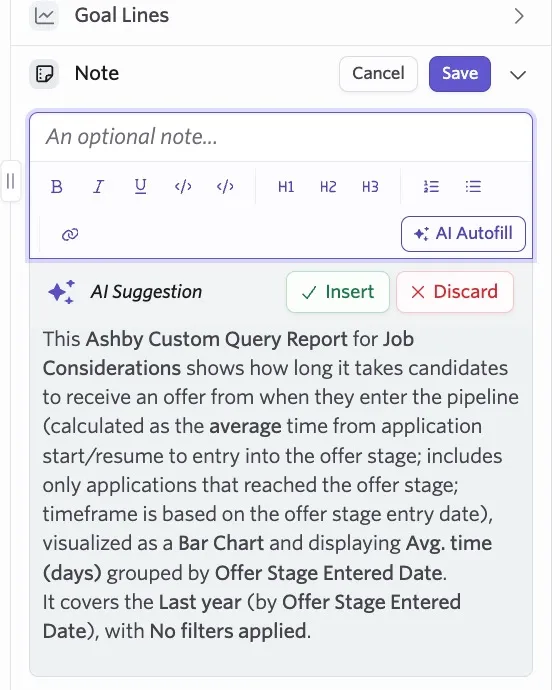
If you are using the old report builder view, the option to generate a title using AI will be displayed as a sparkle icon beside the original report name. The option to add a note via AI Autofill will show up when you click in the Note field.