Candidate Profile: Candidate Feed
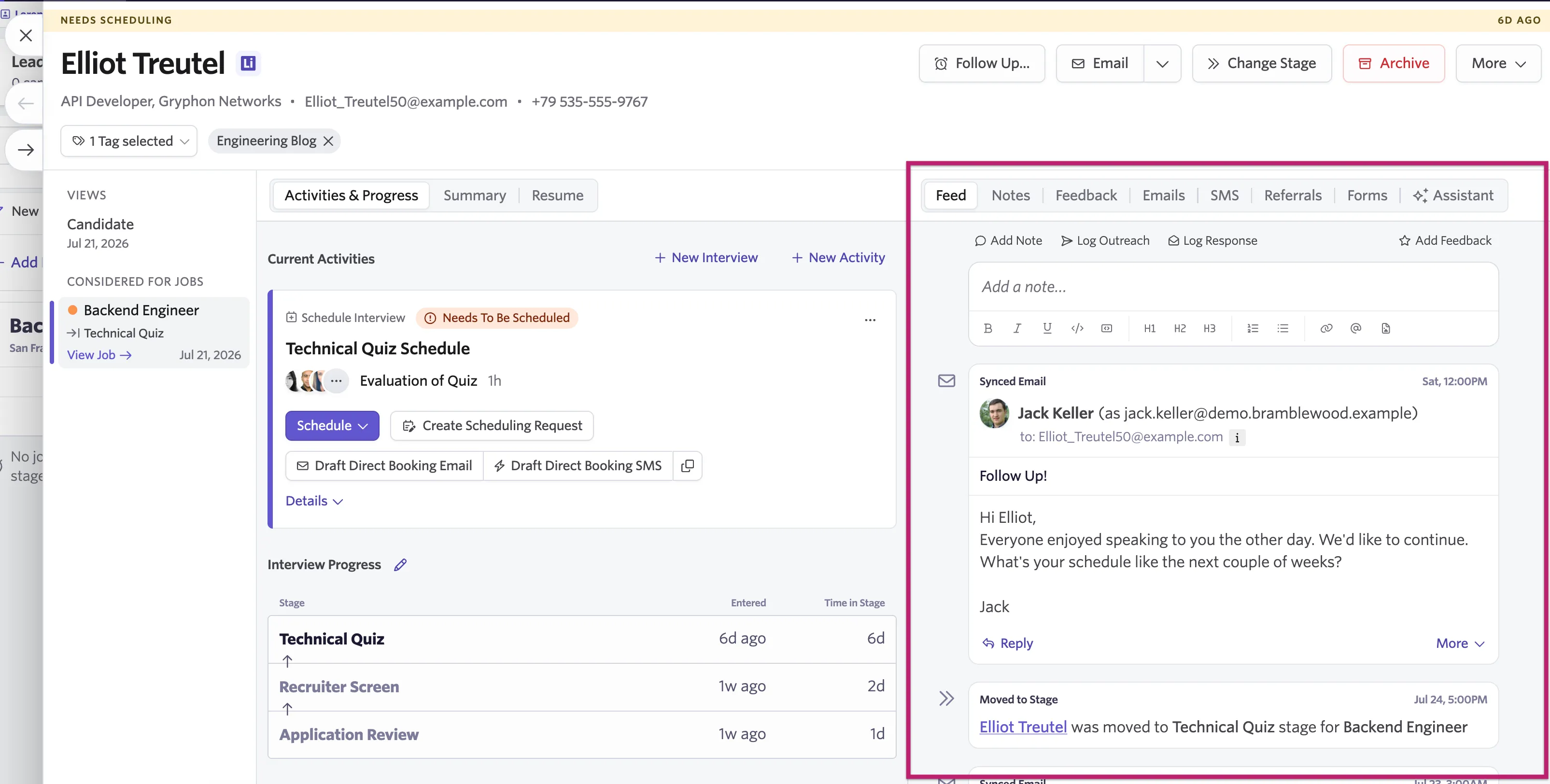
This guide covers the Feed section of the candidate profile. The feed tracks key events for job considerations and houses notes, feedback, emails, texts, referrals, and completed forms.
If the candidate is considered for multiple jobs, the feed will only show information relevant to the selected job consideration.
For information on adding a candidate and the candidate profile in general, check out Candidate ProfileCandidate profile.
Prerequisites and permissions
- Limited Access users don't have access to view candidate profiles.
- Elevated Access users have access to candidate profiles for the roles and departments they've been given the access role for. Your access role may limit your ability to see emails and notes within the candidate's feed.
- Organization Admins have access to view all candidate profiles (aside from confidential roles they haven't been given explicit access to and those they have their permissions restricted for with access roles).
- Agency users can only view the candidate profiles that have their agency listed as the source.
The candidate feed shows events including:
- Job applications
- Stage changes
- Interviews scheduled, rescheduled, or cancelled
- Interview holds placed and interview holds finalized
- Candidate availability submissions
- Interviewer declining an interview calendar event
- Follow-ups being scheduled and resolved
- Any logged outreach activity
- Subscribing to or unsubscribing from sequences and/or newsletters
- Survey requests
- Application transferred (more on this at Can I transfer a candidate’s job consideration to another job or interview plan?Can I transfer a candidate's job consideration to another job or interview plan?)
- Offer approvals reaching the next stage
- Offer approval completed
- Offer extended
- Offer updated
- Offer accepted
- Offer declined
- Offer cancelled
- Candidate added to a post-hire integration
- Candidate profile merged with another profile (more on this at How do I merge duplicate candidate profiles?How do I merge duplicate candidate profiles?)
If you have the Advanced Scheduling Automation Add-OnAdvanced Scheduling Automation Add-On, you also see events for the following on the candidate feed:
- Scheduling request submissions
- Interviewer being auto-replaced after declining an interview calendar event
Taking action from the feed
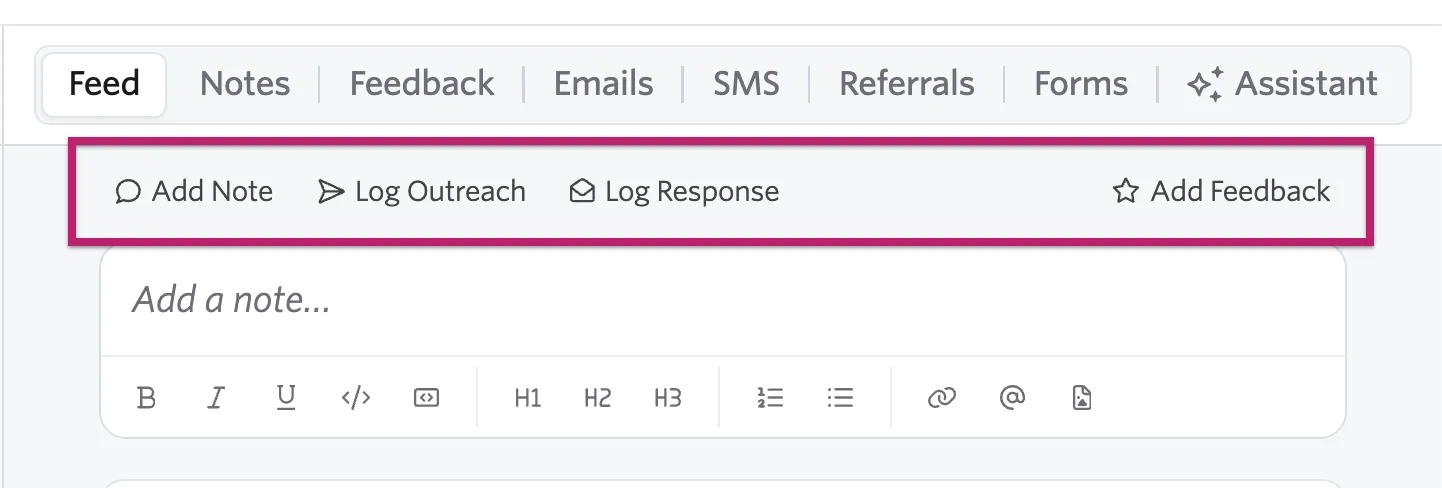
A sticky action bar at the top of the Feed and Notes tabs gives you quick access to the most common actions on a candidate's profile:
- Add Note: Add a note to the candidate's profile. More on notes in Notes below.
- Log Outreach: Log a manual outreach activity.
- Log Response: Log a response to an outreach activity.
- Add Feedback: Submit feedback for the candidate. More on feedback in Feedback below.
The action bar stays visible as you scroll through the feed so you can take action at any point without scrolling back to the top.
Notes
Notes can be added to the candidate's feed to house additional information or to generate tasks for you or other users to complete. To filter specifically for notes on the candidate's feed, click the Notes tab.
Notes are tied to the candidate profile, not to a specific job consideration. Users who follow the candidate, including hiring team members from previous or closed job considerations, may be able to view and receive notifications for notes added to the candidate profile.
Ashby does not currently support tying notes to a specific job consideration or limiting note visibility and notifications to the hiring team for a specific role.
Adding a note
To add a note to the candidate's profile:
- Click into the Add Note field and type your note.
- You can at-mention specific users in your note. Check the Create a task for X checkbox and set a date if you'd like to turn the note into a task for the tagged user.
- Check Is note private? if the note should only be visible to Organization Admins and Elevated Access users with Admin Private access to the job, department, or location.
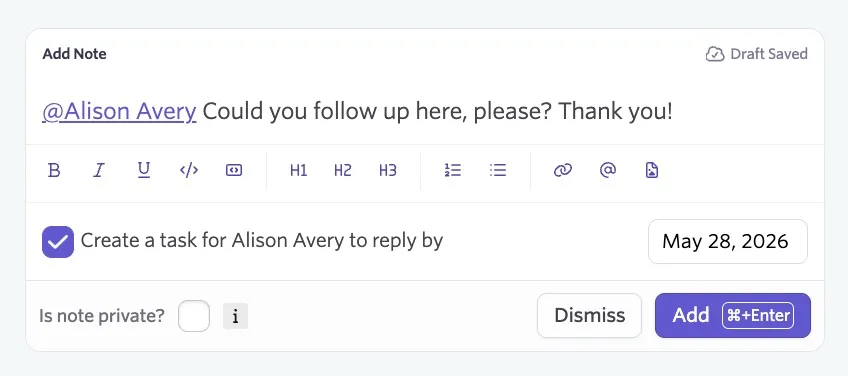
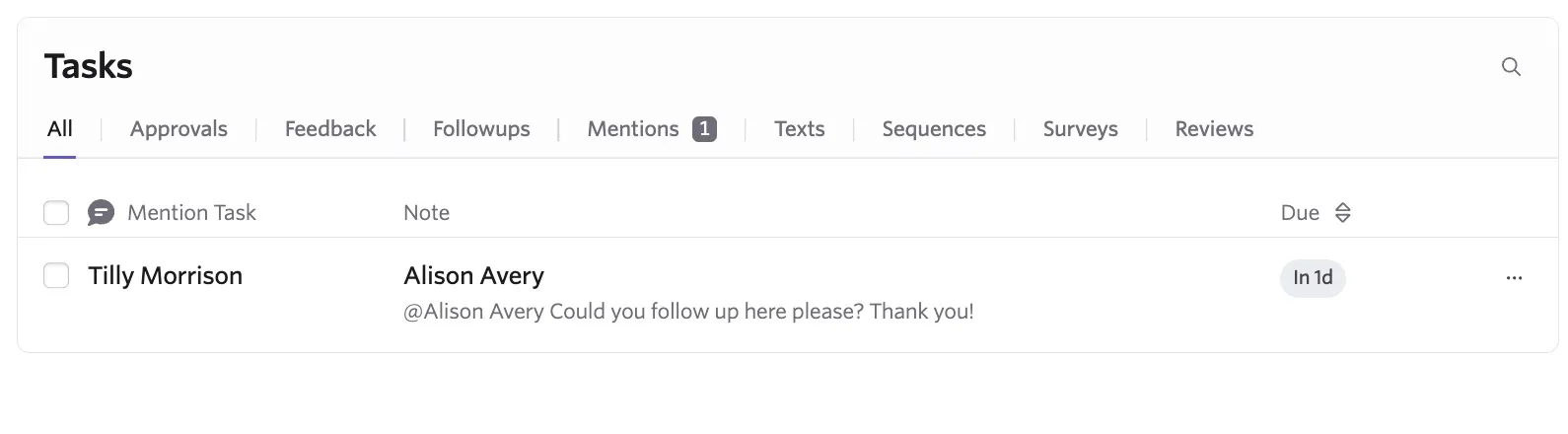
- Click Add to confirm and add your note to the candidate's feed. If your note is a task, the task appears on the tagged user's Home page.
Pinning, editing or deleting a note
Once you've added a note to the candidate's feed, you'll see a number of options:
- To edit a note, click Edit underneath the body of the note. It is not possible to edit a note on behalf of another another user.
- To react to a note, click on the smiley face icon to the left of the Edit option and select your reaction. You can hover over any existing reactions to see who responded and with what.
- To pin a note to the top of the candidate feed, click the Pin option beneath the body of the note.
- To delete a note, click the trash can icon to the right of the Pin option.
- To reply to a note, click Reply directly underneath the record of the note.
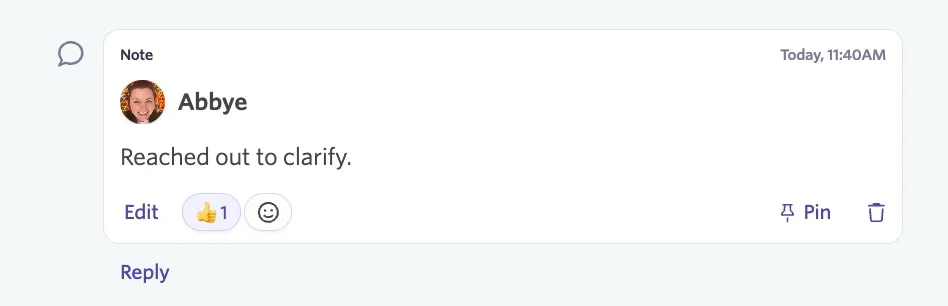
You need access to view the candidate's profile and notes to be able to view emoji reactions. For more on permissions, check out User PermissionsUser permissions.
Feedback
To filter specifically for feedback on the candidate's feed, click the Feedback tab. Submitted feedback listed here includes the following:
- Interview feedback
- Candidate review feedback
- Feedback submitted via feedback request
- Feedback submitted via the Submit Feedback option on the candidate's profile
- AI-assisted application review criteria evaluation
Can I fill out a feedback form on behalf of an interviewer?
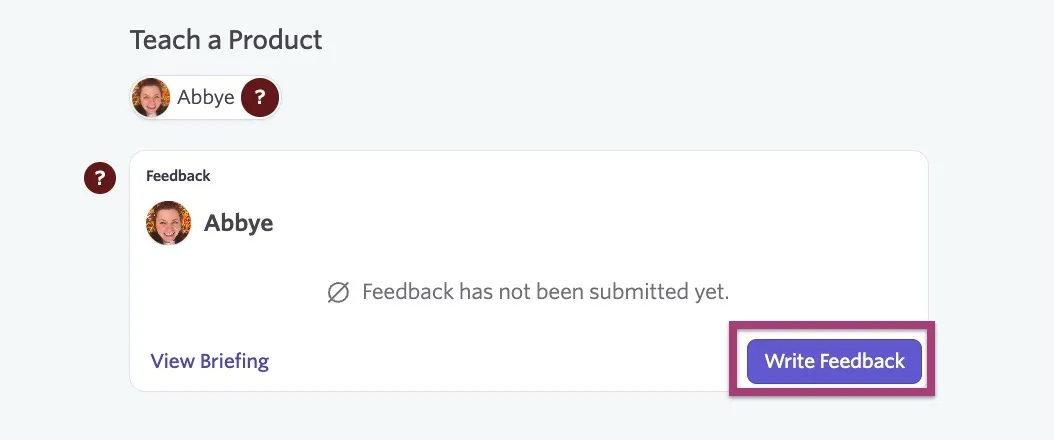
If you have Elevated Access - Admin, Elevated Access - Admin Private, or Organization Admin access, you can complete feedback on behalf of an interviewer. To do this:
- Navigate to the Feedback tab within the feed on the candidate's profile.
- Find the feedback form that needs to be completed
- Click the Write Feedback button on the feedback event and add in the feedback
- Click Submit to add the completed form to the feedback record.
Emails
To filter specifically for emails, click the Emails tab in the candidate's feed. Both emails sent via Ashby and synced emails can show up in the feed.
Emails sent to and from the candidate are synced to their feed depending on your Google WorkspaceGoogle Workspace or Microsoft 365Microsoft 365 configuration. Any emails sent via Ashby are added to the candidate's feed by default. For more on how emails are synced, check out Integration options for Google Workspace and Microsoft 365Integration options for Google Workspace and Microsoft 365.
Interview reminder and confirmation emails
To help keep the feed focused on the most actionable information, interview reminder and confirmation emails are collapsed by default. This is especially useful when a candidate has progressed through multiple interview stages, as it prevents repeated, similar cards from cluttering the feed.
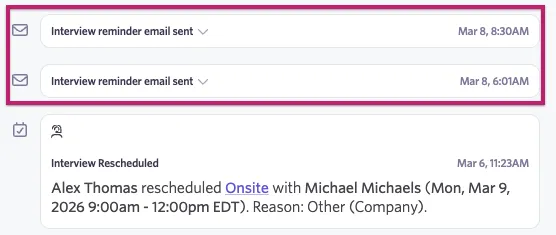
To view the full content of a collapsed reminder or confirmation email, click the card to expand it. Click the card again to re-collapse it.
This collapsed behavior applies across Ashby, including the web app, the Ashby Chrome extension when viewing a candidate in Gmail, and the Ashby Mobile feed.
Synced emails (i.e. emails that are not automated) are not collapsed automatically.
Email sync explanation
If an email has synced to a candidate profile and you're not sure why, follow these steps:
- Navigate to the Feed section of the candidate's profile.
- Hover over the i icon to the right of Synced Email on the email in question.
- A tooltip displays with further information on why the email was synced to the candidate's feed.
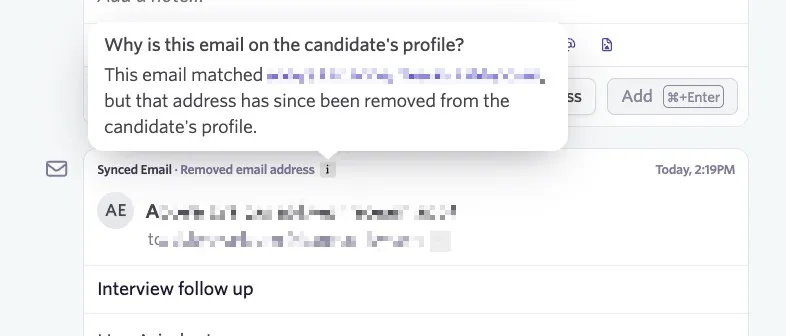
The tooltip can display the following messages:
Tag | Further information |
|---|---|
Same email thread | This email is in the same email thread as other messages involving the candidate, even though they aren't on the To, From, or CC line of this specific message. Email clients sometimes group messages with the same subject into one thread, even when the participants change between messages. |
Imported for another candidate | This email was originally imported when bringing in past emails for {other candidate}. That can happen when two candidates share an email address, or when email clients group messages from different candidates into the same thread. |
Removed email address | This email matched {address}, but that address has since been removed from the candidate's profile. |
Team email address | This email was imported from {user}'s inbox through the shared team address {alias}. Since {user} has email sync on, messages involving the candidate that arrive there are imported automatically. |
Personal email address | This email was sent to or from {alias}, a personal address that {user} has set up for email sync. |
Email address used by others | This email matched {address}, but other candidates also have that address: {other candidates}. |
Imported past email | The date shown on this email is when it was originally sent. It was imported into Ashby later, when a teammate imported past emails for this candidate. |
Earlier in thread | A newer message in this thread synced to the candidate, so this older one was imported too. That keeps the full conversation together on the profile. |
Teammate's inbox | This email was pulled from {user}'s inbox, even though a different team member is shown on the email itself. The team member shown might not have email sync enabled, but {user} does. |
Candidate was CC'd | The candidate was CC'd on this email rather than being on the To or From line. CC'd addresses are matched during email sync too, so the email shows up on the candidate's profile. |
Removing an email from the candidate's feed
If an email has synced to the candidate's feed and you'd like to remove it, click More beneath the email in question, then select Delete From Ashby.
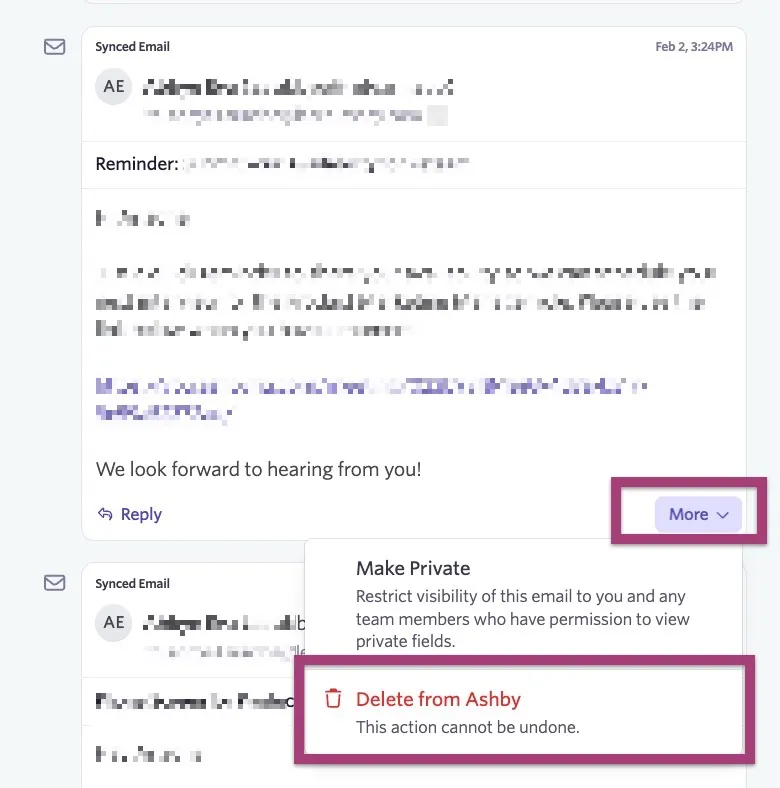
This action can't be undone. If you just want to limit who can view the email, click Make Private instead. The email can then only be seen by Organization Admins and those with Elevated Access — Admin Private access to the job, department, or location.
If the email was sent via Ashby, only the Make Private option is available.
Texts
To view texts sent to and from the candidate, click the Texts tab in the candidate's feed. For information on enabling candidate texting, check out Candidate Texting Onboarding. Once enabled, you can read more about using this feature at Candidate Texting.
Referrals
To filter specifically for referral information for the candidate, click the Referrals tab in the candidate's feed. If the candidate was referred directly, their referral form is listed here.
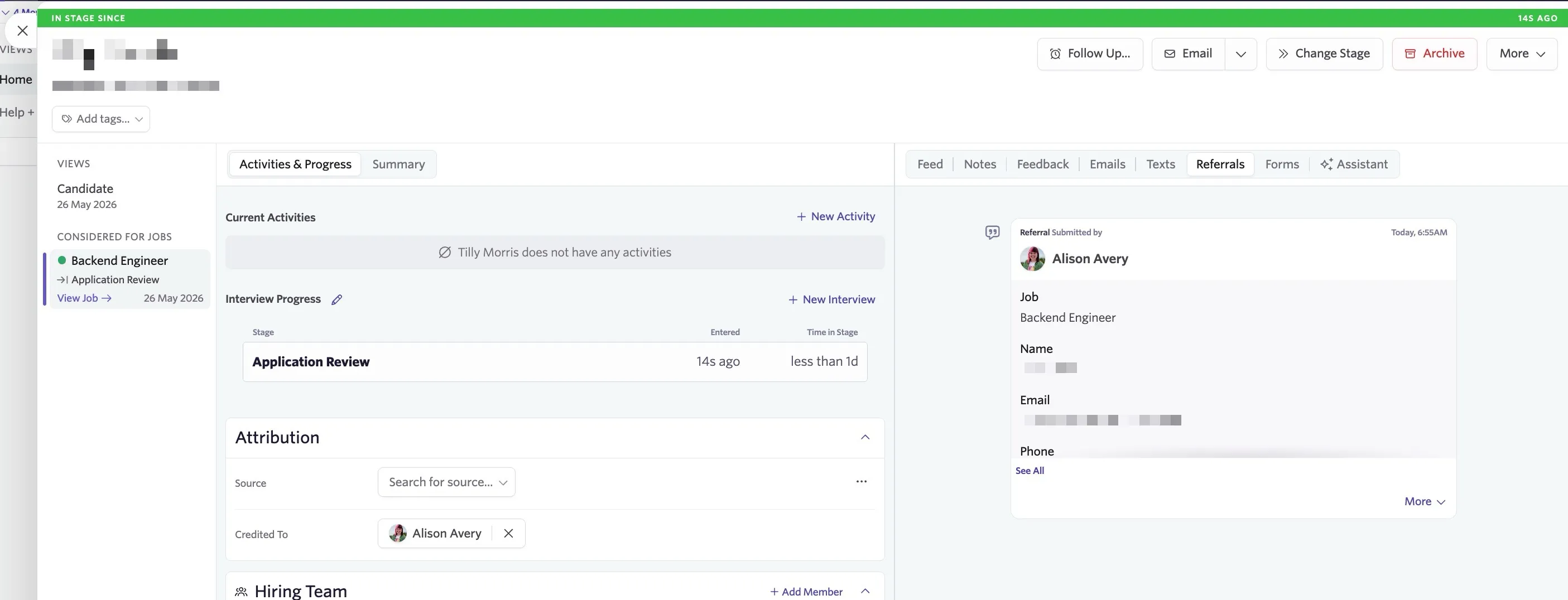
If the candidate submitted an application via a referral link, a record that they used a referral link shows instead and their application form is listed under Forms.
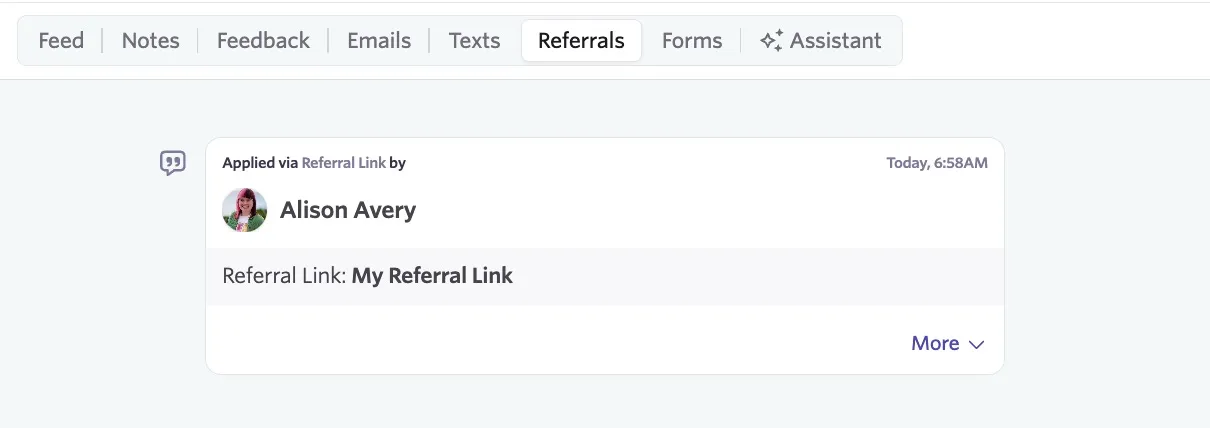
If a referral was added or changed manually via the Credited To field, then a record of the referral being credited will show under the Referrals tab.

Deleting a referral from the candidate feed
You can delete a referral record from the candidate feed by clicking More in the bottom right of the referral record, then Delete.
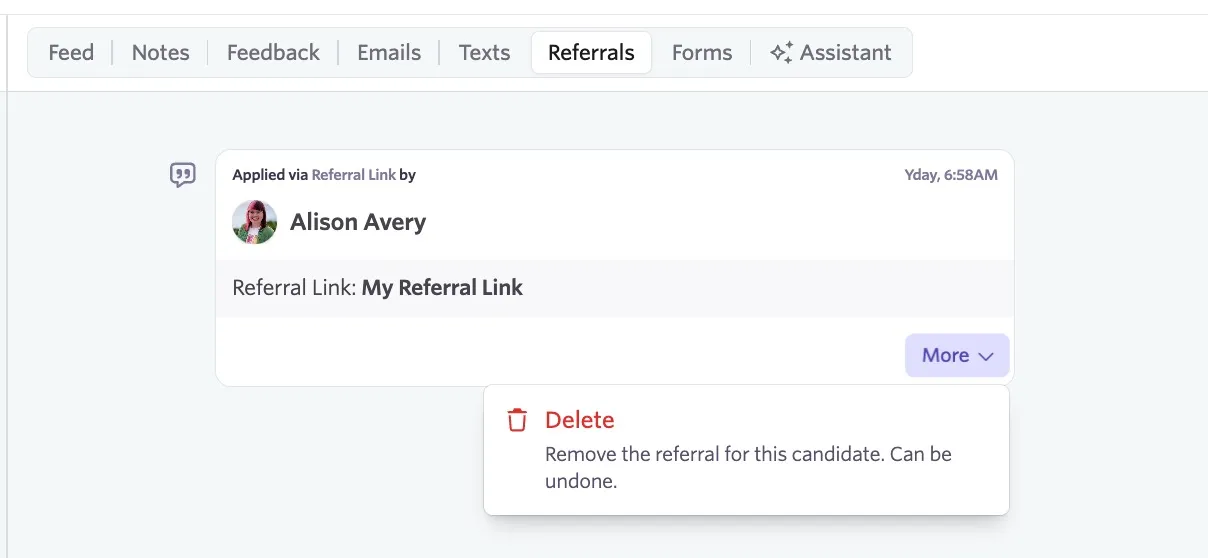
If you delete a referral by mistake, you can restore it prior to the final deletion date. To do this:
- Navigate to Personal Settings, then Recently Deleted
- Click Restore on the record in question
You will also have the option to permanently delete the referral and view the final deletion date.

Forms
Any forms the candidate completes are listed here, including:
- Application forms
- Sourcing forms
- Candidate experience surveys
- Questionnaires
A record of the candidate completing an EEOC or Diversity survey is listed in this section, but the completed form is not included in the record.
Non-offer e-signature documents are not found within the Forms section of the candidate's feed. These can be found in the Other Files section of the candidate's profile.
What happens if a candidate applies for the same job twice?
If a candidate applies for a role again using the same information when they already have an active job consideration, only one job consideration shows on their profile. An additional job consideration is not created. Both application forms can be seen in the Forms section of the feed on the candidate's profile.
If you regularly see candidates applying for the same role multiple times, check out our guide on Application LimitsApplication limits. If the candidate applies with different information, an additional candidate profile is created but may be flagged as a duplicate. More on merging duplicates at How do I merge duplicate candidate profiles?.
Assistant
You can also access the AI candidate assistant via the Assistant tab. More on enabling and using the AI candidate assistant at AI Candidate AssistantAI candidate assistant.