Application Limits
Application limits let you automatically block excessive applications and prevent rejected candidates from reapplying, reducing unnecessary review work for your team. This article covers how to configure rules, review blocked applications, and unblock submissions.
Permissions & access
You must be an Organization Admin to configure application limits and manage blocked application submissions. Organization Admins can also enable a setting to allow non-admin users to manage blocked submissions within their access scope.
Application limits are available on the Legacy Plus, Plus, and Enterprise plans:
Foundations | Legacy Plus | Plus | Enterprise |
|---|---|---|---|
❌ | ✅ | ✅ | ✅ |
Application limits overview
Candidates may apply to the same job multiple times after being rejected or apply excessively to multiple open roles before a decision is made, resulting in lost time for recruiters who must review superfluous applications.
Application Limits allows your team to configure rules that automatically block excessive applications.
You can also include a message to candidates on the application page to inform them of these limits before they apply again.
What types of rules are currently supported?
Rule Type | Description |
|---|---|
Throttling applications | Limit the number of times a candidate can apply to any job within a scope over a certain number of days. |
Repeat applications for the same job | Block rejected candidates from reapplying to the same role within a certain number of days. |
Repeat applications for any job | Block rejected candidates from reapplying to any role within the scope within a certain number of days. |
Configure application blocking rules
Create a new rule
Navigate to Application Limits to build a rule. Click + New Application Limit Configuration in the top right corner to start creating a new rule.

Configure a new rule
You have the following options for configuring a rule:
- Description
- Scope (filtering to establish the jobs that this configuration will apply to)
- Blocking Rules
- Throttling Applications
- Repeat applications for the same job after a rejection
- Repeat applications for any job after a rejection
- Display Message to Candidate (what the candidate sees if they apply and their application is blocked)
- Application form callout (displaying a message at the top of the application form explaining the application limit to the candidate)

Ordering and editing rules
If you have multiple rules, you can sort them in order of preference. If an application matches multiple rules, the rule highest on the list applies.
To edit a rule, click it to open the right-hand panel and make your changes, then click Save to apply them.
Example rules
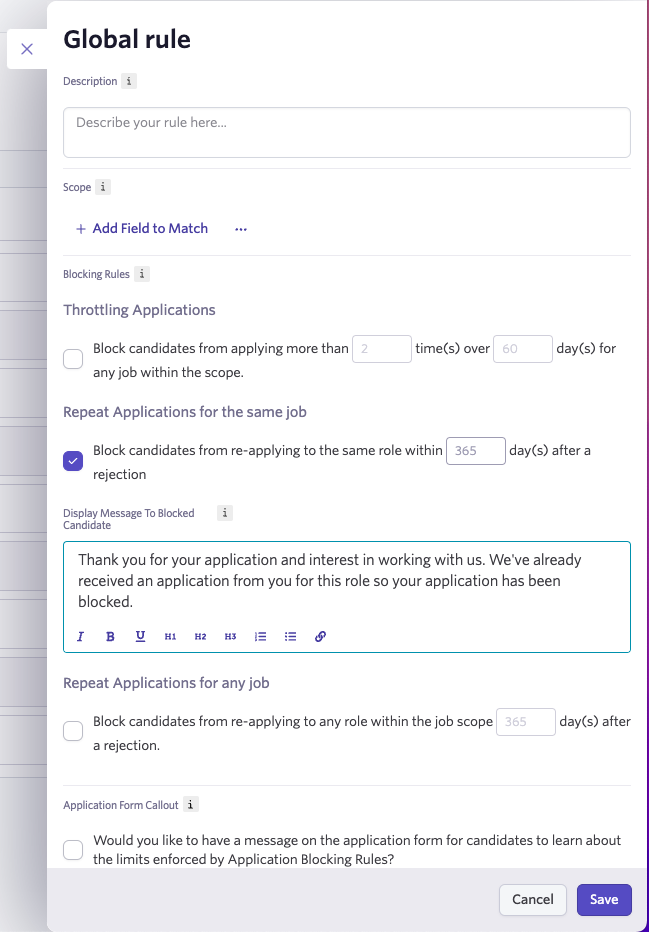
Global rule
You can leave the Scope section empty for the application limits you configure to apply to all jobs.
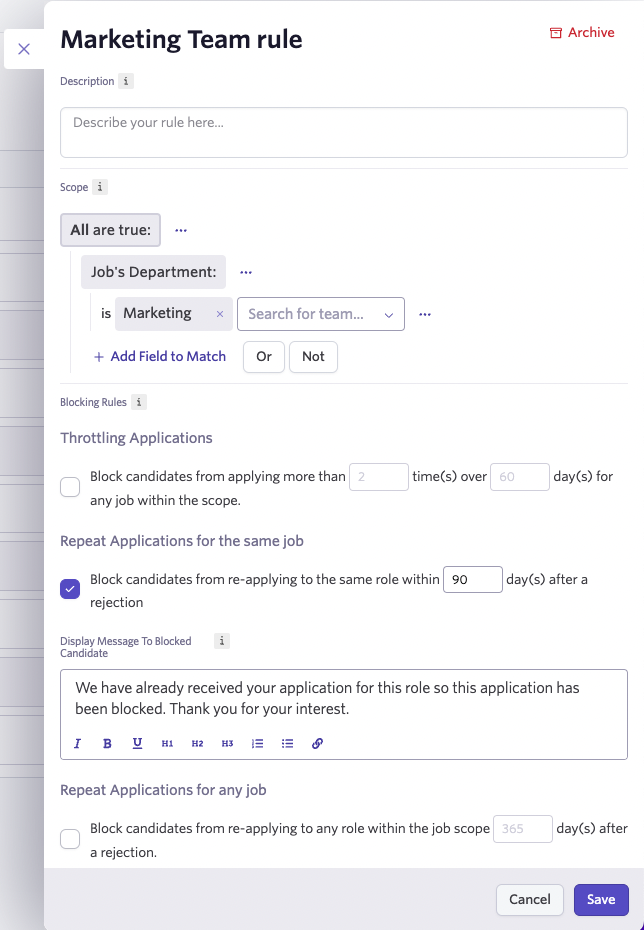
Department rule
If you want to set up application limits for a specific department or team, click the + Add Field to Match option and search for and select the Department option. From there, you can use the Search for team drop-down to select the department. You can select multiple departments if you want the application limits to apply to more than one.
Using application blocking rules
Candidate view of blocked application
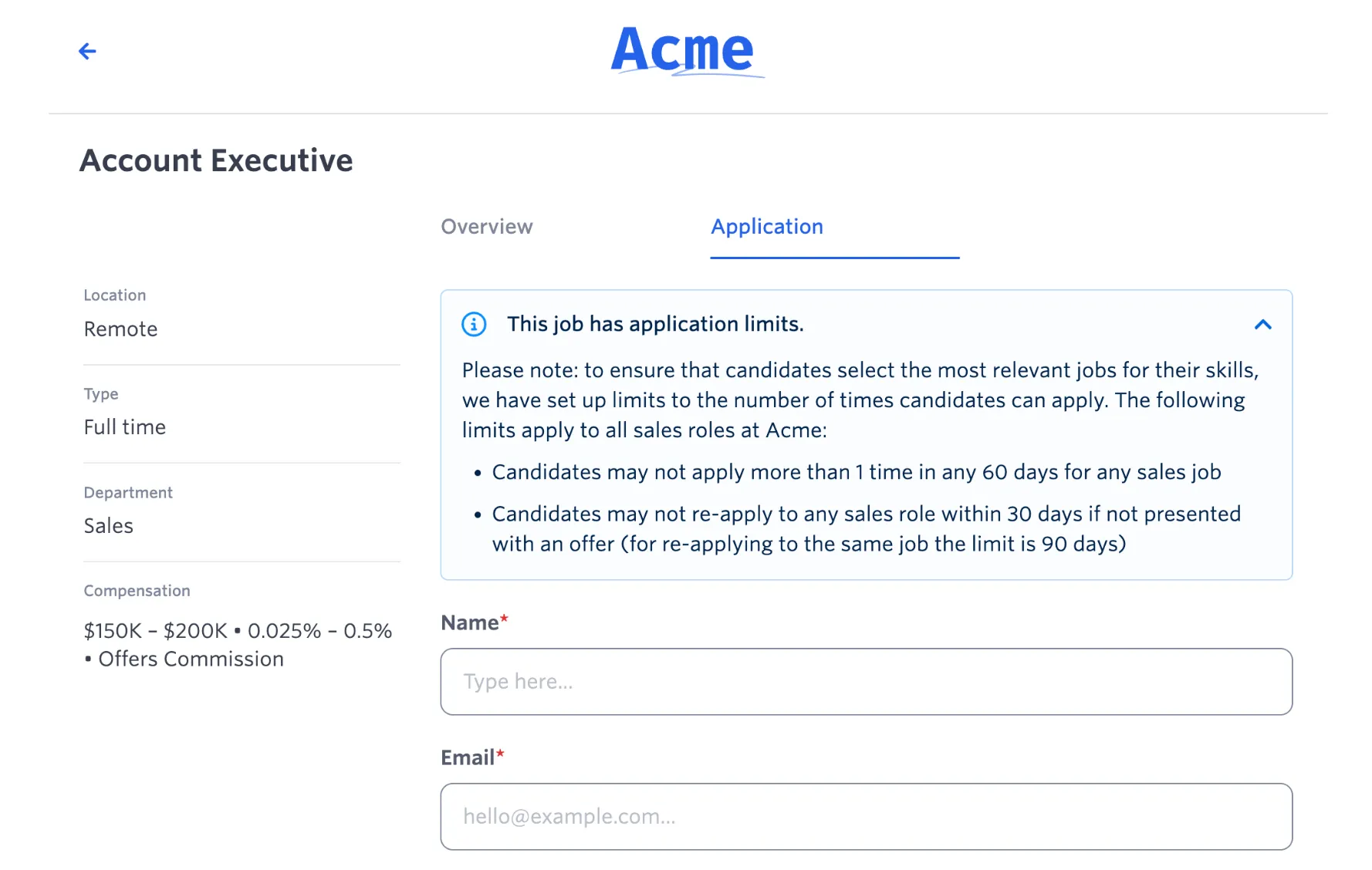
Application form callout
If you add an application form callout to your rule, the message you entered displays above the application form for the candidate to read before they submit their application.
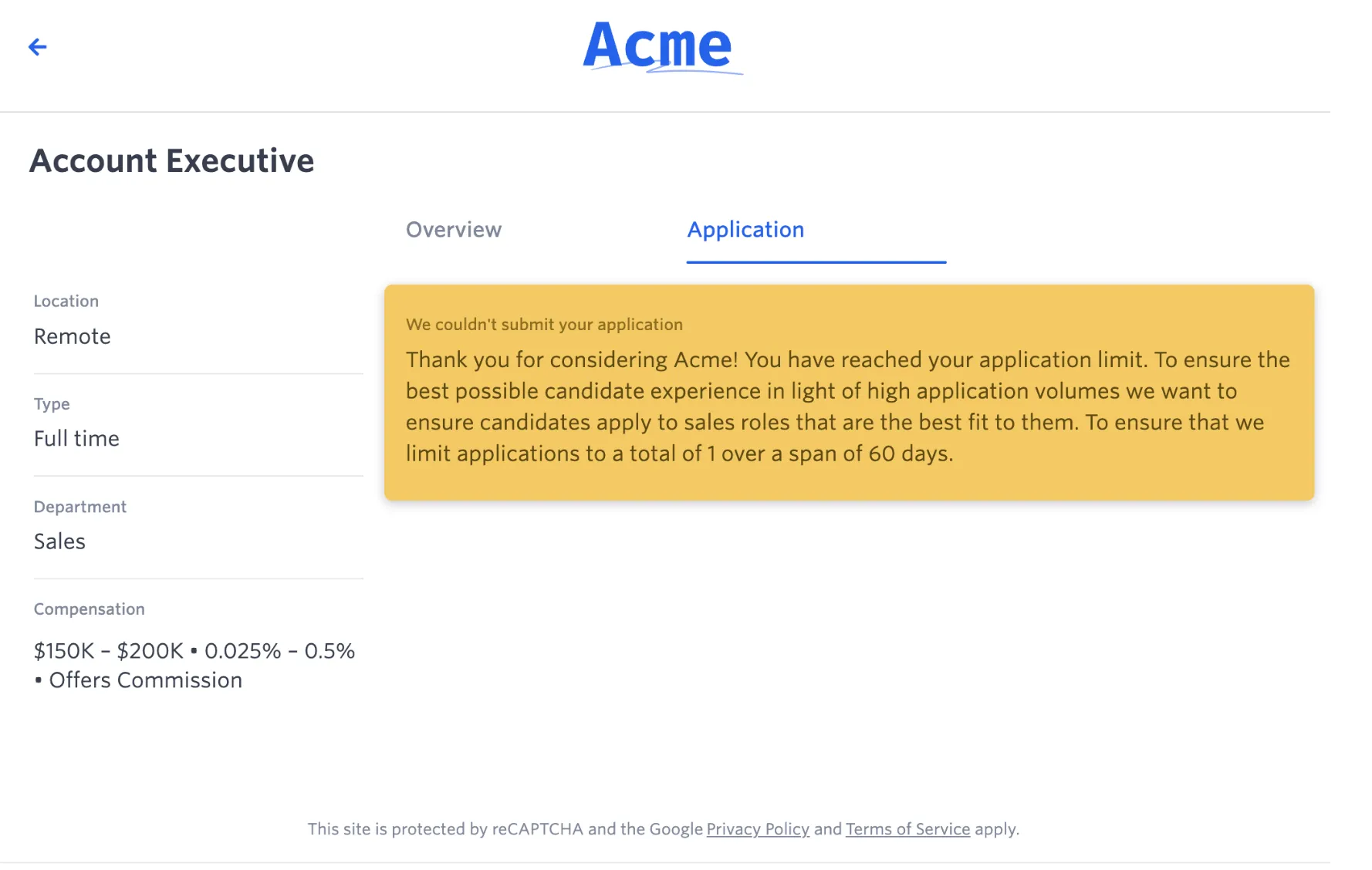
Blocked application message
If a candidate's application is blocked, they see the message you added in the Display Message to Candidate field when configuring your rule. If you leave this field blank, the candidate sees the message from the After Candidate Submits Application field on the Themes (Job Board) page.
View blocked application submissions
Click the Blocked Application Submissions tab on the Application Limits page to view a list of blocked applications.
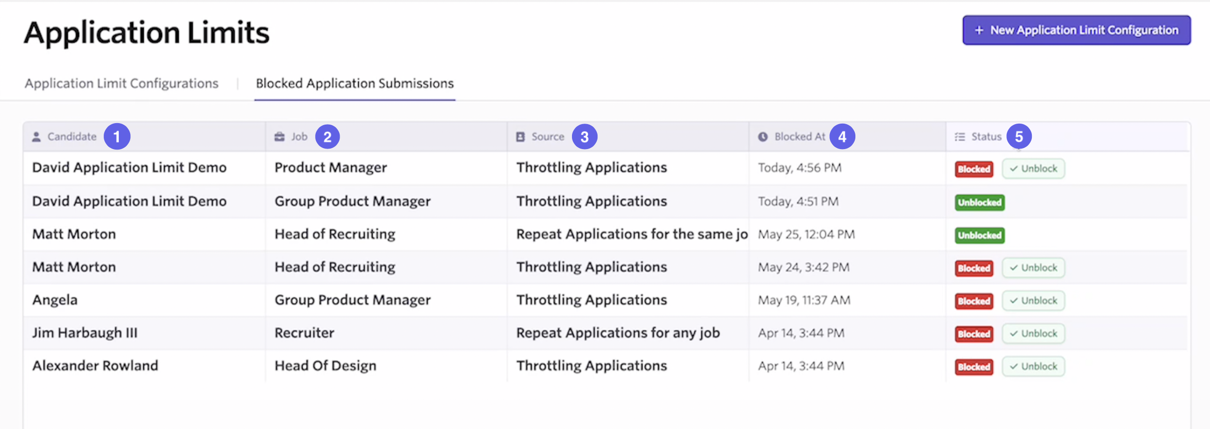
- Candidate: The name of the applicant. Click their name to view their profile.
- Job: The role they applied for. Click the job title to go to the job settings.
- Source: The application limit that blocked the application. Click the source to view the rule details.
- Blocked At: The date and time the application was blocked.
- Status: The current status of the application.
Unblock an application submission
If a candidate's application was blocked and you want to add it back to the pipeline for review, you can unblock it.
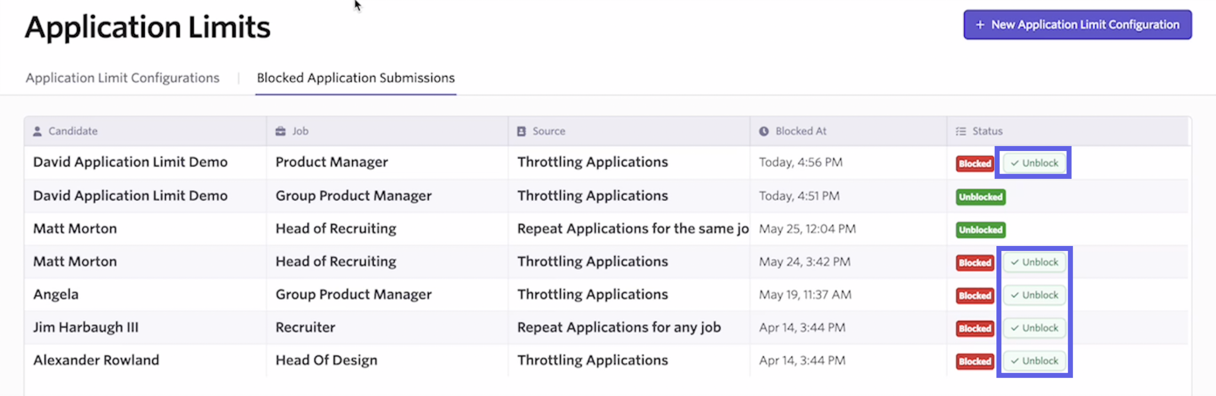
- Go to the Blocked Application Submissions section.
- Click the unblock option in the Status field of the application.
- Confirm the unblocking.
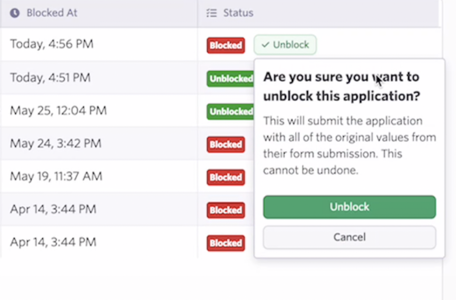
Once unblocked, the candidate is added to the Application Review stage of the job's pipeline.
FAQ
Are application limits applied to applications submitted via Indeed?
Application limits do not apply to applications submitted via Indeed.
Can you see blocked applications on the candidate profile?
Organization Admins can view blocked applications in the Views section of the candidate's profile. The three most recent blocked applications are listed, and the total number of blocked applications is displayed.

How does Ashby know if a candidate has applied before?
Ashby uses the email address entered by the candidate on the application form to identify prior applications for application-limit rules.
As a result, if a candidate submits a different email address on a later application, Ashby may not recognize the application as belonging to the same applicant. For more information on how Ashby identifies duplicates, see How do I merge duplicate candidate profiles?