User Permissions
This guide covers the different global access roles you can grant in Ashby. Along with global access roles, you can also provide job, location and department-specific access roles. This ensures that your users only have access to the information they need to.
For more on user sync and adding new hires as users in Ashby, check out How do I provision new users in my Ashby account manually?
Permissions & Prerequisites: You must be an Organization Admin to view user permissions and edit another user's permissions or access roles. If you are not an Organization Admin, reach out to one if you would like to know your permission level or have your access amended. Organization Admins cannot edit their own permissions and will need to ask another Organization Admin to edit their access for them.
Permissions Overview
What are the Ashby permission levels?
Ashby supports three global user roles, or permission groups, that apply to your entire organization:
Permission Types
This section covers global user roles and job/team/location access roles for users in the Employees section of your Ashby account. For your external recruiting partners, check out Agencies Users
Limited Access
Limited Access is the default permission option. These users can see information related to the specific interviews they are associated with. They cannot access candidate profiles, view candidate notes, access the candidate pipeline, jobs, sequences, or reports but will be able to view candidate resumes as part of their interview briefing.
This permission set is best suited for your users who only log into Ashby to submit interview feedback and referrals. Share the Getting Started for Interviewers guide with these users to help them get up and running with Ashby.
Limited Access users cannot pin reports or dashboards to their home page.
Elevated Access
Elevated access users can see candidate profiles, jobs, sequences, and reports for the teams, locations and/or jobs to which they have been granted access.
When assigning a user Elevated Access and an access role to a job, you will be able to see further details about the job you’re assigning (such as the job requisition ID and the location assigned to the job). This can help ensure the user gets access to the correct role if you have multiple jobs with the same name.
Users may have access to a candidate profile without having access to every job consideration on that profile. See Controlling Visibility of Additional Job Considerations in the Candidate Profile to review the visibility options for job considerations that users do not have access to.
The following access roles can be assigned to those with Elevated Access:
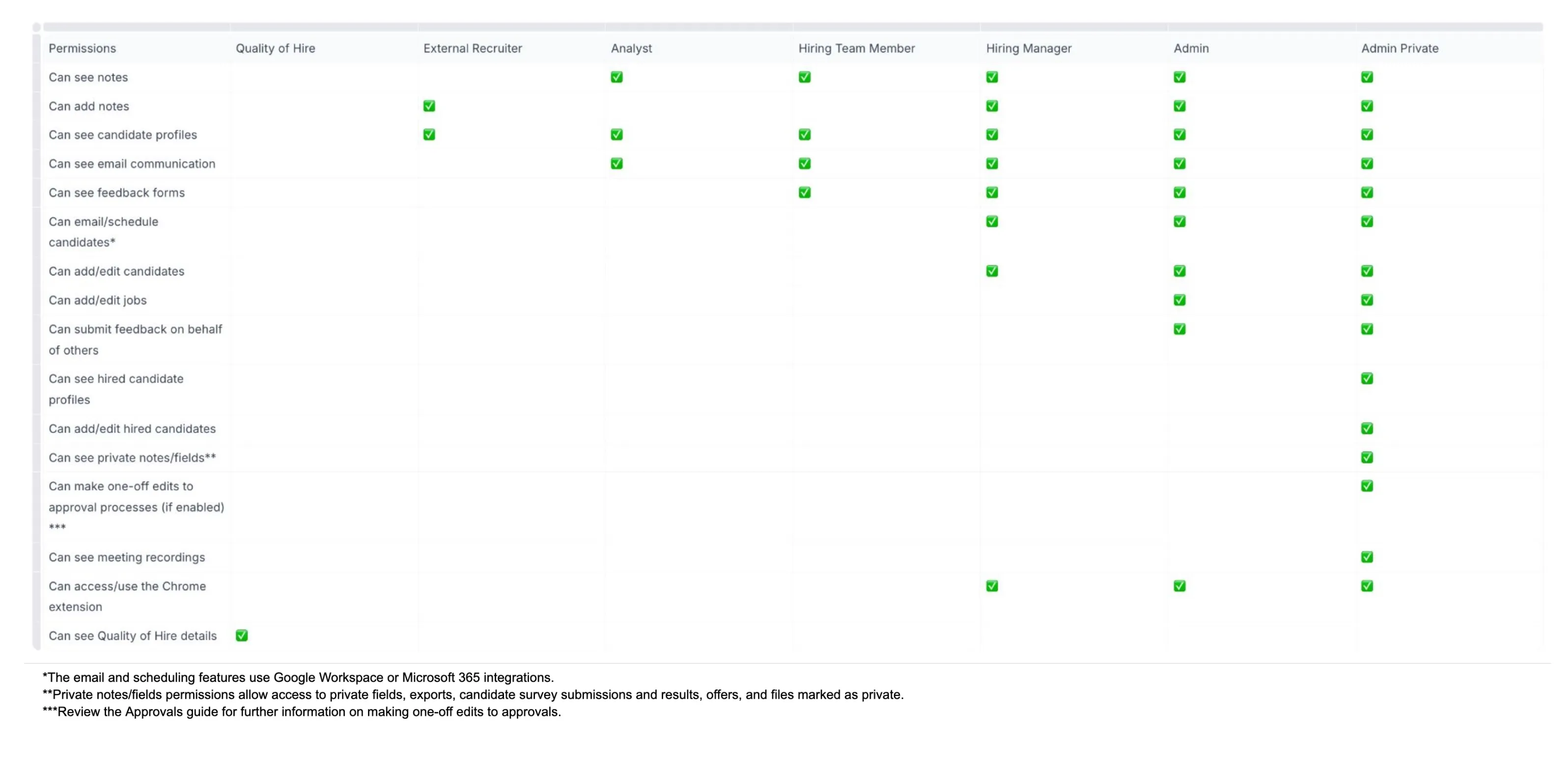
- Quality of Hire (QoH in the grid below): This is a role for users who need access to Quality of Hire survey data, either for specific departments and jobs, or for the entire organization (more on this at Quality of Hire Surveys).
- External Recruiter: These users can see candidate profiles but have no further permissions. This is a role assigned for users who are a part of an agency. You can read more about setting up agency users at Agencies Setup .
- Analyst: A user who should only be able to view candidate profiles and email communication. This access role is used a lot for users running reports.
- Hiring Team Member (HTM in the grid below): This user has access to view candidate profiles, along with email communication and any feedback. This role is for users who need access to more candidate information than the details listed in an interview briefing but who won’t be reviewing applications or scheduling interviews. Those with hiring team member access will not be able to email or schedule interviews for candidates.
- Hiring Manager (HM in the grid below): This user has access to view candidate profiles, review applications and contact and edit the candidate. They can also use the Ashby Chrome extension. This is likely a user who is managing the candidate pipeline for a specific role or department (scheduling interviews, archiving candidates based on feedback, etc).
- Admin: This is a user who has all the access to manage candidates and the job pipeline. They can also create new jobs and submit feedback on behalf of other users. This is likely a user who oversees pipelines and can set up new roles but who isn’t involved in the offer process. They have access to the candidate profile
- Admin - Private (Private in the grid below): This user has all the same permissions as the Admin access role plus access to generate and edit offers and view any private notes or fields (like salary expectations or other sensitive information). This user also has access to view hired candidates.
- No Access: This role can be added to an employee profile if the user is an Organization Admin or has an Elevated Access role across the organization and you’d like them to not have access to a certain job or department. They will not have any access to the job, location or department this role is assigned to them for.
The grid below outlines the actions these users can take on candidate profiles and jobs. This permission set is best suited for your users who log into Ashby to view and take action on candidate profiles and jobs, but shouldn’t have access to change global admin permissions like Hiring Managers, Sourcers, and Recruiting Coordinators.
Share the Getting Started for Hiring Managers or Getting Started for Recruiting Coordinators guides with new elevated access users to help them get up and running with Ashby.
You can assign multiple access roles to a single user. For example, you can grant someone Hiring Manager access to the Marketing team and grant them Analyst access for the entire organization, so they only have additional access granted as needed.
Elevated Access users can also be granted a limited set of Admin permissions. You can read more on this at Additional User Permissions.
Elevated Access - Access Roles Grid
Please note that these are the default permissions settings for access roles in Ashby. If access roles have been amended via the Manage Access Roles tool, please review your active access roles at Admin > Organization Setup > Access Roles, or reach out to an organization admin for assistance.
Click on the image below to open up the access role grid.
Organization Admin
In most cases, Organizations Admins should not be assigned Job/Team Access roles, as they limit the features they have access to. If you include job or team access roles, the user’s permissions for the specific job(s) or team(s) will be scoped down as shown in the Elevated Access chart above.
Organization Admin is the most permissive option. These users can see and edit candidate profiles, jobs, sequences, reports for all candidates and jobs, and merge candidate profiles. They can also make changes in the Admin section and to feedback/notes added by other users.
This permission set is best suited for users charged with configuring your team’s Ashby account like Recruiting Team Members and Co-Founders.
Potential limitations for an Organization Admin's access include:
- If their candidate profile is linked to their employee profile, they can’t see their own info. More on this at Visibility Options for Users.
- They can not see confidential jobs unless explicitly granted access to them by the person that created the job, or by being given access to all confidential roles using the Has access to all confidential jobs and projects within assigned permissions option within the Permissions tab of their profile
- If an Organization Admin has specific permissions set for a role or team, the actions they can take for that role or team will be limited by the scoped-down permissions. Refer to the chart above for details on what is allowed for those permission levels. If those scoped-down permissions should not be applied, they can be removed by another Organization Admin.
- Organization Admins do not have access to Quality of Hire information by default, they would need to be assigned the Quality of Hire access role alongside their Organization Admin global access role.
These users should review Ashby Admin Onboarding and Getting Started for Recruiters to get up and running with Ashby.
Assigning permissions
The default permission option granted to users is Limited Access, which should cover most users. To amend a user's permissions:
- Navigate to Admin > Organization Setup > Employees
- Search for the user by their name in the employee list or by using the search field
- Click on their profile to open up their profile details
- Click on the Permissions tab, then select their Global User Role from the dropdown menu.
- If you select Elevated Access, you must also add at least one team or job access role for that user to be able to view jobs and candidates considered for those jobs.
Visibility Options
For more on additional visibility options, check out Visibility Options for Users.
Custom Permission Roles
Custom Permission Roles allow you to create new roles alongside those listed above for Elevated Access users, determining the access levels that best suit your needs if those available by default aren’t suitable. You can also amend the existing access roles to adjust access as needed. For more on this, check out Manage Access Roles .
Want to learn more? Check out the User Permissions course in Ashby Academy!
FAQ
What is the difference between the Hiring Team on a job or job consideration and job access roles for Elevated Access users?
The Hiring Team on a job or job consideration describes a user’s relationship to the role and enables role-based notifications. It does not automatically give the user permission to view or take action on candidates or the job. Job access roles determine what an Elevated Access user can access and do for specific jobs, teams, locations, or departments.
To provide a hiring manager access to a specific job, an Organization Admin must assign the user Elevated Access and a job-specific Hiring Manager access role.
- Navigate to Admin > Organization Setup > Employees.
- Search for and select the employee.
- Open the Permissions tab and select Elevated Access as the Global User Role.
- Add the Hiring Manager access role and scope it to the specific job under the Access Roles section.
If the user already has access through a team or location access role, add the job-specific role alongside it when they need additional permissions for that job.
To assign access automatically, configure Permissions Automation and map the Hiring Manager hiring team role to the access role you want to assign. Ashby then assigns the mapped job access role when the user is added as the Hiring Manager on a job and removes it when they are removed from the Hiring Team.
Can I update employees’ permissions in bulk?
This isn't currently possible.
I’m an Organization Admin, why can’t I access this data?
It is likely that your account has job/team access roles assigned. In most cases, Organizations Admins should not be assigned Job/Team Access roles, as they limit the features they have access to. If you run into this, ask another Organization Admin to remove those roles from your profile.
What permissions are necessary to be able to use the Chrome extension?
Users need at least Elevated Access - Hiring Manager permissions to source with the Chrome extension.
What happens to user permissions when I delete a team or department the user has access to?
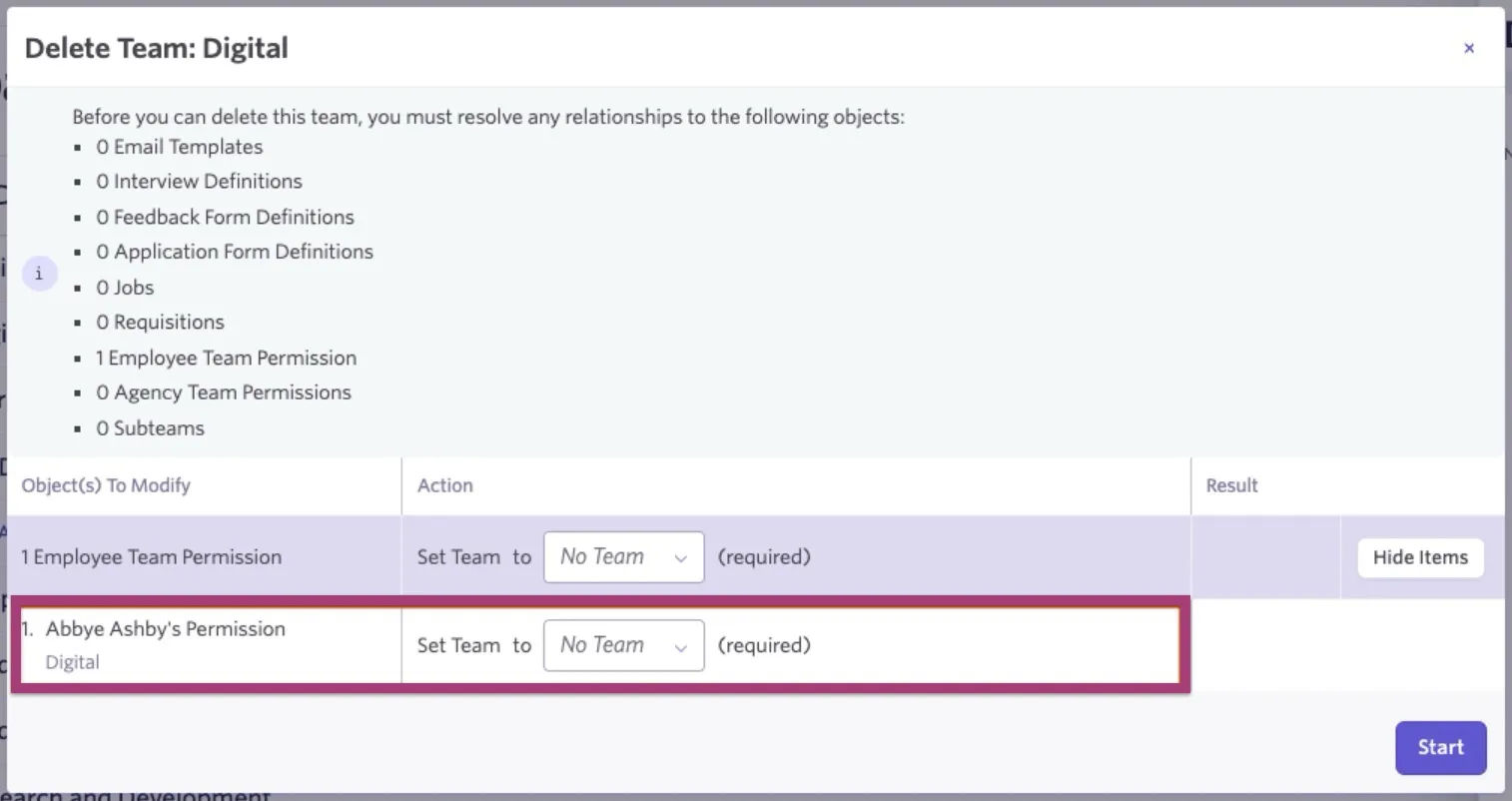
When you archive a team or department, then choose to delete it completely, any users or agencies with access to that department will be highlighted in the Delete Team pop-up. From there, you can select another team to assign user permissions to. If they shouldn’t have permission to access another team, you can keep the drop-down set to No Team to remove the permissions for that user.
What is the External Recruiter access role and what access does this provide?
The External Recruiter role is intended for agency users. Those with External Recruiter access will only be able to view the candidates they add to a job, or candidates that their agency are listed as the source on. We’d recommend checking out our Agencies Setup guides and setting up an agency if you’d like to provide agency users with access. These users will also be able to add candidates to the jobs they have access to.
What is the Quality of Hire access role and what access does this role provide?
The Quality of Hire access role is for those who need access to data from Quality of Hire surveys, either for specific departments and jobs, or for the entire organization (more on this at Quality of Hire Surveys). Please note that adding Quality of Hire access role will not restrict the account permissions to just viewing Quality of Hire surveys and will act in addition to existing permissions in Ashby.
Those who have surveys assigned to them (the hiring manager, for example), will be able to see the data from the surveys they’ve been assigned to without needing this access.
What permission level do I need to change a candidate’s stage or archive their job consideration?
To change the stage the candidate’s job consideration is in or archive their job consideration, you would need to have Elevated Access - Hiring Manager access or higher to the job, team, or location.
What permission level do I need to add a note to a candidate profile?
A user would need to have Elevated Access - Hiring Manager access or higher to the job, team or location to have the option to leave notes on a candidate profile.
Can I assign permissions based on location?
If you have users who should have access to jobs in a specific location, you can now use location-based access roles to assign as needed. Location-based access roles are assigned within the Permissions tab of a user’s profile.
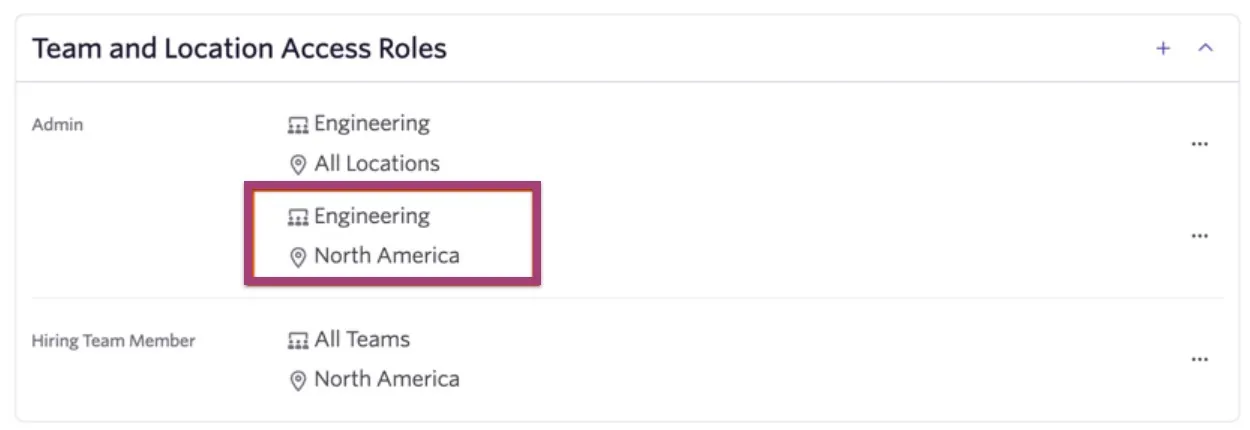
In this case, if a job is both in the Engineering team and the location on the job is set to North America, the role with the more restrictive permissions should apply (so in this example, the user would have Hiring Team Member access to the engineering role based in North America). To override this, you could set an additional access role that applies specifically to roles both in the Engineering team in New York and provide that more permissive access role there.
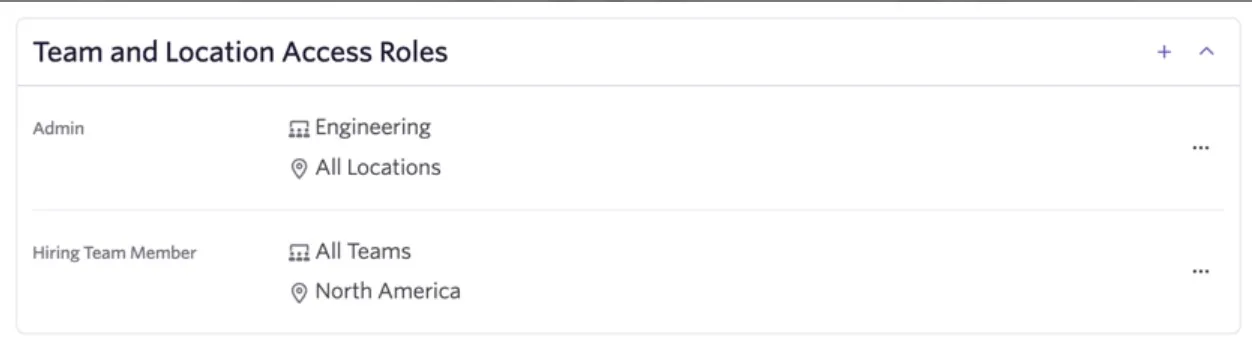
What if the roles overlap?
In some cases, permissions may overlap. See the example below;
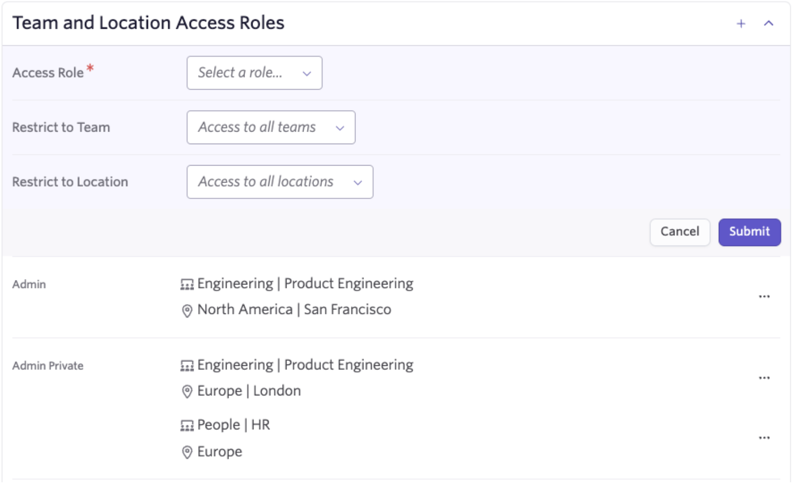
So this user has Admin level access to roles that have their location set to San Francisco and are in the Product Engineering sub-team. They also have Admin Private access to the Product Engineering roles that have their location set to London and the HR roles based in Europe.
Who can see the details of a candidate’s offer?
Only Organization Admins and those with Elevated Access - Admin Private access can view offer details.
Can I view the details of any changes that were made to user permissions?
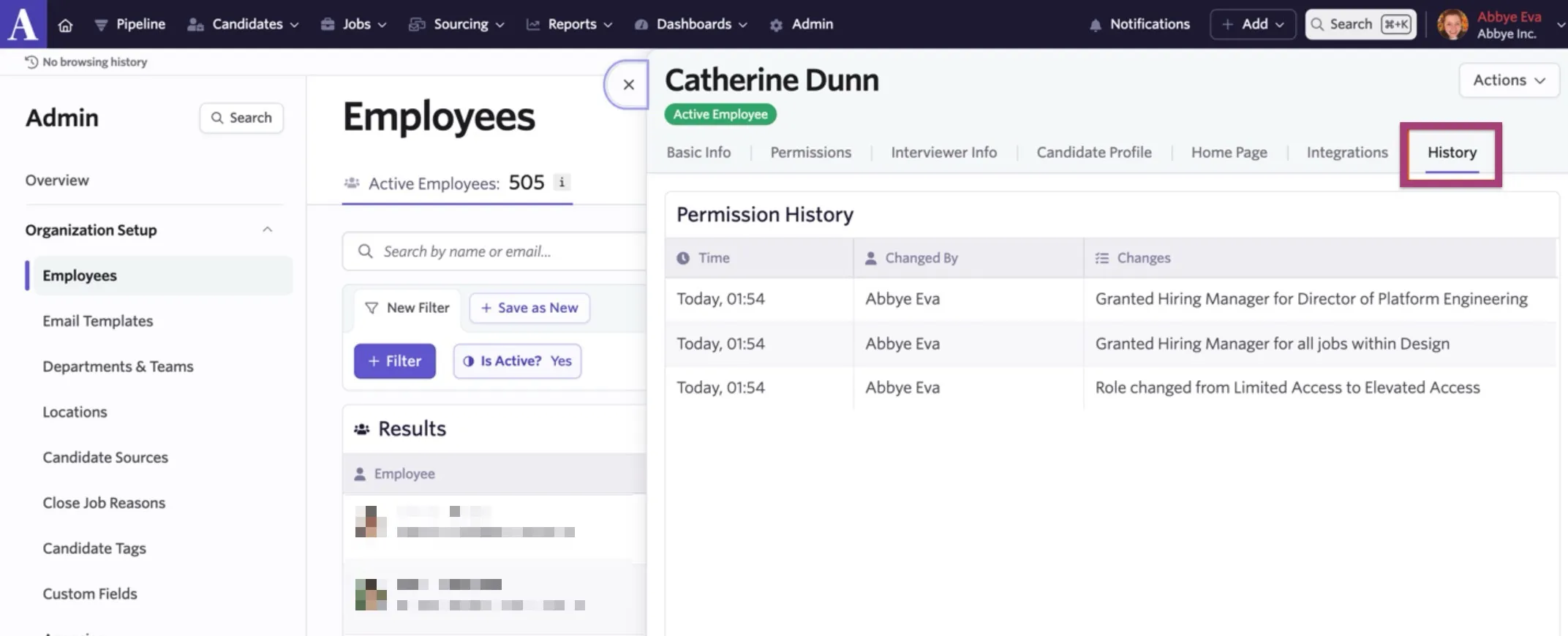
Yes, you can view any changes that were made to a specific user’s permissions by heading to their profile within the Employees page and clicking on the History tab. You'll see a timestamp, an indication of who made the change, and a description of the change. You can read more on this at Auditing and Reporting on User Permissions and User Active Dates.
Can a user see information about their own interview/hiring process in a report?
Users won’t be able to see themselves or data about their own journey in the hiring process in reports if their Ashby profile is linked to their employee profile (more on this at Visibility Options for Users). This can result in newly added users seeing slightly different data from other users when viewing reports (for example, one less hire listed in their hire reports, as they would be included as a hire but have their candidate data hidden from them).
Can I give a user access to a single candidate's profile?
This isn't possible currently. Access roles are only granted on a job, job department and/or job location basis.
How do permissions work with Openings?
For more on the roles that can open and link openings to jobs, check out Openings Management.
Can I switch an agency user to be an employee user instead, so I can assign them different permissions?
You can, yes. This is usually used when you’d like to provide an agency user with additional access to certain roles (for example, the ability to schedule candidates and view all candidates considered for the role).
- Head to Admin > Organization Setup > Agencies
- Select the agency and the agency user in question. Head to the Permissions tab on the user’s profile.
- In the Agency drop-down, click the x beside the agency name. This will remove the link between the user and the agency.
- The user will automatically be given the Limited Access access role. If you’d like to provide them with a specific access role to a job or department, set them to have Elevated Access, the determine the level of access they should have and the roles, departments or locations they should have access to.
If you’d like to switch an employee user to be an agency user, use the Agency dropdown on the user’s profile to select an agency and assign it to the user.