Advanced Scheduling Automation Add-On
The Advanced Scheduling Automation add-on extends Ashby's scheduling capabilities with a suite of tools designed to reduce manual coordination work and give your team more visibility into the scheduling process. This article outlines the key features included in the add-on — including Interviewer Training, Auto Schedule, Scheduling Requests, the Interviews Dashboard, and Hold Scheduling — and describes feature setup and usage in detail.
This add-on is available on the All-in-One Recruiting Plus Plan as a purchasable add-on and is included in the Enterprise plan. Those on the Foundations Plan must upgrade to the Plus Plan to purchase it.
Foundations | Legacy Plus | Plus | Enterprise |
|---|---|---|---|
❌ | ❌ | ➕ | ✅ |
Interviewer training
The Interviewer Training feature automatically tracks shadows and reverse shadows as interviewers progress through a structured training program, moving them into the qualified pool once they meet the requirements. This removes the need to manually manage who is ready to interview and ensures your interview panels stay consistent as your team grows.
For full setup instructions, including how to configure training stages, add trainees, and manage progression, see Interviewer TrainingInterviewer Training.
Auto schedule
The Auto Schedule feature automatically generates schedules based on your team's calendars. Schedulers can select from a short list of options, then finish out the scheduling process.
Setup requirements
- Ensure you have interviewers set up on schedule interview activities. Their calendars are used to find suitable times when providing proposals. You can read more on configuring interviewers in Assigning InterviewersInterviewers: Assigning, Rescheduling, and Setting Interviewer Limits.

- If there are multiple events under a schedule interview activity and they should happen in a certain order, ensure you have adjusted the Timing configuration for each event. Timing settings are only available with the Advanced Scheduling Automation add-on or for Enterprise customers.
Understand timing settings in Setting up Schedule Interview ActivitiesSetting up Schedule Interview Activities.
Usage
- On the schedule interview prompt on the candidate's profile, click Schedule, then Auto-Schedule.
- Confirm the interview activity settings as a first step. You can opt to unlink the interview from the interview activity to make any last-minute changes.
- Select the dates you're considering for the interview, confirm the primary timezone, and determine whether interviews with multiple events can be scheduled over multiple days, or allow breaks between interviews for flexibility.
- Once these details are confirmed, you are presented with proposed times. Select a time from the list. You can then view the panel and configure your invites prior to scheduling the interview.
If interviewers have a lot of availability across the interview dates specified, all possible time slots may not be listed in the Proposed Schedules tab.
Scheduling requests and Interviews Dashboard
Scheduling Requests are simple forms directly in Ashby that your team can use to create scheduling tasks for Recruiting Coordinators. Once submitted, interviews with requests can be viewed in the Interviews Dashboard.
The Interviews Dashboard is a tool that anyone can access to manage interview scheduling, check on the scheduling status of interviews, and take action on Scheduling Requests. The scheduling status of those interviews and requests updates in real time.
The Interviews Dashboard is where scheduling requests and interviews can be tracked and actioned. For the interview core dashboard containing key interview metrics and data, see Core DashboardsCore Dashboards.
Setup requirements
- Enable scheduling requests by navigating to Admin > Interviews & Scheduling > Scheduling Requests & Queues.
- Switch on the Enable scheduling requests? option to allow scheduling requests to be created on Interview Schedule Activities on candidate profiles.
- Create scheduling request queues. See the Scheduling request queues section below for detailed instructions.
- (Optional) Create scheduling request forms. See the Scheduling request forms section below for detailed instructions.
- (Optional) Create additional priority levels. See the Create additional priority levels section below for detailed instructions.
Scheduling request queues
Scheduling Request Queues enable your team to assign Scheduling Requests to a queue instead of directly to a specific Recruiting Coordinator. These can be helpful when you have multiple coordinators responsible for scheduling within a certain part of the business, or across your whole company.
Each queue can have multiple members. When a Scheduling Request is assigned to a queue, members of that queue see those requests in the Interviews Dashboard and can claim them based on their bandwidth. Recruiting Coordinators can be members of more than one queue, and membership is easy to adjust — for example, if you need someone to cover a queue while another member is out of office.
To create queues for scheduling requests:
- Click + New on the Scheduling Request Queues tab.
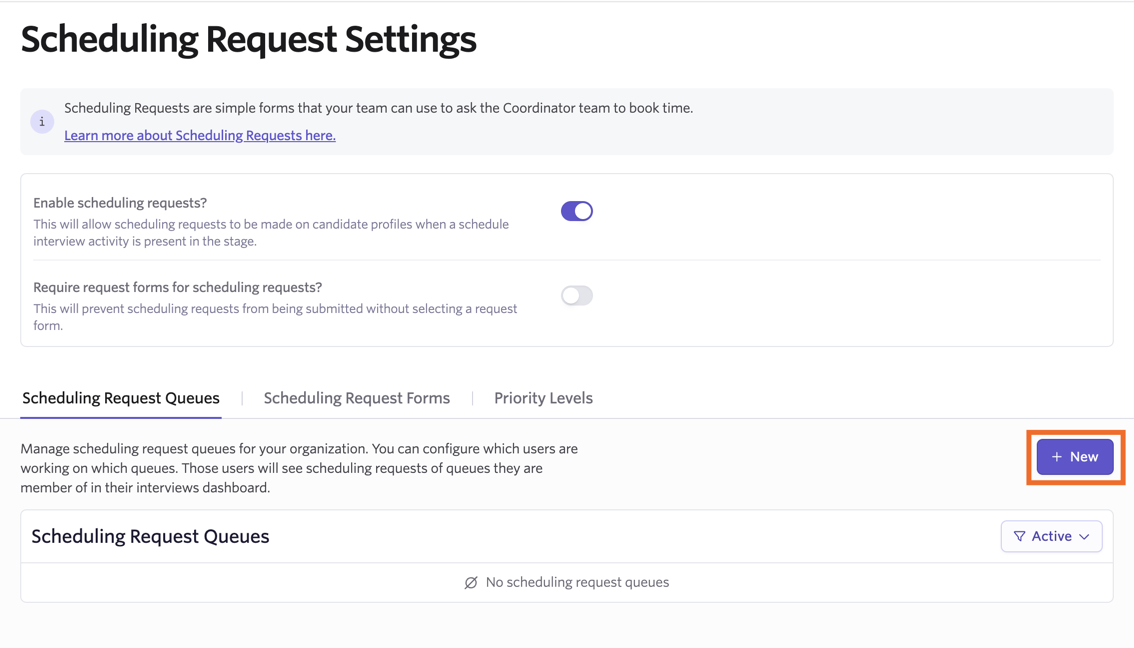
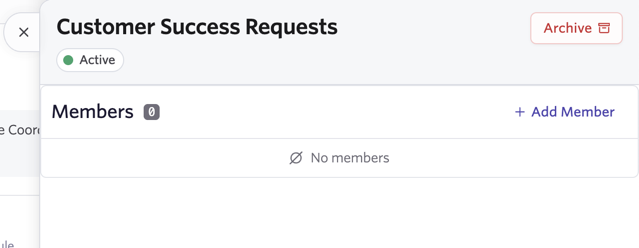
- Name your queue.
- Add members to your queue. These are users who will be prompted to handle the scheduling requests assigned to this queue.
Scheduling request forms (optional)
If you'd like to require a request form, switch on Require request forms for scheduling requests?

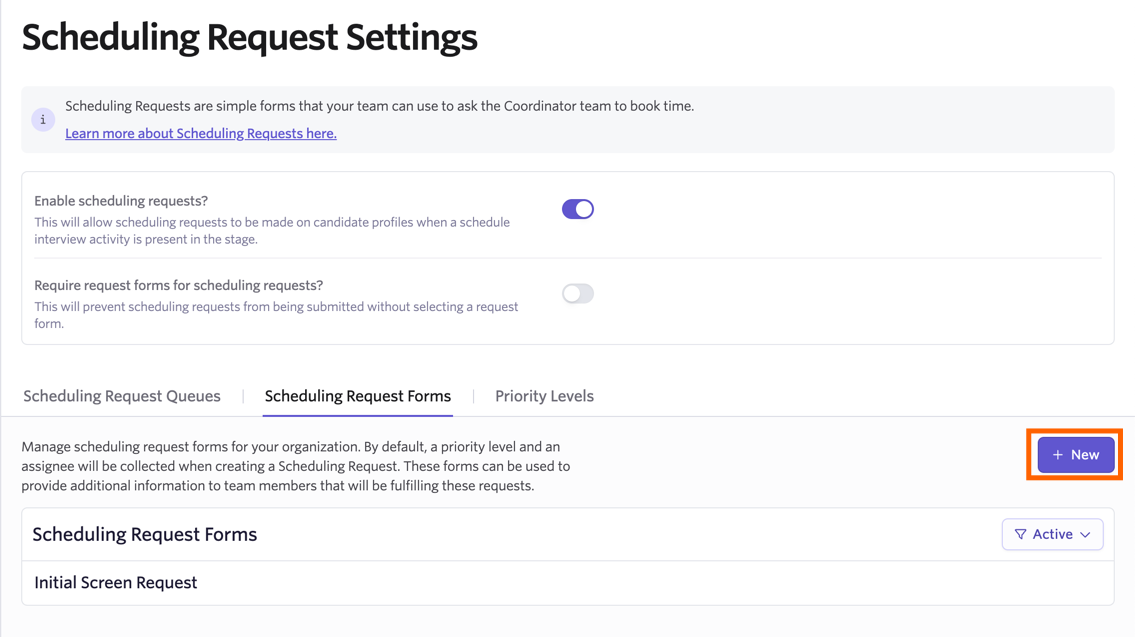
To create and edit existing forms, navigate to Admin > Interviews & Scheduling > Scheduling Requests:
- Click + New on the Scheduling Request Forms tab.
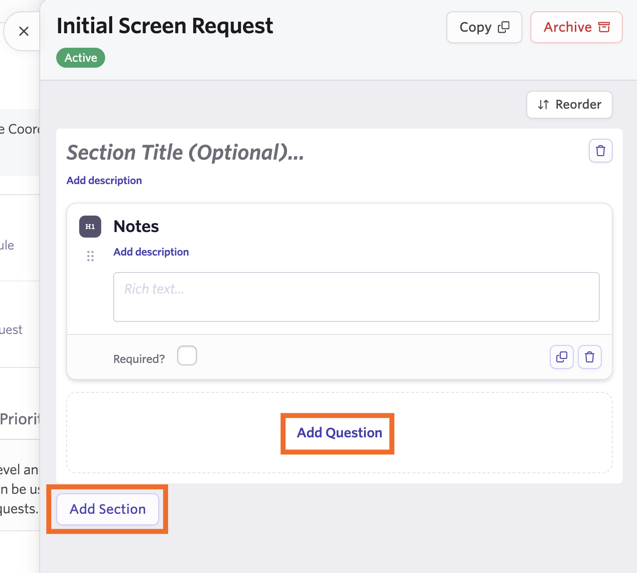
- Name your scheduling request form.
- Add fields to your form by clicking Add Question. If you'd like to split a longer form into sections, click Add Section.
Create additional priority levels (optional)
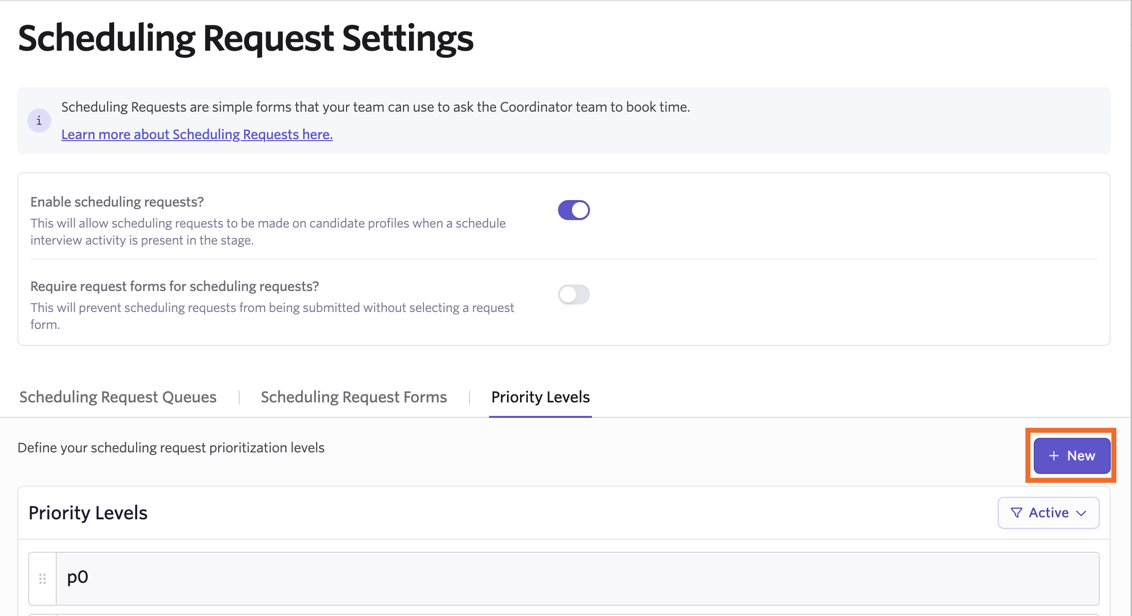
Scheduling Requests can be classified with a priority level to ensure that the most important scheduling tasks are picked up first. Three priority levels are available by default, and these can also be customized. Priority labels and descriptions are visible in the Interviews Dashboard to easily distinguish between different types of requests.
To create additional priority levels to assign to scheduling requests, navigate to the Priority tab of Scheduling Requests:
- Click + New on the Priority Levels tab and name your new priority level.
- Add a description or details as needed.
Add the Interviews Dashboard to your homepage
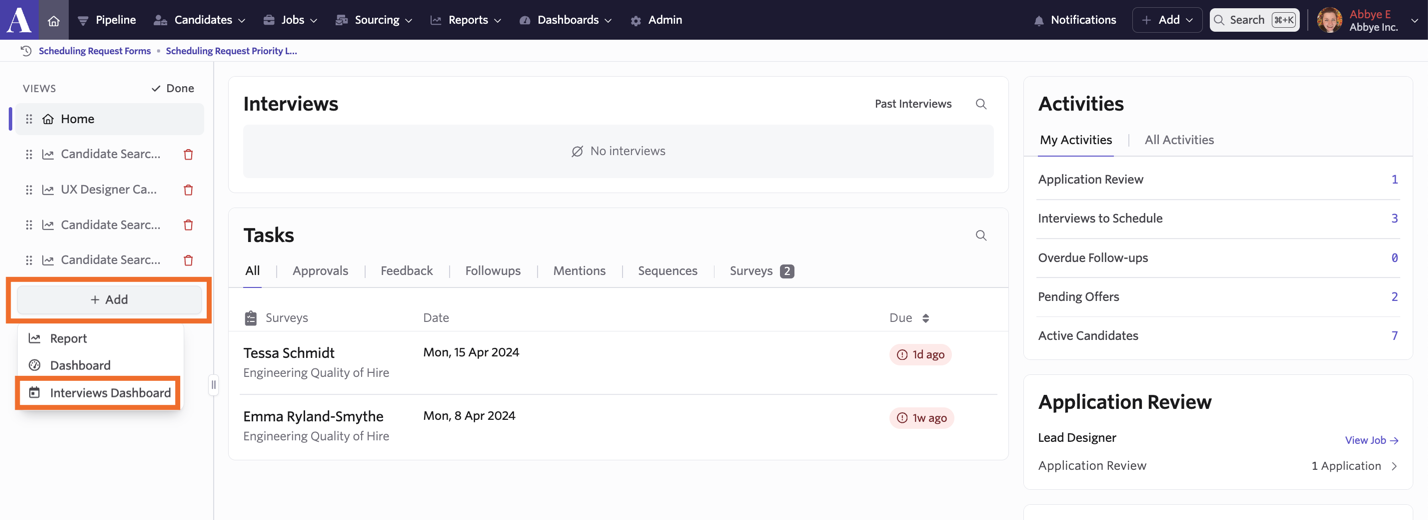
Once you've configured your scheduling request settings, you can prompt your team to start submitting scheduling requests. As part of this, we recommend that you and those involved with completing or tracking scheduling requests add the Interviews Dashboard to their home page.
To add the Interviews Dashboard to your homepage, locate the Views list on the left side of your homepage, click + Add, then select Interviews Dashboard. The Interviews Dashboard is where you can track any generated scheduling requests.
Creating a scheduling request
To create a Scheduling Request:
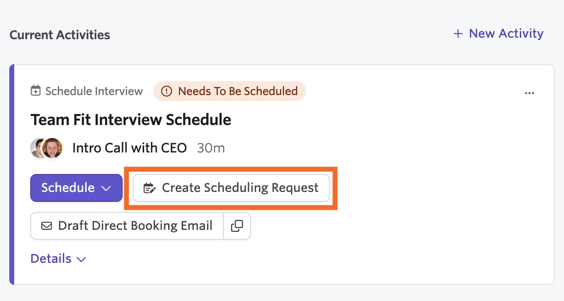
- Click the Create Scheduling Request button (or Schedule > Create Schedule Request) on the scheduling activity.
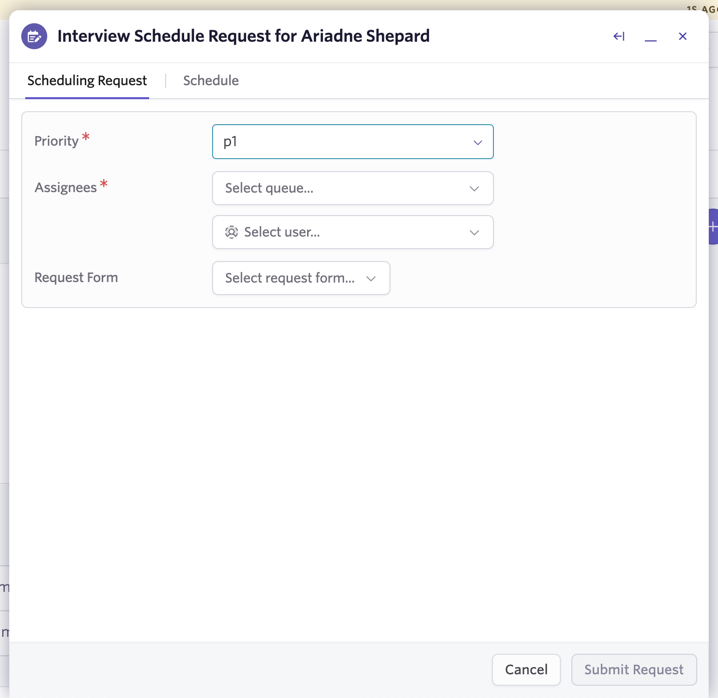
- Add the interview priority, the request assignee (or queue), and optionally select a request form and complete it prior to submitting the request.
Customizing schedule details
- If you need to view and amend any of the interview schedule details linked to the schedule request, click the Schedule tab.
This can be helpful for cases where necessary changes to the schedule for a specific candidate's interview are already known. Instead of writing out detailed instructions in your request for a Recruiting Coordinator to follow, you can make those adjustments immediately and save several steps for your team.
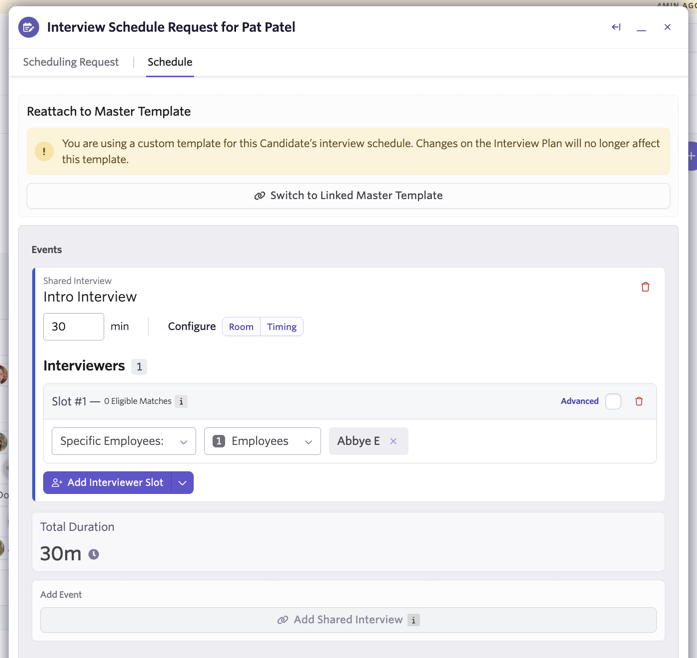
- If you'd like to customize the schedule for a specific candidate, you can unlink it from the linked template pulled from the activity on your job's interview plan. To do this, click Customize Schedule.
Note that this unlinks the schedule from the template on your job's interview plan.
From here, you'll be using a custom template for this activity, so changes to the template on the interview plan no longer impact this specific interview activity. You can make changes to the interview schedule (for example, add, remove, or rearrange interview events), change interview length, adjust interviewer slots, update meeting rooms, and toggle whether to include a debrief.
- If you need to revert any changes and go back to the original template provided by the interview schedule activity on your interview plan, click Switch to Linked Master Template.
- Once you've reviewed your schedule and schedule request details, click Submit to submit your request. Any changes to your schedule save automatically, whether you choose to submit the request or not. This means that the assignee picking up the request works on the latest version of this schedule activity and doesn't need to make any amendments themselves — they can just open the request and schedule it with the needed amendments already made.
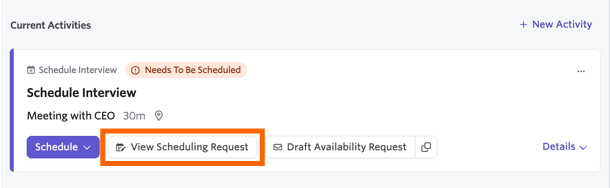
- If you need to make changes to the request, click View Scheduling Request, then click Edit Request. Make any changes, then click Submit Request again to confirm your changes.
Viewing scheduling requests
You can view scheduling requests and the status of other interview activities via the Interviews Dashboard on your home page.
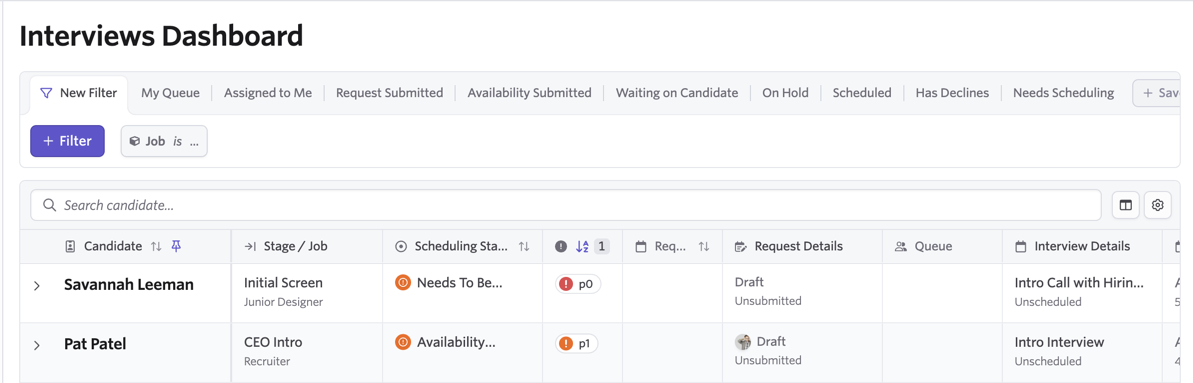
- To add additional filters, click the Filter button to select fields to filter by. Once you've configured your filters, click Save as New to save your filter so you can return to it easily in the future.
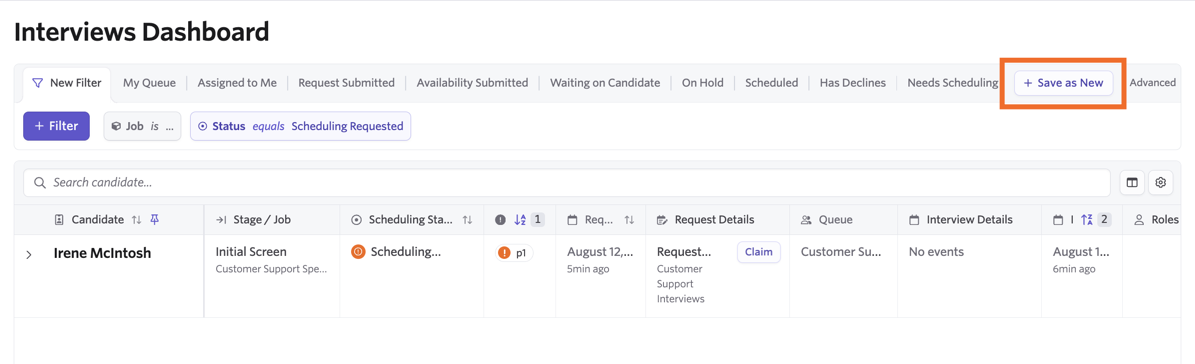
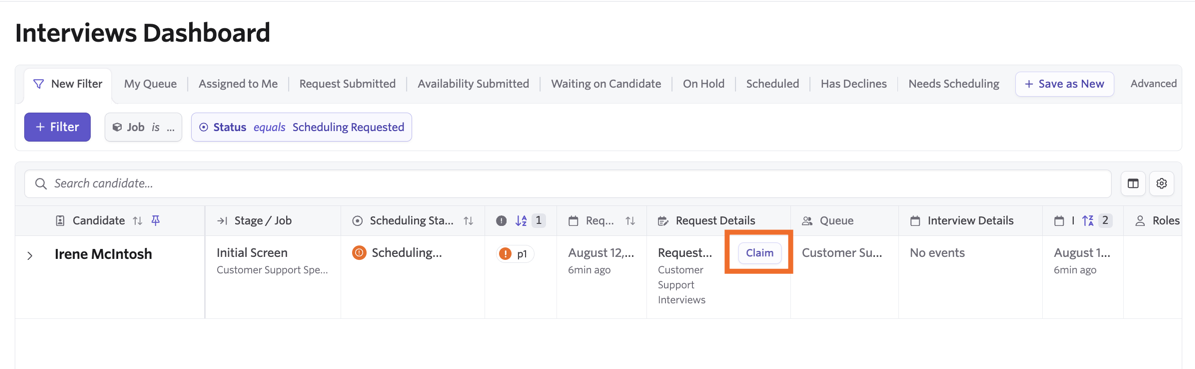
- If a scheduling request has been sent to a queue, you can claim the request to assign it to yourself to action. To do this, click Claim in the Request Details column.
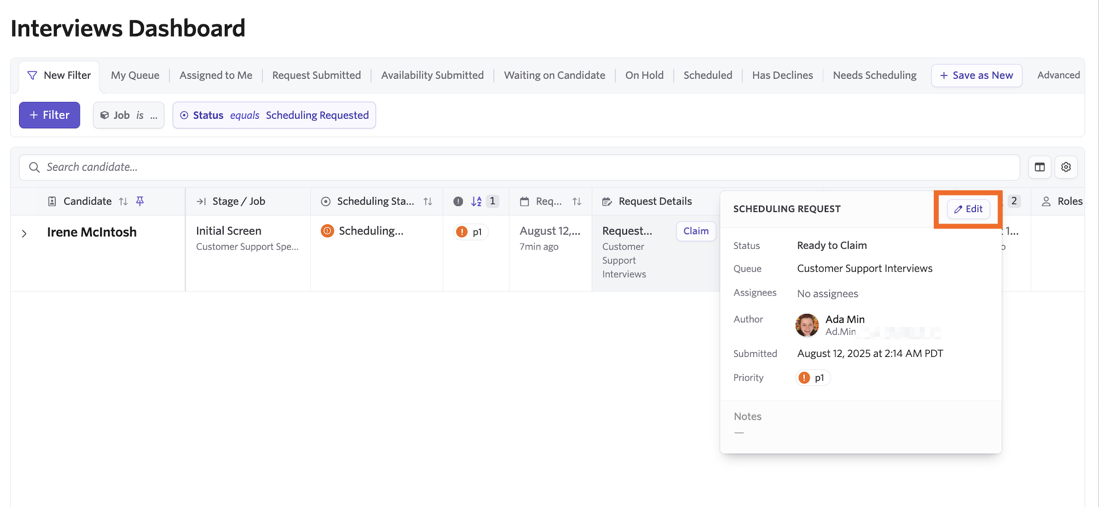
- If you need to make any adjustments to the scheduling request, hover over the information in the Request Details column. You can then click Edit on the Scheduling Request pop-up to make any edits without leaving this page.
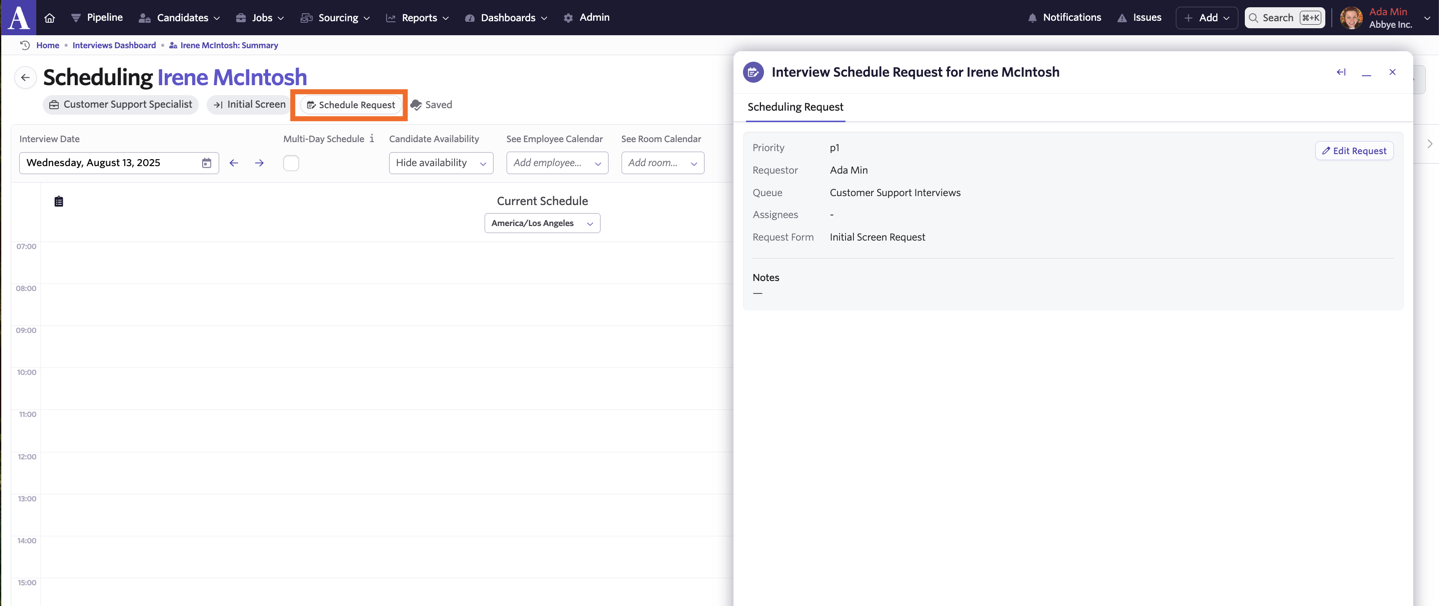
- Requests can also be viewed while scheduling for easy reference.
Interview Schedule Activity status
Interview Schedule Activities have a status assigned to them within the Status column of the Interviews Dashboard. The status of an activity updates automatically as it progresses through the scheduling process. You can read more about each status below:
Status | Definition |
|---|---|
Needs Scheduling/Needs to be Scheduled | A scheduling request has not been generated for this interview and it is yet to be scheduled |
Scheduling Requested | A scheduling request has been submitted for this interview |
Waiting on Candidate Booking | A direct booking link has been sent out to the candidate but they have yet to schedule |
Waiting on Candidate Availability | An availability link has been sent out to the candidate but they have yet to submit their availability for an interview |
Candidate Availability Submitted | The candidate has provided their availability via a candidate availability link and is waiting to be scheduled |
Scheduled | The interview has been scheduled (this status shows regardless of whether calendar invites have been sent or not at the point of scheduling) |
Waiting on Feedback | The date and time of the interview has passed and interviewer feedback is yet to be completed |
On Hold | The interview date and time has been put on hold, rather than scheduled |
Complete | The interview date and time has passed and feedback has been completed or skipped |
Looking for information on statuses that display on the candidate profile? See Understanding Candidate Activity StatusesUnderstanding Candidate Activity Statuses.
Scheduling Request status
Scheduling Requests also have an associated status, which can be seen in the Interviews Dashboard.
Status | Definition |
|---|---|
Unsubmitted | A scheduling request draft was started but has not yet been submitted. |
Unassigned | The scheduling request has been submitted and added to a queue, but has not yet been assigned to a specific Recruiting Coordinator |
Assigned | The scheduling request has been directly assigned to a Recruiting Coordinator, or claimed by one off a queue |
Completed | The interview related to this Scheduling Request has been scheduled, marking the request as completed. |
Auto schedule automations
Auto-replace interviewer on decline
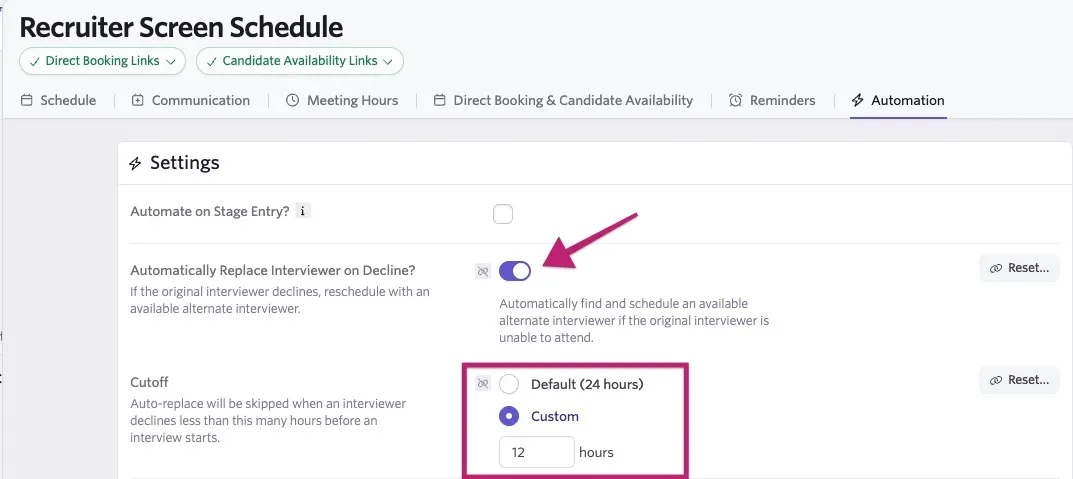
When an interviewer declines an interview before the configured cutoff time (24 hours by default), they are automatically swapped for an available alternate interviewer in the schedule and the invites are resent.
Setup steps
- Navigate to the job, then the Interview Plan tab.
- On the relevant schedule interview activity in the job's interview plan, click Modify > Edit.
- Add interviewers and make sure alternates are available. You can do this by using an interviewer pool or adding multiple interviewers to a slot. This allows Ashby to replace the original interviewer automatically if they decline.
- Go to the Automation tab within the same schedule interview activity.
- Toggle the Automatically Replace Interviewer on Decline? setting on.
- Use the default cutoff of 24 hours, or set a custom cutoff duration that is shorter or longer.
Automatically scheduling upon receiving candidate availability
Automation can be put in place that automatically emails you with interview proposal times when a candidate submits their availability. You can then select a proposed time and schedule the candidate from there.
Setup steps
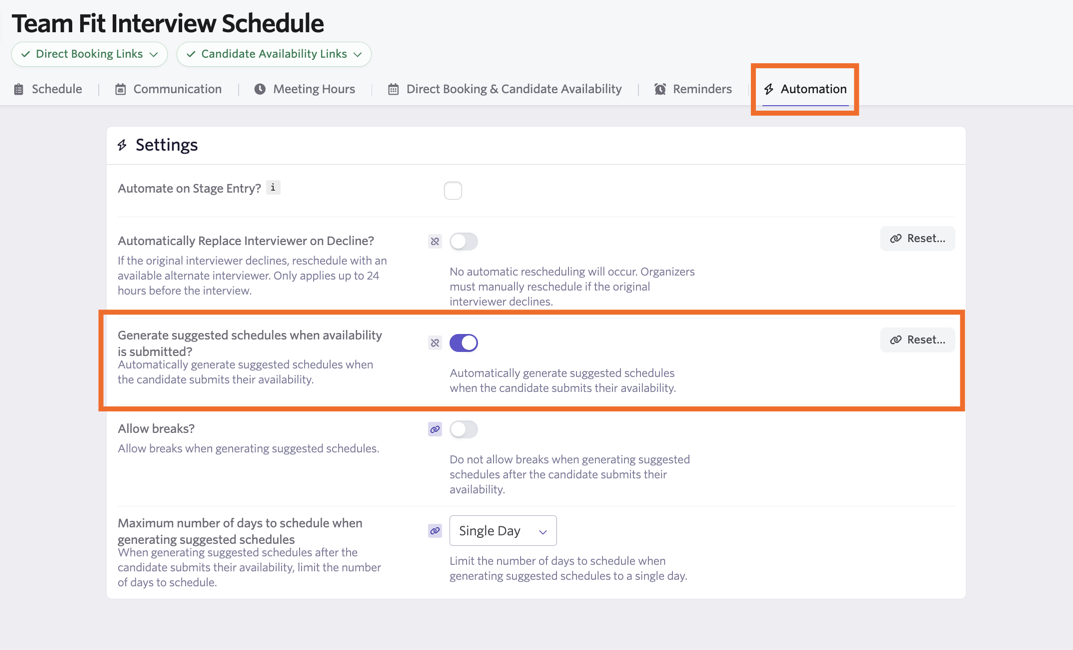
Before using this automation, open the relevant schedule interview activity on your interview plan and go to the Automation tab.
- Turn on Generate suggested schedules when availability is submitted? This tells Ashby to generate proposed interview times automatically after the candidate submits their availability.
- Make sure the job has a Hiring Team assigned. When the candidate submits their availability, Ashby sends the suggested schedules to users on the hiring team so they can review the options and complete scheduling.
Usage
From the candidate's profile, open the interview activity and select Schedule > Request Candidate Availability.
Once the candidate submits their availability, Ashby generates suggested schedules and notifies the hiring team so they can choose a time and finish scheduling the interview.
To learn more about candidate availability links, see Direct Booking & Candidate Availability LinksDirect Booking & Candidate Availability Links.
Hold scheduling
The Hold feature enables you to place [HOLD] calendar events on interview calendars. This does not email or send invites to the candidate. The option to add a hold event is available when either manually scheduling or using auto-schedule options to book an interview. The option is available at the Calendar Invites stage of scheduling.
When used, you have the following options:
- Hold Silently: Events are placed on interviewers' calendars, but no notification is sent for the initial invite or for subsequent updates while the interview schedule is held.
- Hold & Notify: Events are placed on interviewers' calendars, and they are notified for the initial invitation. They are not updated for subsequent updates while the interview schedule is held.
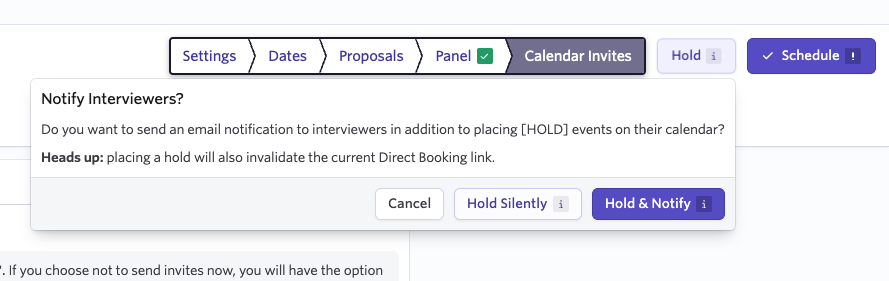
The Hold option is not available when rescheduling an interview.
Usage
- Click the Hold button in the scheduling workflow for either auto-schedule or manual scheduling.
FAQ
Do schedule requests show as a task on the user's Home page?
Not currently, but they can be accessed from the Interviews Dashboard.
If an interviewer has been scheduled in one interviewer slot, can they also be auto-scheduled in place of an interviewer on the same interview (i.e. take up multiple slots across one or multiple events within an interview)?
Interviewers who have already been selected for other interview slots are excluded as possible auto-replacements. If no other interviewers are available, an auto-replacement will not take place.
What fields are available for reporting on schedule requests?
For scheduling requests, you have the following fields for reporting.
Subject: Job Consideration > Interview Schedule
Has Scheduling Request? | Whether a scheduling request has been submitted for this interview schedule. |
|---|
Subject: Job Consideration > Interview Schedule > Request
Requested By | The person who submitted the scheduling request |
|---|---|
Assignee | The person who has been assigned the request |
Submitted At | The point in time at which the request was created. |
Priority | The priority assigned to the scheduling request |
How are multiple interviewers and load balancing handled with auto-schedule?
If you have multiple interviewing slots with users assigned to each slot, the availability used is based on the times that each combination of interviewers from your interviewer slots are available.
If multiple users are assigned to one interview slot, availability is looked at for all possible interviewers.
The interview is assigned based on the date and time selected. If multiple interviewers assigned to the same slot are available at the selected time, the interview is assigned to the interviewer with the fewest interviews. All interviews scheduled in the past 30 days and the next 30 days are considered in the interview count.