Candidate Texting
This guide walks through texting a candidate via Ashby once your team has completed Application-to-Person type messaging via 10-Digit Long Code (A2P 10DLC) registration.
If you haven't set up candidate texting yet, complete Candidate Texting OnboardingCandidate Texting Onboarding first. Texting won't work until onboarding is complete. Candidate texting requires setup support; contact your Customer Success Manager (CSM) or Support to enable it for your account.
Permissions & access
Candidate Texting is available on the Foundations, Legacy Plus, Plus, and Enterprise plans.
Foundations | Legacy Plus | Plus | Enterprise |
|---|---|---|---|
✅ | ✅ | ✅ | ✅ |
Review the table below to see the number of texts included in your plan.
Plan | Foundations* | Plus | Enterprise |
|---|---|---|---|
Included Texts | 1000/month | 2000/seat/year | 3000/seat/year |
Additional Texts | $0.09/text, sold in batches of 1000 | $0.09/text, sold in batches of 1000 | $0.09/text, sold in batches of 1000 |
*Includes both Foundations and Legacy Plus plans.
Candidate texting overview
The video below provides an optional overview of Candidate Texting. You can watch it or follow the steps in this guide.
This guide covers all the features currently supported in Candidate Texting, including:
- Two-way SMS messages via a shared company SMS number
- Candidate Texting Templates that support replacement tokens.
- Schedule template automation, including linking a direct booking text and sending a text upon stage entry.
- Built-in compliance management to help prevent any issues with your messages being flagged as spam.
Enable candidate texting
To enable texting:
- Navigate to Admin > Organization Setup > Candidate Texting
- Toggle on Enable Candidate Texting
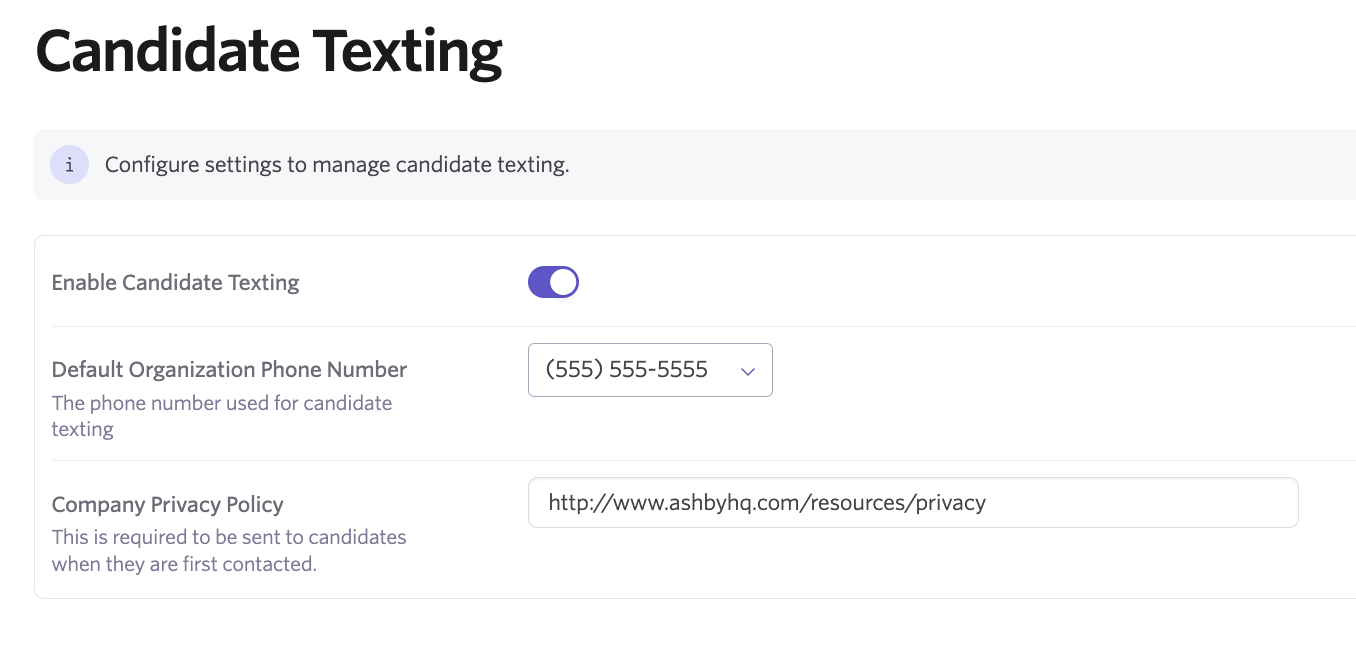
- Select your default organization phone number, either by selecting a country code and then selecting a number from the list provided, or by clicking Advanced Phone Number Search if you have specifications for the phone number you'd like to use.
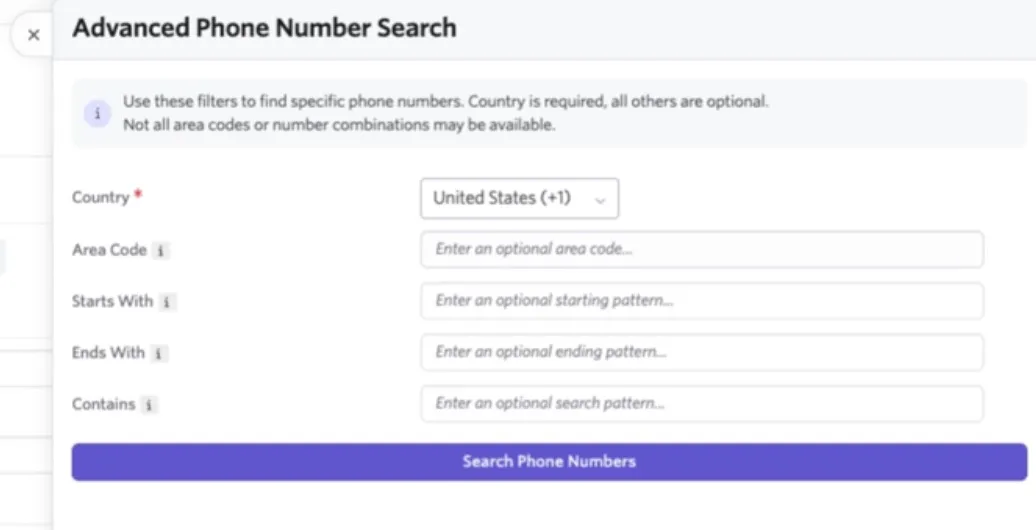
- If you use Advanced Phone Number Search, you can specify a country, an area code, and preferences like what the phone number should start with, end with, or contain.
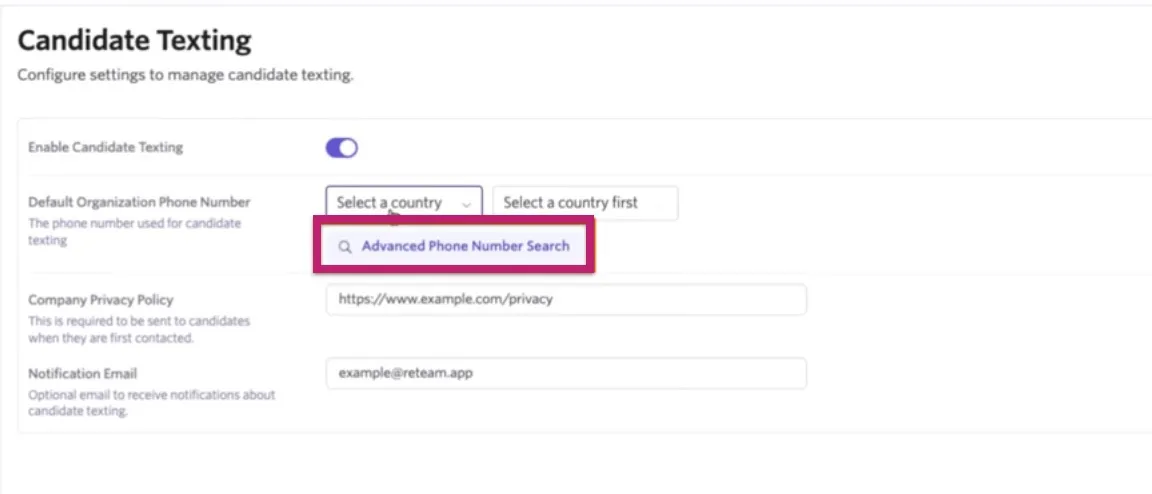
- Once you've added your specifications, click Search Phone Numbers. This pulls up a list of around 30 options. Click Buy beside the option you'd like, or Load More to load other options meeting your preferences. Not all area codes or number combinations may be available.
- Once a number is selected, it isn't possible to access this option again.
- Add your privacy policy in the Company Privacy Policy field. This is required information.
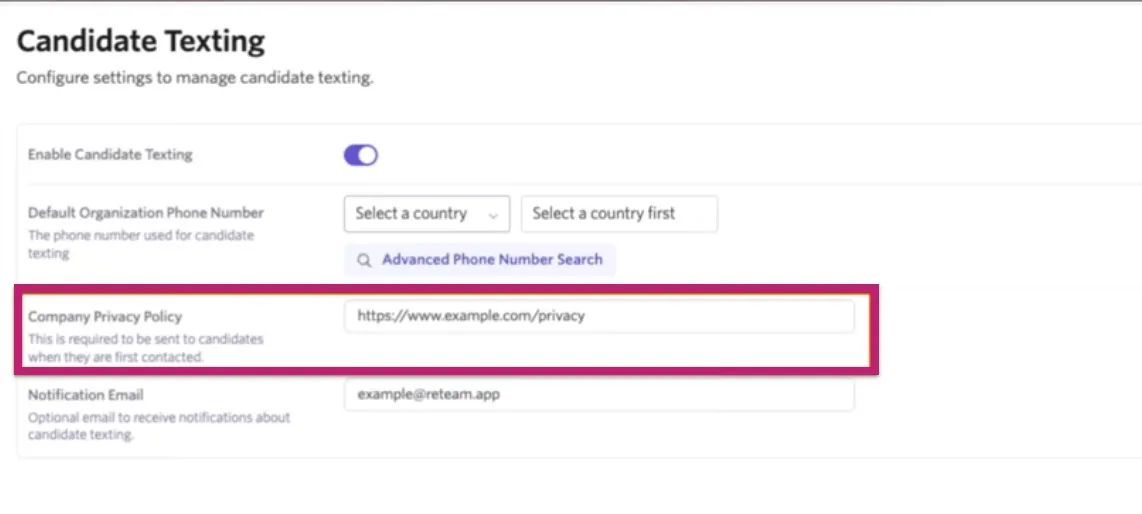
- Optionally, add an email address to receive notifications on candidate texting in the Notification Email field.
Manage permissions
Texting is supported for Elevated Access and Organization Admin users.
To grant access to users:
- Navigate to Employees
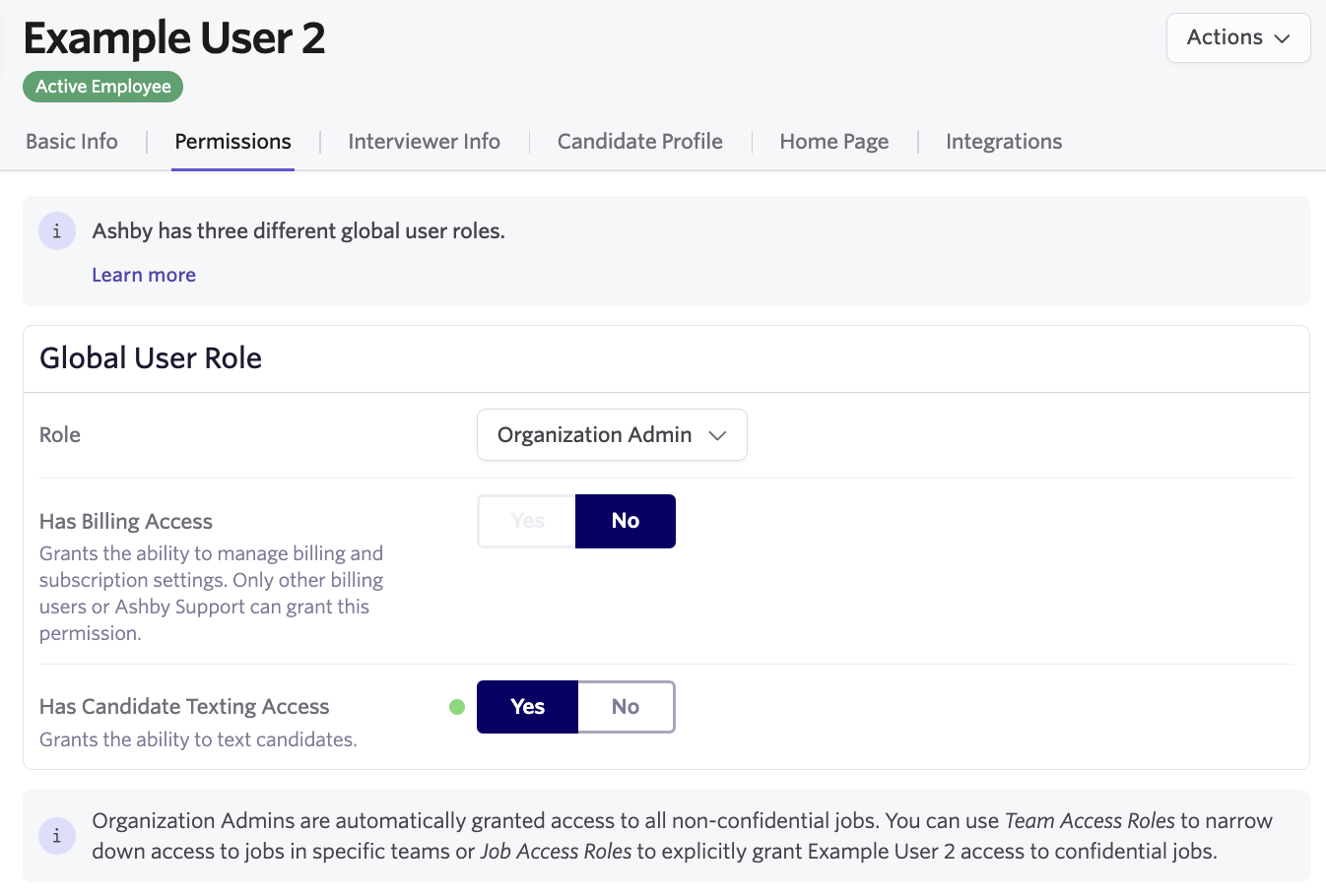
- Select an employee and go to their Permissions tab
- Set Has Candidate Texting Access to Yes
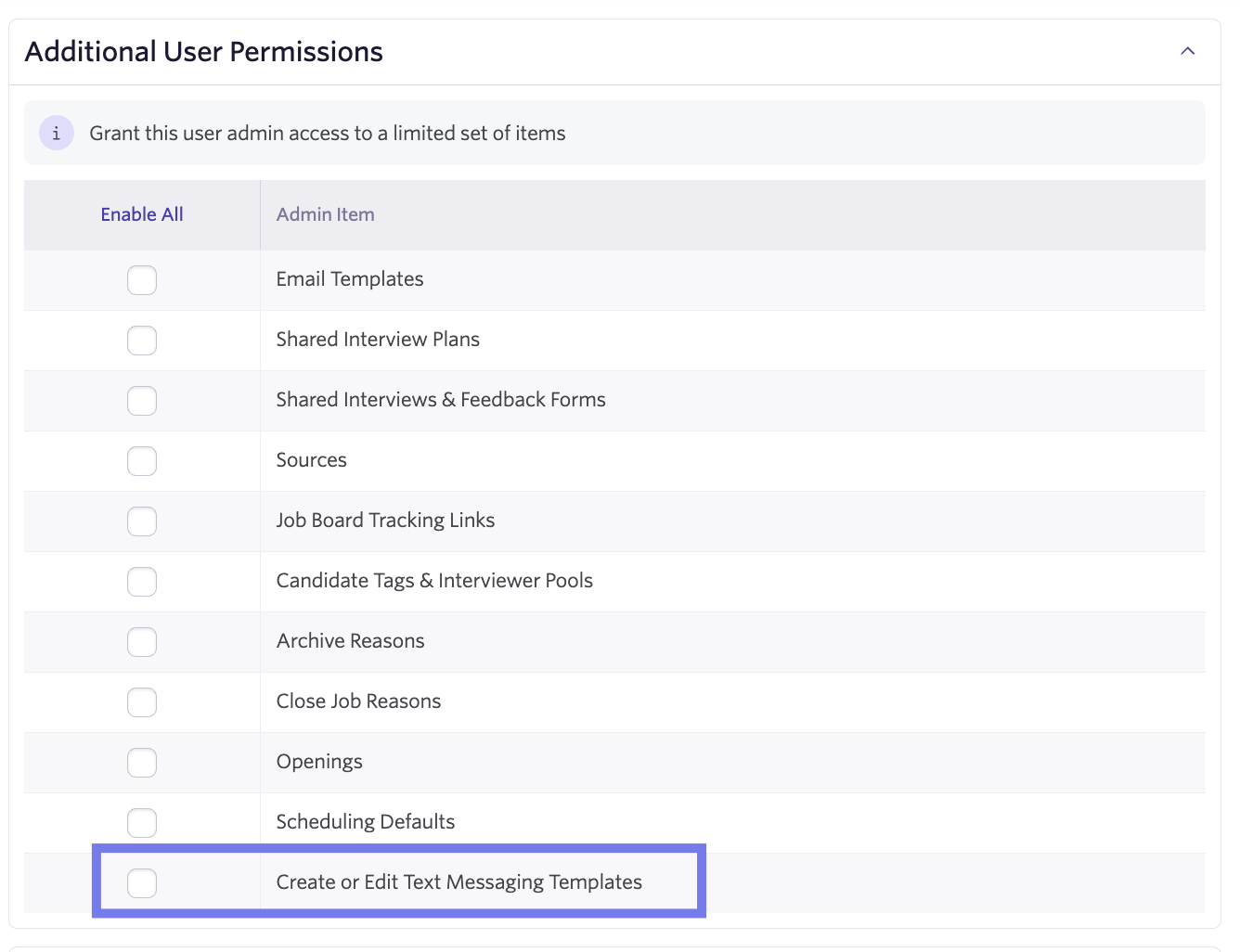
- (Optional) If the user has Elevated Access permissions, scroll to Additional User Permissions and check Create or Edit Text Messaging Templates
Manage notifications
Texting notifications appear on your home page and can be configured to send via email and/or Slack.
There are two types of notifications:
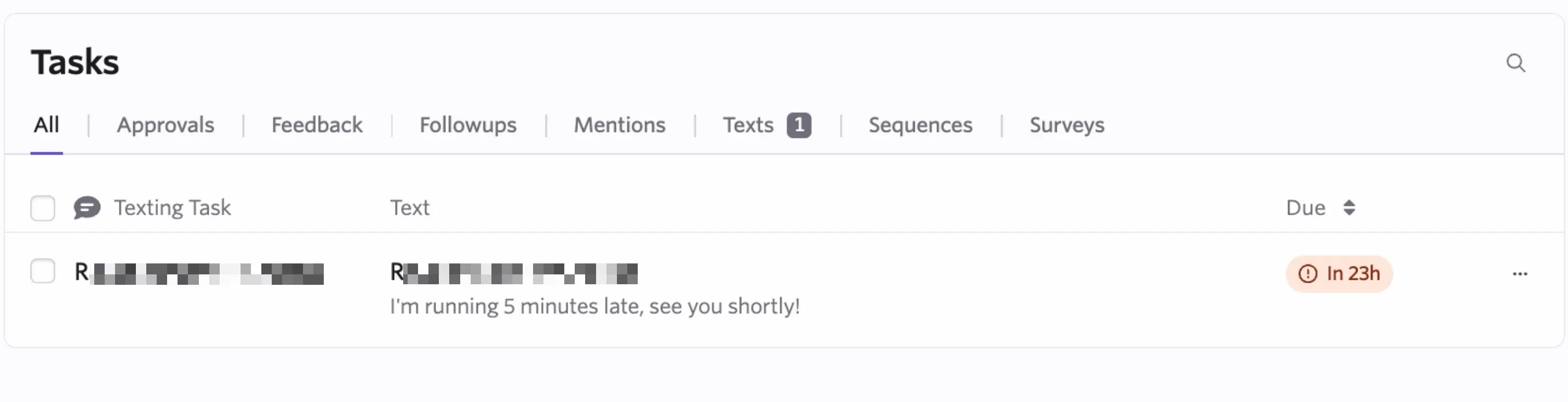
- Home page notifications appear on the Texts tab of the Tasks menu. These tasks can be resolved by replying or clicking the ellipses to resolve.
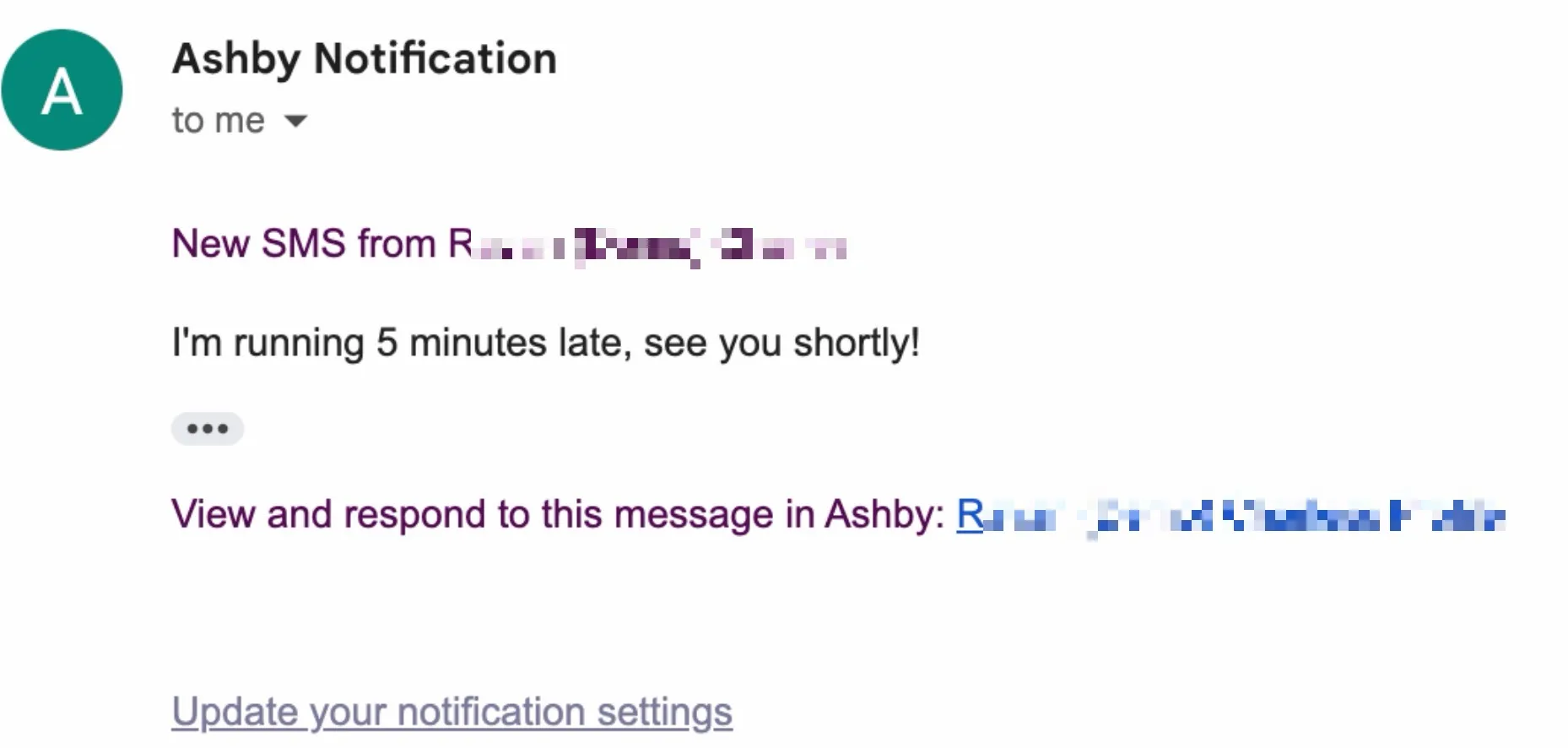
- Subscription-based notifications can be enabled in your personal settings and are sent to any user who texts a candidate, is a hiring team member, or follows a job.
Create candidate texting templates
Templates help to create a consistent candidate experience and keep things moving fast.
Your team can create Organization and Personal Texting Templates.
To set up Organization templates:
- Navigate to Admin > Candidate Texting Templates
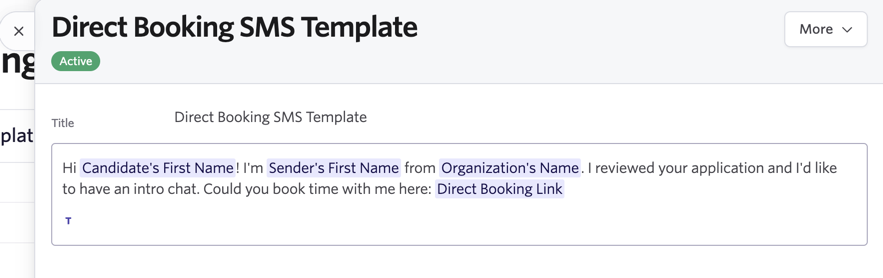
- Click New to create a new template. Add a title and the body of your text message.
- Click the T icon to access substitution tokens to pre-fill candidate, job consideration, job, and sender information.
To set up Personal templates:
- Navigate to Personal Settings > Candidate Texting Templates
- Click New to create a new template. Add a title and the body of your text message.
- Click the T icon to access substitution tokens to pre-fill candidate, job consideration, job, and sender information.
Gather consent from candidates and leads
As a best practice, always gather and log consent before texting a candidate. Ashby supports gathering it via application forms, via text message, and manually logging consent gathered a different way.
Gathering consent via the application form
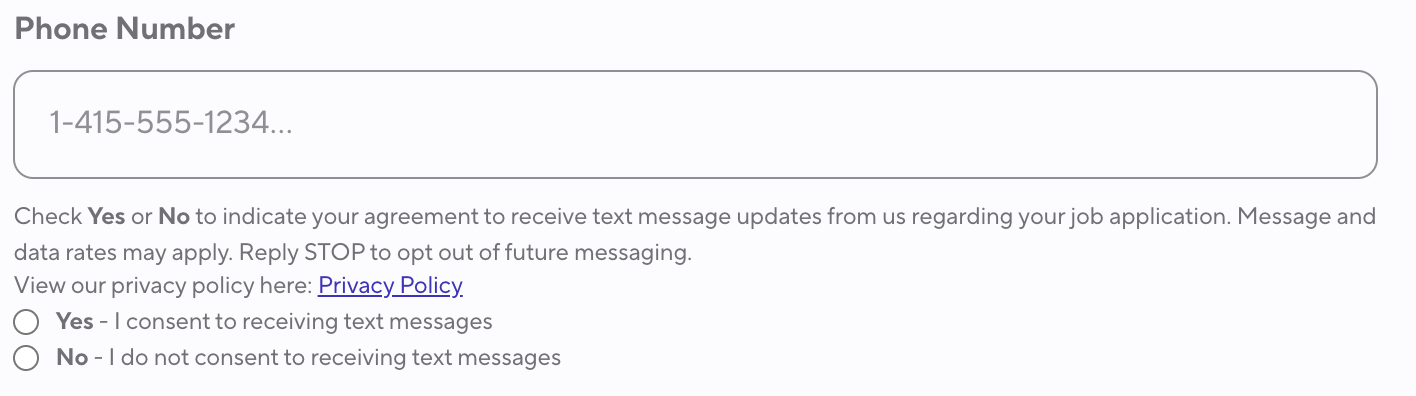
- When texting is enabled, phone number fields include a consent request for candidates.
- They can opt in or out at that point. If they don't respond, the first message Ashby sends is a request for consent via text.
Gathering consent via text message
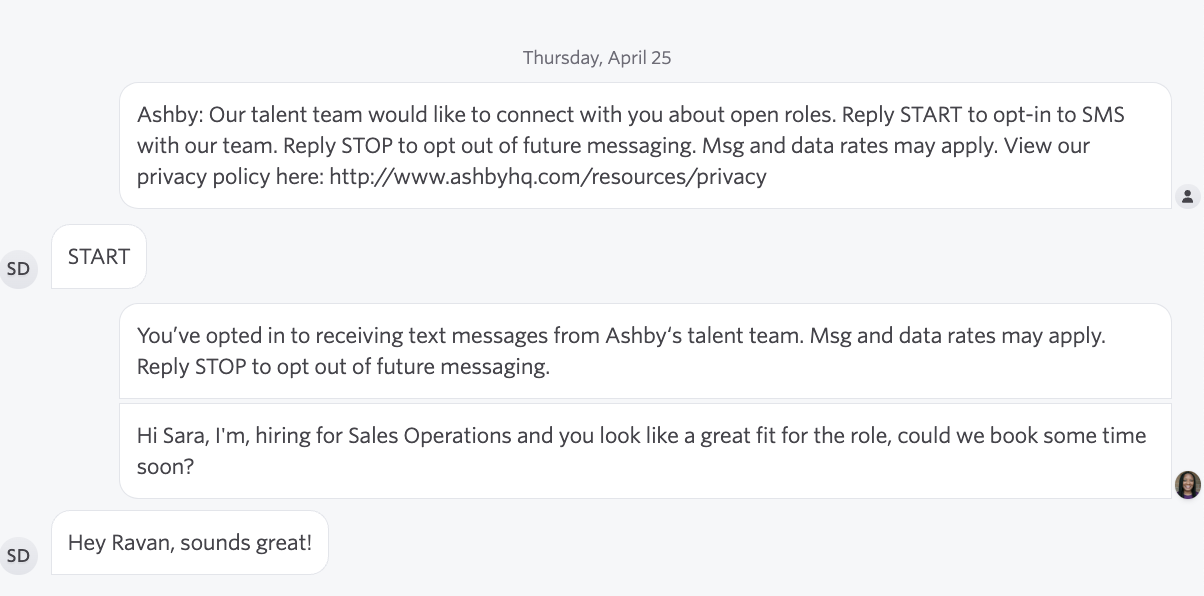
- When a lead or candidate hasn't provided consent and you attempt to text, they first receive a message to opt in to receive further messages.
Editing a person's consent on their candidate profile
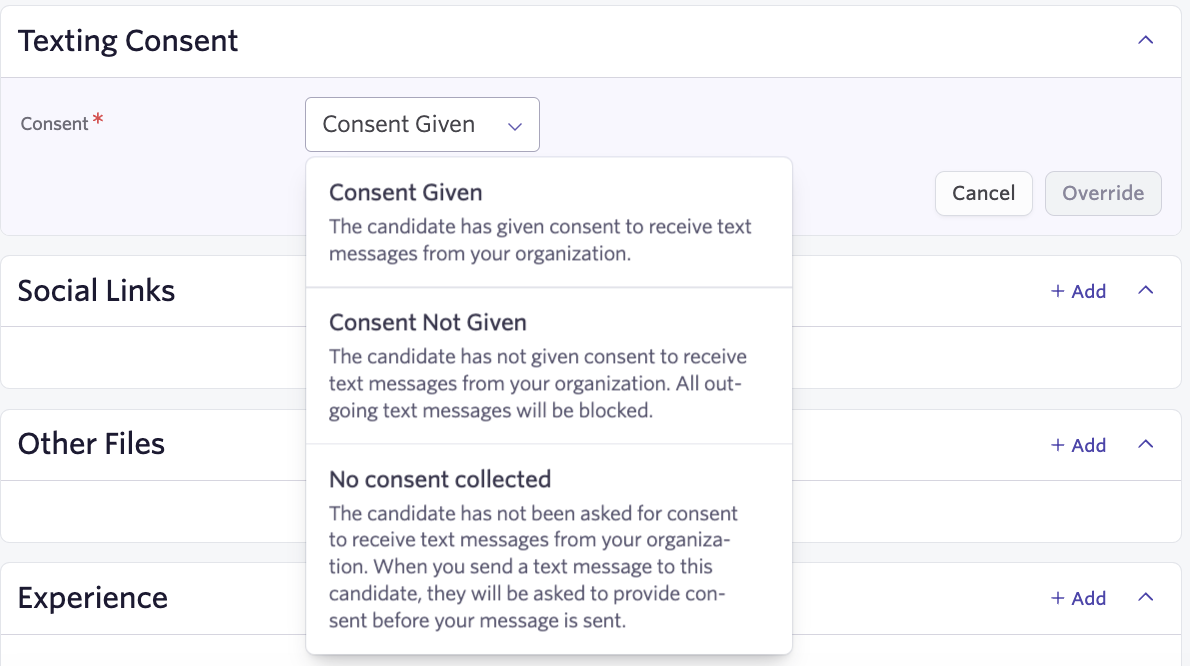
- Consent status can be manually overridden on the Summary tab of the candidate's profile. You can update the candidate's status if you've gathered consent outside of Ashby and want to send a text immediately.
Consent best practices
We've built consent best practices into the texting feature, including automatically preventing texting people who have opted out of communication, gathering consent from inbound candidates, and clearly identifying your company to the candidate.
- Ensure your content is relevant to your hiring use case. A part of A2P 10DLC registration is sharing specifically how you use texting. The default use case is registered and specifically outlines contacting your existing candidates about jobs they've applied to and leads about jobs and related hiring events you'd like to share more information with them about. Stick to these use cases to remain compliant.
- Ensure recipients have provided express consent before texting them about roles. Ashby handles this automatically when consent hasn't been registered for a candidate. If you override the provided consent, ensure you're able to provide more details upon request.
- Honor opt-outs. If a candidate's consent status is Consent Not Given, do not attempt to text them again to get permission.
Send a text to a candidate
We currently support sending one-off messages and setting up automation.
From the candidate's profile
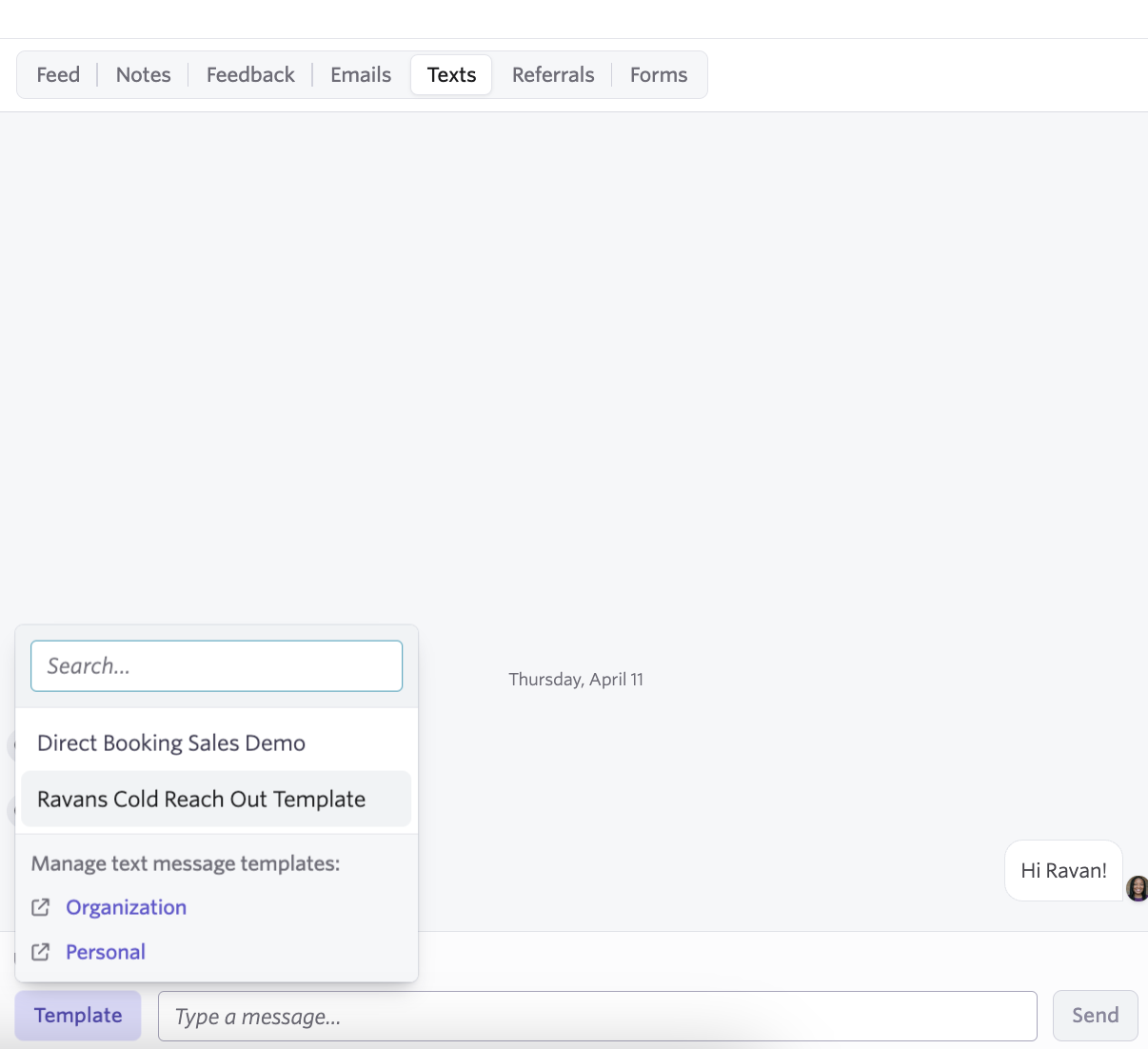
Texts can be sent from the Texts tab within the Feed section of the candidate profile. You can select the number to send messages to, use templates, and/or manually type your message.
Via a scheduling automation
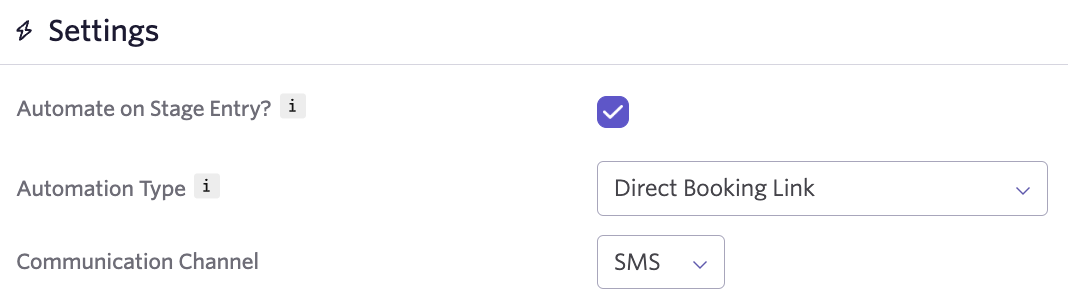
Texts can be sent automatically when a candidate enters a corresponding stage by setting up Automate on Stage Entry? on the Automation tab of a schedule interview activity template.
Set up schedule template automation
Automations help streamline your candidate texting workflows. For more information on automation in general, see Automated ActivitiesAutomated Activities.
We currently support three schedule template automations:
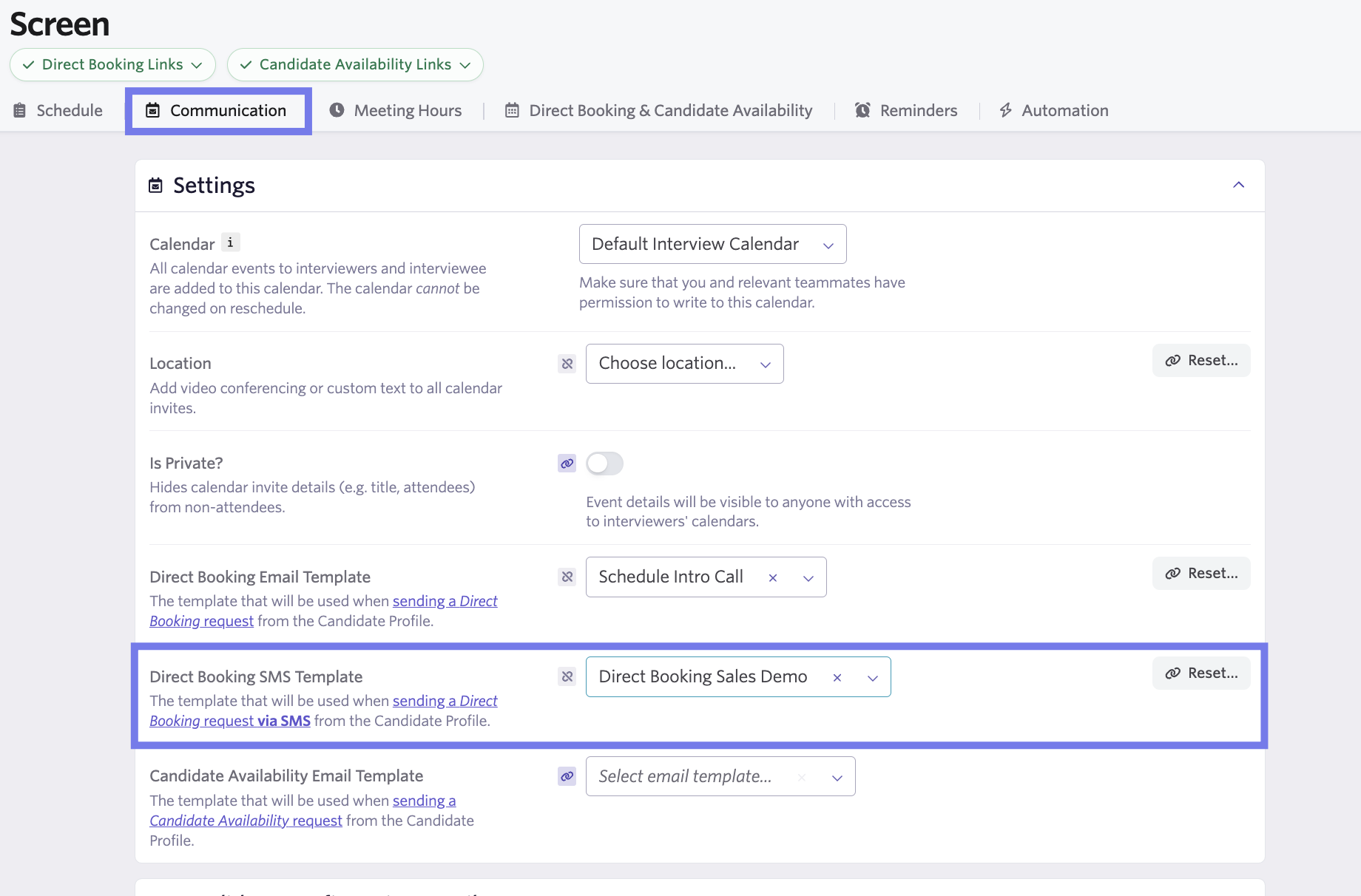
- Linking a direct booking texting template to a schedule template as part of a schedule interview activity, configured on the Communication tab.
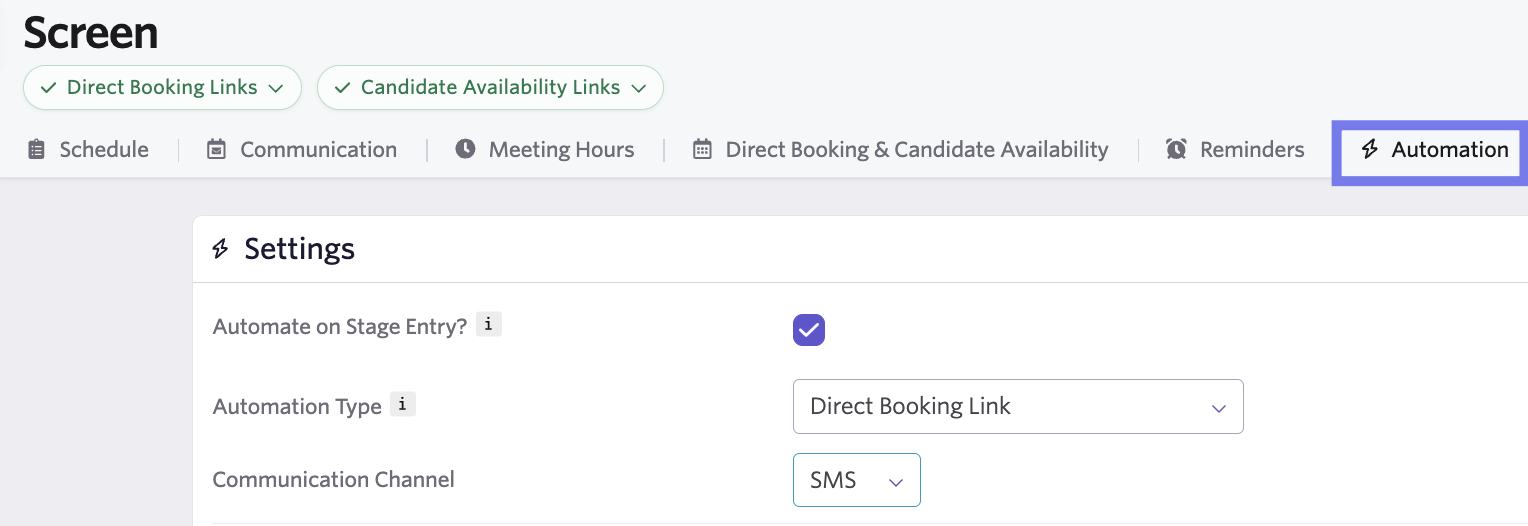
- Sending a text when a candidate enters a stage. This can be configured on the Automation tab of the schedule interview activity.
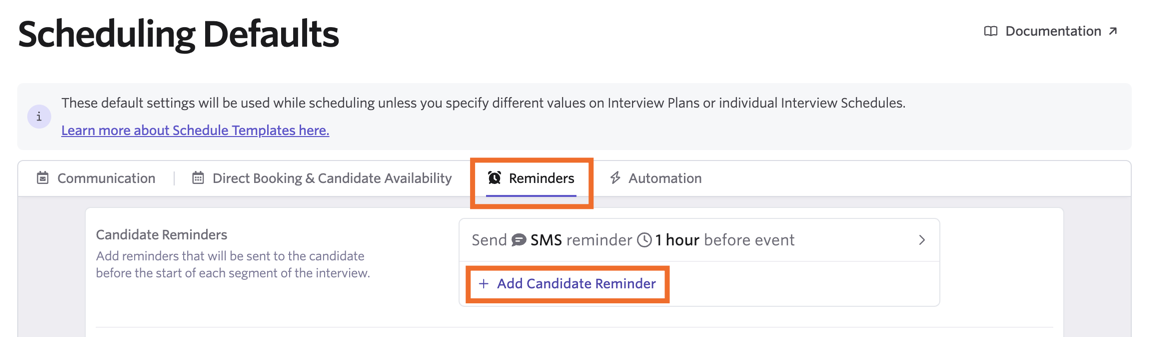
- Sending an interview reminder as a text message. This can be configured on the Reminders tab of the schedule interview activity.
FAQ
Is there an inbox view where I can see all the texts across the team?
Not yet. Reach out to [email protected] to submit a feature request!
What happens if a candidate opts out of receiving texts?
Subsequent attempts to send the candidate texts are automatically blocked. This does not impact email communication.
I've specified a phone number to send out texts but want to change it. How do I do this?
Reach out to [email protected] for help with this.
Can I respond to candidate text messages via Slack?
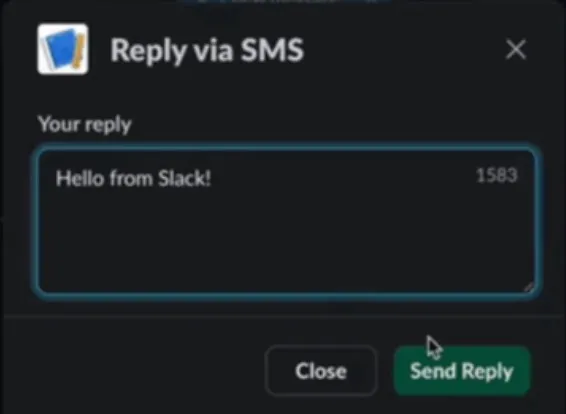
You can! Once you receive a notification about a new SMS in Slack, click Reply on an SMS notification in Slack, type out your response, and then click Send Reply to send a response text to the candidate without logging into Ashby.
For more on configuring the Slack integration, see SlackSlack.
Can candidate texts be scheduled?
No, candidate texts cannot be scheduled.
Included & additional texts FAQ
I'm on a Plus plan. How many included texts do I get as part of my plan?
You get 2000 texts per seat annually on a Plus plan. For example, if your plan includes 100 seats, your team has access to 200,000 texts per year. If you need more, you can purchase additional texts in batches of 1000.
What if I purchase more seats as part of my contract on a seat-based plan?
Purchasing more seats adds the corresponding number of texts on a prorated basis. So, if you purchase one seat six months into a one-year Plus plan contract, you get 2000 x .5 = 1000 additional texts for the remainder of your contract.
Will you warn me if I'm close to using up all of my credits?
We email you when you have used 80%, 95%, or 100% of your credits.
If I don't use all my credits, do they roll over to the next period?
Texts are tied to a contract period. Unused texts don't roll over to the next contract year*.
- Texts are granted yearly for organizations on annual or multi-year agreements.
- Texts are granted monthly for organizations on monthly agreements.
How long do I have to use additional purchased credits?
For monthly plans, you have 30 days from the purchase date to use additional credits. For annual plans, you have until the end of the current year of your subscription term. Additional batches of texts are co-termed based on your contract term. This way you have one contract with Ashby with one renewal date.
How are credits deducted?
A credit is used for each text message sent from your team's Ashby account. Inbound messages are not deducted from your allocation. If a long message is sent and is split into multiple messages to the candidate, each message uses a credit.
What happens if I run out of credits?
We won't bill you more than you've already paid. We pause the ability to send texts and re-enable them at renewal or if additional texts are purchased. You can purchase additional texts as needed. For annual plans, reach out to your Contract Manager. For month-to-month plans, reach out to Support.
For seat-based plans, are texts tied to individuals?
Texts are allocated based on the number of seats for Plus and Enterprise plans and are tied to an organization, not an individual. So, if you have 50 seats on a Plus plan, you can use 50 x 2000 credits = 100,000 credits across any team members.
Does this feature support international messaging?
SMS is currently only available for organizations based in the USA and Canada. Only US and Canada-based candidates can be contacted via the SMS option.