Candidate Texting Onboarding
This guide covers how to get ready to use Candidate Texting. See Candidate Texting for information on how to use the feature. Texting currently requires setup support; please contact your CSM or Support to enable it for your account.
Candidate Texting Onboarding Overview
Before your team can use Candidate Texting, A2P 10DLC registration must be completed. This process can take a few days. Ensure the information you provide is accurate and up-to-date to streamline onboarding.
Onboarding to-do list
Complete these steps to ensure the process is completed successfully.
Work with your legal team to ensure your company’s privacy policy contains compliant language relevant to texting (Ashby can not provide legal advice).
Input your privacy policy URL, terms and conditions URL, and notification email under Admin > Organization Setup > Candidate Texting > General, or click the following link: https://app.ashbyhq.com/admin/organizational-settings/candidate-texting
Submit the registration form in Ashby. See What is the registration process? for more details.
- Typical wait times (subject to change):
- Brand approval: 1-7 days
- Campaign approval: 7+ days
See Twilio's registration FAQ for up-to-date timelines and details.
Use our Candidate Texting Candidate Texting guide to get set up and started with the feature 🎉
What is the registration process?
This process is facilitated through an in-app form in Ashby. You are not required to register through The Campaign Registry directly.
Access the in-app form by navigating to Admin > Organization Setup > Candidate Texting, and selecting the 10DLC Onboarding tab. Make sure you've filled out the details on the General tab first, or you will not be able to proceed.
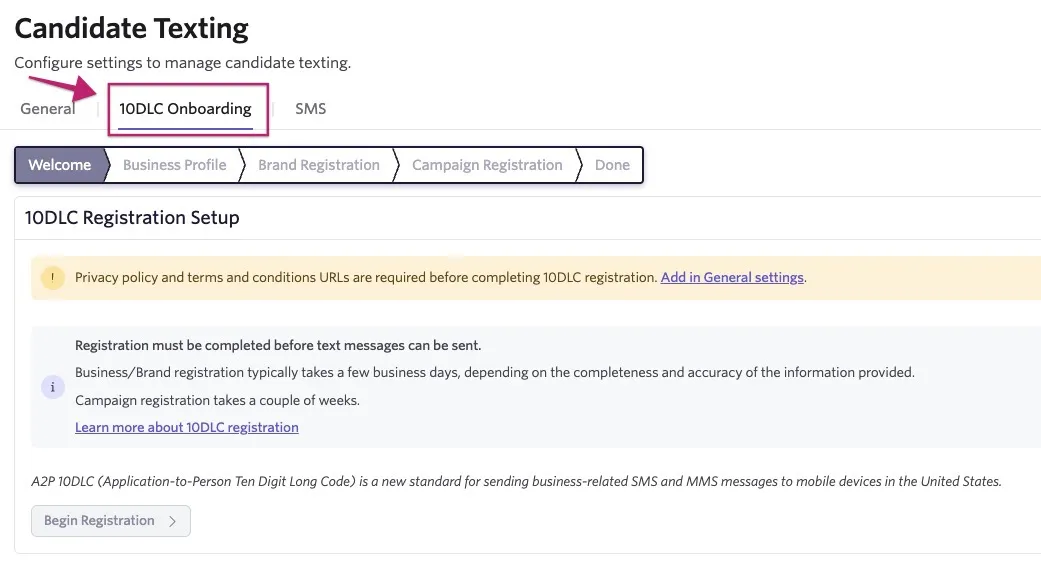
- Brand Registration: First you must register your brand with The Campaign Registry (TCR) and provide details about your company, such as the legal business name, industry, and EIN.
- Campaign Registration: After brand approval, Ashby must register your messaging campaign. This includes specifying the use case (e.g., customer care, marketing), message volume, and sample messages.
- Selecting a Phone Number: Once your campaign is registered, you will select a phone number from the Ashby platform to send your messages.
- Team Access Setup: Finally, you'll configure which team members have access to send messages, ensuring control and compliance.