Visibility Options for Users
Once you have set permissions levels for users, you can further amend what they can access in Ashby.
For more on access roles and permissions in general, check out User Permissions
In Ashby, you can further control what your users have access to by amending visibility settings. Some of these settings are controlled by the access role/roles provided to users, others can be specified on the user's profile and others can be set company-wide.
Candidate Profile Application Visibility is a company-wide setting that controls whether users can see limited summaries of job considerations outside their assigned job access. See more at Controlling Visibility of Additional Job Considerations in the Candidate Profile.
Confidential Jobs
More on setting up confidential jobs at What is a confidential job?
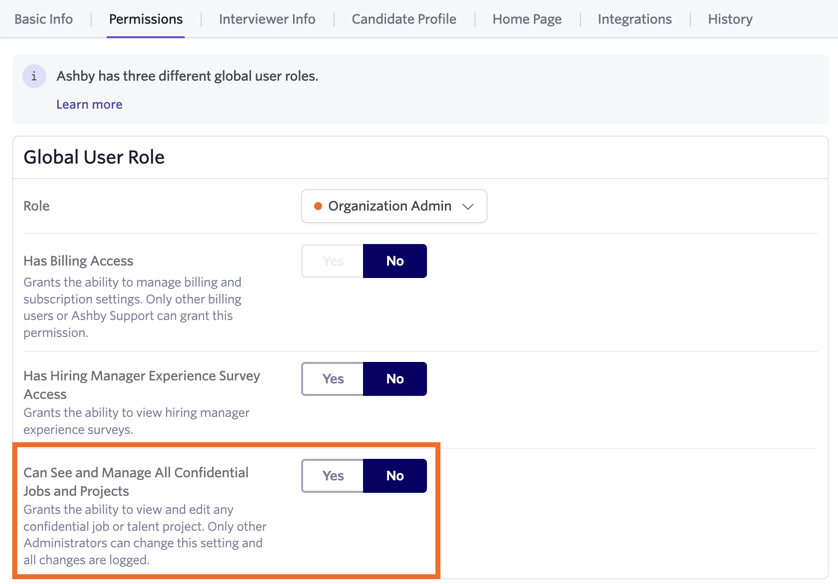
To hide a role from many or all other users, you could opt to make the job confidential. When a job is made confidential, only the creator, users who have been given access to the role and Organization Admins with access to all confidential roles will be able to see it.
You can set a job as confidential or non-confidential, either at the point of creating the job or when editing it. Check the Is Confidential? checkbox in the job wizard to create a confidential job.
To set an existing job as confidential, click More when viewing the job. Then click Make Confidential. Only the job creator (or an Organization Admin with access to all confidential jobs) can set a role as confidential or not confidential after the job has been created.


Feedback visibility
You can edit whether and when users with Limited Access, Elevated Access and Organization Admin access can see interview feedback, along with whether feedback should be shown in interview briefings and completed feedback notification emails in Admin > Interviews & Scheduling > Feedback Visibility. You can set feedback to be visible before they've submitted their own feedback, never be visible or to only show to users after they’ve submitted their own interview feedback.
You can also opt to show feedback from other interviewers on interview briefings. If you opt to toggle off the Show other feedback on interview briefing? option, only the current interview panel or interview schedule feedback will be displayed in the briefing.
Interview Feedback Visibility These settings determine whether a user can see interviewer feedback from interviewers on the same panel or interview schedule.
Other Feedback Visibility This setting determines whether the user can view feedback left outside of their panel. This includes non-interview feedback, like feedback requested via the More > Request Feedback without Scheduling option on the candidates profile.
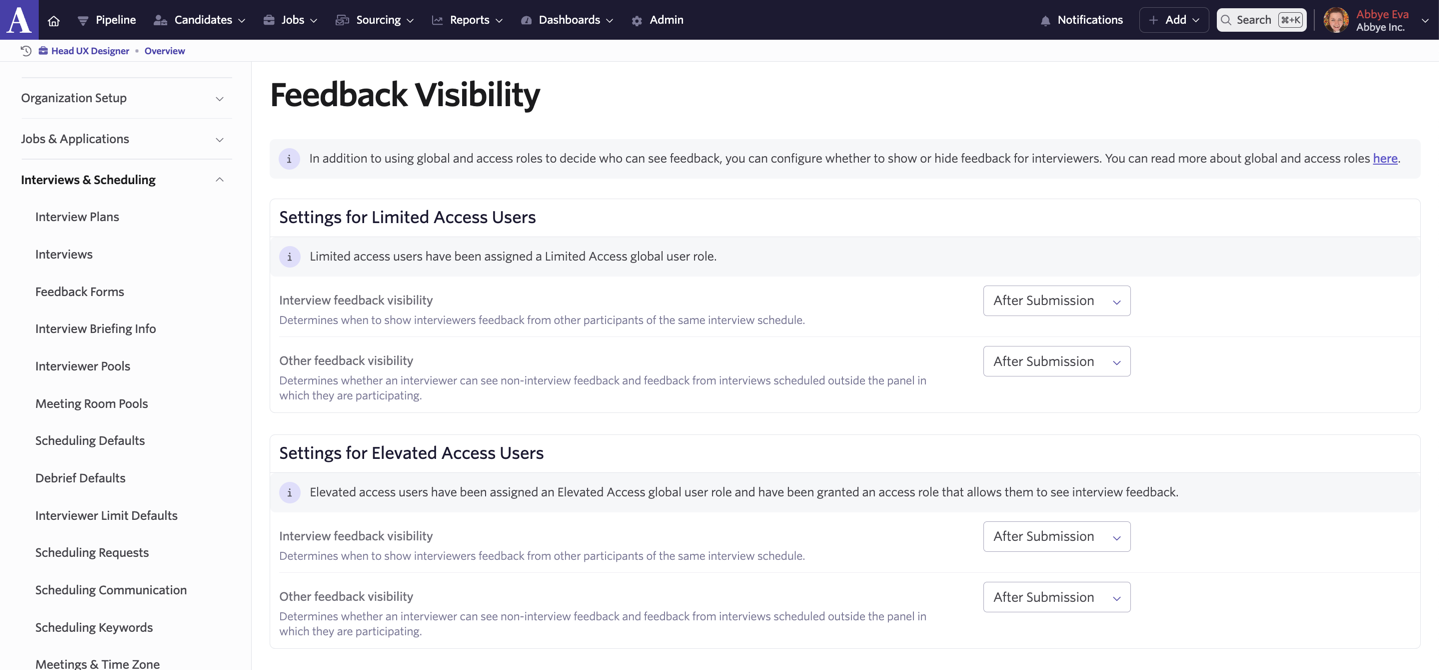
Please note that feedback visibility settings are applied based on a user's access to the job in question. Regardless of the user's overall permissions, if they do not have access to view feedback forms for the role they're interviewing for, then the option you set for the Settings for Limited Access Users dropdown will apply to them. As an example, if you're an Organization Admin but haven't been given an access role that gives you access to view feedback forms for a Frontend Engineer role on top of your global permissions, then you will have the Settings for Limited Access Users option applied to you if you are on the interview panel for that role.
For more on permissions, check out User Permissions. Want to set up a new access role? Check out Manage Access Roles.
Below you can find a table listing when each setting would be applied for different global permission/access role combinations:
Scenario | Feedback Visibility Settings Applied |
|---|---|
Organisation Admin AND has an Access Role with “Can See Feedback Forms” enabled that applies to the job | Organization Admin feedback visibility settings |
Organisation Admin AND has an Access Role without “Can See Feedback Forms” enabled that applies to the job | Limited Access feedback visibility settings |
Organization Admin AND has no access role that applies to the job in question | Limited Access feedback visibility settings |
Elevated Access AND has Access Role with “Can See Feedback Forms” enabled that applies to the job | Elevated Access feedback visibility settings |
Elevated Access AND has an Access Role without “Can See Feedback Forms” enabled that applies to the job | Limited Access feedback visibility settings |
Elevated Access AND has no access role that applies to the job in question | Limited Access feedback visibility settings |
Limited Access | Limited Access feedback visibility settings |
If interviewers aren’t required to give feedback (set as part of the interview setup), then the feedback visibility settings will not apply.
Interview Briefing
You can set feedback from other interviews and non-interview feedback to show in an interview briefing. To switch this on, toggle on Show other feedback on interview briefing in the Interview Briefing section.

Email Notifications
If you’d also like to show all feedback in notification emails when a candidate’s feedback is submitted, you can toggle on the Show full feedback in notification emails? option in the Email Notifications section. This setting will apply to all users in the organization but the content each user will see will depend on their assigned visibility permissions.

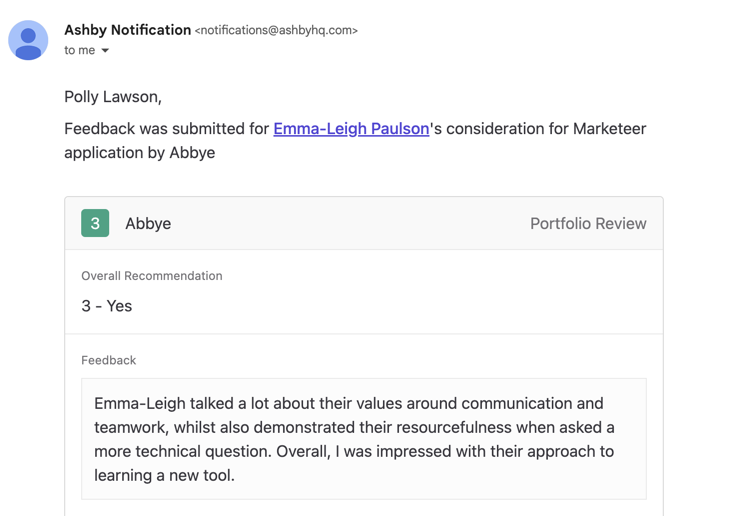
Limiting a team member’s access to their own candidate profile
Auto-linking candidate and employee profiles
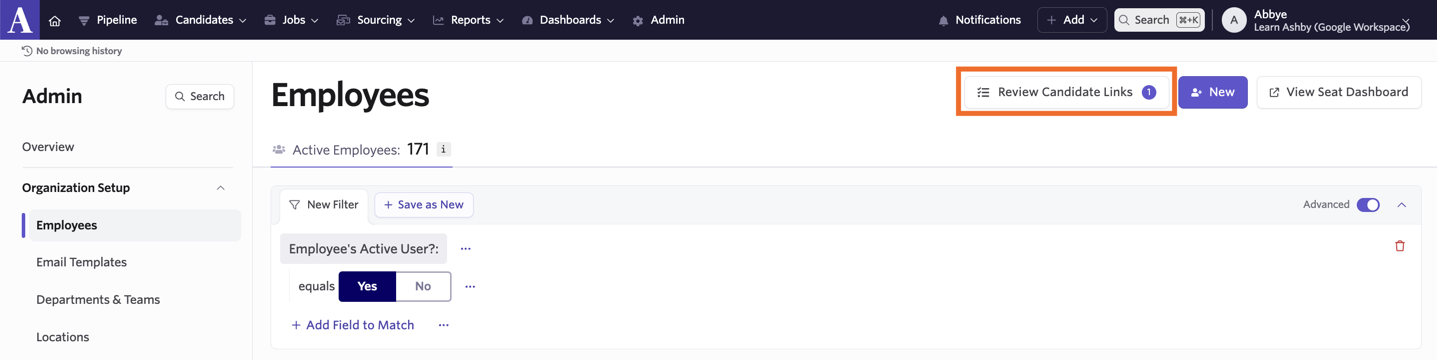
If an employee is added in Ashby and a candidate with the same name was hired within the last 100 days, then the candidate profile will be auto-linked to the employee profile. This means that they will not be able to view their own profile and feedback.
You can view profiles that have been auto-linked by clicking the Review Candidate Links button on the Employees page within Admin. Please note that this button will only be visible if you have auto-linked profiles to review.
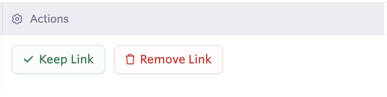
On the following page you will be able to see a list of all recently auto-linked profiles awaiting confirmation. Within the Actions section, you can click Keep Link to confirm the candidate and employee have been linked correctly, or Remove Link to remove the candidate profile link from the employee profile.
Manually linking candidate and employee profiles
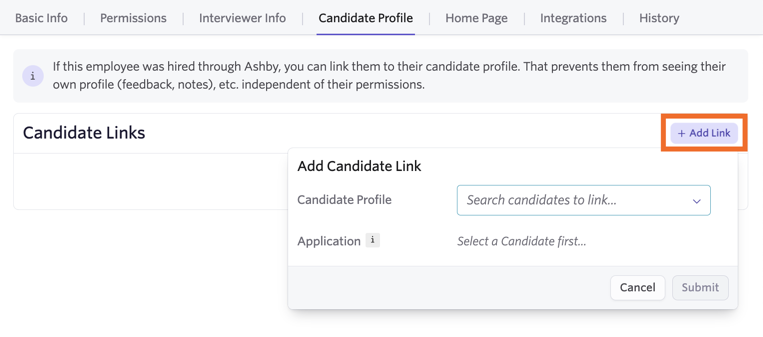
If an employee was hired through Ashby, you can link their employee profile to their candidate profile in Ashby manually too. This prevents them from seeing their own profile (feedback, notes, etc.) independent of their permissions.
To manually link an employee profile to a candidate profile:
- Head to Admin > Organization Setup > Employees
- Click on the user profile in question and click Candidate Profile
- Click + Add Link, then select the candidate profile using the Search candidates to link… field. You will also have the option to select a specific application.
- Click Submit to confirm and link the employee profile to the candidate profile
Private Notes and Emails
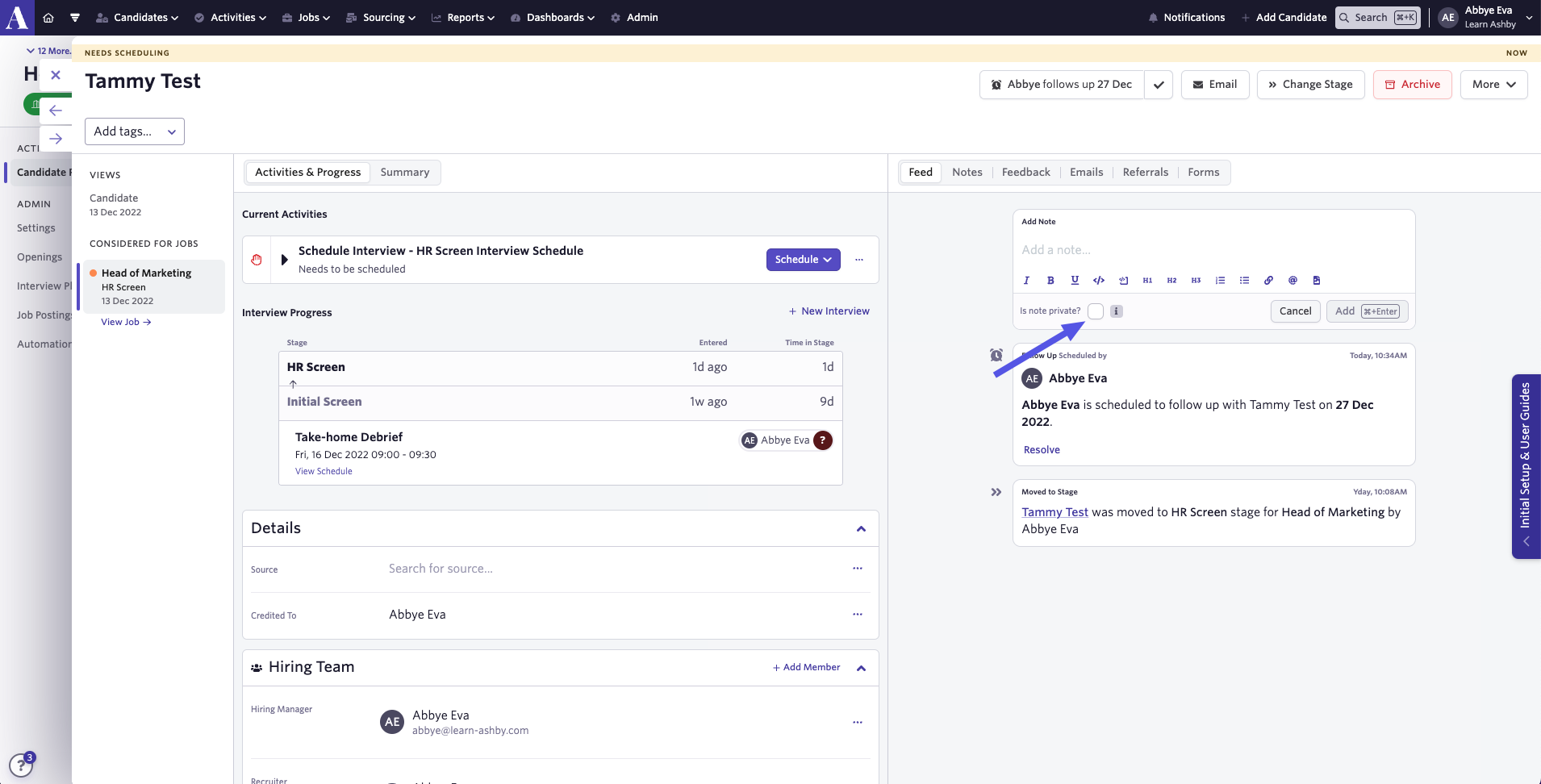
You can make notes and emails private by checking the is note private? checkbox underneath the note or email in question. When a note or email is marked private the responses will automatically be set to private as well. Only users with Organization Admin and Elevated Access - Admin Private can see private notes within the candidate's feed.
Private Custom Fields
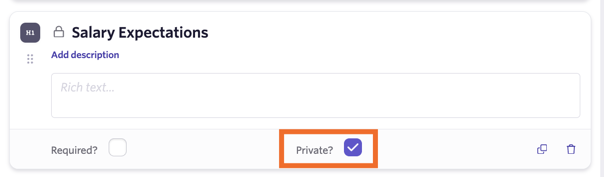
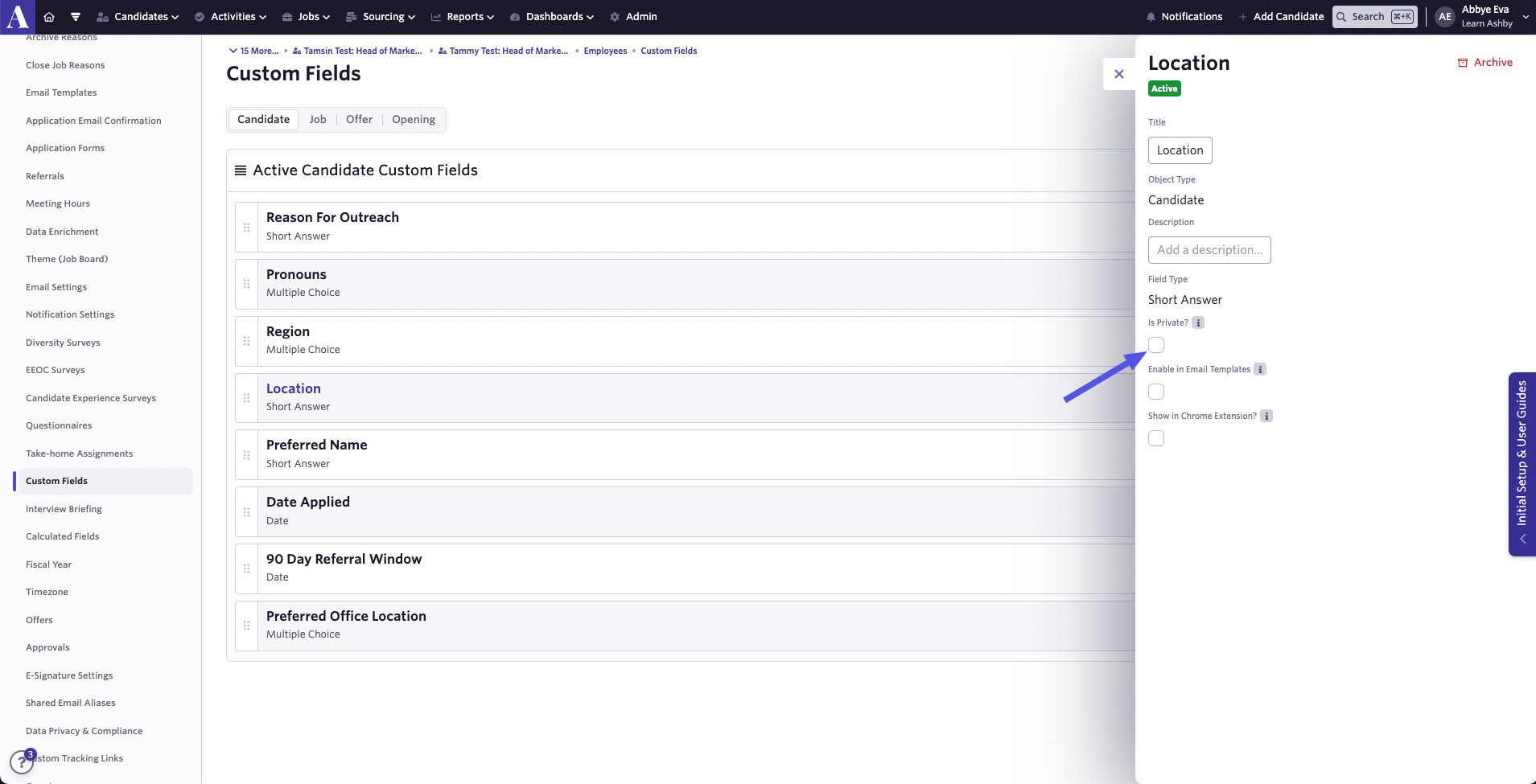
Ashby supports job, candidate, and offer custom fields. You can set job and candidate custom fields as private by checking the Is Private? checkbox when creating or editing a custom field. Private custom fields can only be viewed by Organization Admins and users with Elevated Access - Admin Private permissions.
Email Visibility
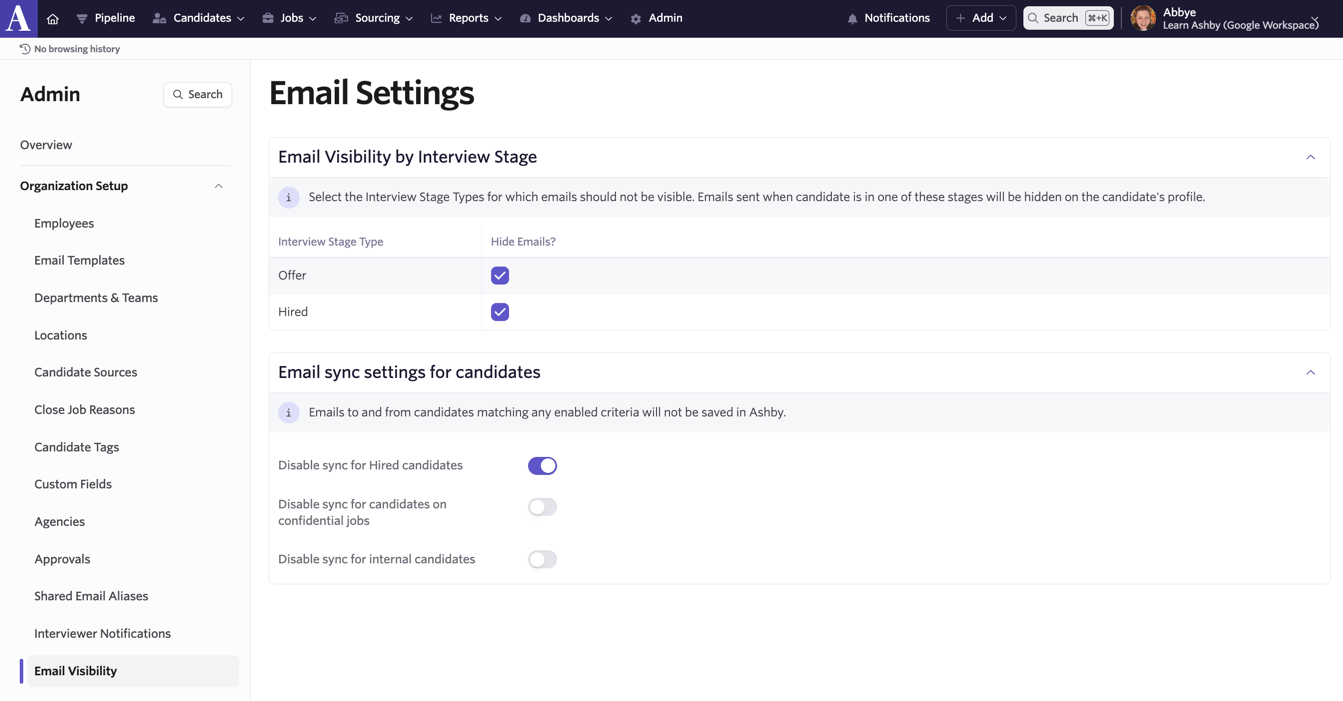
To amend your email visibility settings, head to Admin > Organization Setup > Email Visibility.
In the Email Visibility by Interview Stage section, you can check the Hide Emails checkboxes for the Offer and Hired stages. When enabled, emails sent when a candidate is in one of these stages will be hidden on the candidate's profile for all users. This includes Organization Admins.
You can also toggle on the options to disable the sync for hired candidates, internal candidates and for candidates on confidential jobs. When enabled, candidates in the Hired stage and/or internal candidates and/or those considered for confidential jobs will not have their emails saved in Ashby.
Please note that any emails sent to the candidate via Ashby will show in the candidate’s feed on their profile even if the sync is disabled for the candidate. The candidate’s response to the email sent via Ashby will not be synced back to the candidate feed within their profile.