Schedule and Review AI Interviews
AI Interviewer conducts asynchronous screening interviews and returns a structured review for your hiring team. This article explains how invitations are sent, where to find completed interviews, and how to review the conversation before making a candidate decision.
Prerequisites
Before launching interviews, confirm that the AI Interviewer is live, assigned to the correct interview plan stage, and configured with an invitation template, reviewer, and feedback form where applicable. AI Interviewer results support a human decision. They do not automatically accept or reject candidates.
See AI Interviewer Global Setup and Creating a New AI Interviewer if you are looking to configure settings or create a new interviewer.
Permissions and access
Users need access to the candidate and job, plus the permissions required to review candidates and submit feedback. Users who manage AI Interviewer configuration need the AI Interviewers admin permission.
Send an AI interview invitation
Invites to AI interviews can be sent via automation when a candidate enters the stage, as well as manually, just like schedule interview activities. Unlike schedule interview activities, there is no need to pick dates or times on a calendar, as the candidate can complete the interview whenever works best for them.
To invite a candidate, follow the below steps:
- Open the candidate's profile, or navigate to their profile in the Application Review flow.
- Move the candidate into the interview plan stage that contains the AI Interviewer activity.
- The AI Interviewer activity appears on the candidate's profile under the Activities & Progress feed.
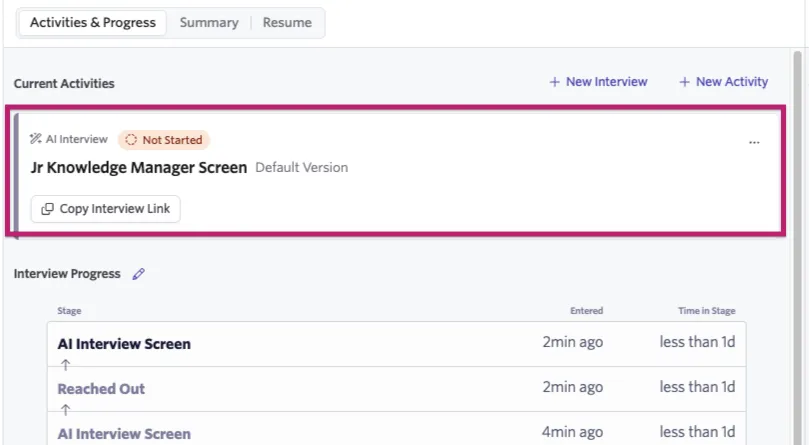
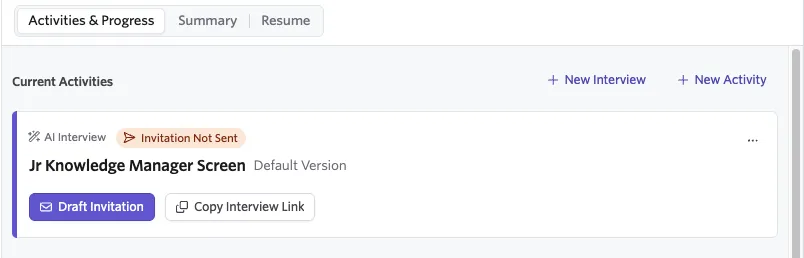
- If automation is off, the activity will show a Draft invitation button and the activity will have a clear indicator that the invitation has not been sent. Click Draft Invitation to draft and Send to send the invitation.
- If automation is on (or after you click Send to send manually) the invite is sent and can be reviewed in the Feed on the right side. The invitation includes the candidate's unique interview link when the template contains the AI Interviewer Link token. If the template includes the AI Interviewer Decline Link token, the candidate can decline the interview and provide a reason.
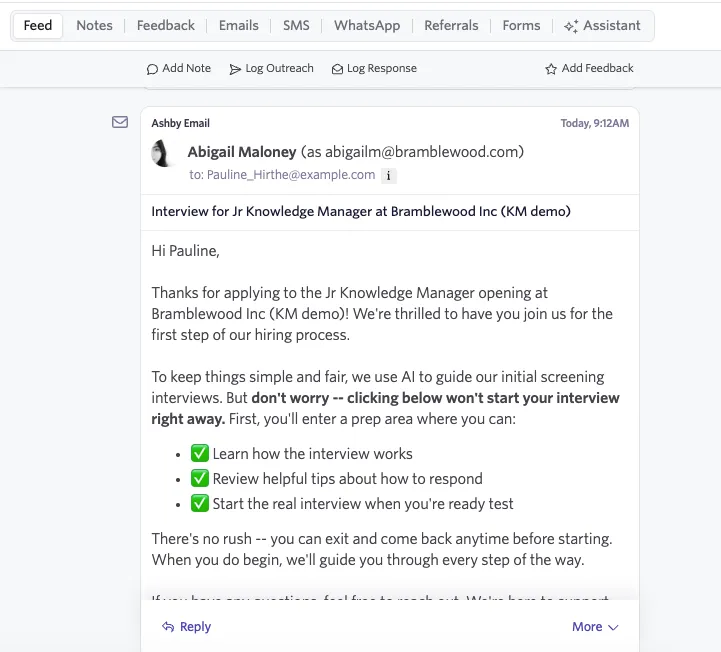
Ashby provides default invite and reminder templates that may be customized by your organization. For more info, see AI Interviewer Email and SMS Templates and Substitution Tokens .
Check invitation status
Use the candidate's activity feed to confirm that:
- The AI Interviewer activity is assigned to the candidate.
- The invitation was sent.
- The candidate viewed or started the interview.
- The candidate completed, abandoned, or declined the interview.
If an invitation does not send, confirm that the candidate is in the correct stage, the interviewer is live rather than paused, the organization has available AI Interviewer credits, and the invitation template and sender are valid.
Candidates who have not started can receive automatic reminders based on the activity settings. To review these settings, look at Candidate Reminders in the AI Interviewer activity's Overview tab within the job's interview plan.
Declined interviews
If a candidate declines an interview, that indicator will appear both on the interview activity in their profile as well as in the feed. The feed entry shows the reason for the decline.
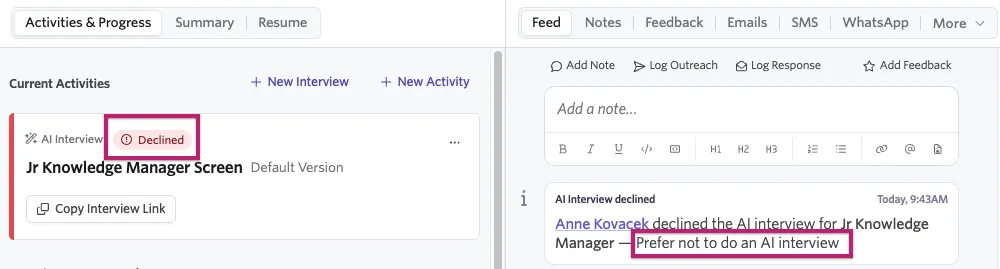
If the candidate changes their mind, you can select the three dots on the activity to undo the decline, allowing them to take it via their existing interview link.
For more on the candidate experience, see Candidate Experience with AI Interviewer.
Review completed interviews
When a candidate completes an interview, the results appear in the candidate's activity feed and in the AI Interview review workflow.
Viewing results from the candidate profile
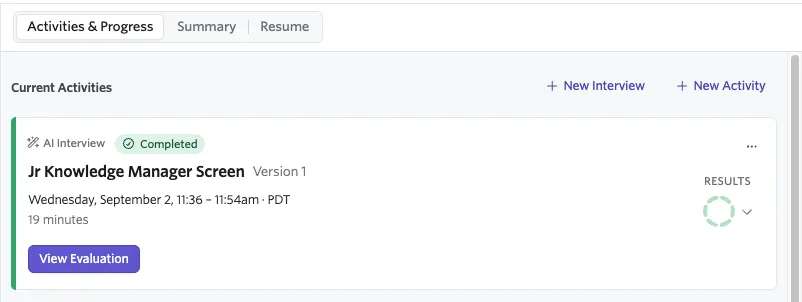
The interview activity should be updated to show that the interview is completed with a button to view the evaluation and a results preview wheel indicating how the candidate did. Click View Evaluation and a window will pop up displaying the results. Anyone with access to the candidate's full profile and job will be able to review these results.
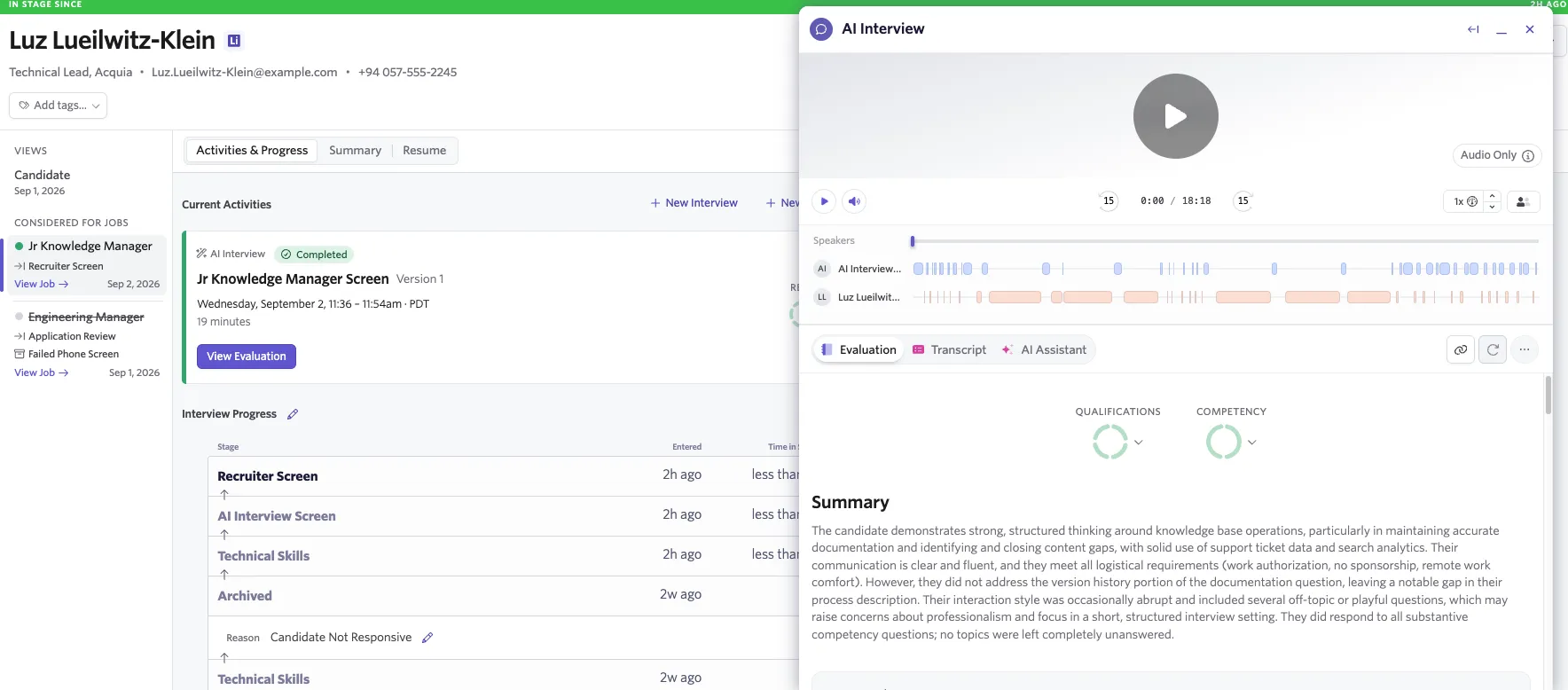
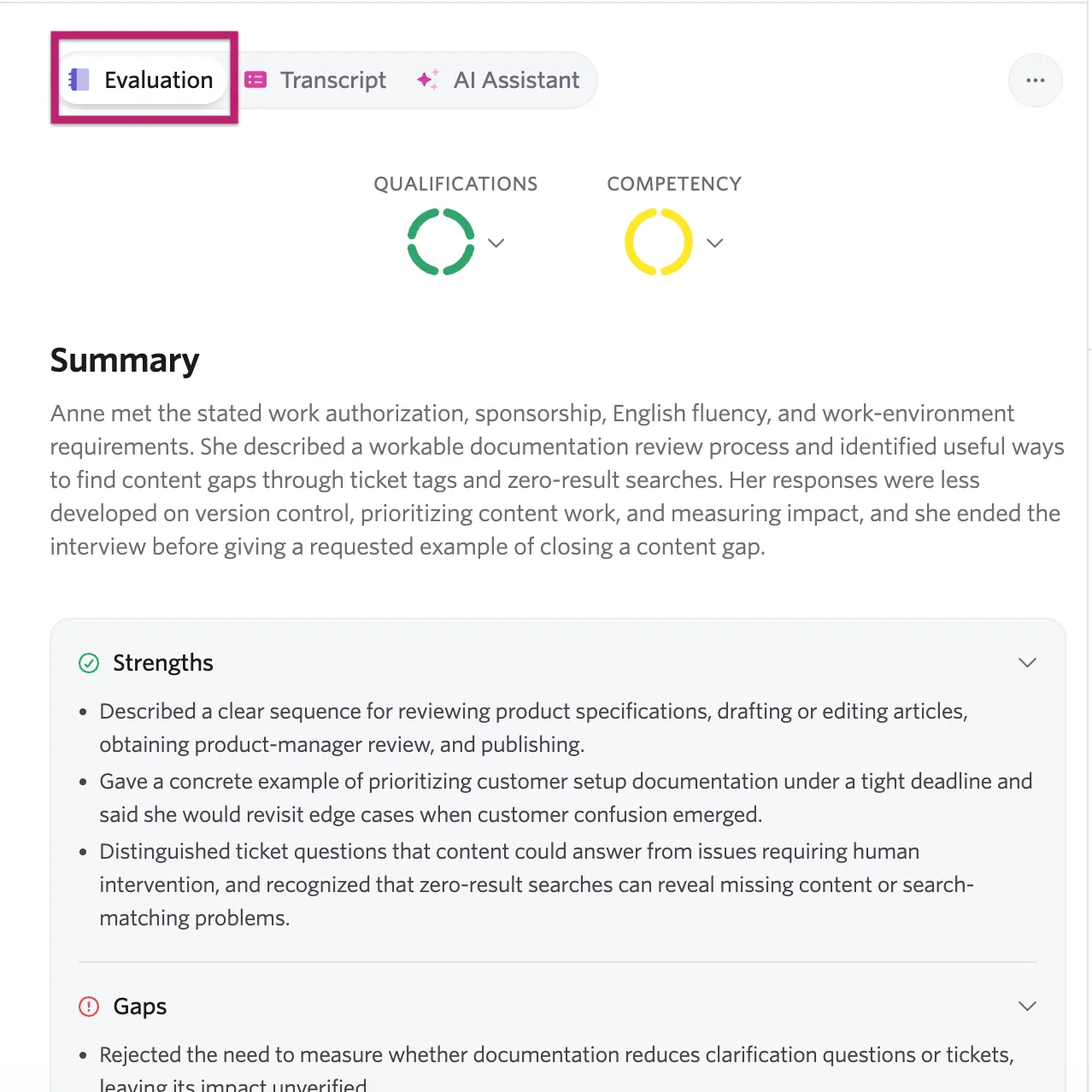
You can toggle between the Evaluation, the Transcript, and the AI Assistant, as well as select specific parts of the interview to watch or listen to directly.
Viewing as an assigned reviewer
If you are an assigned reviewer for the AI Interviewer, you can access the from your homepage, which provides a summary of pending AI Interviews to review and the ability to review multiple interviews consecutively.
- Navigate to your home page and locate the AI Interview Review block.
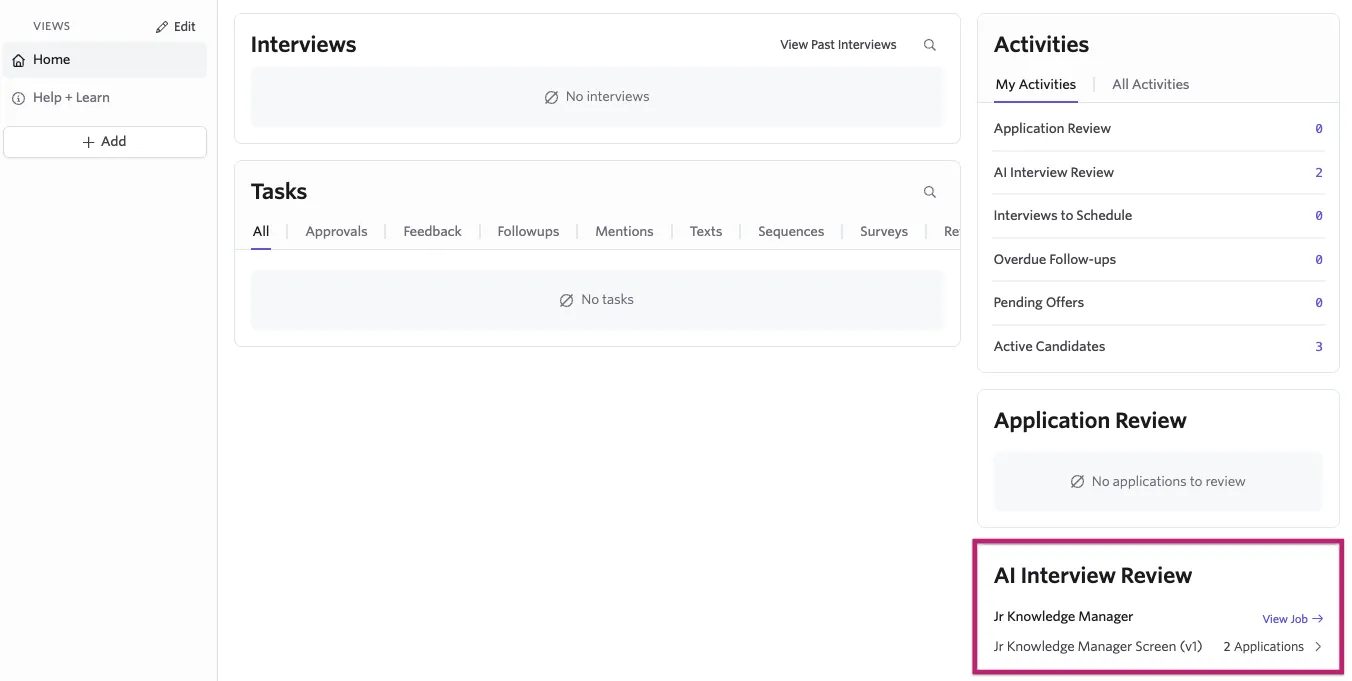
- Select where it says# Applications. In the screenshot above, you'd click where it says 2 Applications. Clicking View job will take you to the job's pipeline.
- You are taken to the AI Interview Results page where you can see interview completion details and a summary of the results.
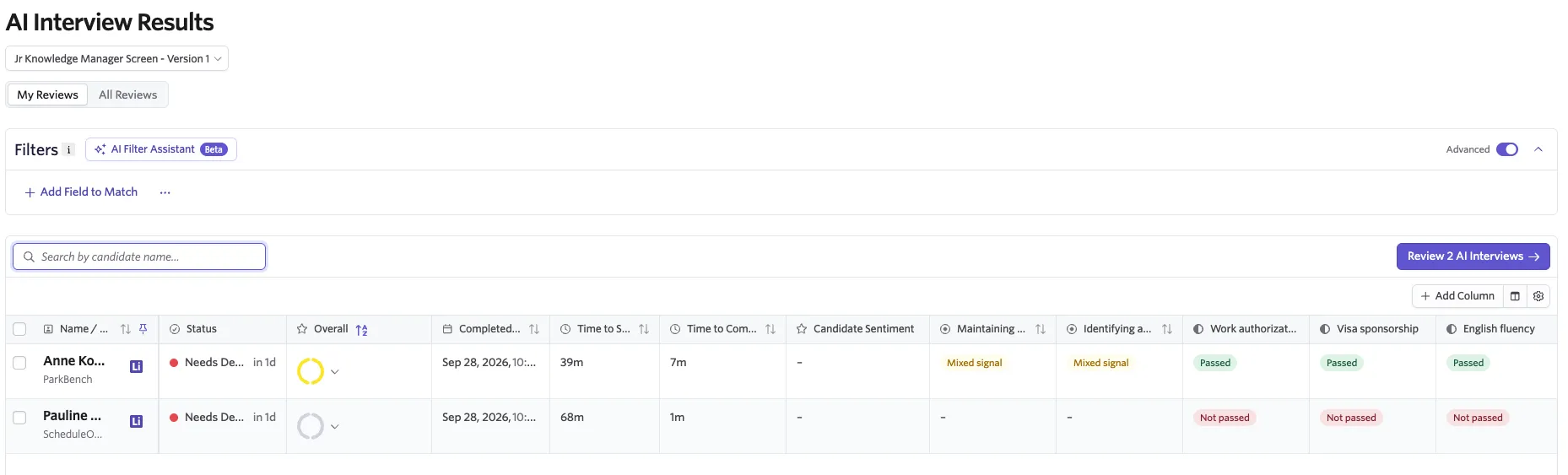
- Select Review AI Interviews on the right to start reviewing the interviews in the list.
- This opens a display with the results on the left and buttons to advance, reject, score, or add notes about the interview on the right (similar to the Application Review flow).
- On the AI Interview tab, carefully review the results for each criteria, open-ended, and competency topic.
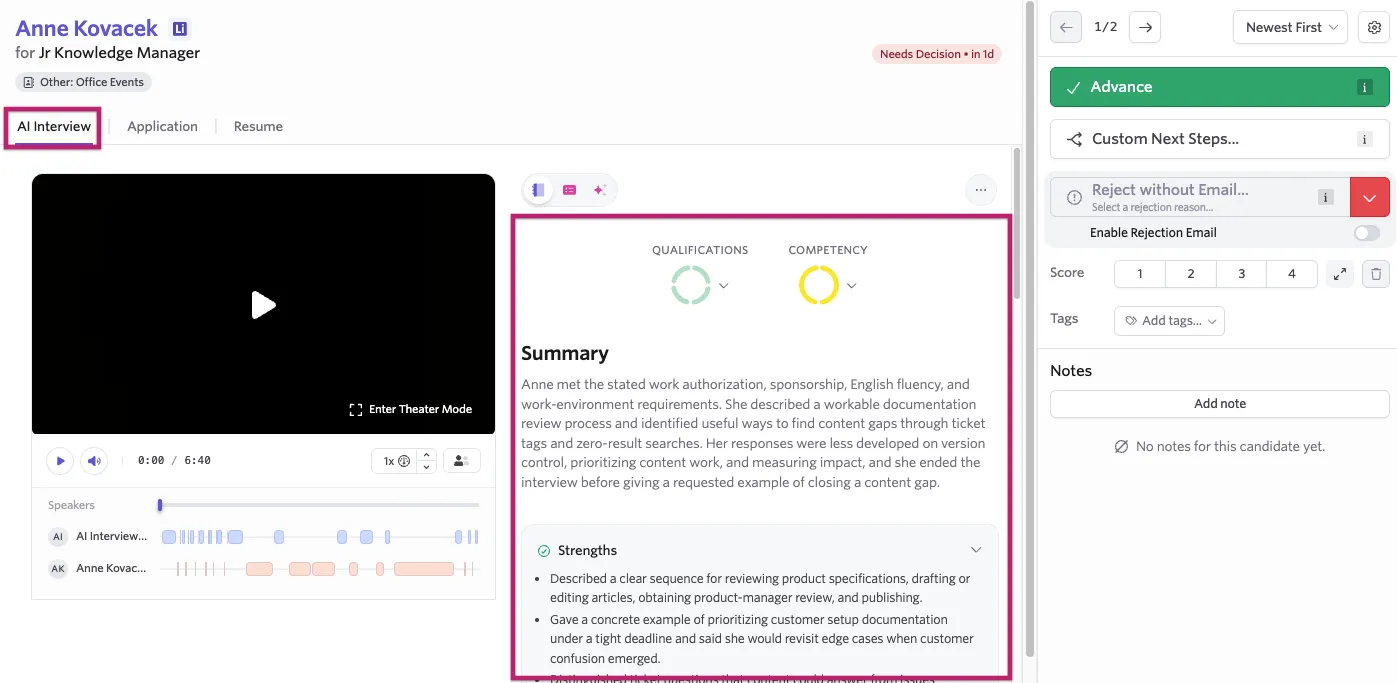
See Understanding the results below for more information on interpreting the results pages.
- Use the navigation icons above the summary to open the transcript or select an excerpt to review the supporting conversation.
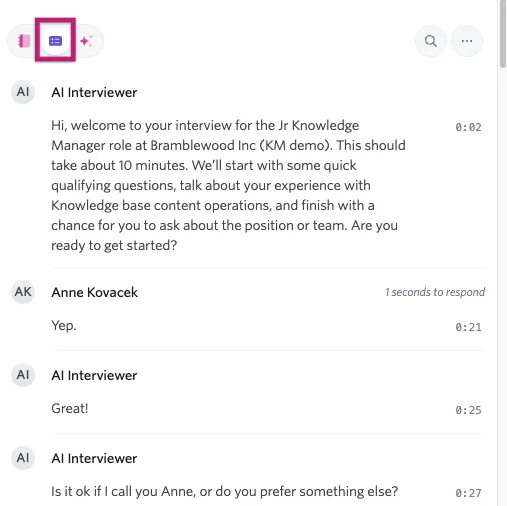
- Listen to the audio recording or watch the video when video recording is enabled.
- Complete the assigned feedback form, if one is attached to the activity.
- Make the appropriate candidate decision in Ashby.
Understanding the results
AI Interviewer is meant to support a human hiring decision, so reviewing the results critically, and understanding what they mean, is essential to making an effective hiring decision. This section covers in detail where and how results are displayed and what different indicators mean.
Evaluation tab
The Evaluation tab is the primary results view. It shows an overall summary at the top, followed by a section-by-section breakdown. Each element of the evaluation tab is described in the table below.
Element | What it shows |
|---|---|
Signal wheels | Illustrates signals derived from all qualification and competency topic evaluations, giving you a quick read on the candidate’s overall performance. |
Summary | An AI-generated narrative summarizing the candidate’s performance, including strengths and areas of concern. |
Per-topic evaluations | Competency topics show a signal with a rubric band. Criteria topics show pass/fail. Open-ended topics show a summary with excerpts. |
Candidate feedback | Candidates are asked about their experience when the interview ends. If they provide a response, it will appear in the Candidate feedback section. |
Candidate questions & Unanswered questions | This section lists questions the candidate asked along with ones the AI interviewer couldn't fully address. Use this section to update the Context field of your AI Interviewer to ensure it can answer candidate questions effecitvely. |
Signal wheel
The Signal wheel is a donut chart that visualizes how a candidate was evaluated across all competency or qualification topics at a glance:
Signal Band | Meaning |
|---|---|
Strong Signal | Candidate clearly exceeds expectations. |
Positive Signal | Meets expectations with solid evidence. |
Mixed | Some evidence but inconsistent. |
Concern | Limited evidence; raises questions. |
Strong Concern | Did not demonstrate this competency. |
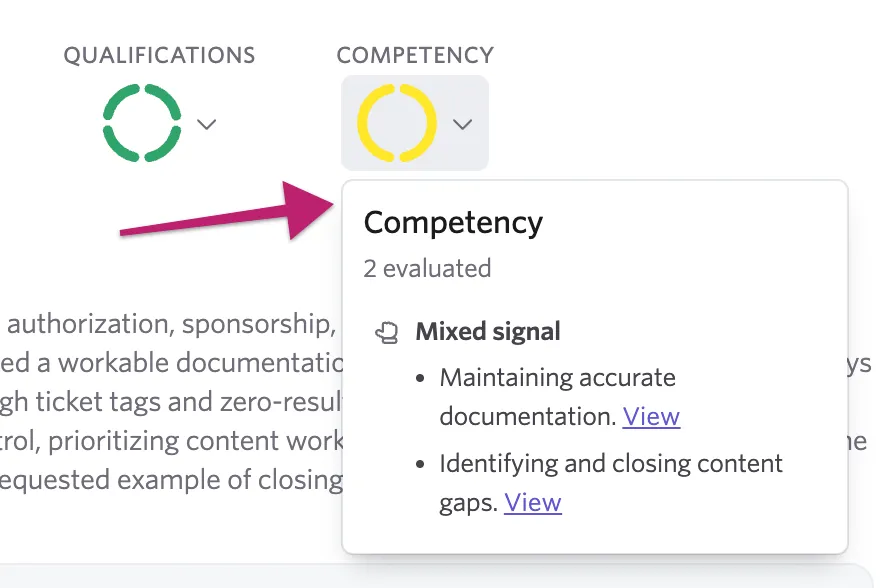
Click on the wheel to see a popover with the breakdown of results and links to review each answer.
Integrity signals
Ashby automatically monitors for signs that a candidate may not be completing the interview authentically:
Signal | What it detects |
|---|---|
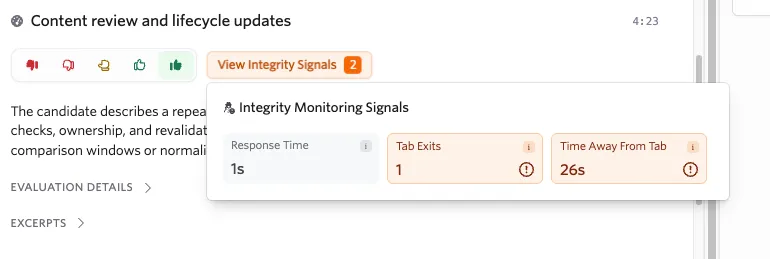
Tab exits | How many times the candidate switched away from the interview tab, and for how long. |
Response time warnings | Unusually long delays before responding (over 60 seconds). |
Fraud signals | Specific patterns flagged as potentially suspicious. A “View Fraud Report” button provides full details. |
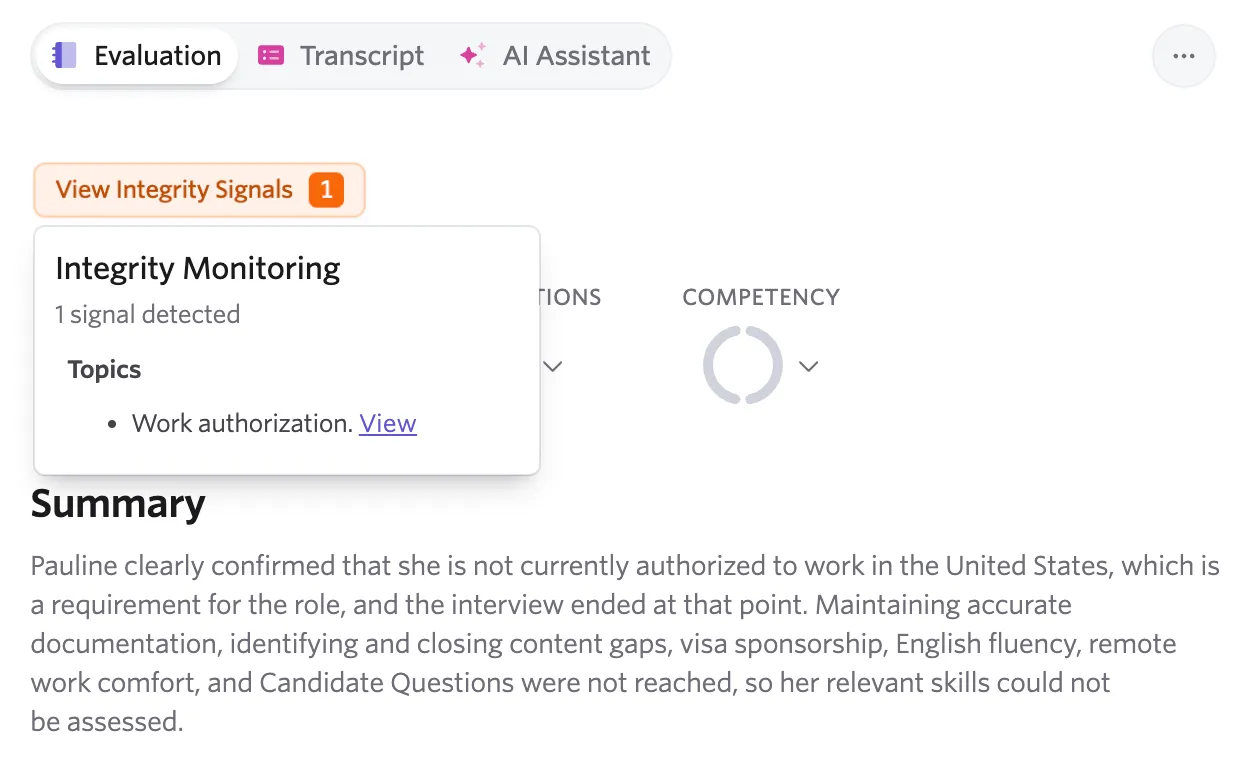
If integrity signals are found, and indicator is displayed at the top of the Evaluation tab. Click on the indicator to view the signals.
Integrity signals are also displayed on the topic where they occurred. You can click View Integrity Signals to view exactly what occurred.
Integrity signals are informational — they surface patterns for your review but do not automatically disqualify candidates. Use your judgment in context.
Per-topic evaluations
Each topic in the interview outline receives an evaluation that indicates how the candidate did when responding to that particular topic. Specific notes justifying the evaluation are included, and the transcript and recording (if available) can be reviewed to verify.
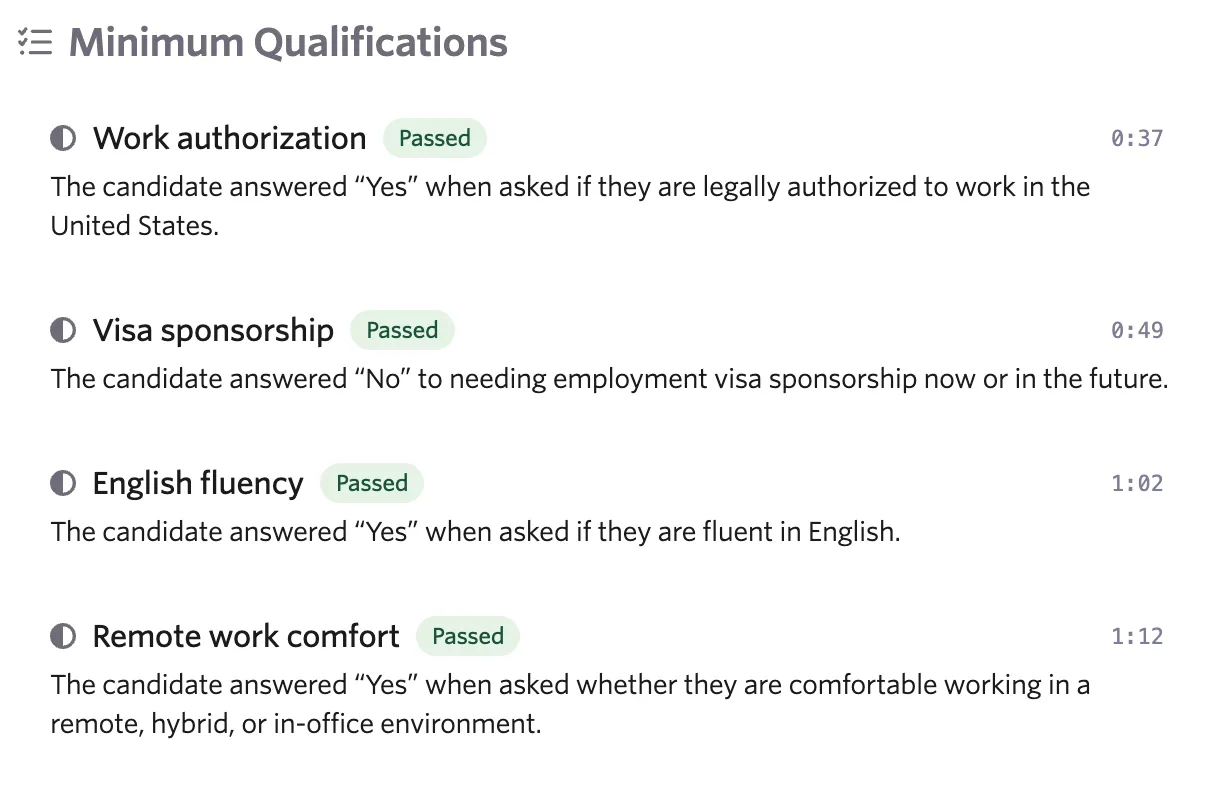
Criteria topics show a pass or fail indicator.
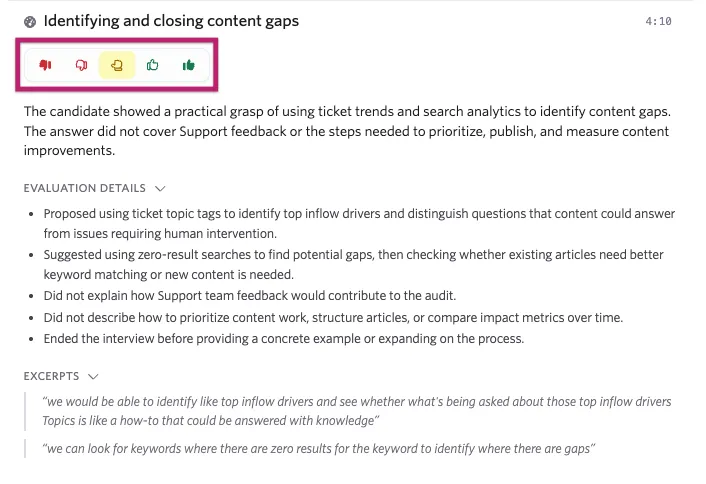
Competency topics are evaluated on a 5-point scale. You can expand the Evaluation Details section to see a list of points related to the evaluation, and review Excerpts section for relevant quotes from the transcript.
Using the AI Assistant
The interview transcript and evaluation are available as context for the candidate assistant.
Use the assistant to:
- Ask for a concise summary of the interview.
- Ask about a specific topic or candidate response.
- Draft internal notes.
- Draft an accept or rejection email for your review.
Review any AI-generated output before using it. The hiring team remains responsible for the final decision and candidate communication.
For more on the AI assistant, see AI Candidate Assistant.
FAQs
Will AI Interviewer reject my candidate?
No. AI Interviewer provides structured signal and supporting evidence. A human reviewer makes the accept or reject decision.
Where can I find the recording and transcript?
Open the AI Interviewer results page from the candidate's activity or the AI Interview review queue. The results page includes the audio recording, video when enabled, transcript, evaluation, and supporting excerpts.
Why does a competency topic not have a numeric score?
Competency results use qualitative signal bands by design. Review the signal, evaluation details, and conversation excerpts together.
Can a candidate leave and finish the interview later?
The interview is designed to be completed in one sitting. If a candidate disconnects unexpectedly, the same link can allow them to reconnect within 15 minutes of their last answer. After 15 minutes, Ashby marks the interview as abandoned. You can reset the interview for them so they can take it again using the Reset button.
What happens when a candidate declines?
The candidate can decline from the invitation or the interview welcome screen. Ashby records the AI Interview Declined status and the candidate's reason so the recruiting team can decide whether to follow up.
What should I do if an interviewer is paused?
Check whether the pause was manual or caused by unavailable AI Interviewer credits. Resolve the cause, set the interviewer back to live, and re-invite candidates who were waiting.
What if a candidate wants all their AI interview data deleted?
You can click the three dots on the interview activity on their profile and select Delete Activity to delete the activity and all relevant data.