AI Interviewer Global Setup
AI Interviewer lets you create automated screening interviews that candidates complete asynchronously. You define the interview structure, questions, and evaluation criteria, and the AI interviewer conducts the conversation, adapts its follow-up questions, and returns structured results for your team to review. In this article, learn how to enable AI Interviewer and configure global settings so designated users can begin using the feature.
Prerequisites
- For an introduction to AI Interviewer and what to expect with setup and launch, check out AI Interviewer: How it Works and What to Expect first.
- Before you set up AI Interviewer, confirm that your organization has access to the feature. You should see an AI Interviewer tile under Admin > Opt-in Features.
- Before publishing an AI Interviewer, ensure your legal team has reviewed the candidate-facing terms and conditions prior to inviting candidates.
Permissions and access
You must be an Organizational Admin or have the additional AI Interviewer permission granted if you are an Elevated Access user to create and manage AI Interviewers. An organization admin can grant this through the permissions settings.
To add AI Interviewers to interview plans, you must have edit access to the job's interview plan, or the additional permission to edit Shared Interview Plans.
See Additional User Permissions for more information.
Step 1: Enable AI Interviewer & set user permissions
First, an Organization Admin must enable AI Interviewer for your organization and grant AI Interviewer permissions to anyone who should be able to create and manage them.
To enable AI Interviewer, navigate to Admin > Organization Setup > Opt-In Features and locate the AI Interviewer tile. Toggle it on and accept Ashby's AI Terms and Product Specific Terms when prompted.
Then, navigate to the Permissions tab of each employee who should be able to build AI Interviewers, scroll to the Additional Permissions section, and grant them the additional AI Interviewers permission.
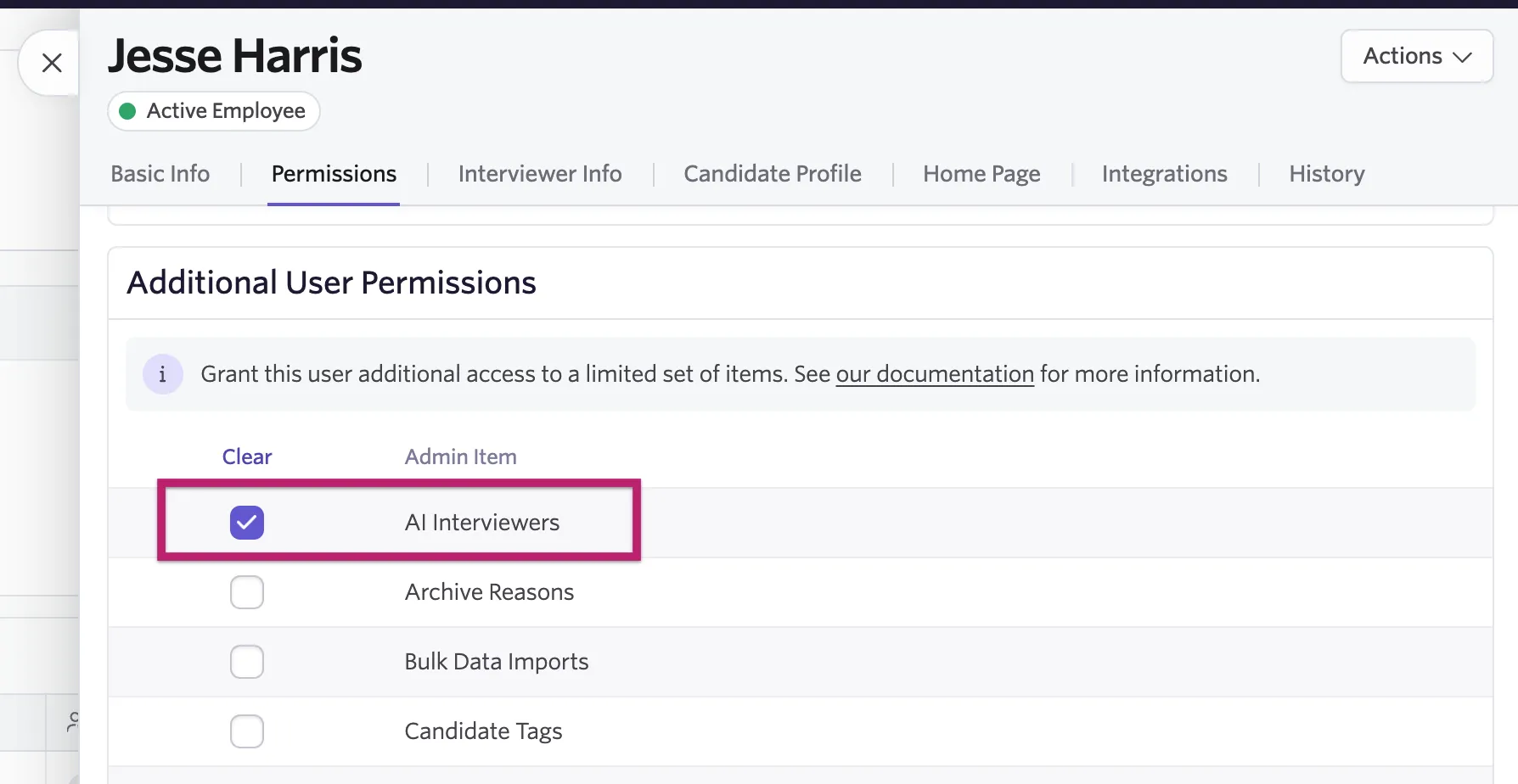
Now any of these users can begin setting up the AI Interviewer for use on one or more jobs.
Only this step requires Organization Admin permissions. All subsequent steps can be completed by an Elevated Access user with the AI Interviewers permission. The user must have edit access on any jobs they wish to add the AI Interviewer to or the additional Shared Interview Plans permission to add to shared interview plans.
Step 2: Configure candidate-facing terms and conditions
AI Interviewer displays candidate-facing terms and conditions before the interview begins, so these need to be defined before you publish the AI Interviewer.
Ashby provides default text that you can keep or edit for your organization. The statement that the interview is conducted by AI is fixed and can't be edited. We strongly recommend keeping the other core disclosures: that the interview is recorded and candidates must consent, that a person makes the hiring decision, and how to request an accommodation or alternative. You only need to configure this once and it applies across all AI Interviewers.
Follow these steps to configure:
- Navigate to Admin > Interviews & Scheduling > AI Interviewers > Privacy & Legal tab.
- Review the default text in the Candidate-Facing Terms & Conditions text field with your legal and privacy teams. You can make any edits directly within this field.
- Use the available substitution tokens for your organization name and privacy policy link.
For more on what substitution tokens are, see Substitution Tokens .
- Confirm that your organization has a privacy policy link configured in Data Privacy and Compliance (requires Organization Admin permissions).
- Save the terms and conditions.
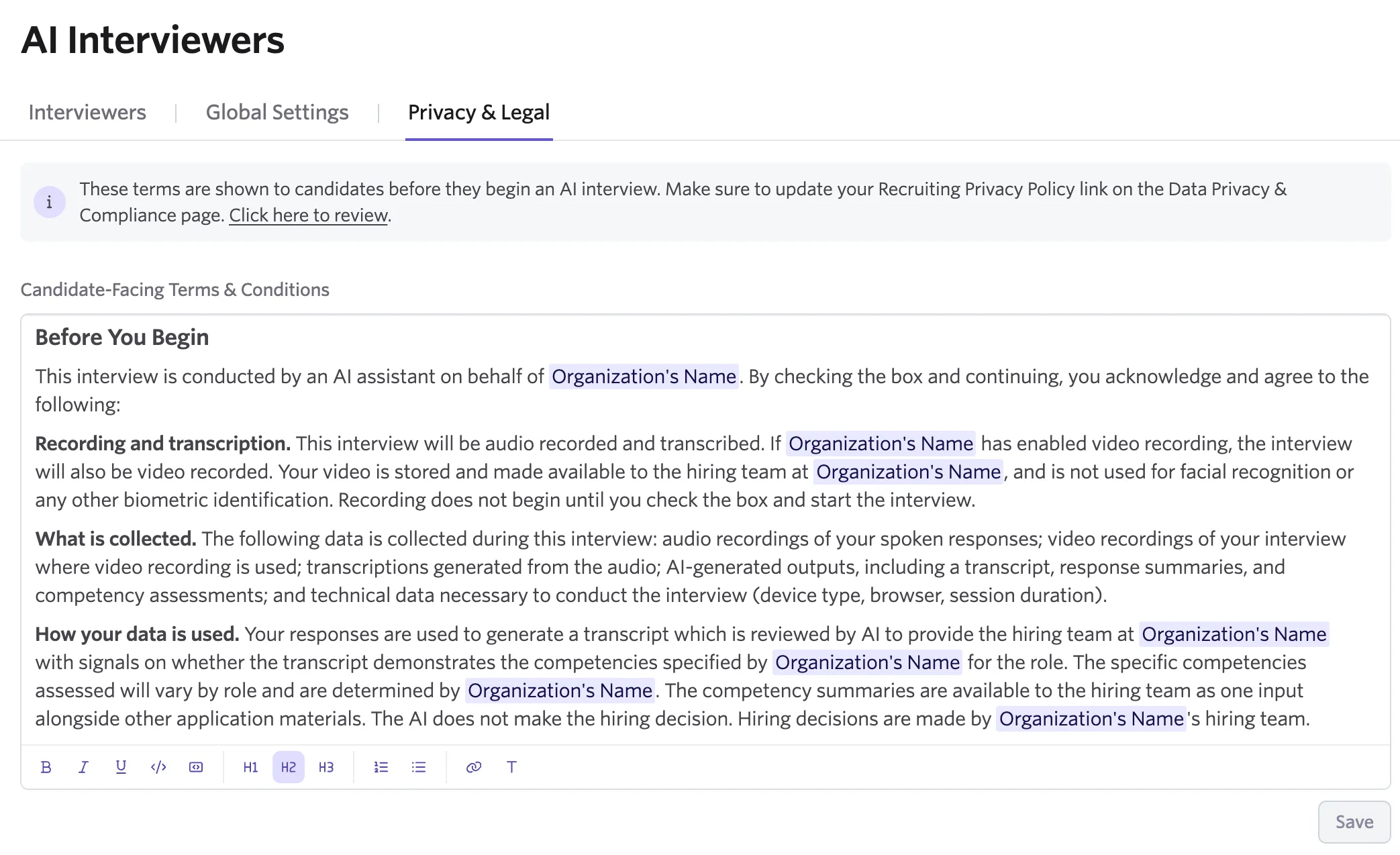
Candidates agree to these terms before they start an AI interview. Confirm that the content reflects your organization's legal and privacy requirements before you send invitations.
Step 3: Adjust Global Settings
Global settings establish the defaults that apply across your organization's AI Interviewers. The settings are organized into three groups: invitation and reminder settings, candidate input, and content settings.
These default settings can be overridden by individual settings defined on a specific AI Interviewer or job interview plan later.
Start with organization-level defaults for content and context that should remain consistent across interviews, then customize only the fields that need to differ when building AI Interviewers.
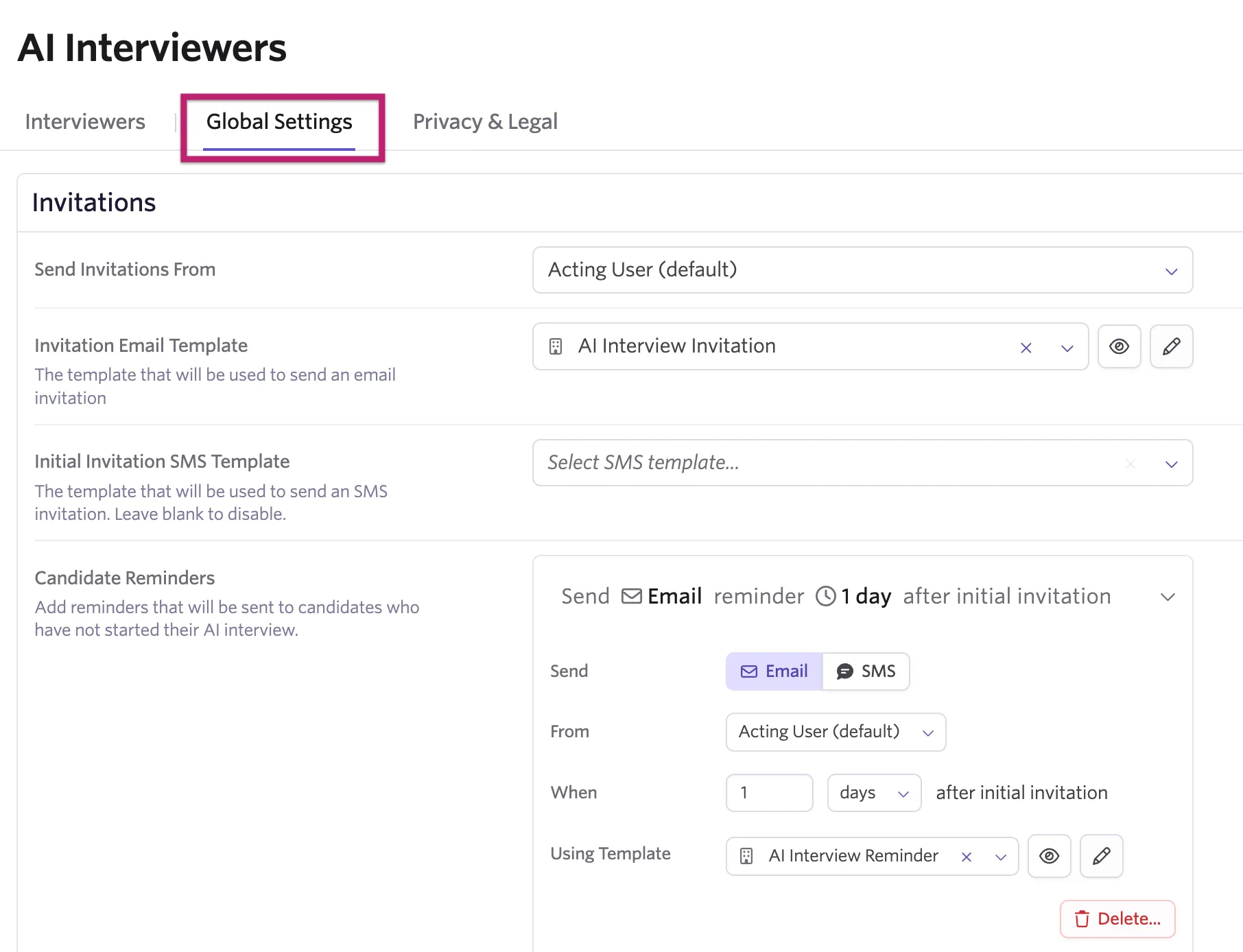
- Navigate to Admin > Interviews & Scheduling > AI Interviewers > Global Settings.
- Open the AI Interviewer Settings Guide and update the available settings as desired.
You've enabled and configured AI Interviewer global settings! Now check out Creating a New AI Interviewer to start building and launching AI Interviewers.
Head back to the AI Interviewer landing page to browse additional articles.