Managing Versions and Updating Existing AI Interviewers
As you refine your AI Interviewer over time, Ashby's version system lets you iterate on the interview design without disrupting interviews already in progress. This article explains how versioning works, how to create and manage versions, and how to control when candidates can take their interviews.
This article covers version management and updates to existing AI Interviewers. For initial setup, see AI Interviewer Global SetupAI Interviewer Global Setup. For building a new AI Interviewer from scratch, see Creating a New AI InterviewerCreating a New AI Interviewer.
Understanding version status concepts
Three separate concepts control whether a candidate can take an interview. It helps to understand all three before making any changes.
Concept | Applies to | Values |
|---|---|---|
Version status | A single version | Draft (editable) or Published (read-only). |
Default version | One version per AI Interviewer | Default version or Not Default. The default version is the one used when the interviewer is added to an interview plan. |
Interviewer status | The AI Interviewer as a whole | Offline (never been live), Live, Paused, or Archived. |
The relationship between these concepts looks like this:
Draft: edit freely → Published: read-only → Default: used for new interviews → Live: candidates can take it
Changes to a version's status or the interviewer's Live status can affect candidates already in your pipeline. The sections below explain each action and its impact.
Creating a new version
Create a new version when you need to change an interview outline after candidates have already used the current version. This keeps earlier evaluations tied to the version the candidate completed, so you can compare results equitably across versions.
Published versions are read-only. If no candidates are assigned to a version yet, you can unpublish it to return it to Draft rather than creating a new one. See Unpublish a version below.
To create a new version:
- Navigate to Admin > AI Interviewers and open the AI Interviewer you wish to change.
- On the Interview tab, select More and then + New Version.
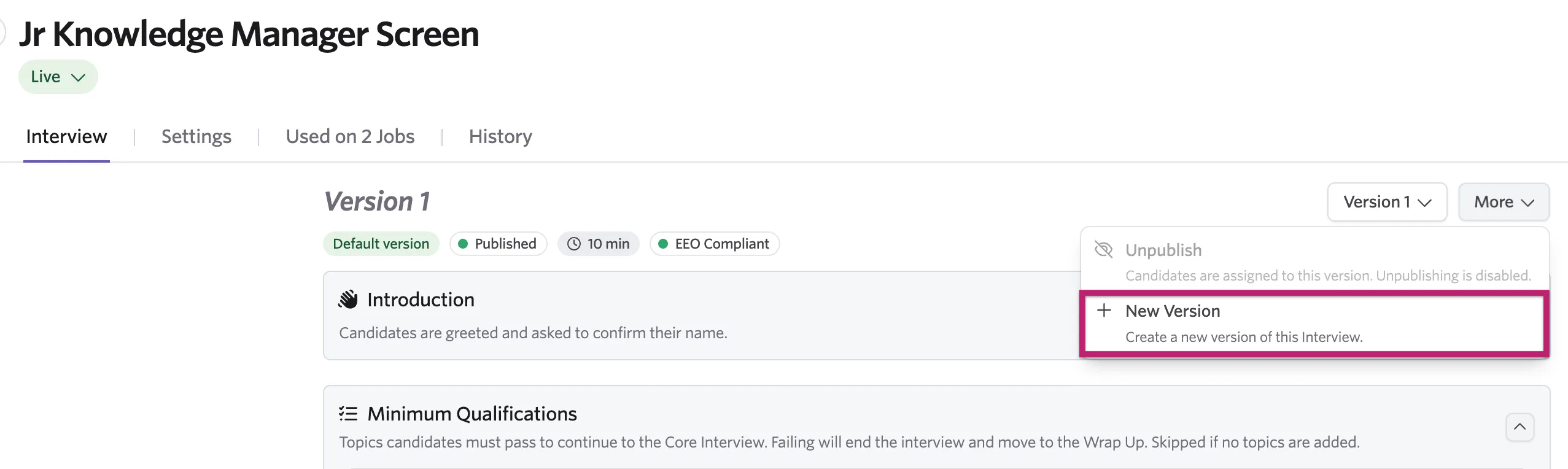
- Optionally, give the version a Version Label. Without one, Ashby names it "Version 2," "Version 3," and so on.
- Choose how to start the new version:
Create from | What it does |
|---|---|
Copy from another version | The default. Duplicates the outline of a version you select, including published ones. This is what you'd use when you want to make updates to the existing version, rather than reworking the entire plan. |
Import from Job Posting | Generates a fresh outline from a job posting with a desired interview length. Use if the job posting role or responsibilities have significantly changed and new criteria is needed. |
Create from scratch | Starts with the standard starter sections. Use if you'd like to manually re-build the interviewer. |
- Click Create. The new version opens on the Interview tab, ready to edit.
Once created, you can build and edit the outline just as you would for a new AI Interviewer. For guidance on editing topics, sections, and the interview structure, see Creating a New AI InterviewerCreating a New AI Interviewer.
Publishing a version
Publishing makes a version available for use in interview plans and locks the outline as read-only. Validation must pass, or you must explicitly accept any issues, before you can publish.
Publishing makes a version read-only immediately, not only once candidates are assigned to it. To change a published version, either unpublish it (if no candidates are assigned) or create a new version and edit that.
For details on what validation checks and how to resolve issues before publishing, see Creating a New AI InterviewerCreating a New AI Interviewer.
The Publish Interview confirmation
What happens when you click Publish depends on the state of the AI Interviewer:
When you click Publish… | What happens |
|---|---|
On a brand-new interviewer, for the first time | One click does everything: the version is published, set as the active version, and the AI Interviewer is set Live. No confirmation appears. |
Republishing the active version of a Live interviewer | Publishes straight away; there are no live or active decisions left to make. |
Any other publish | The Publish Interview confirmation appears with optional checkboxes: Set AI Interviewer to Live (offered only if it has never been made live) and Set Version N to Active (offered when a different version is currently active). Both are unchecked by default. |
An AI Interviewer only appears in interview plan pickers once its active version is published. If you publish a new version but do not set it as active, the AI Interviewer continues to use the previously active version for new interviews.
The default version
The default version is the one used whenever the AI Interviewer is added to an interview plan. There is exactly one default version at a time, and the first version you publish becomes the default automatically.
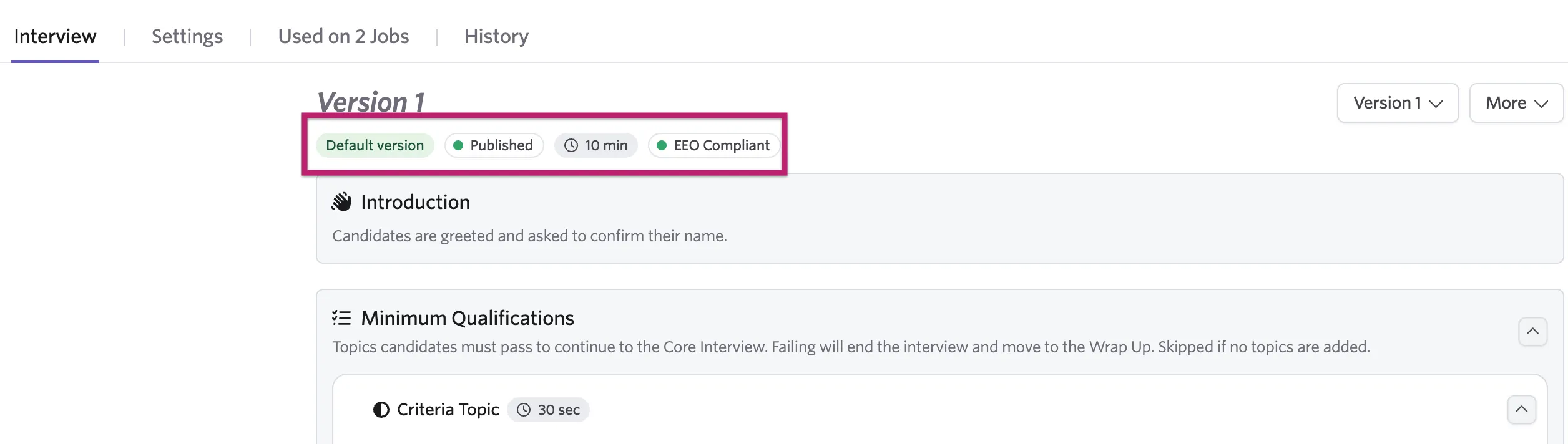
The default version is labeled with an indicator at the top under the AI interviewer title, along with its status and EEO compliance.
Change the default version
To change the default version:
- Navigate to Admin > AI Interviewers and open the AI Interviewer you wish to change.
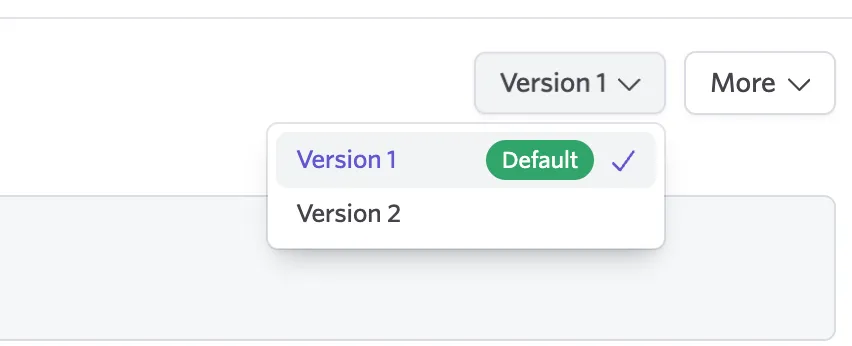
- Use the drop-down on the right to select the version you want to make the default.
- Click More and choose Set Default.
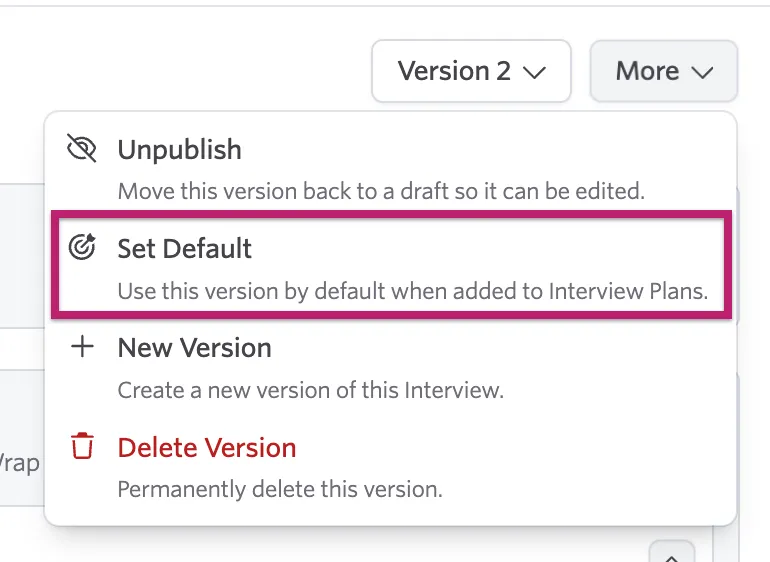
Set Default is only offered for published versions that are not already the default.
How changing the default version affects candidates
The effect of changing the default depends on how each interview plan activity is configured: an activity either pins a specific version or follows Default Version.
Situation | Effect of changing the default version |
|---|---|
Interviews already in progress or completed | Unaffected. The version is locked in the moment a candidate starts. |
Assigned but not started, on an activity set to Default Version | The candidate gets the new default version when they start. |
Any activity pinned to a specific version | Unaffected; it continues to use the version it names. |
When adding an AI Interviewer to an interview plan, you can choose to pin the activity to a specific version or leave it set to Default Version. For more on setting up interview plan activities, see Creating a New AI InterviewerCreating a New AI Interviewer.
Changing the version on the interview plan
When you publish a new version and want to use it for upcoming interviews, you may need to update the interview plan activity that uses the AI Interviewer, especially if the activity is assigned a specific version rather than following the default.
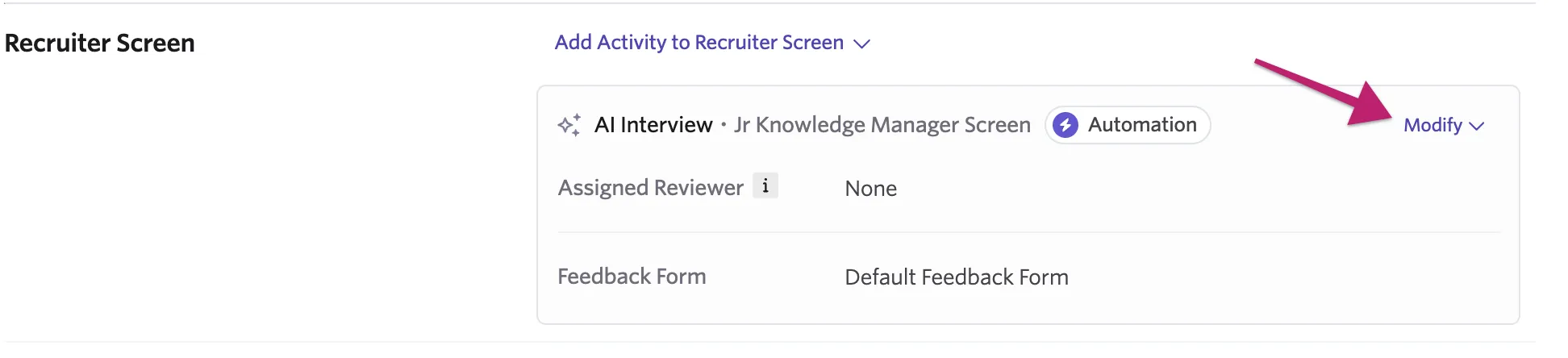
If your interview plan does not specify to use the default version, or you would like to manually assign the version to be used for a job irrespective of which version is the default, you can do this by navigating to the job's interview plan in question.
Then, click Modify on the AI Interview activity.
Select the version the job should use on the Overview tab.
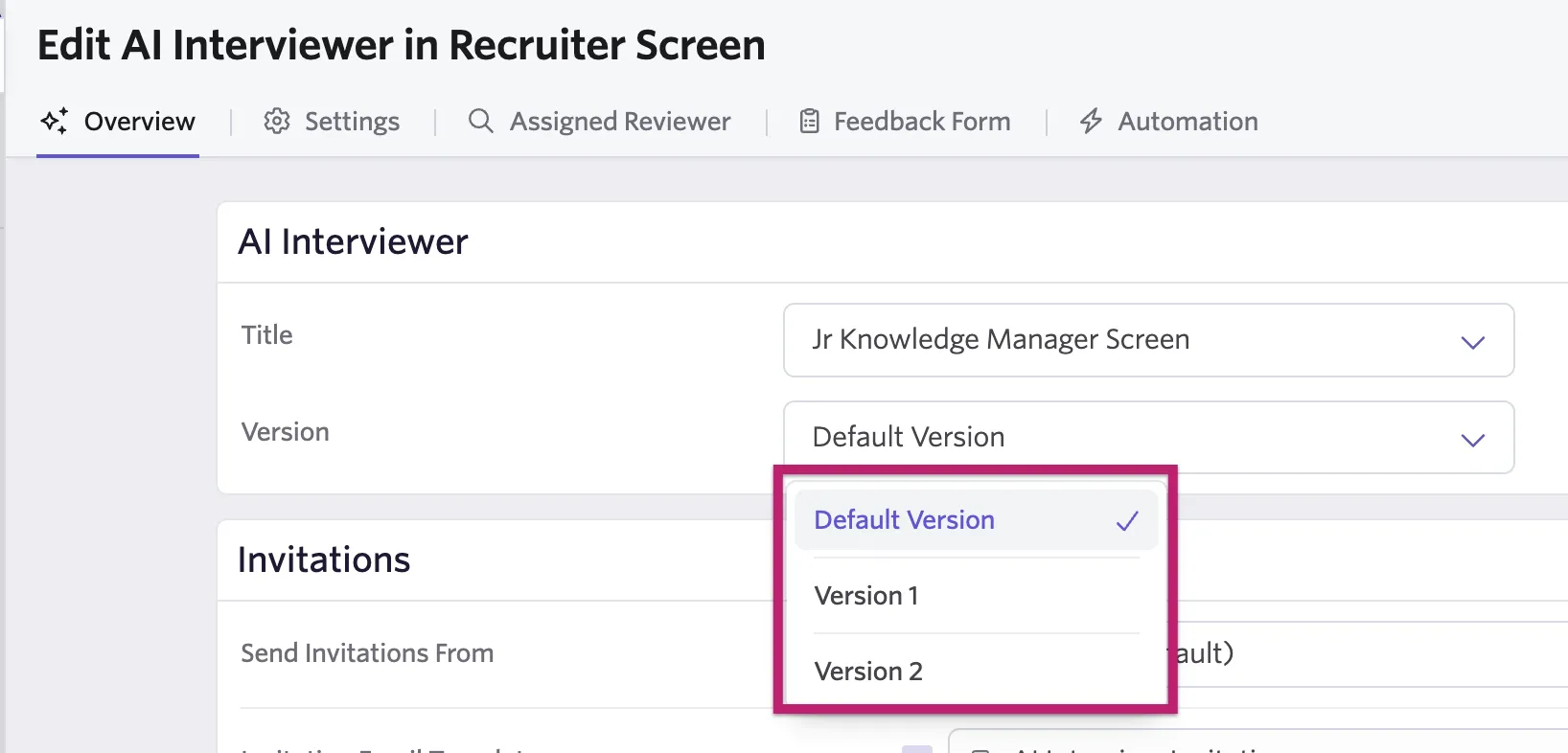
Candidates who are already in progress on an older version are not affected by changing the activity's version setting. The version is locked in the moment a candidate starts their interview.
Managing the AI Interviewer status
The AI Interviewer's status is separate from version status. It controls whether invited candidates can actually start and complete their interviews on any version.
The status can be viewed and updated using the indicator below the AI interviewer title.
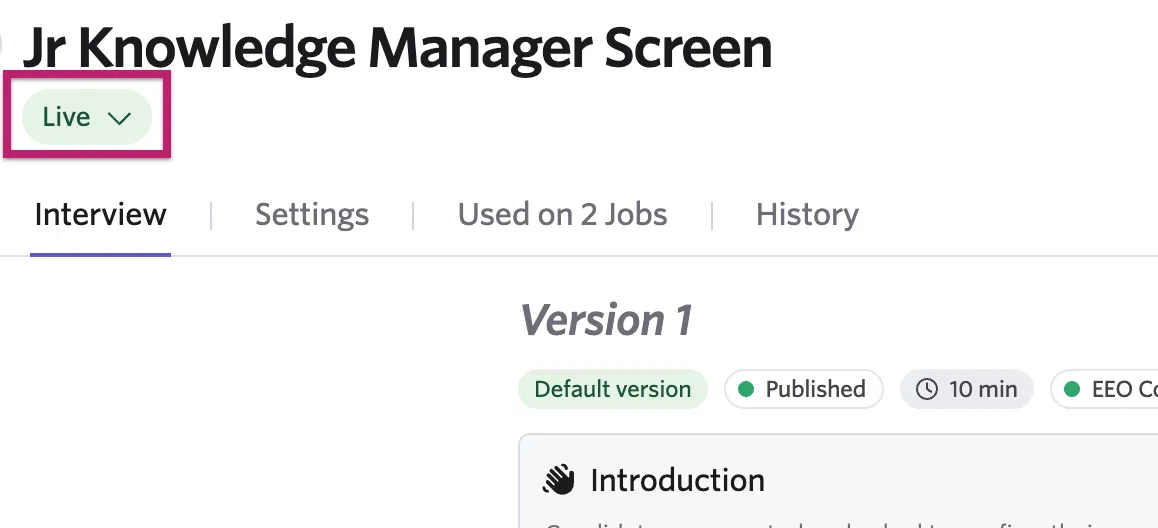
The four possible statuses are:
Interviewer status | What it means |
|---|---|
Offline | Never been live. Every new AI Interviewer starts here and goes Live on first publish, or from the status control on its profile. |
Live | Invited candidates can start and complete this interview. |
Paused | Was live, now paused. Candidates who have not started cannot begin. This also happens automatically if your organization runs out of AI Interview credits. |
Archived | The interviewer has been archived. Everything is read-only. |
Make an AI Interviewer Live
To make an AI Interviewer Live (whether for the first time or after a pause), click the status control in the profile header and choose Make AI Interviewer Live.
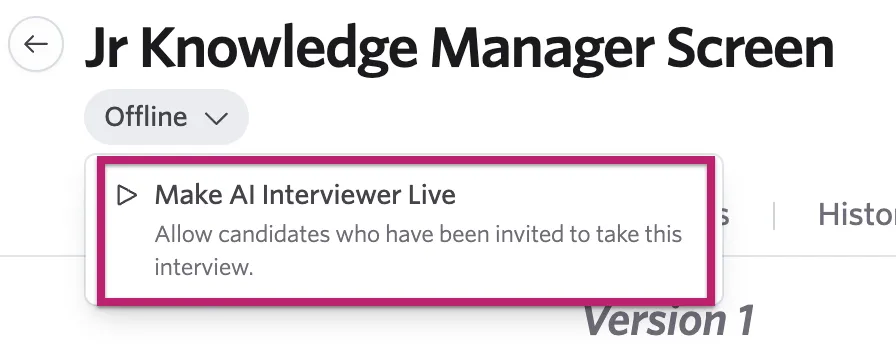
Before going Live, the confirmation shows exactly who is affected:
Candidates | What happens when you go Live |
|---|---|
Assigned, not yet invited, automated invitations on | Receive their first invitation now. |
Assigned, not yet invited, automated invitations off | Are not emailed. Invite them manually if needed. |
Invited, hasn't opened | Invitation reminders resume, if enabled. |
Opened the invitation and saw the paused screen | Eligible for a follow-up email. |
If any candidates already saw the paused screen, you can send them a follow-up email at the same time from this confirmation. The template you choose must contain an AI Interviewer Link token. For more on invitation templates and tokens, see AI Interviewer Email and SMS Templates and Substitution TokensAI Interviewer Email and SMS Templates and Substitution Tokens.
Going Live requires available AI Interview credits. If your organization runs out, the interviewer pauses itself automatically. See Manage pauses below.
Manage pauses
You can pause an AI Interviewer at any time when it should not accept new interviews, for example, while you are reviewing the current version's performance, updating settings, or waiting to re-launch after a change.
Pausing is accomplished the same way other status changes are--by updating the status indicator below the AI interviewer title.
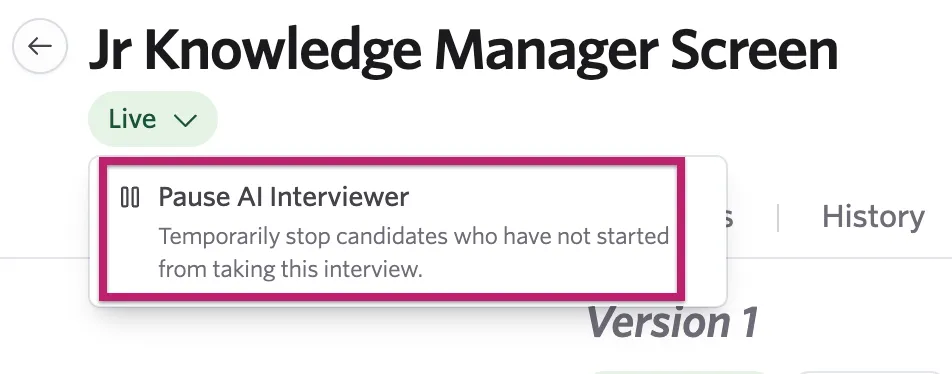
An AI Interviewer can also pause automatically when your organization runs out of AI Interview credits. Ashby notifies admins as credits run low.
When pausing an interviewer, a confirmation message indicates the candidate experience:
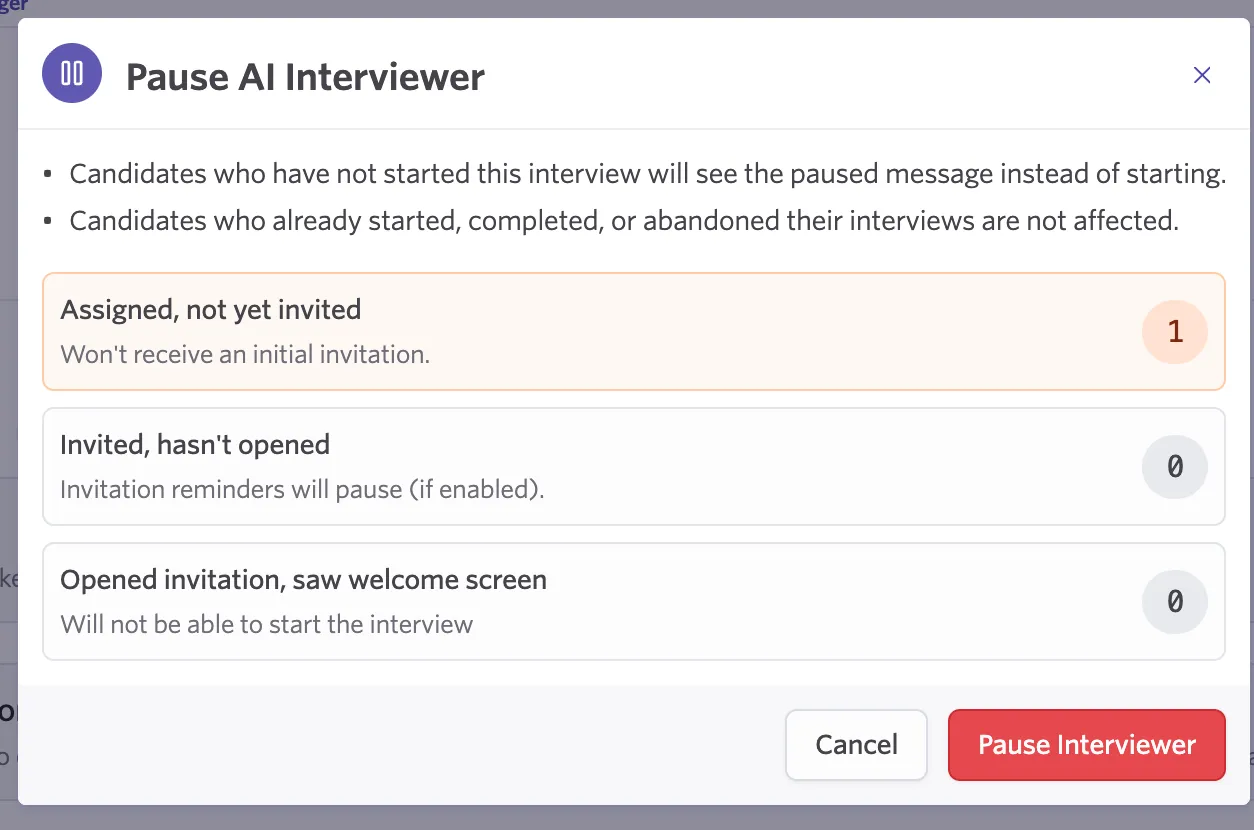
You must select Pause Interviewer to confirm the pause.
When an interviewer is paused, candidates who have not yet started see a screen telling them interviews are paused. Candidates who have already completed their interview are not affected.
To recover from a pause:
- Review the pause reason. If the pause was caused by depleted credits, add credits before proceeding.
- Make any needed changes to the interviewer or its active version.
- Click the status control in the profile header and choose Make AI Interviewer Live.
- Review the confirmation showing which candidates are affected and, if applicable, send a follow-up email to candidates who saw the paused screen.
For guidance on what candidates see when the AI Interviewer is paused, and how to configure the Paused AI Interviewer Message, see the AI Interviewer Settings GuideAI Interviewer Settings Guide and Candidate Experience with AI InterviewerCandidate Experience with AI Interviewer.
Unpublish a version
Unpublishing returns a version from Published to Draft so it can be edited again.
Action | What it does | When it's blocked |
|---|---|---|
Unpublish | Returns the version to Draft so it can be edited again. | Blocked once at least one candidate is assigned to the version. |
If you unpublish the version that is currently set as the default, it loses its Published status but keeps the default designation — so the AI Interviewer disappears from interview plan pickers (because there's no longer a published default version) until you publish it again.
To unpublish a version:
- Navigate to Admin > AI Interviewers and open the AI Interviewer you wish to change.
- Use the drop-down on the right to select the version you want to unpublish.
- Click More and choose Unpublish.
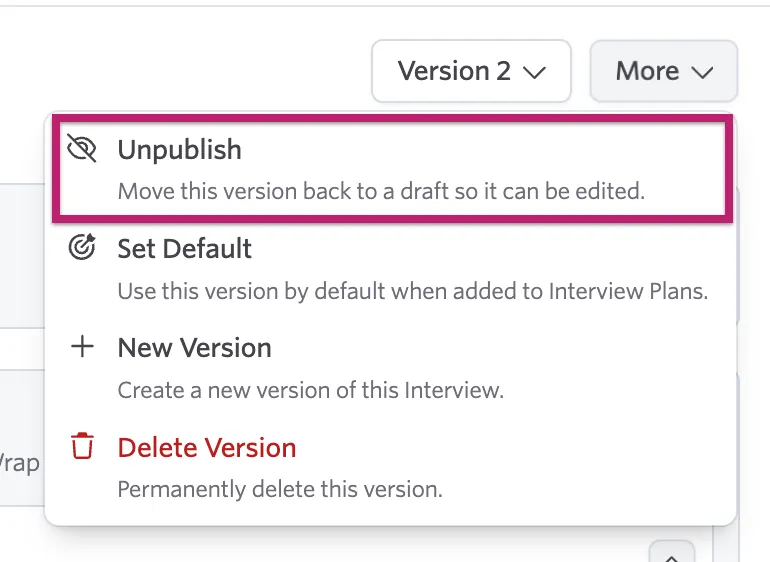
Once unpublished, the version returns to Draft and can be edited. When you are ready, publish it again. The version resumes its default status, and the AI Interviewer reappears in interview plan pickers.
If candidates are already assigned to the version, you cannot unpublish it. In that case, create a new version instead and make changes there.
Delete a version
Deleting a version permanently removes it from the AI Interviewer.
To delete a version:
- Navigate to Admin > AI Interviewers and open the AI Interviewer you wish to change.
- Use the drop-down on the right to select the version you want to delete.
- Click More and choose Delete Version.
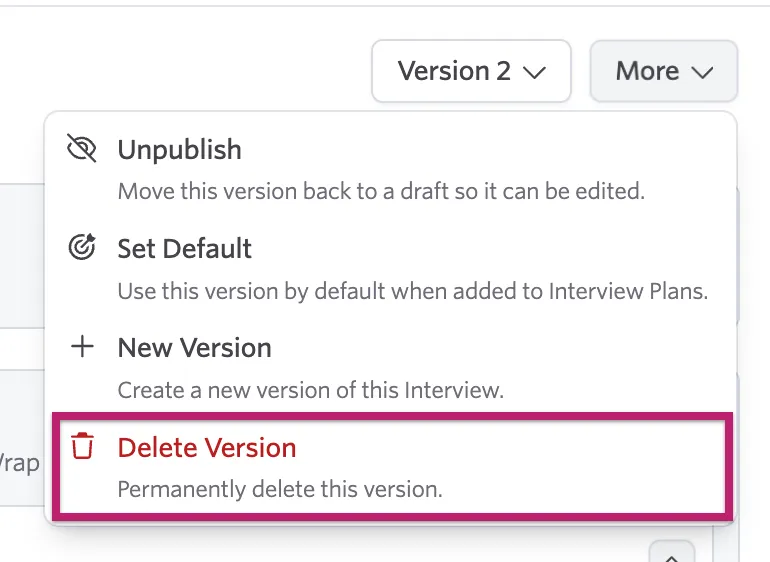
A version cannot be deleted if:
- It is the default version
- It is the only remaining version
- It is attached to an interview plan
If the version is blocked from deletion, resolve the blocker first, for example by removing the version from interview plans or publishing a different active version.
When to create a new version vs. unpublish
Use the following as a guide when deciding between creating a new version and unpublishing the existing one:
Situation | Recommended action |
|---|---|
No candidates have been assigned to the current version yet | Unpublish the current version and edit it directly. |
Candidates have already taken or been assigned to the current version | Create a new version. This preserves the version used for earlier candidates for review and comparison. |
You want to make a minor wording tweak before anyone is assigned | Unpublish, edit, and republish. |
You want to make a structural change while interviews are in progress | Create a new version, edit it, and publish when ready. Set it as the active version when you're ready to use it for new interviews. |
If candidates have already completed an interview with a version, create and publish a new version for material changes. This keeps the version used by each candidate available for review and comparison in reporting. For more on comparing version performance, see AI Interviewer Dashboard and ReportingAI Interviewer Dashboard and Reporting.
Delete AI Interviewer data
During Early Access, you can permanently delete an individual evaluation or recording from the candidate's profile. Contact Ashby for bulk deletion support.
Deleting an evaluation or recording is permanent. Confirm that your organization has completed any required review before deleting interview data.
For questions about data retention policies or bulk deletion, contact Ashby support.
FAQs
Can I edit a published version?
No. A version becomes read-only the moment it is published; candidate assignment is not what locks it. If no candidates are assigned yet, you can unpublish it to return it to Draft and keep editing. Otherwise, create a new version (copying from the published one), edit the copy, and publish when ready.
What's the difference between publishing a version and going Live?
Publishing makes a version usable in interview plans and locks it as read-only. Live is a property of the AI Interviewer itself and controls whether invited candidates can actually take the interview. The first time you publish a brand-new AI Interviewer, one click does both: it publishes the version, makes it active, and sets the interviewer Live.
What happens if I change the default version while candidates are in progress?
Candidates who already started or completed the previous version are not affected. Candidates who are assigned but have not yet started, and whose activity is set to follow Default Version, get the new default version when they start.
What happens to candidates when the AI Interviewer is paused?
Candidates who have not yet started see a screen telling them interviews are paused. Candidates who have already completed their interview are not affected. When you make the interviewer Live again, you can send a follow-up email to candidates who saw the paused screen.
Can I delete the active version?
No. You cannot delete the active version, the only remaining version, or any version still attached to an interview plan. To delete the active version, first publish a different version and set it as active.
What does "Unpublishing does not clear the active flag" mean?
If the version you unpublish is also the active version, it remains tagged as active even in Draft status. Because a Draft version cannot be used in interview plan pickers, the AI Interviewer temporarily disappears from those pickers until you publish the version again.
How do I compare results across versions?
Use the AI Interviewer version filter in the AI Interviewer Dashboard to compare completion rates, candidate sentiment, and advancement rates between versions. The Evaluations by Version report template is also available for a detailed breakdown of results by version. See AI Interviewer Dashboard and Reporting for more information.
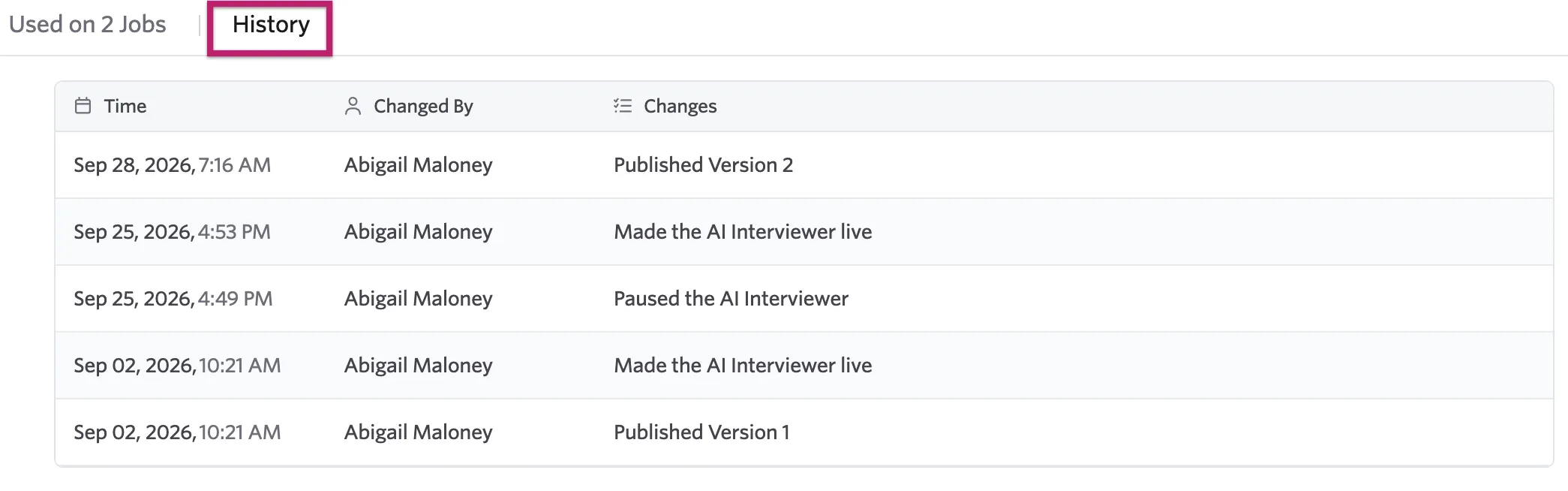
Can I see a history of changes made to an AI interviewer?
Yes. Publishing and status changes can be viewed on the History tab in the AI interviewer.
Can I see which jobs the AI interviewer is assigned to?
Yes. The Used on # Jobs tab in the AI interviewer shows which jobs the interviewer is assigned to, at which stage in the interview plan it occurs, and which version of the interviewer is being used.
