AI Interviewer Dashboard and Reporting
AI Interviewer reporting helps you monitor invitation volume, candidate completion, review progress, outcomes, and candidate sentiment across your AI screening pipeline. Ashby provides a built-in dashboard for day-to-day monitoring and a set of report templates for deeper analysis. You can also build ad hoc reports using the standard report builder, filtering on AI interview-specific dimensions.
This article covers the AI Screening Dashboard and reporting tools. For guidance on reviewing an individual candidate's interview results, see Schedule and Review AI InterviewsSchedule and Review AI Interviews.
Permissions and access
AI Interviewer reporting is available after the feature is enabled for your organization. You need access to the relevant jobs and candidates to see their AI Interviewer data in reports. You may need additional permissions to create, save, pin, or edit reports and dashboards.
AI Interviewer dashboards and reports follow the same job, candidate and analytics access as other reports. The org also needs AI Interviewer enabled, and the user needs AI access granted on their employee profile to see the built-in dashboard. The AI Interviewers admin permission isn't required.
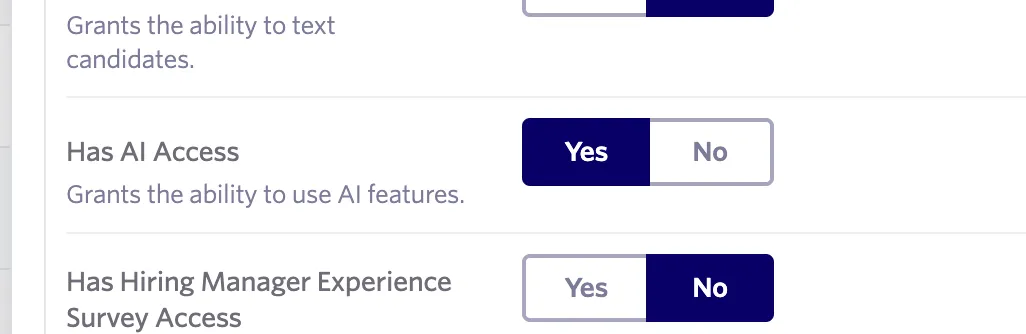
Open the AI Interview Dashboard
The AI Interview Dashboard is a built-in dashboard that appears automatically once AI Interviewer is enabled for your organization. You do not need to create it.
To access it:
- Navigate to Reports > Core Dashboards in the left navigation.
- Select AI Interview Dashboard.
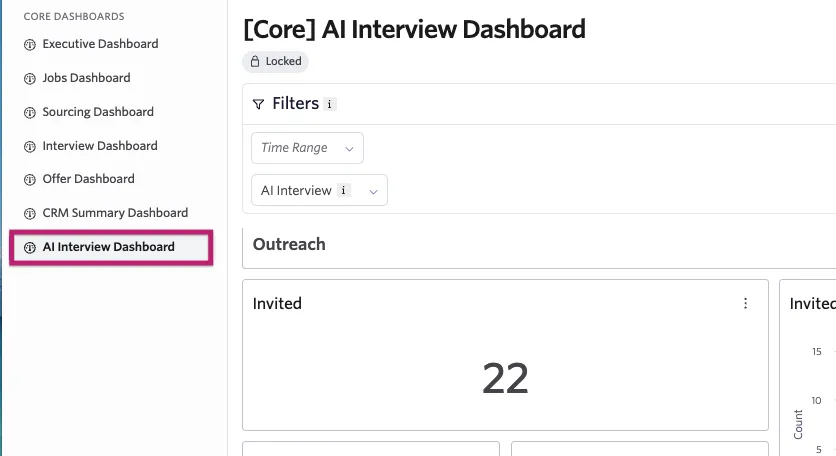
- Use the Time Range and AI Interview filters at the top of the dashboard to focus on a specific period or interviewer.
- Select a metric or chart to open the underlying interview records, where available.
The dashboard is locked, meaning the layout and widgets are fixed and cannot be edited or rearranged. You can still filter, interact with charts, and drill into records.
Viewing the AI Interviewer dashboard
The dashboard is organized into four sections that trace the full lifecycle of an AI interview from invitation through hiring decision: Outreach, Completions, Outcomes, and Recent Activity.
Outreach
The Outreach section tracks how candidates are entering and responding to the AI interview invitation.
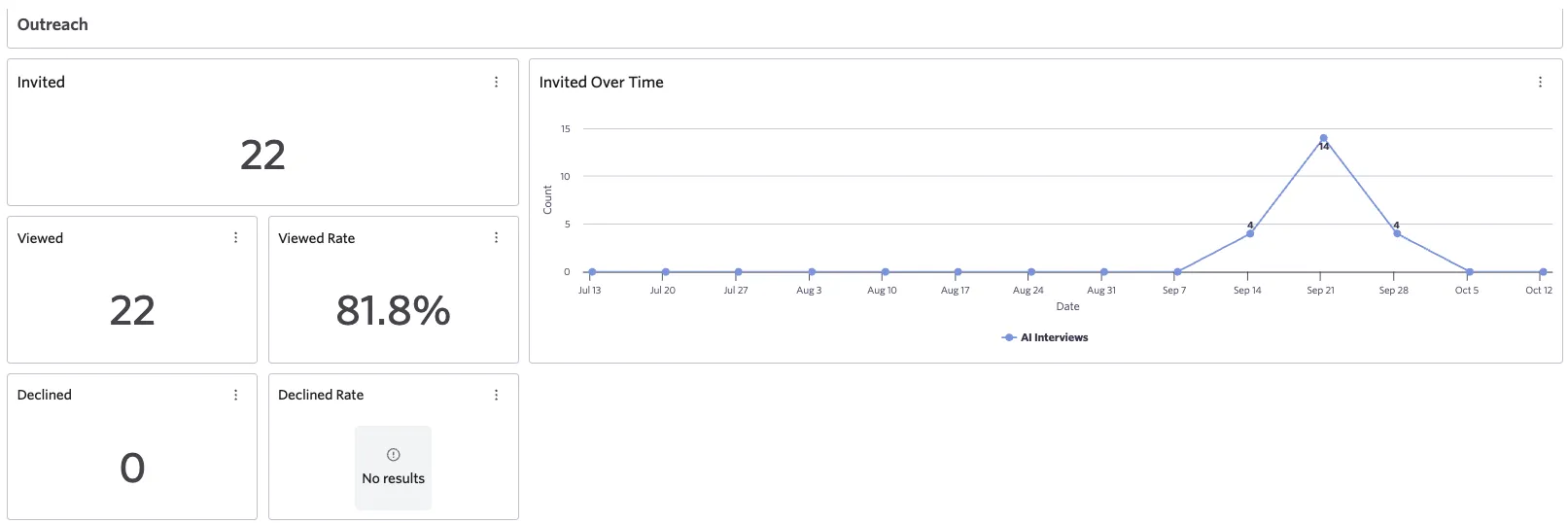
Metric | What it shows |
|---|---|
Invited | Total candidates who have been sent an AI interview invitation in the selected time range. |
Invited Over Time | A line chart of invitation volume over the selected period. Useful for spotting trends in pipeline throughput. |
Viewed | Number of candidates who opened and viewed their invitation. |
Viewed Rate | The percentage of invited candidates who viewed the invitation. |
Declined | Number of candidates who declined the AI interview. |
Declined Rate | The percentage of invited candidates who declined. |
Completions
The Completions section tracks how many candidates followed through and finished the interview.
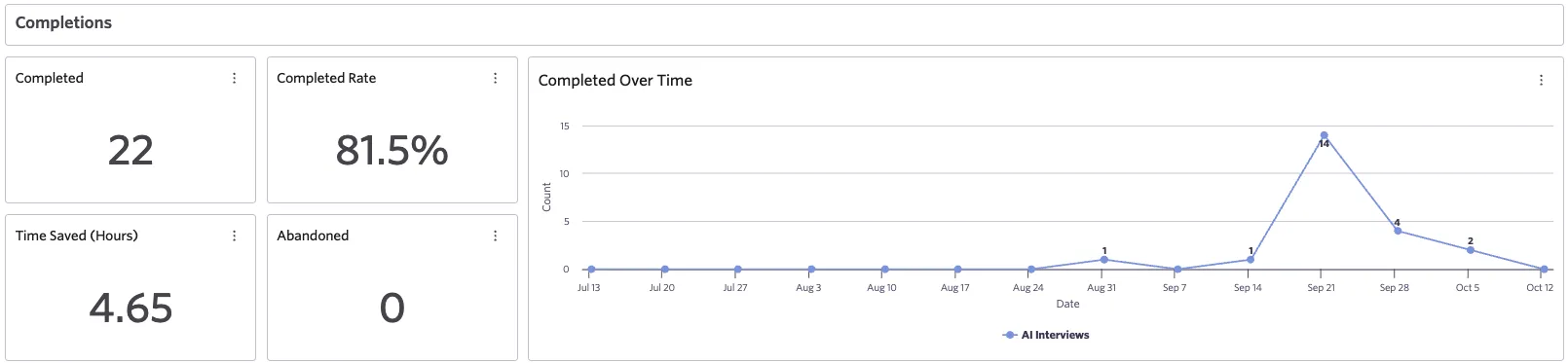
Metric | What it shows |
|---|---|
Completed | Number of candidates who finished the interview in full. |
Completed Rate | The percentage of invited candidates who completed the interview. |
Completed Over Time | A line chart of completions over the selected period. Compare the shape of this curve to the Invited Over Time chart. A widening gap may indicate declining engagement. |
Time Saved (Hours) | An estimate of recruiter time saved by using AI Interviewer rather than conducting those screens manually. |
Abandoned | Candidates who did not complete the interview. They may have started and stopped, or never opened the link. |
Outcomes
The Outcomes section tracks what happened after candidates completed their interview: how many were reviewed, advanced, rejected, or hired.
Metric | What it shows |
|---|---|
Reviewed | Completed interviews where a team member has submitted a review. |
Reviewed Rate | The percentage of completed interviews that have been reviewed. |
Rejected | Candidates who were rejected after their AI interview. |
Rejected Rate | The percentage of completed interviews that resulted in a rejection. |
Advanced | Candidates who were advanced to the next stage after their AI interview. |
Advanced Rate | The percentage of completed interviews that resulted in advancement. |
Hired | Candidates who were ultimately hired. |
Hired Rate | The percentage of completed interviews that resulted in a hire. |
The Outcomes section also contains three supporting widgets:
Widget | What it shows |
|---|---|
Passthrough Rates by Job and AI Interviewer Version | A full-width stage funnel showing application-level passthrough rates grouped by job and AI Interviewer version. Displays counts and conversion percentages at each pipeline stage. |
Candidate Sentiment Breakdown | A pie chart showing the split between positive, negative, and unspecified candidate sentiment among completed interviews. A healthy ratio signals a good candidate experience. |
Average Time to Complete | A table showing average actual completion time in minutes alongside the estimated completion time, grouped by AI Interviewer version. |
Recent activity
The Recent Activity section provides a live feed of the most recent invitation and completion activity.
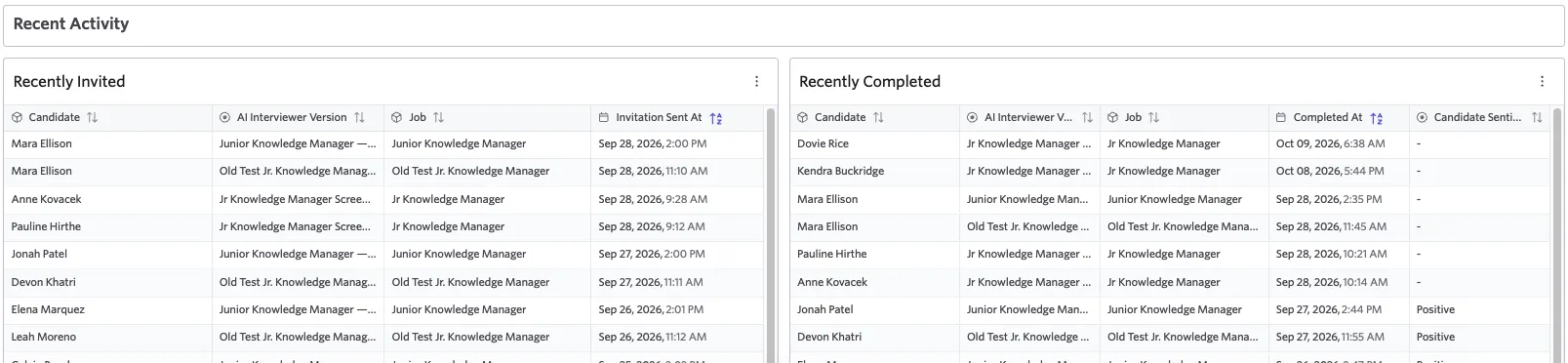
Table | What it shows |
|---|---|
Recently Invited | Candidates who were recently invited, with their AI Interviewer version, job, and the date and time the invitation was sent, ordered most recent first. |
Recently Completed | Candidates who recently finished an interview, with their AI Interviewer version, job, completion date and time, and candidate sentiment, ordered most recent first. |
Use the AI Interview filter at the top of the dashboard to compare how a new version is performing against the one it replaced. Filter to each version separately and compare completed rates, sentiment, and advanced rates. For more on managing versions, see Managing Versions and Updating Existing AI InterviewersManaging Versions and Updating Existing AI Interviewers.
AI Interviewing report templates
Ashby includes five purpose-built report templates under the AI Interviewing category in the report builder. Each report is described in detail below.
You can access them by navigating to Reports > Report Builder > Report Templates and scrolling down to the AI Interviewing section.
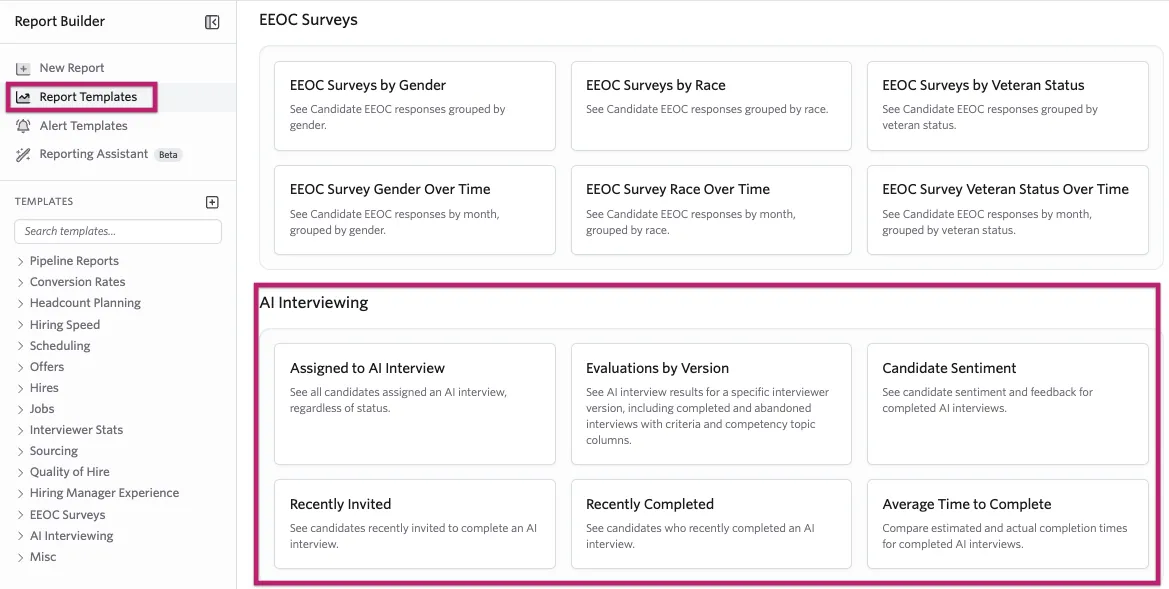
If a Configure Report modal appears after selecting the template, select the Title (the AI Interviewer) and Version, then click Continue. This applies to the Evaluations by Version template.
Reports can be saved and pinned to dashboards. If you run the same report regularly (for example, weekly results for your main engineering screen) save it once and add it to a custom dashboard for one-click access.
Assigned to AI Interview
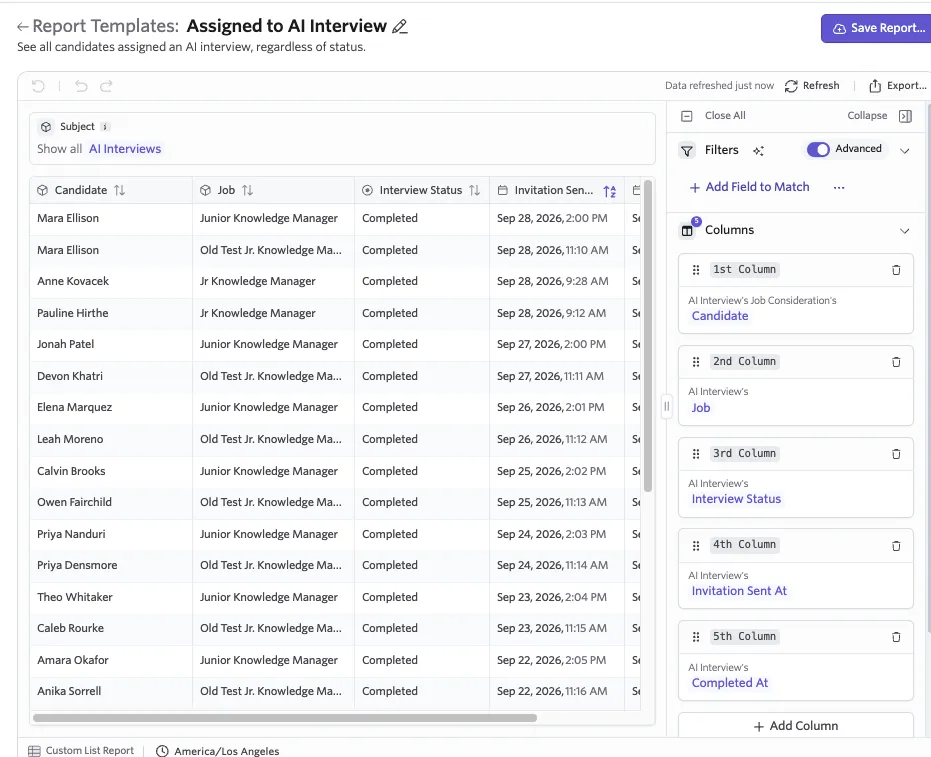
See all candidates assigned an AI interview, regardless of their current interview status. Use this template to get a full picture of your AI interview pipeline across all stages: invited, in progress, completed, abandoned, and declined.
Column | Description |
|---|---|
Candidate | The candidate who was assigned the interview. |
Job | The job the candidate applied to. |
Interview Status | The current status of the interview, regardless of outcome. |
Invitation Sent At | The date and time the invitation was sent. |
Completed At | The date and time the interview was completed, where applicable. |
Evaluations by Version
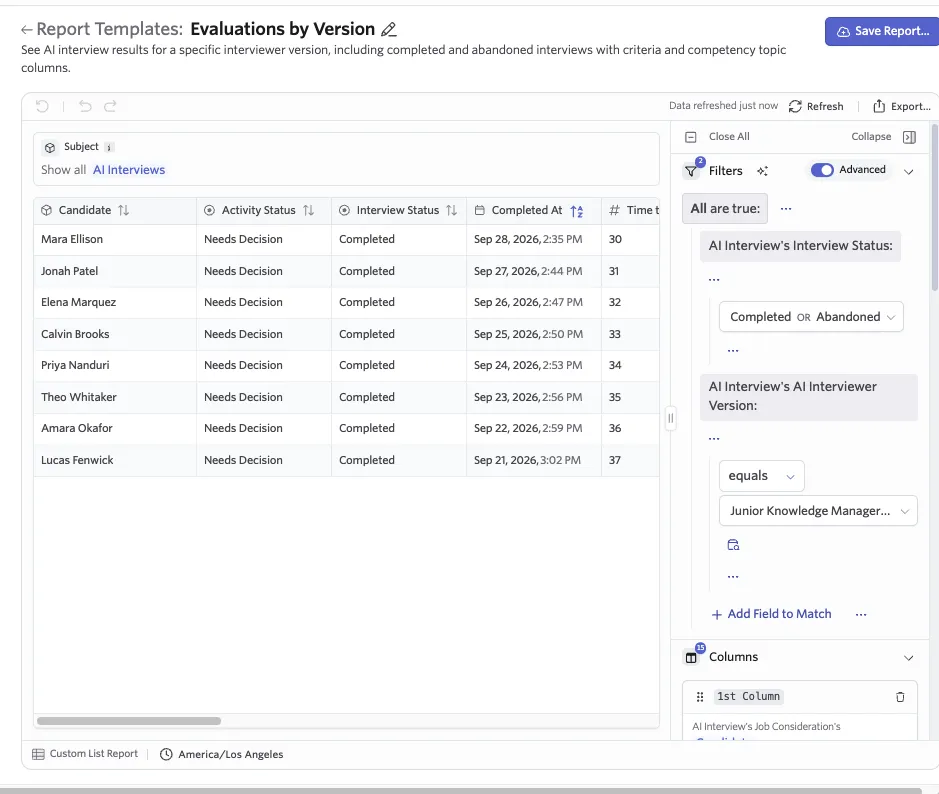
See AI interview results for a specific interviewer version, including completed and abandoned interviews. This is the primary report for analyzing screening outcomes at scale.
Column | Description |
|---|---|
Candidate | The candidate who completed the interview. |
Activity Status | Where the candidate currently is in the hiring process. |
Interview Status | Whether the interview is completed or abandoned. The report pre-filters to these two statuses by default. |
Completed At | When the candidate finished the interview. |
Time to Start | How long after receiving the invitation the candidate began. |
Time to Complete | How long the candidate spent from start to finish. |
Candidate Sentiment | The candidate's self-reported satisfaction. |
Per-Topic Columns (dynamic) | One column per topic in the version. Competency topics show the signal band; criteria topics show met / not met. Generated automatically from your outline. |
You can sort and filter by any column — for example, filter to find candidates who were rated "Strong Signal" on a particular competency topic.
Candidate Sentiment
A focused report that surfaces how candidates feel about the AI interview experience.
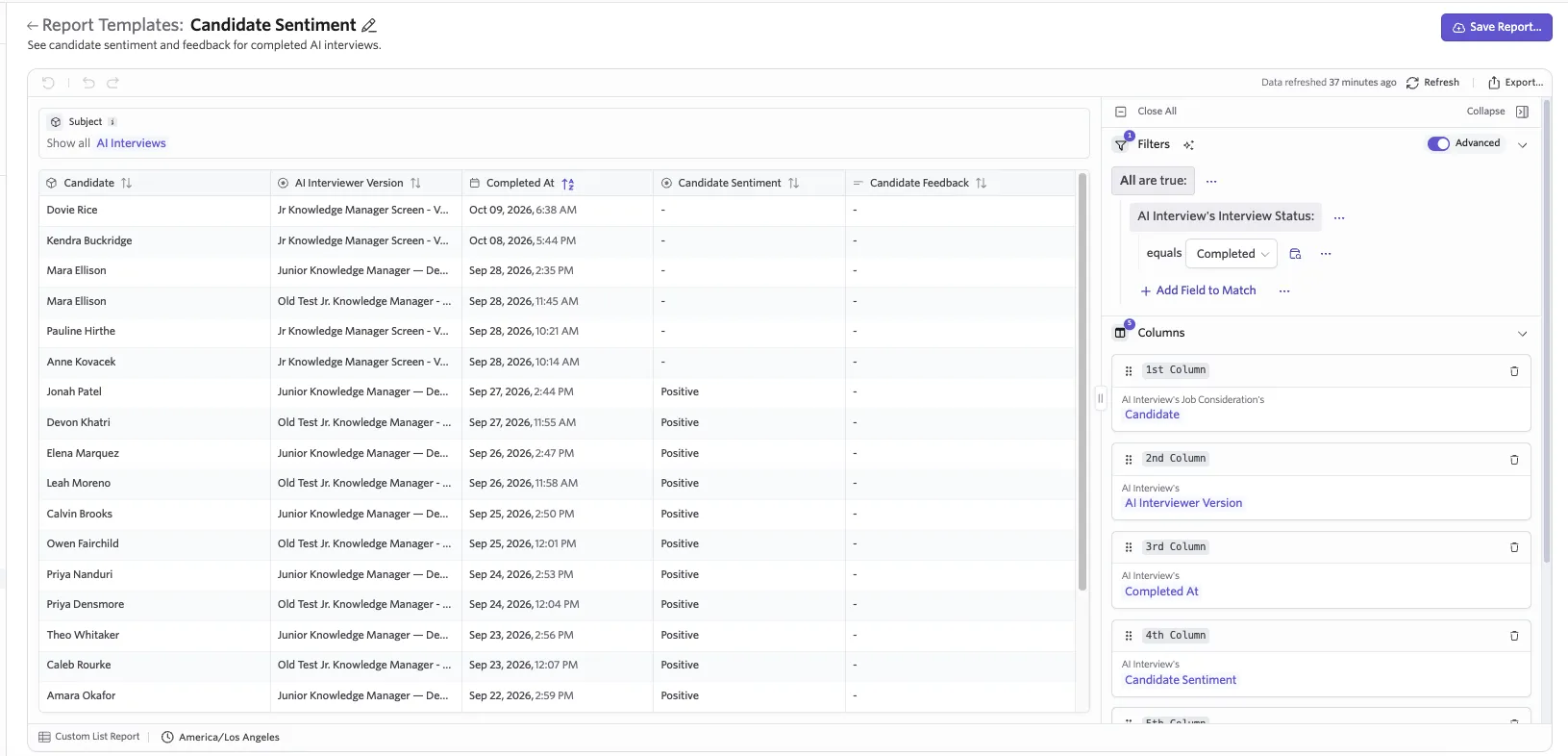
Column | Description |
|---|---|
Candidate | The candidate who provided feedback. |
AI Interviewer Version | Which AI Interviewer version was used. |
Completed At | When the interview was finished. |
Candidate Sentiment | The candidate's overall satisfaction rating (Positive or Negative). |
Candidate Feedback | Free-text comments the candidate left about their experience. |
This report pre-filters to Interview Status: Completed, so it shows only candidates who finished the interview and had the opportunity to leave a rating.
This report is especially valuable after rolling out a new version — check it in the first week to make sure the candidate experience is landing well.
Recently Invited
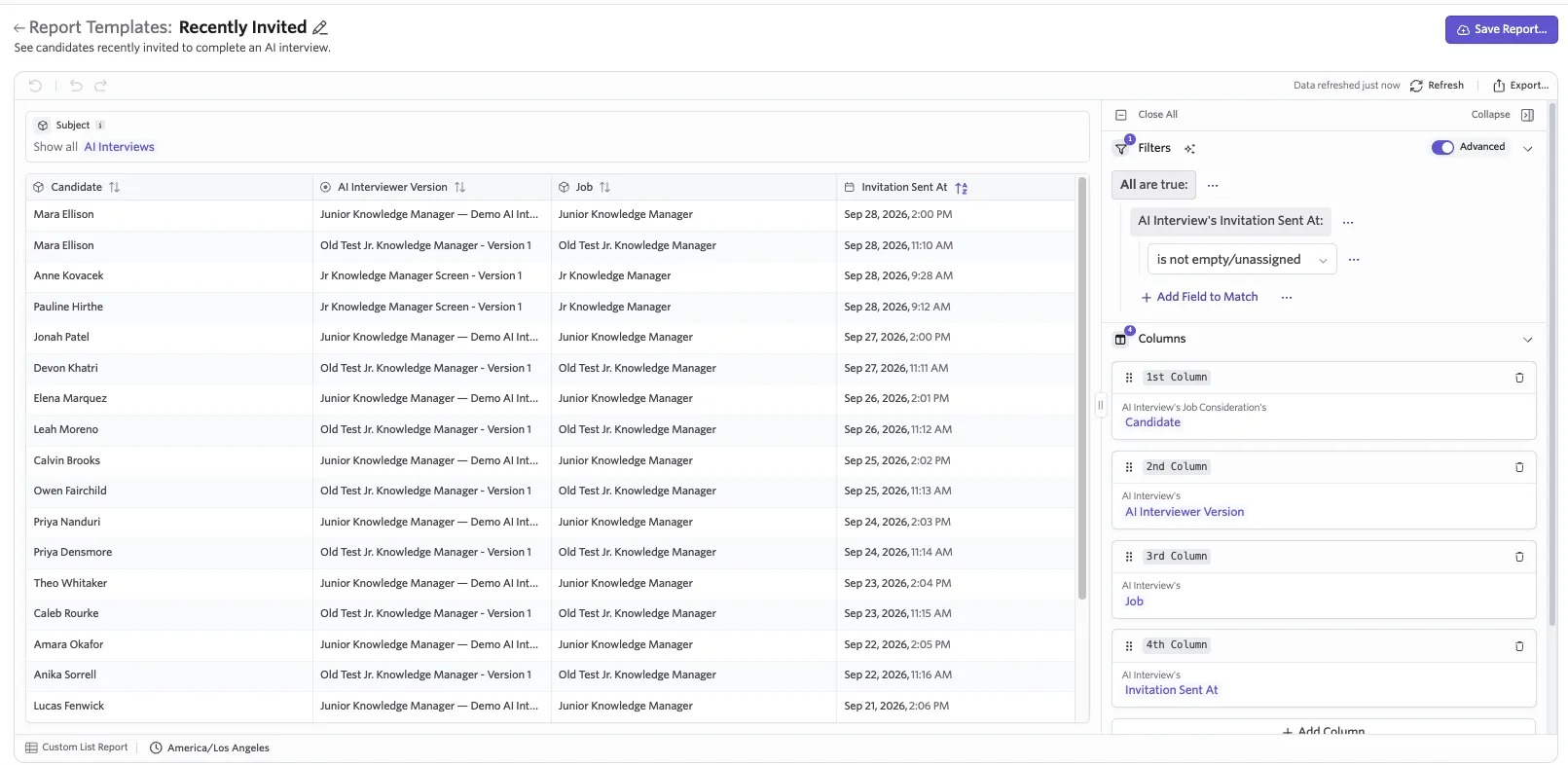
A list of candidates who were recently invited to complete an AI interview. Use this template to monitor your invitation funnel and confirm that invitations are going out as expected.
Column | Description |
|---|---|
Candidate | The candidate who was invited. |
AI Interviewer Version | Which AI Interviewer version was assigned. |
Job | The job the candidate applied to. |
Invitation Sent At | The date and time the invitation was sent, ordered most recent first. |
This report pre-filters to records where Invitation Sent At is not empty, so it shows only candidates who have actually received an invitation.
Recently Completed
A list of candidates who recently finished an AI interview. Use this template to monitor completion activity and quickly surface candidates ready for review.
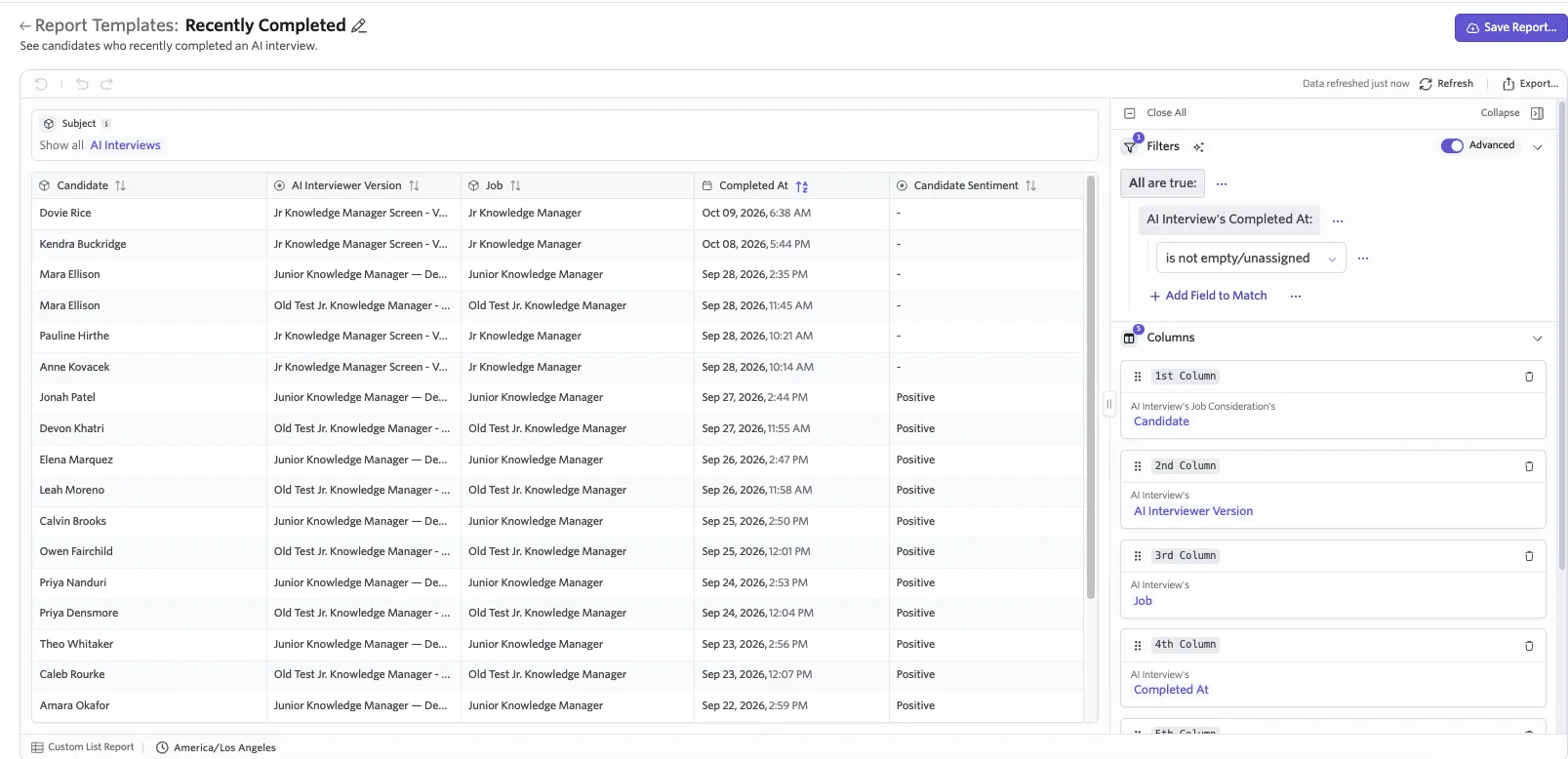
Column | Description |
|---|---|
Candidate | The candidate who completed the interview. |
AI Interviewer Version | Which AI Interviewer version was used. |
Job | The job the candidate applied to. |
Completed At | The date and time the interview was completed, ordered most recent first. |
Candidate Sentiment | The candidate's self-reported satisfaction, where provided. |
This report pre-filters to records where Completed At is not empty, so it shows only candidates who have finished the interview.
Average Time to Complete
Compares estimated and actual completion times for completed AI interviews. Unlike the other templates, this is a grouped summary report — results are aggregated by AI Interviewer version rather than listed row by row. Use this to identify versions that may be running significantly longer than their estimated duration, which can contribute to lower completion rates.
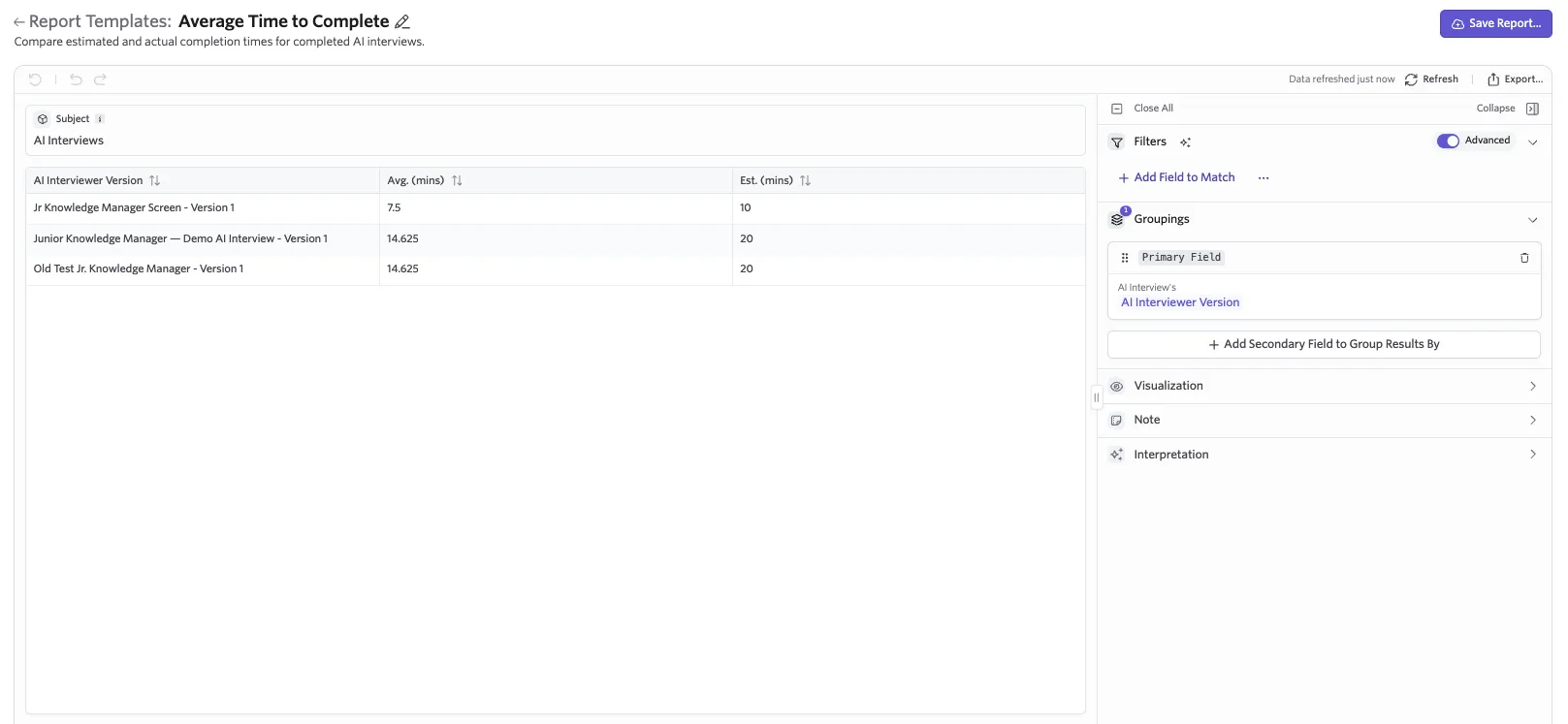
Field | Description |
|---|---|
AI Interviewer Version | The version being measured. |
Avg. (mins) | The average actual completion time in minutes for that version. |
Est. (mins) | The estimated completion time in minutes for that version. |
Build an ad hoc report
When the built-in templates do not answer your specific question, select New Report in the Report Builder to build a custom report using AI interviewing dimensions.
Available filter dimensions
Dimension | Use it to answer |
|---|---|
Interview Status | How many interviews are completed vs. in progress vs. abandoned? |
Advanced to Next Stage | What percentage of screened candidates move forward? |
Time to Start | How quickly are candidates responding to invitations? |
Time to Complete | How long are interviews taking? Are some too long? |
Completed At | When are candidates completing interviews? (Time-of-day or date trends) |
Candidate Sentiment | How satisfied are candidates with the experience? |
Per-Topic Signals | How are candidates doing on individual competencies or criteria? Example: "Which competency is tripping up otherwise strong candidates?" |
Example: Finding a competency bottleneck
You are running an AI screen for a Senior Backend Engineer role. Candidates are doing well overall, but your advancement rate is lower than expected. You want to find out which specific competency is the bottleneck.
- Navigate to Reports > Report Templates and select the Evaluations by Version template. Choose your Backend Engineer AI Interviewer and the relevant version.
- Add a filter: Overall Signal is Mixed or better. This narrows results to candidates performing reasonably well overall.
- Sort each competency column ascending to see which has the most Concern or Strong Concern evaluations among that group.
- Identify the pattern. If the "System Design" competency column has a disproportionate number of Concern signals — even among candidates with a Mixed or better overall signal — that competency is your bottleneck.
- Take action. Revisit the System Design topic requirements (they may be too ambitious for a screen), adjust the phrasing, or move this competency to a later live interview.
Example: Diagnosing drop-off before completion
You want to check whether your AI interview completion rate is healthy, and if not, where candidates are abandoning.
- Create a report using the Evaluations by Version template for the relevant interviewer.
- Group by Interview Status to segment results into Completed, In Progress, and Abandoned buckets.
- For abandoned interviews, check the Time to Start column. If most were never started, the issue may be with the invitation email. If started but not finished, the interview may be too long.
- Cross-reference with the Candidate Sentiment report to see whether completed candidates report the interview felt too lengthy.
When you build an ad hoc report that proves useful, save it. Saved reports can be added to any dashboard, shared with your team, and re-run with one click.
Compare AI and recruiter-led screens
If you want to compare AI Interviewer screening with recruiter-led screens, keep the comparison consistent:
- Use the same evaluation structure and rating values for both types of screen. For example, use the same 1-to-4 scale across both workflows when that scale fits your process.
- Keep the criteria and competency definitions as similar as possible across both formats.
- Compare completion, evaluation results, advancement, downstream pass-through, and candidate sentiment together rather than relying on any single metric.
- Label or filter results by whether AI Interviewer was used, so reviewers can interpret the data correctly.
- Avoid comparing evaluations from different scales without normalizing the results first.
Interpret AI Interviewer reporting carefully
Use reporting to understand process performance and candidate experience. Review the underlying interview results before acting on a metric, especially when comparing small groups or newly published interviewer versions.
AI Interviewer results support human review. A dashboard metric or topic signal does not replace the reviewer's responsibility to consider the transcript, evaluation evidence, role requirements, and the broader hiring process. See Schedule and Review AI Interviews for guidance on evaluating individual interview results.
Best practices
- Check the dashboard regularly. The gap between Completed and Reviewed is your most important operational metric. A growing backlog means interviews are waiting longer before a human decision is made.
- Monitor sentiment after publishing a new version. Whenever you publish a new version, check the Candidate Sentiment report during the first week to confirm the candidate experience is landing well.
- Save your go-to reports. If you find yourself building the same ad hoc report more than once, save it and add it to a dashboard for one-click access.
- Use the AI Interview filter to evaluate changes. When comparing an older and a newer version, filter the dashboard to each version separately and compare completed rates, sentiment, and advancement rates side by side before promoting the new version to all jobs.
FAQs
Why don't I see the AI Interview Dashboard?
Confirm that AI Interviewer is enabled for your organization and that you have access to the dashboard and the underlying job and candidate data. Contact your organization admin if you need access.
Can I filter the dashboard by AI Interviewer version?
Yes. Use the AI Interview filter at the top of the dashboard to focus on a specific interviewer or version.
Can I edit or rearrange the dashboard widgets?
The AI Interview Dashboard is locked, meaning its layout and widgets are fixed. You can filter, interact with charts, and drill into records, but you cannot add, remove, or rearrange widgets. To create a custom view, build and save an ad hoc report and pin it to a custom dashboard.
Can I save an AI Interviewer report to a dashboard?
Yes, if your analytics permissions allow you to save reports and edit dashboards. After saving a report, use the standard dashboard editor to pin it.