Adding and Managing Candidates Using the Chrome Extension
This guide covers key actions you can take on candidate profiles within the Ashby Chrome extension, including sending email sequences, considering a candidate for a job, changing a candidate's interview stage, and logging outreach.
You can provide a social link URL or navigate to a supported social page to look up or add a candidate at any time via the Chrome extension. If you are on a social page (e.g. a LinkedIn, GitHub, or X profile) that matches a social profile URL in a candidate profile already in Ashby, we show that existing candidate profile.
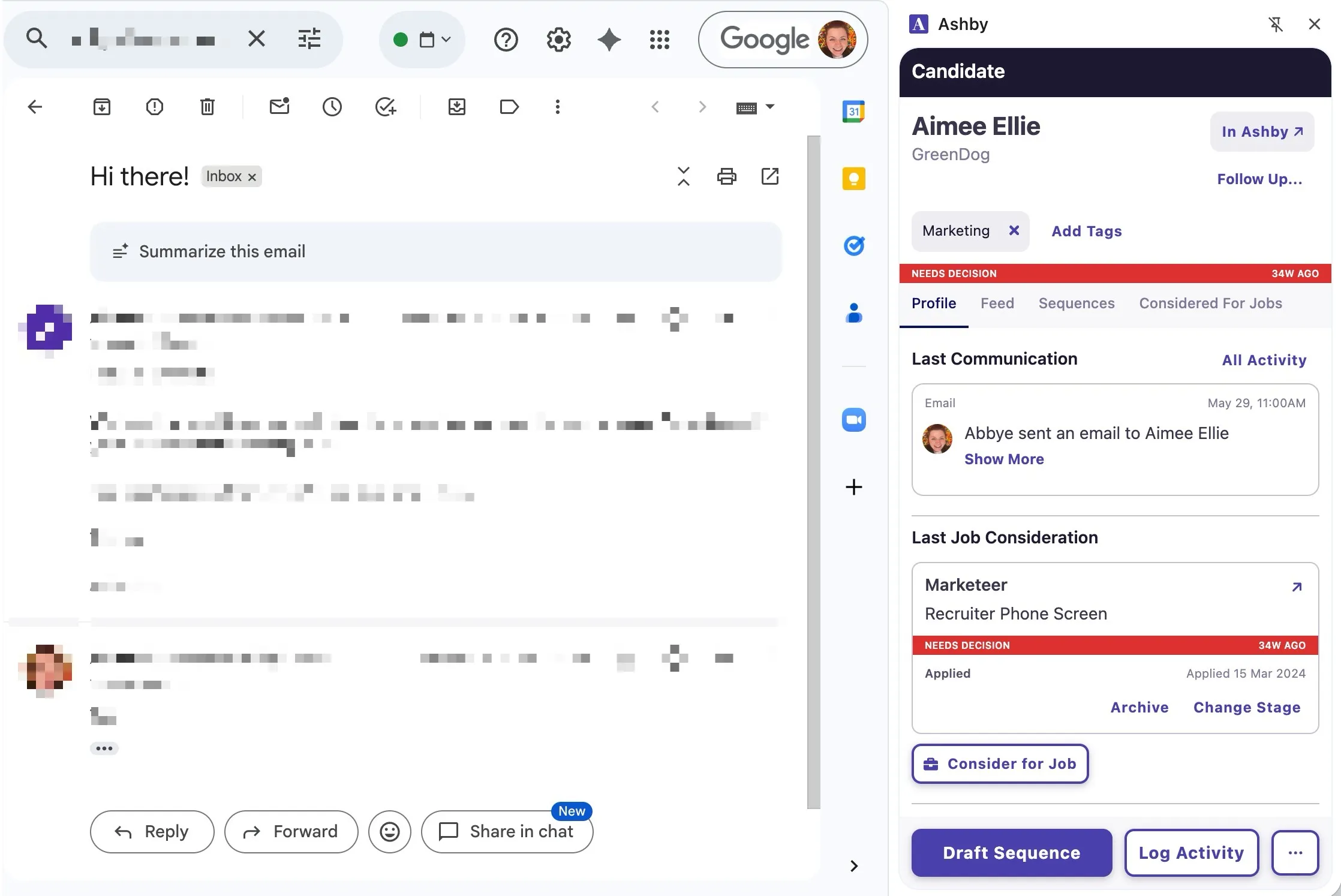
The extension also automatically works in Gmail. When viewing a conversation between a candidate and the hiring team, Ashby automatically shows the relevant candidate profile in the extension.
For more on installing the Chrome extension, see Installing the Chrome Extension.
Permissions
- Only those with Elevated Access - Hiring Manager access or above can source candidates using the Chrome extension.
Using the extension
To open the extension, click on the Ashby A icon or use the shortcut Cmd+Shift+E.
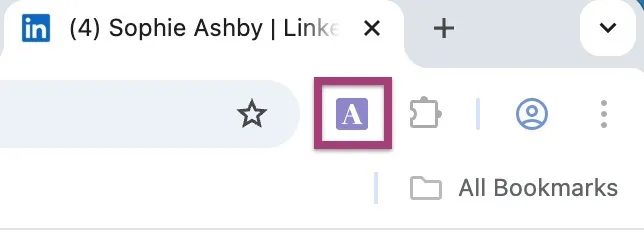
When you open the Chrome extension, it opens as a side panel rather than a popover. You can resize this panel by clicking and dragging on the left edge of the panel.
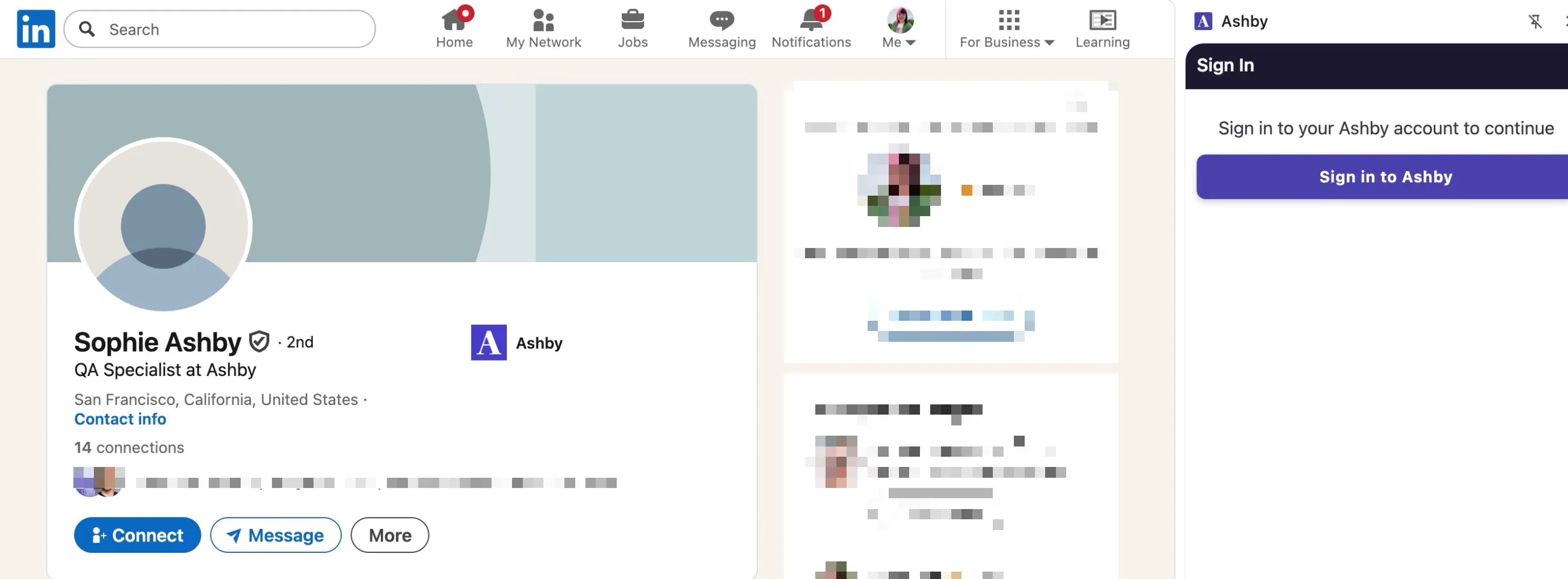
If you are already logged into your Ashby account in another window or tab, you are automatically logged into the same account in the Ashby extension. If you are not already logged into Ashby, you are prompted to log into your Ashby account before you can start using the extension.
Using the extension with LinkedIn
Adding and viewing candidates when using the Chrome extension with LinkedIn.
When viewing a public LinkedIn profile, the Chrome extension shows whether or not the candidate has already been added to your Ashby organization. Ashby assesses this using the LinkedIn URL associated with the candidate's profile in Ashby.
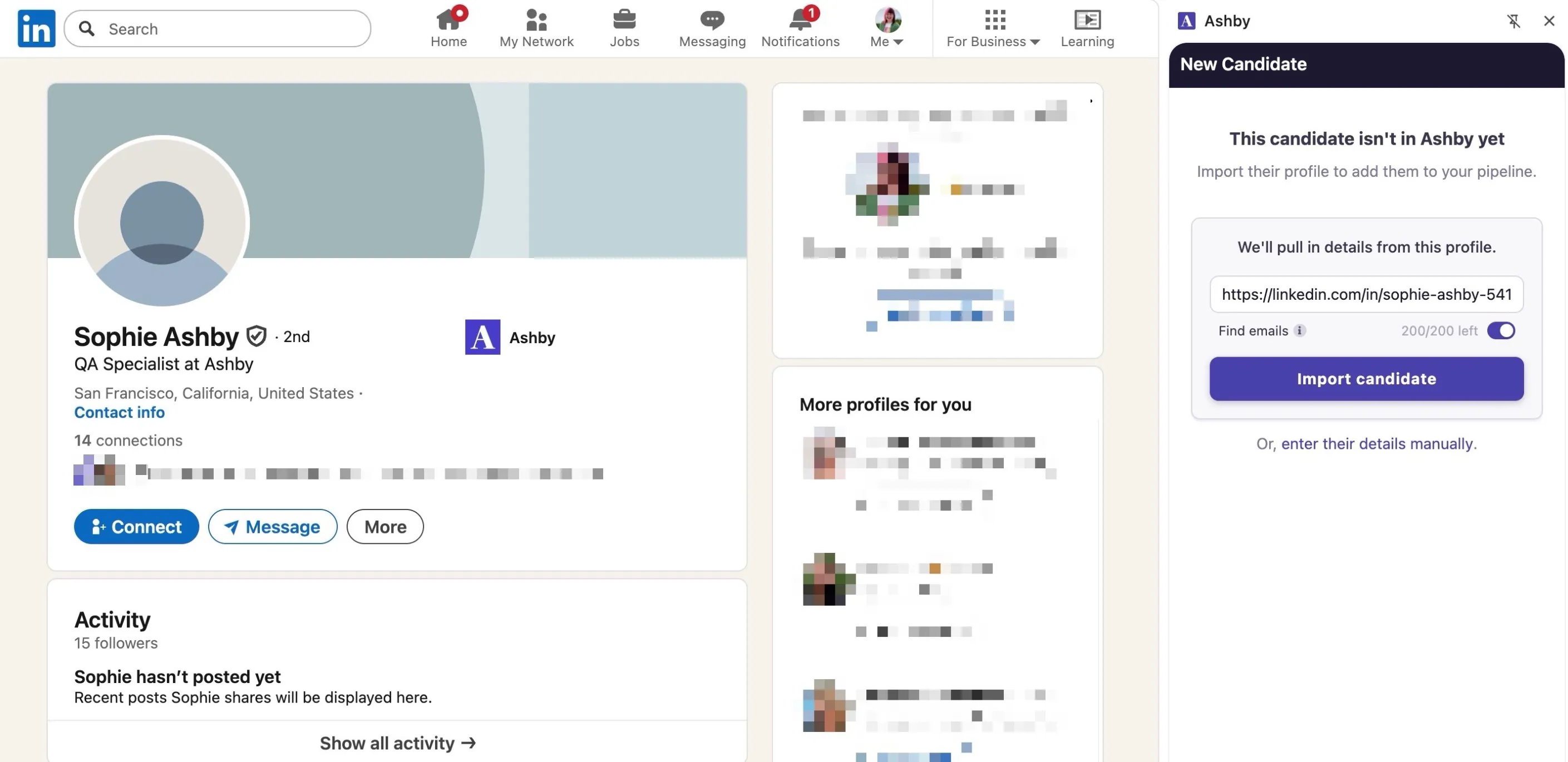
If the candidate is not in your Ashby account already, you can add them via three routes:
- You can copy and paste the LinkedIn profile URL or a GitHub profile URL into the Paste a LinkedIn or GitHub profile URL field on the extension. Then click Import Candidate to add them to Ashby.
When taking this route, we create the candidate record using publicly available information. In rare cases that can mean that no information or outdated information is surfaced. We recommend checking that the work history provided is relevant against the candidate's profile.
- Click More on the candidate's LinkedIn profile, then Save to PDF. This downloads the profile information as a resume and also uploads the profile information as a candidate in Ashby. Ashby parses the information in the download and adds the PDF as a resume to the candidate's profile.
LinkedIn limits downloaded resumes to 200 per month per user. The Save to PDF option is only available when viewing the candidate's public profile.
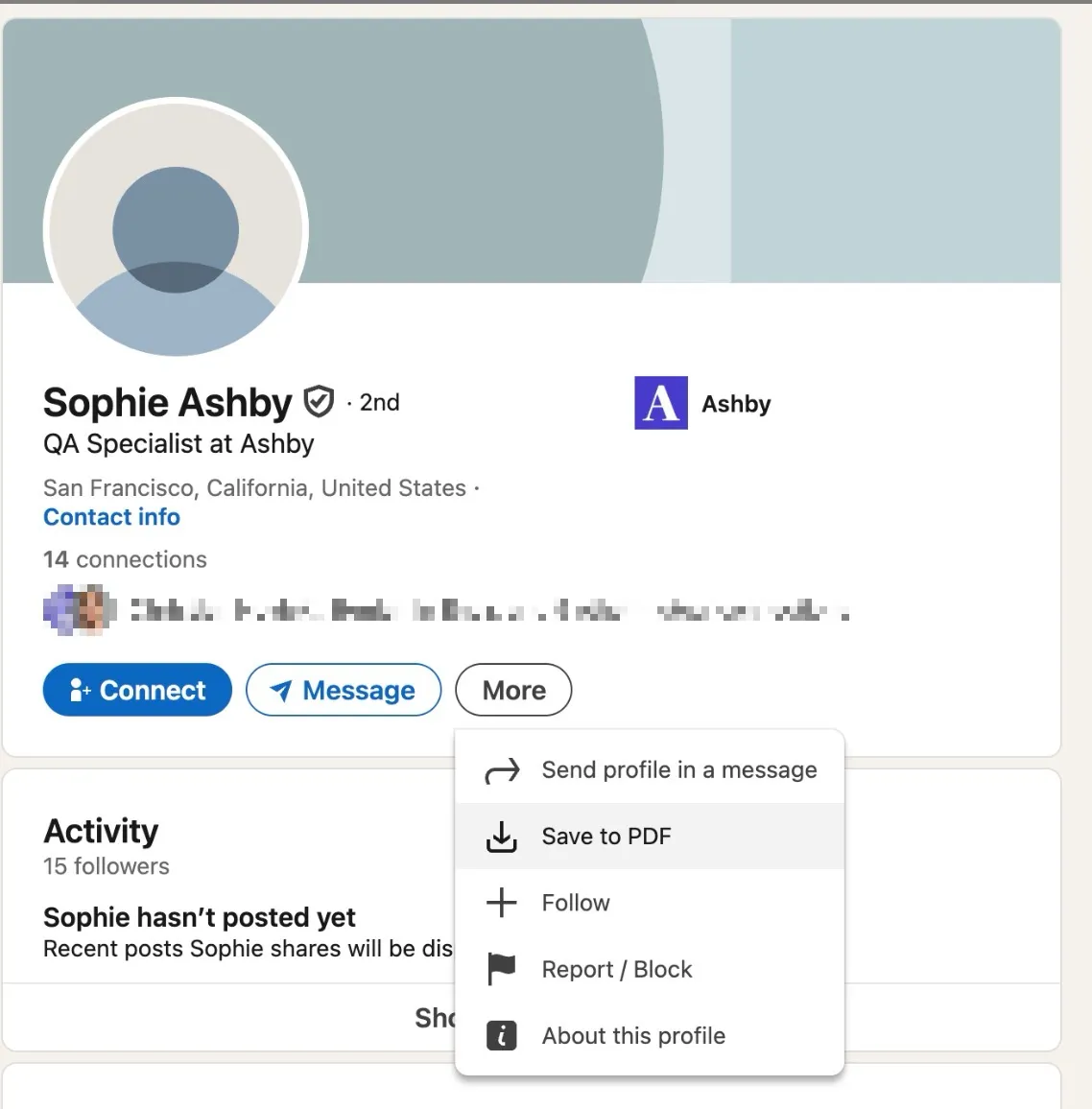
- You can also click enter their details manually on the Chrome extension and can then add their information to Ashby from there.
By default, the source is set to Sourced: Ashby Chrome Extension and a Source Site is detected and included within the attribution details (for example, LinkedIn, LinkedIn Recruiter, and GitHub). Both of these fields, along with the Credited To field, can be amended after adding the candidate to Ashby. To edit the attribution details, navigate to the candidate's profile and scroll to the Attribution section in the Activities & Progress tab. Click the X to the right of the field to clear the current value, then select the appropriate alternative.
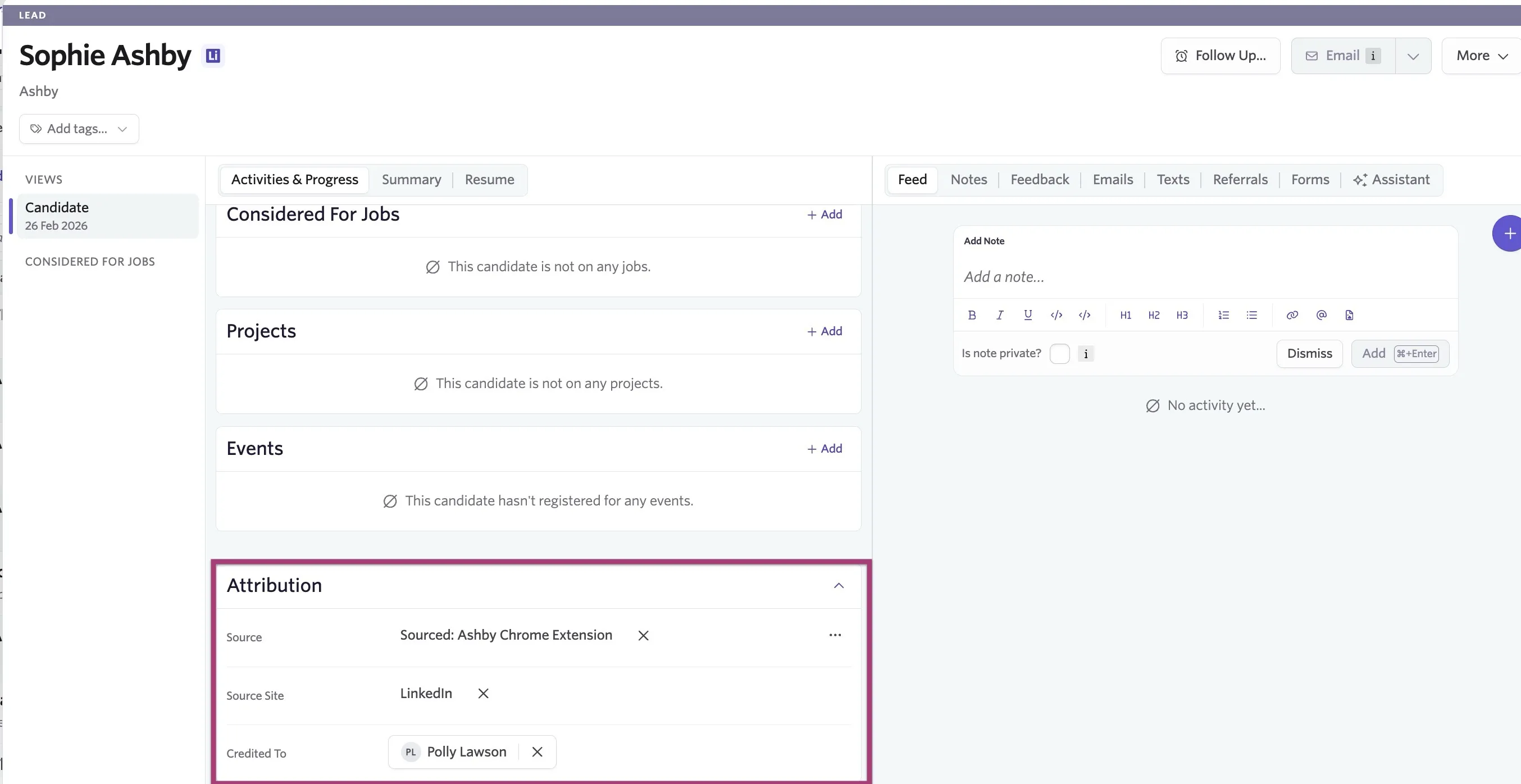
If you switch the source to something other than Sourced: Ashby Chrome Extension, the Source Site field no longer appears in the Attribution details on the candidate's profile.
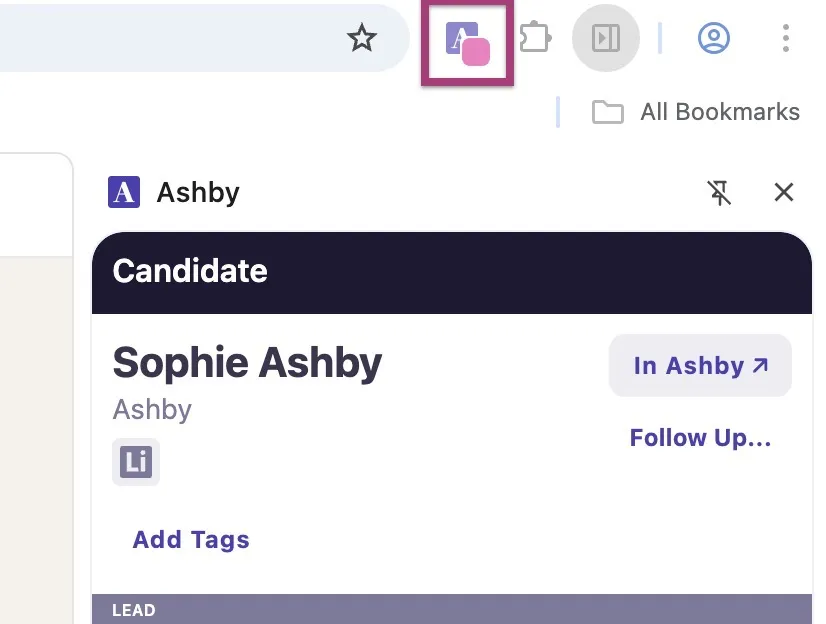
If the candidate is already in Ashby, you see a pink indicator on the Ashby Chrome extension icon.
Using the extension on LinkedIn Recruiter
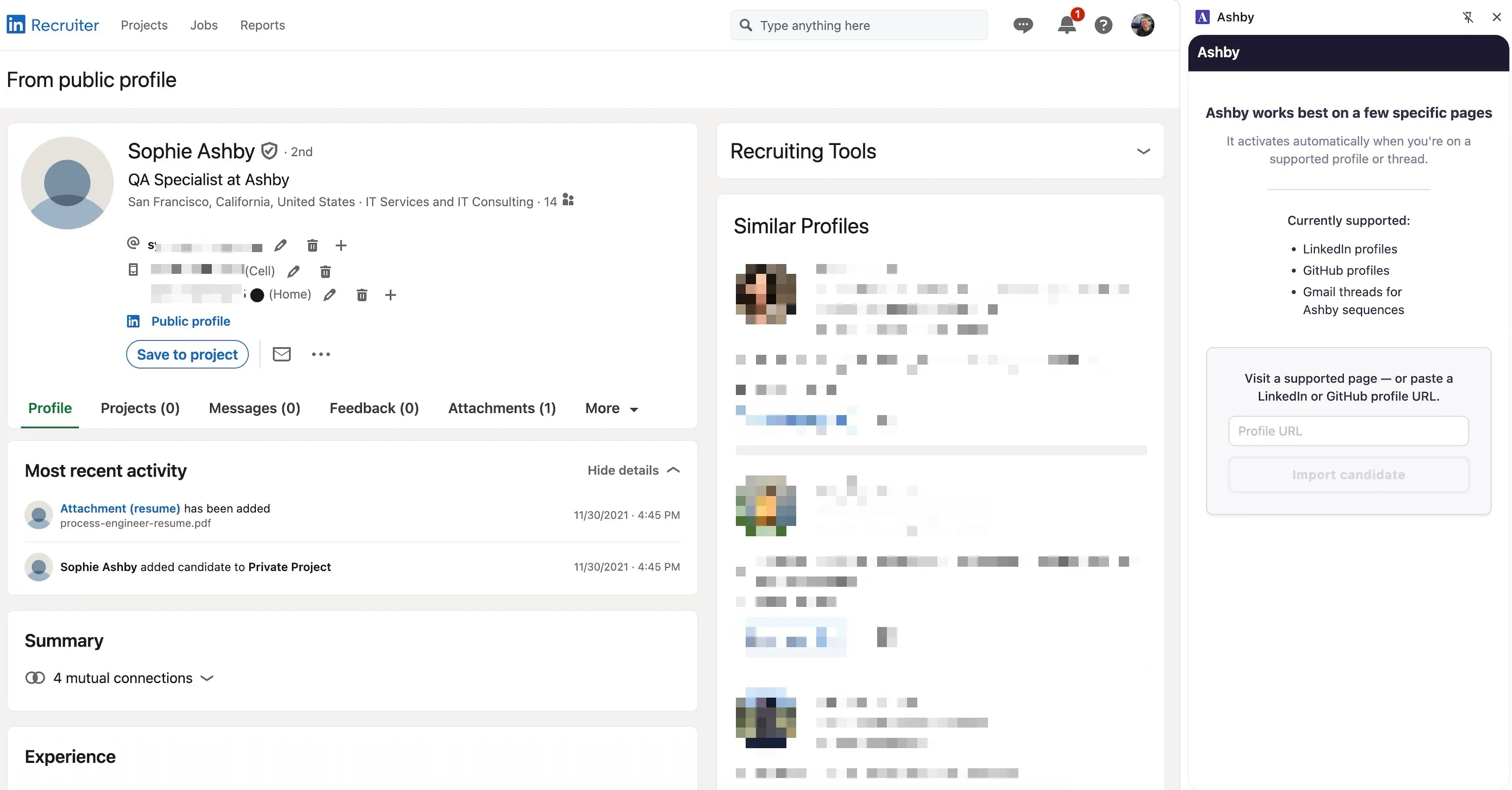
When viewing a candidate in LinkedIn Recruiter, you need to add the candidate's LinkedIn public profile URL to see whether they are already in your Ashby account or to add them to Ashby. Copy the URL and paste it into the Profile URL field in the extension. The Chrome extension then either shows the candidate in Ashby or prompts you to add them to Ashby.
Bulk importing candidates to Ashby in LinkedIn Recruiter via CSV export
LinkedIn Recruiter offers the option to bulk export candidates to a CSV file (more on this in LinkedIn's guide Export profiles in Recruiter). Click the three dots to the right of the Share for review option on the X Selected bar and select Save to CSV to add the candidate to their export file.
LinkedIn Recruiter has a limit of 25 candidates per export.
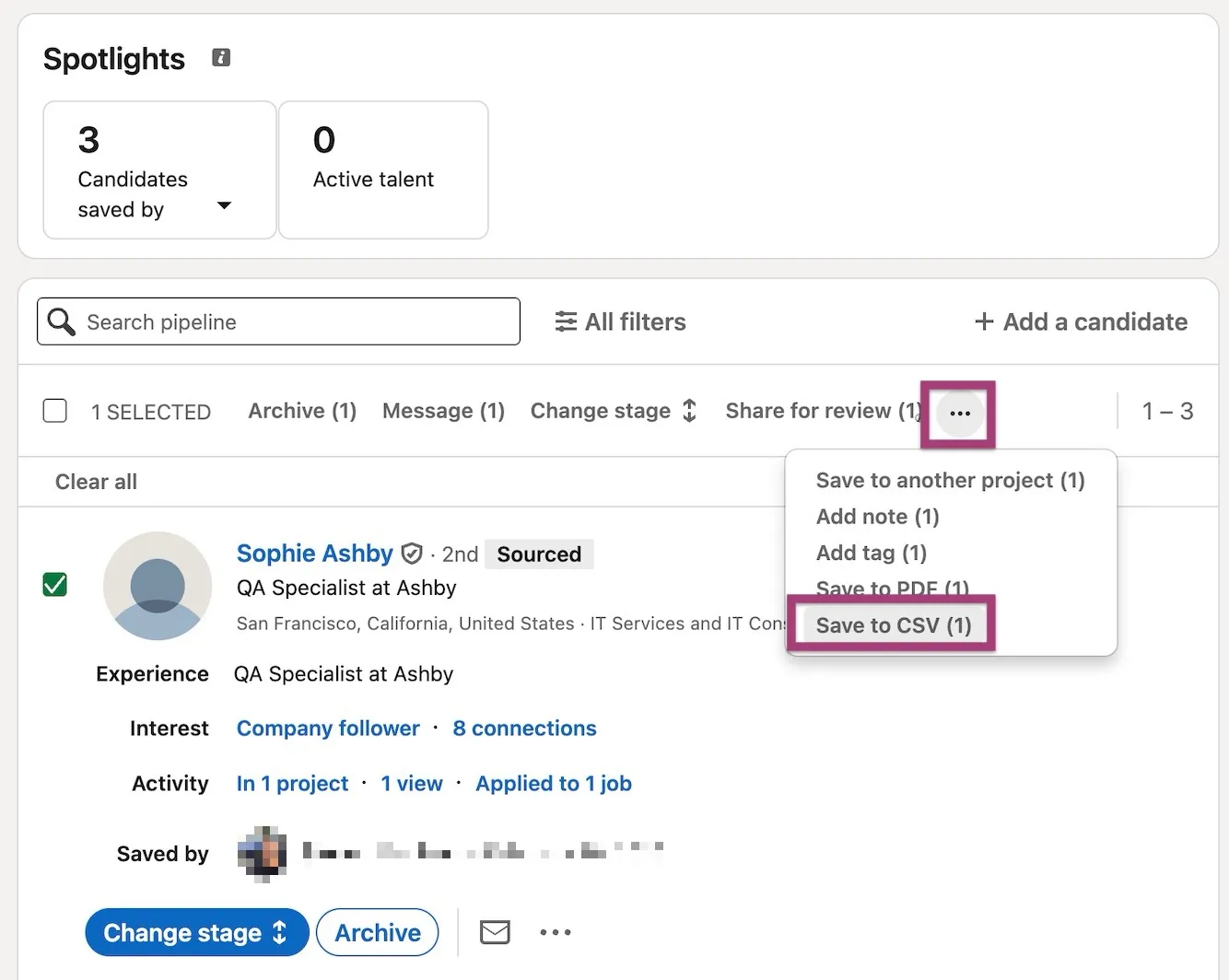
Once you've selected all of the candidates you'd like to export, click Import X Candidates within the Chrome extension to add the candidates to Ashby.
Using the Chrome extension with GitHub
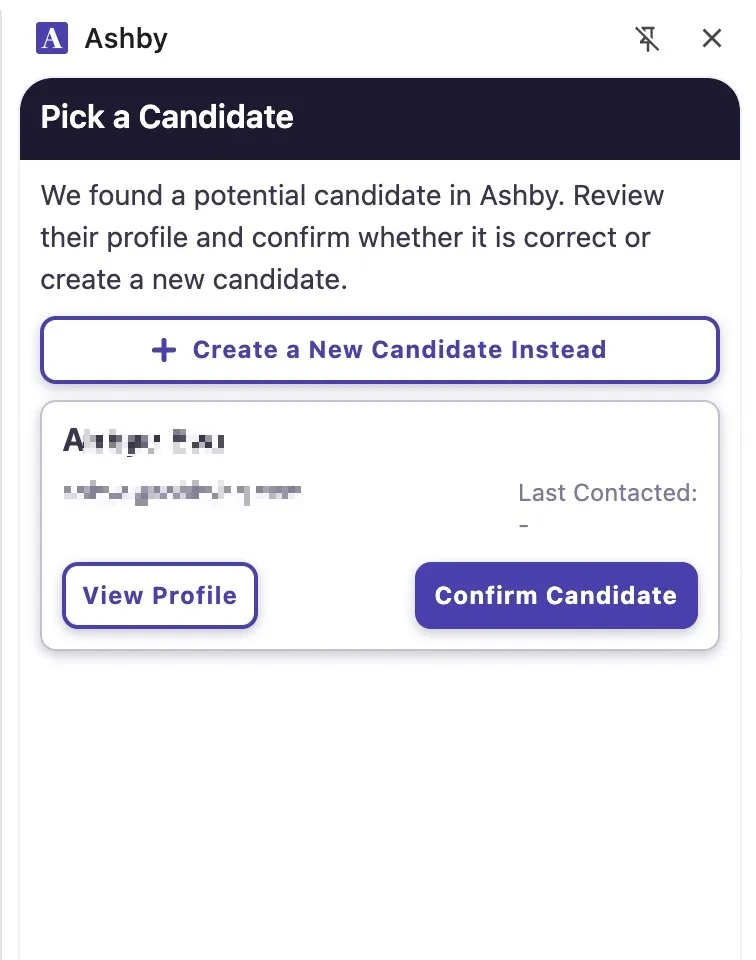
When on a GitHub profile, the Chrome extension searches through existing candidates in Ashby to find candidates with the same name. If there is a match, you have the option to add the GitHub profile link to the existing candidate's profile as a social link.
Click Confirm Candidate to match the GitHub profile to the candidate profile in Ashby. Alternatively, click Create a New Candidate Instead to create a new candidate profile including the GitHub link as a social link.
Once you've linked the candidate profile, or created a new profile, whenever you revisit that GitHub profile, you can view the candidate's profile details and take action using the Chrome extension.
Using the extension with Gmail
When replying to a candidate in Gmail, the Ashby Chrome extension allows you to review key details from their candidate profile. You can add tags, notes, and reminders for yourself or someone on your team to follow up with the candidate at a later date and time.
Managing candidate profiles using the Chrome extension
Using the Find Email Addresses button in the Chrome extension
Ashby’s data enrichment feature allows you to find personal emails for candidates directly in the extension. Once found, these emails can be used to reach out to the candidate.
When you have the Chrome extension open and are viewing an existing candidate's LinkedIn profile or GitHub profile, you see a Find Email Addresses option in the Chrome extension. Click this to use the data enrichment feature.
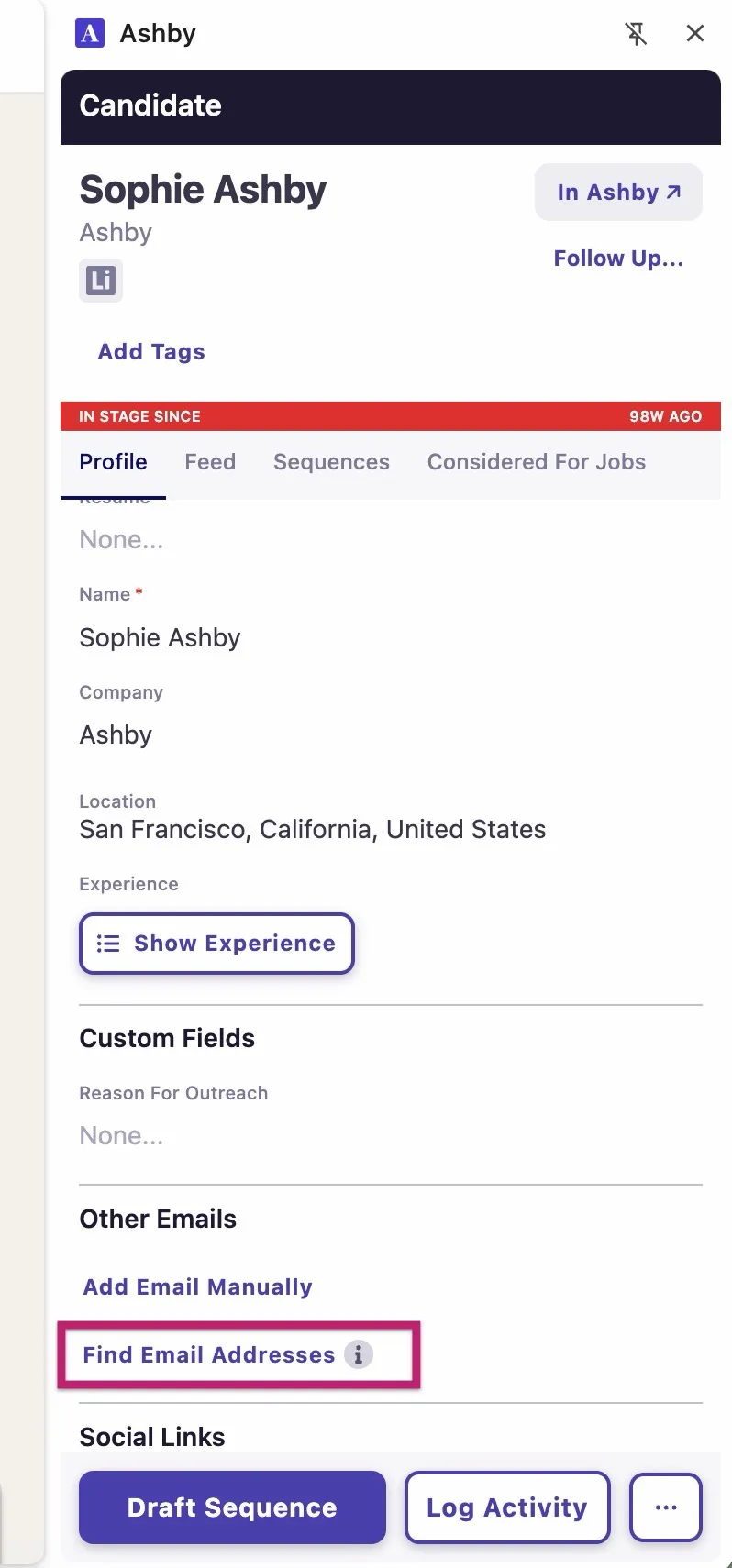
- If an email is returned for the candidate, an email lookup credit will be used.
- If an email is not returned for the candidate, an email lookup credit will not be used.
Data enrichment settings
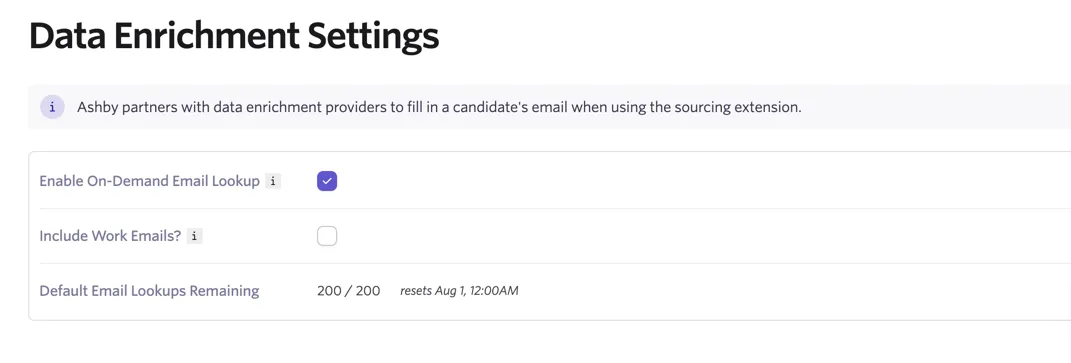
The Data Enrichment Settings under Admin > Sourcing > Email Lookups display the remaining email lookups your team has for the month.
For more on purchasing additional lookups, see How do I purchase additional email lookups, AI credits or texting credits in-app?
The Data Enrichment Settings page also houses some additional options:
- Enable On-Demand Email Lookup: Enable this option if you would like your team to use the Find Email Addresses button to trigger data enrichment, rather than it happening automatically.
- Include Work Emails? If disabled, only those determined by the data enrichment process as personal will be returned. Enrichment requests that do not return a personal email will not use email lookup credits.
Send email sequences
You can enroll a candidate in an email sequence that messages them at a set cadence until they follow up. For a more detailed overview of this feature, see Sequences. For more information on InMail and Connection Request nudges in a sequence, see Sequences: InMail and Connection Request Stages.
If you enroll a candidate in a sequence via the Chrome extension, this counts as an individual sequence and can't be edited in bulk along with other enrollments.
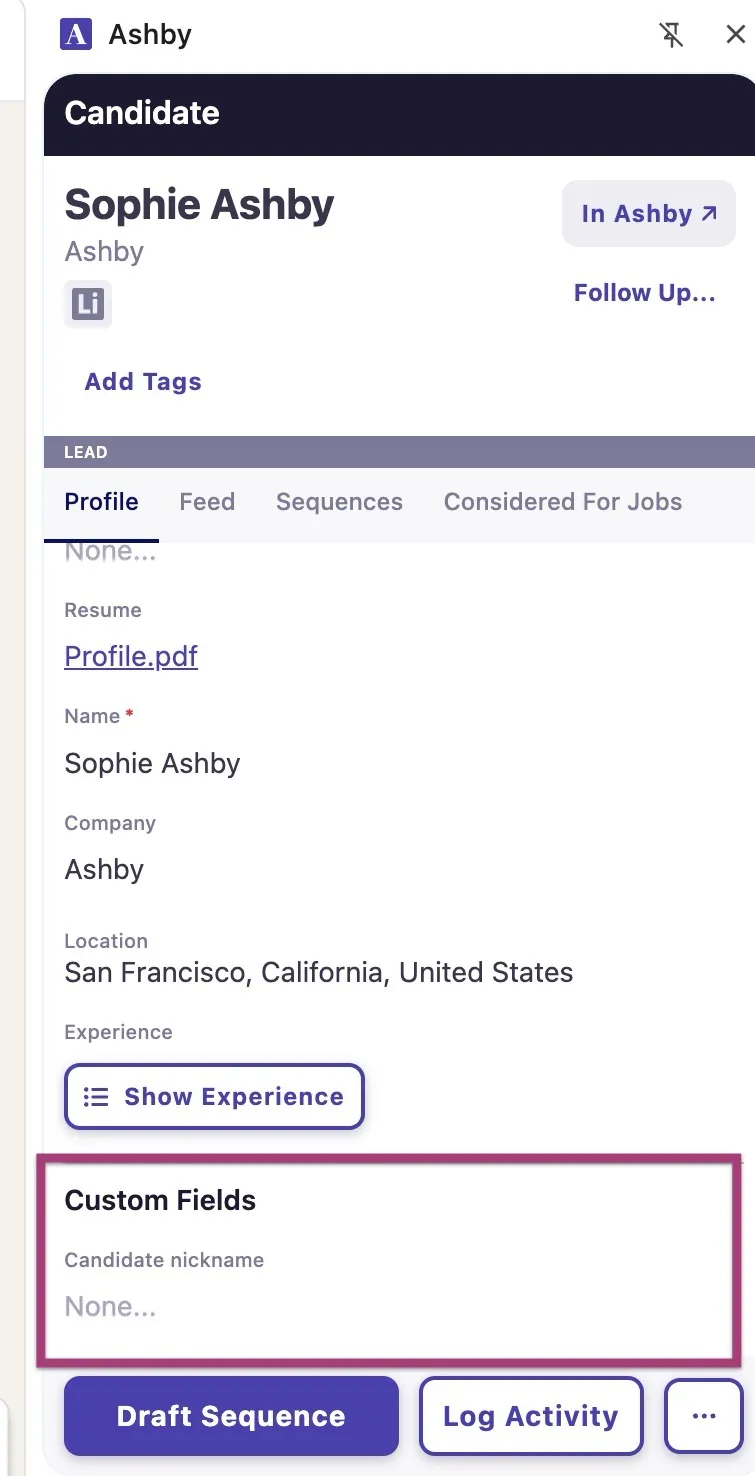
Before sending a sequence, populate details in the reason for outreach and other custom fields you create. If you have tokens in your sequences that rely on information added into custom fields, then this ensures that information is populated.
For more on configuring custom fields, see Custom Fields.
Select a sequence, customize it, and send it to a candidate
To draft a sequence to a candidate via the Chrome extension, click Draft Sequence.
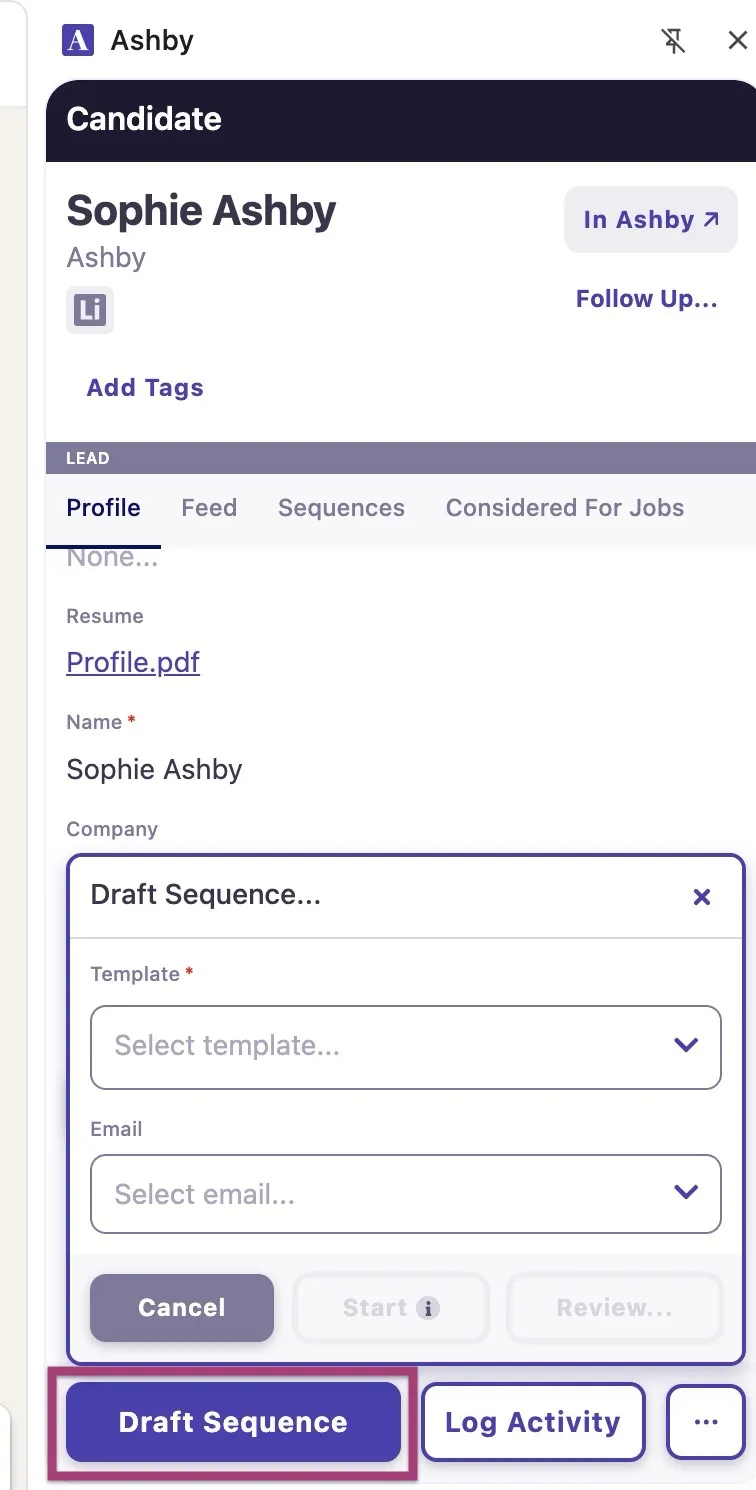
From here, you can determine the sequence template and the candidate's email address. Once both fields are completed, you have the option to start the sequence immediately or review it before sending.
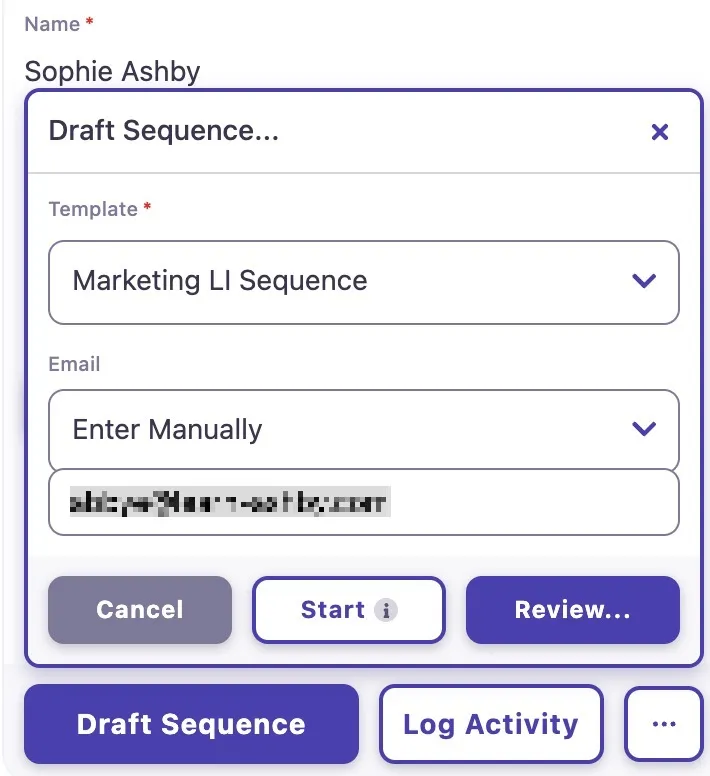
If you'd like to make any edits to your sequence before sending it, select Review. You can review each stage and make any adjustments. Once you're ready to start the sequence, click Start.
If you don't opt to send the sequence, Ashby keeps it as a draft on the candidate's profile so you can send it later.
Consider the candidate for a job
For a more detailed overview of creating jobs, see Creating & Opening Jobs.
You can add candidates directly into a job pipeline within the Chrome extension by clicking the Consider for Job button.
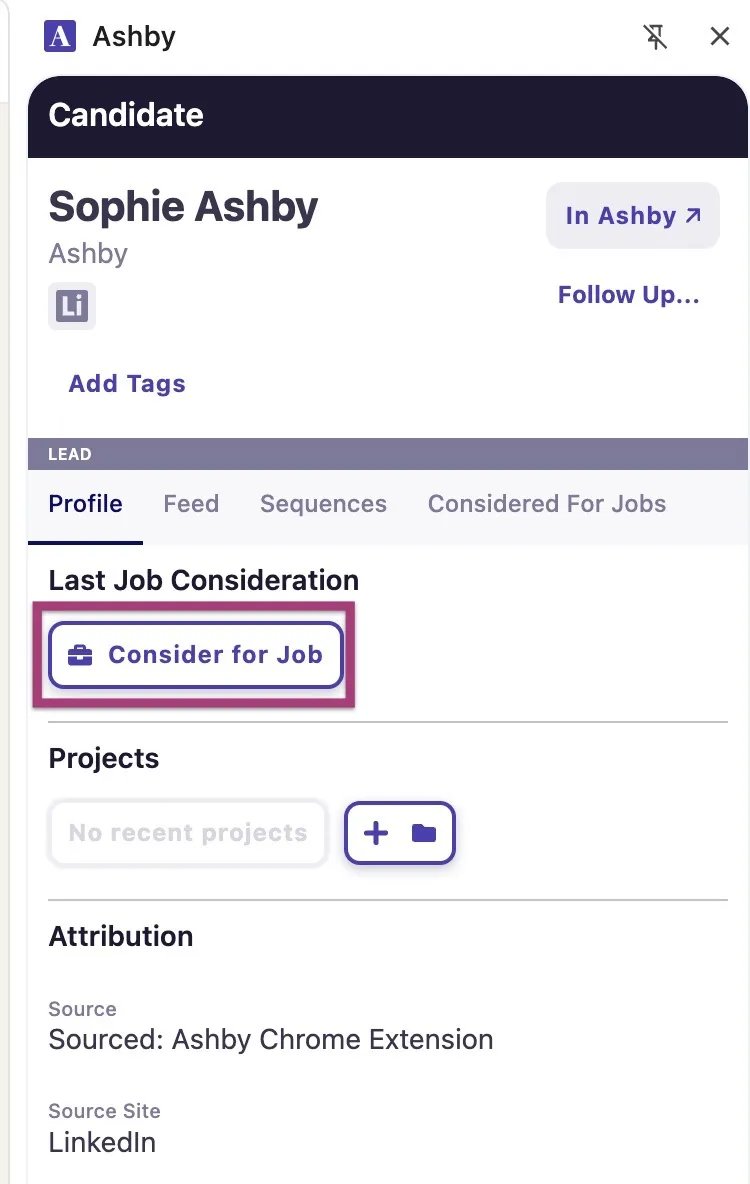
Once clicked, you can select the role and the interview plan stage the candidate should be added to.
If you import candidates via LinkedIn Recruiter, Ashby always adds them to the Application Review stage.
Check the Update experience checkbox if you'd like Ashby to analyze and update the candidate's education and work experience from their LinkedIn profile.
This overrides existing education and work experience information already on their profile.
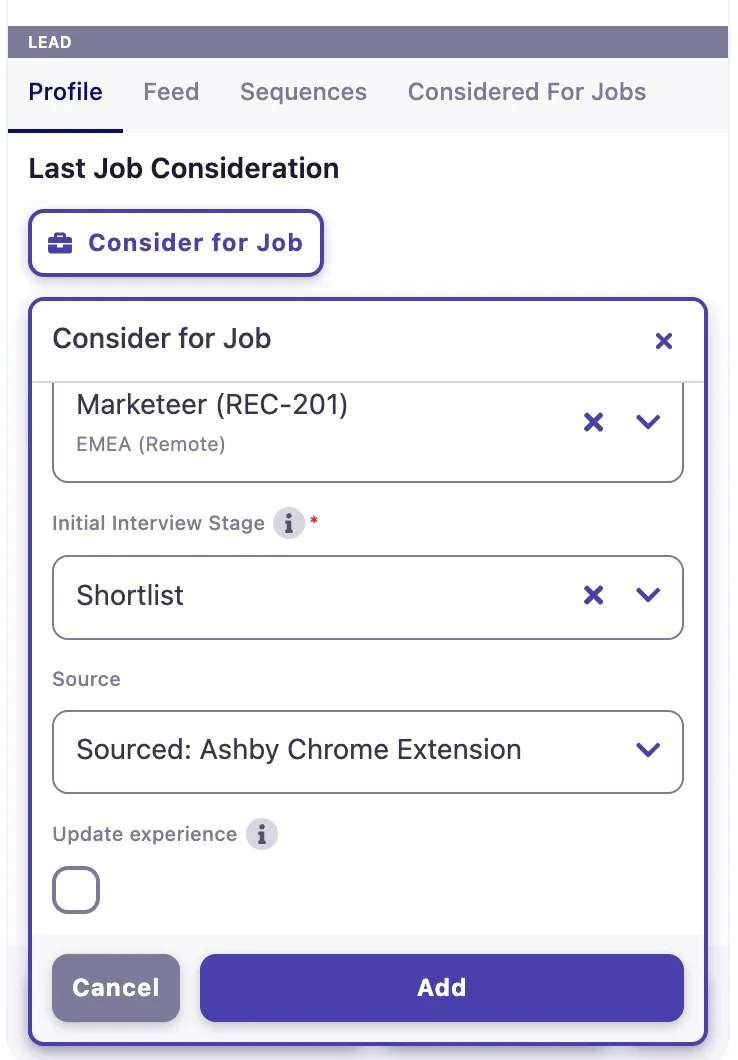
Click Add to confirm and add the candidate to the job pipeline.
Change candidate stage or archive
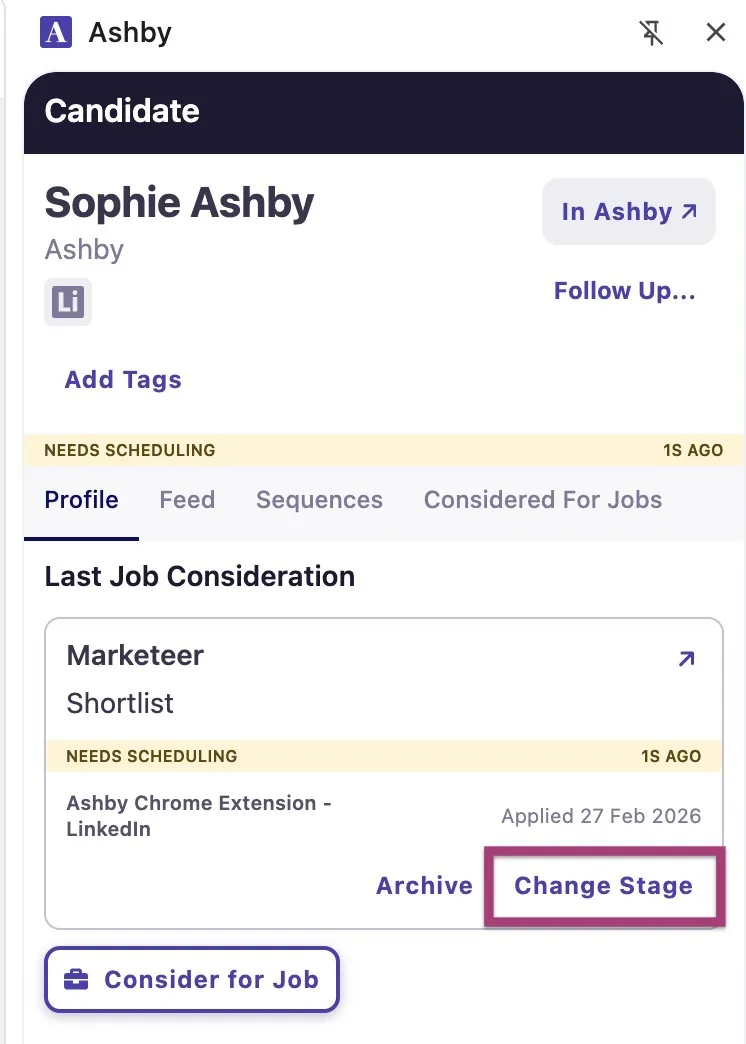
You can change a candidate's current stage by clicking the Change Stage button and selecting the new stage.
You can archive a candidate by clicking the Archive button. Then you select an archive reason, decide whether feedback is required, and click Archive.
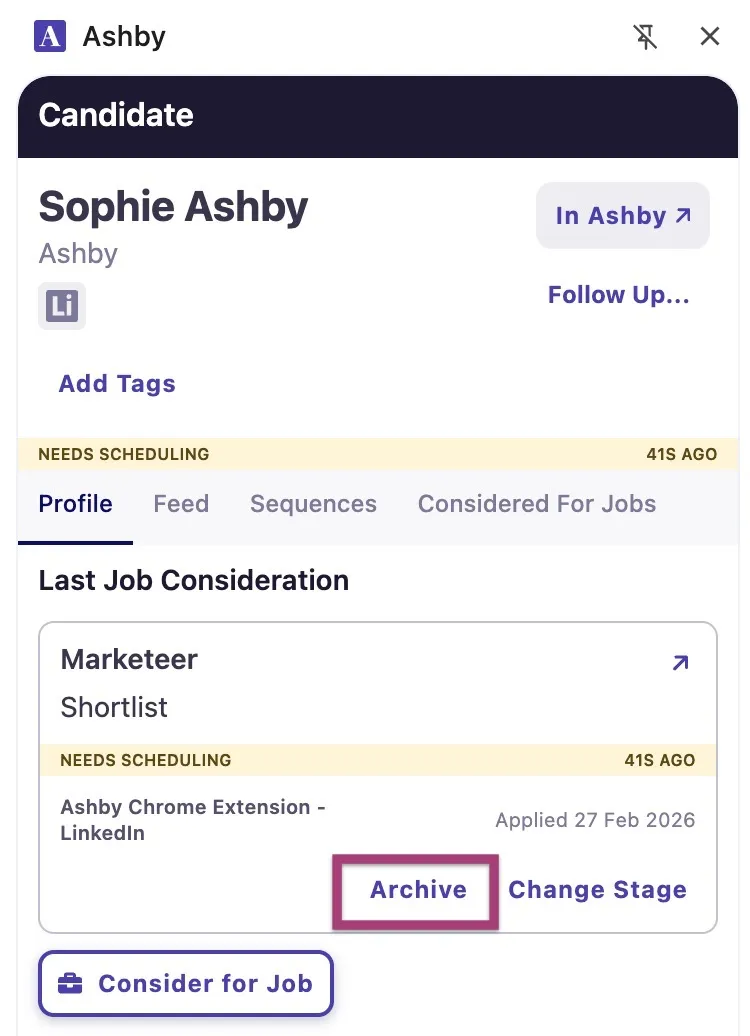
If a candidate has already been archived or for a job consideration, the Archive button is not present.
Add candidate to a project
For a more detailed overview of this feature, see Projects.
Add candidates to a project from the Chrome extension
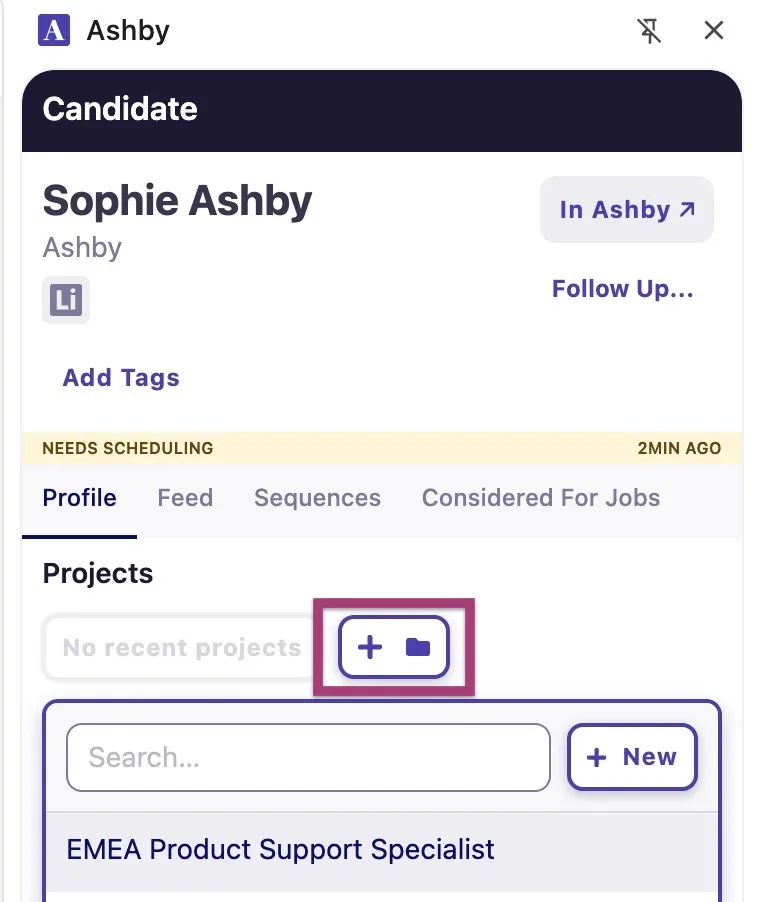
Once you have set up a project, you can add candidates to that project from the Chrome extension or on their candidate profile. Click the + icon in the Projects section of the Chrome extension, then select the project from the list. The candidate is then added to the selected project.
Adding tags to a candidate via the Chrome extension
For more on tagging candidates, see Tags.
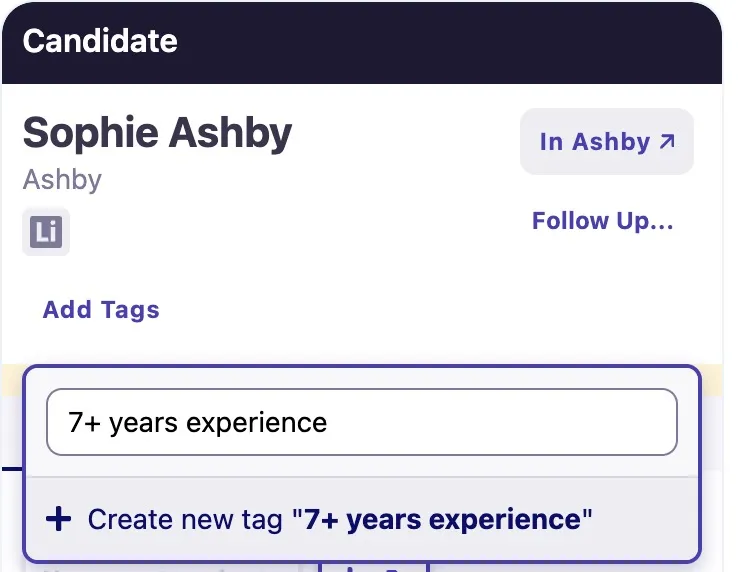
Click Add Tags within the Chrome extension to add tags to the candidate profile in Ashby. To create a new tag in the Chrome extension, start typing the name of your new tag, then click Create new tag "X" to add the tag to the candidate profile and to your list of available tags.
Creating a follow-up using the Chrome extension
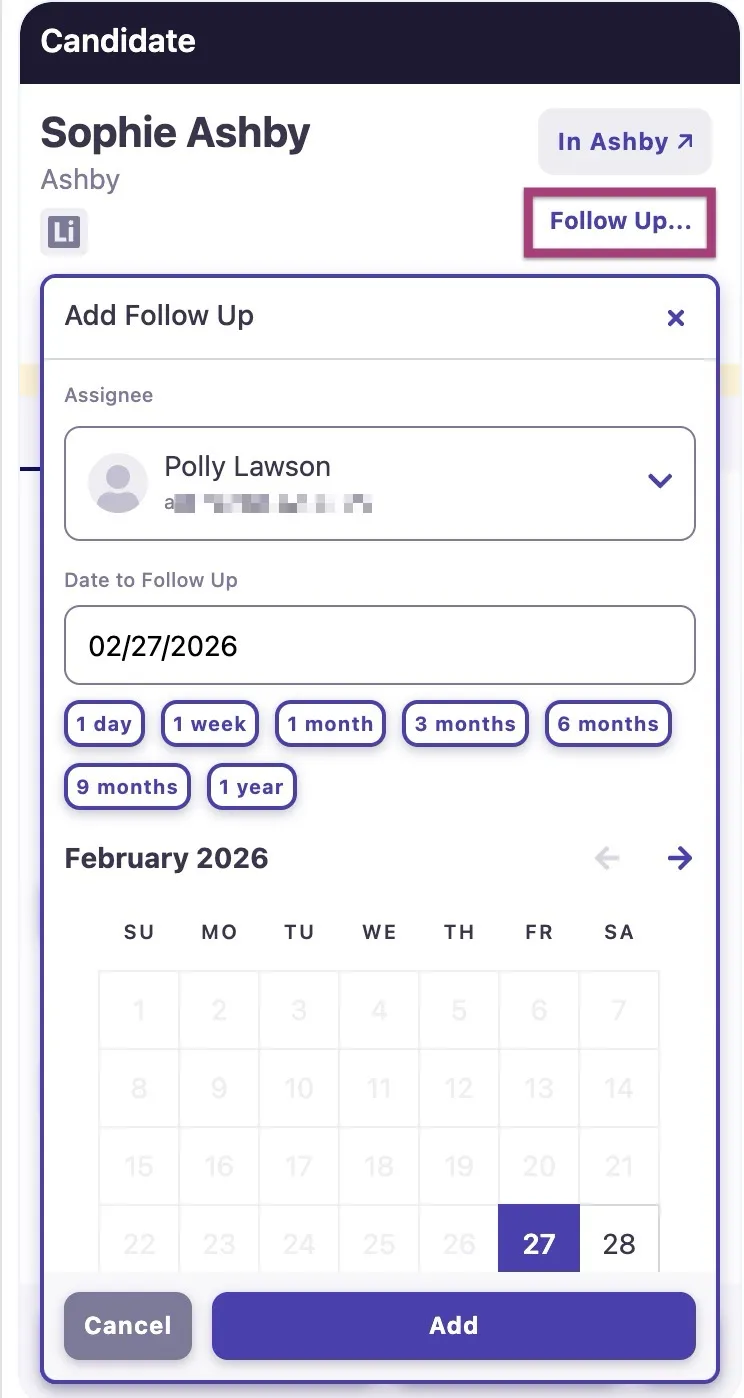
If you'd like to be reminded to return to a candidate's profile later, you can create a follow-up. Click Follow up... in the Chrome extension to set an assignee and a date to send the notification to follow up on the candidate's profile. You also have the option to add a note.
Log outreach or responses in Ashby
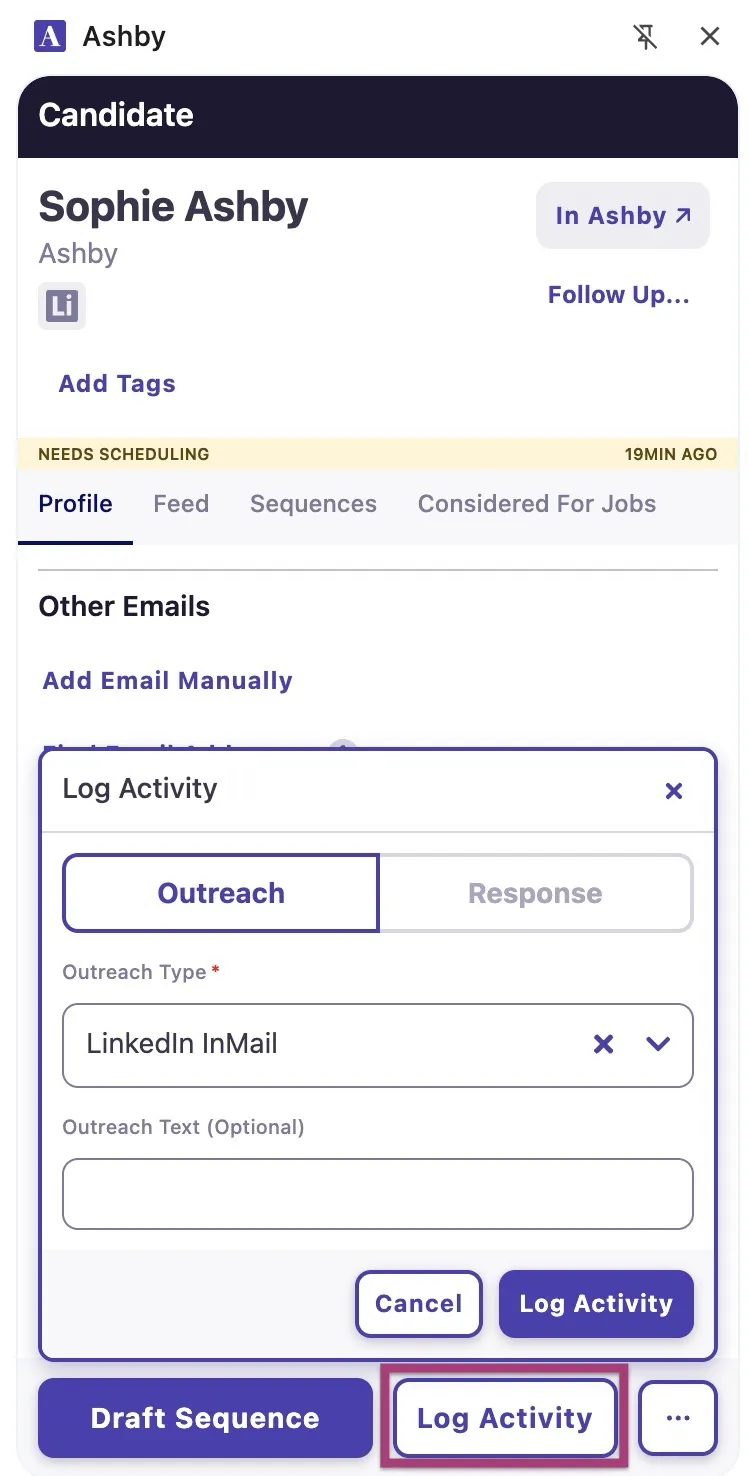
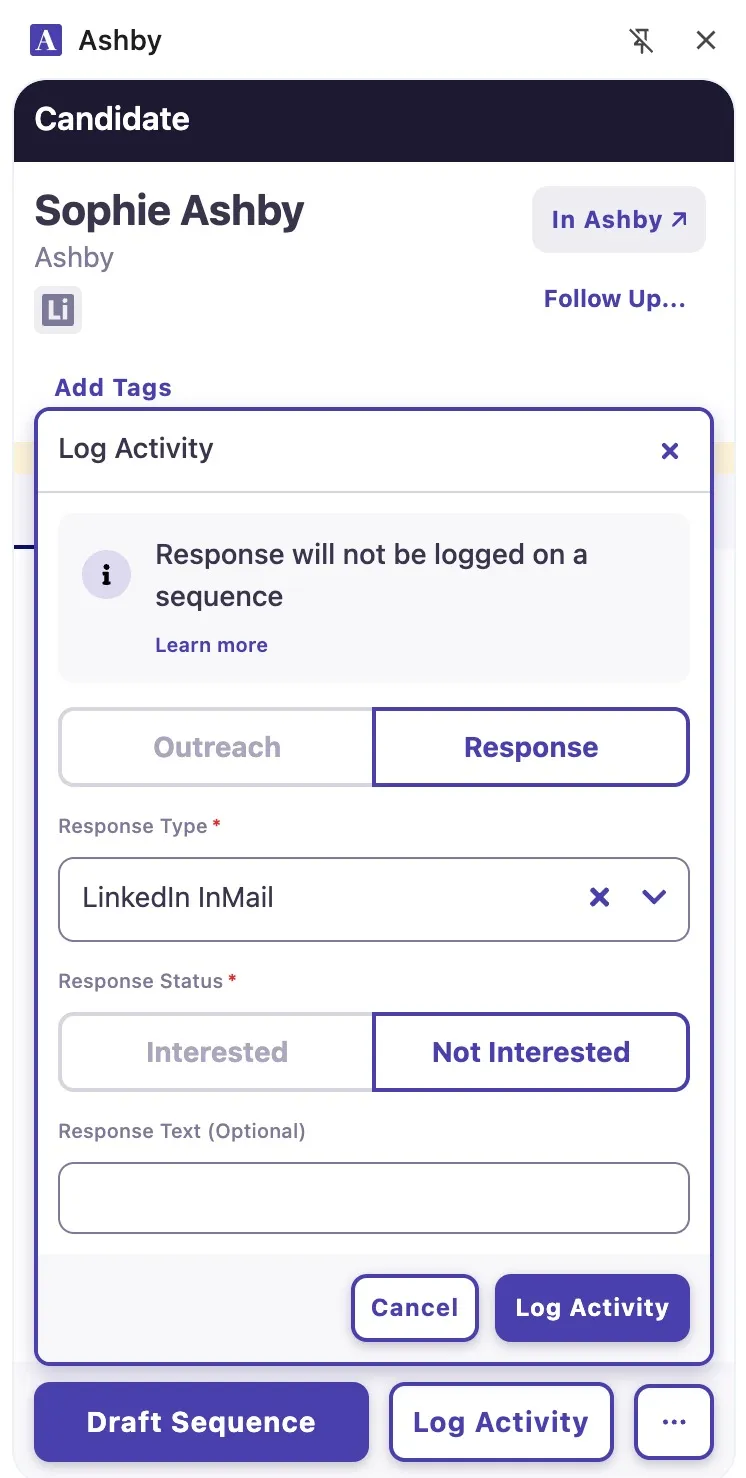
If you've reached out to the candidate or have received a response from them in LinkedIn, this information can be manually logged in Ashby. Click Log Activity and select whether you are logging outreach or a response.
If you are logging outreach activity, determine the outreach type and outreach text, then click Log Activity to add the activity to the candidate's profile.
For response activity, set the response type, the response status (whether the candidate is interested or not), and then add the response text. Click Log Activity to add the activity to the candidate's profile.
FAQs
How many email lookups do I get each month?
The number of lookups you receive depends on your plan. You can check how many you have on the Email Lookups tab in Admin.
What is the difference between on-demand and automatic email lookups?
You have the option to enrich candidate profiles from the Chrome extension automatically (after the candidate has been added to Ashby), or by clicking a button. On-demand allows you more control over the number of email lookups you use, while automatic enrichment saves you a click. Automatic enrichment is the default option, and you can enable on-demand enrichment on the Data Enrichment tab in Admin.
How often do my email lookups reset?
Email lookups reset at midnight in your local time on the last day of each month. Unused lookups do not roll over.
Can I add more email lookups?
Yes, you can purchase additional email lookups if needed. For more information, see How do I purchase additional email lookups, AI credits, or texting credits in-app?
How do I prevent duplicate candidates?
The extension matches duplicates based on name, email address, and LinkedIn URL. If a LinkedIn URL is found on the page, the extension displays the existing profile (if the name is common and the email does not come from LinkedIn).
If no match is found based on the LinkedIn URL, you can add a new profile. Once a profile is added, Ashby checks it against all three criteria. If a duplicate is found at that point, a duplicate notification appears, and you can merge the two profiles.
What permissions do I need to add candidates to jobs via the Chrome extension?
You need at least Elevated Access - Hiring Manager permissions for the job in question to add a candidate to the job. For more information on user permissions, see User Permissions.
The extension has created candidates with incomplete experience/education: is there a way to get that missing information into Ashby?
When adding the candidate via a social URL, we create the profile using publicly available information, which may at times be limited or outdated. The alternative is to add the candidate via a PDF resume. When adding a candidate via PDF resume download, we reliably parse the entire work/education history of the candidate.
While it is technically easy to reliably capture the entire LinkedIn profile in an extension, doing so is not permitted by LinkedIn's terms of service.
I'm seeing multiple source sites across job considerations for a candidate: why?
If you consider the candidate for one role while viewing their profile on LinkedIn, then the Source Site on their job consideration is set to LinkedIn or LinkedIn Recruiter. If you then consider them for another role using the Chrome extension while viewing their GitHub profile, then the job consideration is created with the Source Site listed as GitHub. This is expected behavior. You can override the Source Site for an application or job consideration by transferring it to another role. For more information, see Can I transfer a candidate’s job consideration to another job or interview plan?.
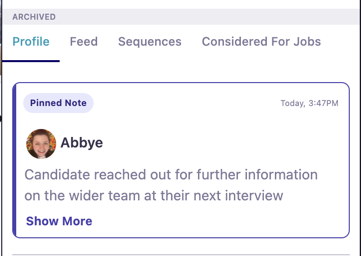
Can I pin or view pinned notes via the Chrome extension?
Yes. Each note shows an option to pin or unpin in the Chrome extension. Any pinned notes show at the top of the Profile and Feed sections in the extension.