Sync Employee Custom Field as Offer Field
Data you collect during the offer stage, including department, hire date, compensation, or a location code for your human resources information system (HRIS), is often the same data you need on the employee record during onboarding.
Rather than entering it twice, you can sync an employee custom field in People Ops so it also appears as an offer custom field in Recruiting. The value entered on the offer then flows to the employee record, where you can use it in workflow tokens, filters, permission sets, and reports. This article explains how the sync works and how to set it up.
Ashby's People Ops module is currently available through restricted early access. The following documentation is provided for design partners participating in that program.
Permissions and access
Org Admins can create and edit custom fields in both the People Ops and Recruiting admin areas. The Sync as Offer field? setting is only available on employee custom fields tagged App: Ashby People Ops. You cannot enable the sync from the Recruiting side.
Employee custom fields created in People Ops and offer fields are treated as sensitive data in People Ops. Whether a user can see a synced field's value depends on their People Ops permission set:
- Users need view access to the specific employee field to see its value on the employee profile.
- Users need view access to the specific offer field to see its value in Offer Details within People Ops.
- Standard employee fields such as name, email, role, start date, and manager, along with any employee custom fields created in the Recruiting app, are always visible to all People Ops users regardless of permission set configuration.
To adjust these settings, navigate to Admin > Permission Sets, then add or edit a permission set. More on this at Configure Permission Sets.
How the sync works
The sync has two distinct parts.
The field definition syncs from People Ops to Recruiting. When you enable the setting, Ashby creates a matching offer custom field in Recruiting with the same field type and the same selectable values. That offer field displays Source: Ashby People Ops so you can tell it apart from offer fields created directly in Recruiting. If you later rename, add, or archive selectable values on the employee field, those structural changes propagate to the offer field.
The field value syncs from the offer to the employee. When a candidate is marked as Hired and enrolled in an onboarding workflow, Ashby copies the value entered on the offer to the employee record. If someone updates the synced offer field afterward, the corresponding employee field updates too.
Values do not sync in the reverse direction. Editing the employee custom field on the employee profile does not change the value on the offer.
Sync an employee custom field as an offer field
- In People Ops, navigate to Admin > Custom Fields and select the Employee tab.
- Select an existing field tagged App: Ashby People Ops, or click New to create one. Choose the field type carefully, as you cannot change a custom field's type after you create it.
- Select the Sync as Offer field? checkbox.
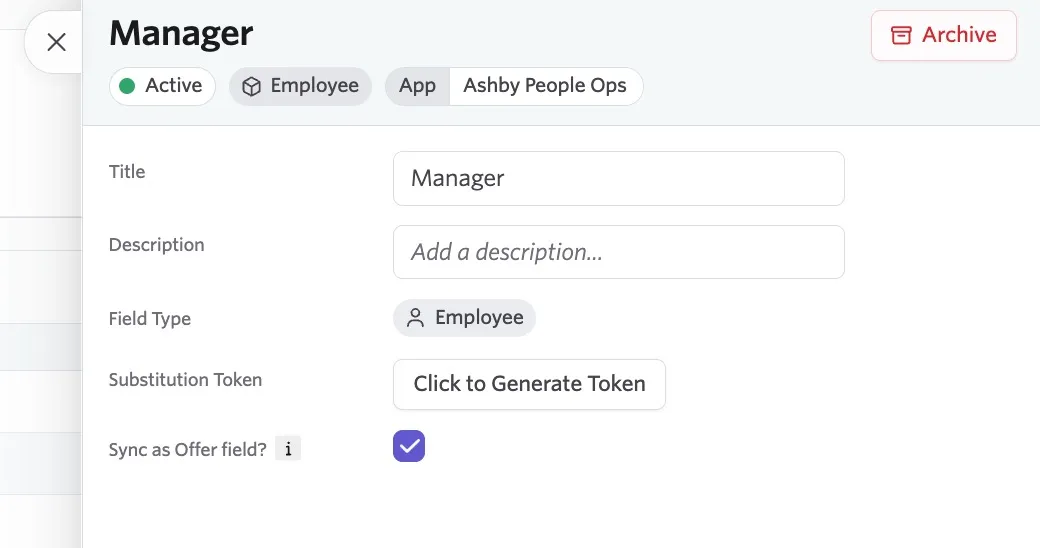
- In Recruiting, navigate to Admin > Custom Fields and select the Offer tab. Confirm the new field appears with Source: Ashby People Ops.
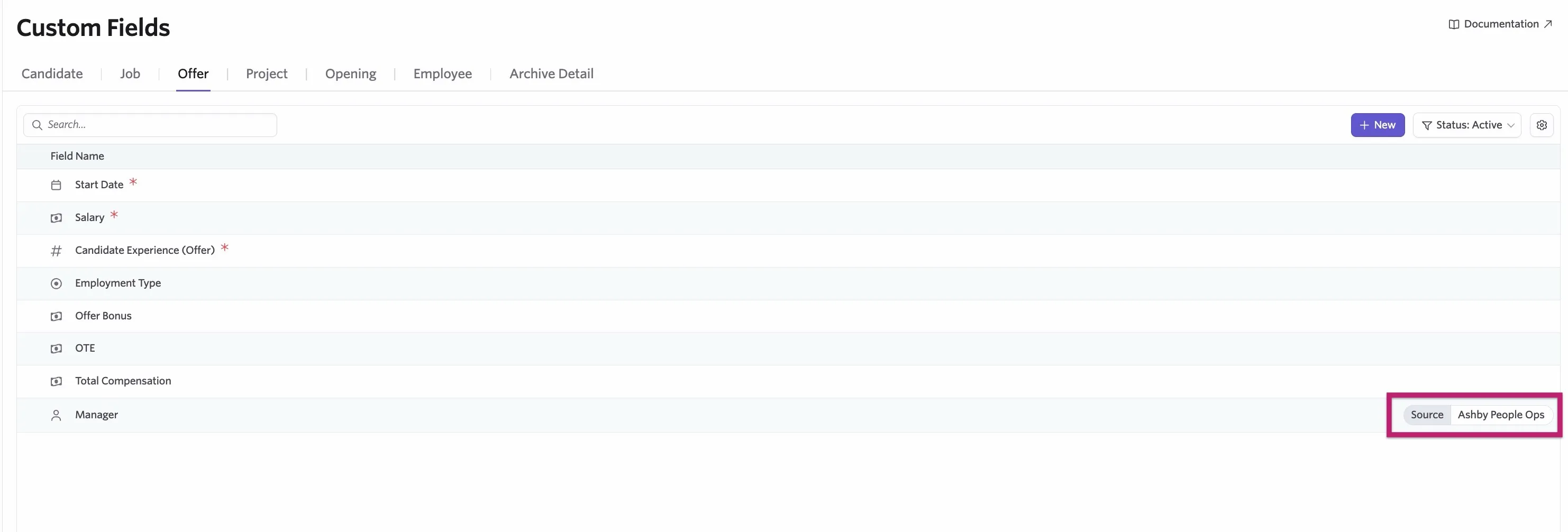
The field now appears on the offer form, where users can fill it out like any other offer field.
Sync job and offer data via Sync as Offer field
For fields that already have a value in Ashby Recruiting (such as compensation or hire date), you do not need to collect that data again. Enabling Sync as Offer field? on an ADP custom field automatically populates it from the candidate's Job or Offer record instead of requiring manual or survey entry.
To configure this:
- Navigate to Admin > Custom Fields.
- Locate the applicable ADP sourced field.
- Enable the Sync as Offer field? toggle for that field.
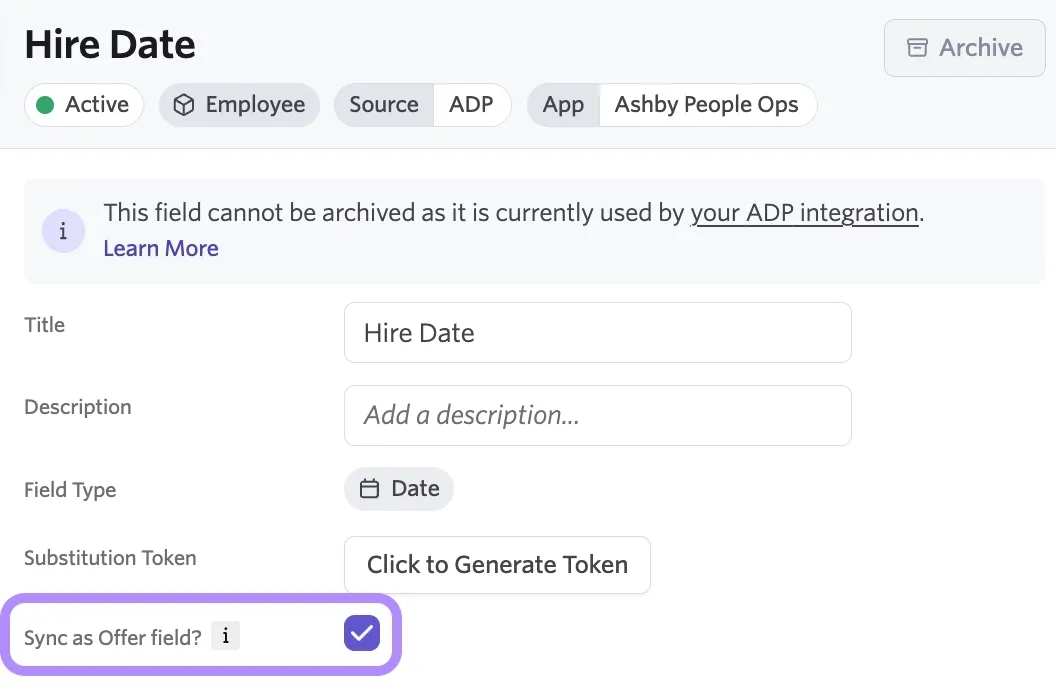
Once enabled, the ADP-sourced custom field in People Ops syncs as a custom offer field in Ashby Recruiting. From there, you can set a default value from Job data, or populate it when generating a new hire's offer.
Configure the synced offer field
Once the field exists in Recruiting, configure it from Admin > Custom Fields > Offer so your team does not have to enter data that already exists elsewhere in Ashby. The most useful options are:
- Choose a default value: Pull the value from another Ashby field (for example, the job's department or a field on the opening), or set a static value. The default value can only be pulled from a field of the same type as the offer field.
- Hide this field in the offer form: Keep the field off the form entirely, or hide it when a default value is present.
- Make this field non-editable: Prevent anyone from overriding the default value manually in Offer Details.
- Restrict which offer forms include this field: Specify which jobs or departments display the field on offers.
- Require reapproval: Require offer re-approval when the field's data changes.
- Substitution token: Create a token to pull the value into an offer letter or e-signature document.
A common pattern is to create the employee field, sync it as an offer field, set its default value from the job or opening, and then hide it when a default value is present. The data populates automatically, no one sees an extra field on the offer form, and the value still lands on the employee record for use in People Ops.
Substitution tokens are not supported for the Checkbox and Long Unformatted Answer field types.
Common use cases
- E-signature document tokens: Workflow tokens can only reference data collected in the workflow, sender information, and employee custom fields. They cannot reference job or opening fields directly. Syncing brings offer-stage data onto the employee record so you can use it as a token.
- Workflow filters and conditions: Branch a workflow on a value captured at the offer stage, such as department or work location.
- Permission sets: Scope access dynamically, for example so a department head only sees onboarding progress for their own department. Permission set queries run against employee fields, so the data has to live on the employee record.
- Task lists and People Ops views: Filter and group tasks by an offer-stage attribute.
- HRIS integrations: Reuse a field sourced from ADP Workforce Now on the offer instead of collecting the same value again in a survey.
If a value only needs to drive a workflow filter, a plain offer field may be enough. Sync the field when you also need it in task lists, permission sets, or other People Ops views.
FAQs
Can I enable the sync from the Recruiting side?
No. Sync as Offer field? is only available on employee custom fields in People Ops, and it is the only way to control the sync.
Does editing the employee custom field update the offer?
No. The value sync runs in one direction only, from the offer to the employee.
Why can't I see the value on the employee profile?
This could be because of your configured permissions. Employee custom fields created in People Ops are sensitive data, so you need view access to that specific field.
For more information, see Configure Permission SetsAdminister permission sets.
Can I turn the sync off later?
Yes. Deselect the Sync as Offer field? checkbox within the custom field settings. Turning the sync off and back on re-runs the sync and re-clones the employee field's current configuration to the offer field.