Workflow Steps: Pages
This article covers how to add and configure a Page step. For guidance on setting the step's delay, filter, and dependencies, see Configure your Workflow Steps. For more on setting up pages, see Building and Editing Pages.
Ashby's People Ops module is currently available through restricted early access. The following documentation is provided for design partners participating in that program.
Permissions and access
To add a Page step, you need view and edit access to the workflow template and access to the page you want to assign to the step. Your permission set grants this access to either all workflows or specific workflow templates.
Learn more about Ashby's People Ops permission sets: Configure Permission Sets.
Adding a Page step
Navigate to Ashby's People Ops module and complete the following steps:
- Open the workflow, select Edit Workflow Template, then select Add Step in the appropriate section.
- Select Page from the step type dropdown.
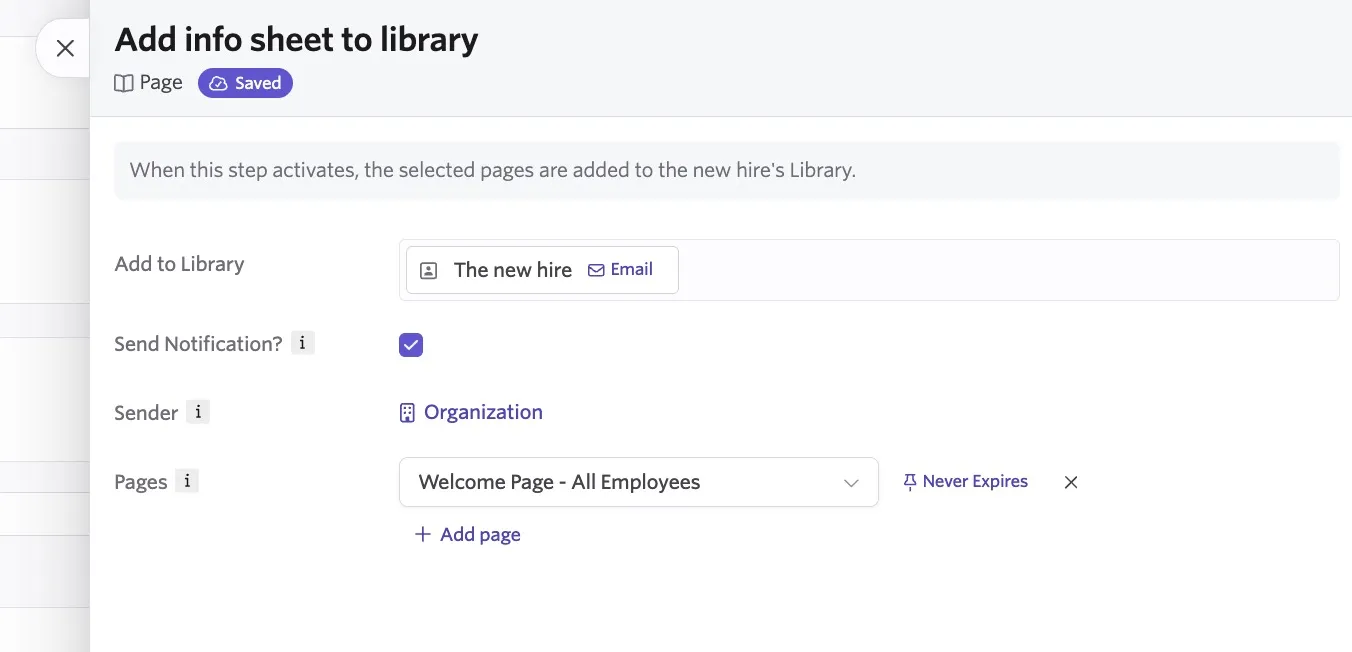
- Configure the step including:
- Add to Library: Determine which library to add the page to for the employee. For an onboarding workflow, this is the new hire.
- Send Notification? Determine whether the employee is notified and the sender, if applicable.
- Pages: Select the page to assign to the employee's library.
- You can assign multiple pages by clicking + Add page. This option appears after you select the first page from the Pages dropdown.
- Click Never Expires to set an expiry for the page. You can set different time periods per page.
- Click the x to the right of the expiry settings to remove a page from the step.
- Set the step's delay, filter, and dependencies. See Configure your Workflow Steps for details.
- Publish your changes. See Publishing Workflow Updates for details.
FAQ
How do I assign a page to an employee?
For more on assigning pages, see Assigning Pages to New Hires & Employees.
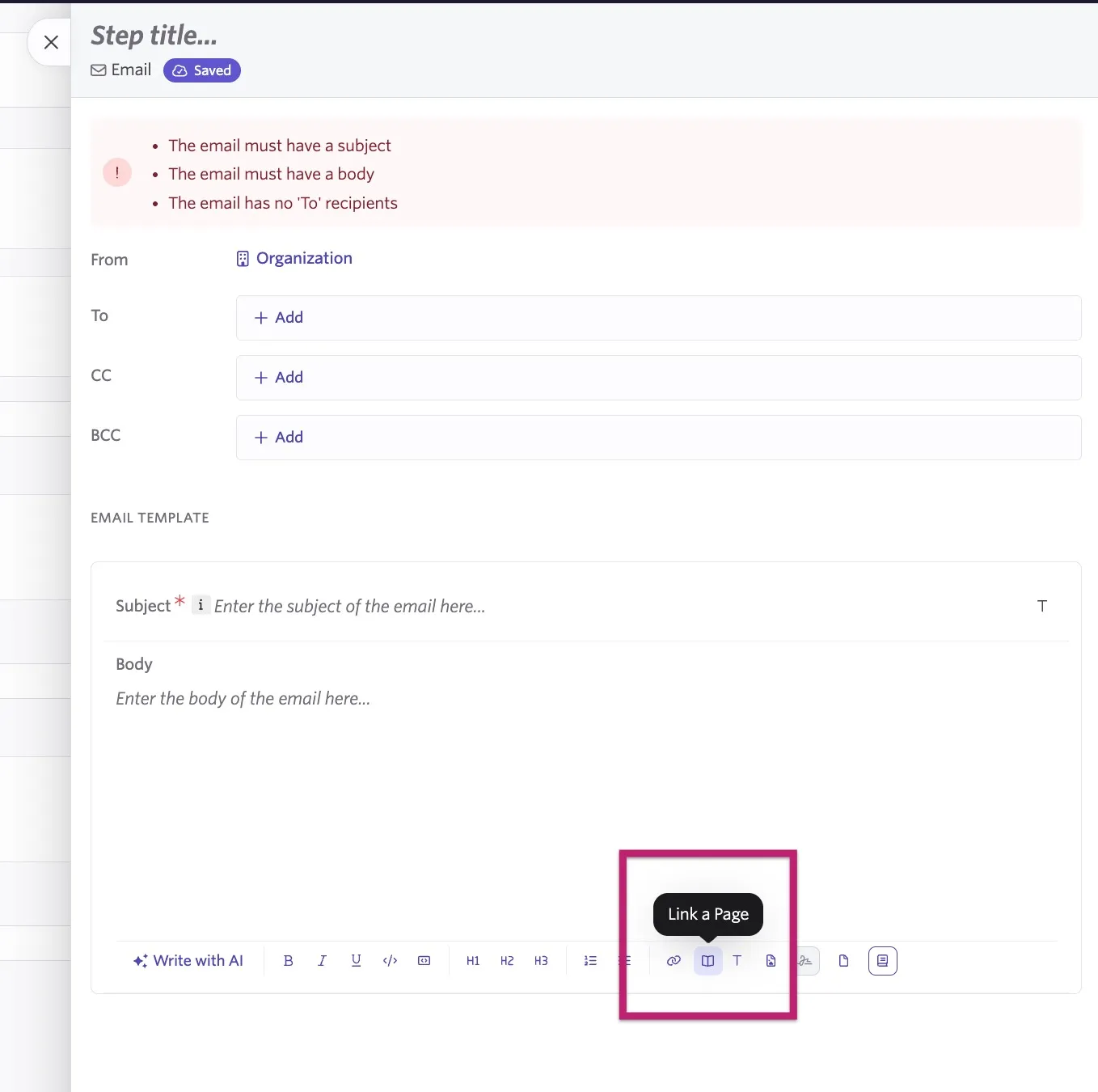
Can I link to a page in an Email workflow step?
You can, yes. When configuring an Email step in your workflow, click the book icon to link to a page. Select a page using the Page dropdown, then click Link Page to add a link to the page to the email body.