Assigning Pages to New Hires & Employees
This article covers how to share pages with new hires and employees. When sharing pages, you have three different routes you can take:
- Assign a welcome page to an onboarding workflow
- Add a Page step to a workflow
- Link to a Page within another workflow step, such as an email or task
- Add a page to an employee's library from the Employee's tab
Ashby's People Ops module is currently available through restricted early access. The following documentation is provided for design partners participating in that program.
For more on building pages, see Building and Editing Pages.
Permissions & access
You also need access to assign pages to employee libraries. A permission set manager in your organization can assign this separately or along with Page editing access.
For more on permission sets, see Configure Permission Sets.
Setting a welcome page for an onboarding workflow
For more on setting up an onboarding workflow, see Configure your Onboarding Workflow.
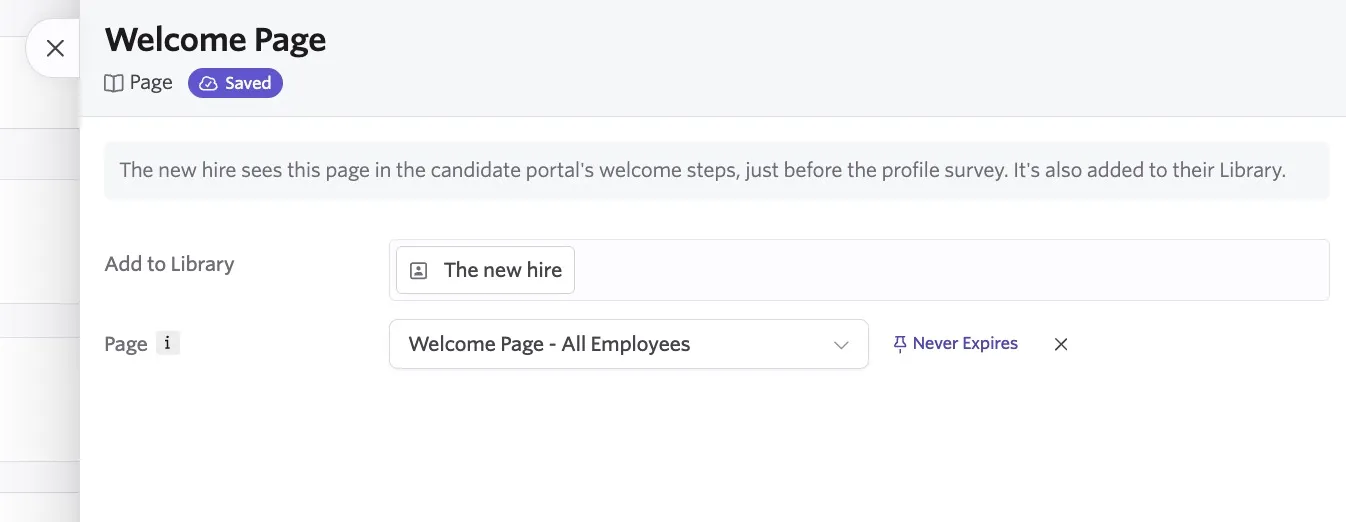
When configuring or editing an onboarding workflow, a + Add Welcome Page step option appears within the New Hire Portal section of your workflow. Click this to add a welcome page that appears before the New Hire Profile Completion step.

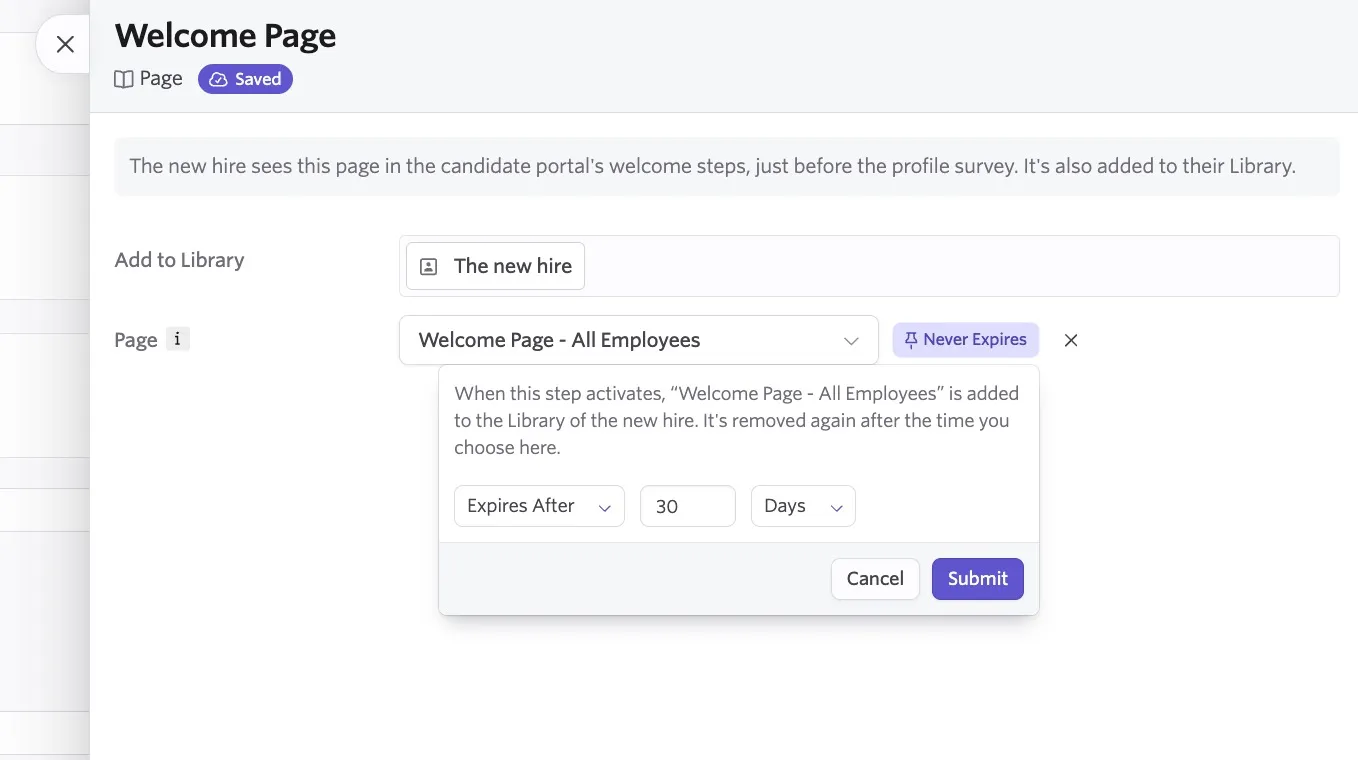
In the following popover, select the page to display using the Page dropdown. Ashby also automatically adds this page to the new hire's library. Click the Never Expires link to the right of the Page dropdown if you want to set the page to expire after a set amount of time.
The expiry window can be set in hours, days, weekdays, weeks, or months. After this timeframe, the page no longer appears in the new hire's library.
Adding a Page step to a workflow
For more on this, see Workflow Steps: Pages.
Adding a page to a workflow step
You can include links to pages in other workflow steps, including Email, SMS, Slack, and Task steps. To do this:
- Navigate to the edit screen for your workflow
- Create an Email, Slack, SMS, or Task step. If you have an existing step you'd like to add a page to, click the pencil icon on the step to edit it
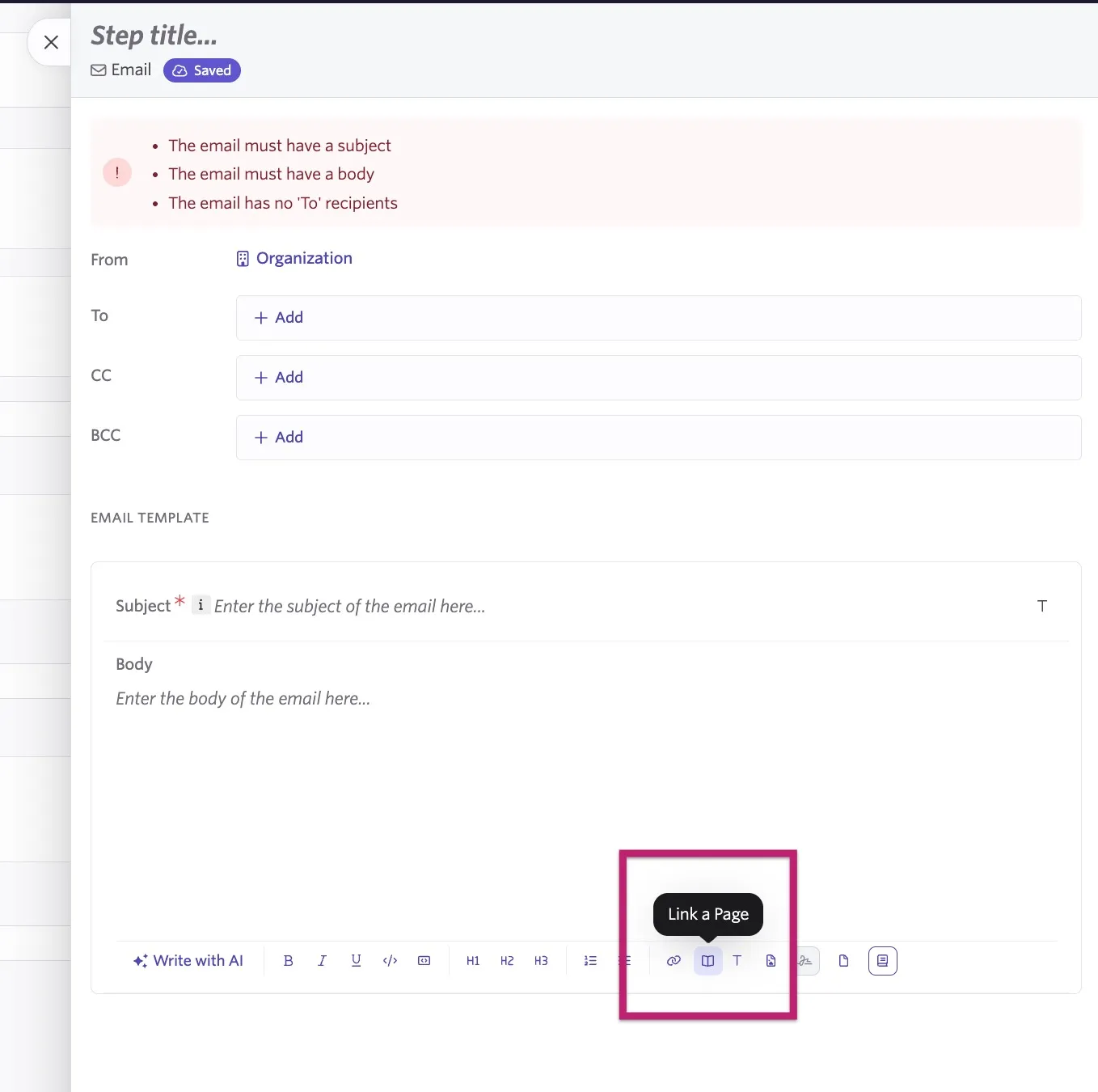
- Within the body of the message for your step, click the book icon on the toolbar
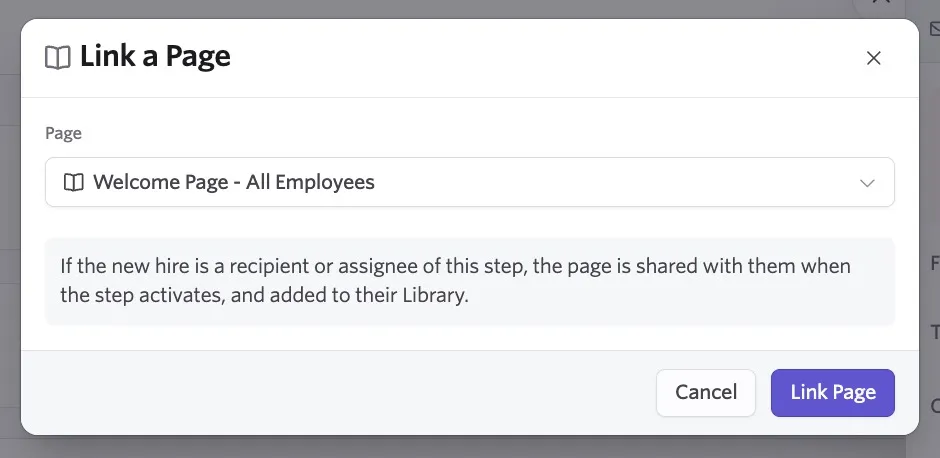
- Select a page using the Page dropdown, then click Link Page to add a link to the page to the email body
Add a page to an employee's library
To add a page to an existing employee's library:
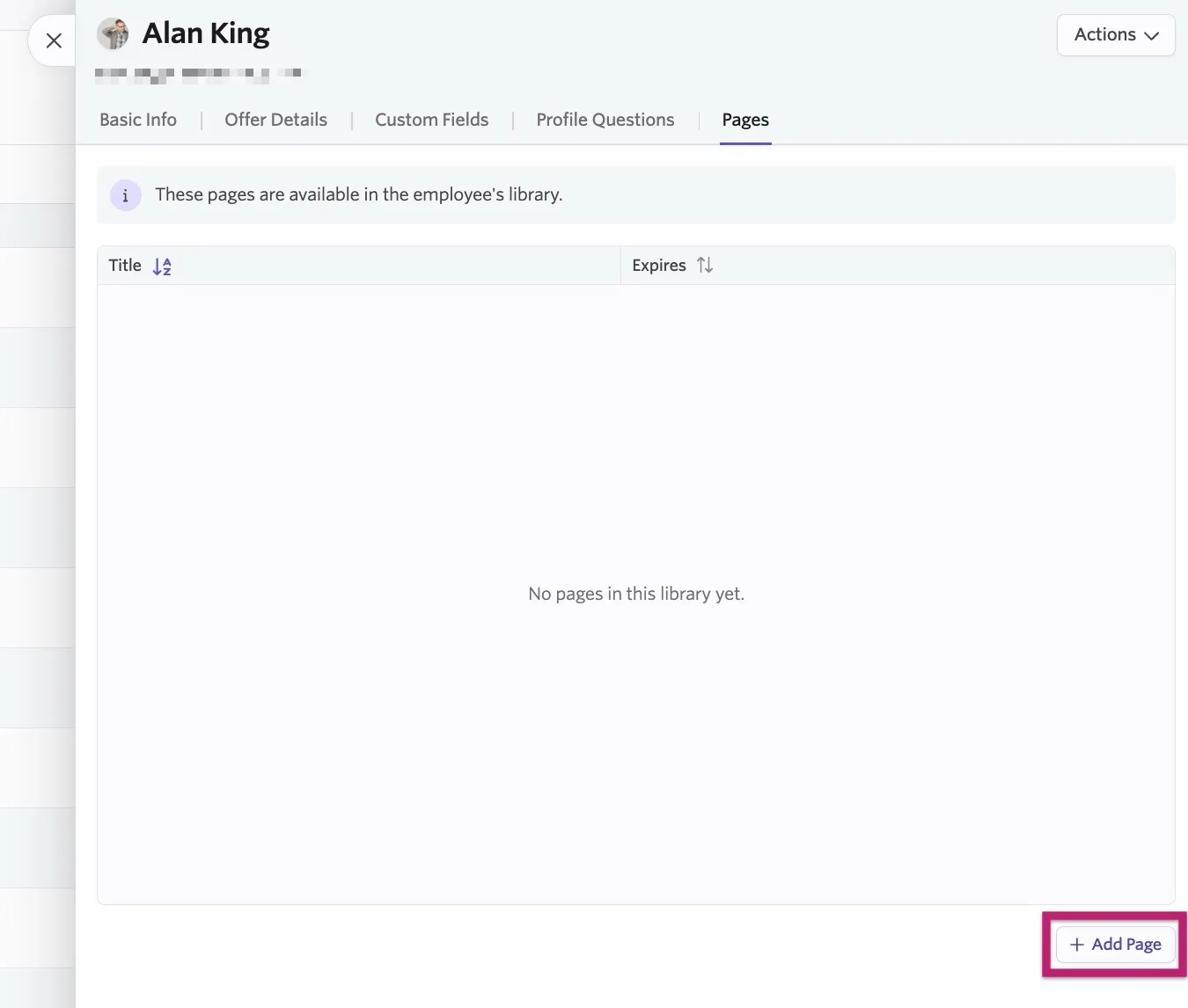
- Navigate to Employees and click on an employee from the list
- Navigate to the Pages tab on the employee profile
- Click + Add Page
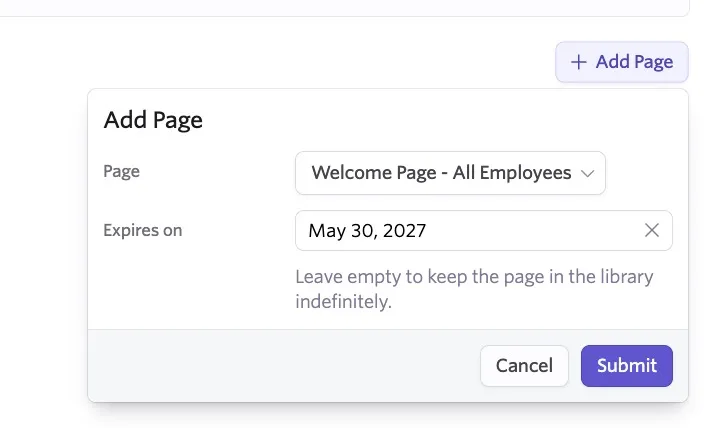
- Select the page to assign from the Page dropdown and determine an expiry date in the Expires on field, if applicable
- Click Submit
Add a page to employees' libraries in bulk
To assign a page to employees' libraries in bulk:
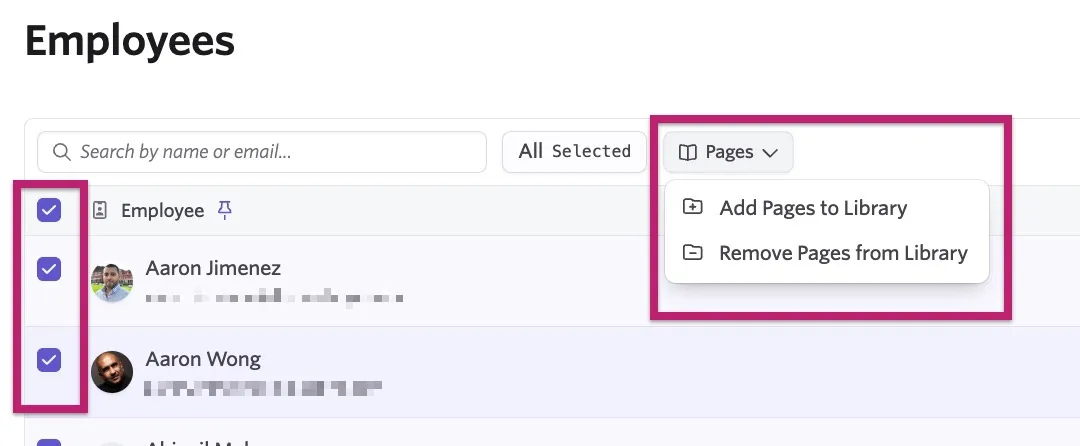
- Navigate to Employees
- Check the checkboxes to the left of each employee name or check the checkbox to the left of the Employee header to select all employees
- Click Pages, then Add Pages to Library
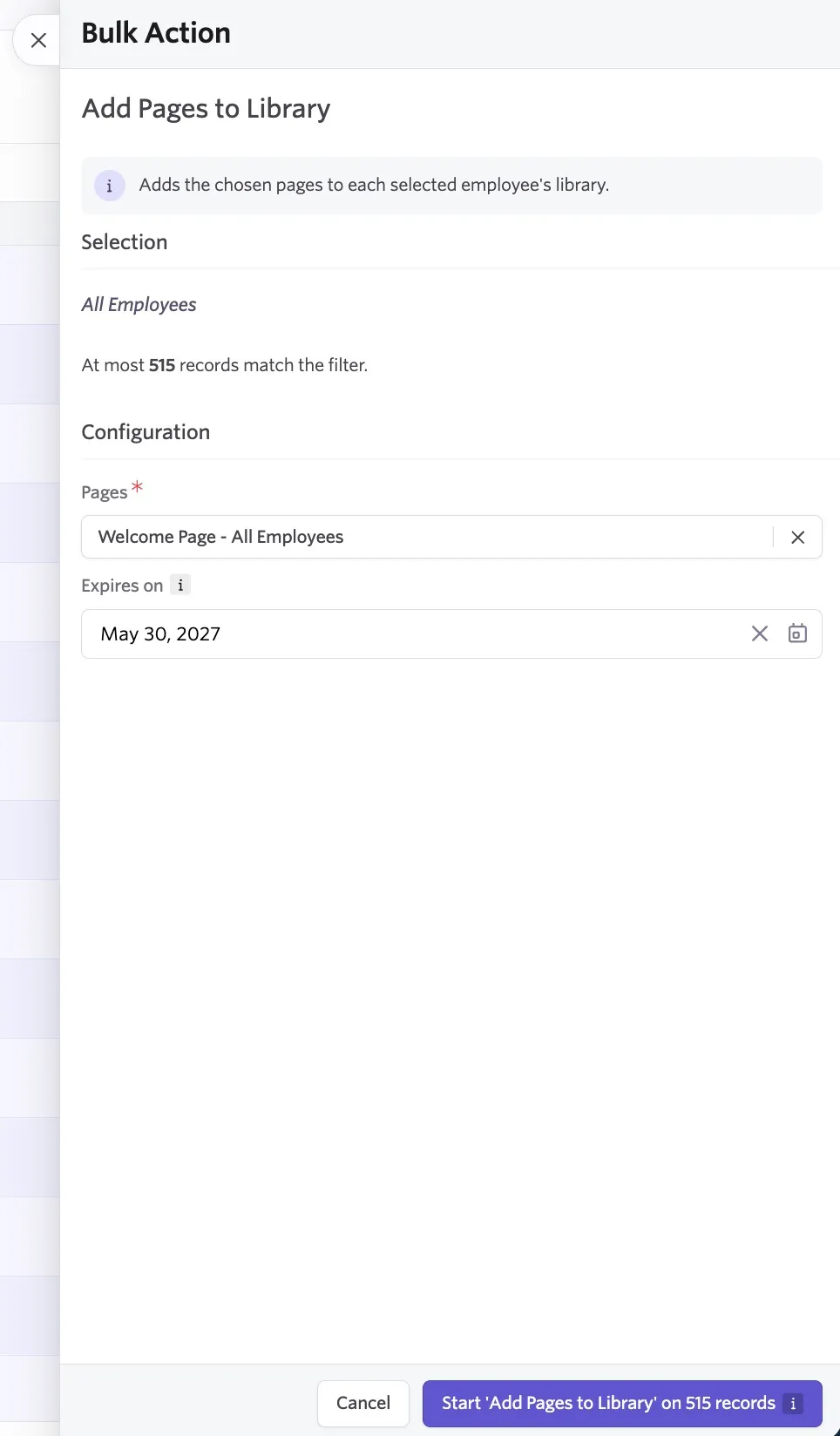
- Review the selection of employees, then use the Pages dropdown to select the pages to assign. Use the Expires on field to select an expiry date, if applicable
- Click Start 'Add Pages to Library' on X records to start the bulk update.
Editing or removing access to a page
To edit the expiry date on a page for an employee:
- Navigate to Employees and click on an employee from the list
- Navigate to the Pages tab on the employee profile
- Click on the ... to the right of the page assigned to the employee
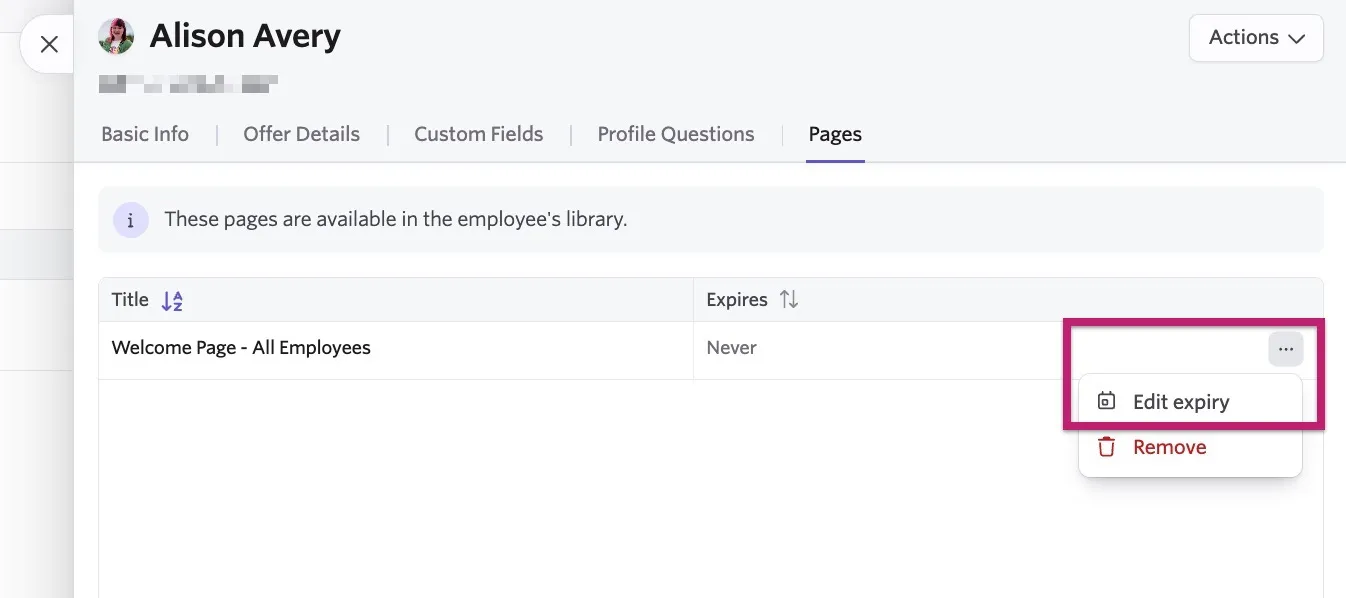
- Click Edit Expiry
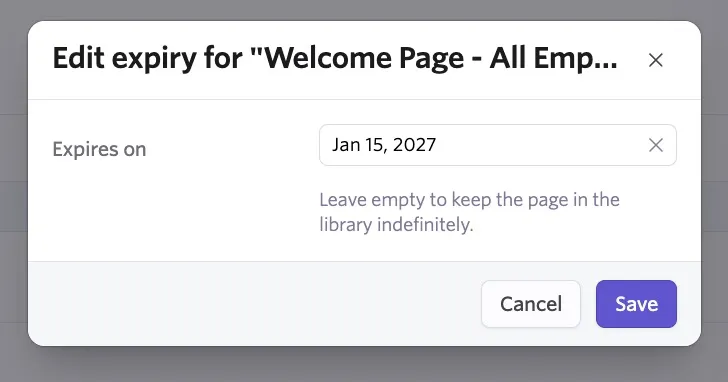
- Set the updated expiry date in the pop-up, then click Save
To remove an employee's access to a page:
- Navigate to Employees and click on an employee from the list
- Navigate to the Pages tab on the employee profile
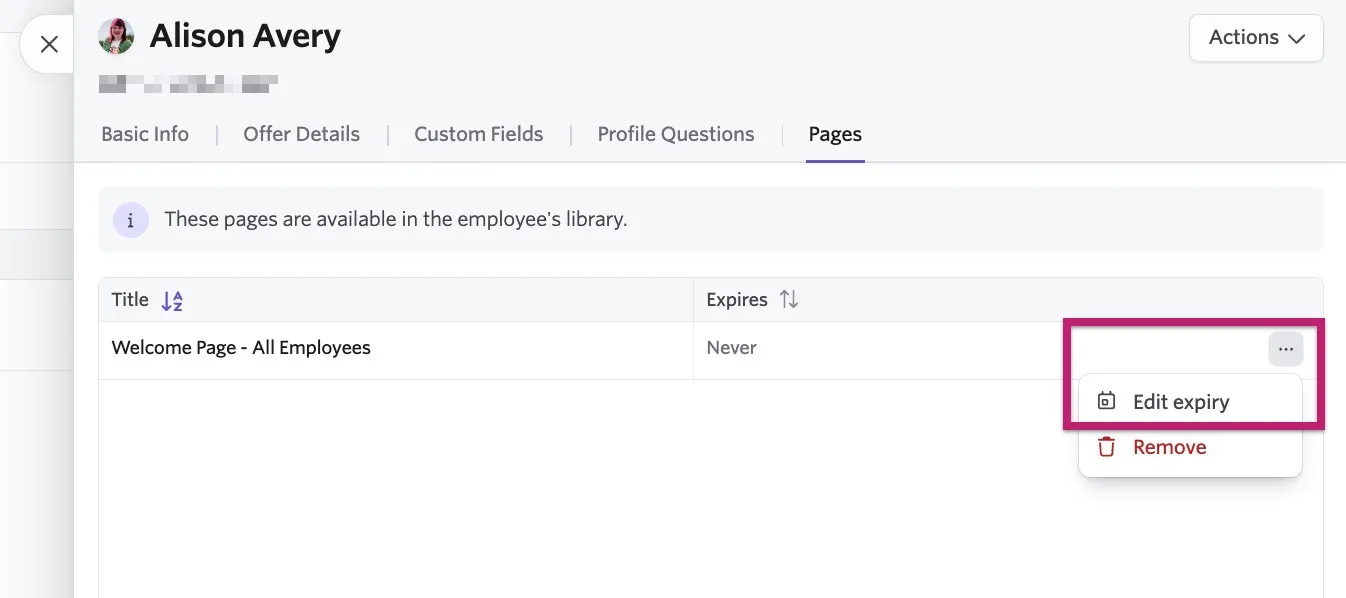
- Click on the ... to the right of the page assigned to the employee
- Click Remove
Removing employee access to a page in bulk
To remove a page from employees' libraries in bulk:
- Navigate to Employees
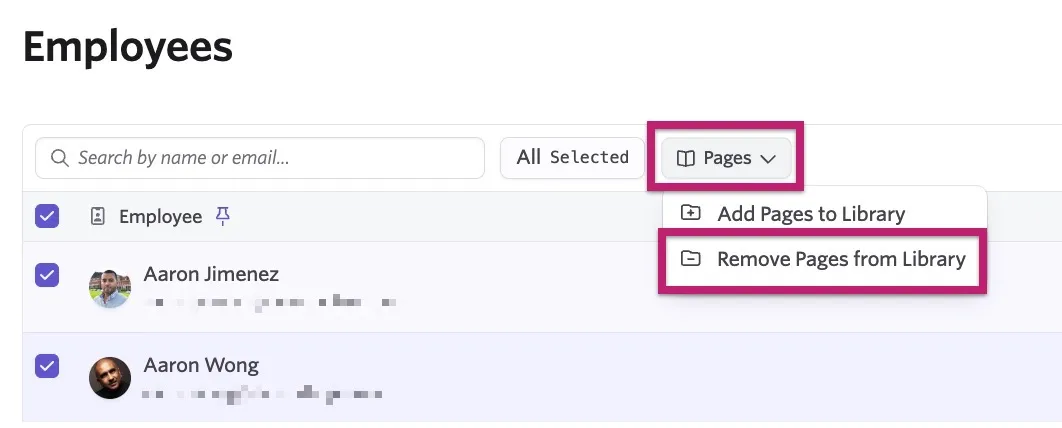
- Check the checkboxes to the left of each employee name or check the checkbox to the left of the Employee header to select all employees
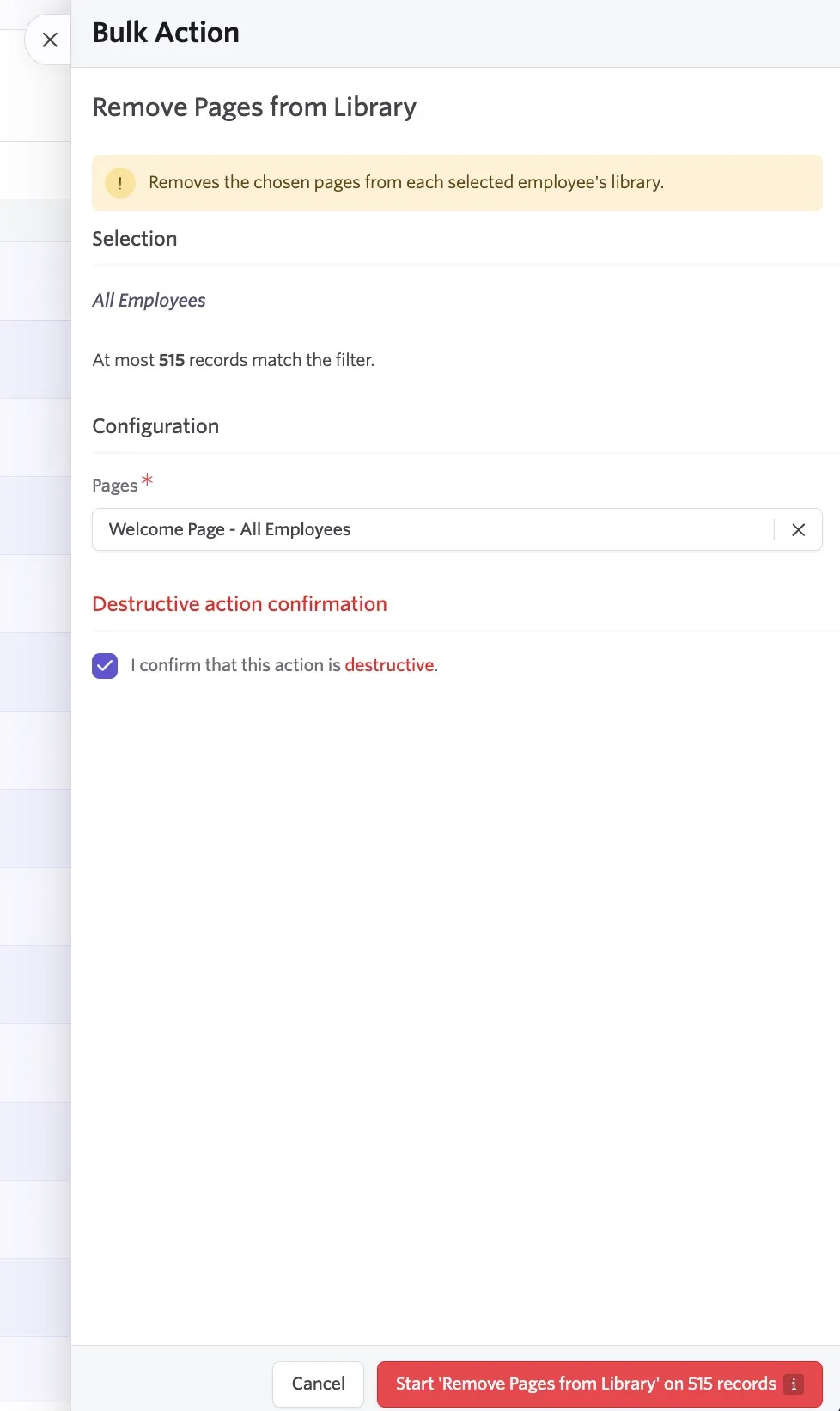
- Click Pages, then Remove Pages from Library
- Review the selection of employees, then use the Pages dropdown to select the pages to remove.
- Check the I confirm that this action is destructive checkbox, then Start 'Remove Pages from Library' on X Records to start the removal process.
Accessing pages in your library
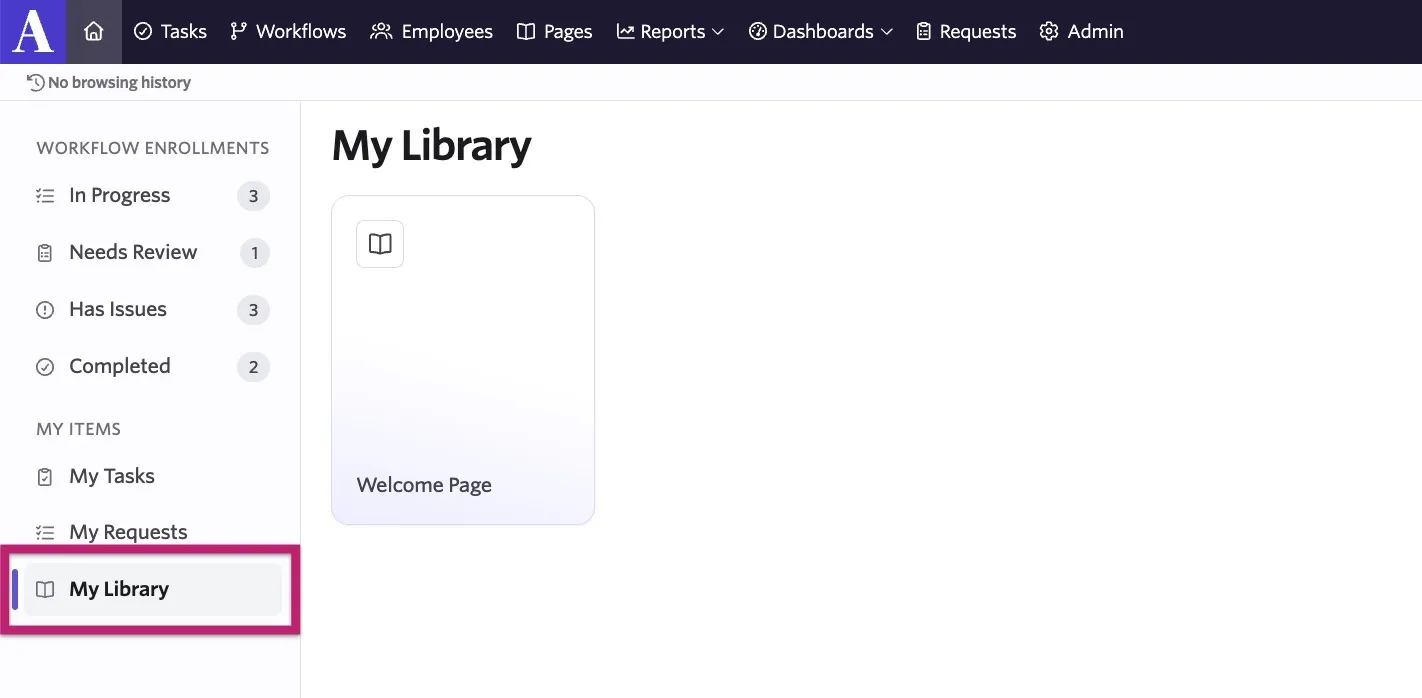
You can access pages assigned to you on the Home page. Click My Library in the left-hand navigation bar to view all the pages you have access to.
FAQ
I can't see a page in my library that I used to be able to view. What happened?
It's likely that your access to the page expired or your access to the page was revoked. Reach out to your People team for assistance if you should still have access to the page.