Building and Editing Pages
This article covers how to configure pages and some use cases. Pages provide the option to create polished, branded digital experiences for key moments in the employee journey: welcome experiences for new hires, pre-boarding portals, benefits FAQs, and more.
Ashby's People Ops module is currently available through restricted early access. The following documentation is provided for design partners participating in that program.
Permissions & access
You need access to Pages to build, edit, and publish pages. A permission set manager in your organization can assign this access along with, or separately from, access to assign pages to employee libraries.
For more on permission sets, see Configure Permission Sets.
Creating a new page
To create a new page:
- Click Pages in the top navigation bar.
- Click + New Page.

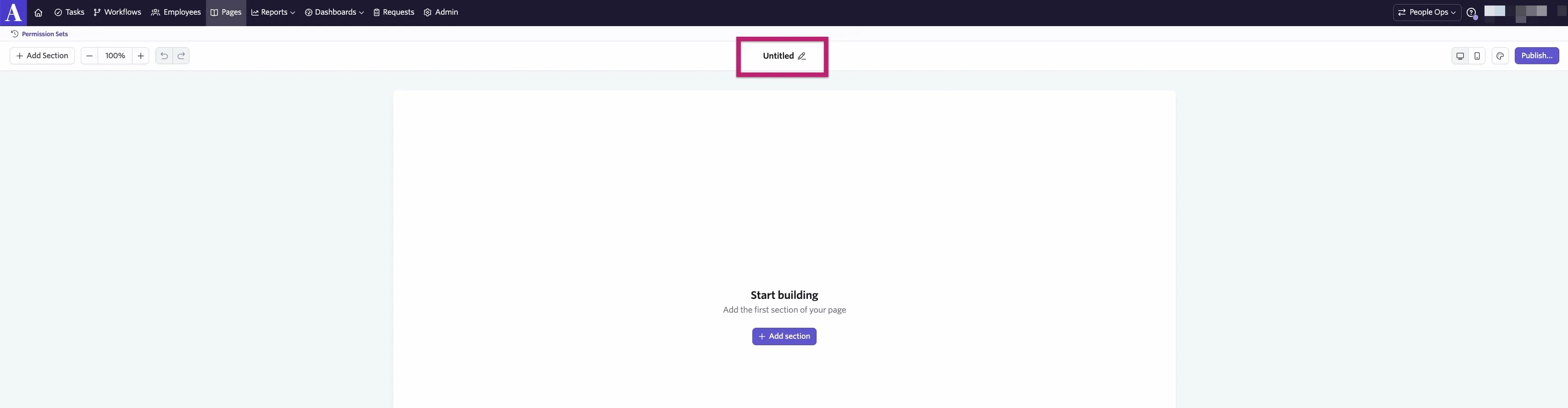
- In the page editor, click the pencil icon beside Untitled to enter a title for your page.
Adding a page section
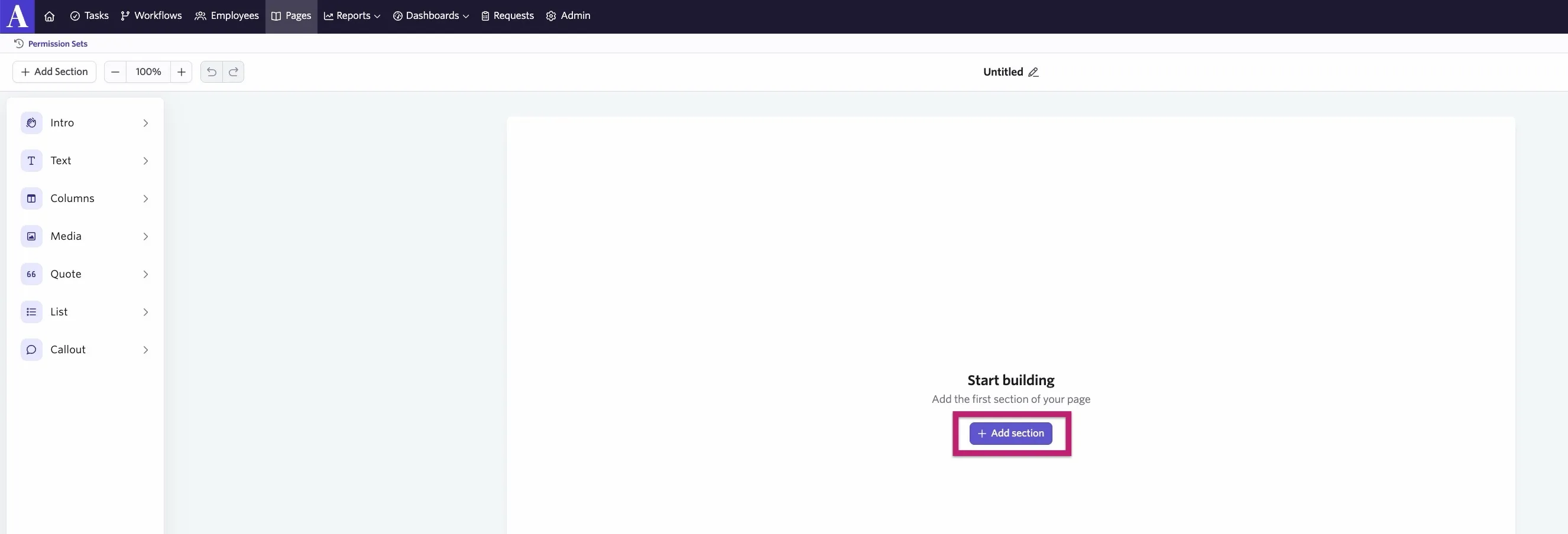
Click + Add section to add a section to your page. You can select from the following section options:
- Intro
- Text
- Columns
- Media
- Quote
- List
- Callout
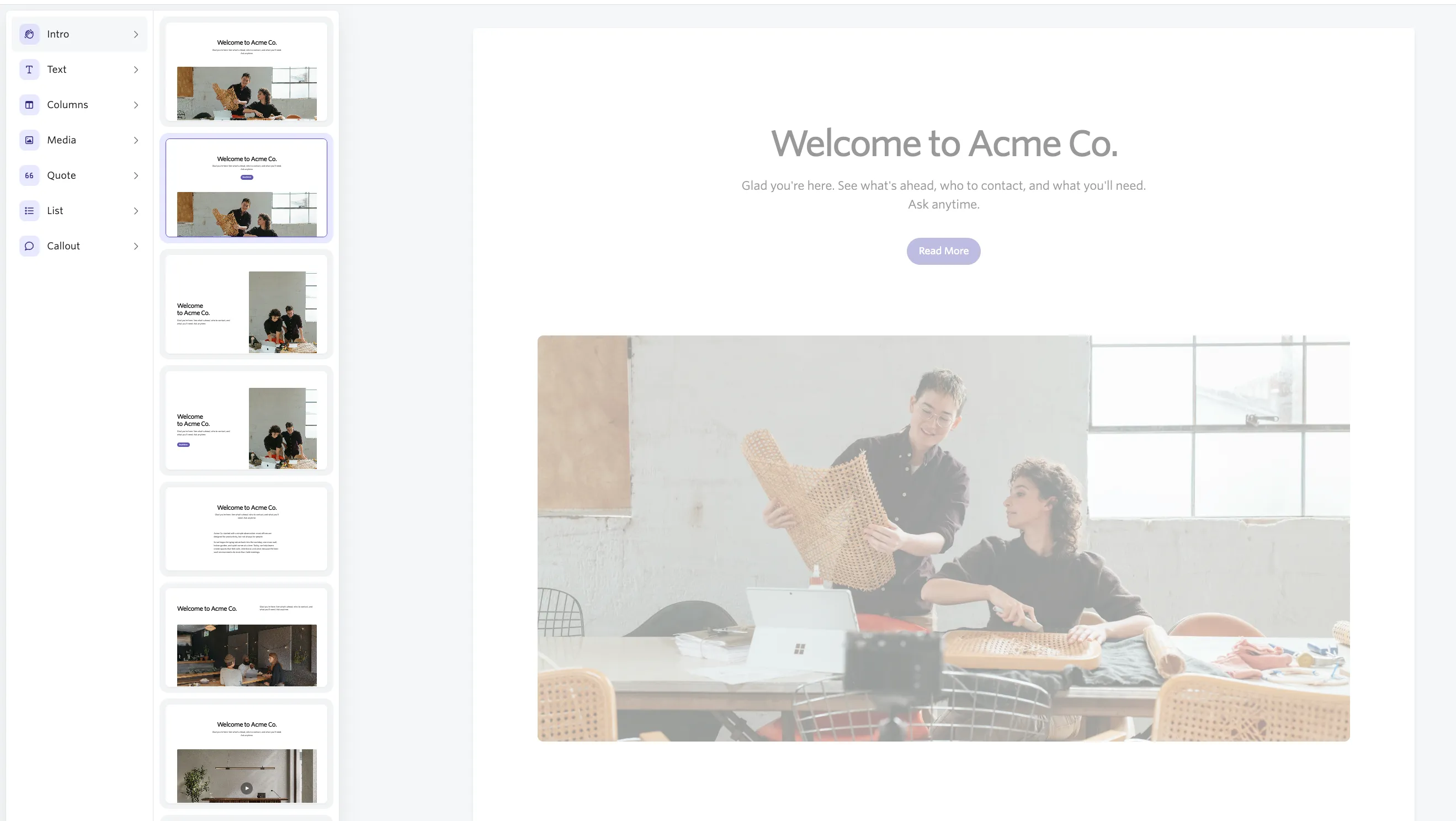
When you hover over a section option, template options appear. Hover over a template option to preview it and click it to add the section to your page.
Editing a page
To edit an existing page, navigate to Pages and click the page you want to edit.
Editing section configurations
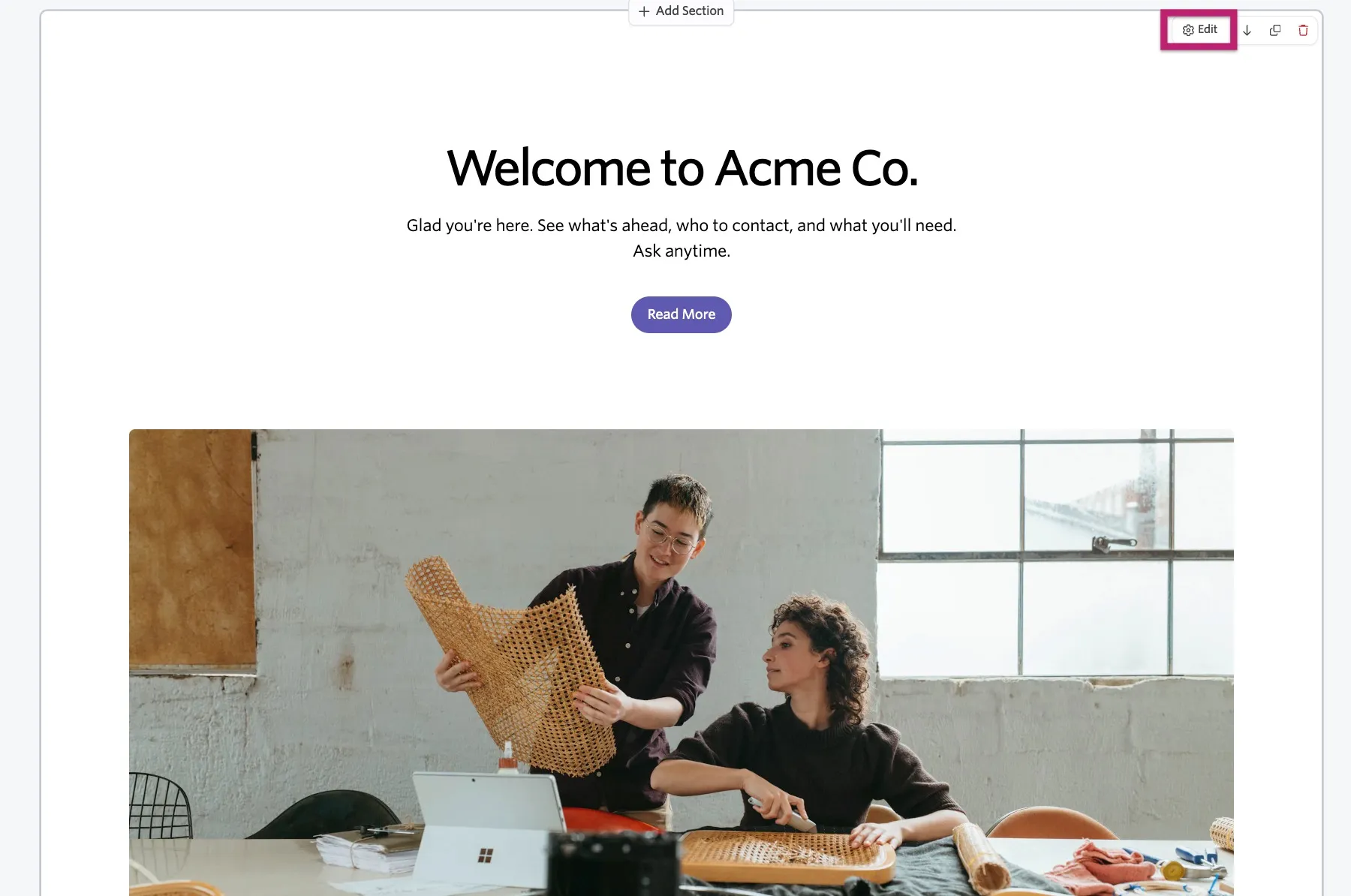
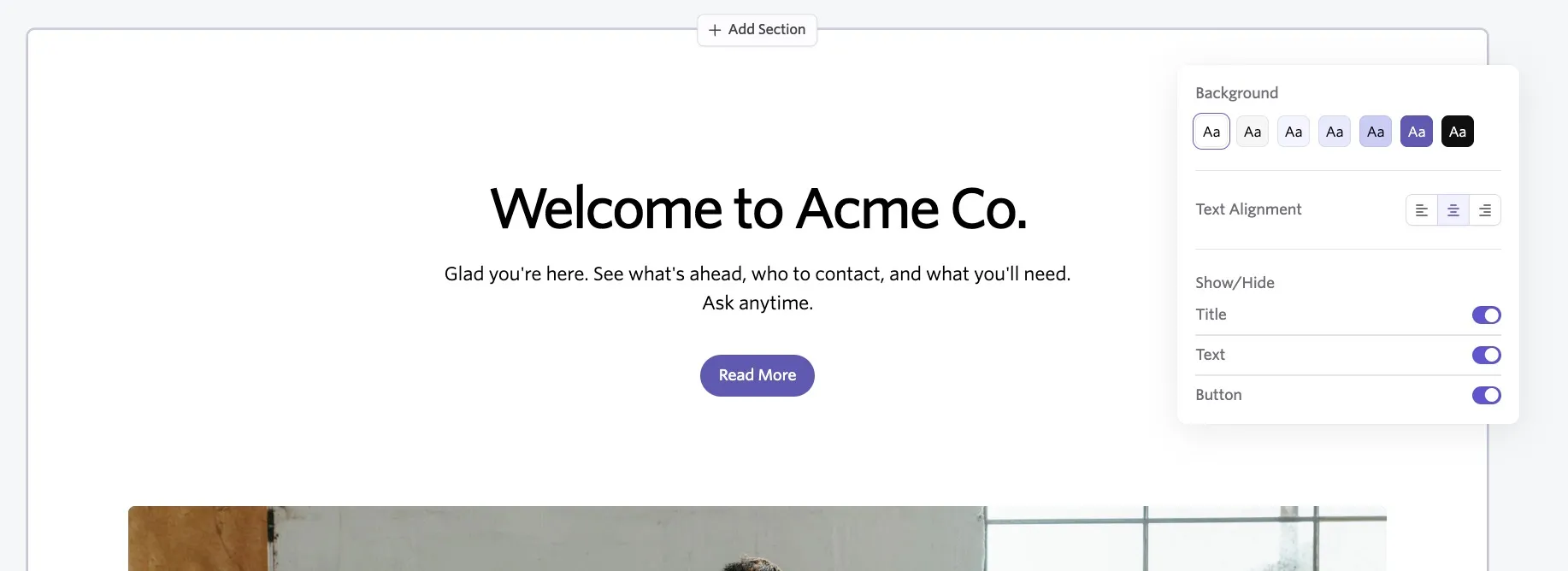
To edit the color, text alignment, and the items shown in the section, hover over the added section, then click the Edit button.
Background: Select a background color for the section. These colors come from your brand settings within Ashby Recruiting at Admin > Job Boards > Theme (Job Board).
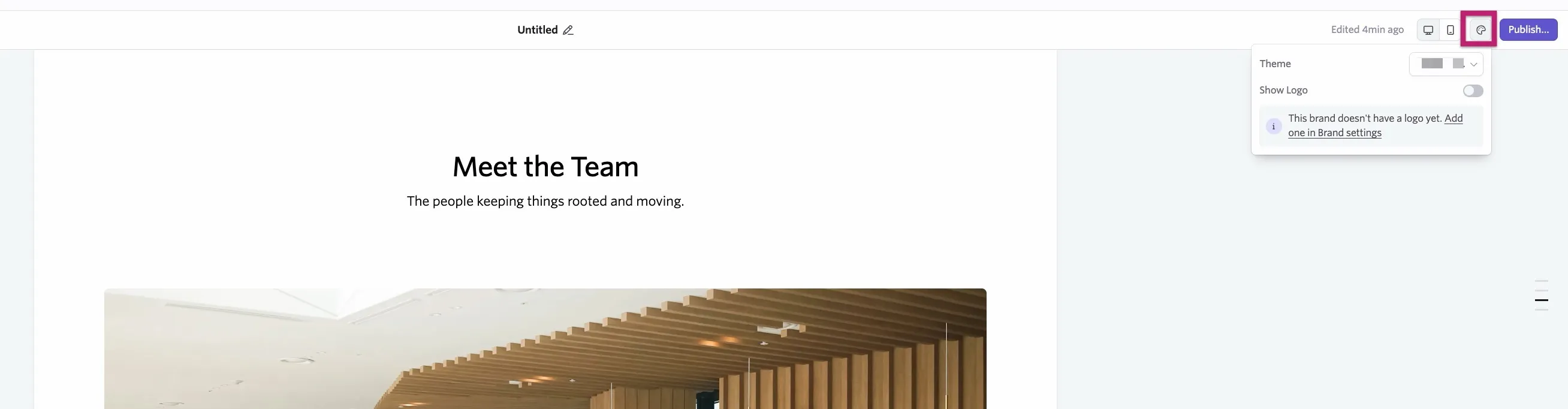
To switch to a different brand's theme, click the palette icon in the top-right corner, then select the brand you want to reflect on your page.
Text Alignment: Set whether text should be left, center, or right-aligned in the section.
Show/Hide: Use the toggles beside each item in the section to determine what should and shouldn't be shown in the section.
Editing section text
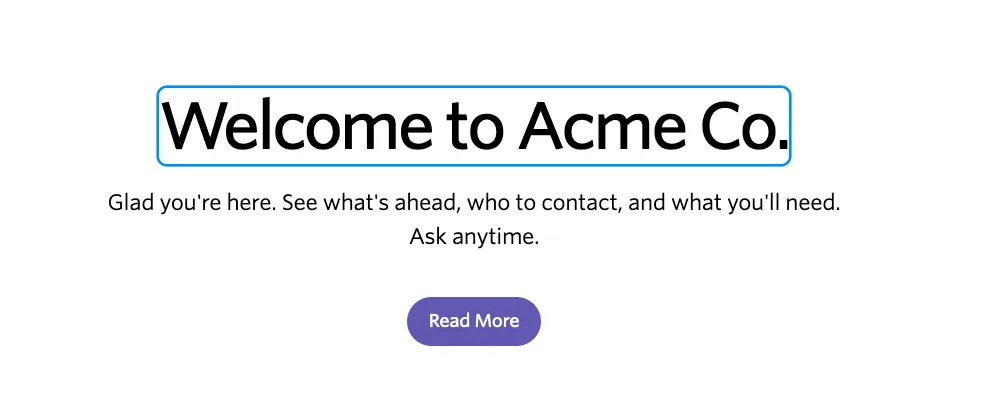
To edit the text in your section, click on the heading or text field in question. You can then delete the placeholder text and add your own.
- You can add substitution tokens to personalize the page for each visitor. Click the T icon to add a token. You can add the employee's first or full name, their country, city, or region by default.
Editing a section image
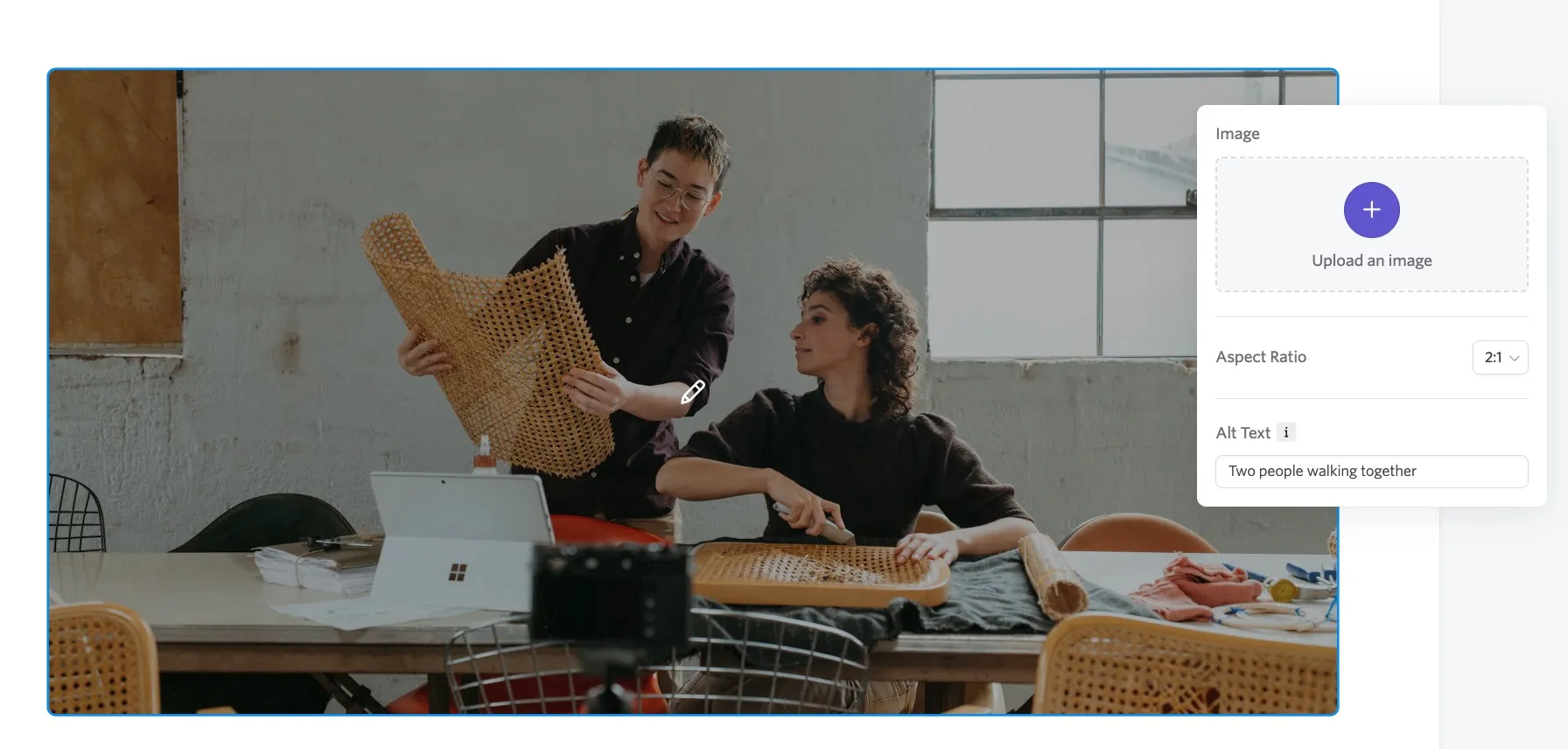
To edit and upload a replacement image in a page section, click the placeholder image. Click the + button in the Image section to select an image from your files to upload. You can also set the aspect ratio and alt text.
Editing a section button
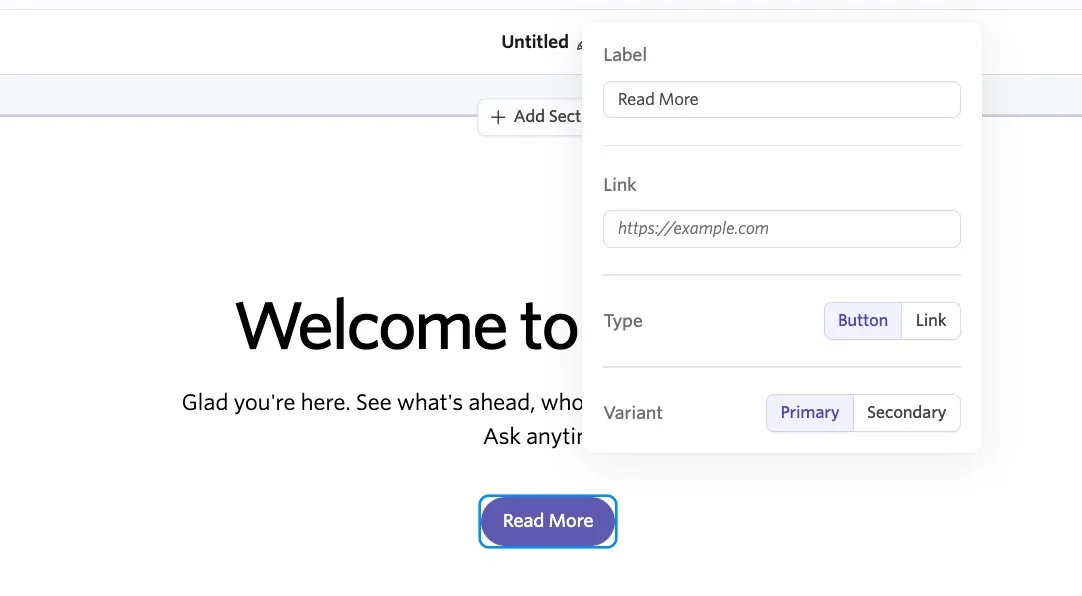
Hover over the button in the section, then click Edit.

On the edit popover for your button, you can set a label, the link type (button or link), and the style variant (either using the primary or secondary style).
Editing a section list
Hover over the list in the section, then click Edit.
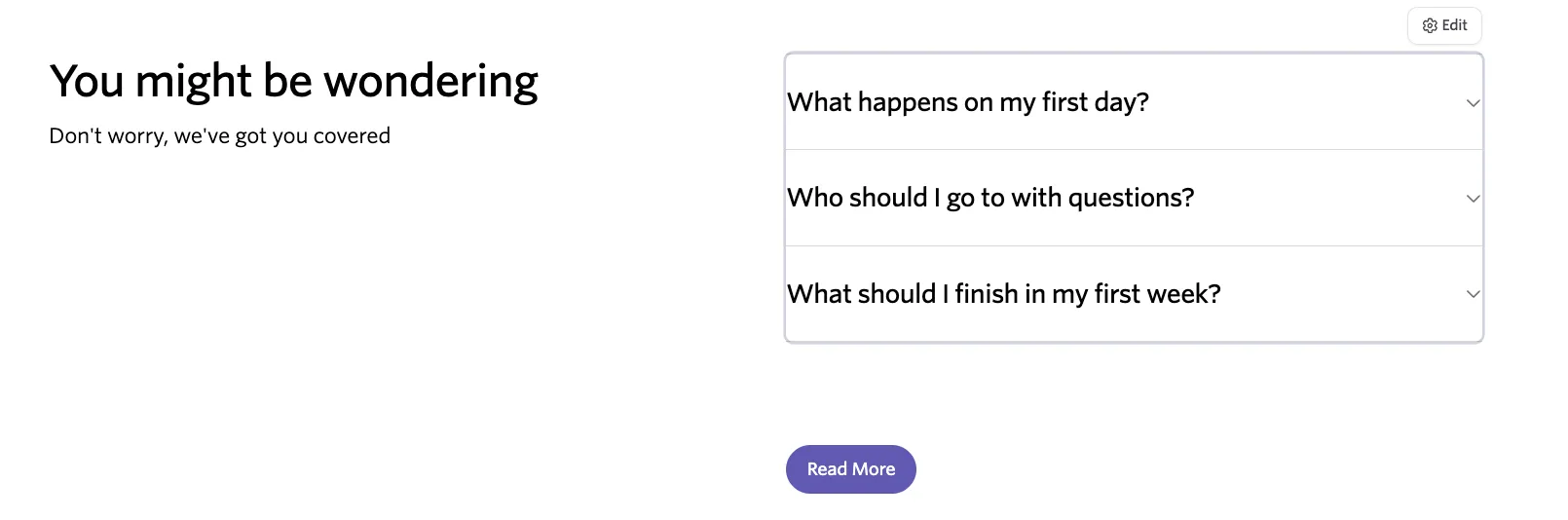
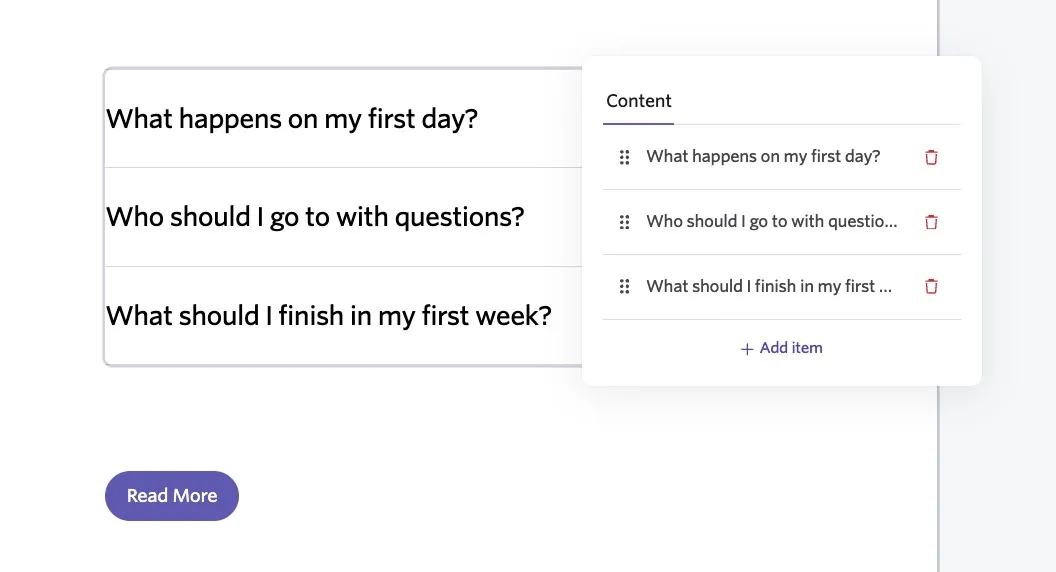
On the edit popover, you can click and drag to adjust the list order, or click the trash can icon to remove an item. Click + Add item to add another item to the list.
Expand a list item and click on the text within the expanded section to edit it.
Editing a section video
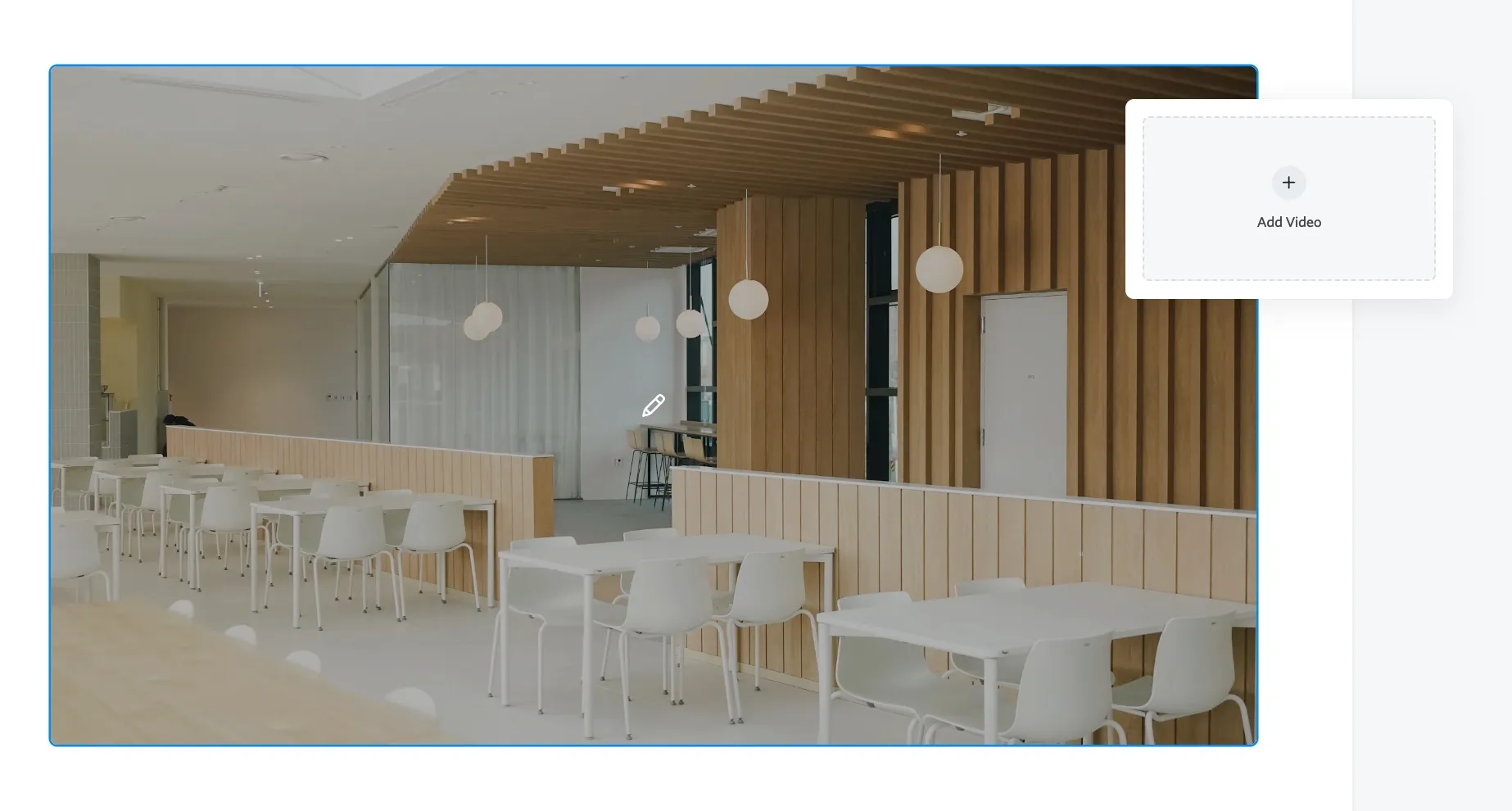
To edit and upload a video in a page section, click the placeholder. Click the + button in the Add Video section to select an image from your files to upload.
Editing columns in a section
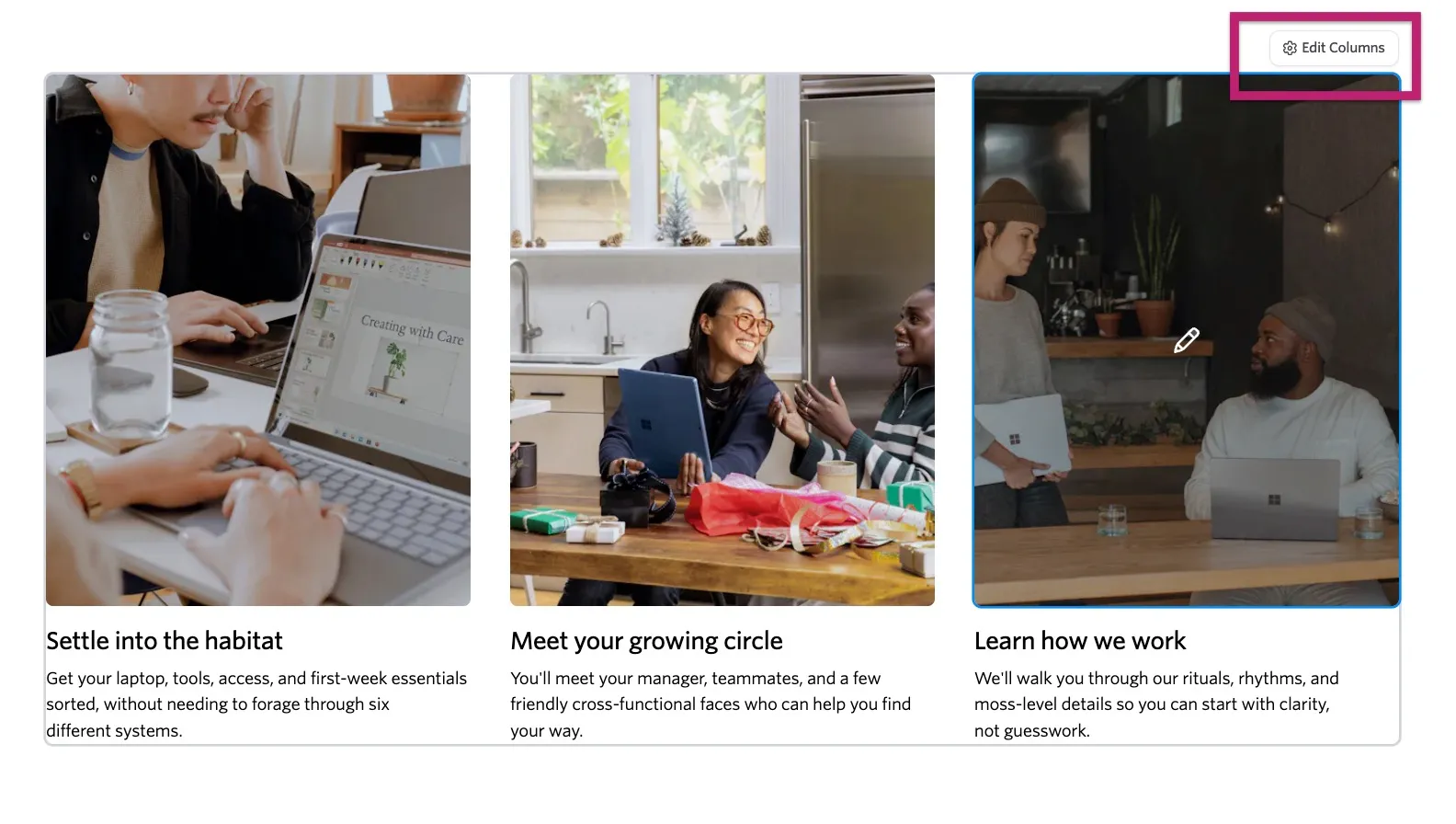
If you have a Columns section, you can hover over the columns, then click Edit Columns to make adjustments.
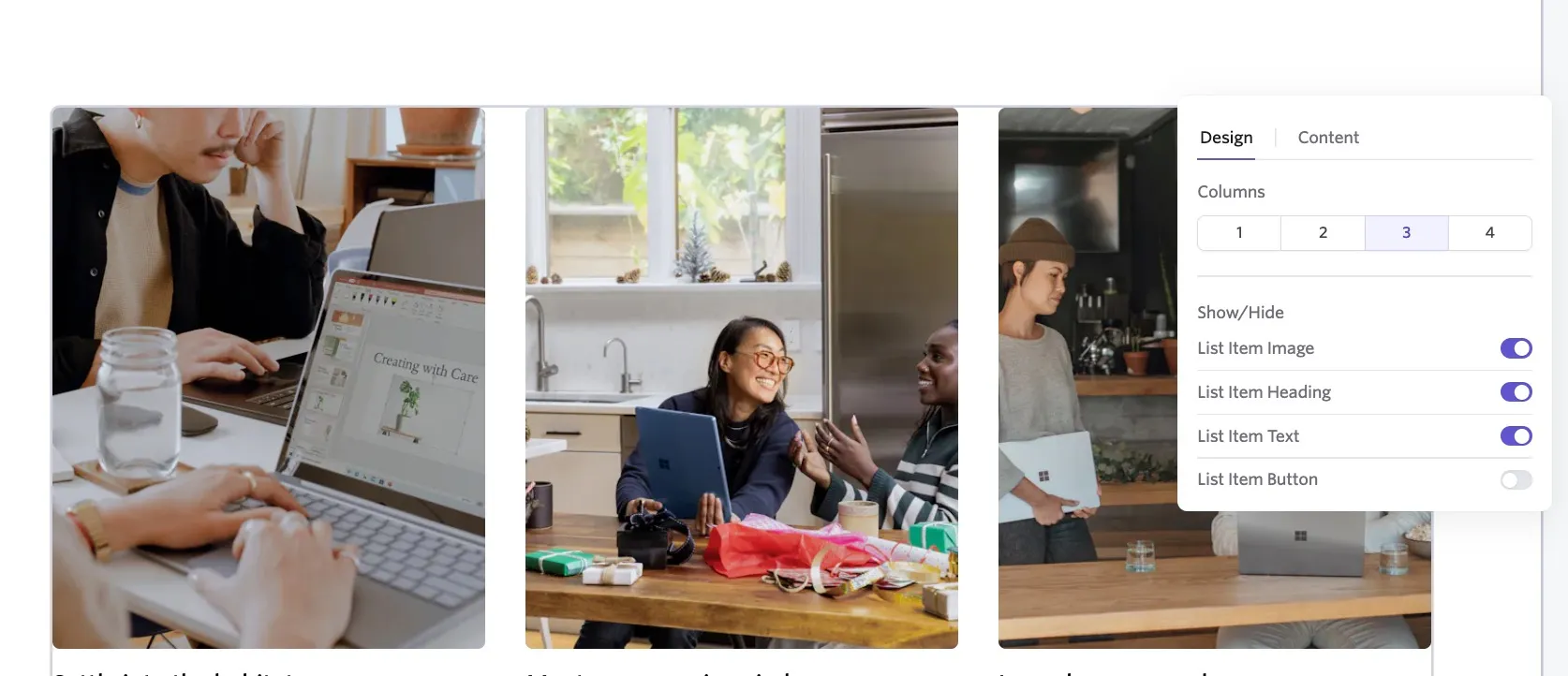
Under the Design tab, you can do the following:
- Set the number of columns
- Use the toggles beside List Item Image, List Item Heading, List Item Text, and/or List Item Button to show and hide them accordingly.
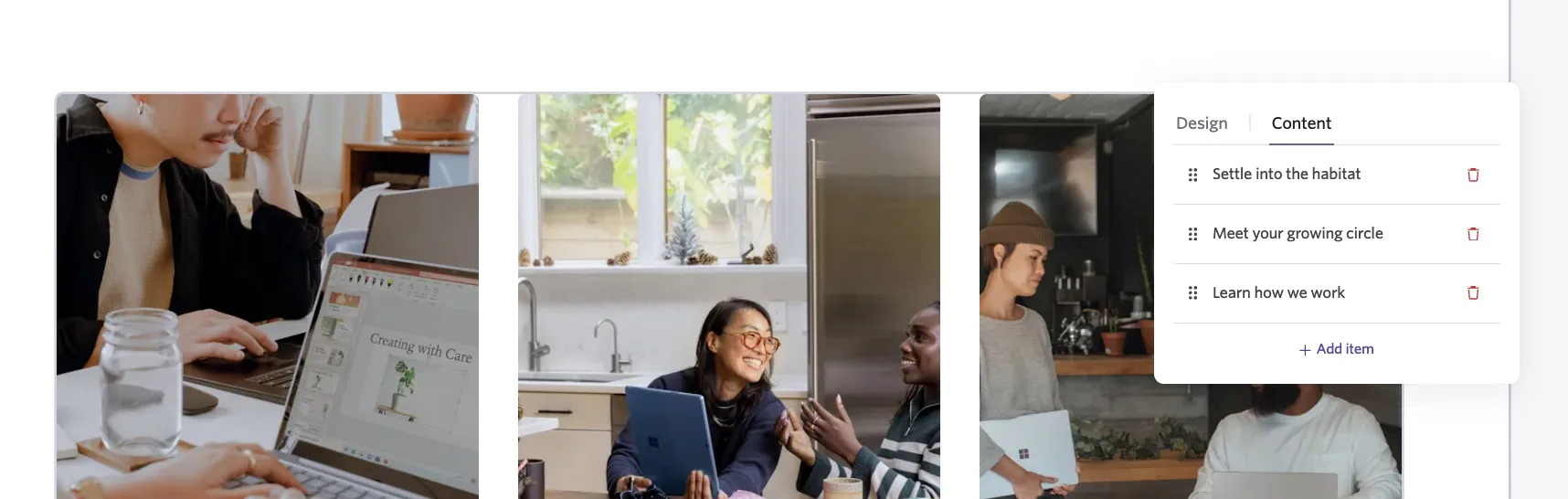
Under the Content tab, you can click and drag to reorder the columns and remove or add items as needed.
Previewing your page
When editing your page, the default view shows you how the page looks on a desktop. Click the cellphone icon to see how the page looks on a mobile device.

Publishing a page
Once the page is ready, click Publish to apply any updates and publish your page. Add in a public title, then click Publish to confirm.
To unpublish a published page, open up the page editor, click Publish, then Unpublish. You cannot assign unpublished pages to employees or new hires.
For information on assigning pages to employee libraries, see Assigning Pages to New Hires & Employees.
FAQs
What use cases are there for Pages?
Good use cases for Pages are anything you'd attach to an email or send as a PDF or slide deck. Examples in onboarding include:
- A welcome page
- A pre-boarding page
- A 'your first week' page
- A benefits hub
Pages can also be for people who aren't the new hire. Examples include:
- Onboarding buddy information
- Manager information for bringing in a new hire
While these examples cover a lot of information, Pages are not a replacement for a company wiki or a proper Learning Management System (LMS).