Referrals and Referral Links
Any user or employee can add a referral or create a referral link in Ashby from their home page, regardless of their permissions. This article explains how to add direct referrals, create and track referral links, configure your referral form and settings, and report on referral data. Share this guide with your users to give them more information on adding referrals via Ashby.
Permissions and access
Users without a paid seat can add referrals and create referral links. Users do need to have an Ashby account to add referrals.
Custom referral filters are available on the Legacy Plus, Plus, and Enterprise plans:
Foundations | Legacy Plus | Plus | Enterprise |
|---|---|---|---|
❌ | ✅ | ✅ | ✅ |
Direct referrals vs. referral links
With a direct referral, you add one candidate's details at a time and submit them to be reviewed for a role.
With a referral link, you post the job board or a specific job posting to your network (for example, on LinkedIn), and Ashby credits anyone who applies via that link to you.
Adding a direct referral
Watching this video is optional — the written steps below cover the same content.
You can refer a candidate directly for a role in the Referrals section of the Home page.
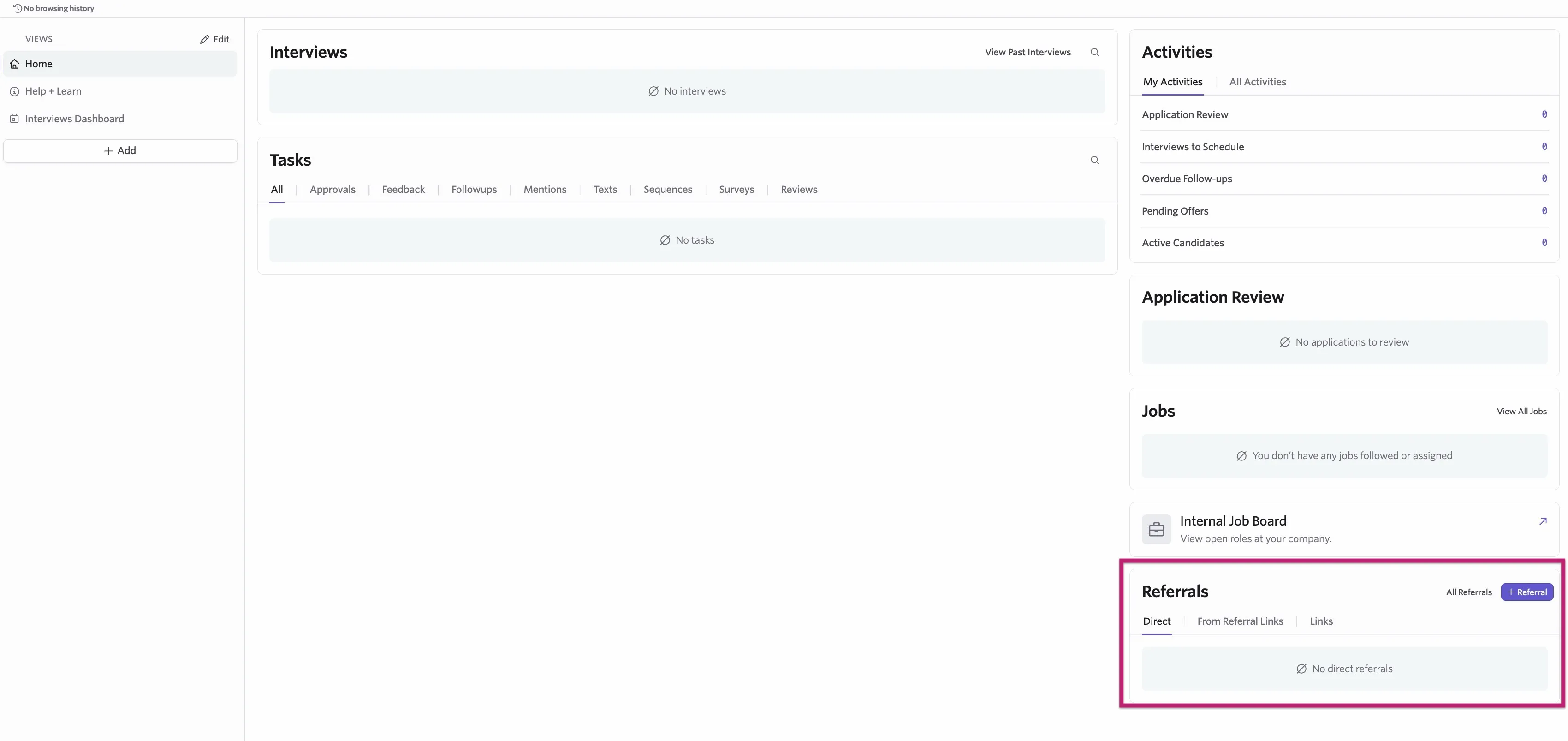
- Navigate to the Home page and find the Referrals section.
- Click + Referral.
- Select + Add Direct Referral.
When adding a direct referral, you need to add the candidate's name and email address and the specific role they are being referred for.

You can also upload a resume and add their phone number, a link to their website, and any notes. An admin can customize the referral form, so you may see some additional or different options here from the form pictured.
Ashby automatically adds a referred candidate to the Application Review stage in the candidate pipeline for the specified role.
When submitting a direct referral, the Job field shows job posting titles when available.
If the job posting title isn't available (for example, if the job posting is unlisted or unpublished), the Job field shows the job title.
Adding a referral from the top menu
You can also add a referral directly to a role by hovering over the + Add button from the top menu and selecting Referral.
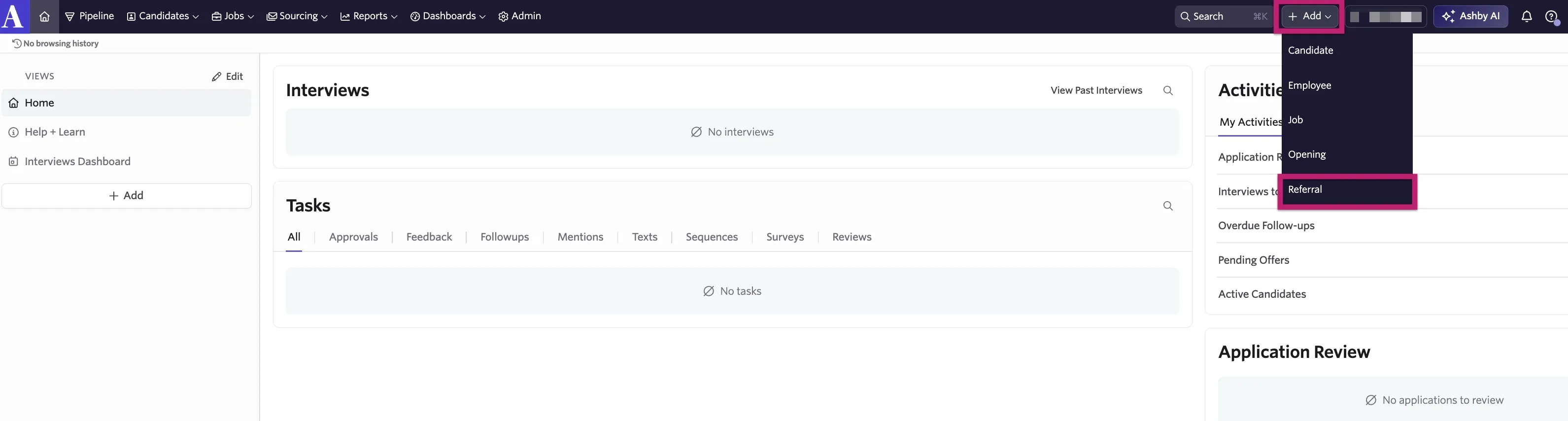
Once you click Referral, you need to add the candidate's name and email address and the specific role they are being referred for, just like in the process above.
Creating a referral link
Referral links allow you to post a link to a specific job posting (or to the job board in general), and Ashby automatically credits candidates who apply via that link to you. A good use case for referral links is sharing a job to a social media platform or another wider forum.
Watching this video is optional — the written steps below cover the same content.
You can create a referral link in the same Referrals section at the bottom of the Home page.
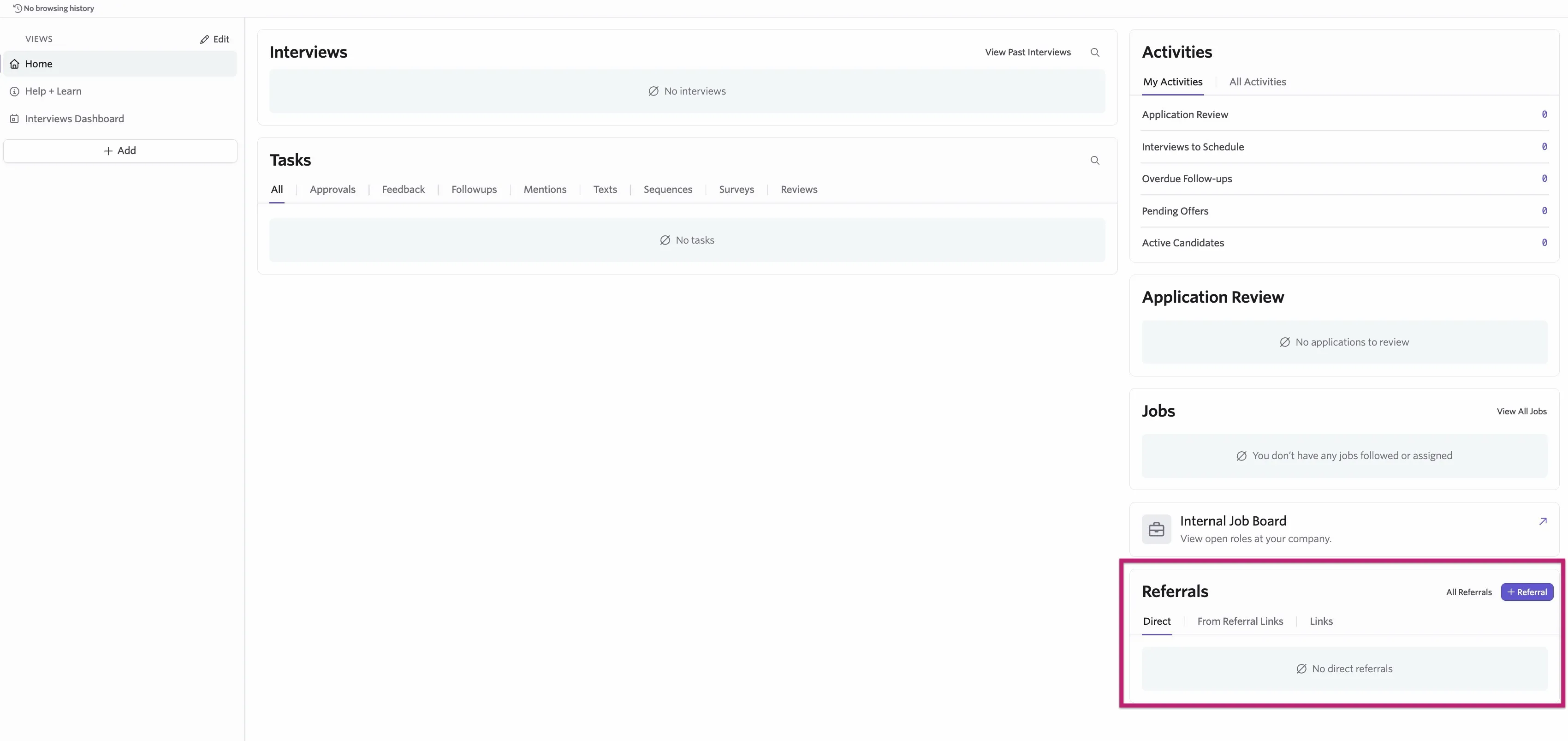
- Navigate to the Home page and find the Referrals section.
- Click + Referral.
- Select + Create Referral Link.
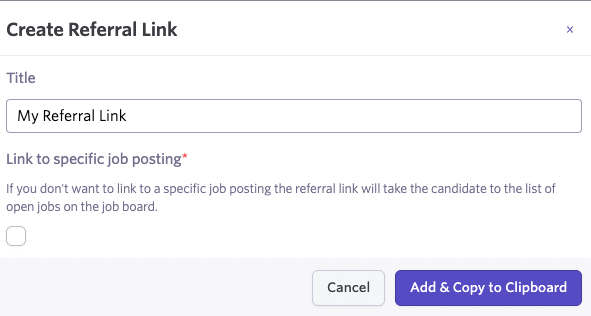
When creating a referral link, you can opt to either have the link direct to a specific posting or to all open job postings listed on your job board.
To create a link for a certain posting, check the Link to specific job posting checkbox, then select the posting from the drop-down menu that follows. To have the link direct to your job board with open postings, leave this box unchecked when creating the link.
Your job posting must be published and listed on your external job board before you can link to it with a referral link.
Tracking referrals
You can view all of your personal referrals and their application status by clicking All Referrals. From there, you can view Active referrals (those still in the pipeline), Archived referrals (those who have been archived or rejected), and Hired referrals. Use the radio buttons to view each list of referrals accordingly.
All referrals will only show the referrals you have submitted. To see how to pull a list of all active referrals submitted by all users, check out the reporting options below.
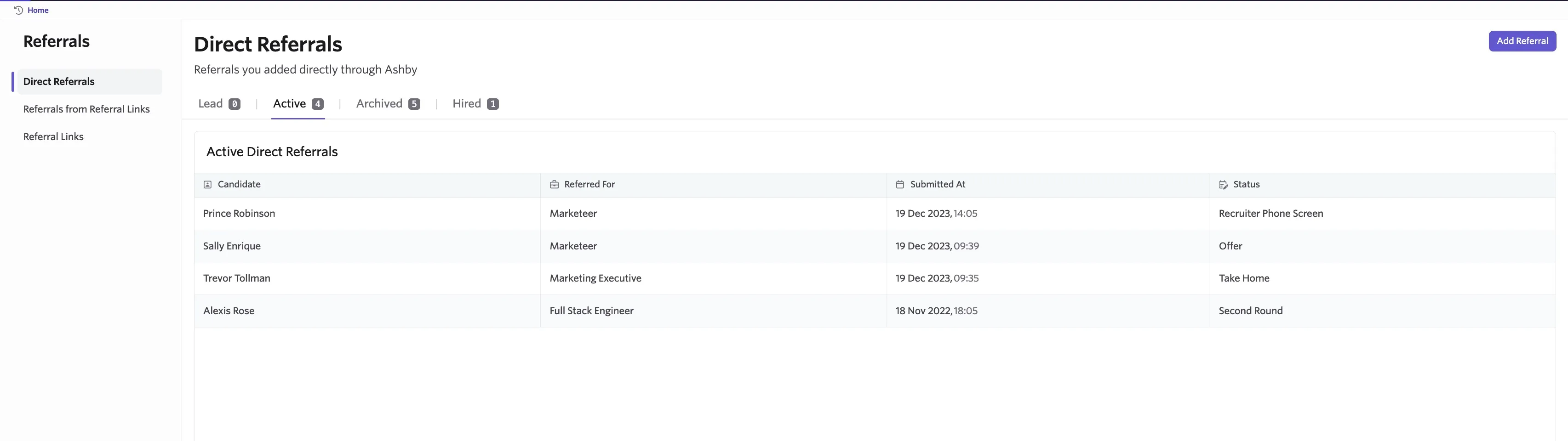
- Direct Referrals: Referrals that the user has added directly to Ashby from their home page.
- Referrals from Referral Links: Referrals that applied via the user's referral link.
- Referral Links: A list of all current referral links with the option to copy them to clipboard.
- Active: A toggle to view all active referrals (referrals currently in the interview pipeline).
- Archived: A toggle to view all archived or rejected referrals.
- Hired: A toggle to view all hired referrals.
- Candidate: The candidate's name.
- Referred For: The role they were referred for.
- Submitted At: When the referral was added.
- Status: The current stage the candidate is at in the pipeline.
- Add Referral: The option to add another referral.
Tracking and amending referral links
You can head to the Referral Links section in All Referrals to view and amend your referral links.

- Title: The name of your referral link.
- Job Posting: The job posting your referral link leads to (if applicable).
- Referrals: Number of referrals who applied via this referral link.
- Referral Link: The referral link itself.
Referral form and settings
You can edit your referral form and set referral settings in Admin > Sourcing > Referrals.
Referral settings
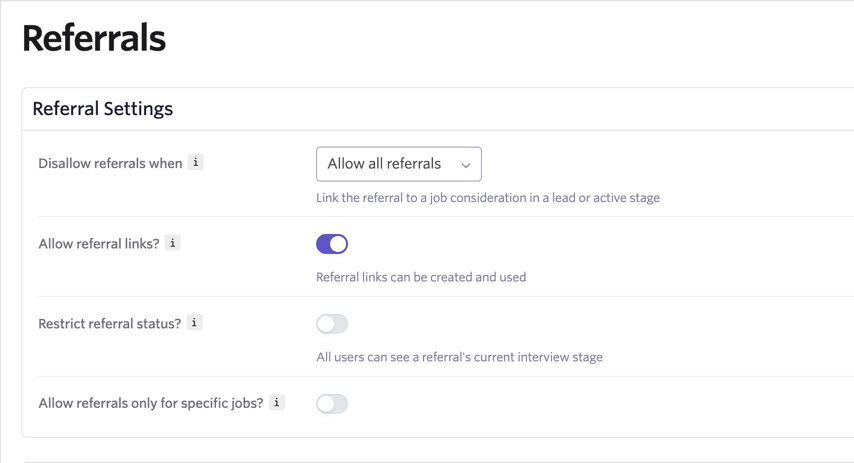
Referral settings allow you to set limits on allowing referrals. You can set the following rules:
- Allow all referrals: Ashby adds the referral to a job consideration in a lead or active stage that already exists for the candidate (if applicable). Ashby creates a new job consideration if there isn't an existing one to match the referral to.
- The candidate is being considered for the referred job: If the candidate has an existing job consideration in any stage of the role they're being referred for, Ashby prevents the referral.
- The candidate already exists in Ashby: Ashby prevents referral submissions for existing candidates, even if no one has considered them for the role.
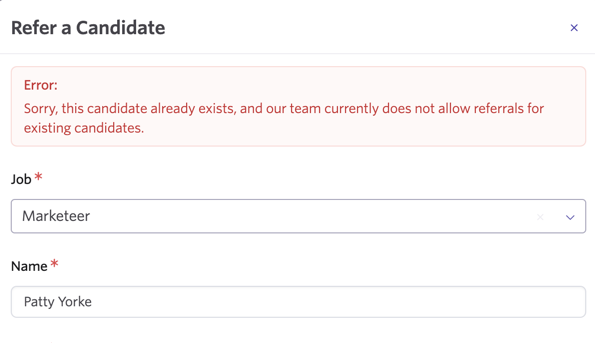
If a user tries to submit a referral that your rules disallow, they receive a message letting them know that Ashby hasn't allowed the referral, with details of the settings in place.
Use the Allow referral links? option to determine whether users can create referral links.
The Restrict referral status? option determines whether all users referring candidates can view their current interview stage. If enabled, only users with the appropriate permissions to view the candidate profile can view their current interview stage.


Adding filters to specify the roles that can accept referrals
You can specify criteria to determine the roles that users can submit referrals or generate referral links for.
- Switch on the Allow referrals only for specific jobs? option.
- Click Add Field to Match.
- Select the determining fields and configure your criteria.
Any jobs matching this criteria can accept referrals or can be used to generate referral links.

For example, in the pictured case, users can only submit referrals for jobs in the engineering department.
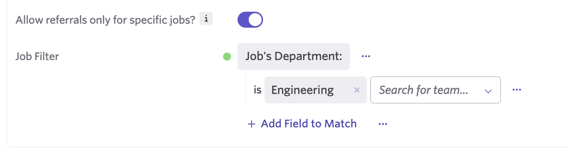
Ashby applies your criteria on top of your existing referral settings, and added criteria doesn't impact existing referrals or existing referral links.
Referral confirmation email
Ashby only sends referral confirmation emails to candidates submitted via the Direct Referral option. Those who apply via a referral link receive an inbound application confirmation instead (if enabled). Ashby also doesn't send this to existing candidates if a user adds the referrer manually via the Credited To field on the candidate profile.
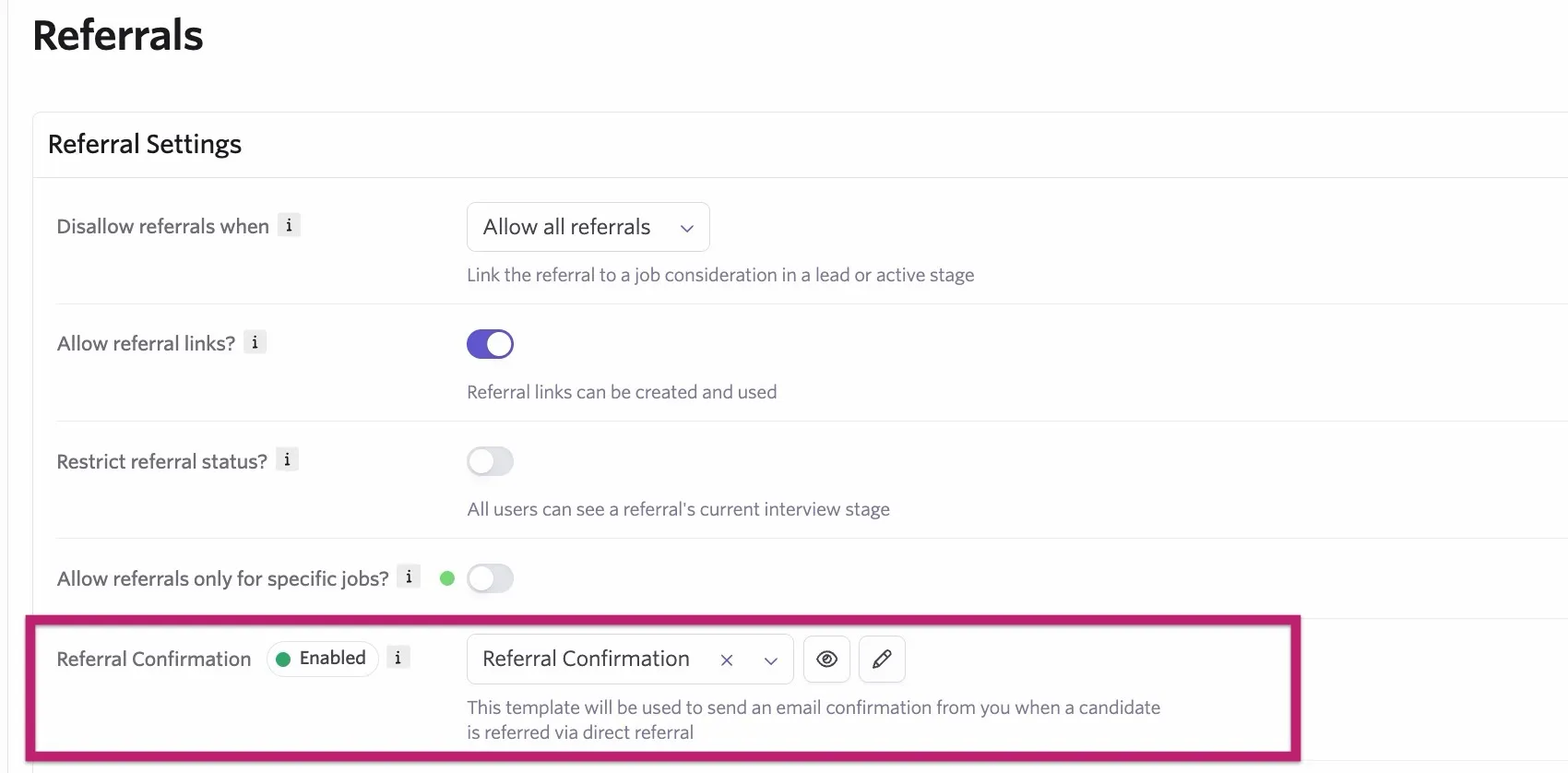
If you'd like referred candidates to receive a confirmation email at the point of submission:
- Select your email template using the Referral Confirmation dropdown. This sets the Referral Confirmation icon to Enabled.
- Use Preview Email to preview the email sent to the referral, or click Edit Email to be taken to the email template to make further edits.
Editing your referral form
Click on your Default Referral form to make any amendments, such as adding or removing fields or adjusting the title of the form.
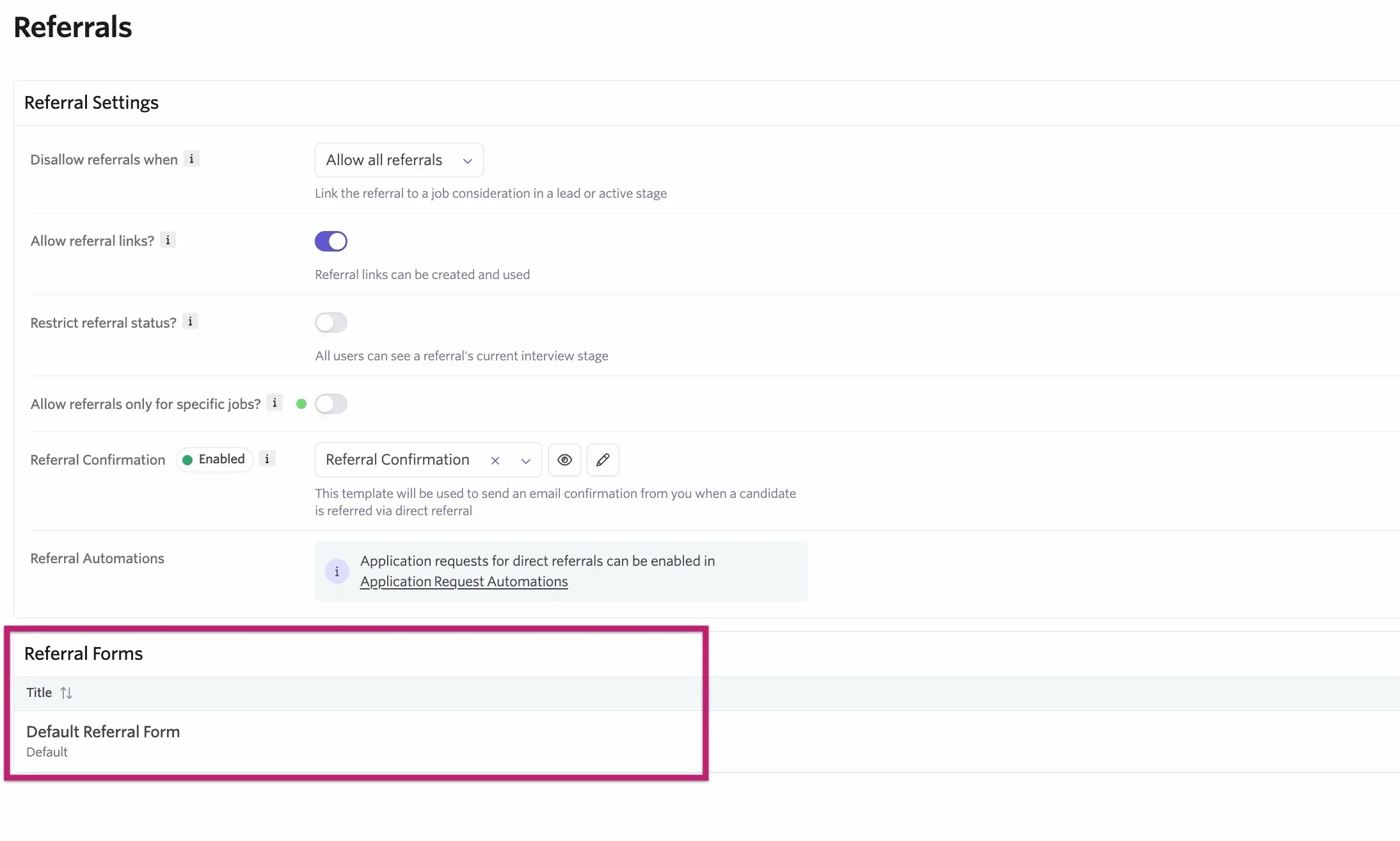
The candidate's name, job, and email address are required fields and you can't remove them. You can add the following field types to your default referral form.
- Short Answer Single line of unformatted text. Ashby auto-populates LinkedIn URL responses on the candidate's profile.
- Long Unformatted Answer Multiple lines of unformatted text.
- Phone Only domestic or international phone numbers.
- Email Only valid email addresses.
- Multiple Choice Select a single option.
- Checkboxes Select multiple options.
- Date Only dates that a user can select via a date picker.
- Yes/No Yes, no, or, if not required, no answer.
- Number Only allows whole numbers (e.g., 1) or decimals (e.g., 1.5).
- Resume* Upload a single file and set it to the candidate's resume field. You can only add this once to a form.
- Candidate's location Set the candidate's location. You can only add this once to a form.
- Other location Allow another location to be added to the form.
- URL A clickable link to a website.
- File* Upload a single file.
File upload questions support files up to 50 MB in standard document, image, and video file types such as:
- Documents: PDF, DOC, DOCX
- Images: JPG, JPEG, PNG
- Videos: Common video formats such as MP4
Ashby doesn't support executable file types (such as .exe) and certain text-based formats (such as .md). If a candidate needs to submit content in an unsupported format, we recommend converting the file to a supported document type, such as PDF, before uploading.
- Candidate's Education History See the candidate's education history. You can only add this once to the form.
When adding the candidate's education history field to your form, you can specify the information asked for. You can opt to include or exclude the school, degree, field of study, start date, and end date fields as needed. Check the Allow multiple entries checkbox to allow those completing the form to add multiple qualifications. You can also set a minimum and maximum number of entries using the Min and Max fields.
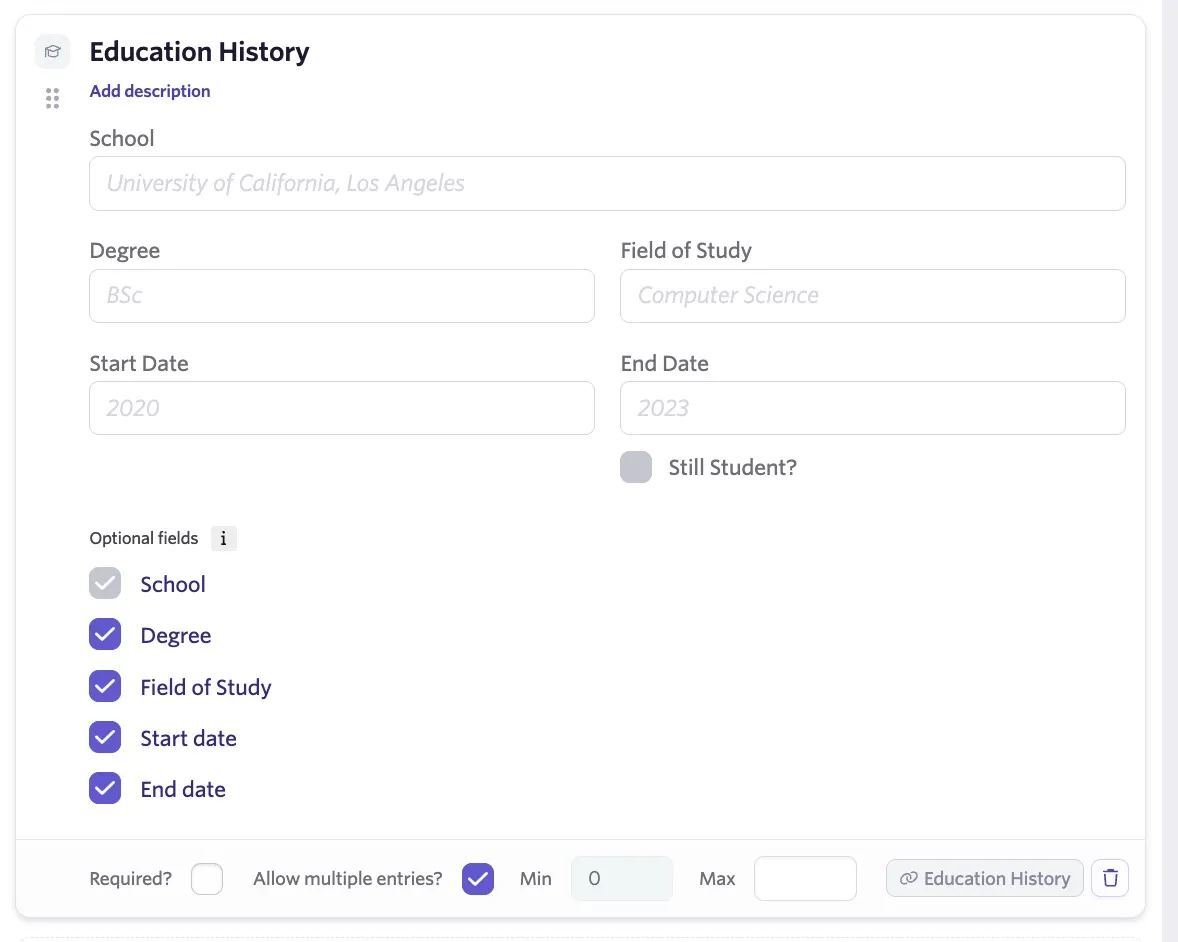
Information added to this field always completes the Education section of the candidate's profile.
It's not possible to create additional referral forms. If you'd like to add additional questions, edit the default referral form.
Reporting on referrals
Below are some examples of reports you can run to view key referral data.
Referrals leaderboard
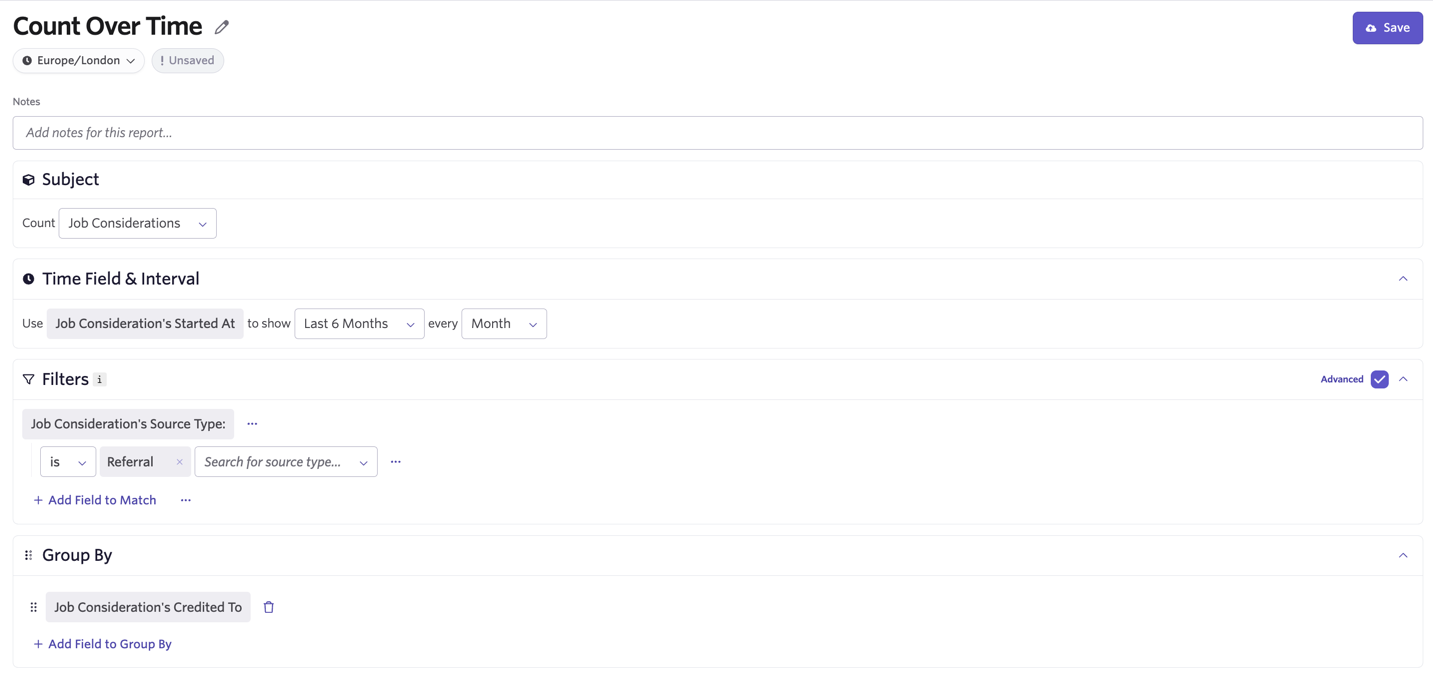
To track referrals in intervals, by the user who referred them, navigate to Reports > Build Report and select Count Over Time.
- Subject: Job Considerations
- Time Field and Interval: Job Consideration's Started At, to show [insert your chosen time range here] per [set your interval here].
- Filter: Job Consideration's Source Type is Referral.
- Grouped By: Job Consideration's Credited To.
Viewing all currently active referrals
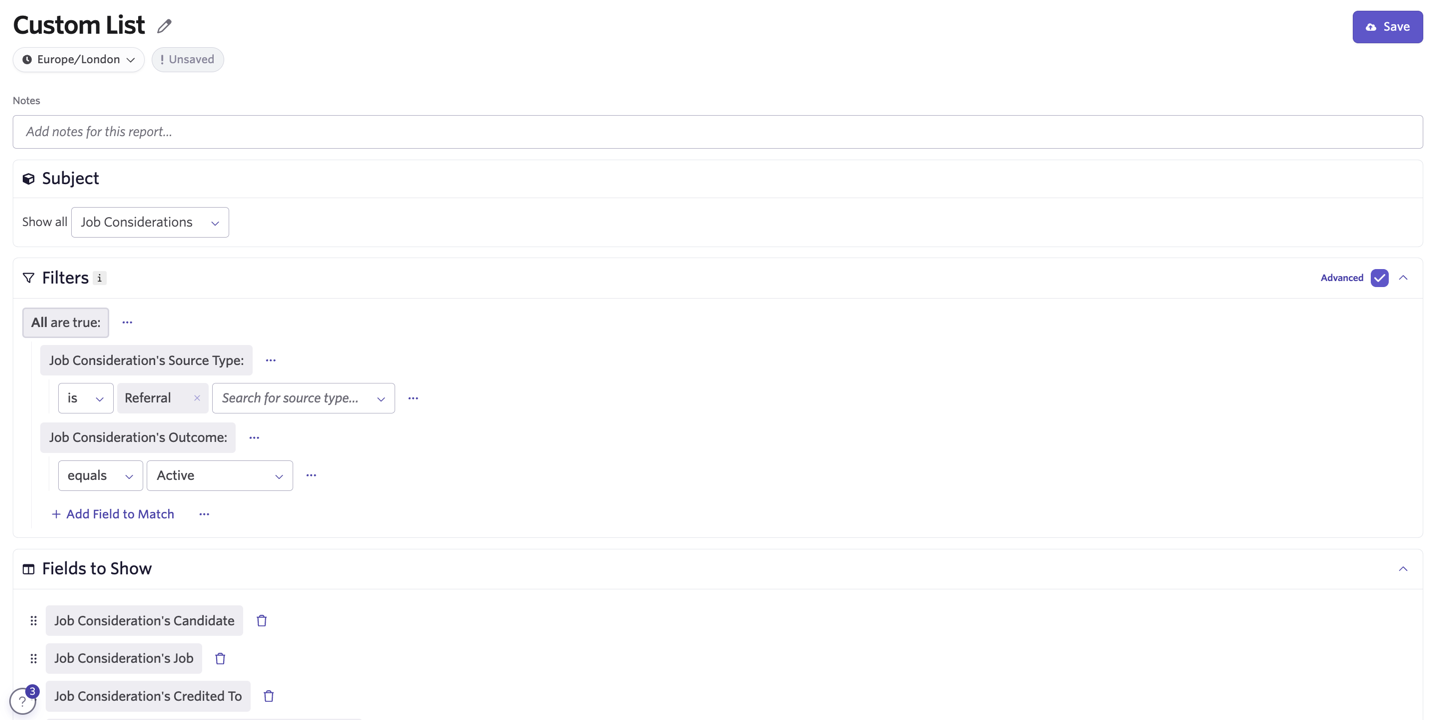
To see a list of currently active referrals from all users, navigate to Reports > Build Report and select Custom List.
- Subject: Job Considerations
- Filter: Job Consideration's Source Type is Referral, Job Consideration's Outcome equals Active.
- Fields to Show: Job Consideration's Candidate, Job Consideration's Job, Job Consideration's Credited To, plus any additional fields you'd like to include.
FAQs
A candidate I've referred has disappeared from my referrals list — where are they?
Head into All Referrals and be sure to check the Archived and Hired lists. If a user rejects or hires the candidate, they no longer show in the Active list.
How do I delete a referral link?
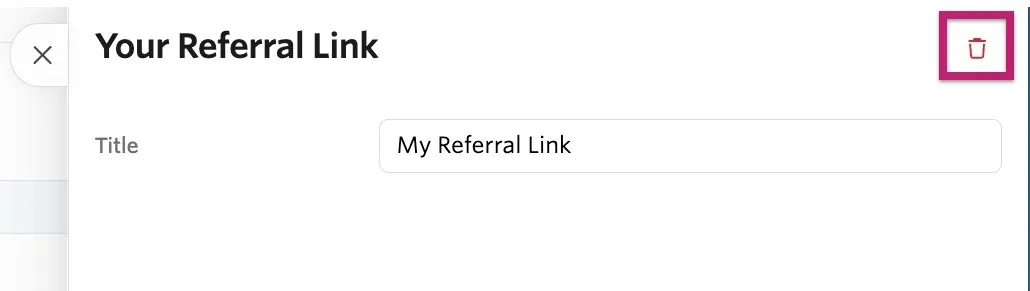
To delete or edit the title of a referral link, head to Your Referral Links, click on the title of the link in question, and then click the red trash can icon to delete it.
You can't restore referral links after deletion. Links already shared outside of Ashby continue to work, but Ashby doesn't credit new applications submitted via these links to you. The deletion doesn't impact past applications.
If a user refers a candidate after they've applied for a role, how are sources attributed?
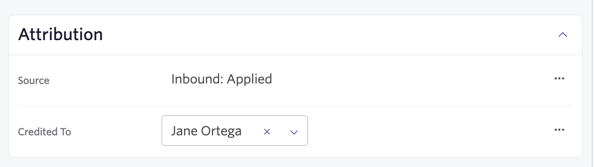
If a candidate applies for a role, then an Ashby user refers them for the same role, the original source (in this case Inbound: Applied) remains on the candidate profile. Ashby updates the Credited To field so the referrer's name is included on the job consideration.
If you allow users to refer candidates that have already been considered for the role, you can opt to use the Referred By field when reporting to ensure that your reporting still includes these referrals, despite the initial source listed in the Source field.
Can a referral be edited once the candidate has been submitted?
If the referrer has access to view and edit the candidate's profile, they can make any corrections or updates as needed to candidate information. If the referrer is unable to view the candidate profile or make adjustments, they need to reach out to a user with access to make these updates for them once they submit the referral.
Can I add in a referral on behalf of another user?
No, the referrer needs to log into their own Ashby account to refer the candidate. Ashby always credits the candidate to the user who added the referral or generated the referral link. An admin can amend the user in the Credited To field within the candidate profile if needed.
Is it possible to change out the source added to referrals or referral links?
No, the source applied is fixed. If you would like to create a link that applies a custom source, check out Tracking the source of an application.
Can referrals be submitted via the integration for Slack?
No, this isn't currently possible.
I see a referral I submitted is now in the Archive stage — can I view any feedback?
We recommend reaching out to the hiring manager or person in your organization responsible for managing the role's pipeline for further information.
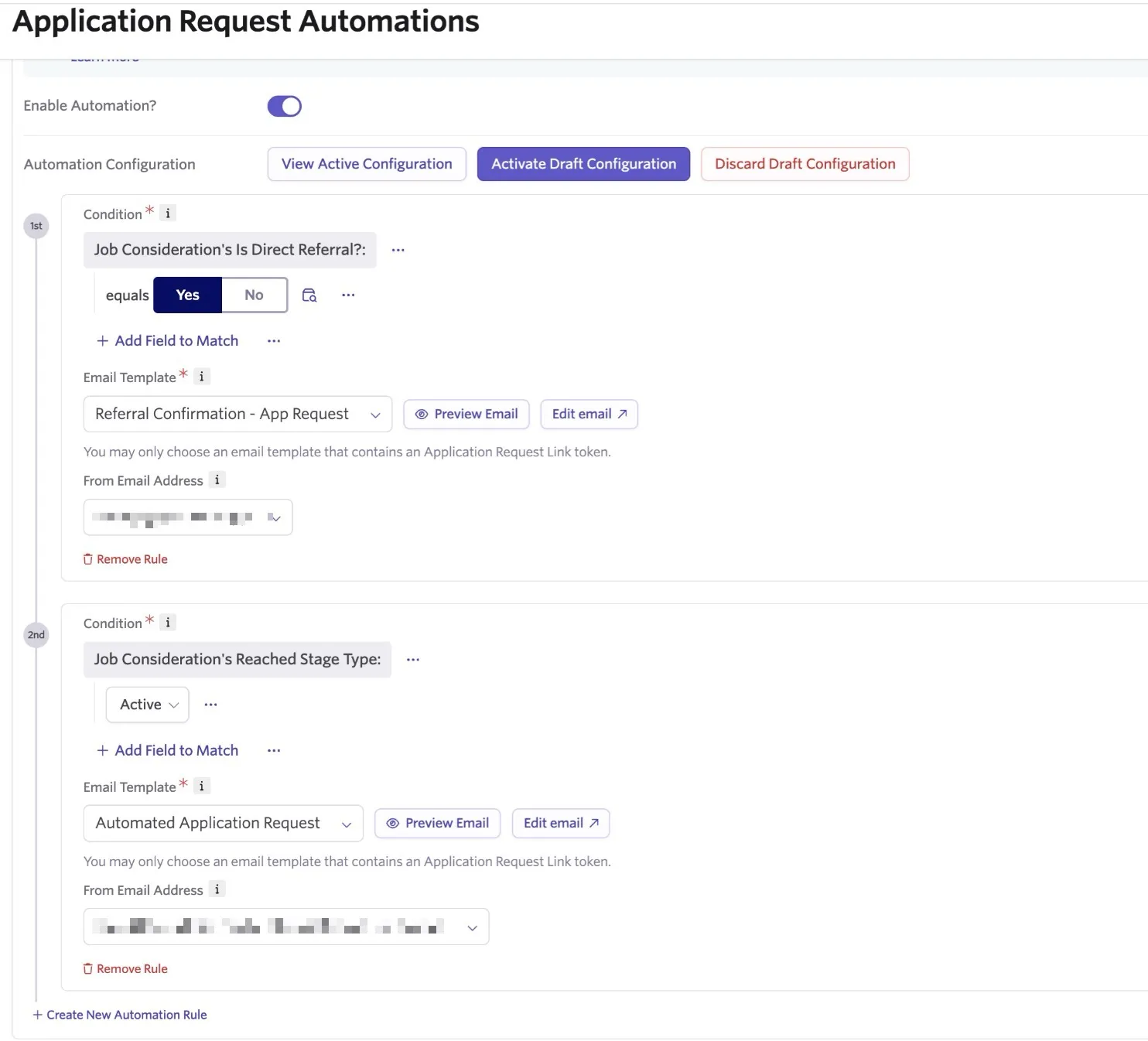
How do I set up application requests to go out to direct referrals automatically?
We don't support adding application requests directly in the referral confirmation sent to referred candidates. If you add the {Application Request Link} substitution token to your organization's referral confirmation template, the email fails.
Instead, for direct referrals, we recommend configuring an application request automation with conditions specifying that the job consideration is a direct referral (for example, Job Consideration's Is Direct Referral is Yes).
You can also opt to configure a catch-all for candidates who don't have an application completed by a certain stage (for example, setting a condition field to be Job Consideration's Reached Stage Type with the value as Active) to ensure any candidates in active stages are prompted to submit an application for the job consideration. If you create application request automations for referrals, we recommend disabling your referral confirmation template. You can use the application request automation instead to send the referral confirmation and application request in a single email.