Data Privacy and Compliance: Configuration
Ashby provides tools to help you maintain compliance with local and federal data privacy regulations when storing candidate data. You can configure these tools in Admin > Data Management > Data Privacy & Compliance.
See Managing Data Compliance Violations for more information on viewing candidates' data retention status and taking action on candidates in violation.
Permissions & access
Data privacy and compliance rules are available on all plans:
Foundations | Legacy Plus | Plus | Enterprise |
|---|---|---|---|
✅ | ✅ | ✅ | ✅ |
Only Organization Admins can configure data compliance rules in Ashby.
Data compliance: inactivity and consent rules
You can use a combination of inactivity and consent-based rules to put a flexible policy in place that helps you track which candidate data should be removed from your system.
On the Data Privacy and Compliance page, you have access to three tabs:
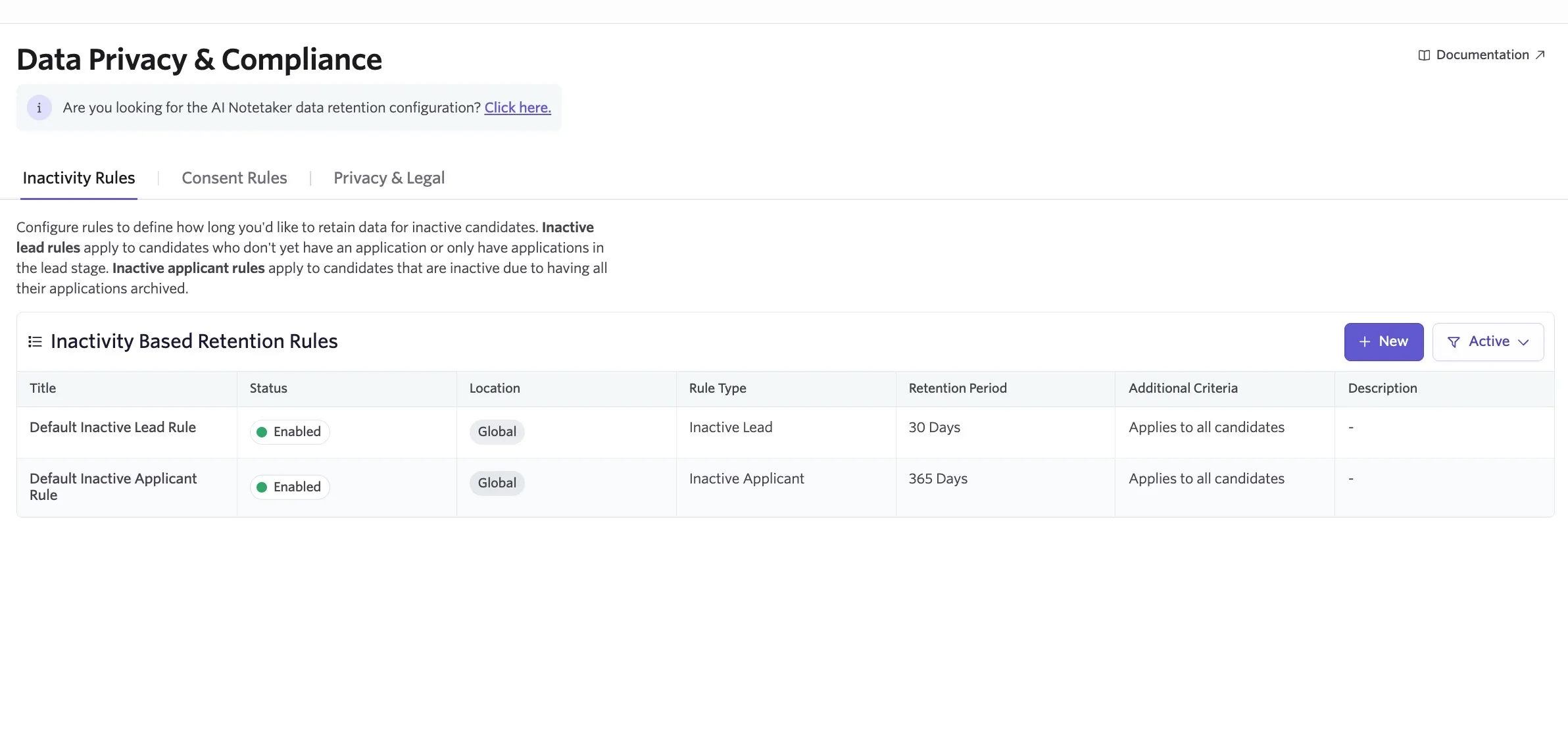
Inactivity rules
Inactivity rules apply based on a candidate’s most recent relevant activity.
Relevant activity is any candidate or application event you choose to count towards retention. When one of these events happens, the retention period resets. Examples include a candidate sending an email, completing an assessment, or attending an interview. If a candidate has no relevant activity, Ashby uses their creation date instead. To choose which events count, see Setting which events update retention dates.
There are three types of inactivity rules:
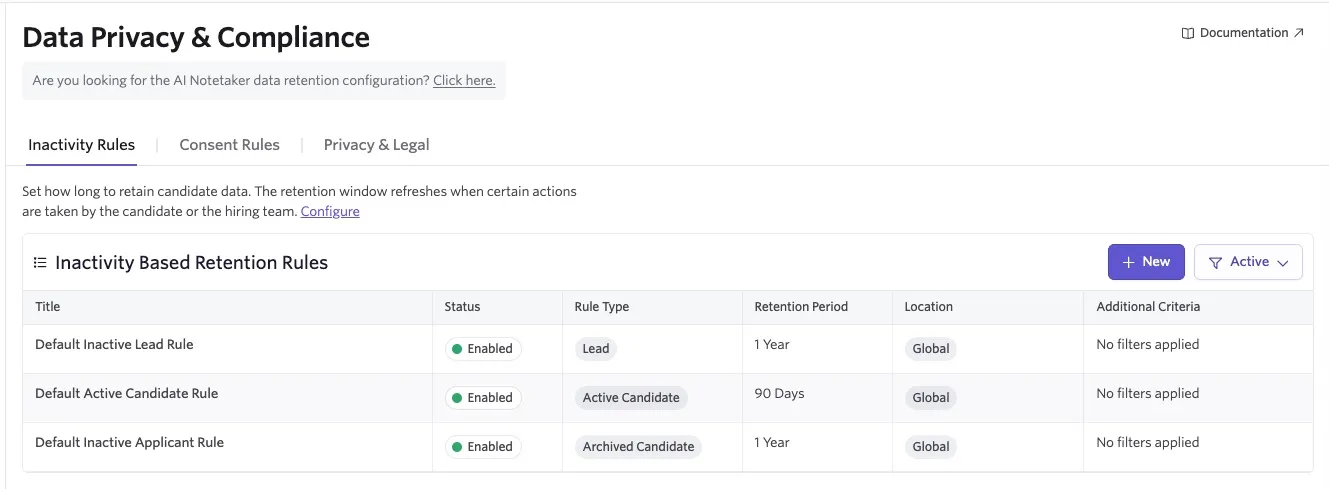
- Lead: To manage sourced candidates, prospects, and talent pools who have not been added to a job. This rule prevents passive profiles from being retained indefinitely while allowing relevant candidate activity to refresh the retention period.
- Archived Candidate: To manage archived job considerations. This rule helps the organization clean up applicant data after the hiring process ends, while still recognizing later relevant activity.
- Active Candidate: To prevent active job considerations from being retained indefinitely when a hiring process stalls. Ashby flags the candidate for review once their retention date passes, but does not automatically archive them.
When an active candidate matches both an Active Candidate rule and an Archived Candidate rule, Ashby adds the two retention periods together to set their retention date. This covers the time the candidate will spend archived after they’re eventually rejected. If no Archived Candidate rule matches, Ashby uses only the Active Candidate retention period.
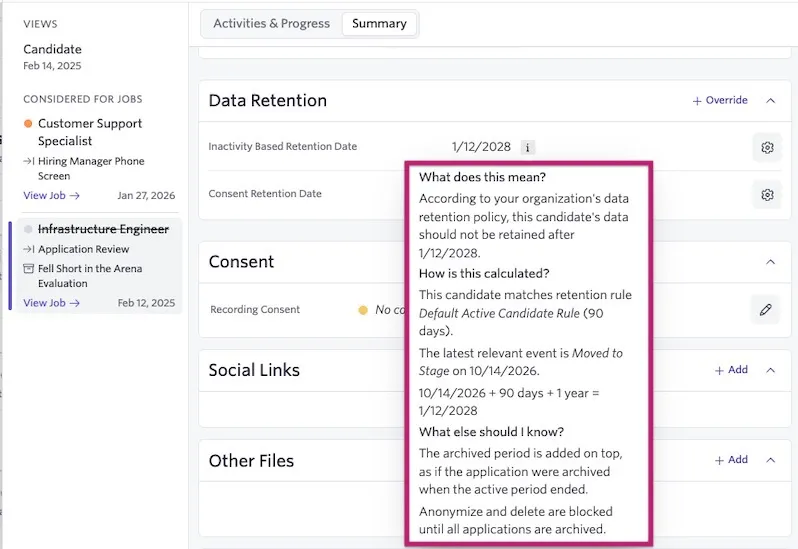
For example, say your Active Candidate rule has a retention period of 1 year and your Archived Candidate rule has a retention period of 2 years. An active candidate covered by both rules has a retention date of 3 years (1 + 2) after their latest relevant activity. If only the Active Candidate rule applies, the retention date is 1 year after their latest relevant activity.
Setting which events update retention dates
You can choose which candidate and job consideration events update the retention date. Select only the events that your organization's retention policy considers relevant activity.
The available events and their descriptions appear in the configuration panel.
- Navigate to Admin > Data Management > Data Privacy & Compliance > Inactivity Rules.
- Select Configure.
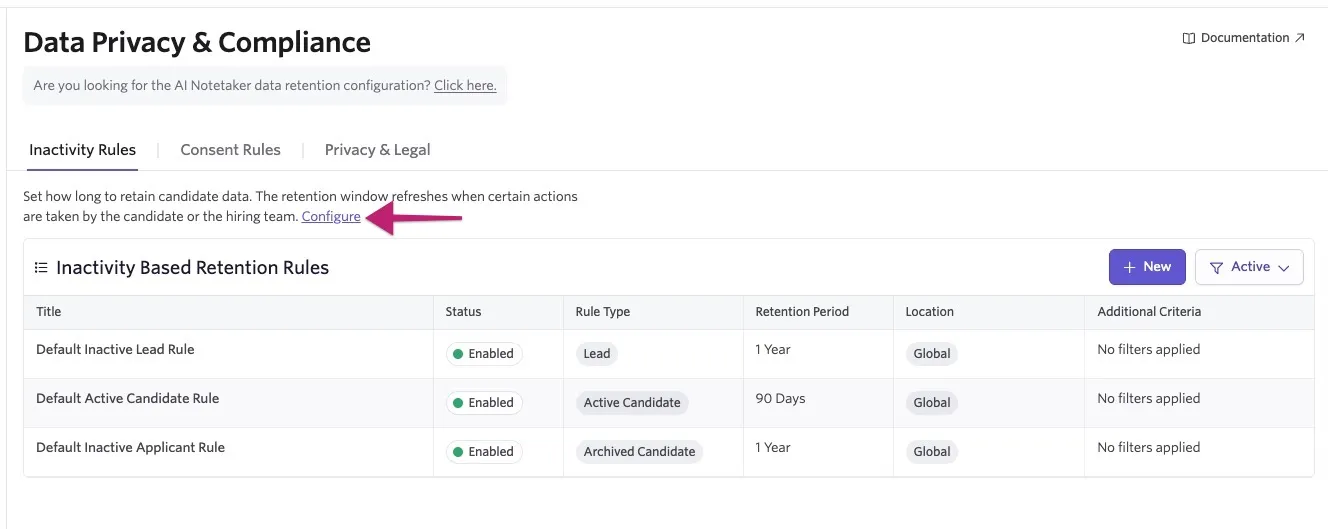
- Select the events that should update retention dates.
- Candidate activity refers to actions taken by the candidate, such as applying for a role, responding to an interview invitation, or completing an assessment. These events reflect the candidate's engagement with your organization and generally provide a stronger basis for extending retention under data privacy regulations.
- Recruiter activity covers actions taken by your team, such as adding a candidate, changing their stage, or submitting a scorecard. These are internal operational activities rather than candidate-initiated engagement.
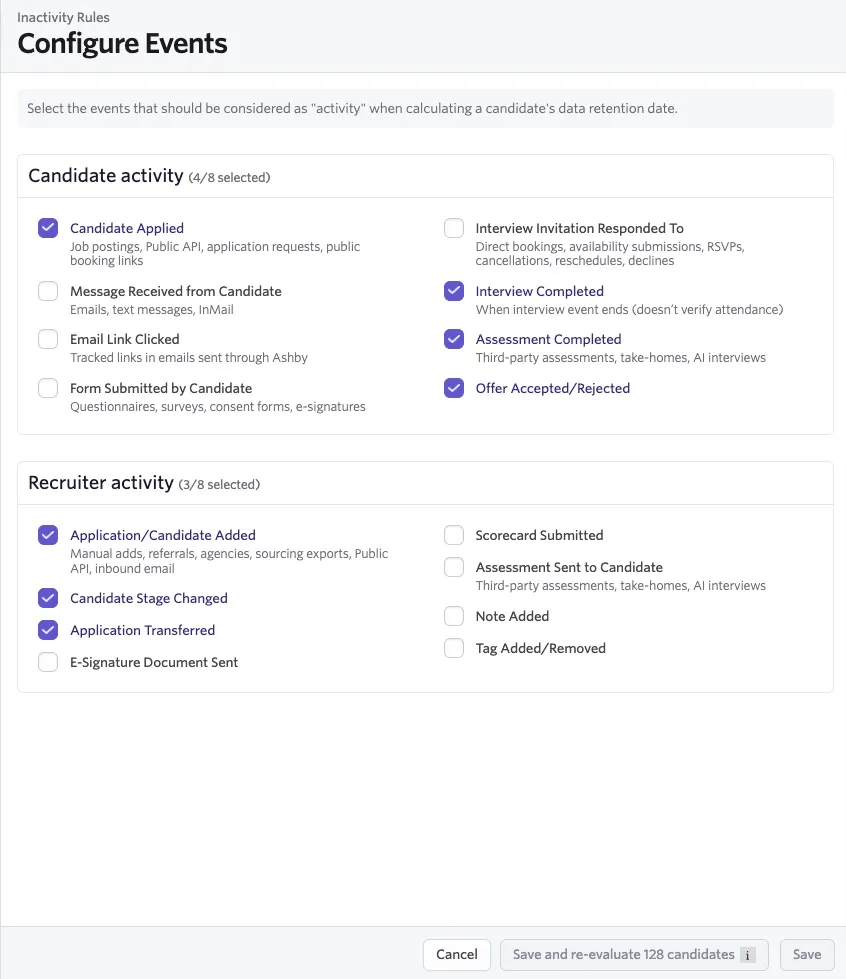
- Select Save or Save and re-evaluate X candidates if you would like to re-evaluate all of your candidates' retention dates based on the selected events.
When a selected relevant activity occurs, Ashby re-evaluates the candidate's retention date. Ashby also re-evaluates the candidate when their application stage changes, even if the stage change is not selected as a relevant activity. A stage change can cause a different retention rule to apply, so Ashby checks the candidate again. This does not necessarily reset the retention date unless stage changes are selected as relevant activity.
Amending the default inactivity-based rule
Select one of your default inactivity-based rules to further configure it:
- Updating basic information, such as adding an internal description for reference.
- Amending the retention period, which defines the time period after which the lead, active candidate, or archived candidate is marked as needing to be anonymized or deleted.
- Configuring a Rule Filter using the Add Field to Match option to add fields and establish criteria. The rule applies to candidates who meet the criteria.
After you reconfigure the rule, you can re-evaluate your inactivity or consent-based rule for candidates matching your rule filters in the Danger Zone section. Click Re-evaluate X Candidates to take this action.
Re-evaluating the rule for candidates does not delete or anonymize candidates automatically. It only flags those in violation of your configured rule.
Creating an additional inactivity-based rule
You can create additional inactive lead and inactive application rules. These allow you to set different location criteria and retention periods, giving you greater flexibility and compliance control over candidate data. See below for examples of rule configurations.
To create a new inactivity-based rule:
- Ensure you are on the Inactivity Rules tab of the Data Privacy & Compliance page.
- Click + New and select Lead Rule, Active Candidate Rule, or Archived Candidate Rule.
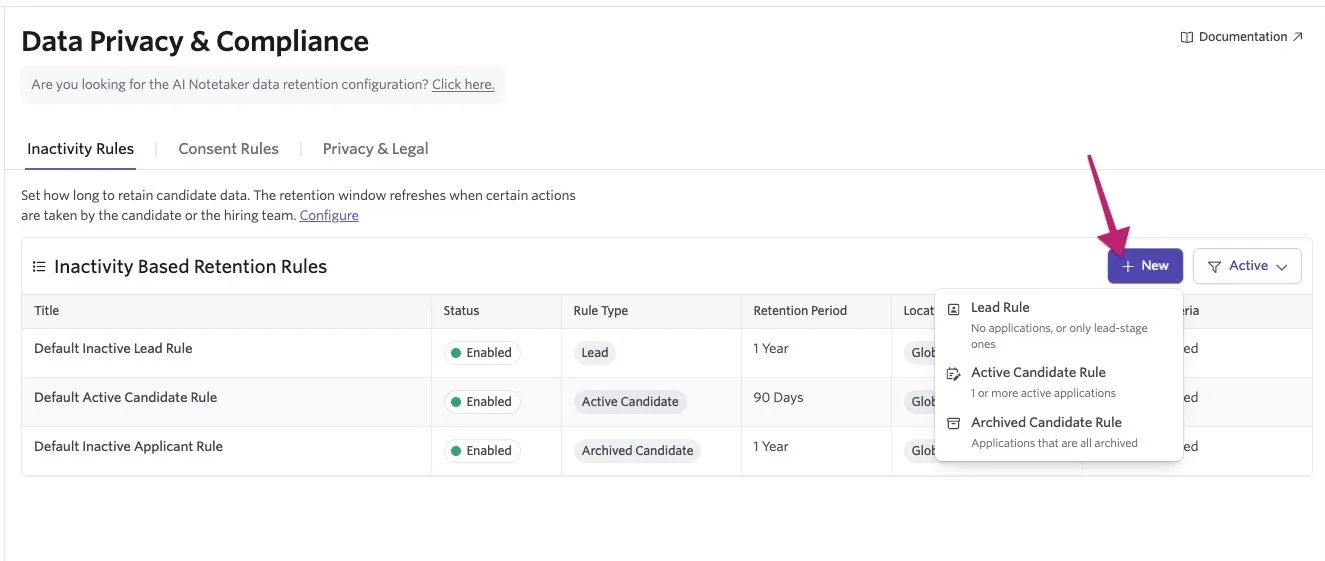
- For additional inactivity rules, complete the following information:
- Title: Click the current title of the rule to rename it.
- Description (Optional): Add an internal description for your rule.
- Retention Period: Determines how long Ashby retains the candidate's data after the latest relevant activity, based on the events selected in your configuration settings. If no relevant activity exists, Ashby uses the candidate creation date as the fallback start date.
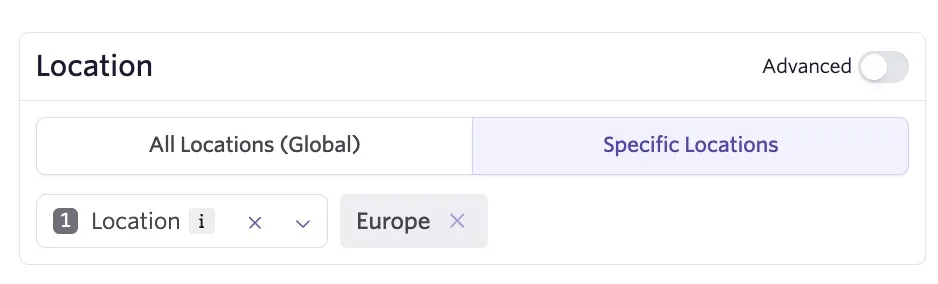
- Location: Determine your location criteria:
- Global: Covers all locations configured in Ashby. You can only configure one rule per type with the Global Location setting (to avoid conflicts).
- Specific Locations: Specify the locations this rule applies to. For more on configuring locations, see Set up Departments & LocationsSet up Departments & Locations.
- Advanced: Switch on the Advanced option and click + Add Field to Match to set your criteria using a range of location fields and values. You can also set further criteria in the Additional Criteria section.
If you do not enable the Advanced toggle and specify location fields, the locations you select for data rules within the Locations section refer to the locations assigned within your job's Settings section.
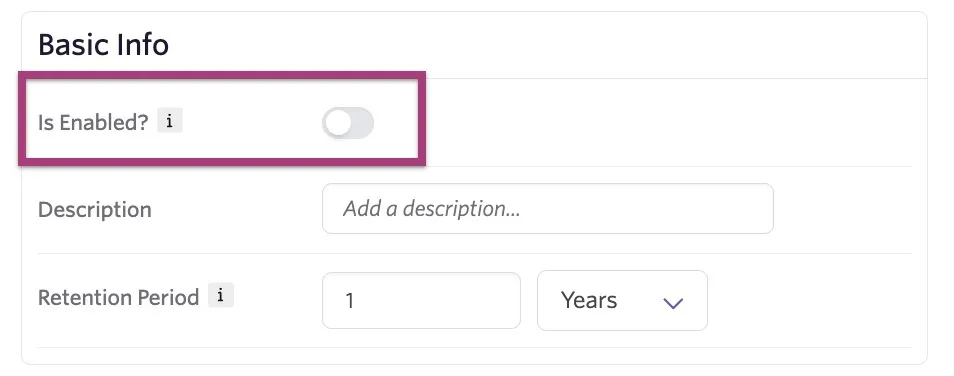
- When you are ready to enable your rule, switch on Is Enabled in the Basic Info section and select Save Changes at the bottom of the page.
- In the Danger Zone section, you can also re-evaluate candidates who meet your rule criteria and apply the rule to them if they qualify. Click Re-evaluate X Candidates to take this action.
Re-evaluating the rule for candidates does not delete or anonymize candidates automatically. It only flags those in violation of your configured rule.
Consent rules
Consent-based rules apply based on the date a candidate gives consent.
Amending the default consent-based rule
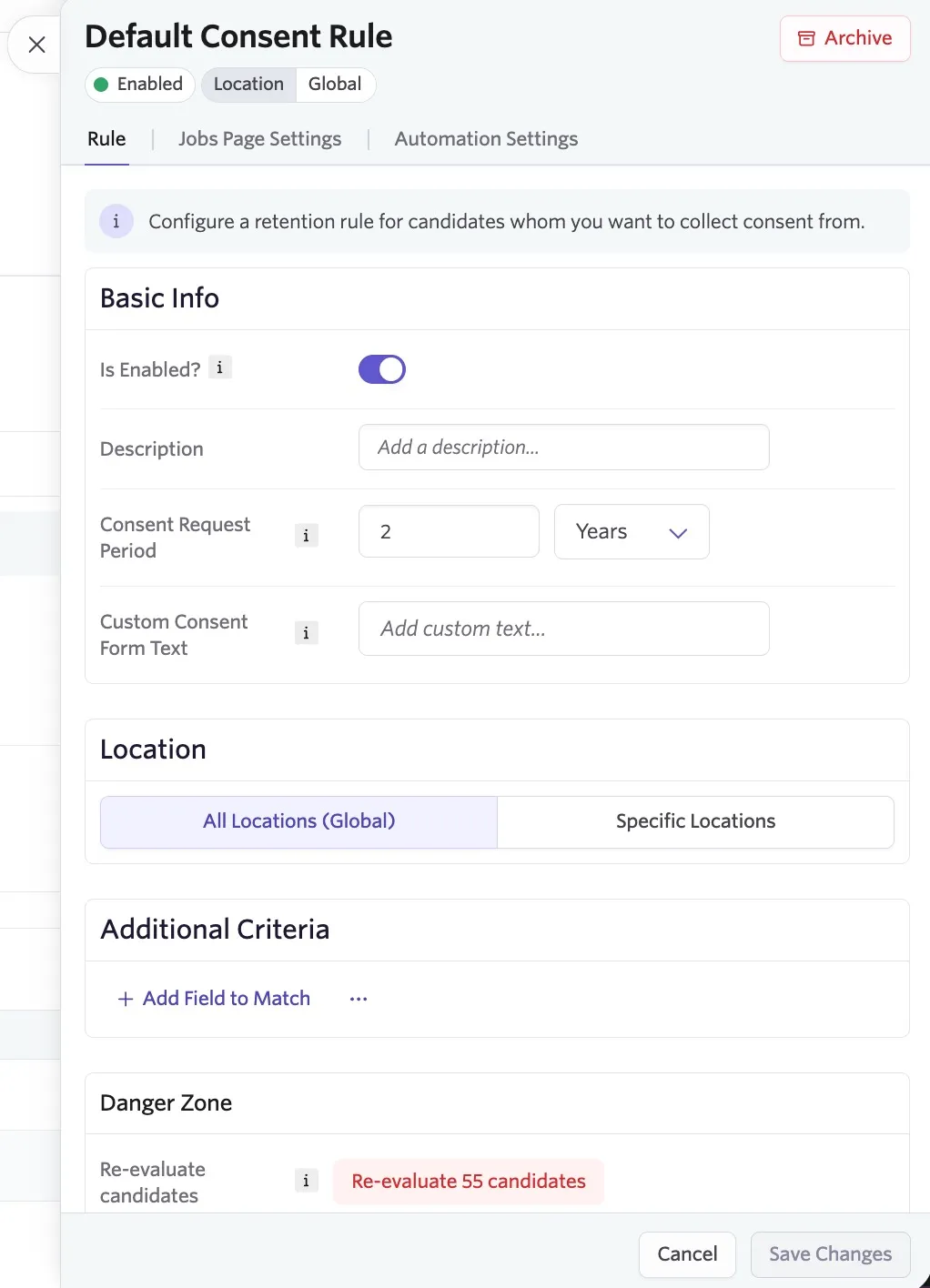
Select the default consent-based rule to further configure it:
- Adding a description for internal reference.
- Choosing the consent request period, which defines how long a period of consent Ashby requests from the candidate when requesting consent via your jobs page or via automation settings.
- Creating a rule filter, which restricts which candidates this rule applies to.
- Setting up consent collection on Job Posting pages in the Jobs Page Settings section. The consent collection option appears underneath the application form on the job posting.
- Setting up automation settings to automatically send an email with a link to a consent form based on a set of rules. You can use this to collect consent from non-applicants, such as sourced candidates (for example, those added via the Chrome extension) or candidates that were manually added to Ashby.
- Setting up consent extension automation settings to automatically request a consent extension prior to the consent retention date.
Creating an additional consent rule
You can create additional consent rules to set different location criteria and retention periods. For examples of multiple rule configurations, see the examples below.
To create a new consent rule:
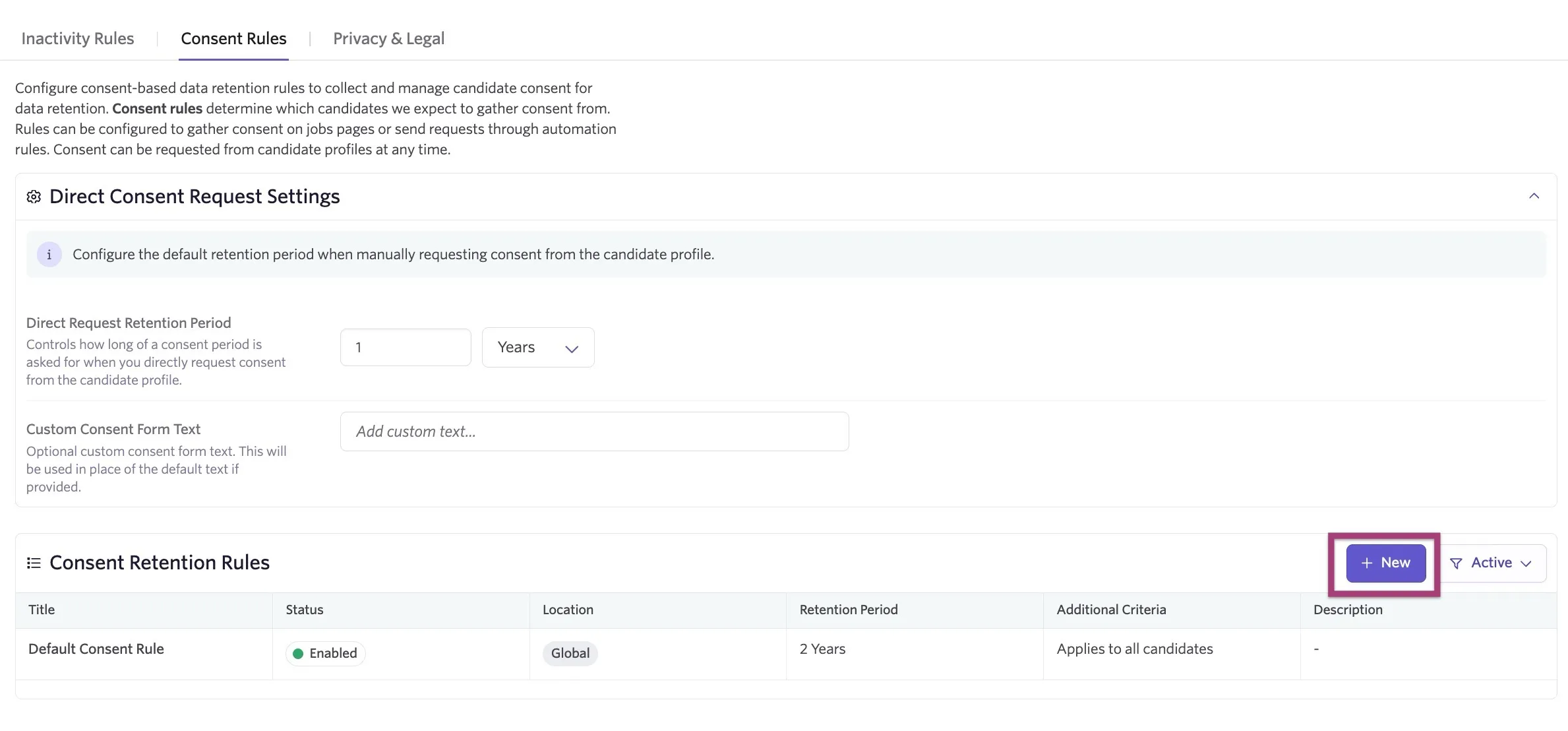
- Ensure you are on the Consent Rules tab of the Data Privacy & Compliance page.
- Click + New and select + Consent Rule.
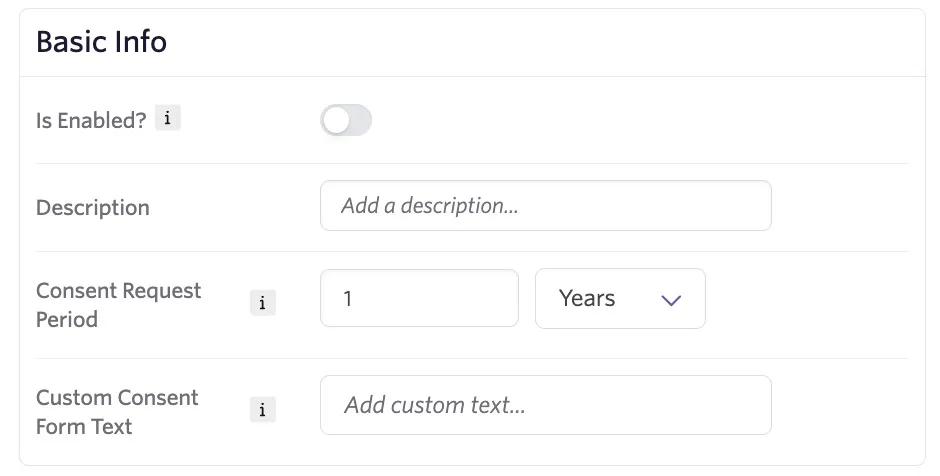
- For additional consent rules, complete the following information:
- Title: Click the current title of the rule to rename it.
- Description (Optional): Add an internal description for your rule.
- Consent Request Period: The request period defines how long a period of consent Ashby requests from the candidate when requesting consent via your jobs page or via automation settings.
- Custom Consent Form Text: Optional custom consent form text specifically for this rule. If left blank, Ashby uses the consent form text set within the Direct Consent Request Settings instead.
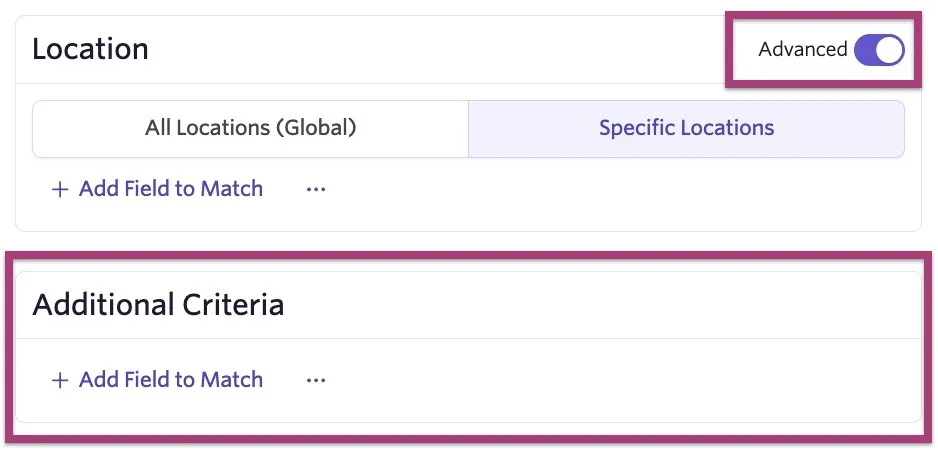
- Location: Determine your location criteria:
- Global: Covers all locations configured in Ashby.
- Specific Locations: Specify the locations you have configured in Ashby that this rule applies to. For more on configuring locations, see Set up Departments & LocationsSet up Departments & Locations.
- Advanced: Switch on the Advanced option and click + Add Field to Match to set your criteria using a range of location fields and values. You can also set further criteria in the Additional Criteria section.
If you do not enable the Advanced toggle and specify location fields, the locations you select for data rules within the Locations section refer to the locations assigned within your job's Settings section.
Consent rules: jobs page settings
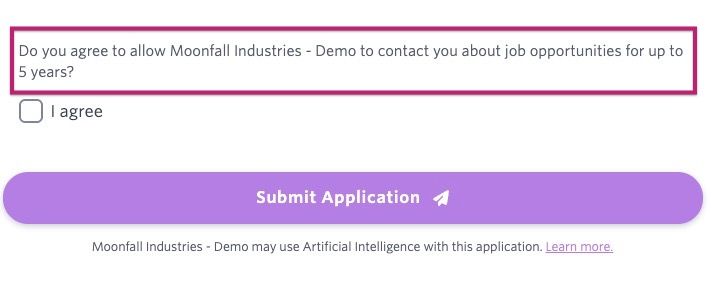
On the Jobs Page Settings tab of your consent rule, you can enable the Collect Consent on Jobs Pages option. When enabled, you can configure criteria so only the job pages that meet the filters you set request consent.
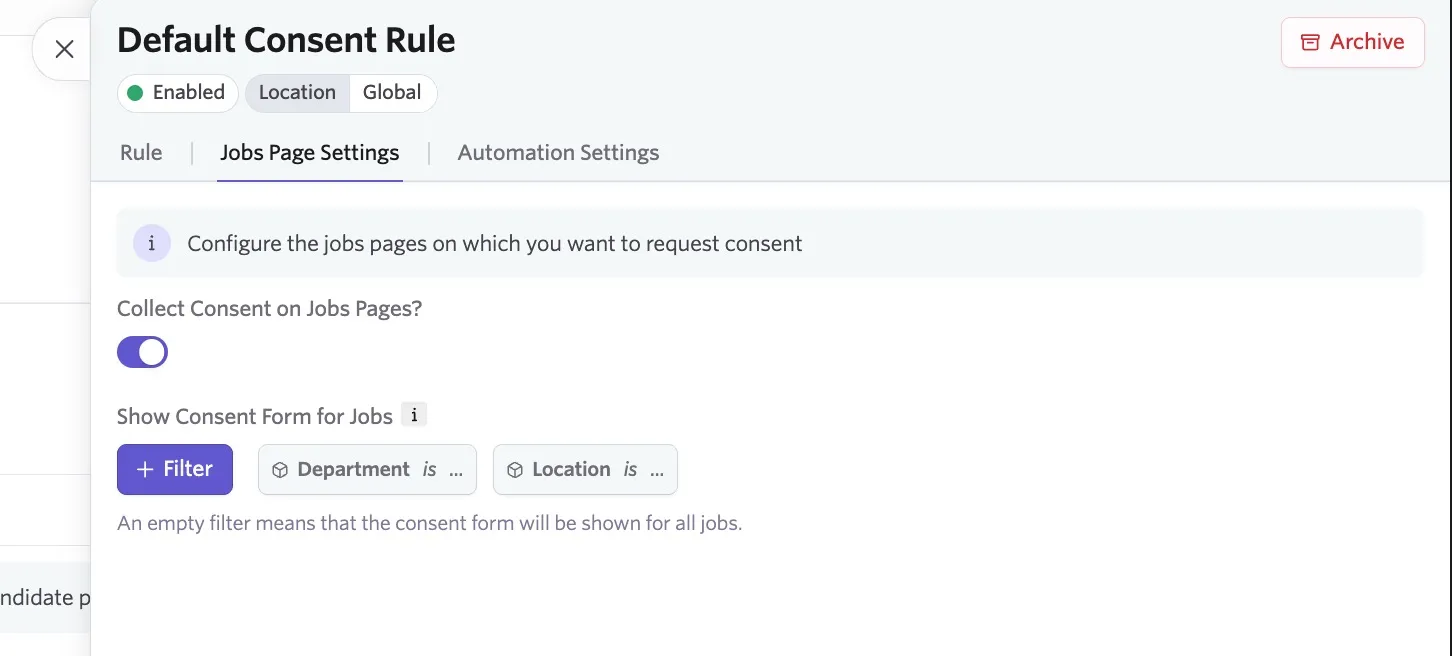
When candidates complete an application on your career page, Ashby automatically adds a note below the custom consent form text and above the consent checkbox. The note tells candidates how long the consent period lasts, based on the rule's Consent Request Period. You cannot hide this note from the job page.
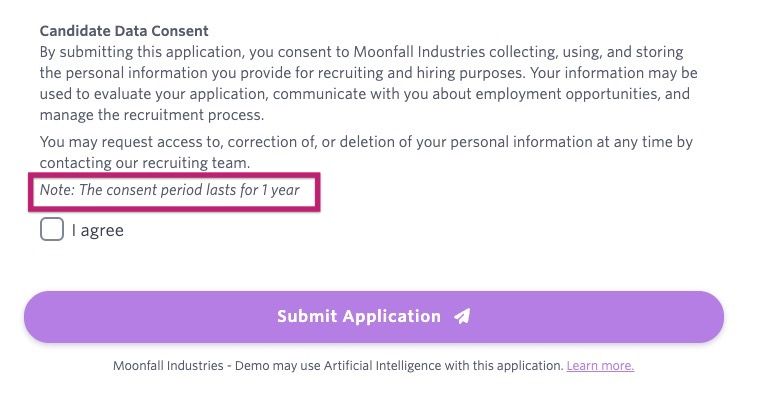
If both the rule-level and Direct Consent Request custom text are blank, Ashby uses this built-in default:
"Do you agree to allow [legal entity name] to contact you about job opportunities for up to [consent period]?"
Consent rules: automation settings
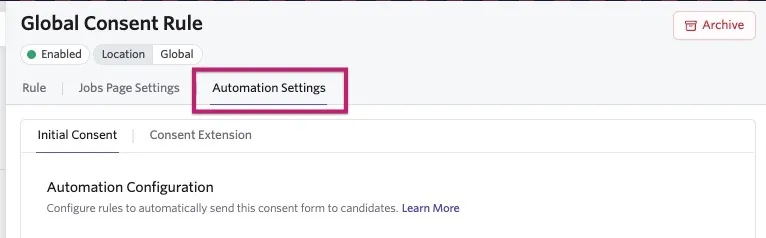
Within the Automation Settings tab, you see two options: Initial Consent and Consent Extension.
Initial consent automation settings
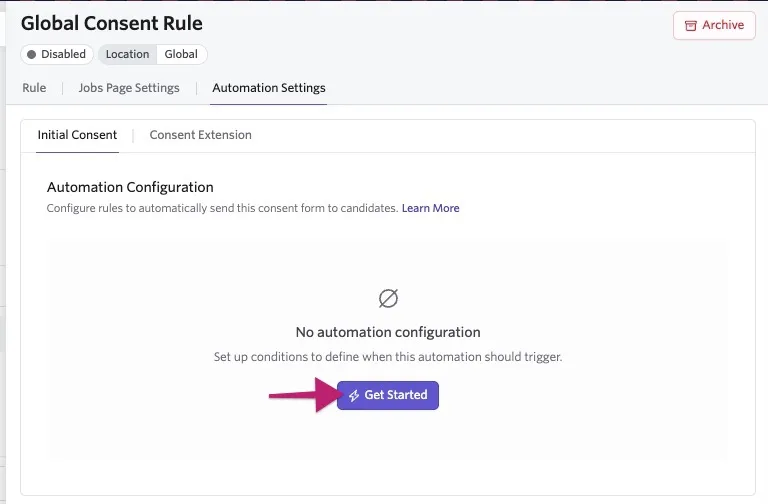
Initial consent automation settings allow you to determine the conditions under which the first consent request is sent. Click Get Started to create a draft.
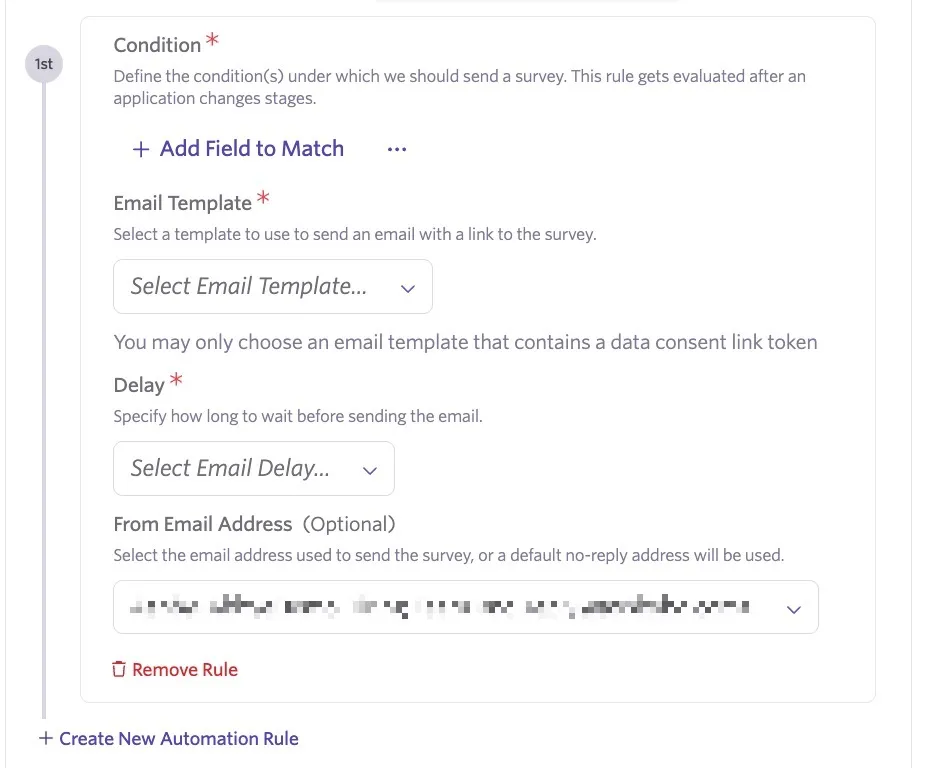
In the Condition section, you can add filters by clicking Add Field to Match. You can then specify any criteria candidates must meet to be sent the initial consent request email. Use the Email Template field to determine the template sent to the candidate, and the Delay dropdown to specify when the email is sent.
The email template must use the Data Consent Request Link token to be selectable in the dropdown menu.
If you need to add an additional automation rule to create a separate set of criteria, click Create New Automation Rule.
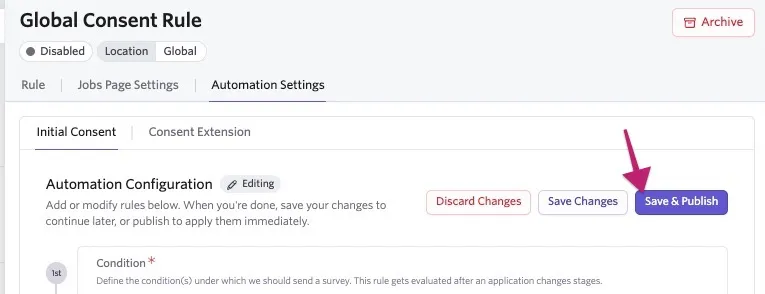
When you are ready to use your rule or rules, click Save & Publish. When a candidate meets the conditions you have set in your automation, they receive the email you specified in the Email Template field.
Consent extension automation settings
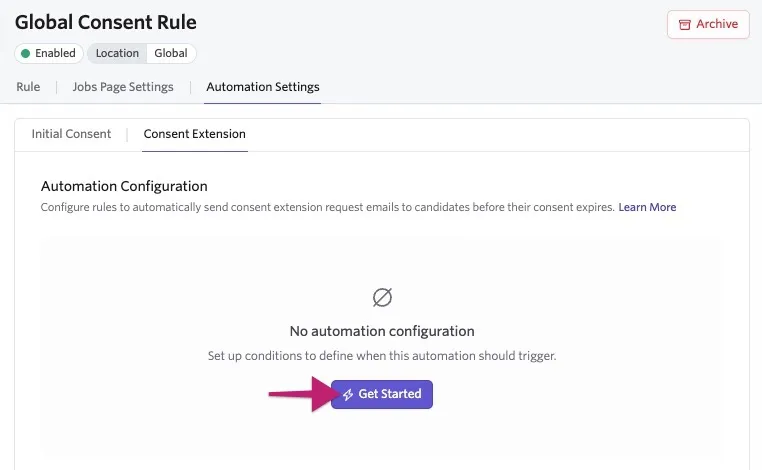
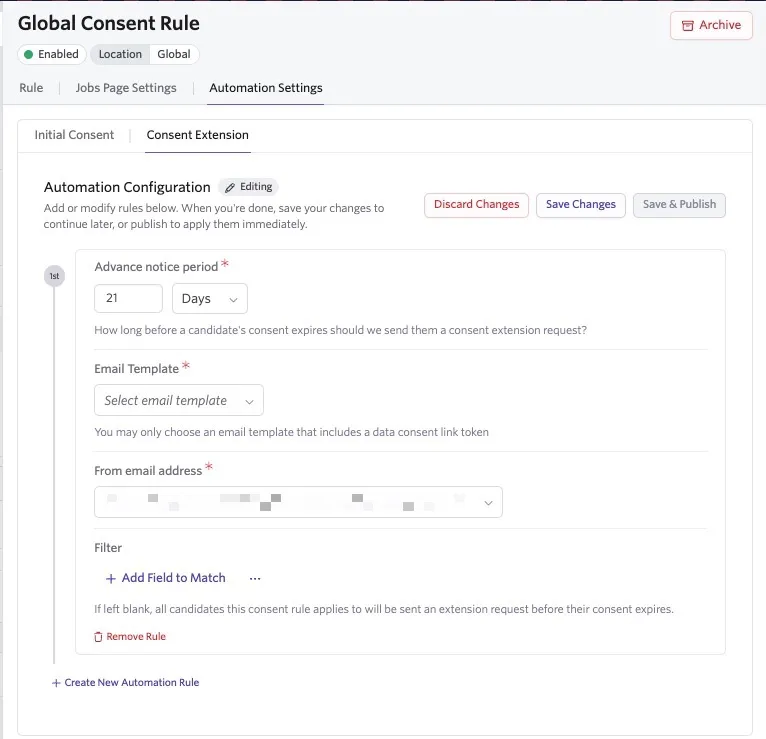
Consent extension automation rules allow you to determine when a consent extension request email is sent to the candidate. Click Get Started to start setting up your automation rule.
Use the Advance notice period field to determine how far in advance the request is sent. In the pictured example, Ashby sends the consent extension request email 21 days prior to the date listed in the Consent Retention Date field on the candidate's profile. You can then determine the email template and the sender email address using the Email Template and From email address fields.
The email template must use the Data Consent Request Link token to be selectable in the dropdown menu.
To add a filter to your rule, click Add Field to Match in the Filter section to set your criteria. If this section is left blank, all candidates the consent rule applies to are sent an extension request prior to their consent expiring. To create an additional consent extension automation rule, click Create New Automation Rule.
When you are ready to use your rule, click Save & Publish.
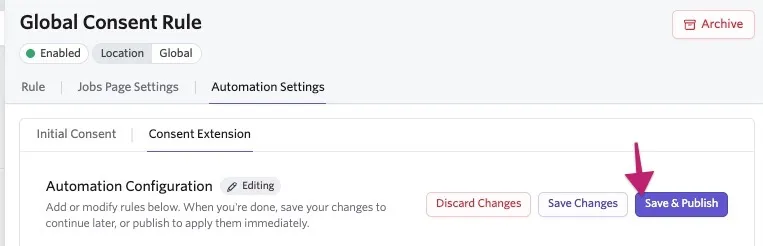
When you activate your consent extension configuration rule, Ashby applies it to all candidates meeting your criteria.
The examples below are purely illustrative. Consult your legal team and organization's policies when configuring your own data compliance rules within your Ashby account.
Example based on candidate location
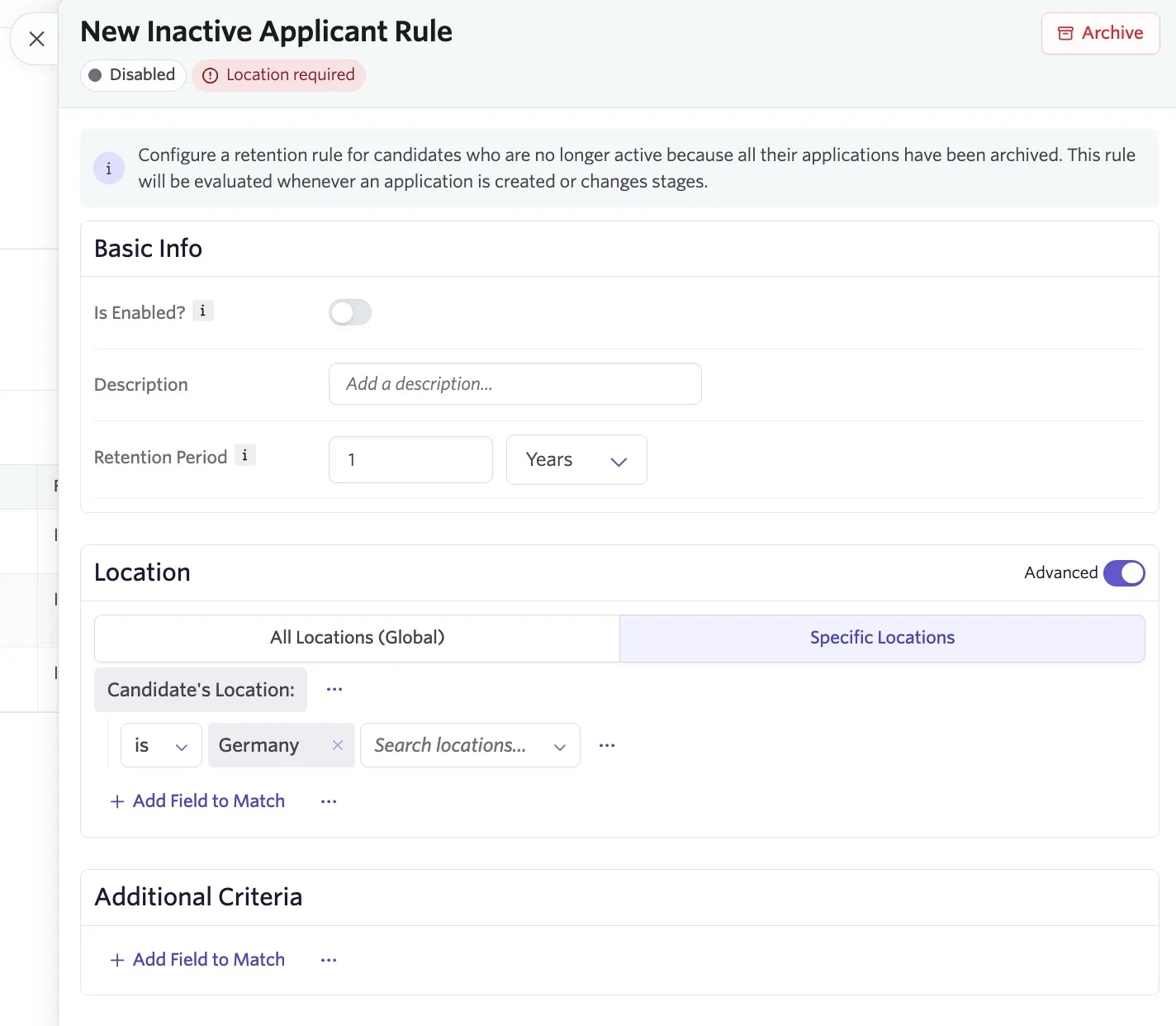
In our first example, our test company has different retention periods for inactive candidates who are located in Germany. An additional inactive applicant rule can be created with the appropriate retention period and the Advanced option switched on in the Locations section. The Advanced option allows them to use the Candidate's Location field, meaning this is the field evaluated when applying the rule.
Example based on job posting location
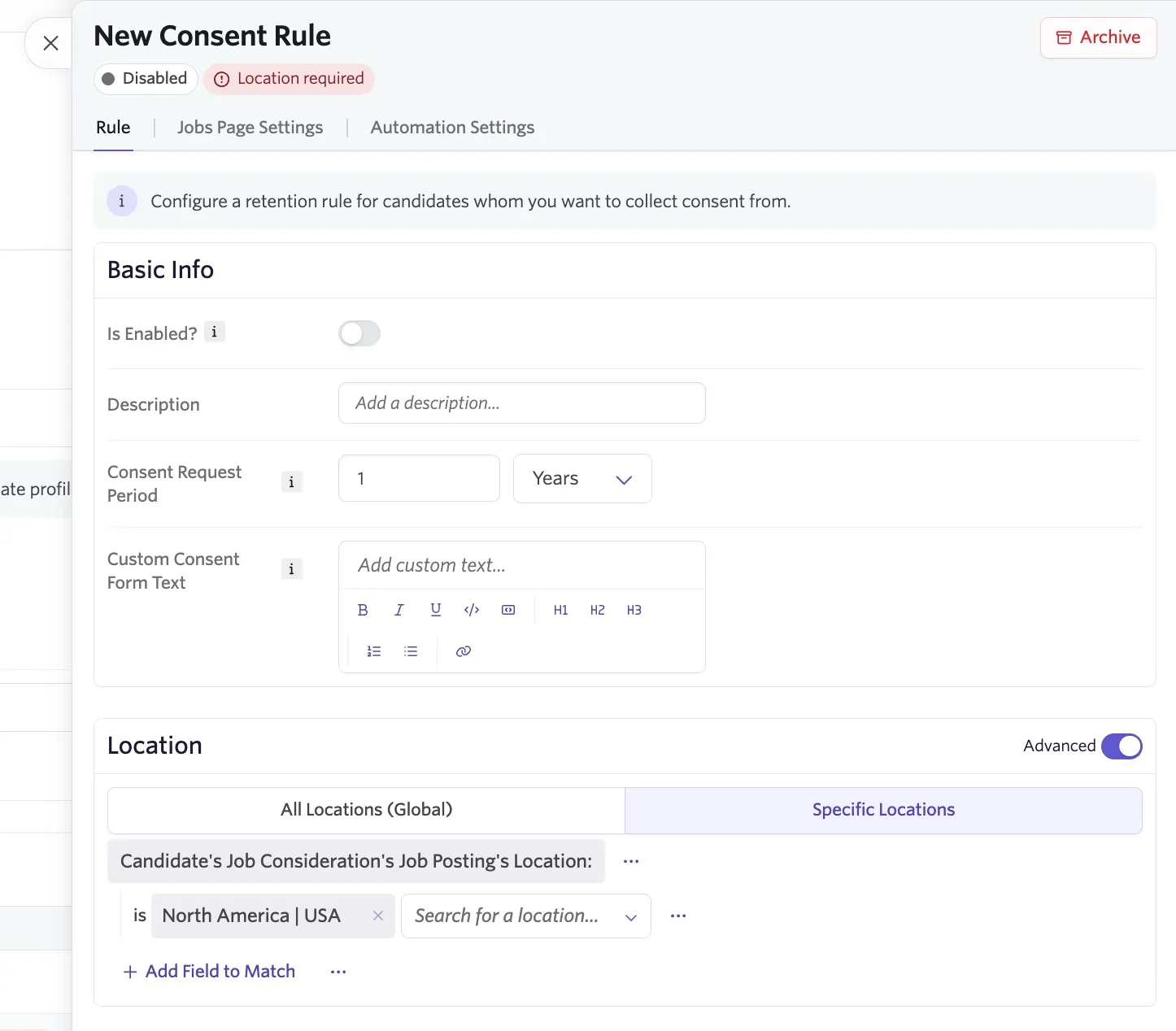
In this second example, the test company wants to set a different consent request period and different consent form text for job postings with their locations in the United States. When configuring an additional consent rule based on job posting location, the Advanced toggle should be switched on and the Candidate's Job Consideration's Job Posting's Location field can be used to determine the value fields. The consent period can then be set in the Consent Period Request section, and the alternative consent form text can be added to the Custom Consent Form Text field.
Privacy & legal settings
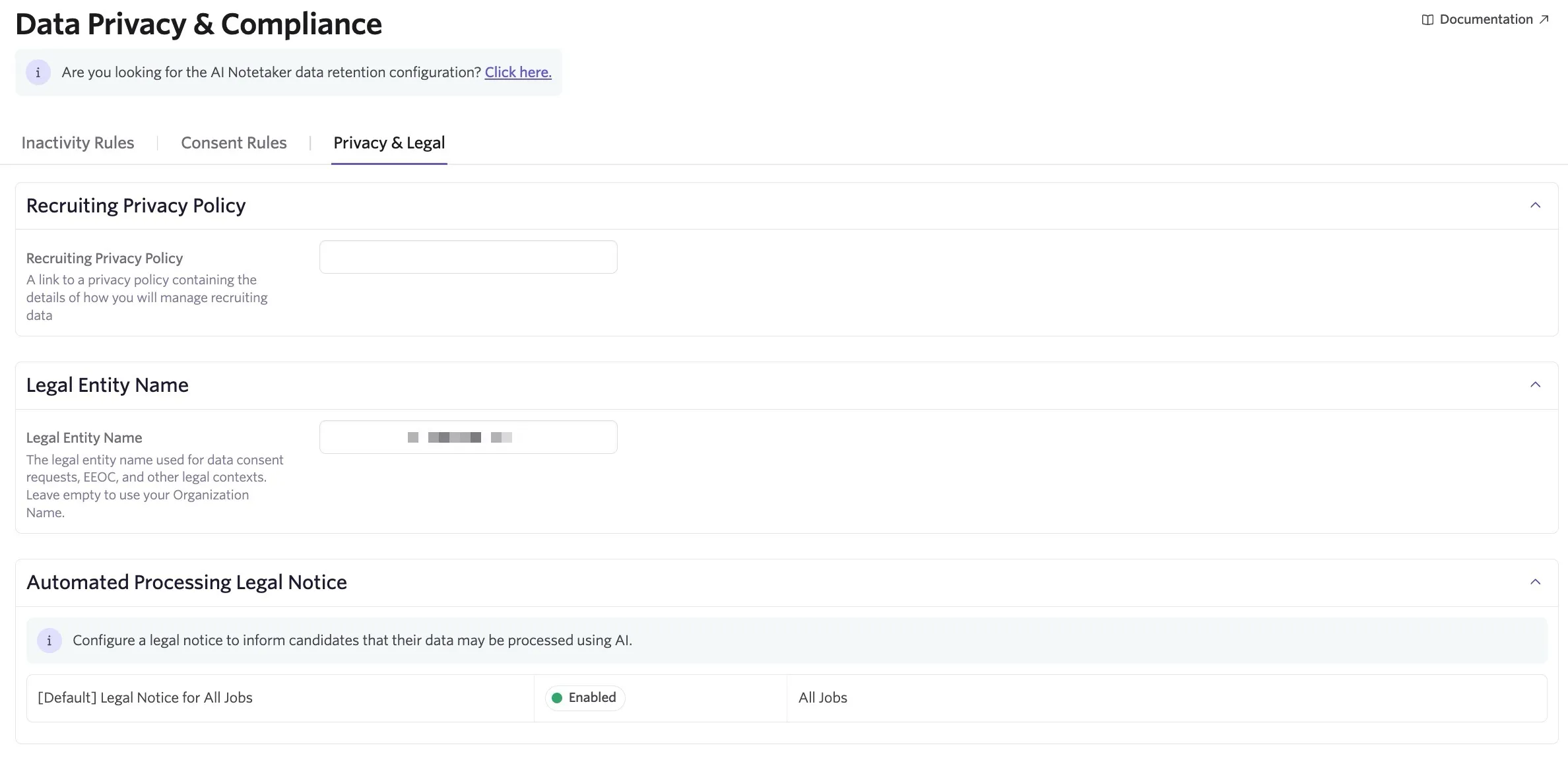
On the Privacy & Legal tab of the Data Privacy & Compliance page, you can set the following:
- Recruiting Privacy Policy
- Legal Entity Name
- Automated Processing Legal Notice
Recruiting privacy policy
Add a link to a privacy policy here that contains details of how you manage candidate data. This link appears on any consent forms that candidates complete.
You can set a Recruiting Privacy Policy in the Data Privacy & Compliance section of Admin, under the Privacy & Legal tab. When you do so, a link to the policy appears on any consent forms that candidates fill out.
Legal entity name
The legal entity name is used for data consent requests, Equal Employment Opportunity Commission (EEOC), and other legal contexts. You can leave this blank to use your Organization Name.
Automated processing legal notice
Here you can configure a legal notice to inform candidates that their data may be processed using artificial intelligence (AI).
For more on Ashby's AI tools, see Ashby AI FeaturesAshby AI Features.
FAQs
How does location hierarchy work with compliance rules?
Location hierarchy across jobs and job postings is supported in compliance rules.
For example:
If the rule is scoped to the United States region and the job location is set to California, the rule will match because the United States location is the region the California location is linked to.
If the rule is scoped to the California location and the job location is set to the United States region, the rule will not match because California is a descendant of the United States region, and the specification is respected.
How are inactivity-based rules and consent-based rules applied to hired candidates?
Ashby treats candidates in the Hired stage as active candidates. This is because hired candidates have an active employment relationship with your organization, which provides a legitimate business interest for retaining their data. The employment of the hired candidate also creates a legal basis for data retention that supersedes the need to apply consent-based or inactivity-based retention rules. As such, Ashby does not consider them or mark them as in violation of the rules you configure in Ashby.
What happens when a rule is disabled?
You can disable a data compliance rule by switching off the Is Enabled? toggle when viewing the rule details. When you disable a rule, Ashby re-evaluates all candidates who had that rule applied. If another applicable rule exists, it becomes the new applied rule. If no other rule applies, Ashby clears the candidate's retention date for that category.
What happens when a rule is archived?
You can archive a rule by opening the rule details and clicking the Archive button. You must disable a rule before archiving it. Once archived, it cannot be re-enabled (it is effectively retired). The same re-evaluation that happens on disable applies here as well. Ashby hides archived rules from the active rules list but retains them in the system for audit purposes.
What happens to automated consent emails when a consent rule is archived or disabled?
Ashby cancels any scheduled automated consent extension emails tied to that rule. This prevents outdated or irrelevant emails from being sent to candidates.
If multiple consent rules apply to the same job posting, which consent form is shown to applicants?
Ashby displays the consent form from the rule with the longest retention period. This ensures candidates are asked for consent under the most protective rule.
What happens if a candidate has both active and archived job considerations?
The answer depends on whether you have an Active Candidate rule enabled.
If you do not have an Active Candidate rule enabled, Ashby skips compliance evaluation entirely for candidates with at least one active job consideration. The archived job consideration does not start a retention clock while an active one exists. Evaluation only begins once all job considerations are archived.
If you have an Active Candidate rule enabled, Ashby evaluates the candidate using the Active Candidate rule and the Archived Candidate rule. The retention date is calculated as the Active Candidate retention period plus, when applicable, the longest matching Archived Candidate retention period.
Can an active candidate be marked as out of compliance?
Yes. If an enabled Active Candidate rule applies and the calculated retention date has passed, Ashby can mark the candidate as out of compliance. Archive all active applications before taking anonymization or deletion actions.