Docusign
You can integrate your Ashby account with your company's DocuSign account, allowing you to send e-signature offers and documents via DocuSign, rather than using Ashby's default Dropbox Sign option.
Prerequisites: You need a DocuSign account on the Standard plan or above to set up this integration.
When setting up the integration, we recommend logging in with a shared service account (e.g., "[email protected]") rather than an individual user's account. Notifications to candidates from DocuSign may include references to the account user's name and email address, and e-signature requests appear as from this account.
The account used to set up the integration may also receive notifications about e-signature requests, so using a service account can help avoid individual users getting unwanted notifications.
Depending on your DocuSign account, you may also be able to further customize the email notifications sent to candidates using the DocuSign Brand feature.
Enabling the DocuSign integration
To enable the DocuSign integration:
- Navigate to Admin > Integrations > Integrations.
- Open the DocuSign tile and click Authorize with DocuSign.
- Log in to DocuSign on the following page.
- Review the access Ashby is requesting for the integration and click Allow Access to confirm.
- Back in the DocuSign integrations tile in Ashby, select a DocuSign Account from the account dropdown. This controls which DocuSign account is used by default for the e-signature process — all documents are processed and stored in the selected account.
Once a DocuSign account is selected, the integration is active and ready to use.
Setting DocuSign as your default e-signature provider
To set DocuSign as your default e-signature provider for offers:
- Navigate to Admin > Offers.
- Select the Settings tab.
- Ensure the E-Signature Provider dropdown is set to DocuSign.
To set DocuSign as your default e-signature provider for e-signature documents:
- Navigate to Admin > Integrations > E-Signature Documents.
- Select the Settings tab.
- Ensure the E-Signature Provider dropdown is set to DocuSign. If you'd only like to use DocuSign for offers, set the E-Signature Provider to Dropbox Sign here to use Dropbox Sign for documents instead.
DocuSign Custom Fields
Before proceeding with custom field mapping, the DocuSign integration must be configured. See the previous section for setup.
Some DocuSign accounts require custom fields that must be present on every document before it can be sent. These fields are configured in your DocuSign account settings and may include information such as department, document type, or other organization-specific values. If your DocuSign setup enforces required custom fields, you’ll need to map them in Ashby before sending e-signature requests.
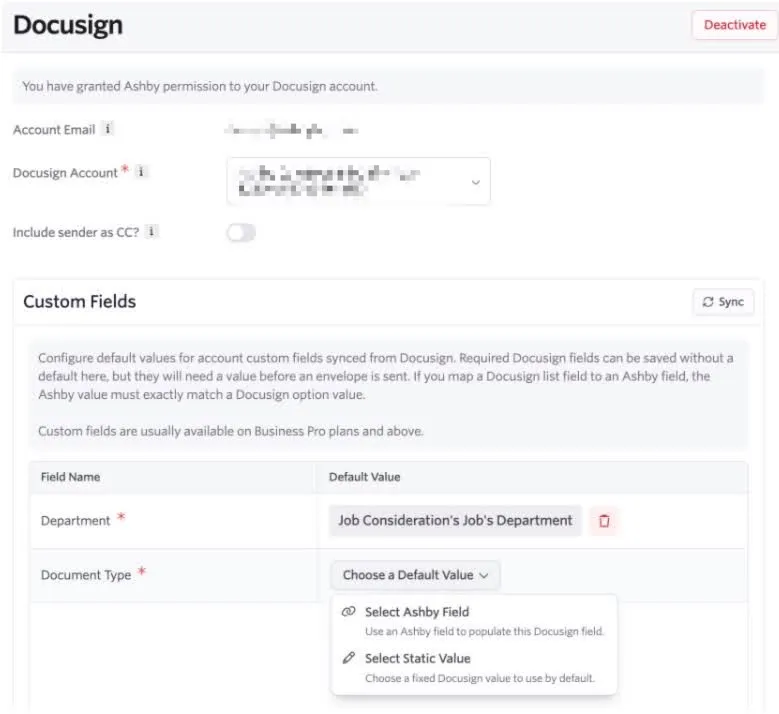
The custom fields section in your DocuSign integration settings lets you sync your DocuSign account's custom fields and configure default values for them. When an e-signature request is sent, any configured values are automatically included.
Custom fields are a DocuSign account-level feature typically available on Business Pro plans and above.
Setting up custom fields
To configure custom fields, navigate to Admin > Integrations, click on the DocuSign integration tile, and scroll to the Custom Fields section.
- Click Sync to fetch the latest custom fields from your DocuSign account. This pulls in any custom fields configured in DocuSign and displays them in the table.
- For each field, click Choose a Default Value to configure how the field will be populated when an e-signature request is sent. You have two options:
- Select Ashby Field — Maps the DocuSign field to an Ashby field, so the value is pulled dynamically from the candidate's application data when a request is sent. For example, you could map a Department field in DocuSign to the Department field on the job in Ashby.
- Select Static Value — Sets a fixed value that is used for all e-signature requests, regardless of the candidate or job.
- If you need to remove a configured default, click the existing value to reopen the menu and clear it.
You can re-sync at any time to pull in new or updated custom fields from DocuSign.
Required custom fields
If a field is marked as required in your DocuSign account, it must have a value assigned before an e-signature request can be sent. You can save the settings page without configuring a required field's default value, but Ashby will block the e-signature request at send time until all required fields are filled in.
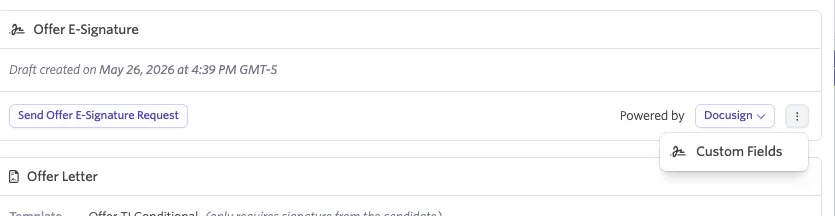
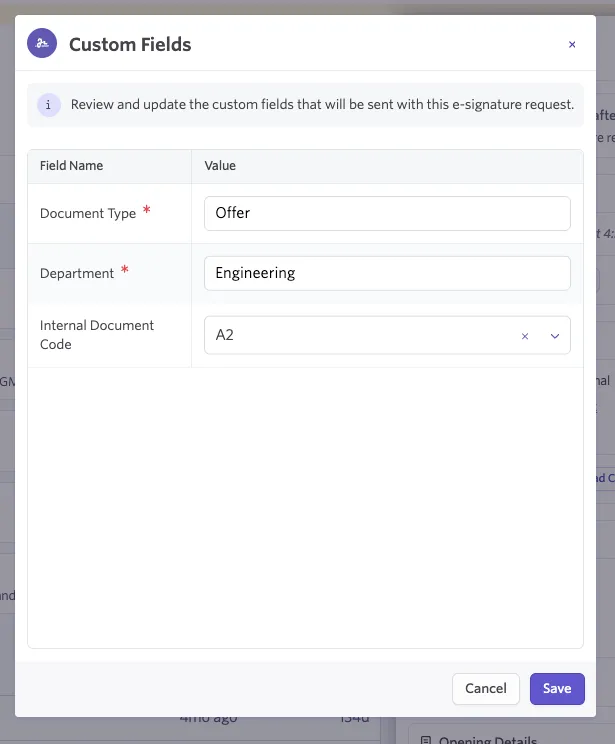
If you haven't set a default for a required field in the integration settings, you'll have the opportunity to enter a value directly in the offer letter view before sending. Click the ⋮ menu next to the Docusign provider selector and choose Custom Fields to open the custom fields panel.
Synced Docusign fields will appear here and can be overridden manually before the request can be sent. Required fields are denoted with an asterisk.
Mapping list fields to Ashby fields
DocuSign supports two types of custom fields: text fields (free-form input) and list fields (a dropdown with predefined options set in DocuSign). If you map a list field to an Ashby field, the value from Ashby must exactly match one of the available option values in DocuSign. If the values don't match, the field won't be populated correctly.
Sending offer letters using DocuSign
For more on generating offers and e-signatures in general, check out E-Signature Offers.
Once you've created an offer and generated an offer letter in Ashby, you can confirm that the offer letter sends via DocuSign in the Offer E-Signature section.
After you send your e-signature request or envelope via DocuSign, you can track the status of the request within the offer details in Ashby. The requests and created envelopes can also be tracked and viewed within your DocuSign account.
DocuSign e-signature activities
E-signature activities allow you to be prompted to send out e-signature requests for documents other than offers as part of your process (for example, an NDA) when a candidate lands in a specific stage. For more on configuring e-signature activities, check out the E-Signature Documents guide.
You can configure an e-signature activity within a job or job template's interview plan.
- Navigate to the job or job template.
- Click the Interview Plan tab.
- Click Add Activity To on the appropriate stage of your interview plan, then + Add Activity.
- Select the E-Signature Document option. On the following popover, select the e-signature document template and the e-signature provider. The provider selected here overrides the default provider set in Admin > Integrations > E-Signature Documents.
- Once you've configured your e-signature document activity, when the candidate enters that stage of your pipeline, you're prompted to send out an e-signature request.
- Click Send E-Signature Document on the activity to open the Sign popover, where you can confirm the following:
- Company signatory
- Signing order
- Whether the request should expire and, if so, when
- The title, subject, and message within the notification emails sent
- Any users to be CC'd into the request (users added to the CC field also receive notifications about the request)
- The document to be sent (with the option to change the document if needed)
- The option to send a self-test and preview the e-signature document before sending
Sending out an e-signature document manually
To send an ad-hoc e-signature document to a candidate, click More on the candidate profile, then Send E-Signature Document.
On the following popover, select the document template, the e-signature provider, and the number and currency formatting. Then click Generate E-Signature Document to add the activity to the candidate's profile and go to the Sign popover.
Previewing e-signature offers and documents sent via DocuSign
The preview editor is available for both Dropbox Sign and DocuSign, but DocuSign provides more advanced preview options like editing recipients.
Enable the preview editor under E-Signature Settings in Admin > Organizational Settings > Offers > Settings.
When enabled, you can preview the signature request in a document editor in the Send E-Signature Request or Sign popover. When sending an e-signature request, click Preview to access the editor and review the document.
The preview option also lets you add special document inputs for signatories to complete (for example, additional text boxes or checkboxes).
With the DocuSign preview editor, you can click the dropdown with a signatory's name to switch between signatories and make edits, or edit recipient configuration using advanced DocuSign settings. For example, click the Needs to Sign dropdown and switch this to an in-person signing. If you have a more advanced DocuSign plan, you can also configure witness signatories and more.
Currently, edits must be made in the preview editor for each e-signature request. We're working to add more support for these features to make the process less manual in the future.
Accessing e-signature documents in DocuSign
E-signature documents and offer details are accessible from the offer activity on the candidate's profile. If an e-signature document was generated via DocuSign, you can access it within your DocuSign account as long as you have the necessary permissions.
If some users shouldn't be able to access certain documents in DocuSign, you can set document visibility. Read more in the DocuSign Document Visibility guides.