AI Notetaker Setup and Permissions
Ashby's native AI Notetaker frees your hiring teams to focus on evaluating candidates by automatically capturing detailed, structured notes during interviews. By removing the burden of manual note-taking, this tool speeds up your time-to-feedback and provides rich candidate context to help your team align quickly and make faster, more confident hiring decisions.
This article covers the steps to set up and configure AI Notetaker in your Ashby instance.
For information on AI Notetaker data retention and consent management settings, using the AI Notetaker during interviews, reviewing notes post-interview, or reporting on AI Notetaker, see the below resources:
- AI Notetaker: Recording Consent ManagementAI Notetaker: Recording Consent Management
- Scheduling and Conducting Interviews with AI NotetakerScheduling and Conducting Interviews with AI Notetaker [SG REDRAFT]
- AI Notetaker Post-interviewAI Notetaker Post-interview [SGREDRAFT]
- AI Notetaker ReportingAI Notetaker and Recording Consent Reporting [SGREDRAFT]
Permissions & prerequisites
- AI Notetaker must be set up by an Org Admin.
- You must opt in to AI features in Admin > Organization Setup > Opt-In Features.
- The AI Notetaker only supports interviews scheduled via Ashby.
A free trial of the AI Notetaker is available across Foundations, Plus, Enterprise, and Legacy Plus plans.
To learn more, see How does the free trial work with the AI Notetaker?How does the free trial work with the AI Notetaker?
AI Notetaker feature overview
The AI Notetaker add-on provides the following features to help you manage your hiring process:
- Automatically record and transcribe your meetings (interviews and debriefs).
- Generate interview summary notes and insights.
- Share recordings with additional Ashby users within your organization.
- Access AI assistance for drafting feedback submissions.
- Use an interview-specific AI chat assistant.
- Manage granular candidate consent, opt-out, and data retention options.
- Connect meeting data with emails, feedback, and notes.
Enabling the AI Notetaker
Opt in to the AI Notetaker
To enable the AI Notetaker in your Ashby account:
- Navigate to Admin > Organization Setup > Opt-In Features.
- If you have not yet enabled general AI features, select the Enable AI Features option first.
- Toggle the AI Notetaker option to on.
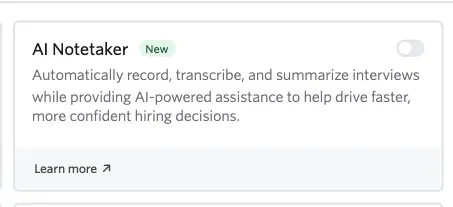
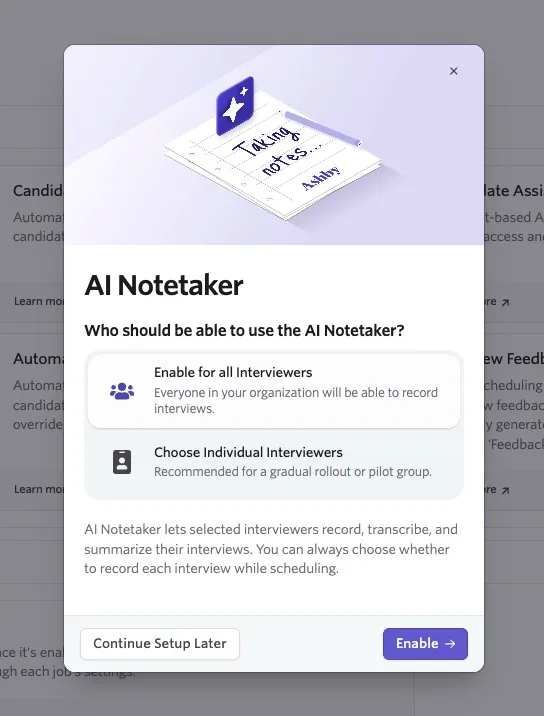
When you toggle on the AI Notetaker, the setup wizard opens. The wizard asks which users should have the tool enabled. You can choose:
- Enable for all interviewers: Everyone in your organization can record interviews once the tool is active.
- Select individual interviewers: Specify which users have access. You see a list of users in your Ashby account to determine access.
Once you have chosen your settings, click Enable to confirm.
Managing settings for interviewers
You can adjust organization-wide defaults and individual settings by going to Admin > Interviews & Scheduling > AI Notetaker or clicking the Configure button on the AI Notetaker tile in the Opt-In Features section.
Adjusting defaults
Use the Default AI Notetaker Setting for Interviewers dropdown to determine if the tool is on or off for interviewers by default. This applies to any new users added to your organization:
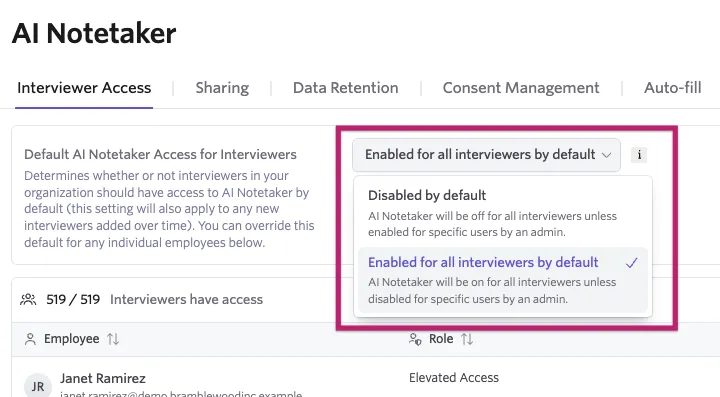
- Disabled by default: The AI Notetaker is off for all interviewers unless you enable it for specific users in the table or their profile (Admin > Employees).
- Enabled for all interviewers by default: The AI Notetaker is on for all interviewers unless you disable it for specific users.
If you switch the Default AI Notetaker Setting for Interviewers, you also have the option to revert any individual overrides to the new default.
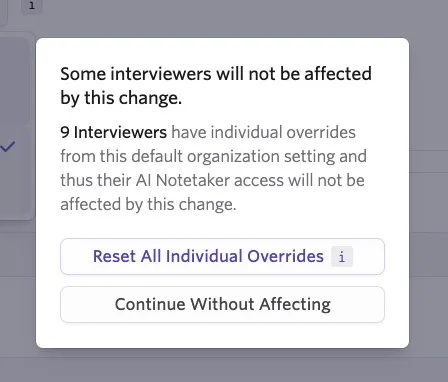
Enable for All Interviewers or Disable for All Interviewers buttons may appear in the upper right corner above the interviewers list if any employees are not set to the default settings. Select this button to remove individual overrides and ensure everyone follows the organization default.
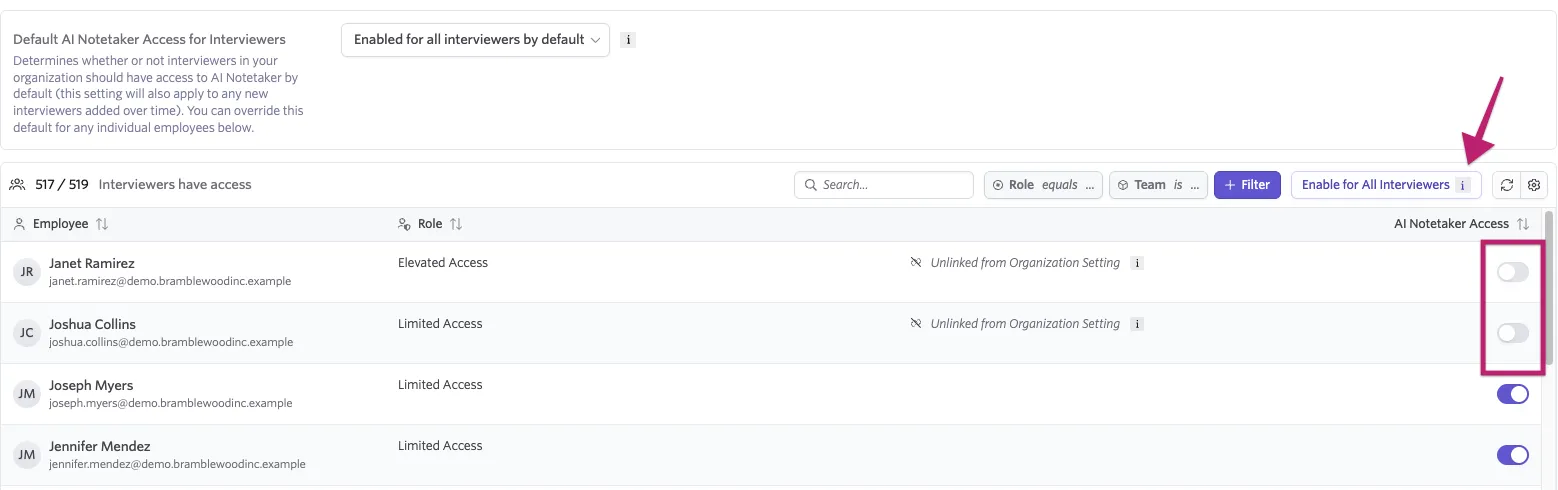
AI Notetaker access for specific users
As shown above, individual settings can be adjusted per user in the AI Notetaker admin view by toggling access on and off next to the user's name. Individual settings can also be adjusted on the user's profile.
To enable the AI Notetaker on a specific user profile:
- Navigate to Admin > Organization Setup > Employees.
- Select the user and navigate to the Interviewer Info tab.
- Toggle the Enable AI Notetaker? option to on.
If at least one interviewer on a panel has the AI Notetaker enabled at the time of scheduling, the tool records the entire panel.
This means if you have a panel of four different interviews but one interviewer in one interview event has the AI Notetaker enabled, all events are recorded. We're looking to add more granular controls in the future.
Enabling in scheduling defaults
If you'd like the AI Notetaker to be enabled by default across all interviews, you can enable it within your scheduling defaults at Admin > Interviews & Scheduling > Scheduling Defaults.
- On the Communications tab, enable the AI Notetaker option.
- Select the recording mode from the following options:
- Speaker view: Only video of the active speaker is captured. The recording switches between active speakers automatically with the flow of the conversation. This is the default setting.
- Gallery view: All participants are recorded in a grid layout.
- Audio only: Only audio is captured. Video appears as a black screen.
Both speaker and gallery view capture any screen sharing during the recorded interview.
Permissions to view recordings
By default, meeting participants have access to their own recording in the interview briefing. Users with Admin Private access to a role can also view others' recordings.
To grant other users access to view recordings:
- Navigate to Admin > Organization Setup > Access Roles.
- Create or update an access role to include the Can See Meeting Recordings permission stripe.
For more on access roles, check out Manage Access RolesManage Access Roles.
Permissions to share recordings
You can determine whether those who have participated in an interview or have role-based access should have the ability to share the recording with other interviewers or Ashby users in your organization by navigating to Admin > Interviews & Scheduling > AI Notetaker > Sharing.
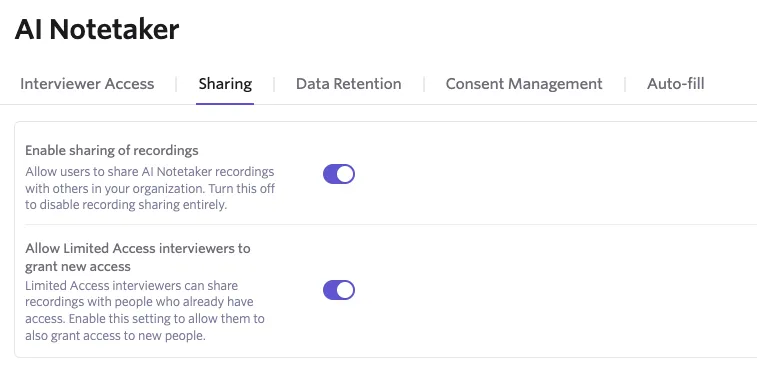
- Turning on Allow users to share recordings turns on the sharing functionality.
Elevated access users can be granted the access role permission Can grant meeting recording access that allows them to share the recording with additional users who do not already have access as well as revoke access if needed. If you would like recruiters, hiring managers, and other users with access roles to be able to share the recording with any other user and manage user access, ensure that this permission is enabled in their access role. See Manage Access Roles for more information on configuring access roles.
- Enabling Allow Limited Access interviewers to grant recording access allows limited access users who participated in the interview to share the recording with users who did not already have access.
For more on how sharing and managing recording access works, see Sharing a recording .
Data retention settings
AI Notetaker has separate data retention rules for recording media, transcripts, and AI-generated notes. Each rule has its own retention period, so you can set different schedules for each artifact type.
Each rule is disabled by default, and the default retention period is one year. You can customize the retention period in days, weeks, months, or years when you enable a rule.
The maximum retention period for recordings is 99 years. To keep recordings indefinitely, leave the recording media retention rule disabled, since a disabled rule never triggers automatic deletion.
During the free trial, access to recordings is limited to 14 days. The 14-day limit controls access, while the recording remains subject to the configured retention rule. If you purchase the AI Notetaker add-on while the recording is still retained, you regain access to it. If the retention rule deletes the recording, you cannot recover it.
When you delete or anonymize a candidate, Ashby automatically deletes the candidate's associated recording media, transcripts, and AI-generated notes.
To configure an AI Notetaker data retention rule:
- Navigate to Admin > Interviews & Scheduling > AI Notetaker.
- Select the Data retention tab.
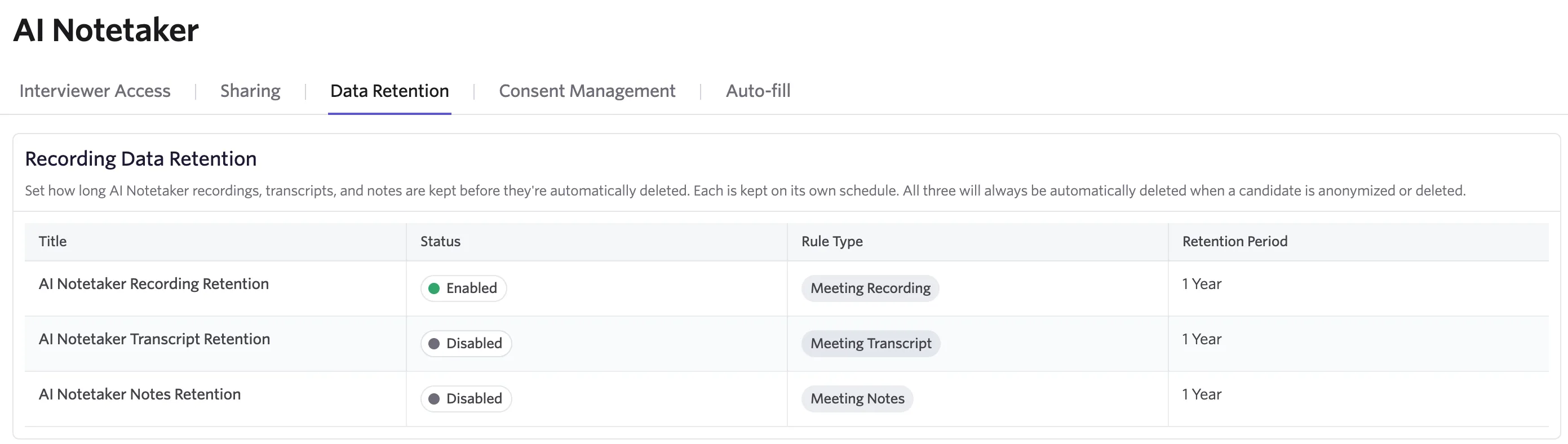
- Select the retention rule for recording media, transcripts, or AI-generated notes.
- Set the retention period using days, weeks, months, or years.
- Toggle the Enabled field on.
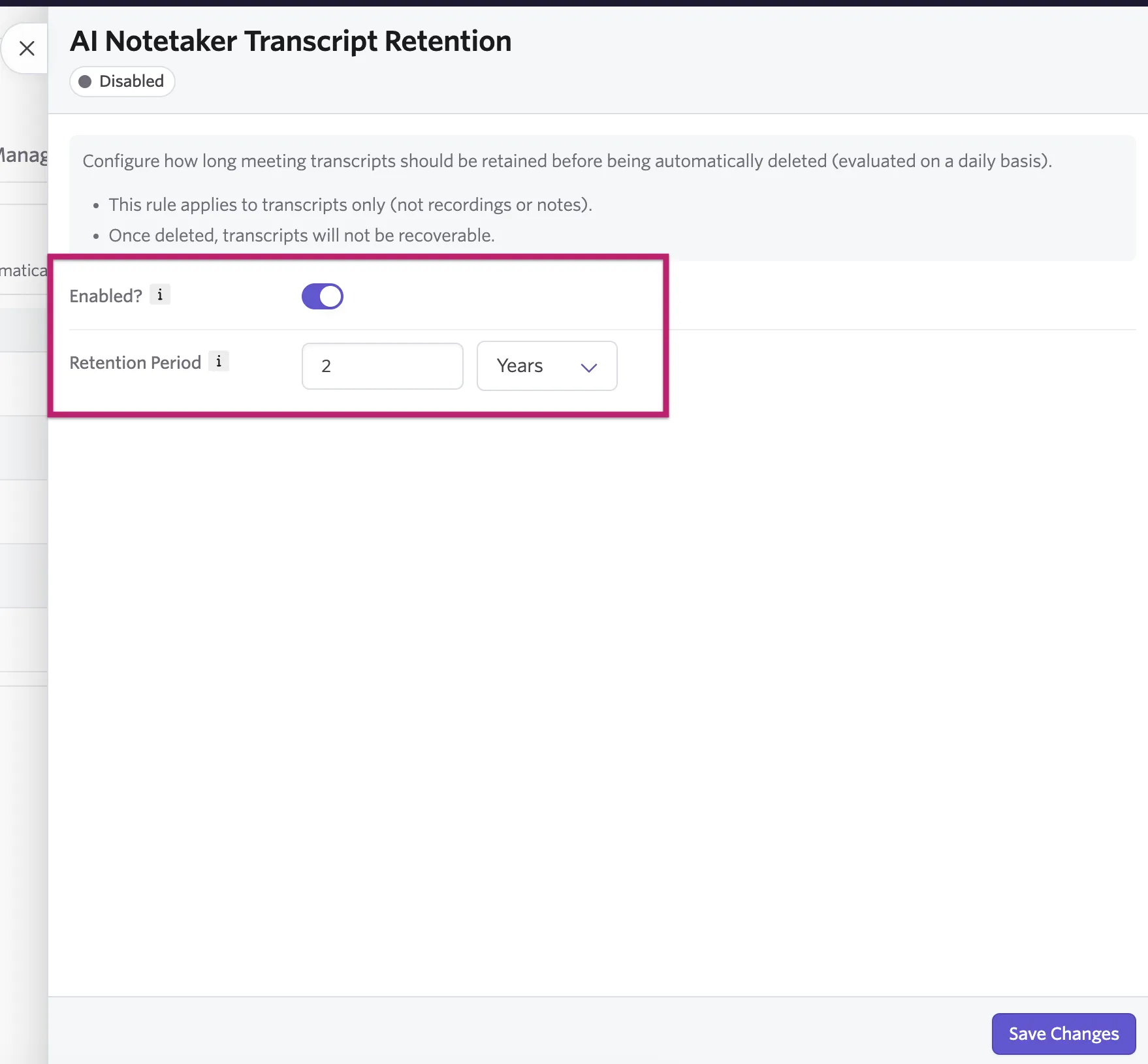
- Select Save changes.
Ashby evaluates each enabled rule during the daily retention run. When you enable a rule, artifacts created before the retention cutoff can be deleted during the next daily run.
The three rules are independent. For example, you can set a shorter retention period for transcripts while keeping AI-generated notes for longer. AI-generated notes that remain after their transcript is deleted cannot be regenerated from that transcript.
Warning: Deleting recording media, transcripts, or AI-generated notes is a data deletion action. Review the preview before you confirm a new or updated rule.
You've configured AI Notetaker for your organization! Check out AI Notetaker: Recording Consent ManagementAI Notetaker: Recording Consent Management to ensure you've configured these settings as well.
Still have questions? Check out the AI Notetaker FAQsAI Notetaker FAQs [SGREDRAFT].