Scheduling and Conducting Interviews with AI Notetaker
Ashby's AI Notetaker automates the process of capturing interview details by joining your video calls to record, transcribe, and summarize conversations.
This article explains how to enable the AI Notetaker for your interviews and understand the candidate and interviewer experience.
For information on how to review recordings, transcripts, or use AI features post-interview, see AI Notetaker Post-interviewAI Notetaker Post-interview.
Prerequisites:
- To use this feature, your organization must have the AI Notetaker enabled by an Org Admin. For setup and configuration, see AI Notetaker Setup and PermissionsAI Notetaker Setup and Permissions.
- AI Notetaker is compatible with video conferencing on Zoom, Google Meet, and Microsoft Teams.
Configuring on schedule interview activities
AI Notetaker can be turned on for schedule interview activities in your interview plans. This means it is automatically enabled for any interviews scheduled with Zoom, Google Meet, or Microsoft Teams, as long as the candidate and at least one interviewer has opted in.
If you need to learn about schedule interview activities, check out Setting up Schedule Interview ActivitiesSetting up Schedule Interview Activities.
- Editing schedule interview activities in a job's interview plan requires Elevated - Admin permissions or higher for that job.
- If your Org Admin has set AI Notetaker as a default setting in Setting Scheduling DefaultsScheduling Defaults, it is automatically enabled on your schedule interview activities.
- Updating the AI Notetaker settings directly in the interview activity overrides any org-level default settings going forward.
Enabling AI Notetaker on the activity
To add the AI Notetaker to a specific schedule interview activity:
- Navigate to Jobs > Jobs and select your job.
- Go to the Interview Plan section and select Modify on the schedule interview activity you want to edit.
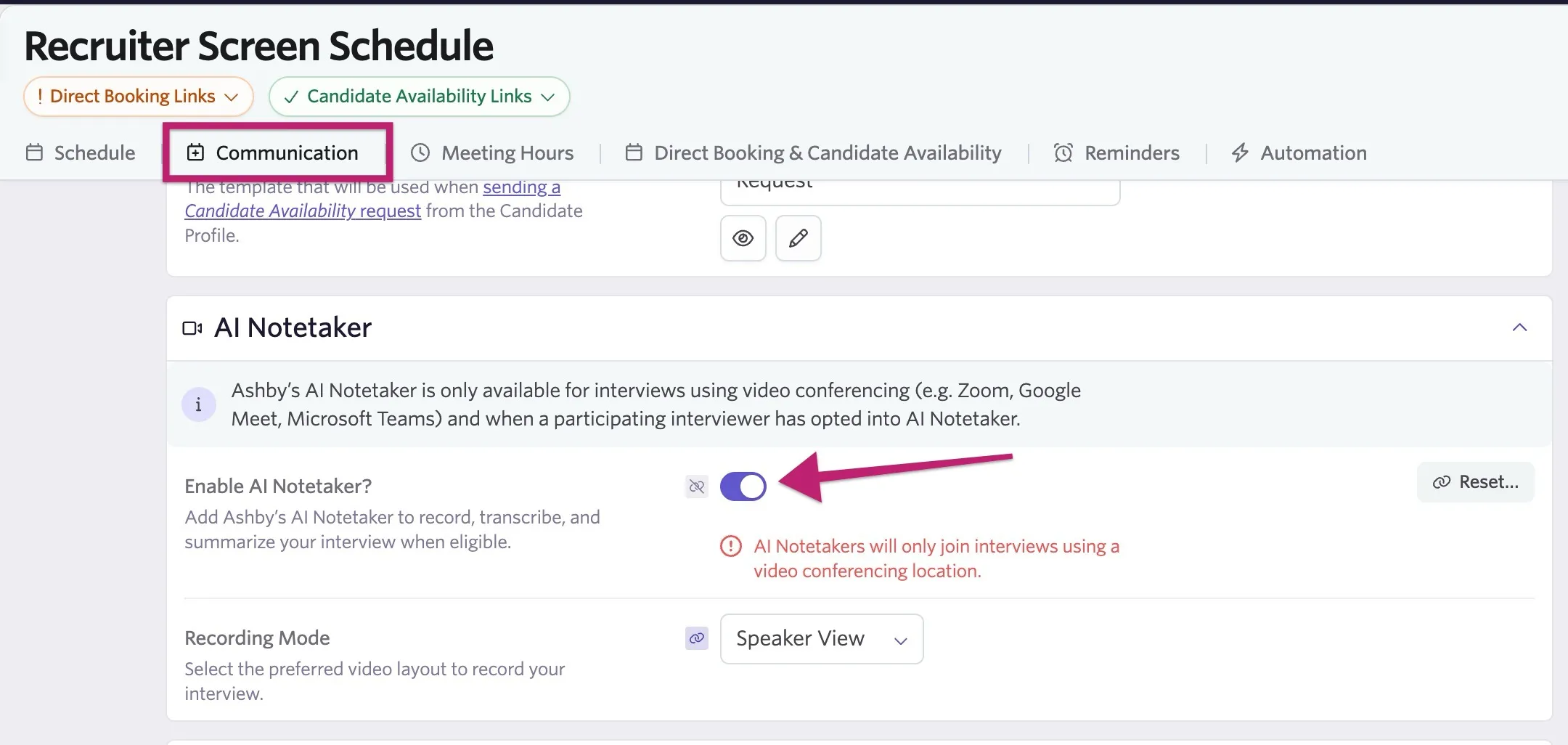
- Navigate to the Communication tab.
- In the AI Notetaker section, toggle the tool to On and select your recording mode:
- Speaker view: Captures only the video of the active speaker (default).
- Gallery view: Captures all participants in a grid layout.
- Audio only: Captures audio only; the video remains a black screen.
Both speaker and gallery views capture any screen sharing that occurs during the interview.
Selecting a compatible location
AI Notetaker works with video conferencing via Zoom, Google Meet, and Microsoft Teams, which should be set as the location in the schedule interview activity.
AI Notetaker does not currently support Microsoft Teams on GCC High or Zoom Gov.
To configure the location:
- Navigate to Jobs > Jobs and select your job.
- Go to the Interview Plan section and select Modify on the schedule interview activity you want to edit.
- Navigate to the Communication tab.
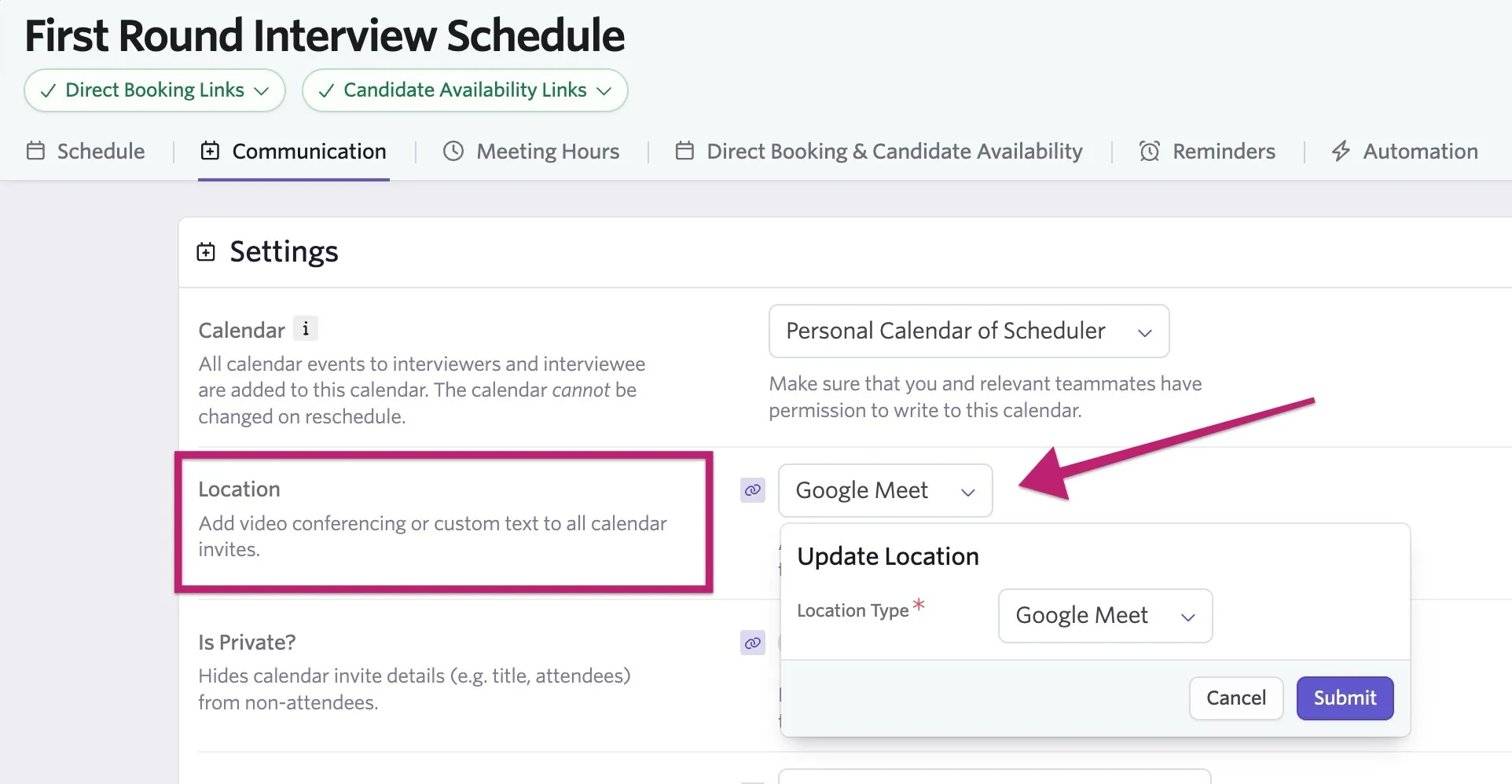
- Under the Location field, select either Google Meet, Zoom, or Microsoft Teams from the dropdown (depending on what your organization uses).
- Click Submit.
Configuring when scheduling interviews
When manually or auto-scheduling an interview, you can configure the AI Notetaker to join the meeting in the Configure Communications step of the scheduling process.
This allows you to specify whether the AI Notetaker is enabled for a specific interview, even if disabled by default.
To adjust AI Notetaker settings during scheduling:
- Click on the AI Notetaker tab on the left after arriving at the Configure Communications scheduling step.
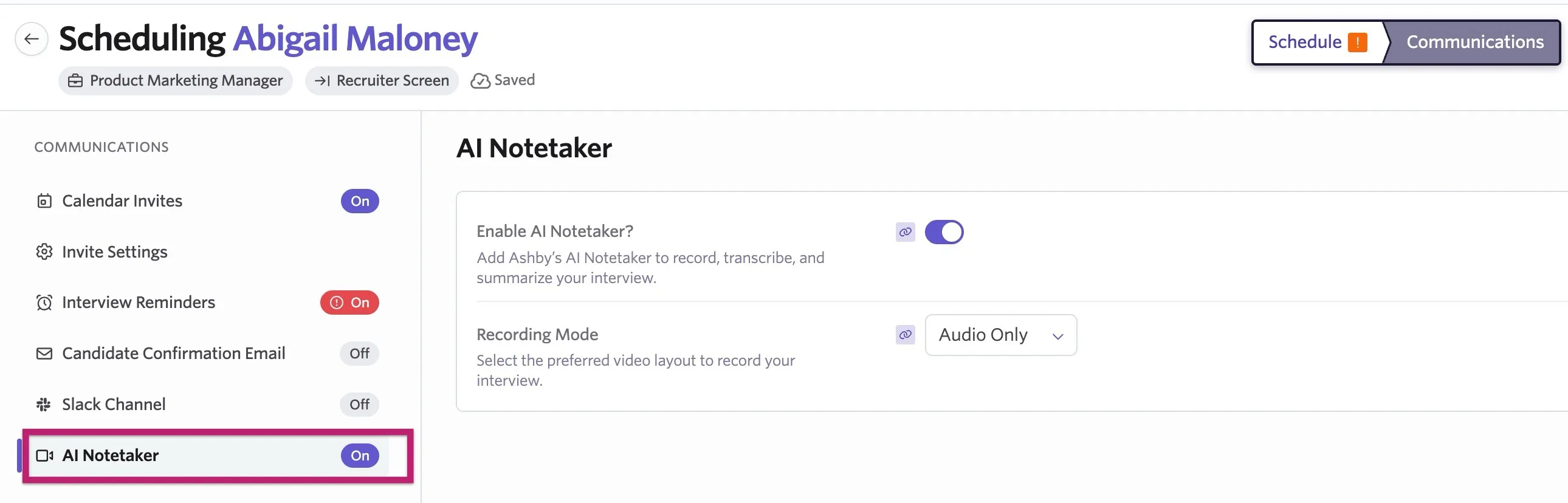
- Enable or disable AI Notetaker as needed.
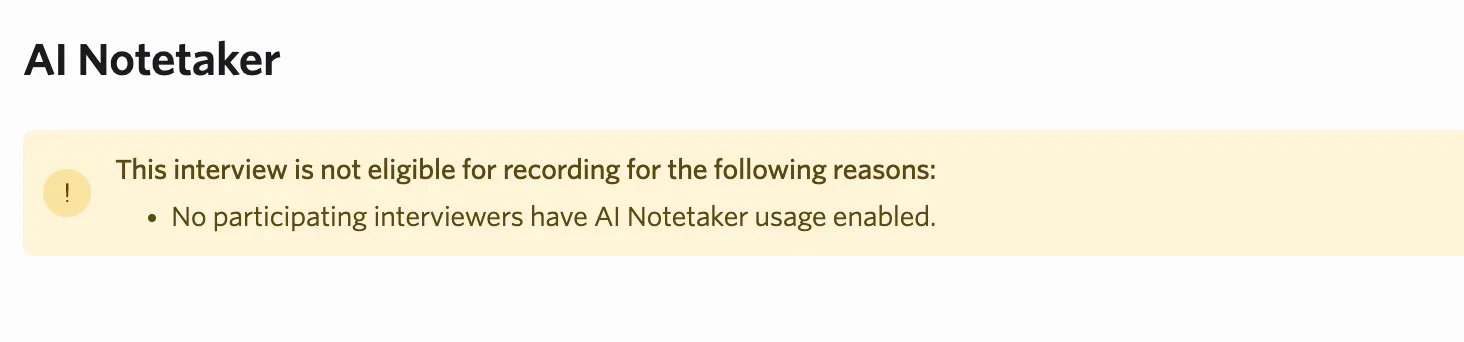
On the AI Notetaker tab, you may see a message indicating that AI Notetaker is not eligible to record the meeting. This occurs when:
- The candidate has opted out.
- No participating interviewers have AI Notetaker usage enabled.
- The location of the interview is not compatible with AI Notetaker.
The message clearly states the reason AI Notetaker does not record.
- Determine the recording mode.
- On the Invite Settings tab, ensure the location is compatible with AI Notetaker (Zoom, Google Meet, or Microsoft Teams only).
Viewing and editing the recording status on the candidate profile
You can view whether an upcoming interview is or will be recorded on the interview event on the candidate's profile. A REC icon shows on the interview activity.
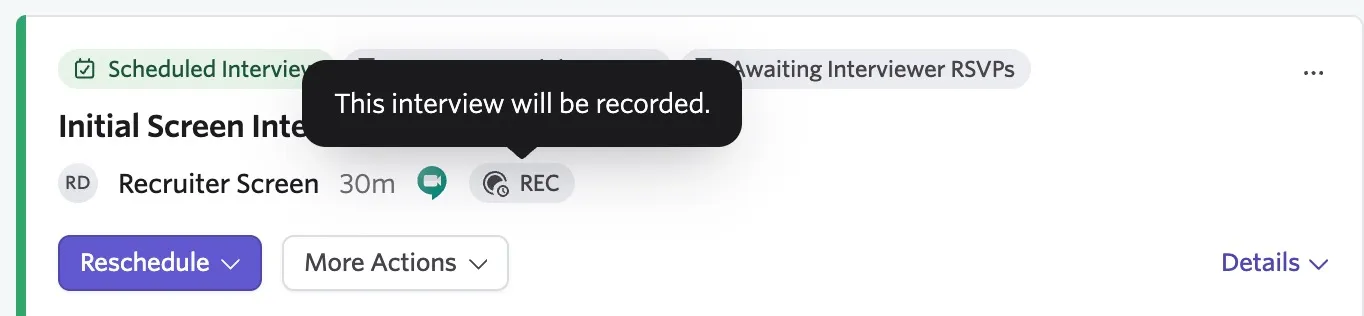
If you'd like to set a specific interview to be recorded or not recorded, click Actions and:
- Select Record this interview to record the interview.
- Select Cancel Planned Recording to cancel the recording of the interview.
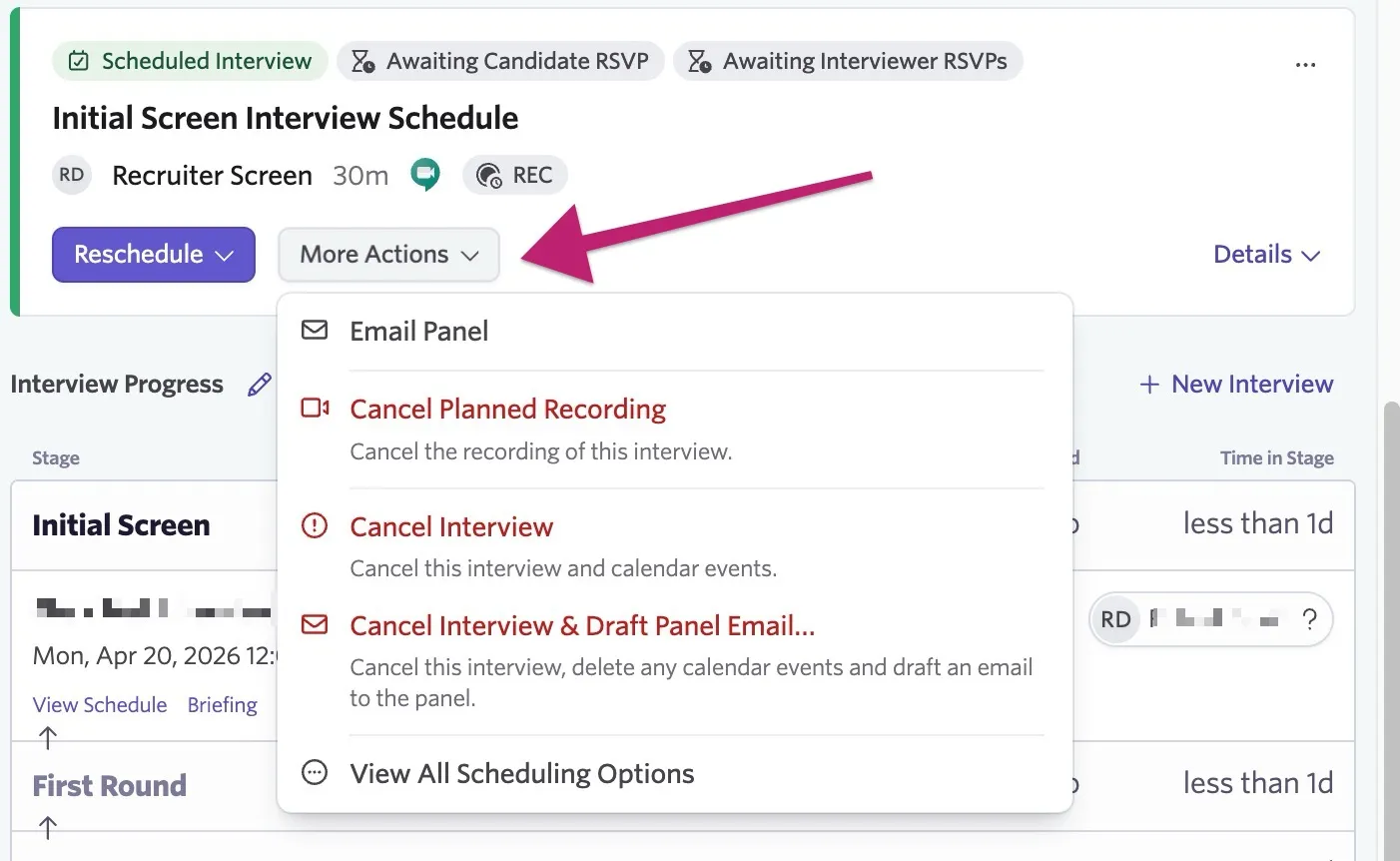
When enabling or disabling recording on an already scheduled interview, if calendar invites have already been sent, updated calendar invites are sent to the candidate and participants. This ensures recording disclosure messaging is appropriately added or removed from invites so all participants are aware.
Candidate experience and consent management
Consent management settings are configured by Org Admins. See AI Notetaker: Recording Consent Management for more info.
Candidate consent experience with AI Notetaker
Disclosure messaging allowing candidates to opt out of recording is included in calendar invites and can be configured in the Consent Management tab of the AI Notetaker Admin page.
A preview of this messaging can be seen on the Calendar Invites tab of the Configure Communications step during the scheduling process.
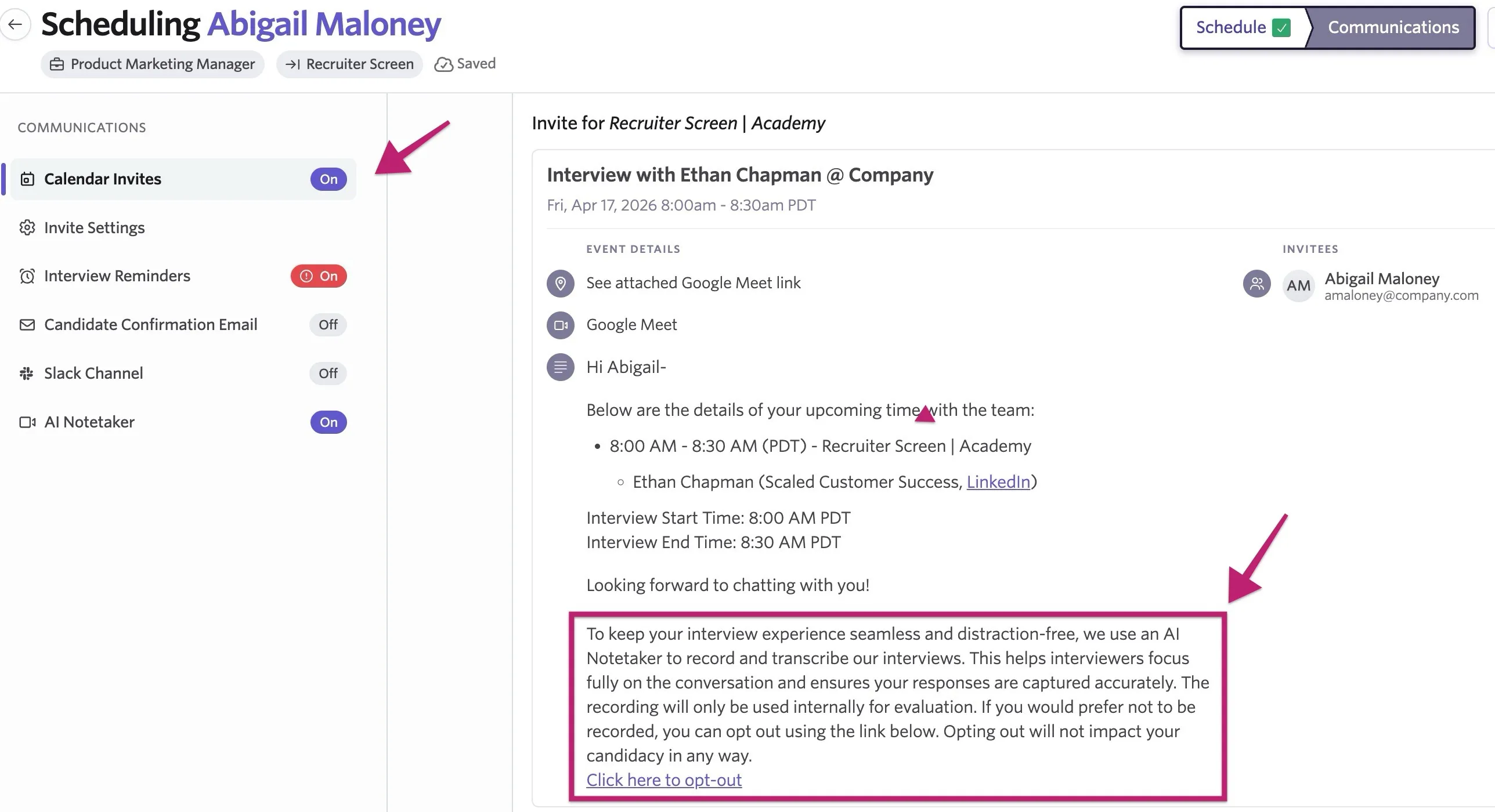
When a candidate clicks the link to opt out, they are brought to another page where they can click Opt Out. The messaging on this page can also be configured by Org Admins in the Consent Management tab of the AI Notetaker Admin page.
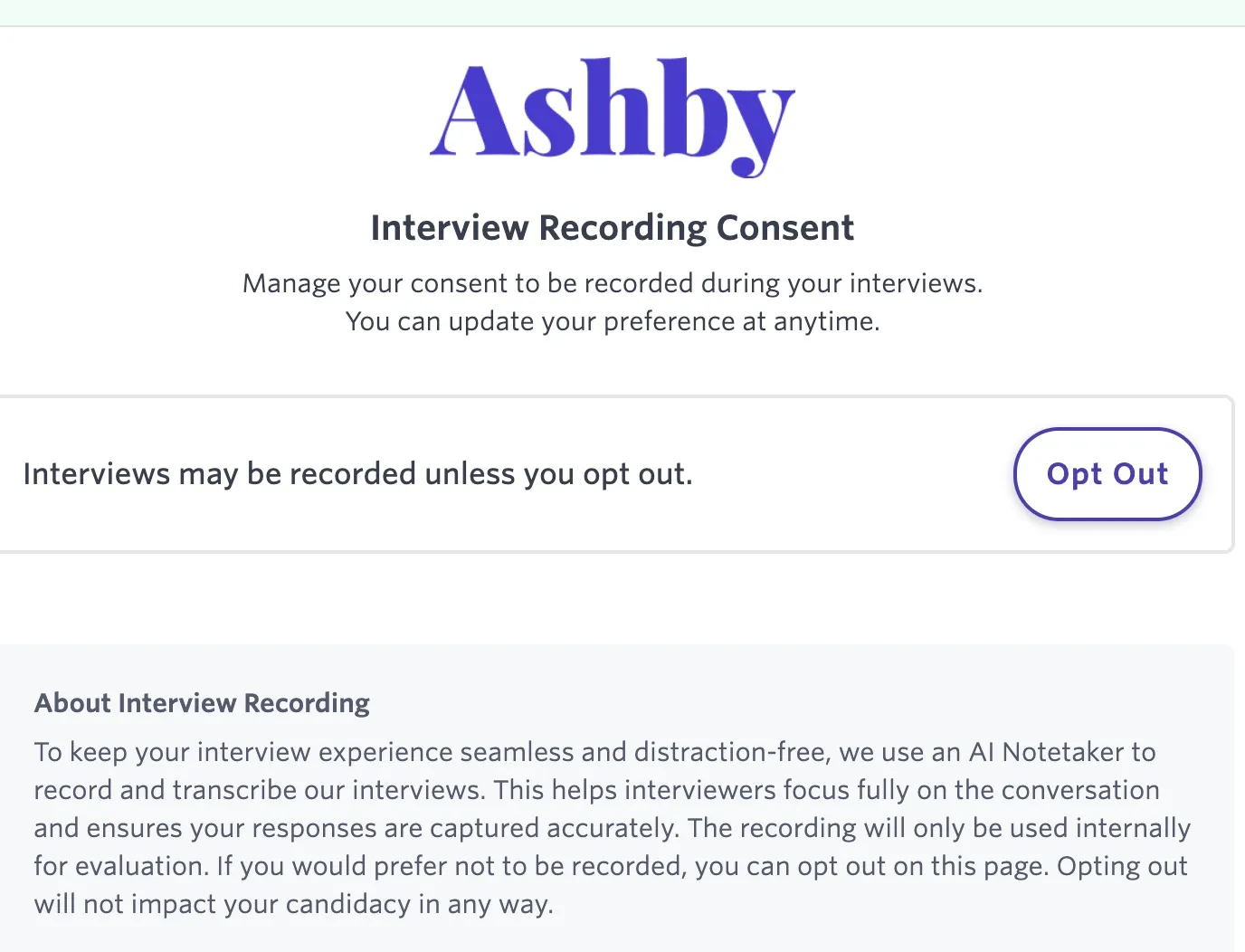
Opted-out candidates
Once a candidate opts out, any recording on any scheduled or future interviews is disabled. Any existing calendar invites for upcoming scheduled interviews are updated to remove recording disclosure messaging (and optionally include a message specifically for candidates who have opted out, if configured by Org Admins).
If a candidate has opted out, they can use the same link to opt back in.
Viewing candidate recording consent status
Recording consent can be found in the Summary section of the candidate's profile. If you've received communication from the candidate confirming that they'd like their status changed, you can click the pencil icon to manually update the status on their profile.
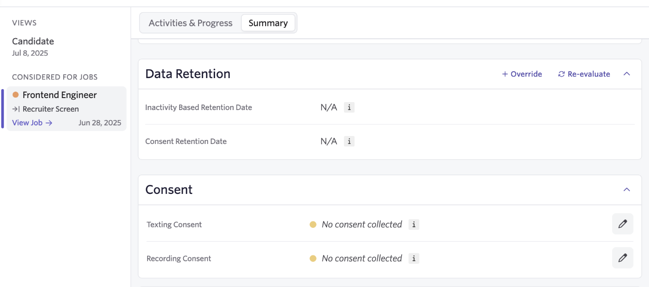
If recording consent is updated, an event is added in the candidate's feed on their profile for easy reference.

Interviewer experience with AI Notetaker
Org Admins can select which employees within the organization have AI Notetaker enabled or disabled. If at least one interviewer within a single scheduled interview activity (including an activity with multiple interviews scheduled) has AI Notetaker enabled, all interviews in that activity can be recorded.
Interviewers receive disclosure messaging within calendar invites informing them when an interview will be recorded. This messaging is configured by Org Admins and can be previewed on the Calendar Invites tab of the Configure Communications step, along with candidate messaging.
Joining interviews with AI Notetaker
The AI Notetaker supports Zoom, Google Meet, and Microsoft Teams. The tool typically joins meetings up to one minute before the scheduled start time to ensure it is available immediately. It appears as its own participant cell within the meeting. Interviews with Phone Call or Custom locations are not recorded. Review the information below for your conferencing software to ensure you correctly admit the AI Notetaker so it can successfully record.
The AI Notetaker does not currently support Microsoft Teams on GCC High or Zoom Gov.
Zoom
The AI Notetaker experience in Zoom depends on your specific meeting settings:
- No waiting room: The AI Notetaker joins the call automatically at the scheduled start time.
- With a waiting room: The AI Notetaker enters the waiting room when the host starts the meeting. You must admit the AI Notetaker for it to join the interview.
- Recording indicators: The Zoom recording indicator is not active unless you are also using Zoom's native recording feature.
The AI Notetaker does not work if you have end-to-end encryption enabled in your Zoom Admin settings.
Google Meet
Google Meet requires manual admittance for the AI Notetaker to participate:
- Admittance: The AI Notetaker joins the waiting room and must be admitted by a host. If not admitted within 10 minutes, the AI Notetaker is removed from the meeting due to Google Meet's native rules.
Ensure Host Management is turned off in your Google Meet settings so that all participants can admit the AI Notetaker into the call.
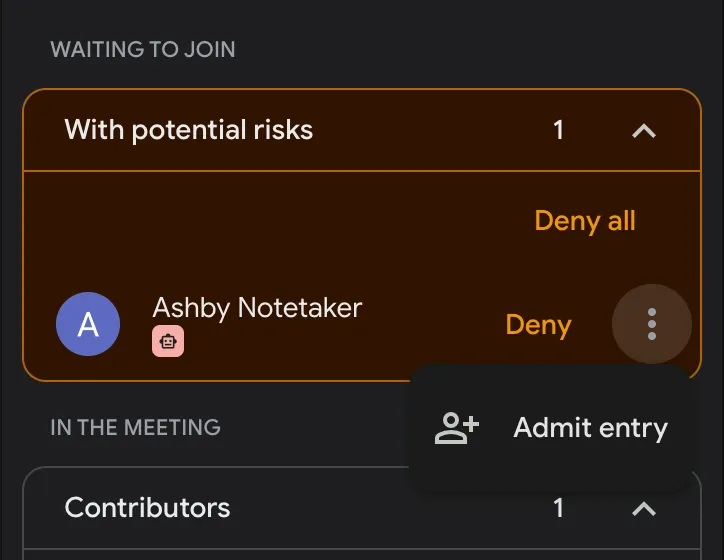
Google may place meeting bots like the AI Notetaker in a "with potential risks" queue. This is a standard Google security change and does not reflect a specific risk with Ashby. For more information, see the Google Workspace Updates blog.
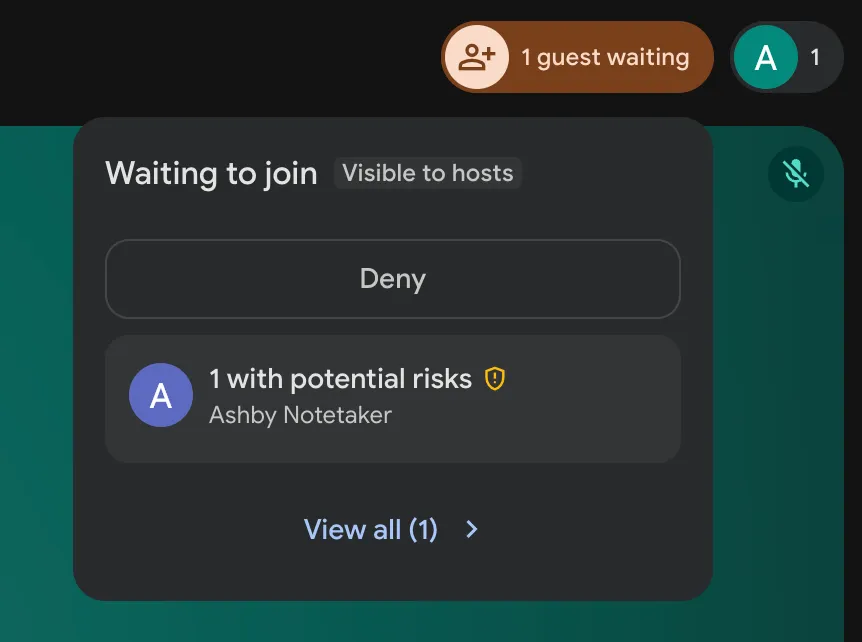
Select the three dots to the right of Deny and click Admit Entry to allow the AI Notetaker to join.
Microsoft Teams
The AI Notetaker joins the Microsoft Teams waiting room and must be admitted by a host. If it is not admitted within 30 minutes, it automatically leaves the meeting.
Now that you've learned how to schedule and conduct interviews with AI Notetaker, see how to review recordings, transcripts, and AI features in AI Notetaker Post-interviewAI Notetaker Post-interview.