AI Notetaker Post-interview
When you've completed an interview where the AI Notetaker recorded the session, you can access the recording, full transcript, helpful summary notes, and the AI candidate assistant to assist with candidate evaluation. This article explains how to access and use these resources after the interview is completed.
Prerequisites:
- The AI Notetaker must have been enabled for your organization and the interview must have been set to record. See AI Notetaker Setup and PermissionsAI Notetaker Setup and Permissions and Scheduling and Conducting Interviews with AI NotetakerScheduling and Conducting Interviews with AI Notetaker for more information.
Accessing the recording, transcript, and AI features
The interview recording, transcript, and summary are located under the Recording tab in the interview briefing. You can access the interview briefing from your Ashby homepage:
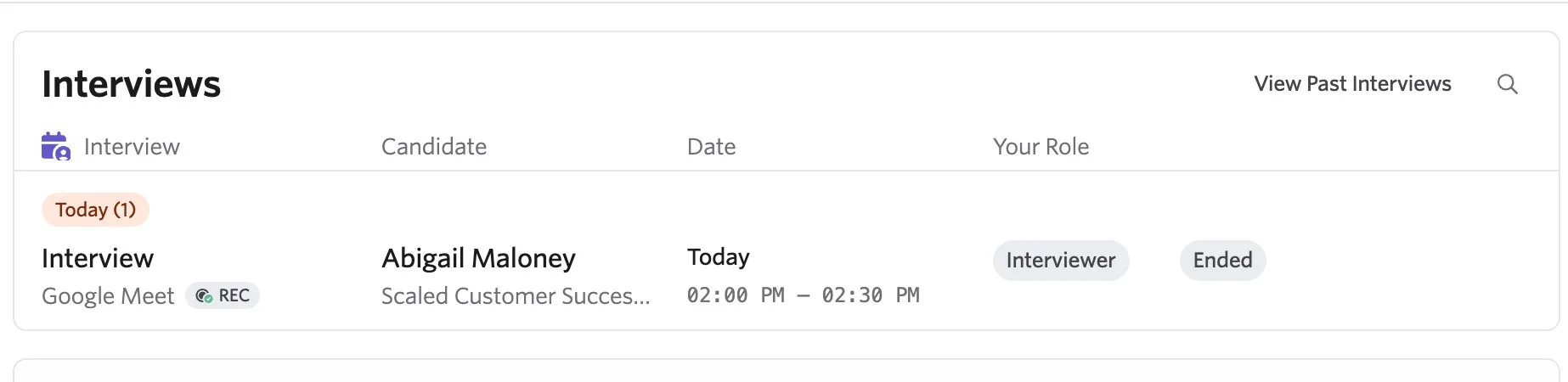
Or from within the candidate profile under the Interview Progress section of the activity feed:
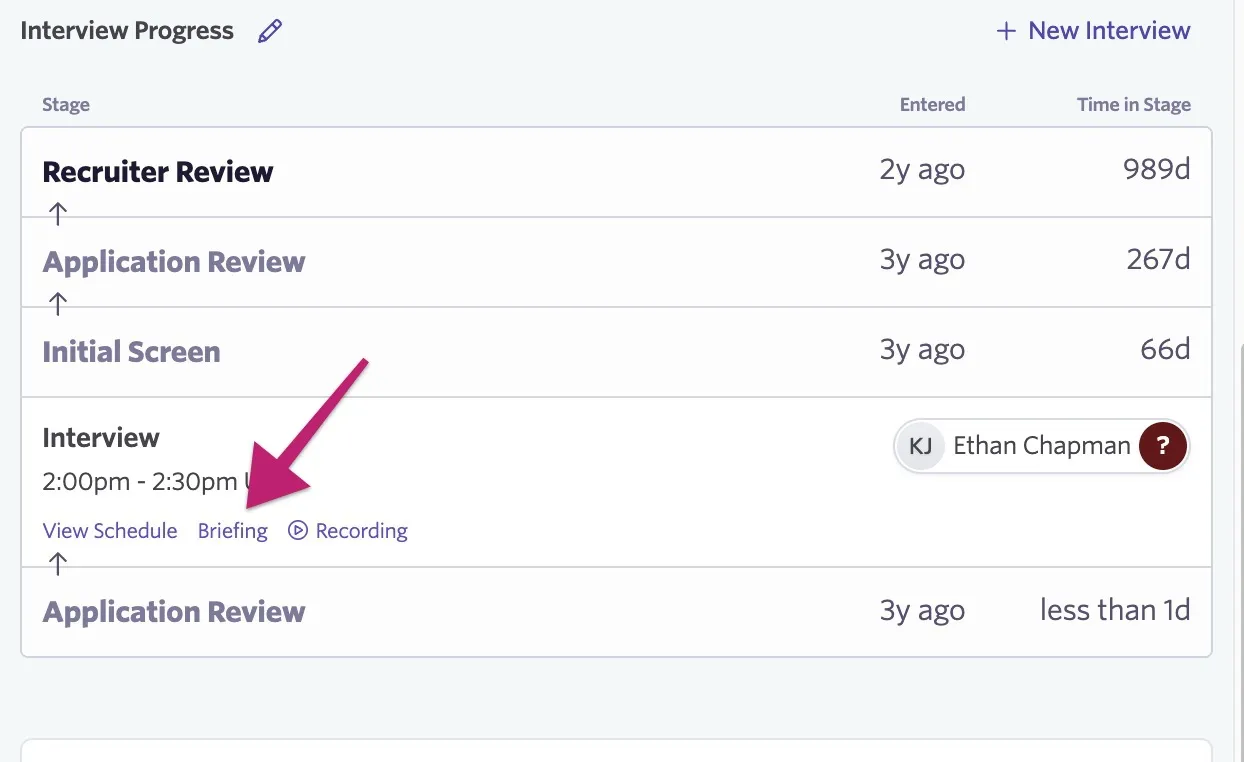
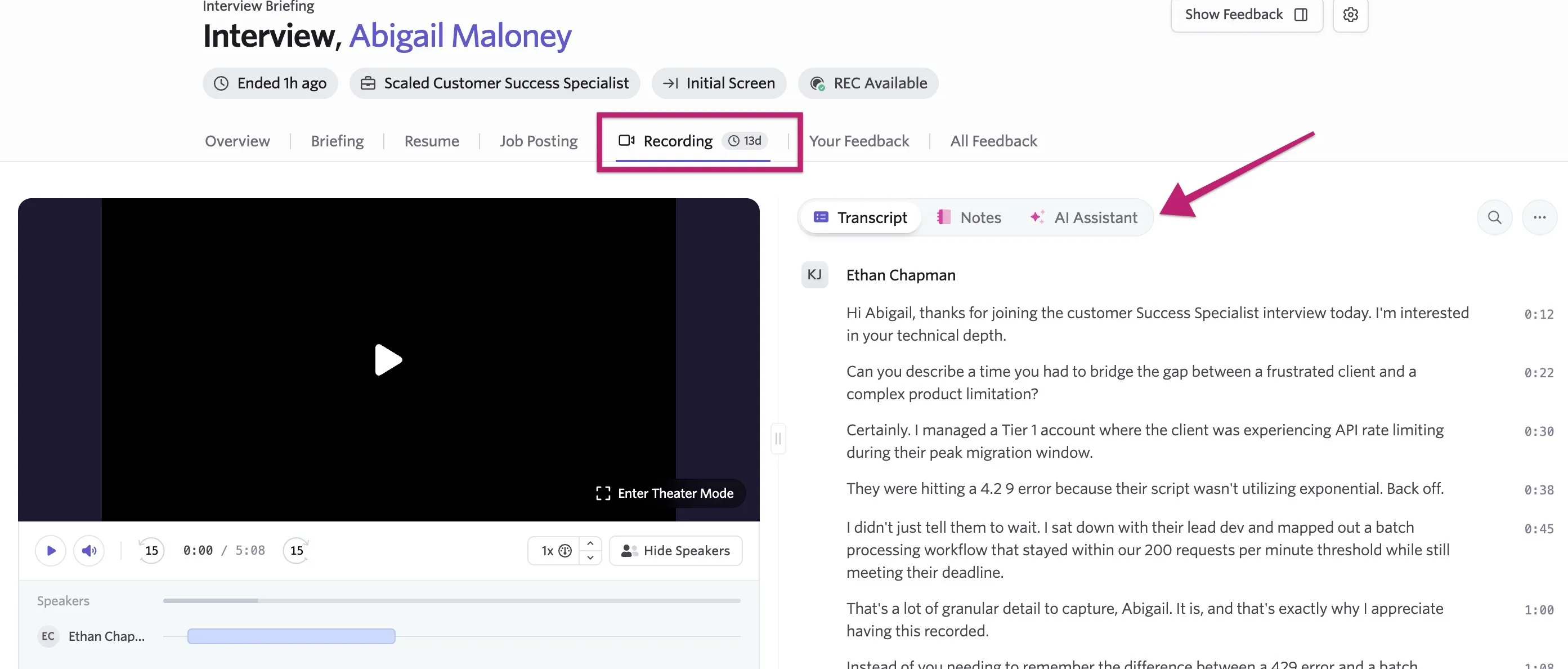
Click into the briefing and navigate to the Recording tab.
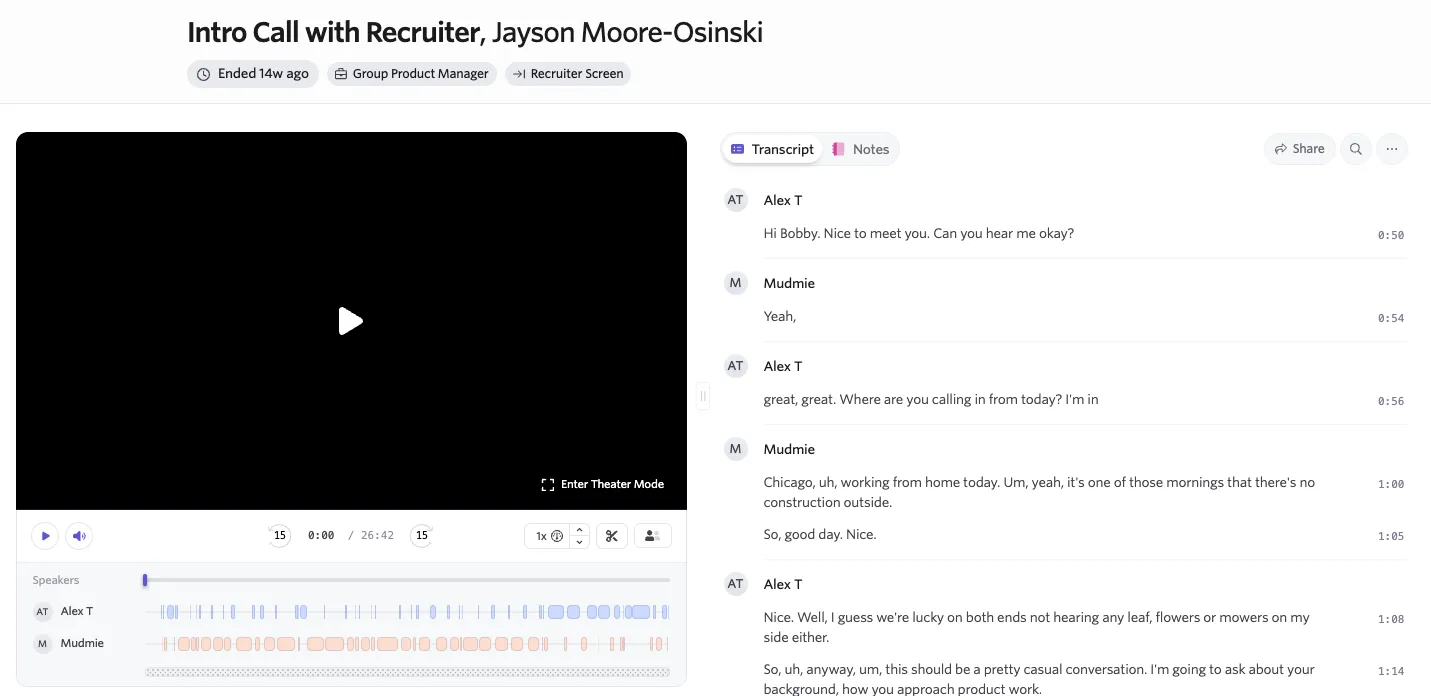
On the left is the recording player, and on the right there are tabs to view the Transcript, Notes, or use the AI Assistant.
Recording playback
When viewing the recording, you have standard playback options such as play/pause and volume adjustment. You can also enter Theater Mode, which opens the recording in full screen with the transcript listed on the right side.
Speakers are shown underneath the playback controls. Select Hide Speakers if you prefer not to show this information.
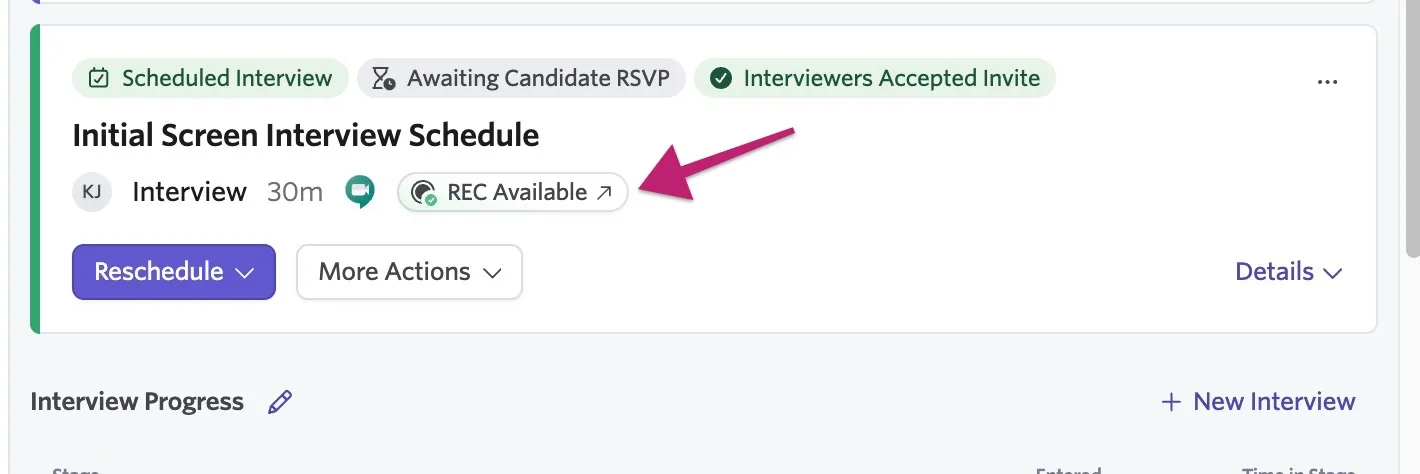
You can also access the recording from the candidate's profile by selecting the REC Available status indicator on the interview activity in the candidate's progress feed.
Transcript
The transcript includes a filter to search for specific keywords or topics. Results include timestamps; select a timestamp to jump to that specific part of the recording.
Ashby generates the transcript from each participant's audio stream individually to ensure accurate attribution.
Notes and summary
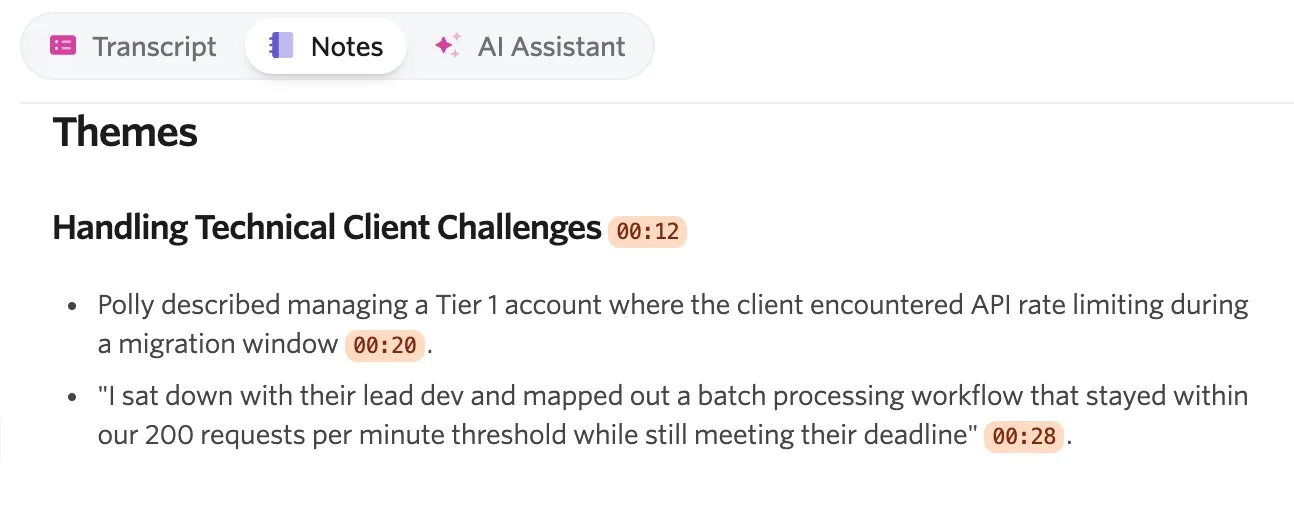
In the Notes tab, you can view an interview summary and specific themes with supporting notes. These themes and notes include clickable timestamps that jump you to the relevant spot in the recording.
Sharing a recording
You can share a recording with colleagues from the Recording tab in the interview briefing or from the popup recording player. Anyone who can view a recording can share it with people who already have native access through access roles or permission scopes.
Users need specific permissions or access roles to share the recording with someone who doesn't already have access. If you are unable to do so, review AI Notetaker Setup and Permissions for additional information on permissions required and reach out to your organizational admin if needed.
Sharing with colleagues
- Navigate to the Recording tab in the interview briefing.
- Select the Share button to open the sharing modal.
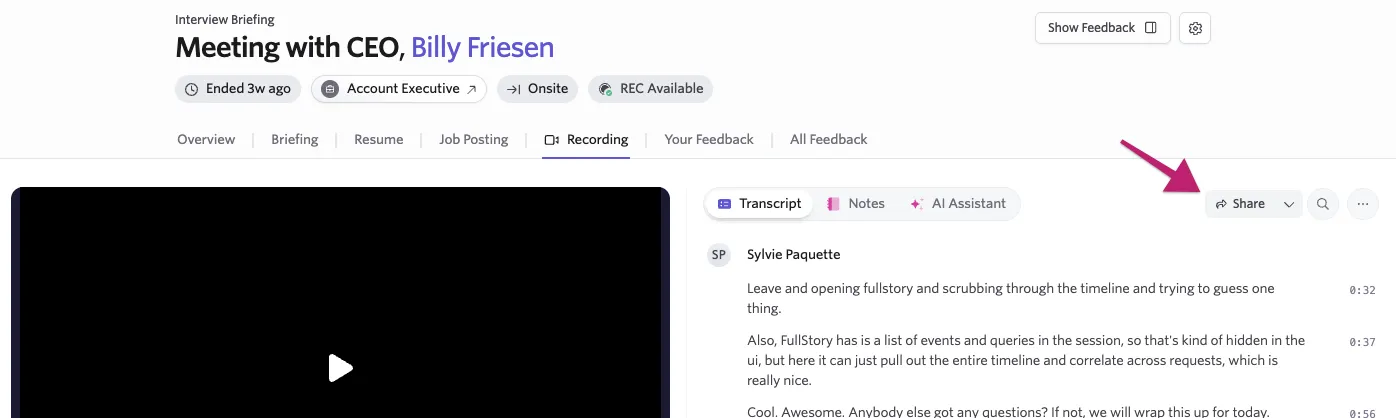
- Search for and select the colleagues you want to share the recording with. The dialog indicates who already has access and who receives a new access grant. If you cannot grant new access, people without native access are not selectable, and the dialog explains why. Select Continue.
- Optionally, edit the message that will be sent to recipients.
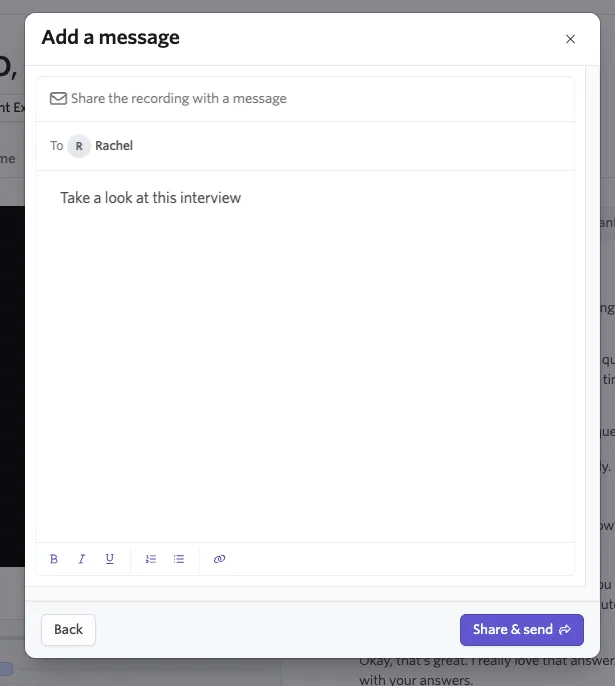
- Select Share & send.
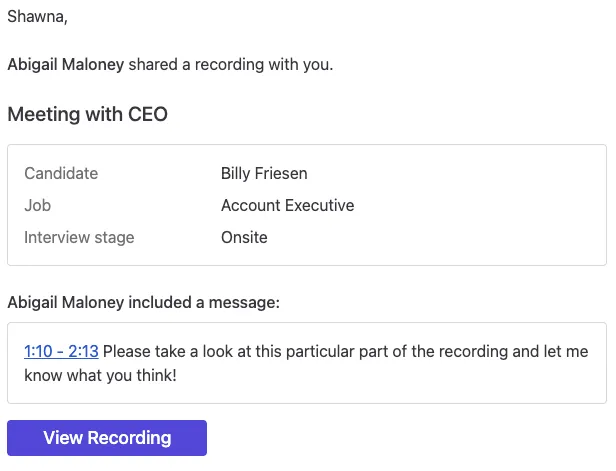
Recipients receive an email notification containing your message and a link to view the recording.
You can also share the recording via the same controls when viewing it directly on the candidate's profile in the pop up recording viewer.
Sharing a specific clip
You can share a specific clip from the recording, which is useful for drawing a colleague's attention to a particular part of the interview.
- Navigate to the Recording tab in the interview briefing.
- Select the scissors icon on the right side of the recording player controls.
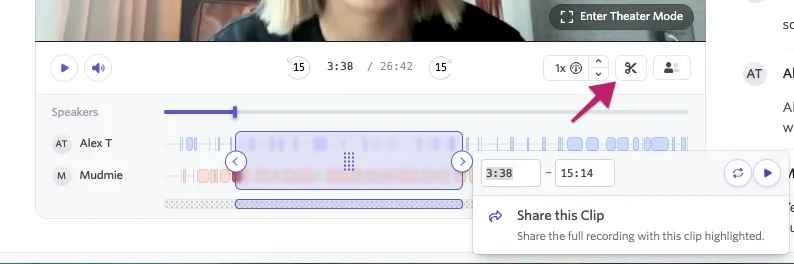
- Click and drag the arrows to adjust the timespan of clip you'd like to share, or type the start and end timestamps into the timestamp fields directly.
- If needed, you can adjust the timestamps in the modal manually by typing in a specific time, or by select the forward or back arrows to jump forward or backward in 5 second increments.
- Select Share this Clip to open the sharing modal with the timestamp link pre-applied.
- Add recipients and an optional message, then select Share & send.
Recipients receive a link that starts playback from the timestamp you selected.
Sharing a specific moment
To share the recording starting at a specific moment (or timestamp), hover over the grey bar beneath the speaker list to reveal a + icon, and click where you'd like the moment to start.
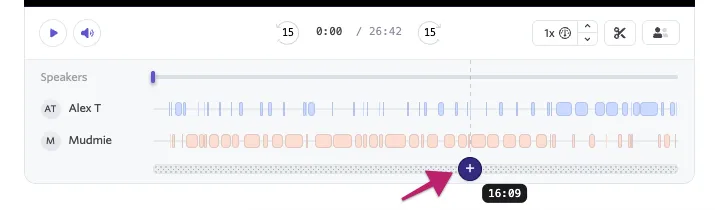
Then, select Share from this Moment to send.
Managing access
This ability is only available to users with the Can grant meeting recording access access role. See AI Notetaker Setup and Permissions for more information.
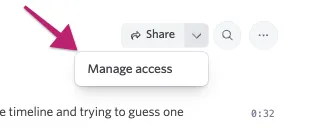
After sharing a recording, you can view and manage who has access to it from Recording tab in the interview briefing. Select the down arrow next to the Share button and choose Manage access.
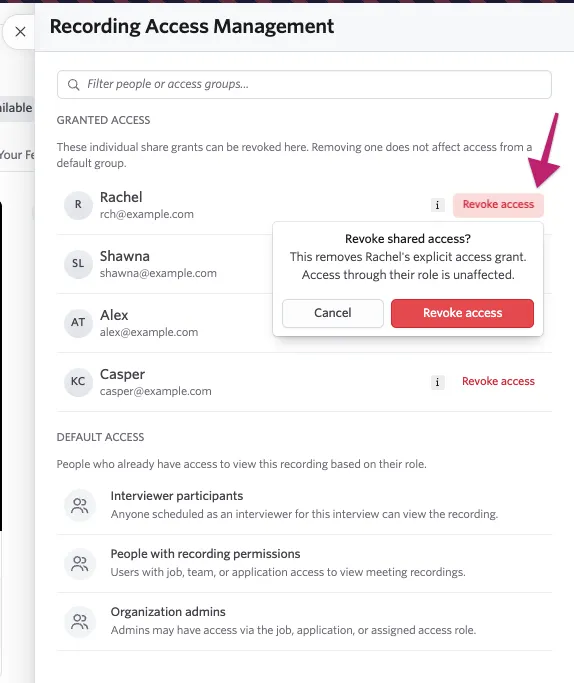
The access management view shows users who were granted access through sharing in the Granted Access section, alongside roles with default access (based on their Ashby permissions) in the Default Access section. Hover over the i next to a granted access user to show who shared the recording with them and when.
To revoke access from someone you have shared with, select Revoke access next to their name.
Recipient experience
When a colleague receives a shared recording, they get an email notification with your message and a direct link to the recording. If the link includes a timestamp, the recording opens at that moment.
Colleagues who don't have full Ashby permissions for the interview briefing are directed to a standalone recording page with access only to the recording, transcript, and notes. No other candidate or briefing details are available.
A user can only re-share from this page if the setting to do so is enabled by an organizational admin. See AI Notetaker Setup and Permissions for more info.
AI assistant
The AI Assistant tab navigates to the candidate assistant. Here, you can ask questions about the interview or candidate. Available information is based on user permissions, so if you have access to the candidate's full profile, you can ask broader questions.
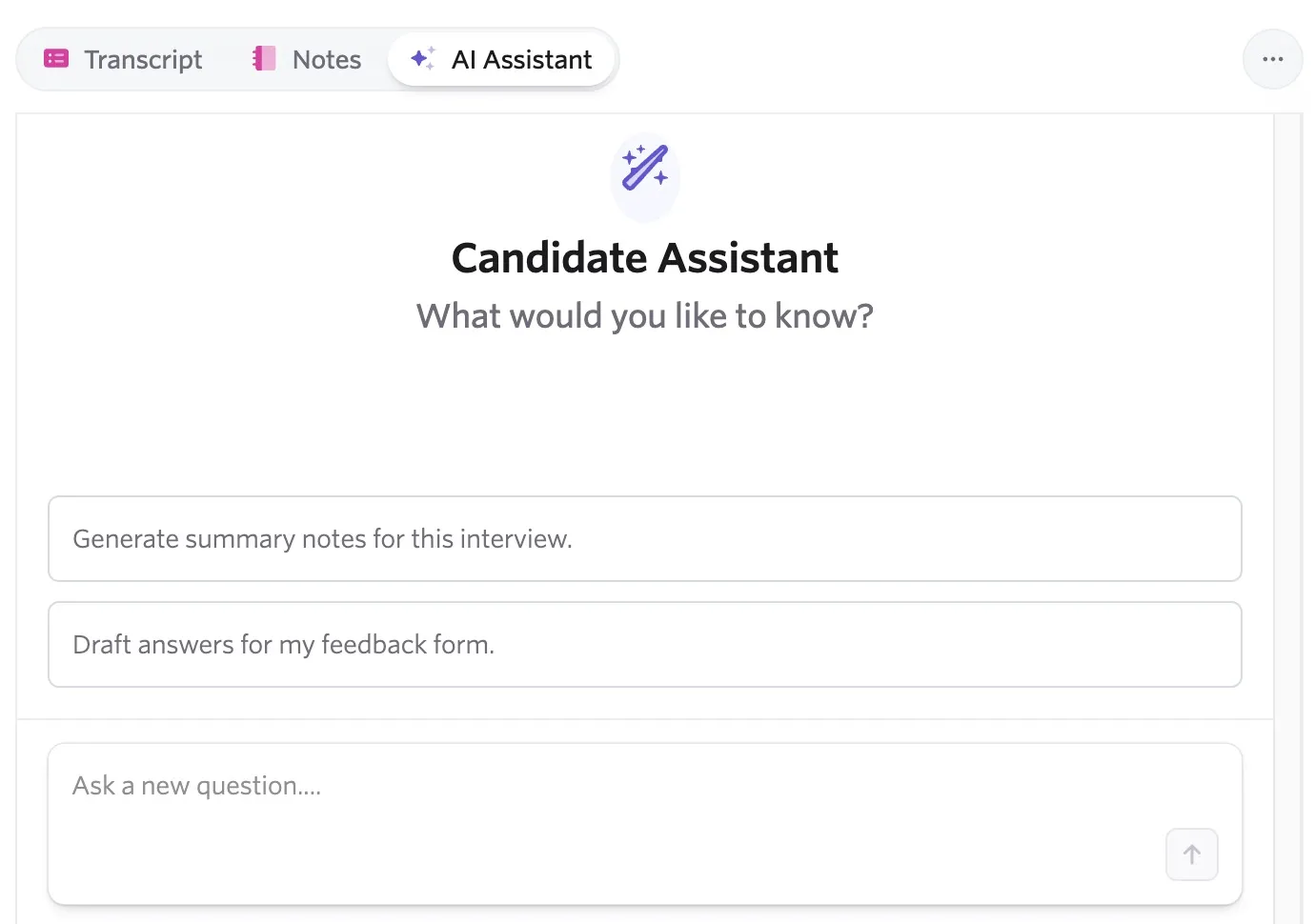
For more information, see our article on AI Candidate AssistantAI Candidate Assistant.
Using AI-generated content in candidate feedback
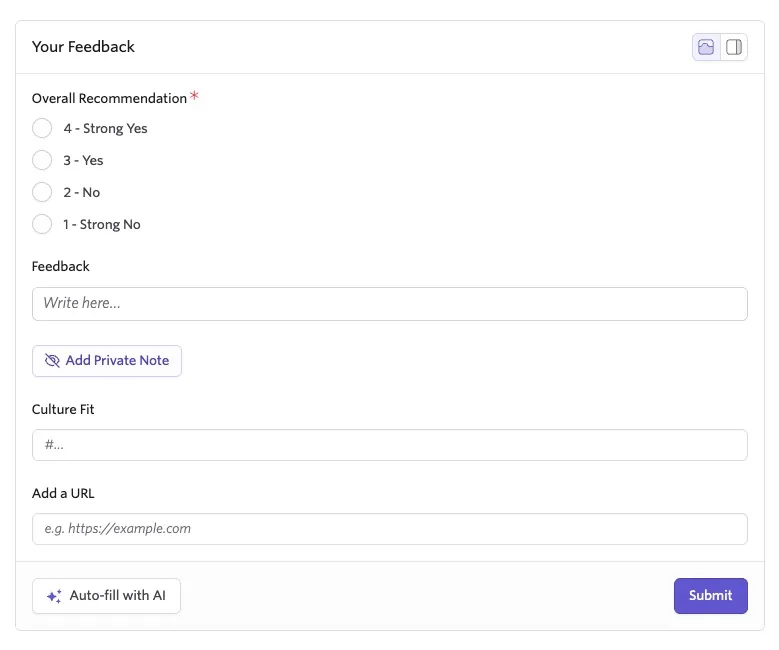
You can ask the AI assistant to generate answers for your feedback form if the form includes long, formattable text fields. Alternatively, you can use AI to autofill responses directly within the Your Feedback tab of the briefing. Ashby's AI provides objective, fact-based drafts without expressing opinions or making hiring recommendations.
AI-generated content is designed to assist interviewers, not replace them. Interviewers are still required to evaluate the candidate's performance and provide their own professional judgment.
How it works
- The system reads the feedback question and scans the transcript for relevant moments and examples.
- It generates a concise, evidence-based summary aligned to that specific question.
- Interviewers review, edit, or replace the suggestion. You must explicitly choose to insert the content before submitting feedback.
Guardrails for objectivity
Auto-fill is limited to factual summarization to avoid bias:
- It does not rate or judge candidate performance.
- It is instructed to ignore personal or irrelevant attributes.
- Speaker names are removed before processing as a precaution.
Managing AI Auto-fill settings
Organization Admins can control whether interviewers can use AI Auto-fill and personal instructions. Both settings are on by default.
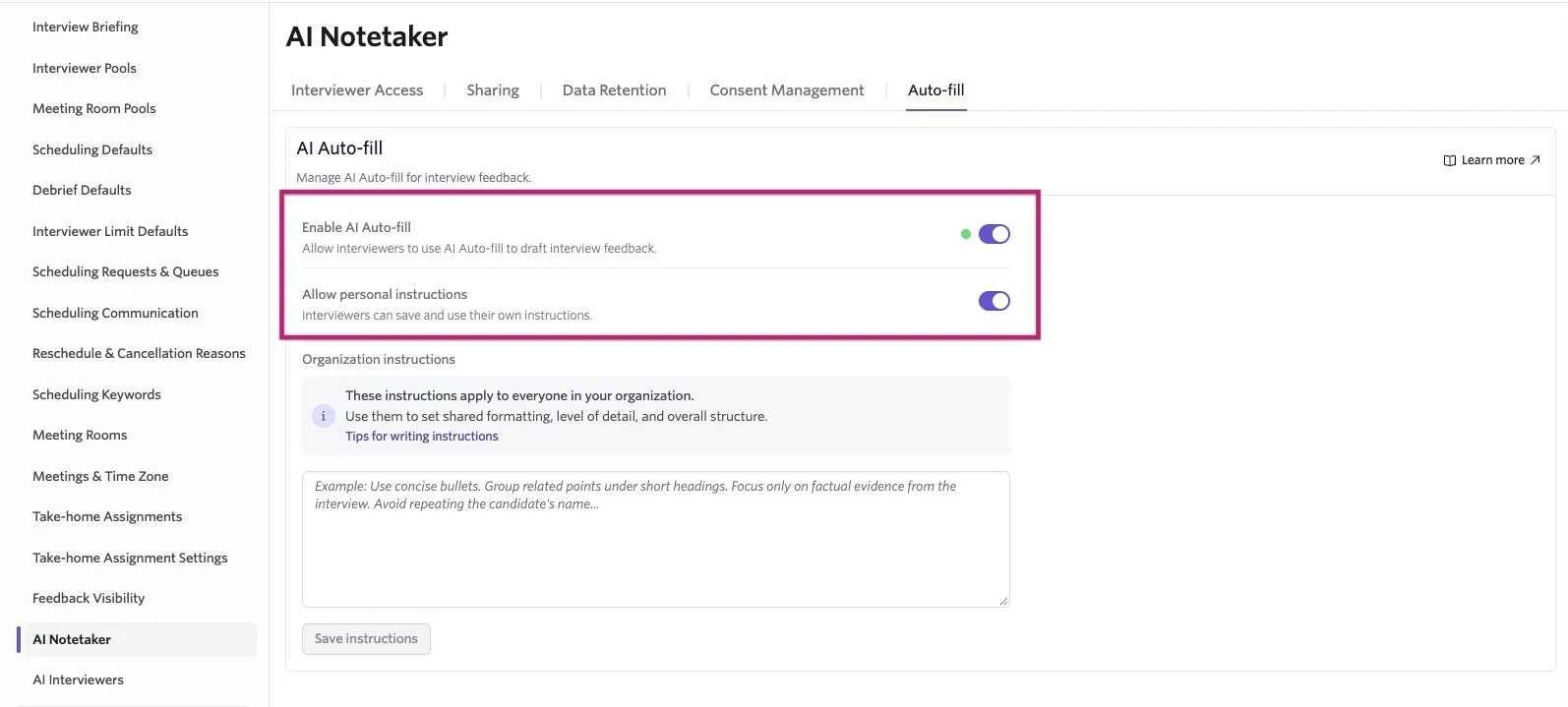
- Navigate to Admin > Interviews & Scheduling > AI Notetaker > Auto-fill.
- Use the Enable AI Auto-fill toggle to turn AI Auto-fill on or off for interview feedback. When it’s off, interviewers won’t see the Auto-fill with AI button
- Use the Allow personal instructions toggle to control whether interviewers can create and use their own AI Auto-fill instructions.
When an Org Admin turns off Allow personal instructions, personal instruction prompts and the personal instructions page are hidden.
Existing instructions remain saved and become available again when the setting is enabled.
Using AI auto-fill on your feedback form
To use this feature, select Autofill with AI at the bottom of the feedback form.
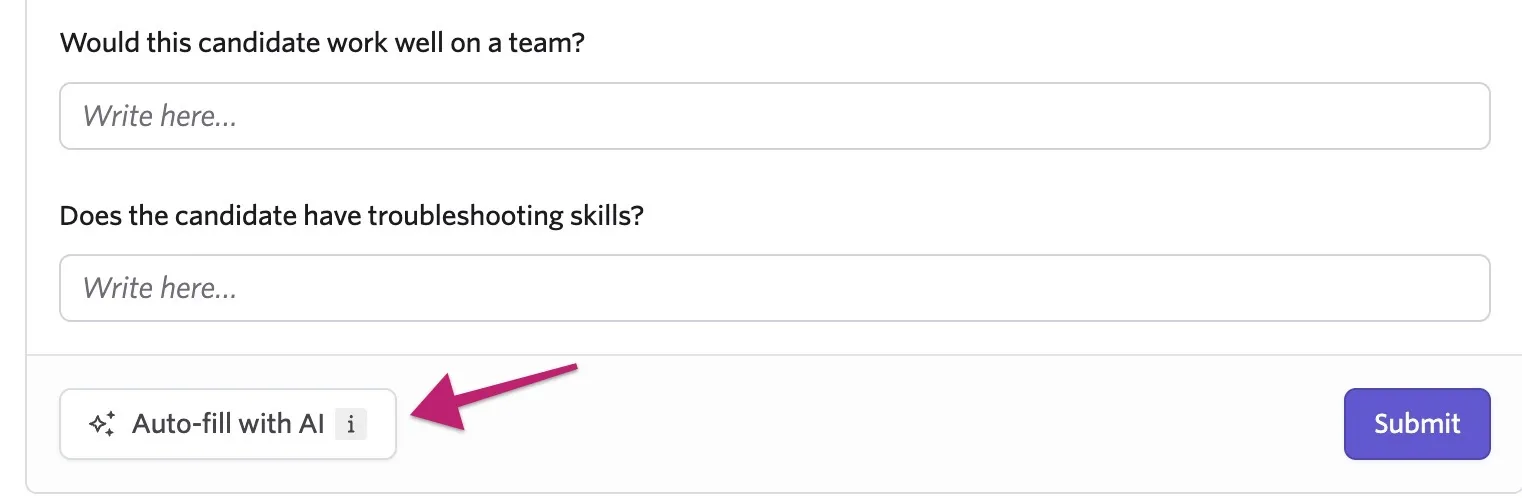
The AI reviews the questions and generates suggestions, including timestamps for reference.
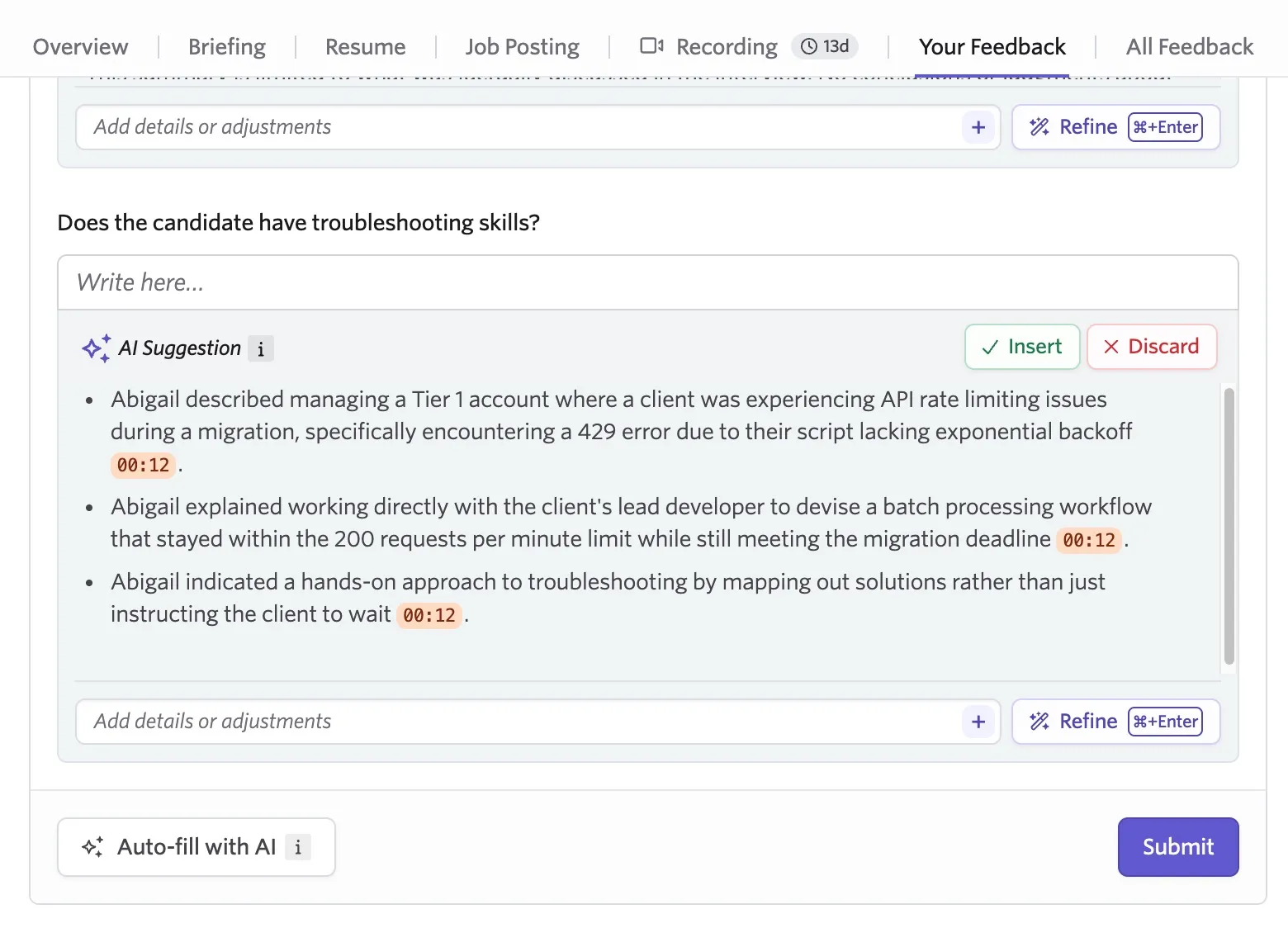
You can provide further details to the AI to regenerate a suggestion. Enter your request in the Add details or adjustments field and select Refine. This is useful for adjusting formatting, changing the level of detail, or focusing on specific topics.
After review and refinement, select Append to add the content to the field or Discard if you choose not to include it.
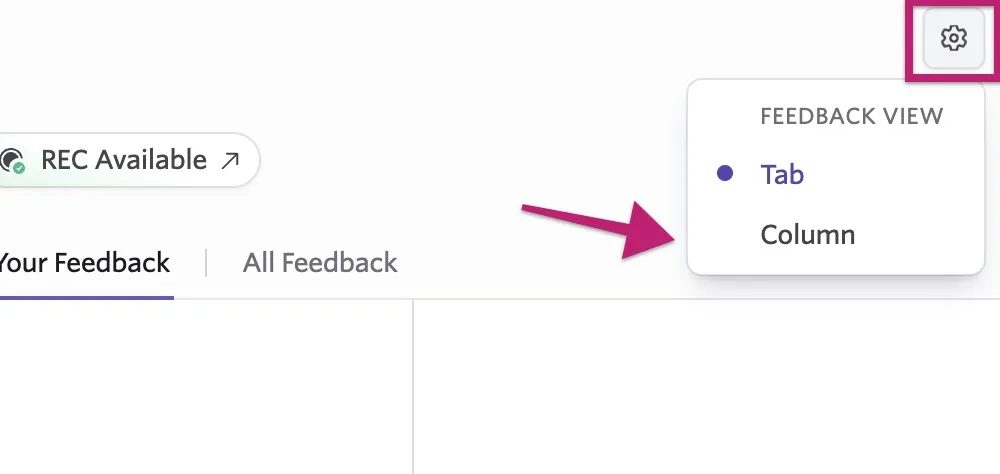
To view the recording and feedback form on the same page, select the cog icon in the upper right and change the view to Column.
Customizing the AI auto-fill prompt
You can add your own instructions to further customize how AI auto-fill should draft answers on your feedback forms, such as specifying that generated content should be concise or in bullet point format. Admins can add AI auto-fill instructions at a company-wide level, and users can add personal custom instructions for their own use.
Need help with constructing prompts? The AI Prompting Toolkit playbook in Ashby Academy walks through a simple three-step framework — define the outcome, design the output, and test and iterate — with examples you can adapt for your needs.
Best Practices
Auto-fill instructions are most useful for guiding how AI Auto-fill formats and summarizes interview feedback. They work best for defining preferences to help match your organization's preferred feedback style, such as how responses should be structured, level of detail to include, and how interview evidence should be presented.
Good instructions usually focus on:
- Keeping feedback concise or within a specific length
- Organizing evidence into bullets, sections, or themes
- Using a preferred tone or company-specific verbiage
- Including specific examples or quotes from the interview transcript
Auto-fill instructions are not intended to tell AI how to evaluate a candidate. Interviewers should always review the generated feedback, confirm it accurately reflects the interview, and make their own recommendation or assessment.
Creating company-wide AI auto-fill instructions
To create company-wide custom instructions:
- Navigate to Admin > Interviews & Scheduling > AI Notetaker
- Click the Auto-fill tab
- Add additional instructions into the Auto-fill instructions field.
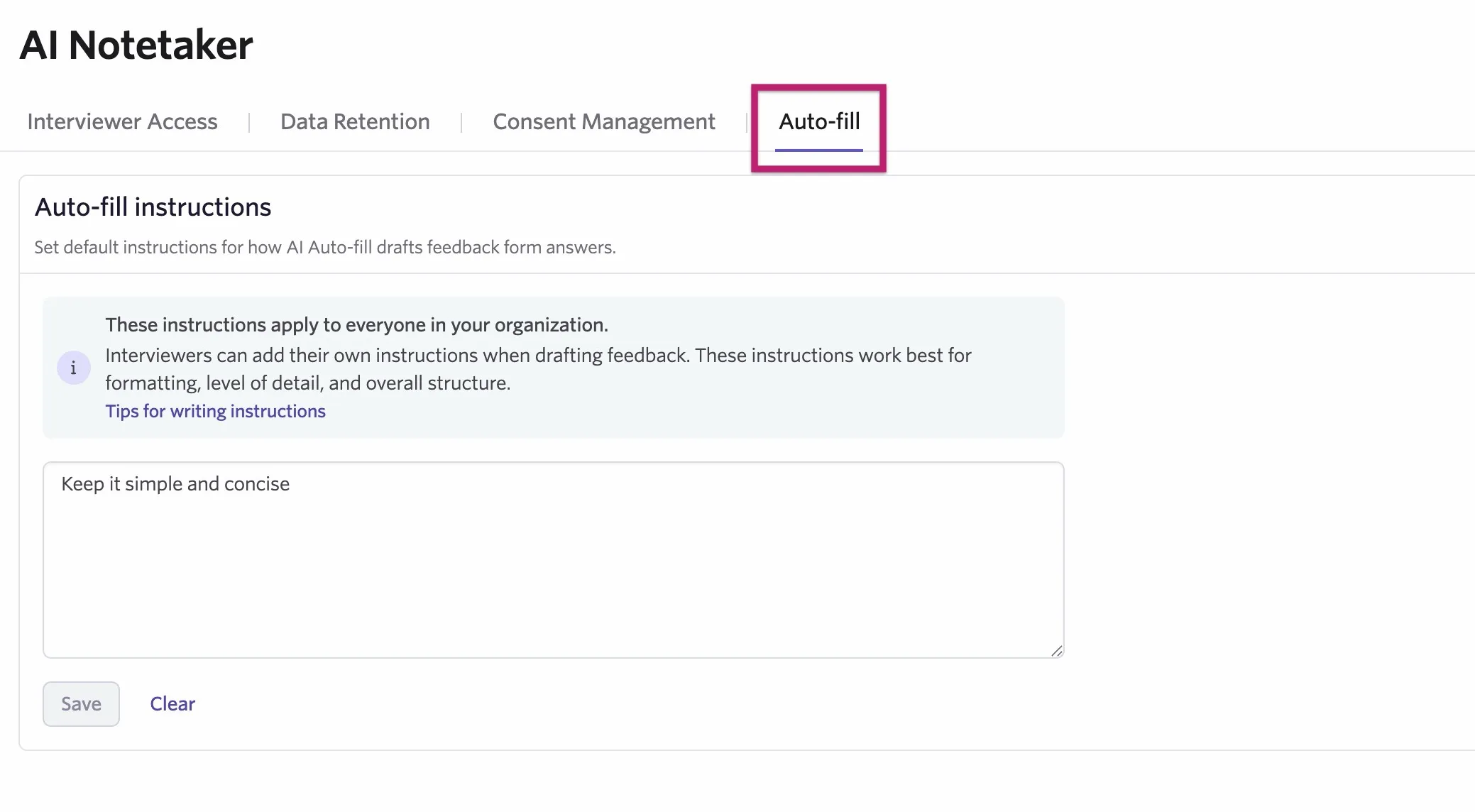
- Click Save to validate and save your changes.
When you save AI auto-fill instructions, an extra validation step runs to evaluate your instructions and guide you towards best practices.
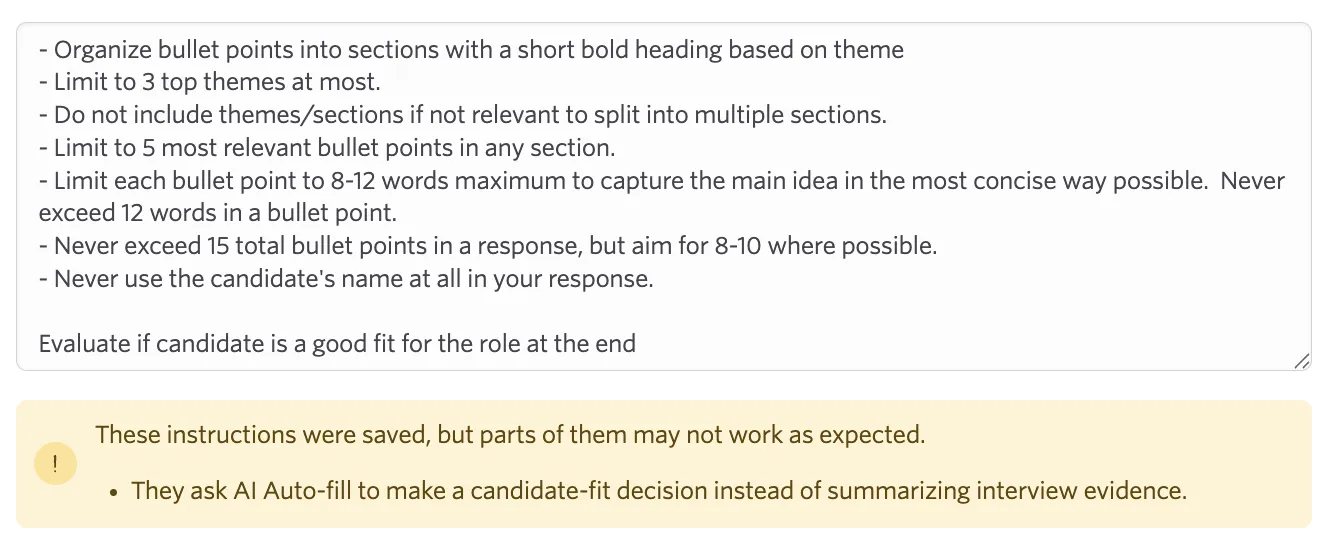
If an issue is found, Ashby may still save your instructions, but parts of them may not work as expected (for example, if they conflict with underlying rules like asking for subjective evaluation of the candidate).
Customizing the AI auto-fill prompt on a user level
Interviewers can add AI auto-fill instructions in two ways when Allow personal instructions is enabled: either when using AI auto-fill to complete a feedback form or within Personal Settings > AI Auto-fill Instructions.
Adding AI auto-fill instructions while completing a feedback form
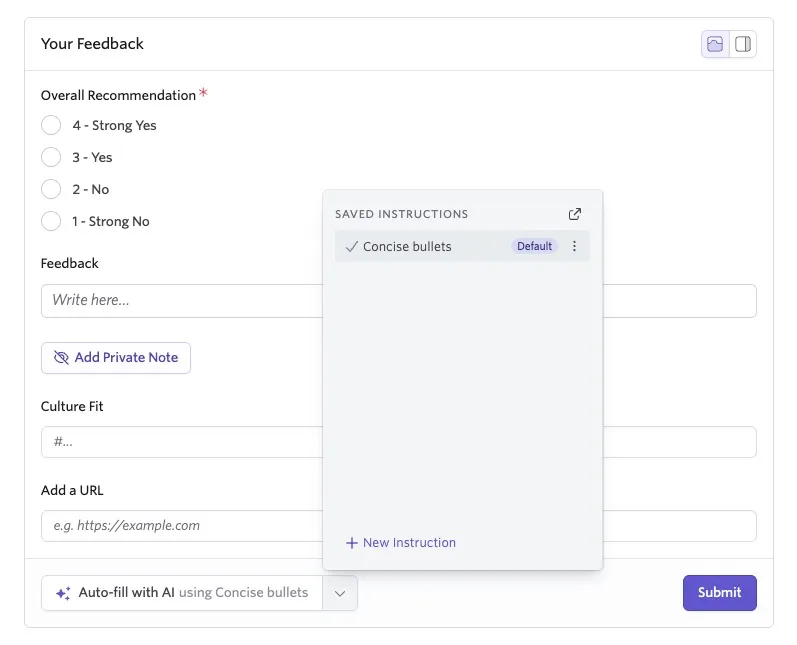
When you add your feedback for an interview on the Your Feedback tab, the Auto-fill with AI button has a dropdown arrow to its right. Click this arrow, then click + Create custom instruction to add a personal, reusable custom instruction.
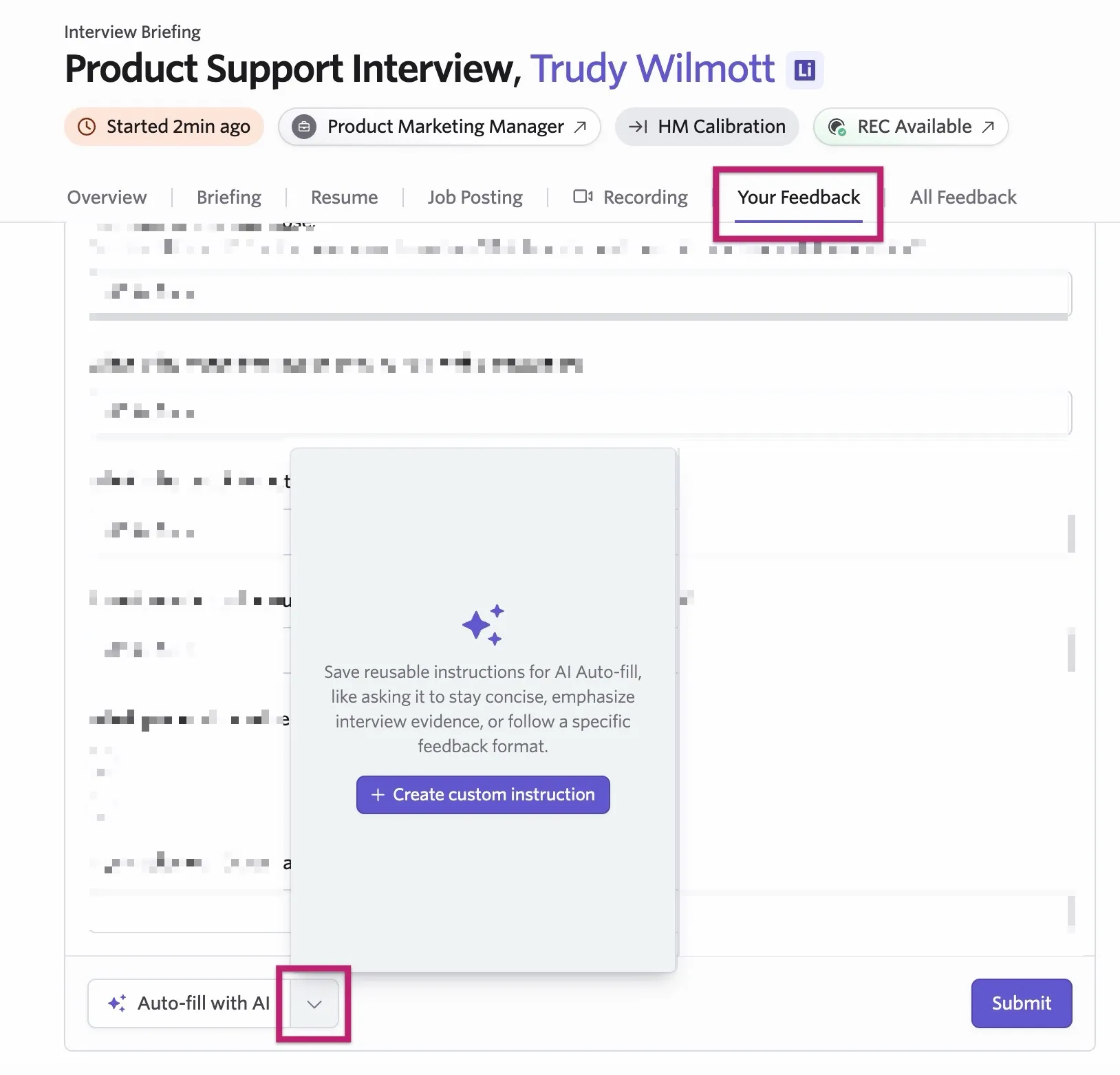
The wizard asks for the following:
- A title for your instruction so you can easily identify it
- The instructions themselves
Check the Default instruction checkbox if you want this instruction automatically selected when you click Auto-fill with AI.
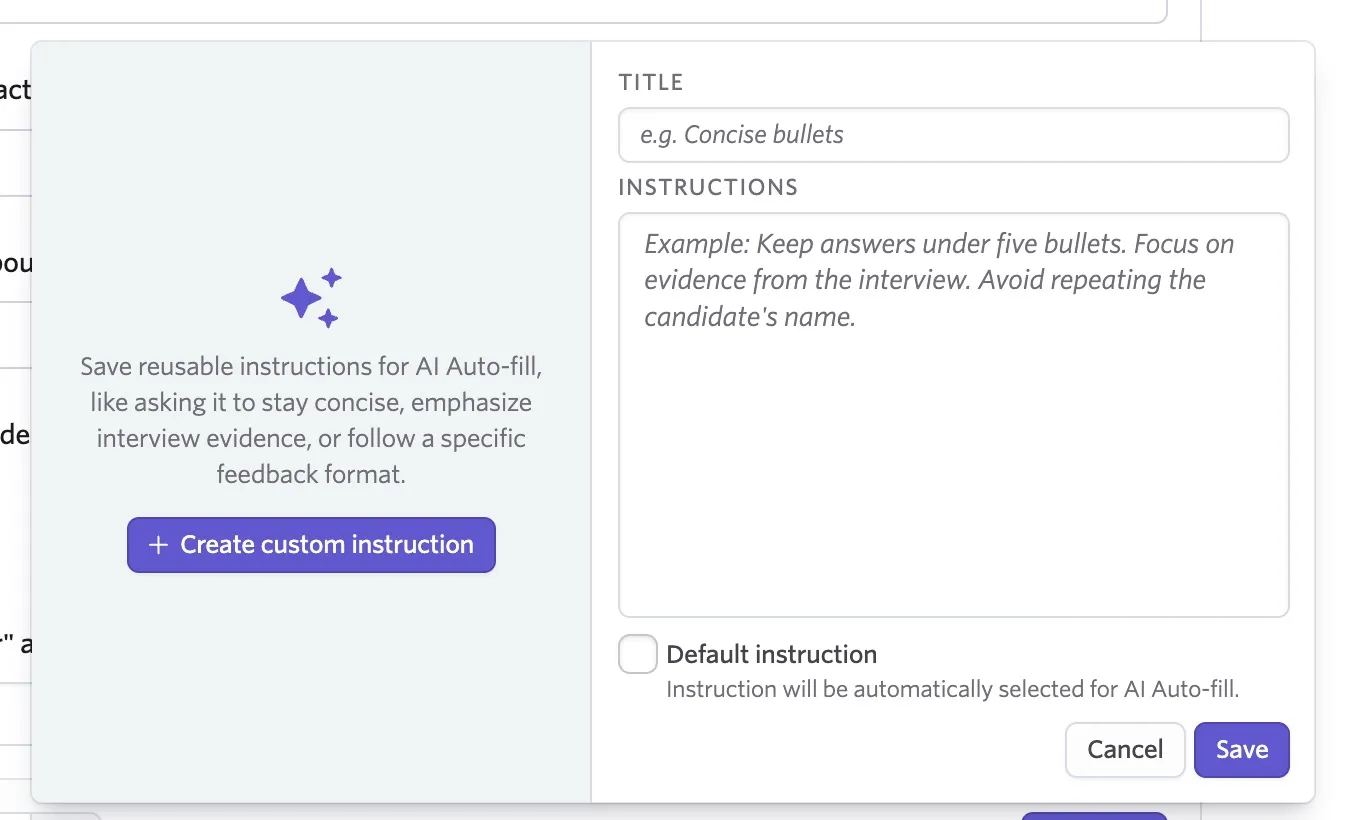
Adding AI auto-fill instructions in Personal Settings
Interviewers can save multiple custom instructions and enable or disable them on a case-by-case basis.
You can also manage personal AI auto-fill instructions within your personal settings. To do this:
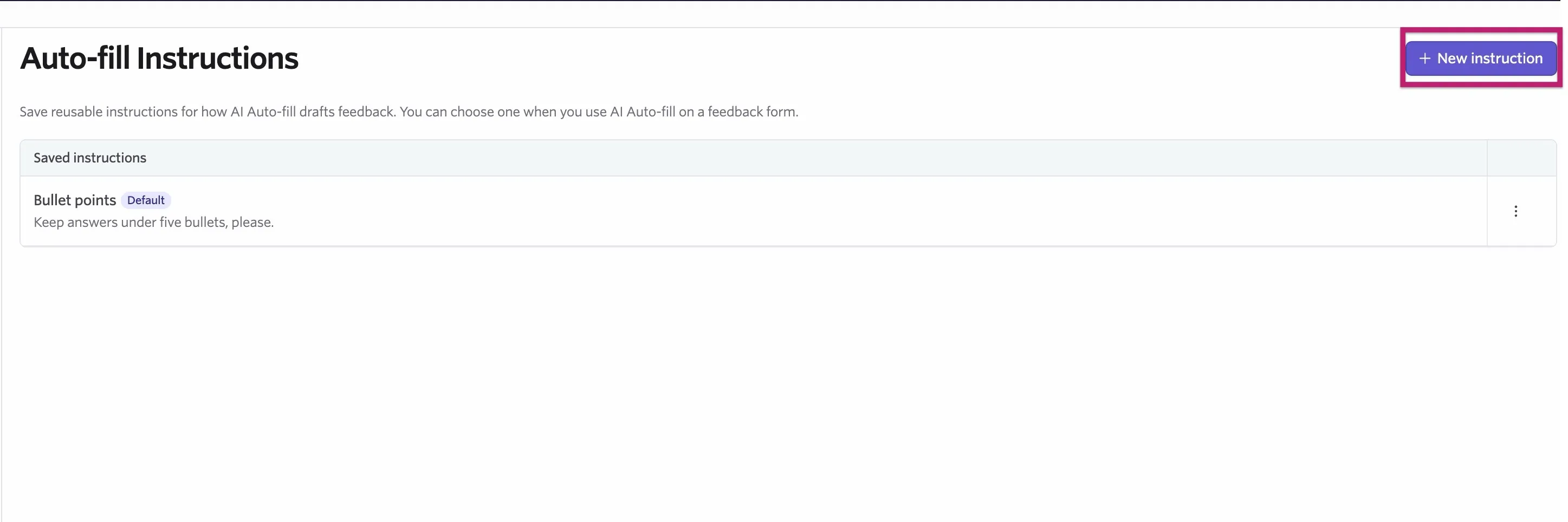
- Navigate to Personal Settings > AI Auto-fill Instructions.
- Click + Create first custom instruction, or + New instruction if you've already configured an instruction.
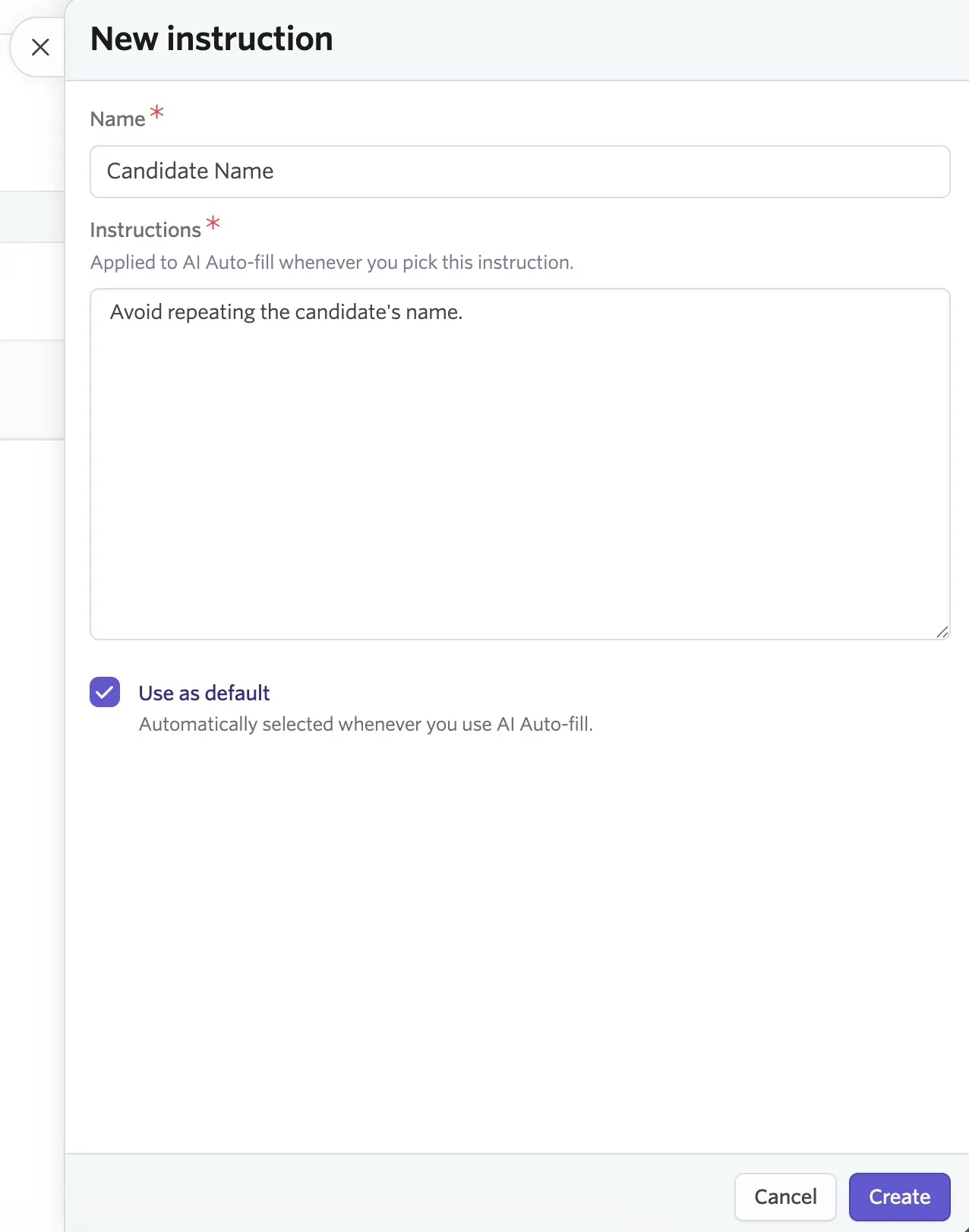
- Complete the popover, adding a title, the instructions, and whether this is a default instruction that's automatically selected for AI auto-fill when you use it while completing a feedback form.
- Click Create
To edit a custom instruction on this page, click the instruction title in the list, then click Save once you've made your changes.
Using user-level custom instructions with AI auto-fill
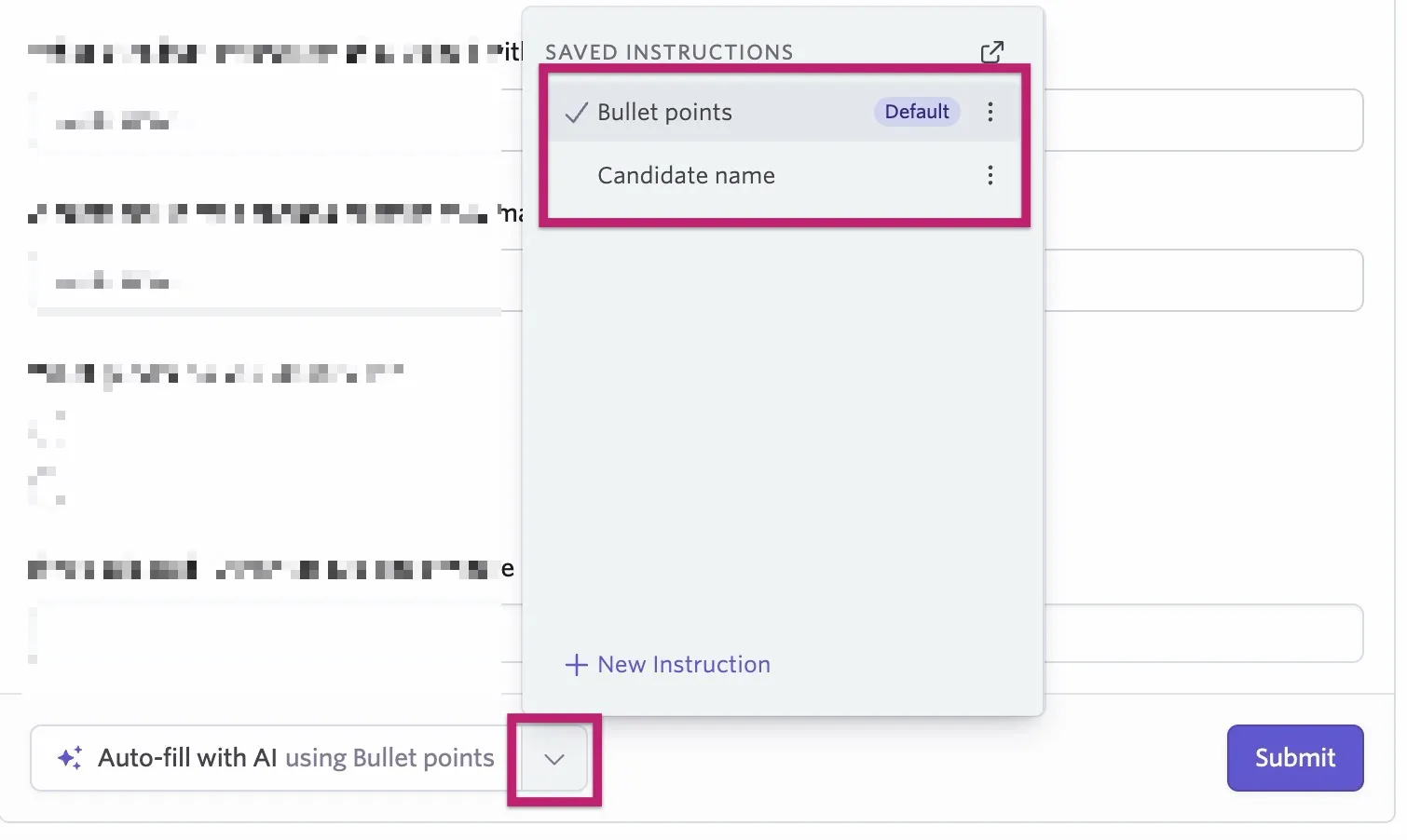
When you complete feedback using AI auto-fill, any custom instructions set to be used by default appear on the Auto-fill with AI button. Click the dropdown arrow to the right of this button and hover over each instruction title to view its details. Click the instruction title to add or remove the custom instruction from the prompt.
You can click the three dots to the right of each instruction title to either edit a custom instruction or make it a default custom instruction.
You cannot remove company-wide custom instructions on an ad-hoc basis. They apply every time you use AI auto-fill.
Deleting a user-level custom instruction
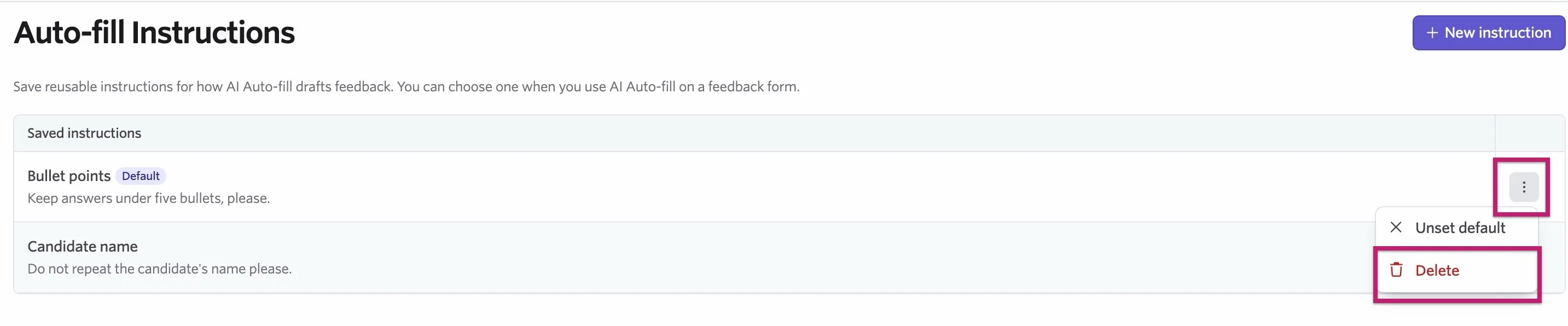
To delete a personal custom instruction:
- Navigate to Personal Settings > AI Auto-fill Instructions
- Click the three dots to the right of the custom instruction
- Click Delete
AI custom instructions hierarchy
User instructions are added to company-level instructions, and AI auto-fill will consider both. If there's a conflict between company-level and user-level instructions, user-level instructions generally take precedence. In some cases, company-level instructions can also be written more strictly to minimize the likelihood of being overridden by conflicting user-level instructions.
FAQ
Can I share user-level custom instructions with another user?
No, users can only configure personal custom instructions. There isn't currently a route to share custom instructions with other users.
Can I share a recording with someone outside my organization, such as a candidate?
No. Sharing is currently only available with internal colleagues who have an Ashby account within your organization.
Can I create a link that gives everyone in my organization access to a recording?
No. Sharing is currently targeted to specific individuals. A single-click option to share with your entire organization is not yet available.