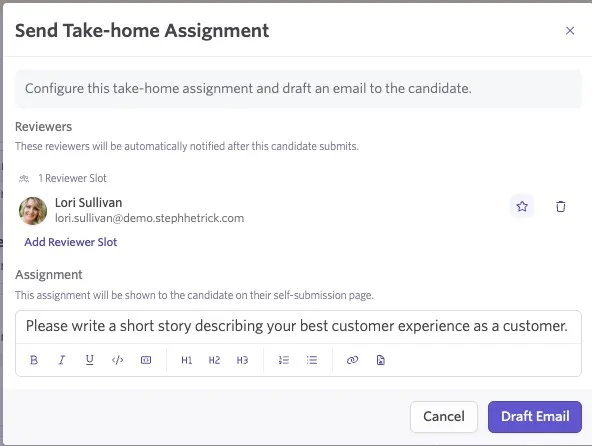
Setting Up Take-Home Activities
Take-home activities let you configure an assignment for a candidate and either send a self-submission link or upload the candidate's submission to Ashby for review. This guide explains how to configure take-home activities, add them to interview plans, set up email templates, and automate delivery.
For instructions on sending and reviewing take-home activities, see Send and Review Take-Home AssignmentsSend and Review Take-Home Assignments.
Permissions & access
Take-home activities are available on the Foundations, Legacy Plus, Plus, and Enterprise plans:
Foundations | Legacy Plus | Plus | Enterprise |
|---|---|---|---|
✅ | ✅ | ✅ | ✅ |
Organization Admins can set up shared take-home assignments, while Elevated Access users with the Can add/edit jobs permission can configure take-home activities. You can update access by amending the permissions for your account’s access roles. For more information, see Manage Access RolesManage Access Roles.
Users at any permission level can review submitted take-home assignments if they’re assigned as reviewers.
Setting up a take-home assignment
You can add a take-home assignment to the corresponding stage of a job's interview plan.
Creating a shared take-home activity
Create a shared take-home assignment if you'd like to use a take-home across multiple interview plan stages and jobs.
- Navigate to Admin > Interviews & Scheduling > Take-home Assignments.
- Click + New, add a Title, and click Create.
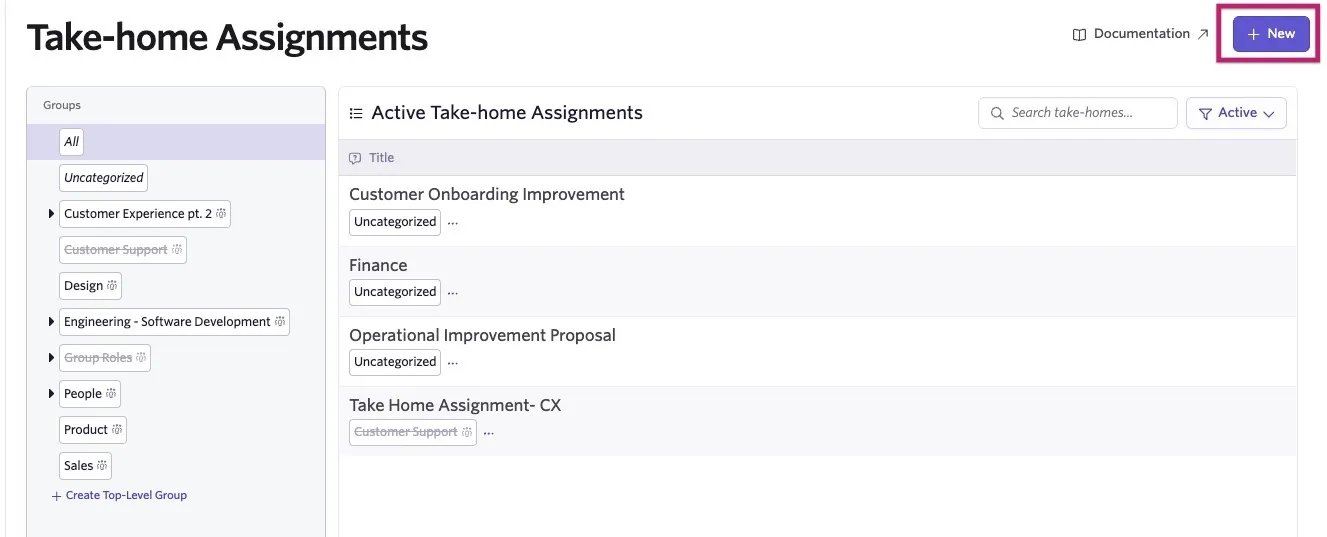
On the next screen, you will set up the remaining take-home settings in the Overview, Notes, Assignment, and Feedback form tabs.
Overview tab
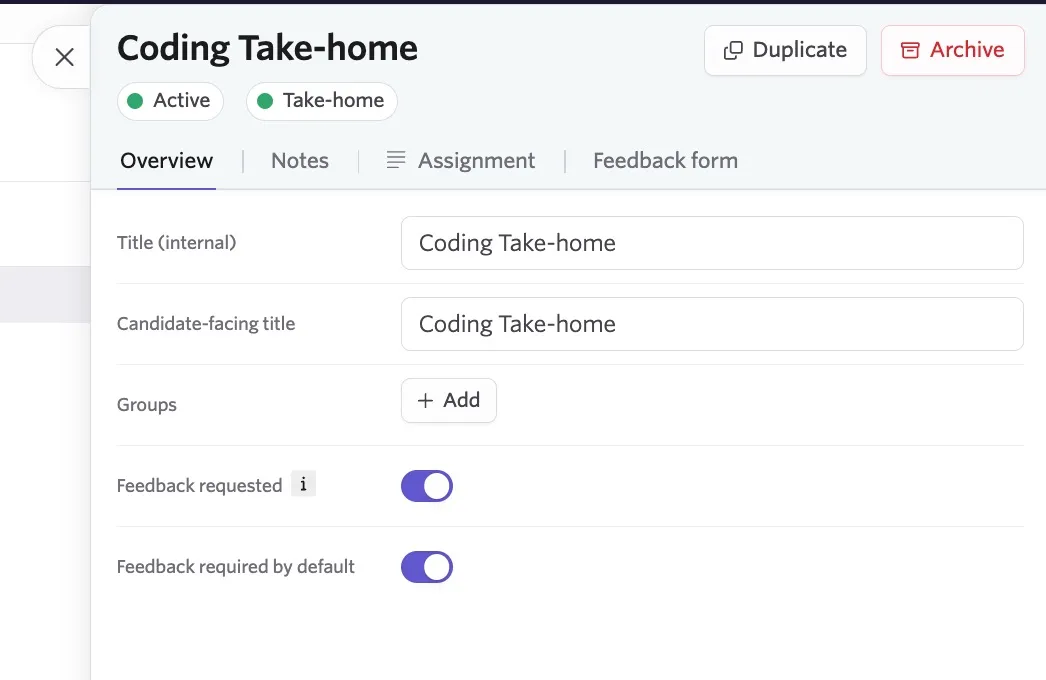
- Title (internal): Set an internal title for your take-home assignment.
- Candidate-facing title: Set a candidate-facing title for your assignment.
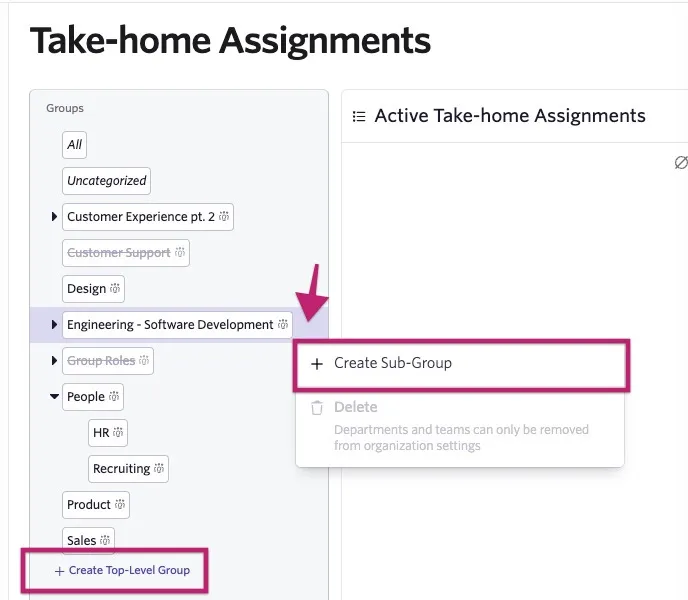
- Groups: Use these to organize your take-home assignments so you can filter for them as needed. Click + Add to add an existing group.
You can add options to this list by selecting + Create Top-Level Group to create a top-level group, or hovering to the right of a group name and selecting ... > + Create Sub-Group to create a sub-level group on the main take-home page under the Groups section.
Departments and teams set up in Admin > Organization Setup > Departments & Teams show here by default and cannot be removed.
- Feedback requested: If disabled, Ashby does not request feedback from any reviewers, and the Feedback form tab does not appear in the take-home setup.
- Feedback required by default: Reviewers are required to leave feedback for the take-home assignment. If Feedback requested is disabled, this field is also disabled.
Notes tab
Use the Notes tab to explain what reviewers should evaluate in the candidate's submission. Include the skills, criteria, or other context reviewers need to assess the work consistently.
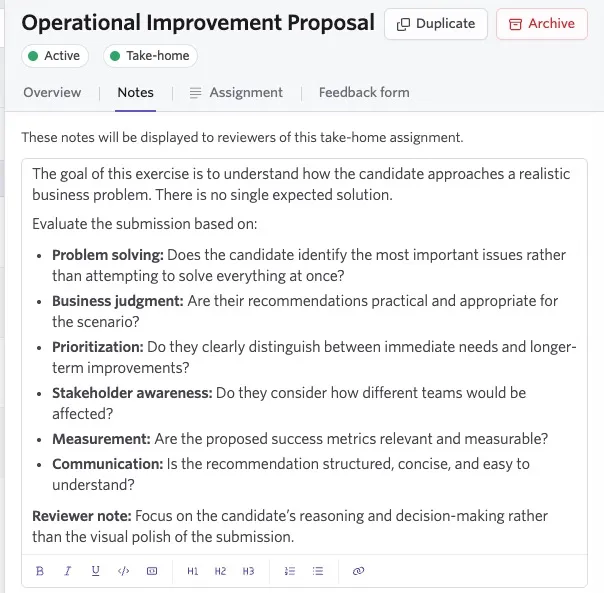
These notes are visible to reviewers, but not to candidates.
Assignment tab
The Assignment field is required for candidates to self-submit their work.
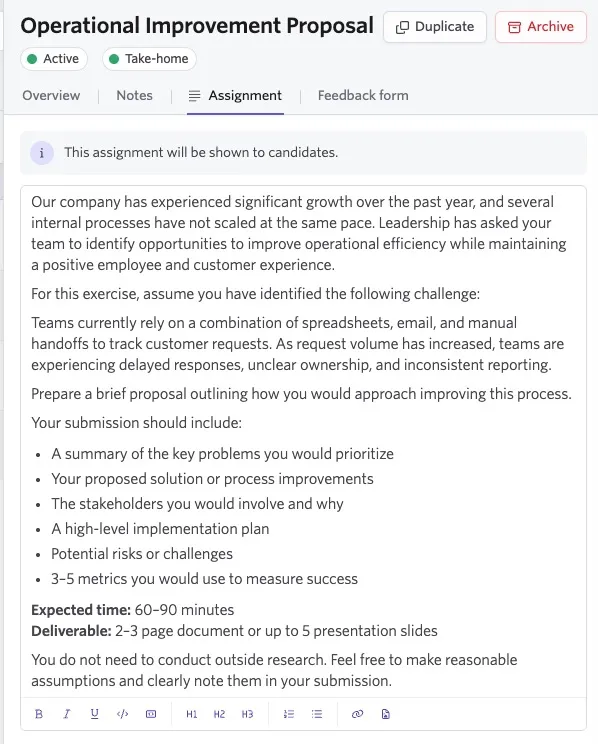
Use the Assignment tab to write the instructions candidates see after they open the take-home submission link.
Consider including:
- The goal or scenario
- The steps candidates should complete
- The expected format, file type, or length of the submission
- The estimated time to complete the assignment
- Links to websites, forms, or other resources candidates need to use
- Any requirements that help candidates understand what to submit
This field accepts free text, so include enough detail for candidates to complete the task without additional context.
For example, you can explain that an assignment takes two to three hours, request a Google Doc or PDF, specify a page range, and provide the task instructions.
Feedback form tab
Use the Feedback form tab to assign the feedback form reviewers complete when submitting feedback on the assignment. For more on configuring feedback forms, see Feedback Forms and InterviewsFeedback Forms and Interviews.
Add the take-home activity to your interview plan
To add your take-home assignment to an interview stage:
- Navigate to your job, then to the Interview Plan tab.
- Scroll to the stage you'd like to add your take-home activity to and click the Add Activity to "Stage Name" option.
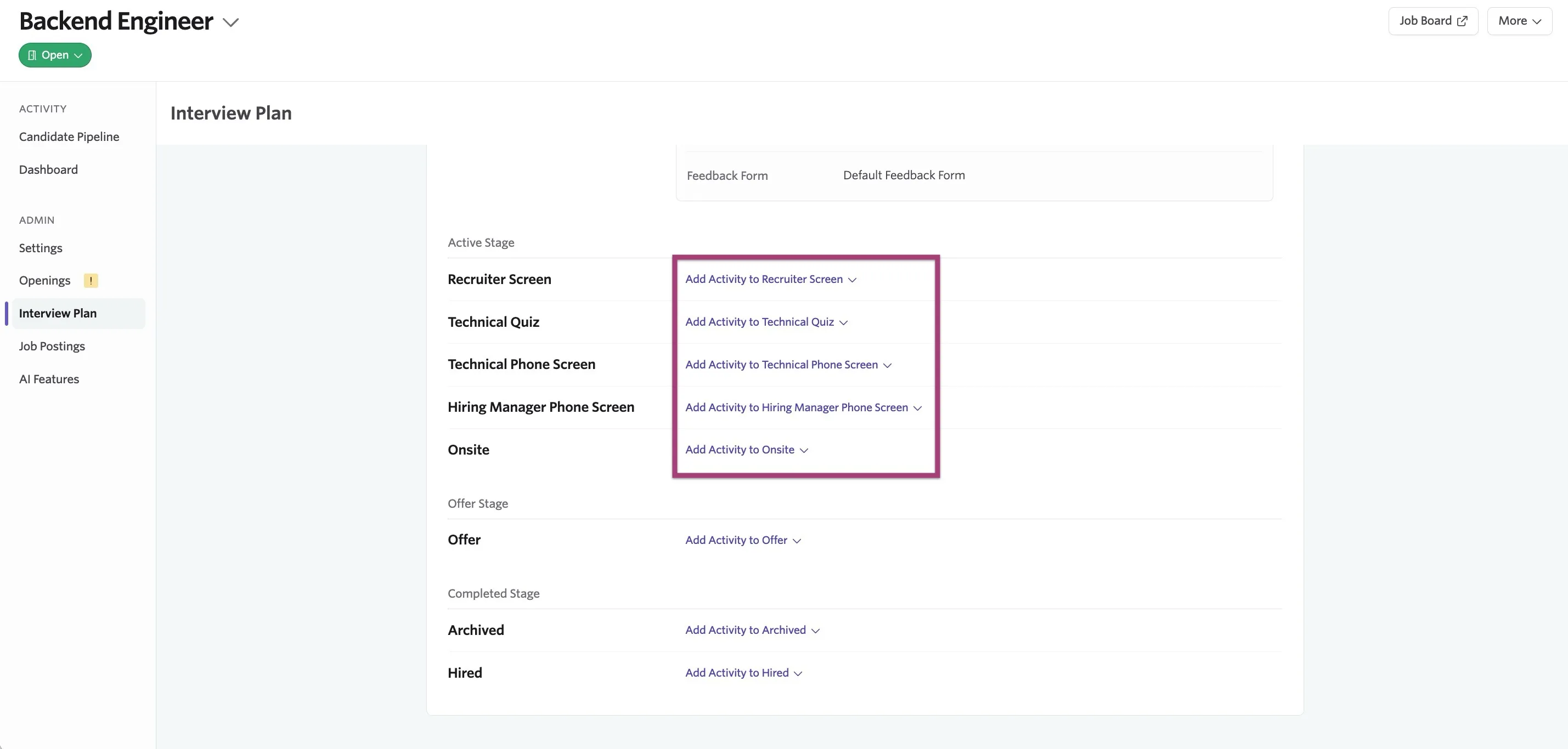
- Click + Add Activity.
- Select Take-home.
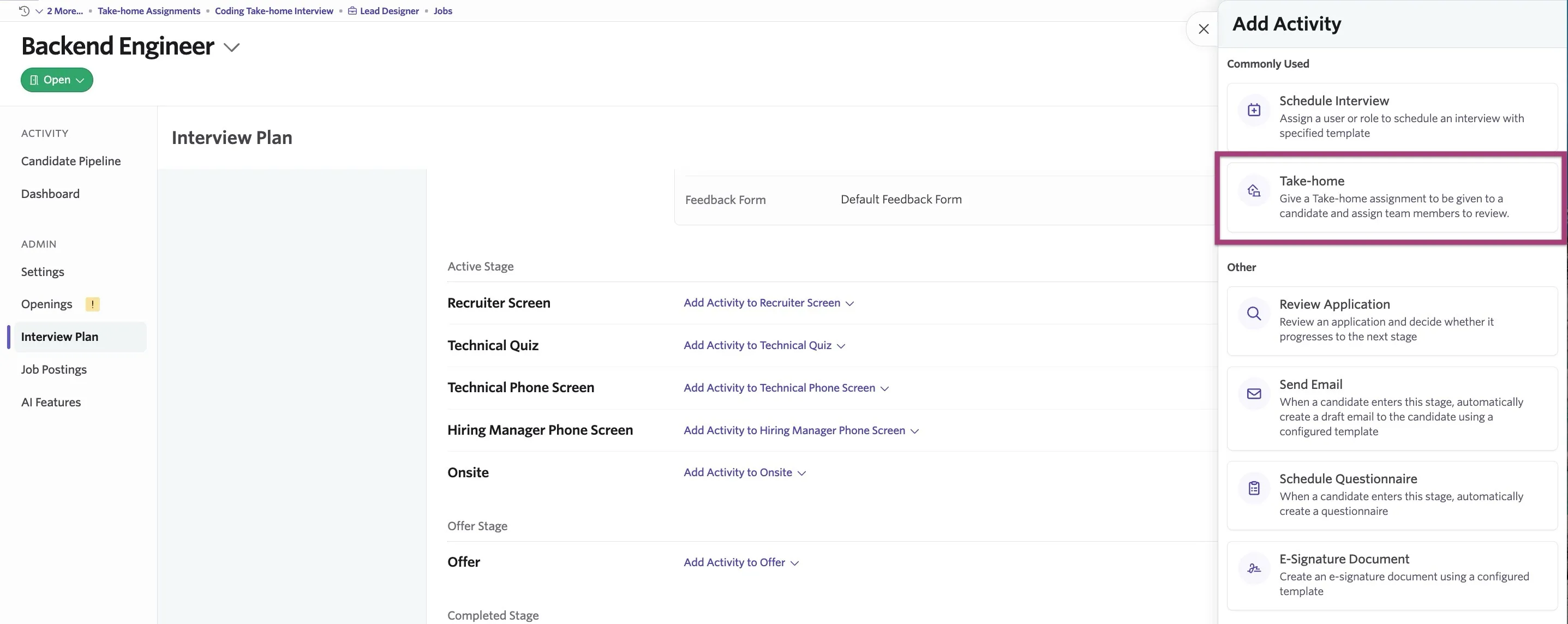
- Create a new take-home or add a shared take-home that you've already configured.
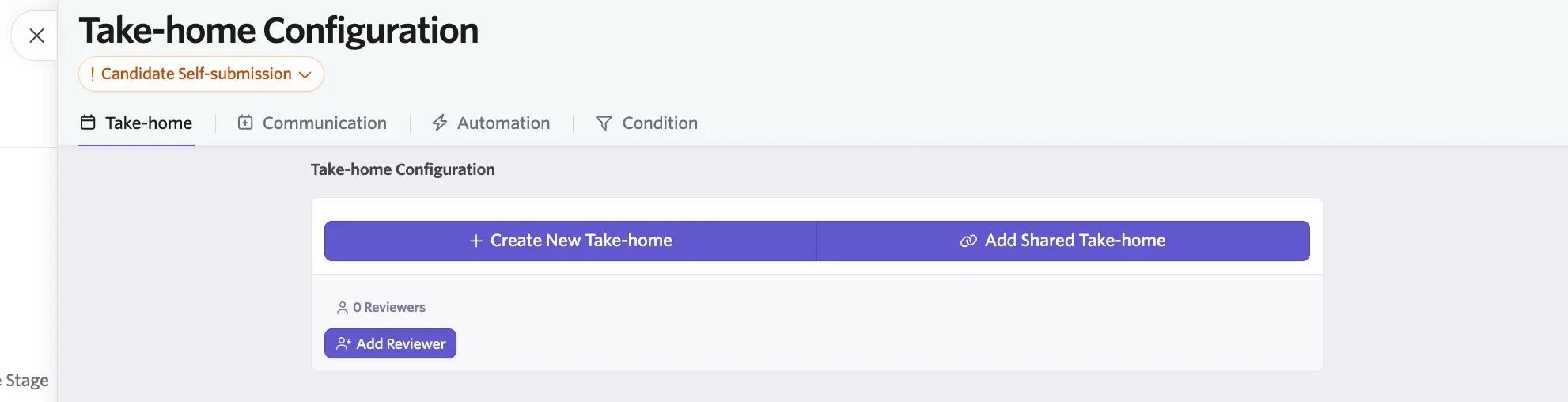
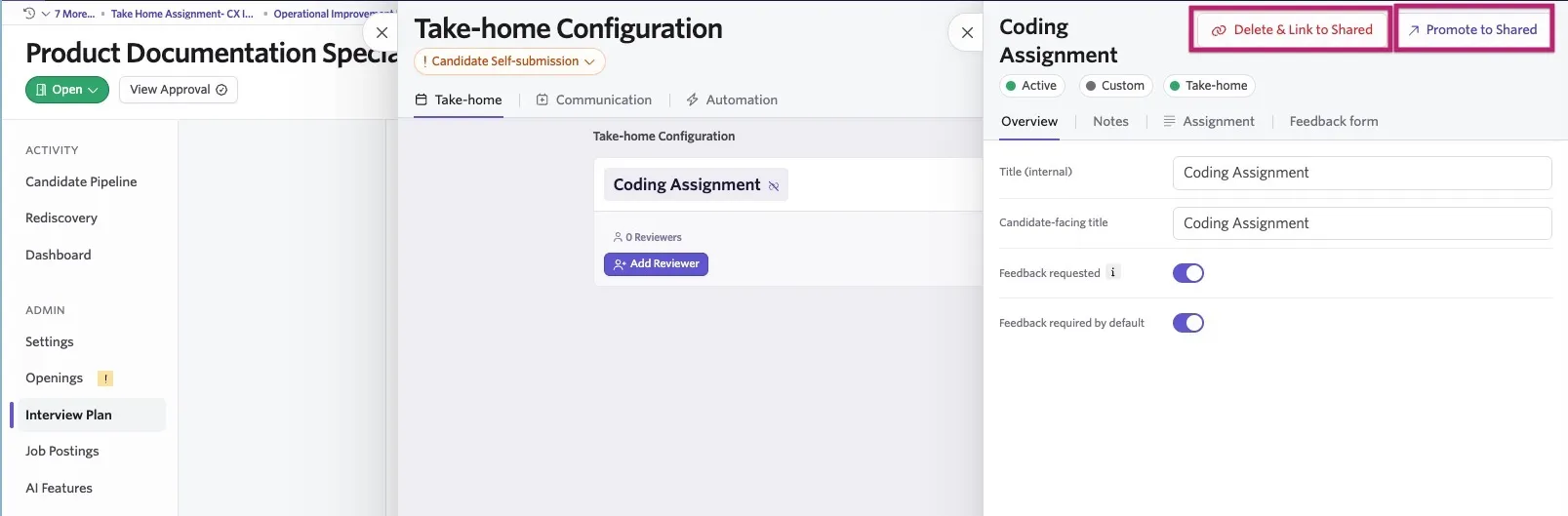
If you create a take-home assignment directly from the take-home activity within an interview plan, this creates a job-specific, custom take-home. Custom take-homes do not show on the Take-home Assignments page in Admin, but you can add them to this page by selecting the Promote to Shared button within the take-home assignment. You can also delete the custom take-home assignment and use a shared take-home assignment instead by selecting Delete & Link to Shared.
Assigning reviewers
Assign reviewers by clicking the Add Reviewer button, then select reviewers using the drop-down options.
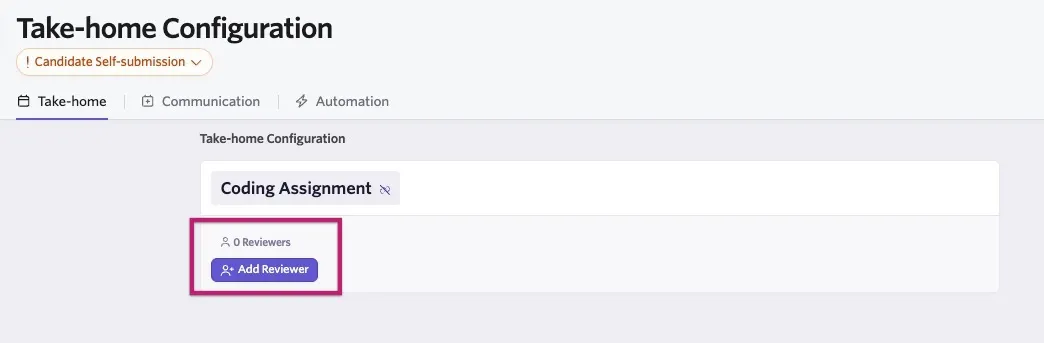
Much like interviewers on a scheduled interview activity, you can add multiple reviewers to one slot to create a round-robin assignment, or add multiple reviewer slots so multiple people review the take-home assignment.
Setting up an email template
Now that you've configured the take-home activity, configure an email template to streamline sending instructions to the candidate.
Email template for self-submission (recommended)
With self-submission, you can embed the Take Home Submission Link token in the email template.
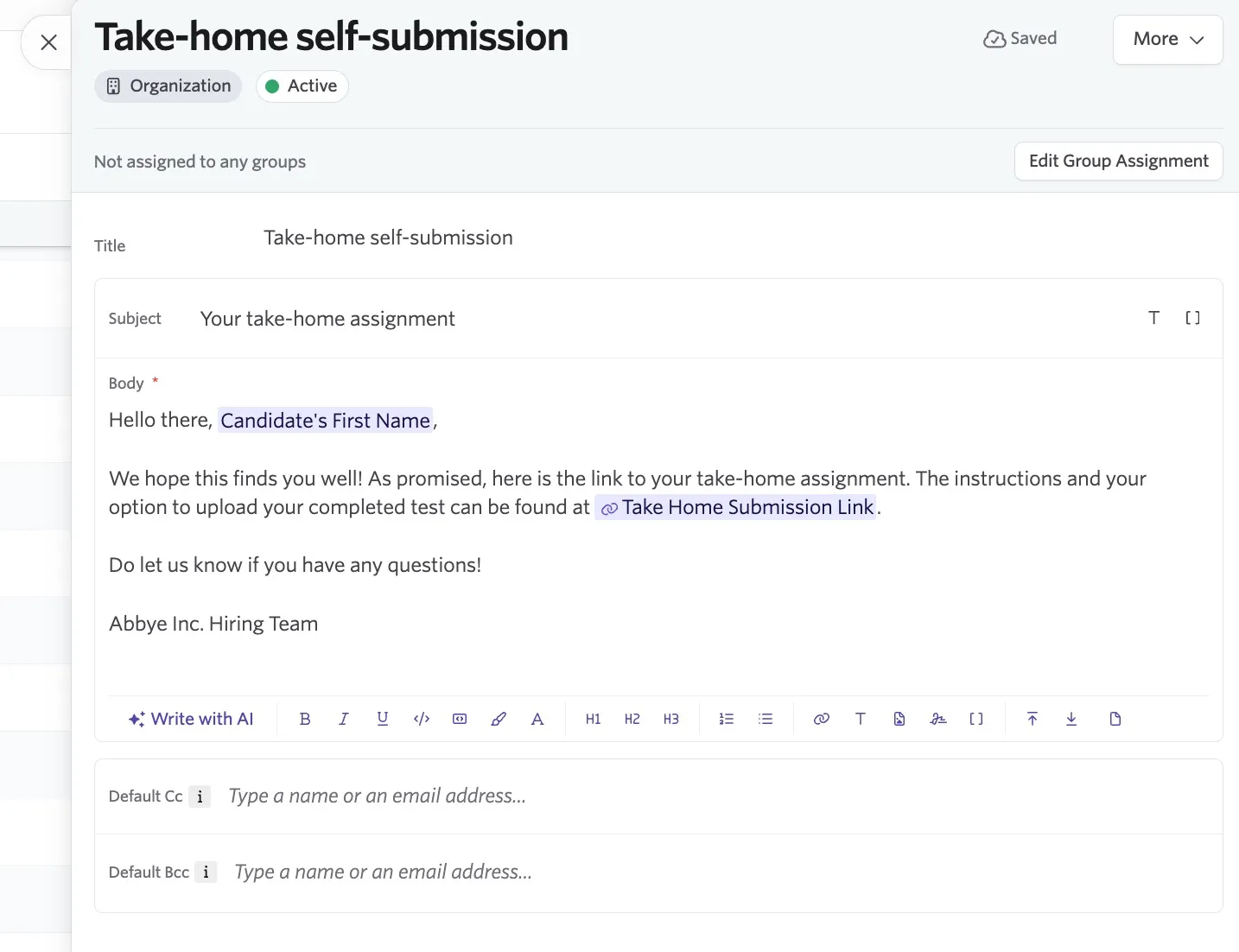
If you create an email template with a self-submission link, you can specify this template in the Communication tab of your take-home activity. When the activity is generated on the candidate profile, you can quickly generate and send an email using the specified template.
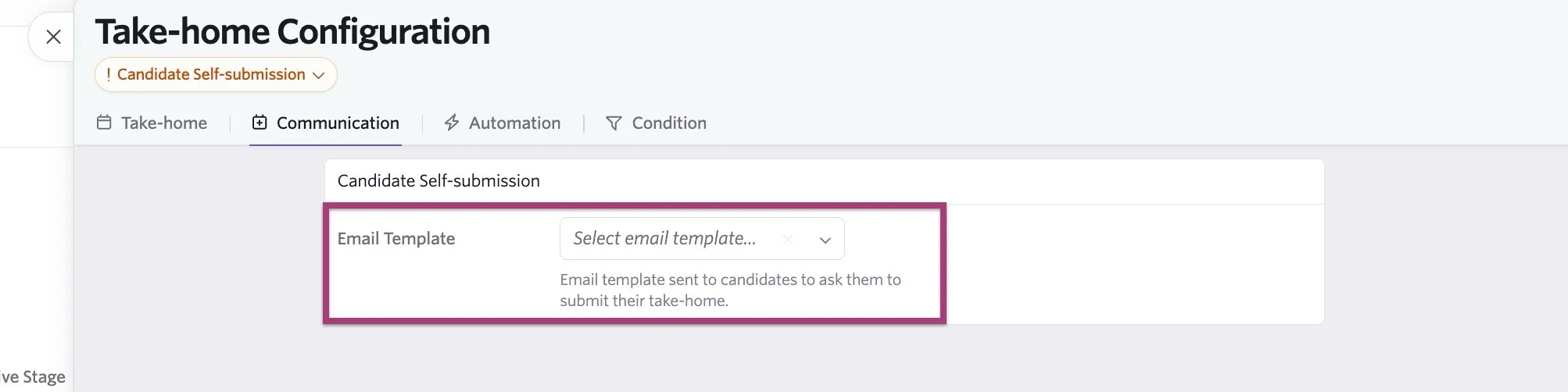
You can also attach a document directly to an email template if you'd prefer to send the assignment details directly to the candidate. The candidate then sends their submission directly via email and a user submits the assignment on their behalf using the Submit Directly option in the take-home activity.
For more information on creating email templates, see Email Template Creation and ManagementEmail Template Creation and Management.
Automating take-home assignments
You can automatically send take-home assignments to candidates when they enter a specific stage to streamline your workflow.
Watching the following video is optional. You can also follow the steps below.
- After adding the take-home activity to your interview plan and setting up an Email Template under the Communication tab, navigate to the Automation tab.
- Enable Automate on Stage Entry?, then select the user the take-home email should be sent on behalf of.
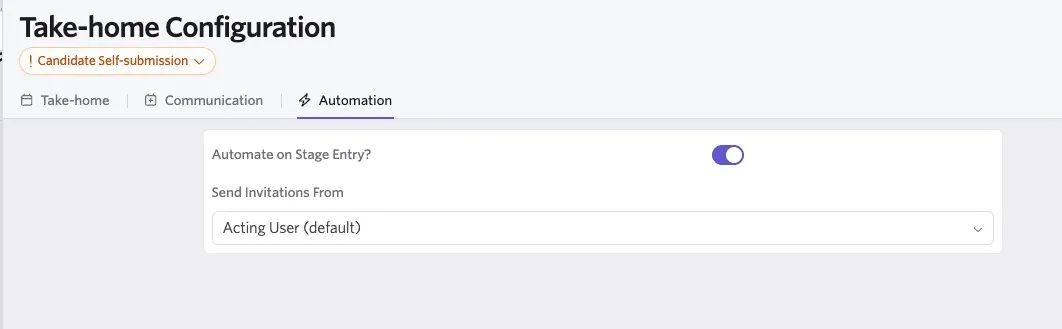
When you move a candidate to the stage with the automation, you see a note that the automated activity is starting. You can also undo this.
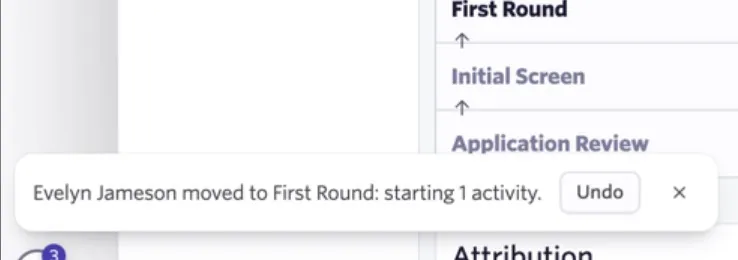
You cannot use this automation route to schedule the take-home activity email. Ashby sends the email when a candidate moves to the stage the take-home activity is assigned to.
After setup, see Send and Review Take-Home AssignmentsSend and Review Take-Home Assignments to send submissions, review candidate work, and manage reviewer follow-up.
FAQs
Why didn't my automated take-home activity send?
Automated take-home activities require you to fill out the Assignment section in the take-home settings. This field is required for candidates to self-submit their work. If the Assignment section is blank when a candidate moves into the stage that triggers the automation, the take-home email does not send.
To resolve this:
- Navigate to your take-home settings, either via the activity on the job's interview plan or by navigating to Admin > Interviews & Scheduling > Take-home Assignments if you're amending a shared take-home.
- Add text to the Assignment tab.
- Re-trigger the automation by moving the candidate back into the stage, or manually send the take-home if needed.
Once the Assignment section is completed, the automation sends successfully going forward.
Can I copy an existing activity from an interview plan stage on one job to an interview plan stage on another?
You can. When you are on a job's interview plan and click Add Activity to "Stage Name" on an interview plan stage, you can see the option to add a new activity and a Copy Activities option.
Watching the following video is optional. You can also follow the steps below.
- Click Copy Activities.
- Select the Job and Interview Stage you'd like to copy activities from.
- Choose the activities you'd like to copy.
The selected activities are copied into the original stage you selected.
Once you copy an activity, if the activity uses a shared feedback form (more on those in What are ‘Shared’ Interviews, Application Forms, and Feedback Forms?What are 'Shared' Interviews, Application Forms, and Feedback Forms?), those are referenced in the copy. Any custom feedback forms are copied over and can be amended without impacting the original activity you copied from.
How do I edit the take-home assignment information on the take-home activity?
If it is a shared take-home assignment, navigate to Admin > Interviews & Scheduling > Take-home Assignments, find the take-home assignment you would like to edit, and make any edits needed. You can edit and turn a shared take-home assignment into a custom assignment by clicking the Unlink & Edit button. You can also change the shared take-home assignment by clicking Change Link.
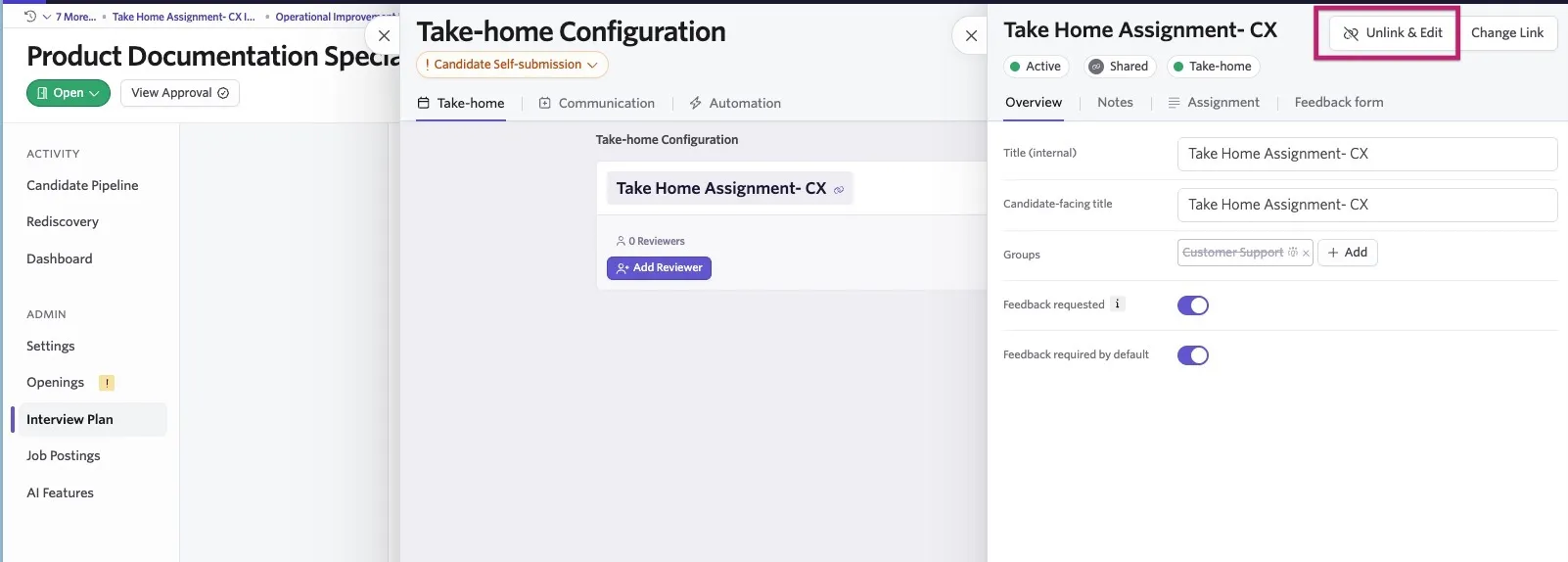
If it is a custom take-home assignment, navigate to the job's interview plan, find the take-home activity, and click Modify > Edit. Select the name of the take-home assignment and edit the settings from there.
Can I create a one-off or ad-hoc take-home assignment for a specific candidate?
You must set up take-home assignments as activities within the interview plan. There is currently no route to add ad-hoc take-home assignments from a candidate's profile.
What happens if I edit a take-home assignment template or feedback form after it has been generated and sent to the candidate?
If you adjust the take-home activity on your interview plan (edits to the overview, notes, or the assignment shown to the candidate), those changes don't appear on take-home assignments that have already been generated on the candidate profile. Take-home assignment activities generated after the edit include the amendments. If you adjust the feedback form assigned to the take-home assignment activity, the changes do appear on take-home activities that have already been generated on the candidate profile. When you click Collect Submission or copy the self-submission link from the activity, you can review and edit the assignment shown to the candidate before sending.