Send and Review Take-Home Assignments
This guide explains how to send take-home assignments, collect candidate submissions, and review completed work.
Before you begin, configure the take-home activity in Set Up Take-Home Activities.
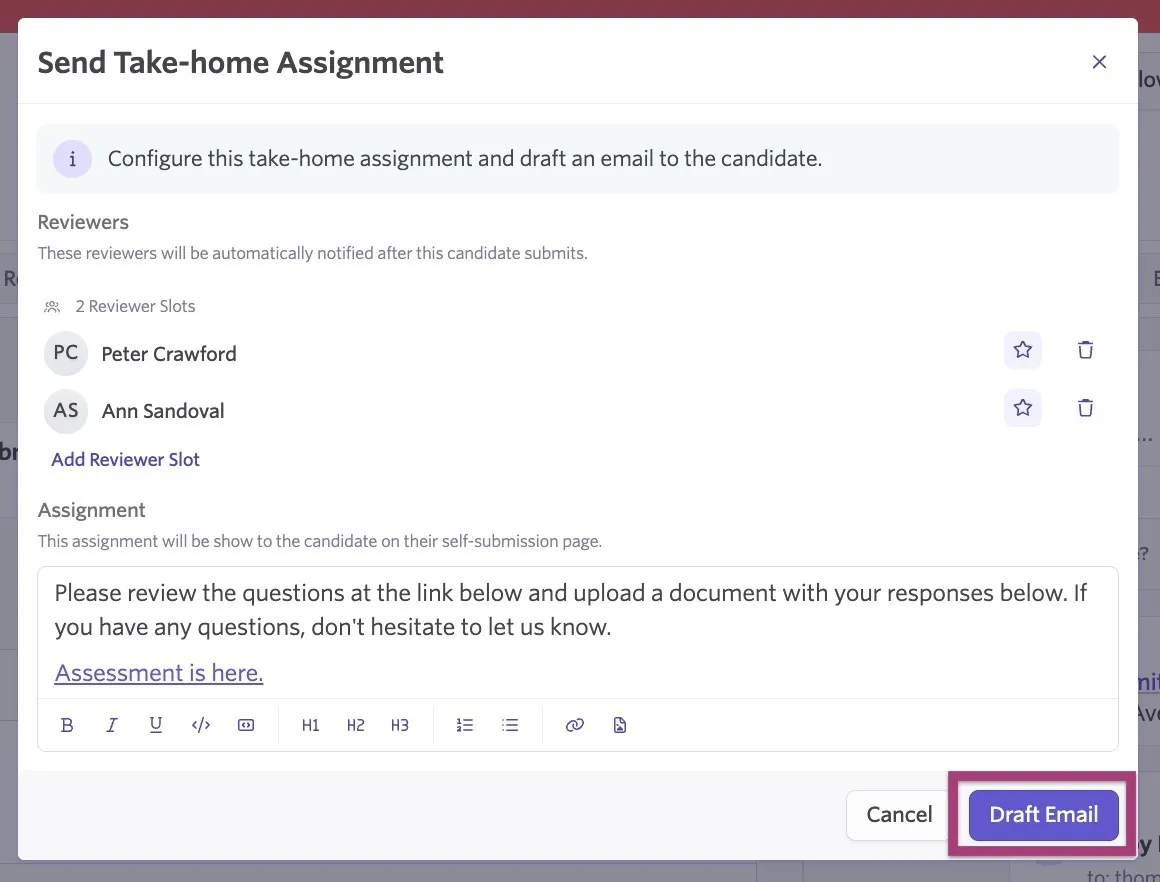
Complete the Assignment field and configure reviewers before sending a self-submission link. Candidates need the assignment content to review and submit their work, and reviewers need to be assigned before the take-home can be sent.
Permissions & access
Take-home activities are available on the Foundations, Legacy Plus, Plus, and Enterprise plans:
Foundations | Legacy Plus | Plus | Enterprise |
|---|---|---|---|
✅ | ✅ | ✅ | ✅ |
To send candidates a take-home assignment via email, Elevated Access users must have the Can email/schedule candidates permission or be an Organization Admin.
Users of all permission levels can review a submitted take-home assignment if they are assigned as a reviewer.
See Manage Access Roles for more information on user permissions.
Collecting candidate submissions
The take-home assignment activity automatically populates in the Current Activities section of the candidate profile once the candidate reaches that stage in your interview plan. The two options for capturing candidate submissions are self-submission and direct submission.
The self-submission option sends feedback forms directly to reviewers once the candidate submits their take-home assignment, while direct submission gives users more control by having them complete the upload themselves.
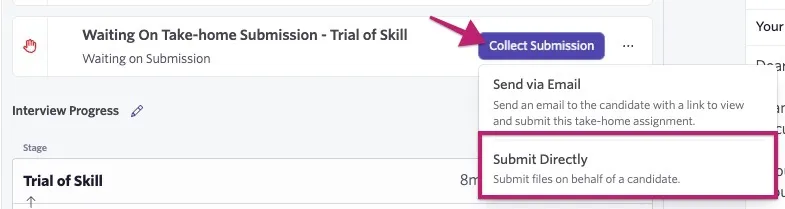
When you click Collect Submission on the take-home activity on the candidate's profile, you can choose to send the submission by email for self-submission or submit the assignment directly on behalf of the candidate.
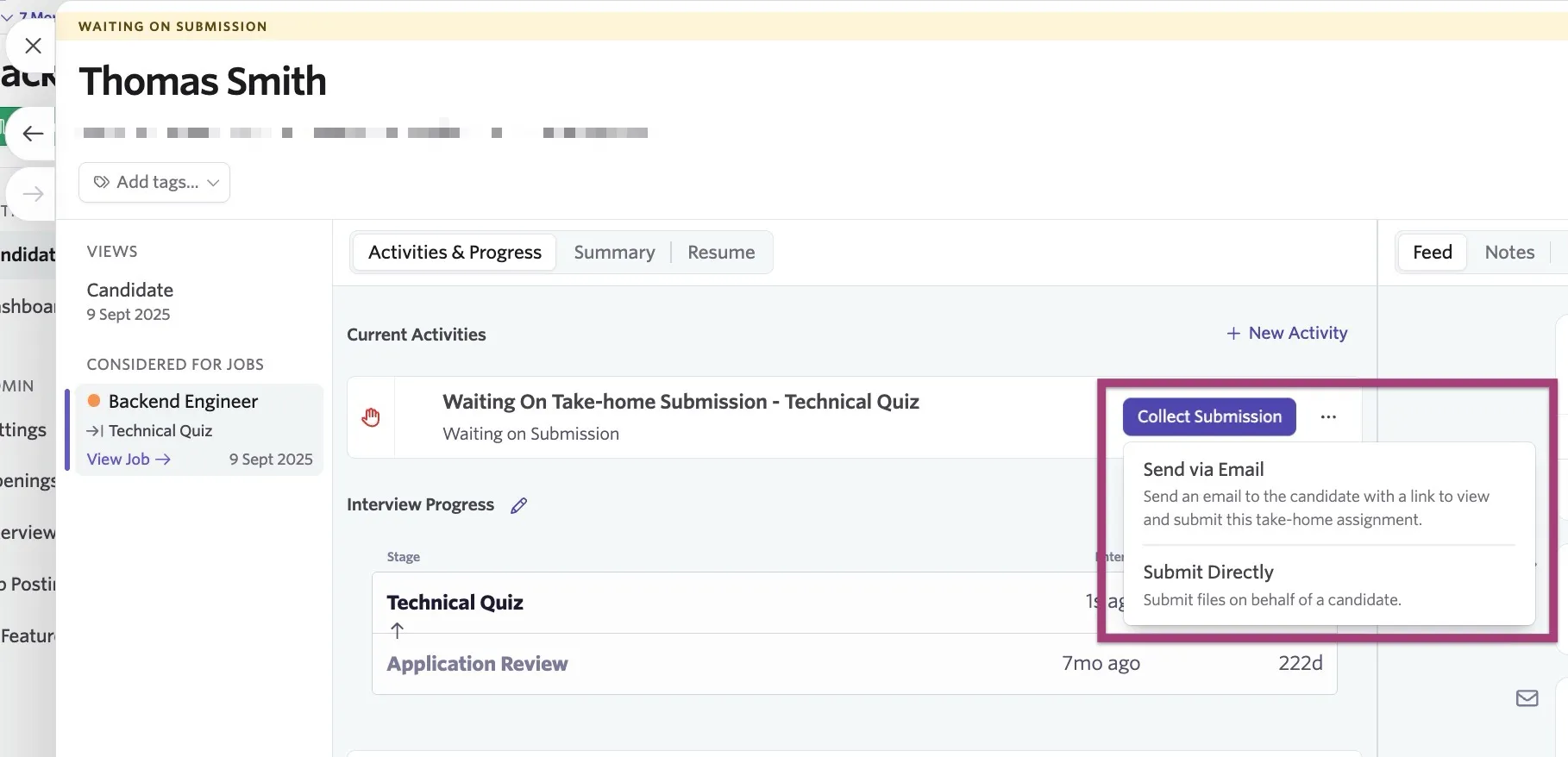
Sending a take-home assignment
Use the Collect Submission button to send the assignment and confirm the assignment details and reviewers before sending.
If you use an email template with a Take Home Submission Link token, send the message from the take-home activity.
You can send the email immediately or schedule the email to be sent at a later time:
- Click Send via Email from the take-home activity on the candidate's profile.
- Confirm the take-home assignment details and reviewers.
- Click Draft Email.
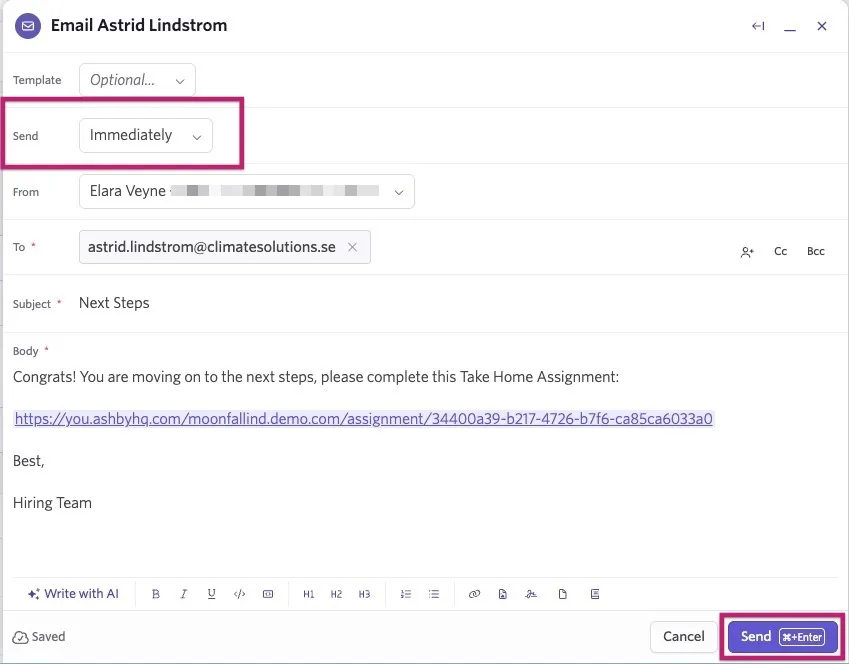
- Use the Send dropdown to select when to send the email.
- Immediately: This will send the email to the candidate once the Sendbutton is clicked.
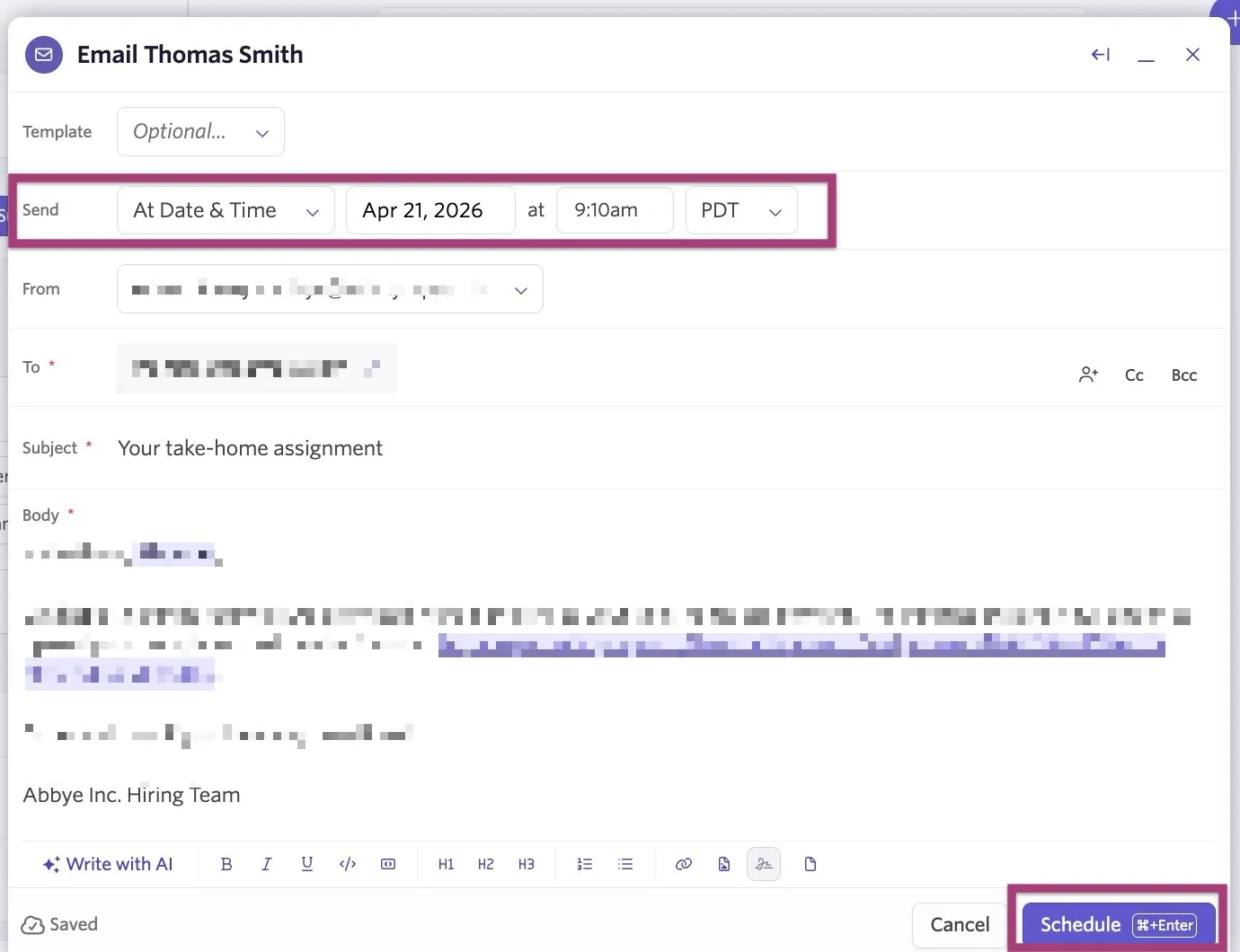
- At Date & Time: Select a specific date & time for the email to be sent to the candidate.
- After Time Passed: Choose a specific time and a day of the week for when the email should be sent.
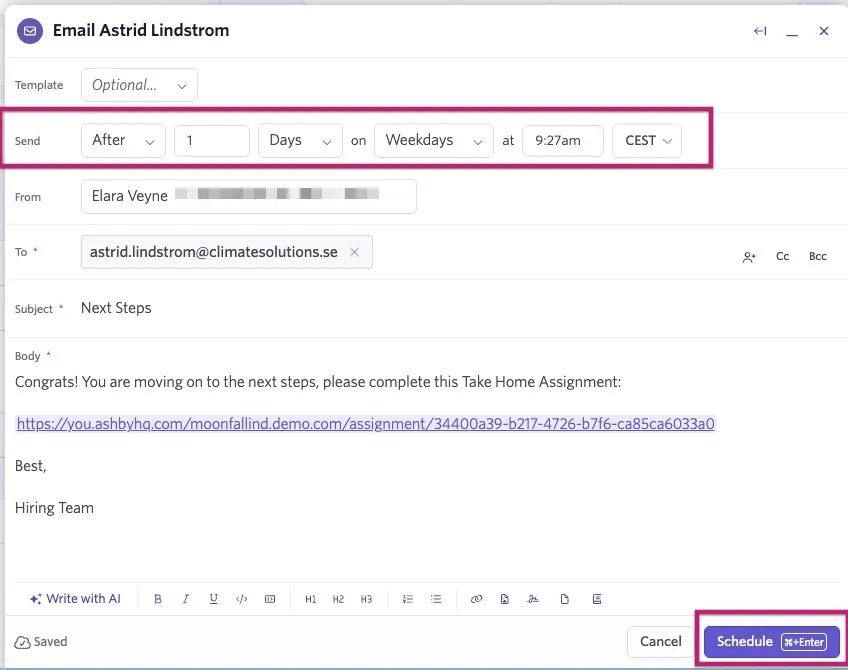
- Click Send or Schedule.
The scheduled email appears under Current Activities on the candidate's profile until it is sent. After it is sent, you can view it in the Emails section of the candidate profile feed.
Self-submission (recommended)
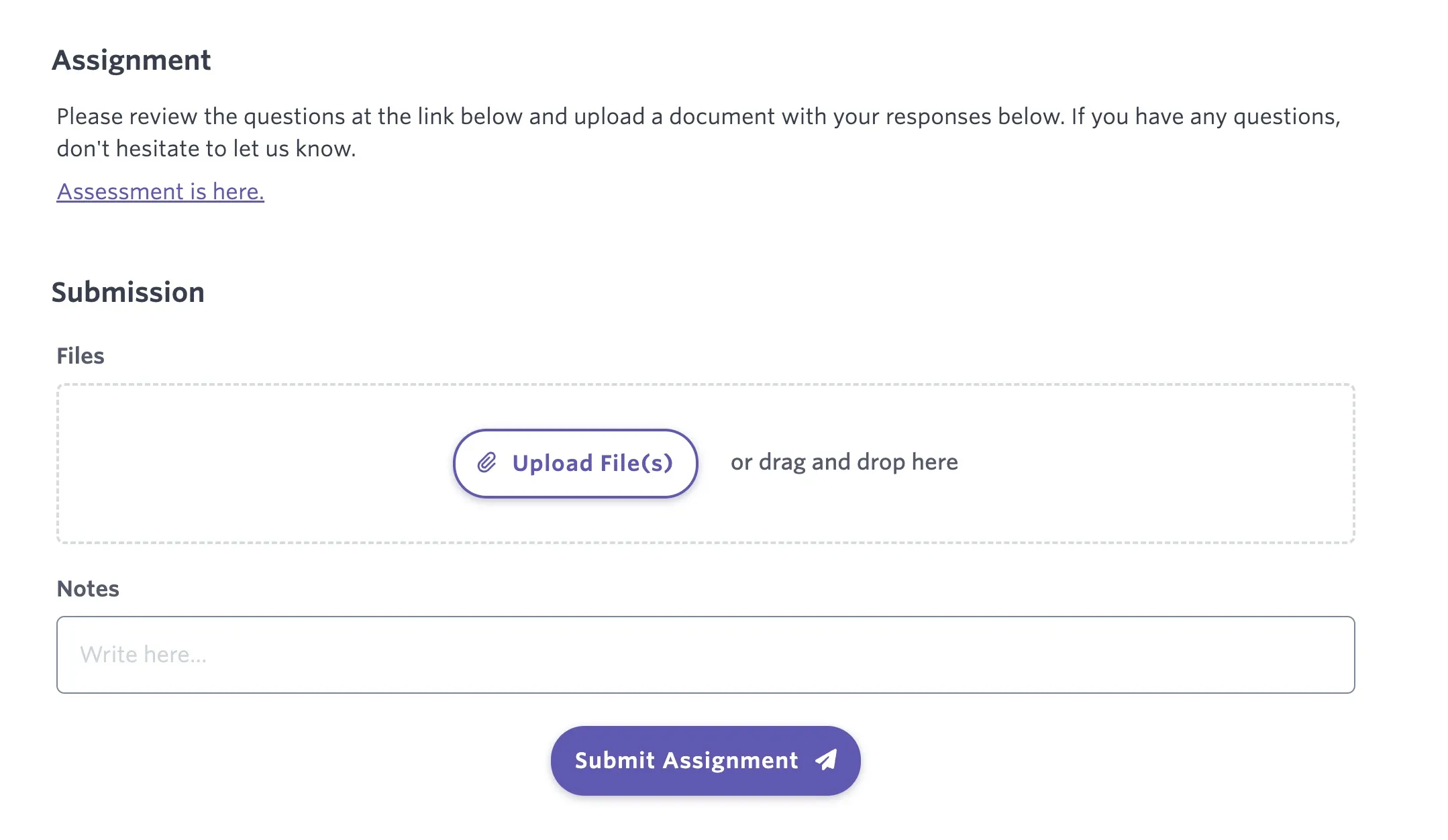
With self-submission, the candidate accesses the assignment through the Take Home Submission Link. They use the linked landing page to review the assignment details and submit their responses as notes and/or file attachments. Once submitted, reviewers are automatically notified to review the assignment. Candidates can submit through this portal once per assignment.
What the candidate sees
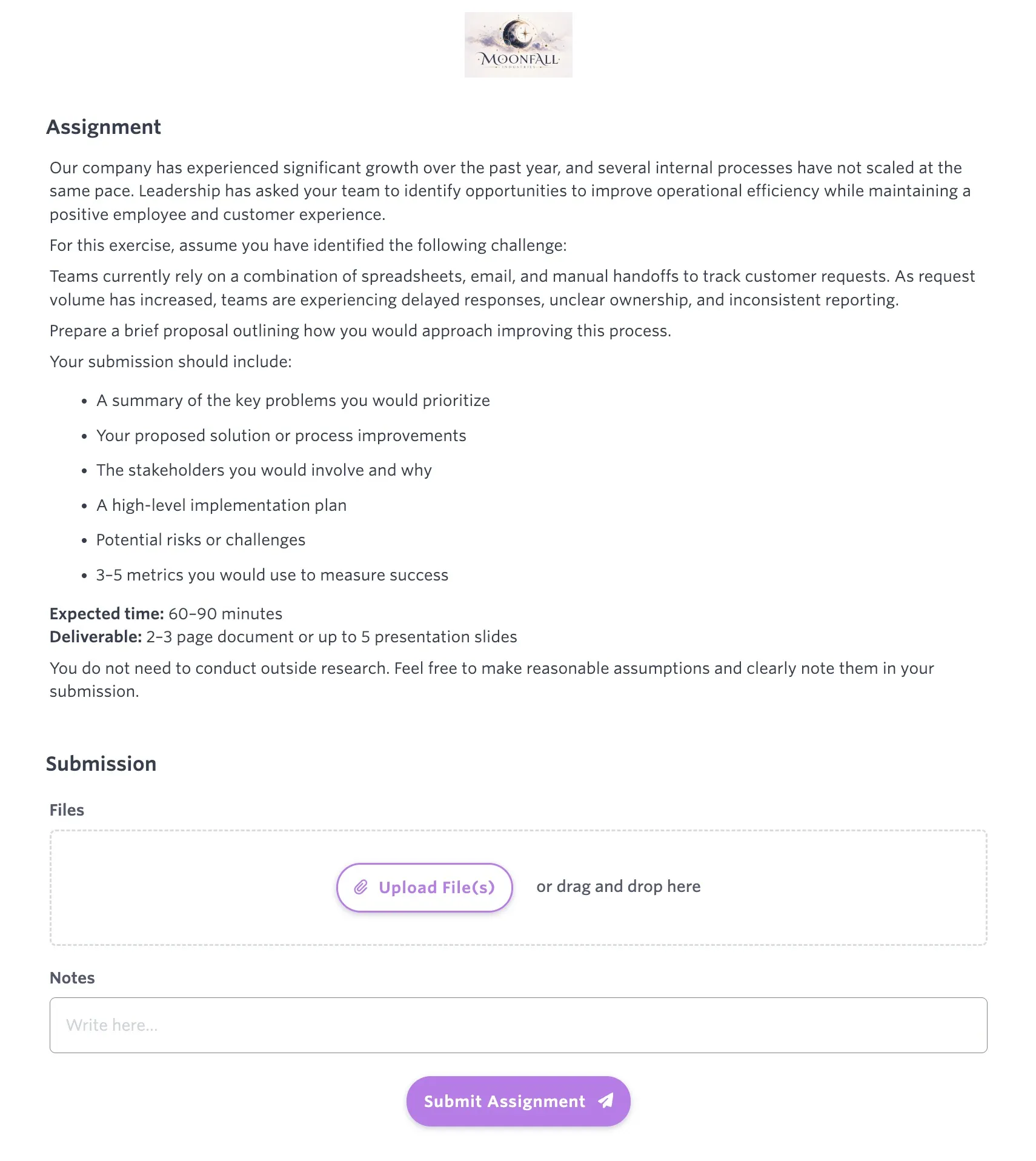
When you send a self-submission link, the candidate opens a branded landing page with your job board logo and brand colors. The page displays the assignment details from the Assignment tab set up in the take-home assignment settings.
Candidates can:
- Read the assignment instructions
- Open any links included in the assignment
- Add notes about their submission
- Upload file attachments
- Submit the assignment
The notes field is included on the self-submission page and cannot be removed or customized.
Direct submission
With direct submission, you can gather the details from the candidate via email and upload their responses to the take-home activity on their candidate profile.
- Find the take-home activity and select Collect Submission > Submit Directly.
- Upload the candidate's files and add any notes. Once you add all the take-home assignment information, select Submit.
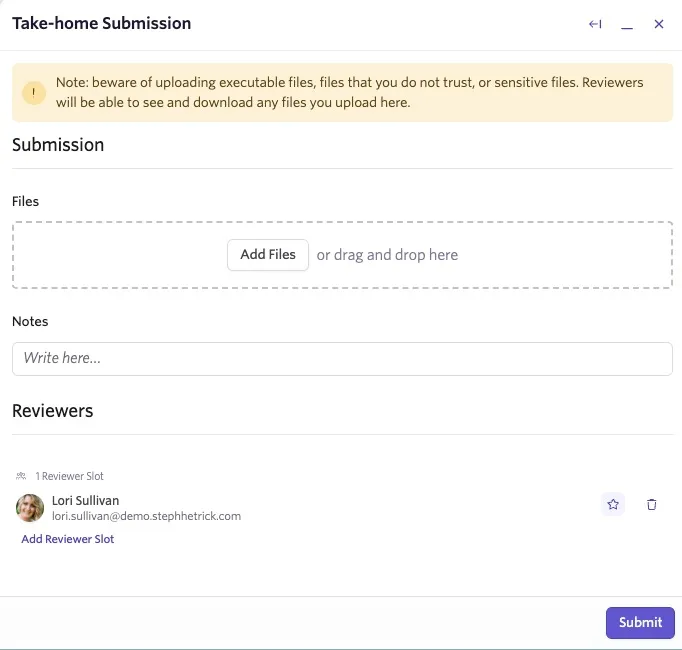
Once you upload the submission, the reviewer is prompted to review the candidate's submission.
Email sync with both Google Workspace and Microsoft 365 supports syncing file attachments, so take-home files sent via email appear in the candidate's feed and can be downloaded and added to the take-home activity for review.
Resetting a take-home assignment link
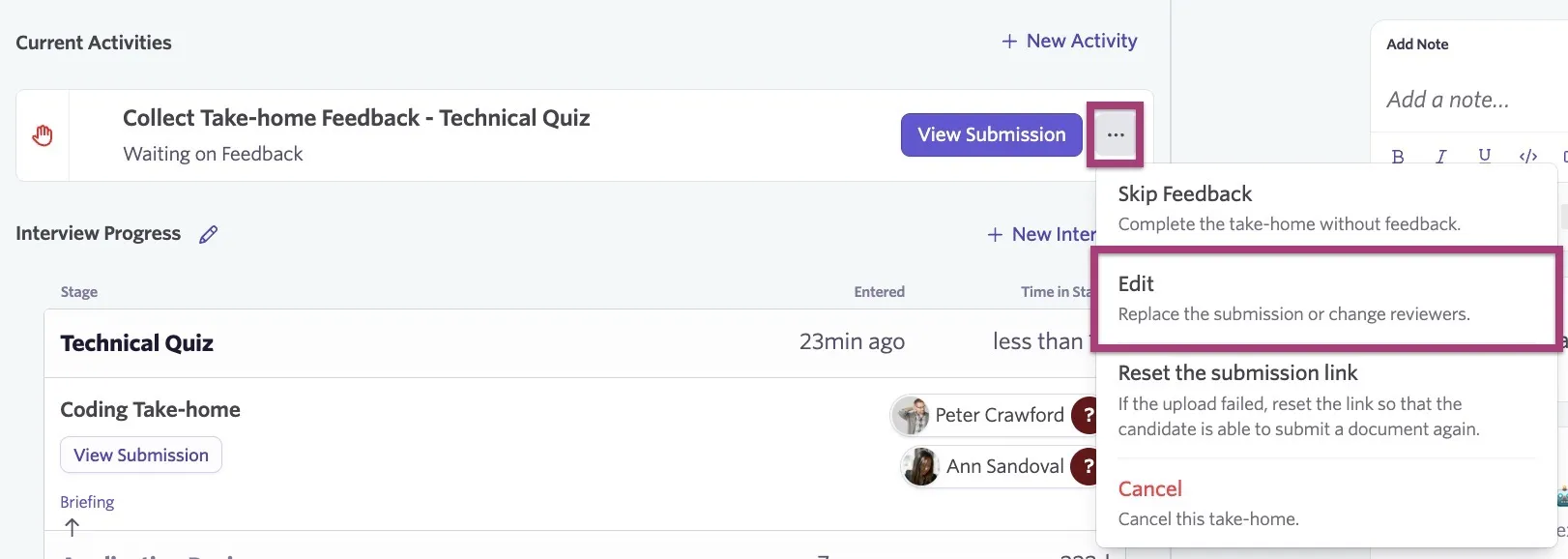
You can reset the take-home candidate submission link if the candidate runs into any issues with uploading. Click the ... ellipsis on the take-home activity within the candidate's profile, then select Reset the submission link. This removes any already provided answers and files from the activity.
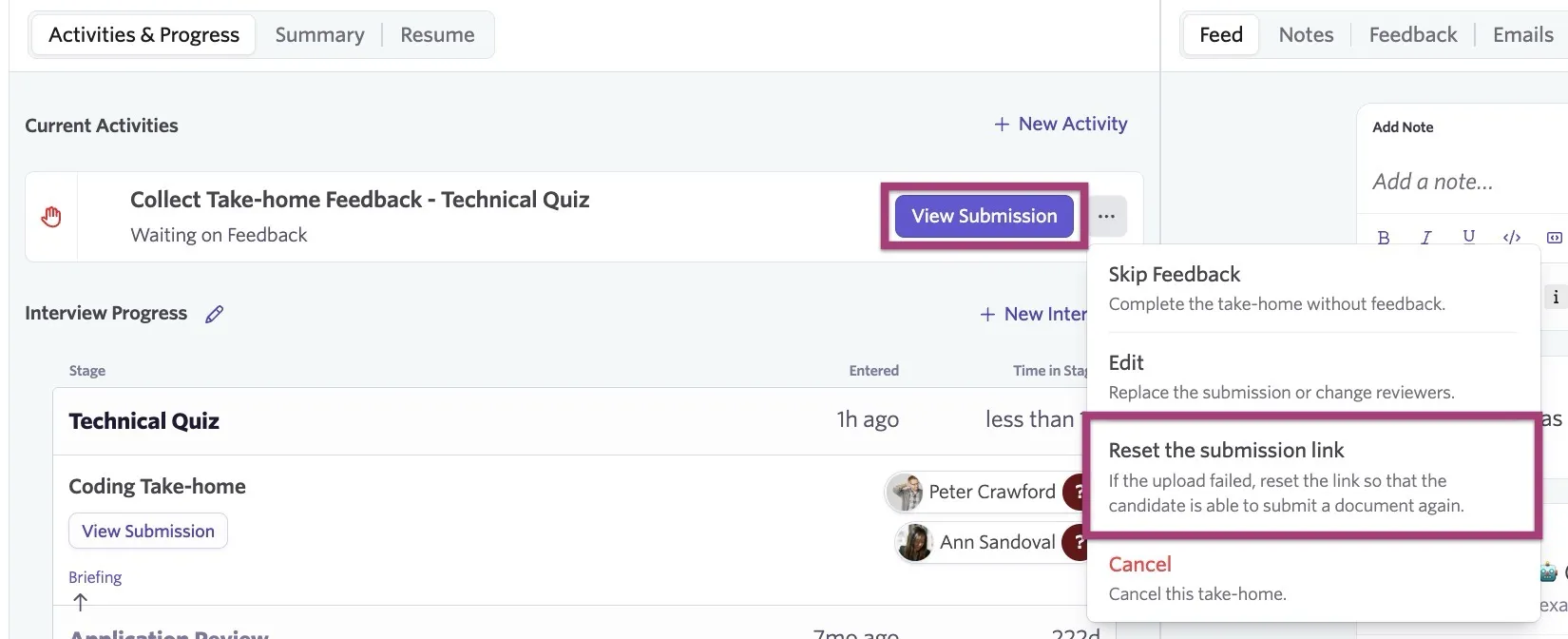
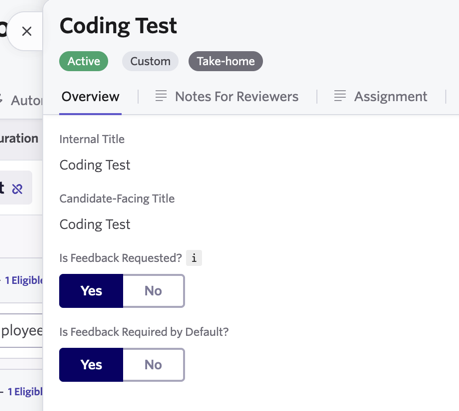
This option is only available for take-homes that both require and request reviewer feedback.
If feedback isn't set as requested or required within the take-home settings, the activity no longer shows on the candidate's profile once the assignment is submitted.
Change reviewers
You can change reviewers while preparing the take-home or after the candidate submits it:
Reviewers cannot be edited after all assigned reviewers submit feedback or feedback is skipped, and the activity is marked complete.
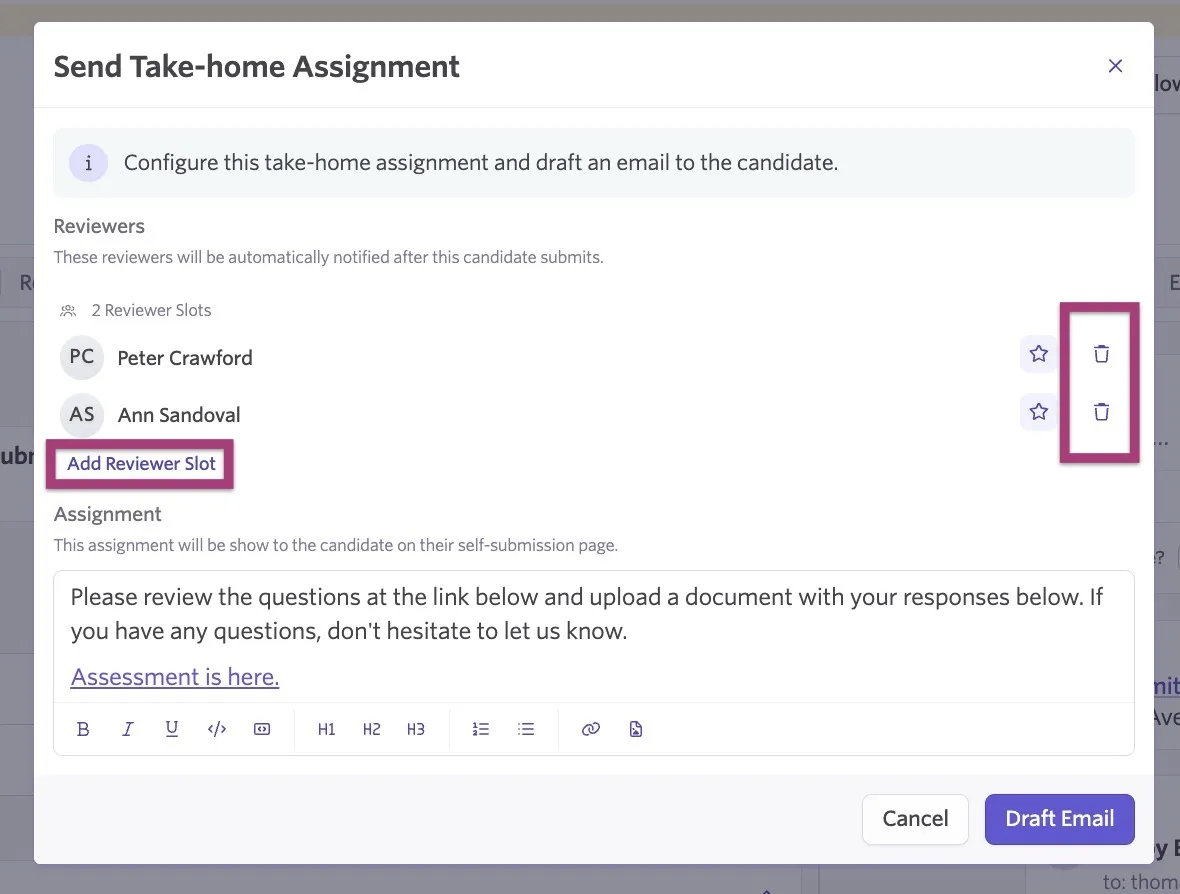
- Click Collect Submission, then select Send via Email or Submit Directly. The reviewers appear in the next steps.
- Remove a reviewer with the trash can icon, or click Add Reviewer Slot to add another reviewer.
- If the candidate already submitted their assignment, click the ... ellipsis next to View Submission, select Edit, and then replace the submission or change the reviewers.
Notify and collect feedback from reviewers
Reviewer notifications
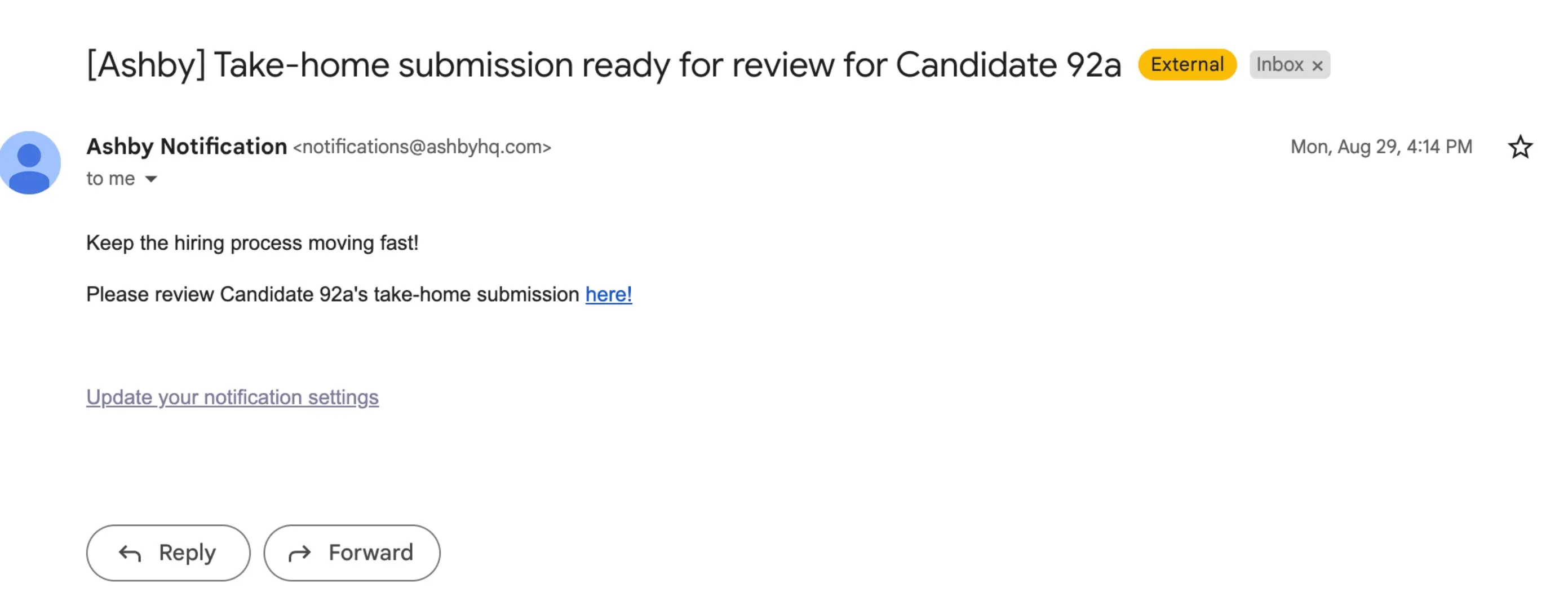
When a submission is complete, reviewers are notified via email or Slack that the take-home is ready for review. Only assigned reviewers receive notifications by default.
Take-home assignment briefing
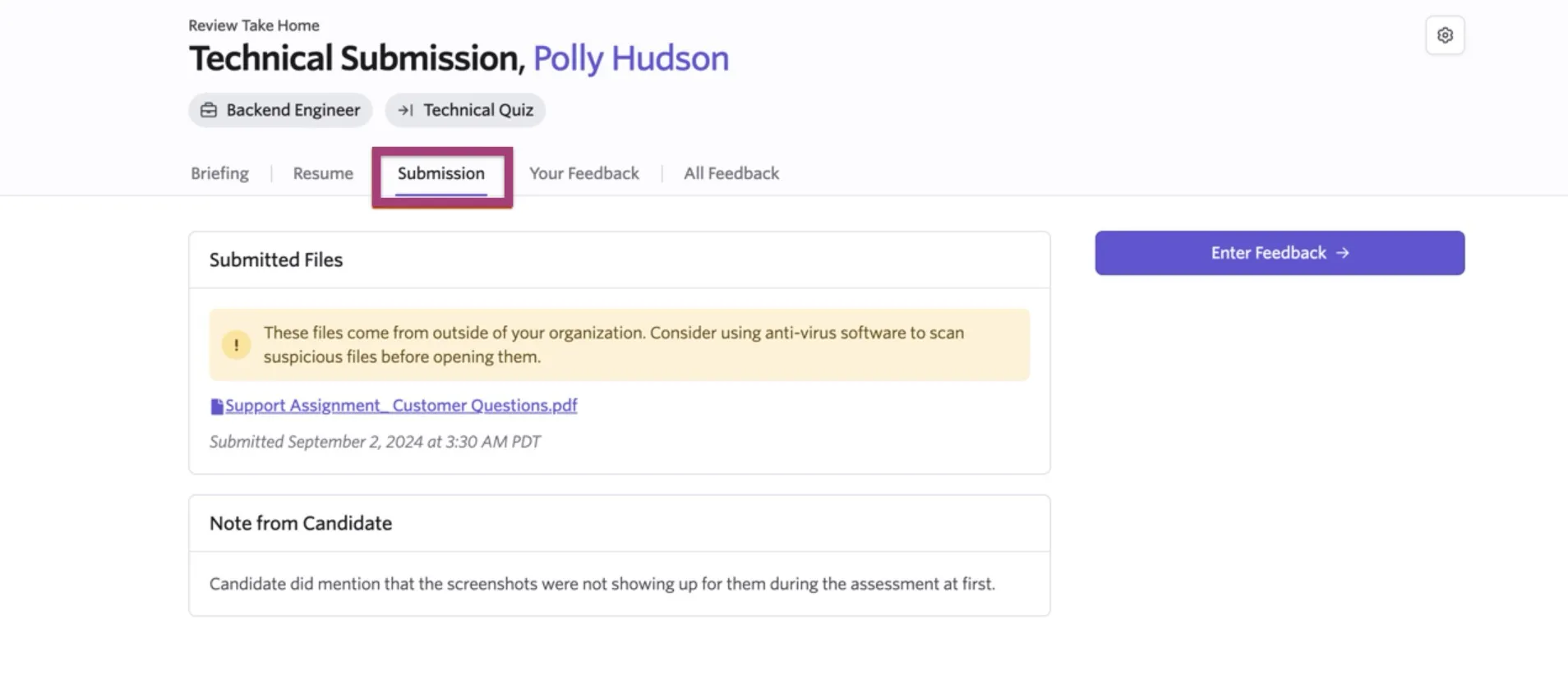
Reviewers receive a take-home assignment briefing similar to an interview briefing, with a tab to download the candidate's submission.
FAQs
Can I make take-home assignments anonymous for my reviewers?
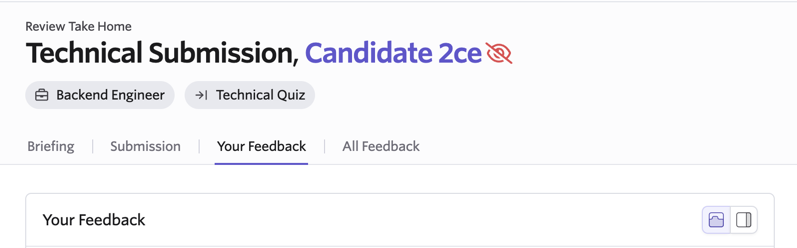
In Admin > Interviews & Scheduling > Take-home Assignment Settings, you can check a box to set take-homes to anonymous. When checked, reviewers see a pseudonym instead of the candidate's name. This is an account-wide setting.
Can I configure auto-reject rules for take-home assignments?
No, this isn't currently possible. Auto-reject rules are configured for the application process. More on this at Auto-Reject ApplicationsAuto-Reject Applications.
Why didn't my automated take-home activity send?
Automated take-home activities require the Assignment tab in the take-home settings to be filled out.
This field is required for candidates to self-submit their work. If the Assignment tab is blank when a candidate moves into the stage that triggers the automation, the take-home email fails to send.
To resolve this:
- Navigate to your take-home settings via the activity on the interview plan of the job, or via Admin > Interviews & Scheduling > Take-Home Assignments if you're amending a shared take-home.
- Add text to the field on the Assignment tab.
- Re-trigger the automation or manually send the take-home if needed.
Once you complete the Assignment tab, the automation sends successfully going forward.
I'm getting an error: Missing Value for: Take Home Submission Link. Why?
You may see this error when trying to email out a take-home with a Take Home Submission Link substitution token (more about these at Substitution TokensSubstitution Tokens).
Take-homes must have an assignment and reviewers configured before they can be sent out.
If you use an email template with a Take Home Submission Link token, and you email a candidate via the normal Email button, this can result in a missing link error in your email template. Use the Collect Submission button on the take-home activity on the candidate's profile instead.
Who receives notifications when the take-home assignment is submitted?
Only the reviewers will be notified by default when a candidate submits their take-home assignment.
If additional users need to be notified, you could opt to create a custom list report and configure an alert to send out notifications immediately when additional records are added to the report.
In your custom list report, you could opt to set up filters to only pull job considerations in your take-home stage (or stage group) and with the activity status Waiting on Feedback. This will ensure that only candidates awaiting feedback in your take-home stages will be listed in the report.
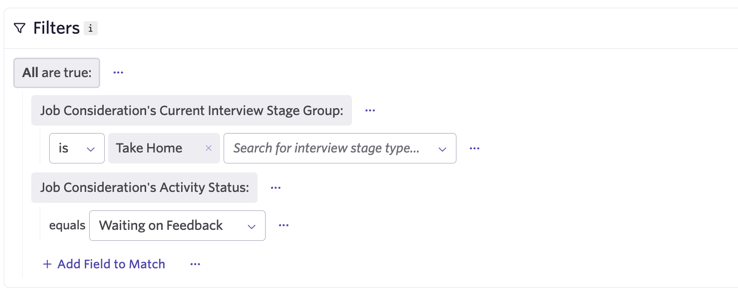
See Alerts for more information on setting up custom list report alerts.
Can I allow interviewers who aren’t reviewing the take-home access to view the candidate’s submission?
To let interviewers view a take-home submission without requiring them to submit feedback, add them as reviewers, and turn off required feedback for the take-home:
- Navigate to Jobs > Jobs, open the job, and select the Interview Plan tab.
- Click the take-home activity.
- On the Take-Home tab, click the configured assignment name.
- Set Is Feedback Required by Default? to No.
- Click Add Reviewer, then assign the additional reviewers to reviewer slots.