Offer Packet Templates
Offer Packet Templates help you standardize the documents included with offers you send to candidates. Create a reusable template that combines an offer letter with optional E-Signature and Company Documents, then apply the template to an offer in one click.
Permissions & access
Offer Packet Templates are available on the following plans:
Foundations | Legacy Plus | Plus | Enterprise |
|---|---|---|---|
❌ | ✅ | ✅ | ✅ |
You must be an Organization Admin or an Elevated Access user with the Offer Letter Templates additional user permission to create Offer Packet Templates. To generate and send offers, users need either:
- Organization Admin access, or
- An Elevated Access role with the following permissions:
- Can See Candidate Profiles
- Can Add/Edit Candidates
- Can See Private Fields
See Manage Access RolesManage Access Roles and Additional User PermissionsAdditional User Permissions for more information on user permissions.
Creating an Offer Packet Template
Create a template when you regularly send the same combination of documents with an offer.
Every Offer Packet Template must include an offer letter.
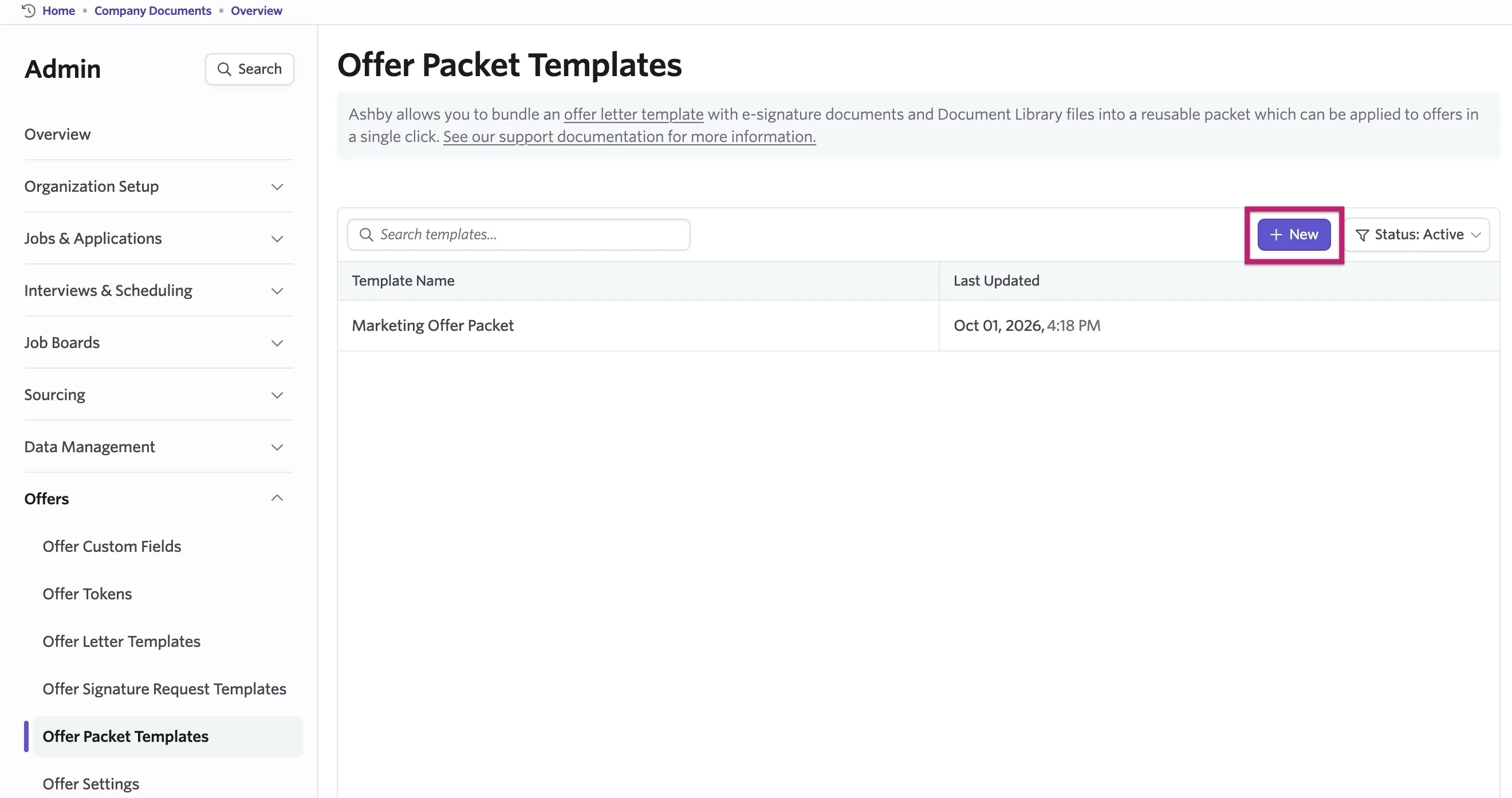
- Navigate to Admin > Offers > Offer Packet Templates.
- Select the + New button.
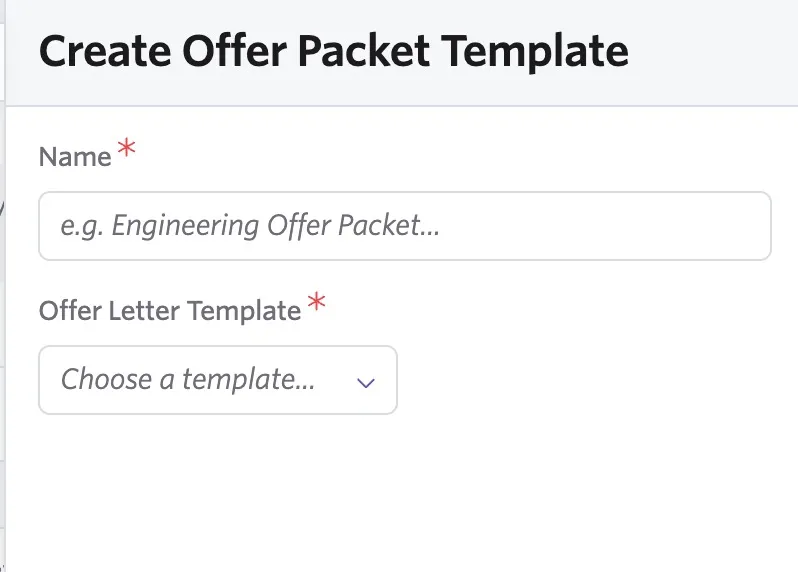
- Enter a Name for the template and select the required Offer Letter Template from the dropdown menu.
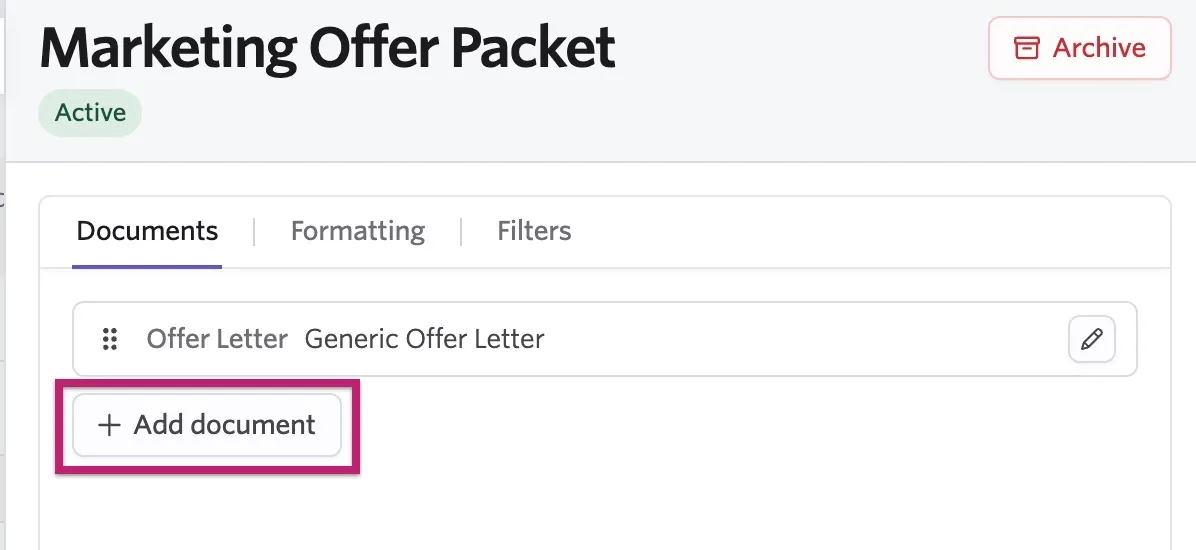
- Select Create. The template opens with Documents, Formatting, and Filters tabs to further customize the configuration.
If you have not created any offer letter templates yet, see Offers and Offer Letters for instructions on how to one.
Adding documents to the template
You can also add optional documents, including:
- E-Signature Document templates
- Documents from the Company Document Library
See E-Signature DocumentsE-Signature Documents and Company Document LibraryCompany Document Library for more information.
Under the Documents tab, you find options to add additional documents to the packet along with the offer letter.
You can add documents for several scenarios to one offer packet template and Ashby includes only the ones that apply to each candidate. See Adding filters to the offer packet below for more information.
To add additional documents, follow these steps:
- Select the + Add document button.
- Choose the document you want to include and click Add.
- E-Signature Document: additional documents that require a candidate's signature, such as an NDA. Set these up under Admin > Integrations > E-Signature Documents > E-Signature Document Templates.
- Library Document: your centralized place where reusable PDF documents, such as benefits guides, equity summaries, or confidentiality agreements, are stored. Find these under Admin > Organization Setup > Company Documents.
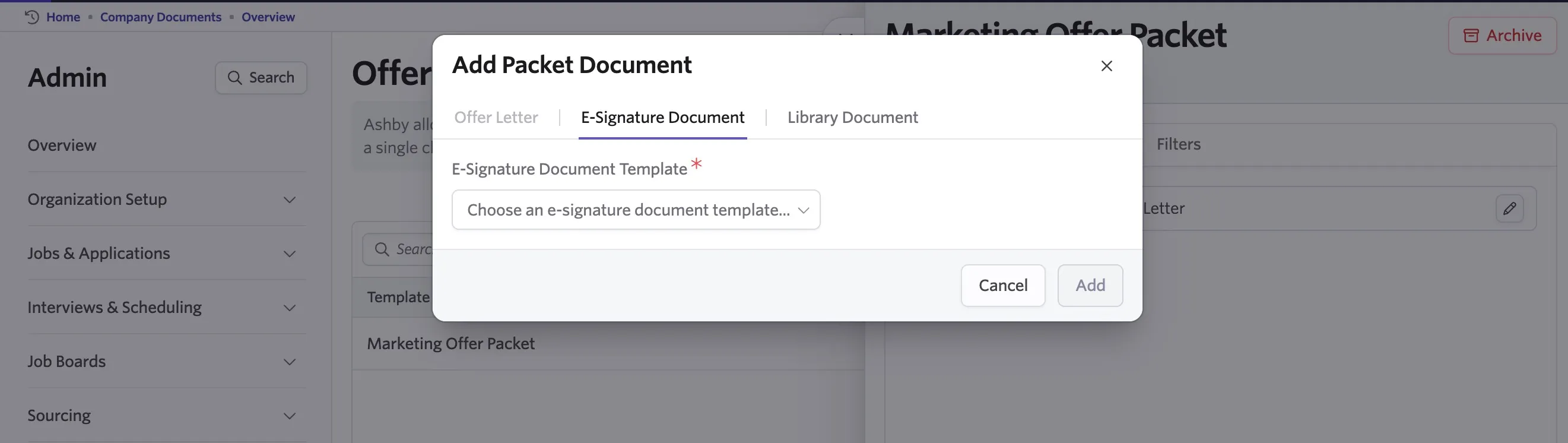
Use an E-Signature Document when the candidate needs to sign an additional agreement. Use a Library Document for information the candidate needs to review but does not need to sign.
- Repeat these steps for each additional document.
- Rearrange the documents to the order you want them to appear in the offer packet, swap documents, or remove any documents.
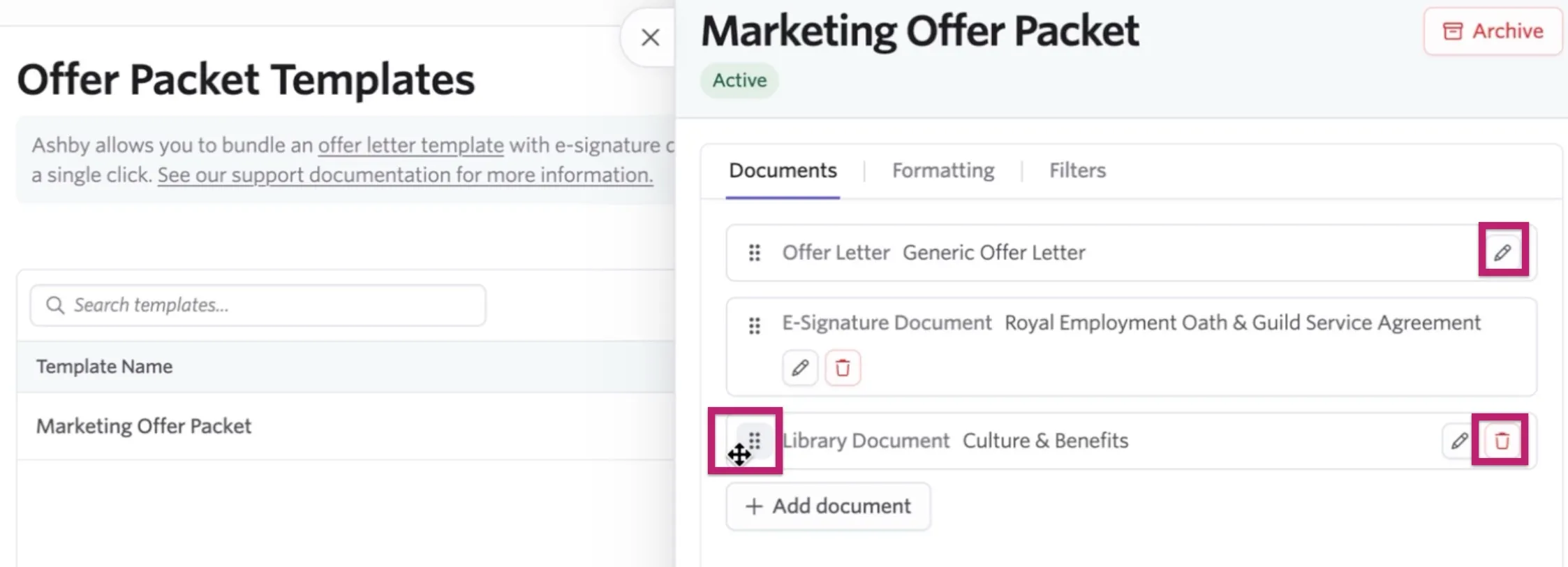
- Select Save.
Customizing the formatting options for the offer packet
Select the formatting style using the Number Formatting, Currency Formatting, and Date Formatting dropdowns for your specific offer packet templates. Find these options under the Formatting tab.
- Number Formatting: Choose whether numbers display in European, Indian, or US style.
- Currency Formatting: Choose whether currency displays as a currency symbol ($) or a country code (USD).
- Date Formatting: Select your preferred date display format from the dropdown list.
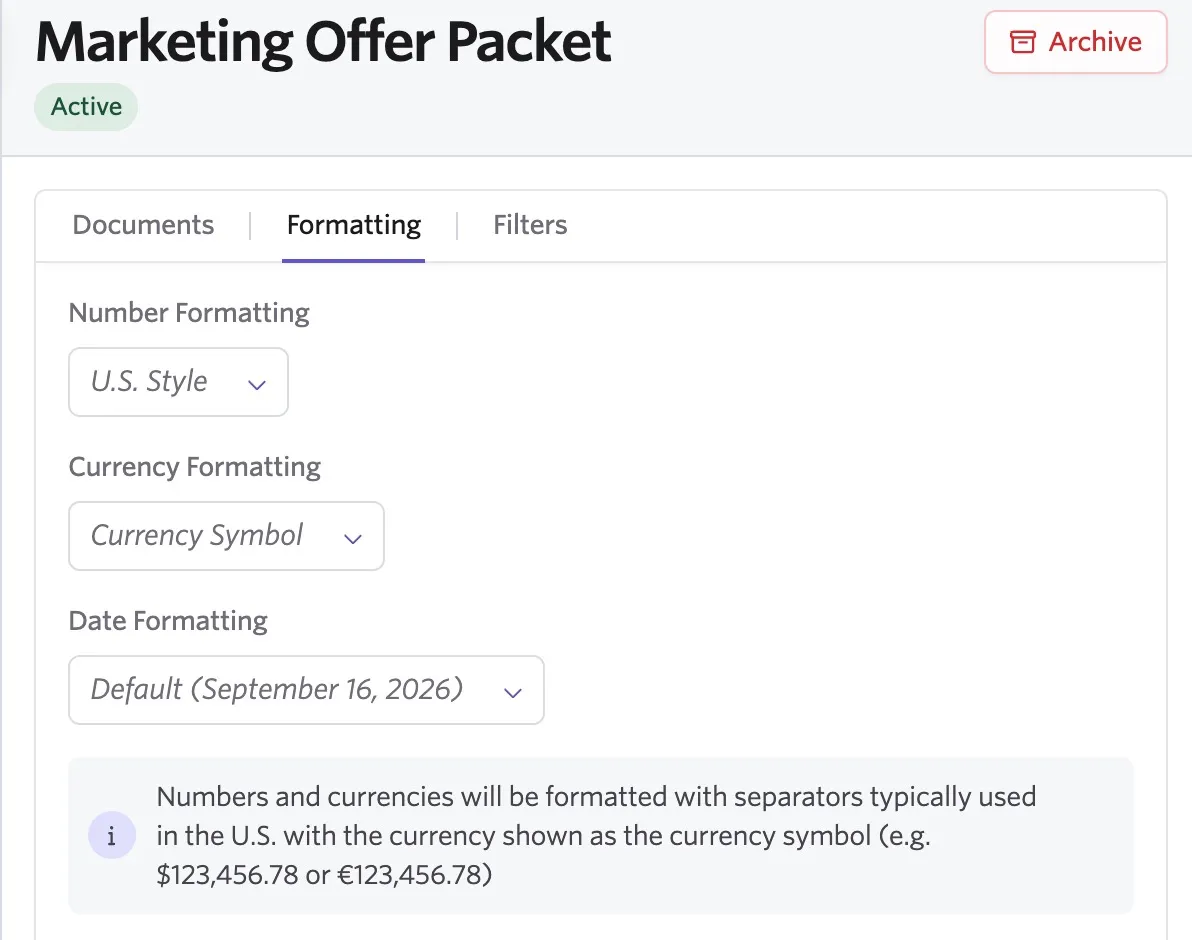
After selecting the formatting, click Save.
If you do not choose any formatting defaults here, Ashby uses the defaults set in your Offer and E-Signature settings.
Adding filters to the offer packet
Under the Filters tab, you can add scopes to control when the offer packet template is available for use within the job consideration.
An offer packet's availability depends on two sets of scopes: the filter on the offer packet template and the filter on the offer letter template it uses. If the offer letter has a filter, it's shown under the Offer Letter's Filter section.
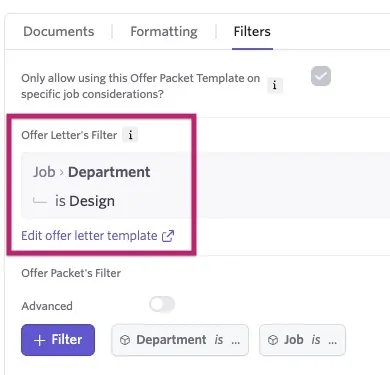
The candidate's job consideration has to match both scopes before the packet shows up as available to send.
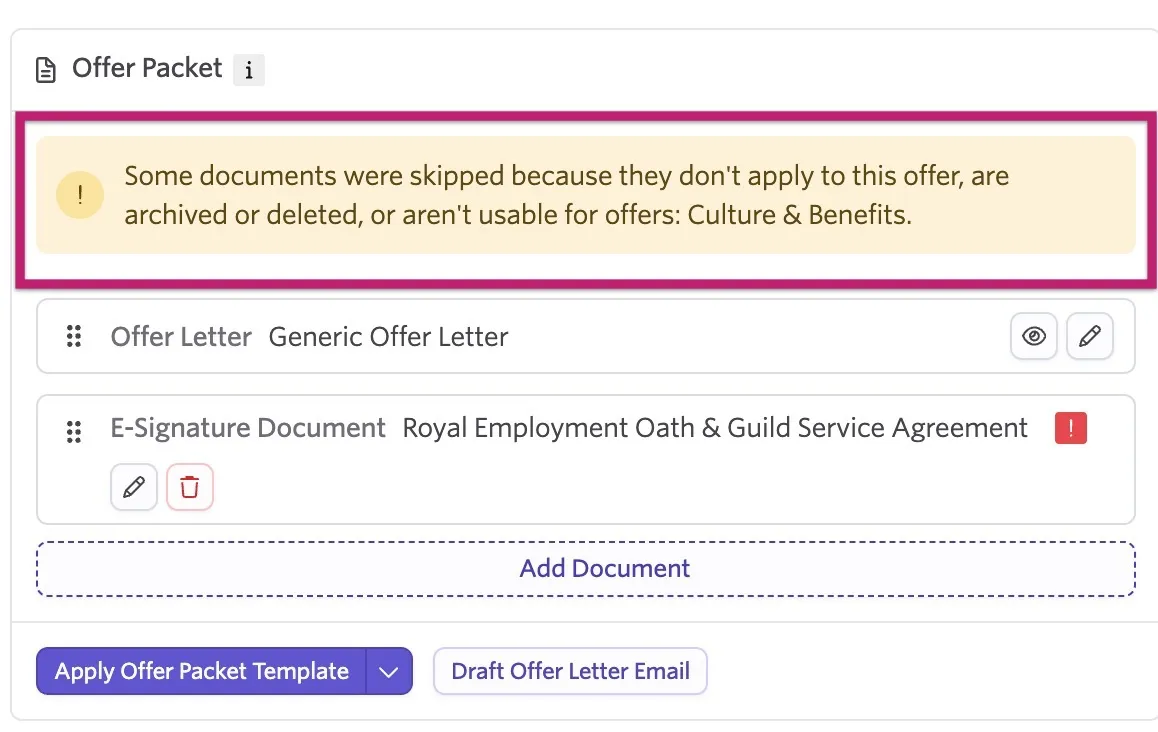
Once you add the packet to the offer, Ashby also checks the scopes on each optional document. Ashby automatically omits any optional document that does not match the scopes, and you see a warning listing what was removed.
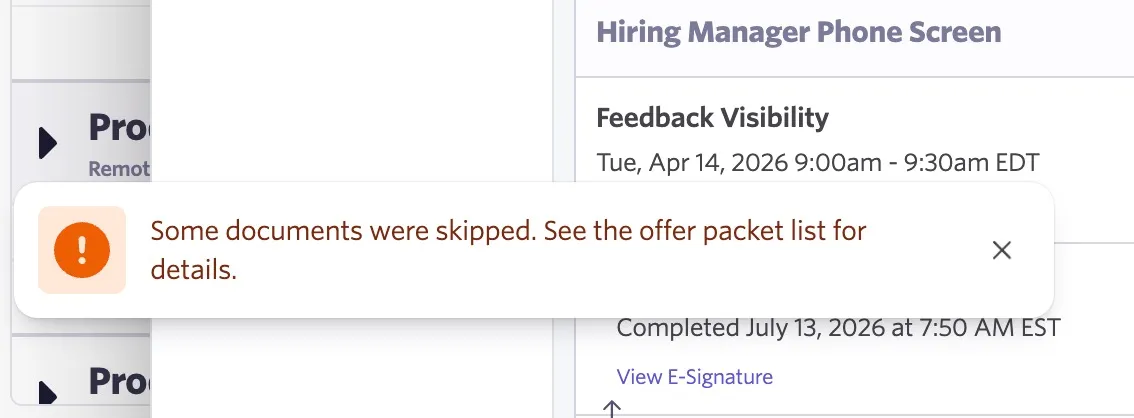
This allows you to build one packet that covers several scenarios, like benefits documents for different locations, and each candidate only gets the documents that apply to them.
To scope when the offer packet is available for use, follow these steps:
- Check the Only allow using this Offer Packet Template on specific job considerations? checkbox.
- Add the Offer Packet's Filter by clicking the + Filter button, or toggle on Advanced to filter using additional fields and more specific filter criteria.
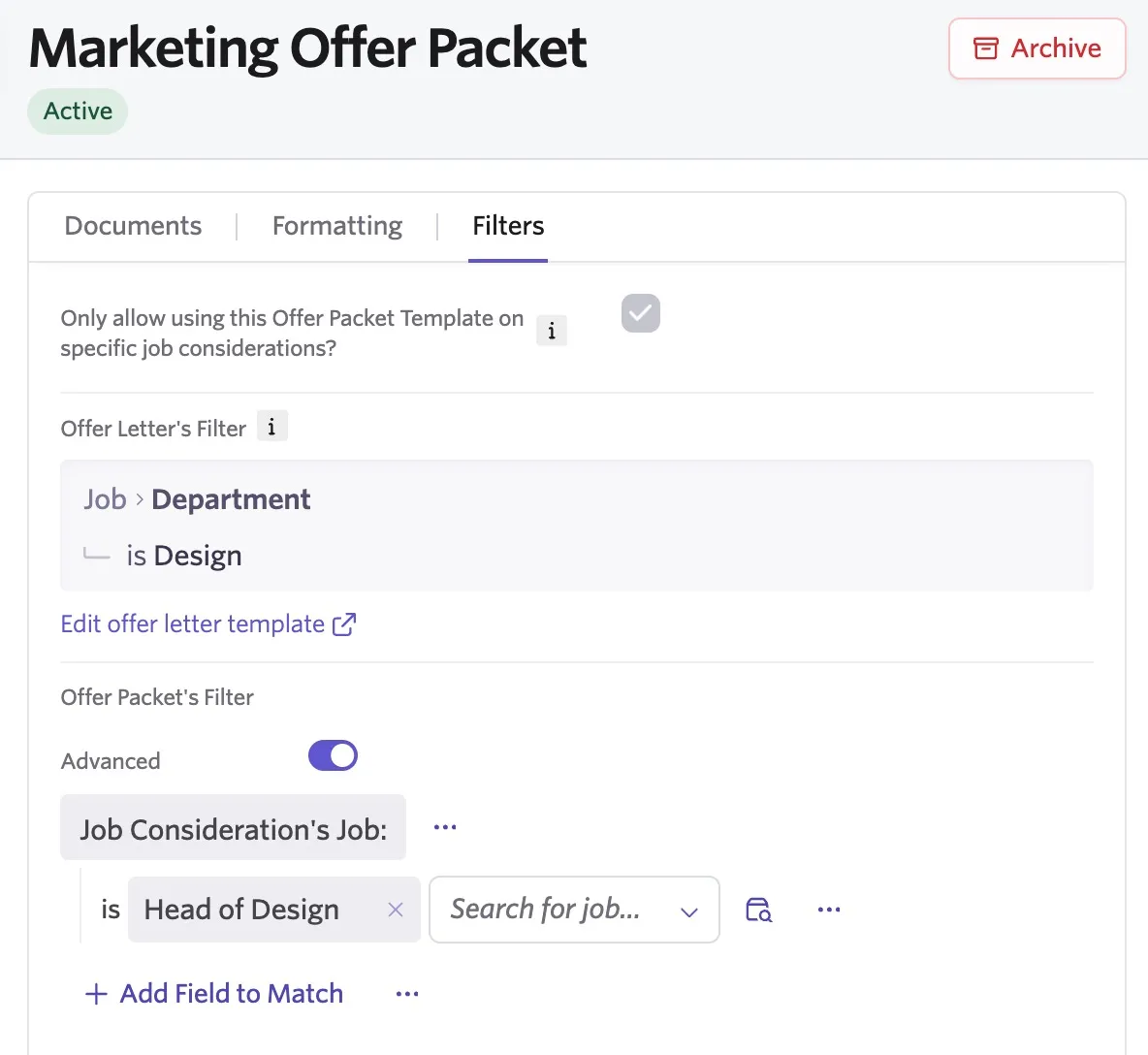
- After adding the filters, click Save.
If you don't provide a filter, the offer packet template is available for use on all job considerations.
Using an Offer Packet Template on an offer
After you create an offer for a candidate, apply an Offer Packet Template to add the configured documents in one step. For more information on creating and sending offers to candidates, see Offers and Offer LettersOffers and Offer Letters.
After you complete and approve the job consideration's offer form, if needed:
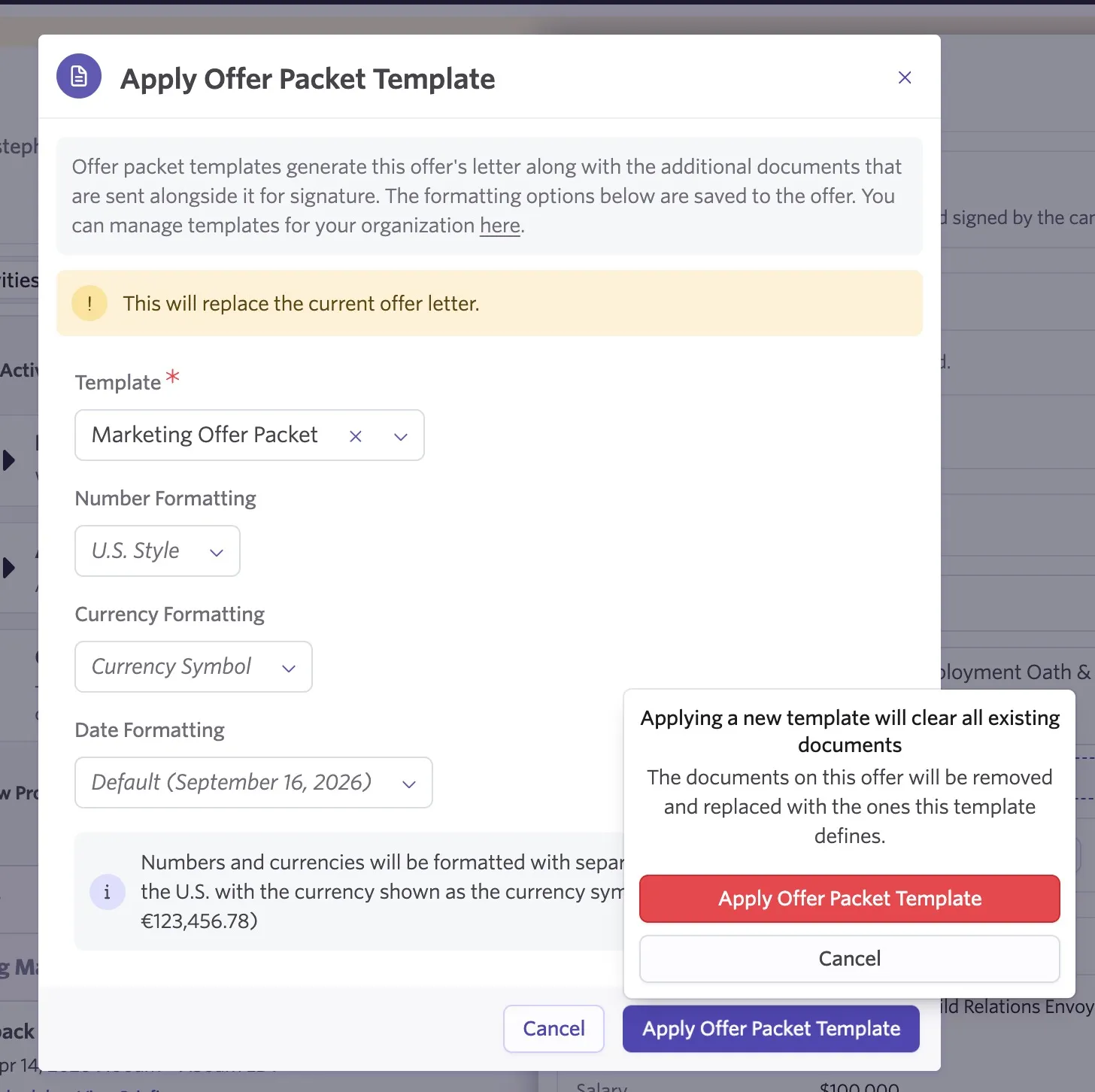
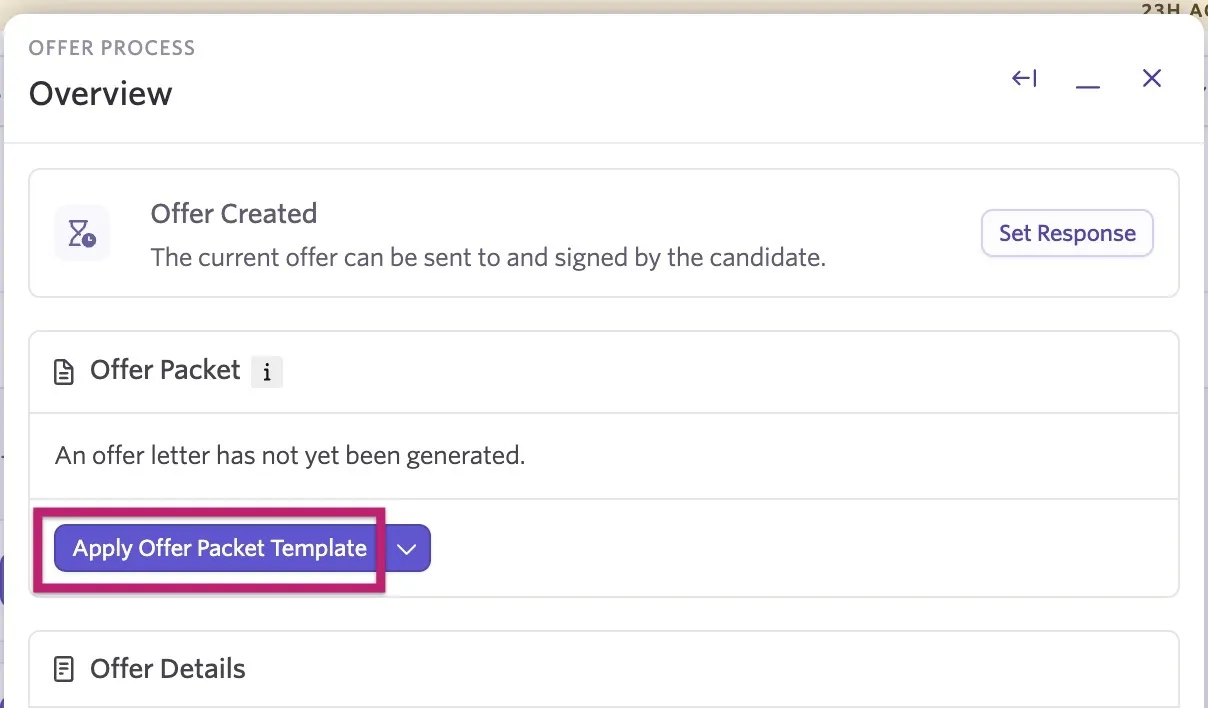
- In the Offer Packet section of the job consideration's offer form, select Apply Offer Packet Template.
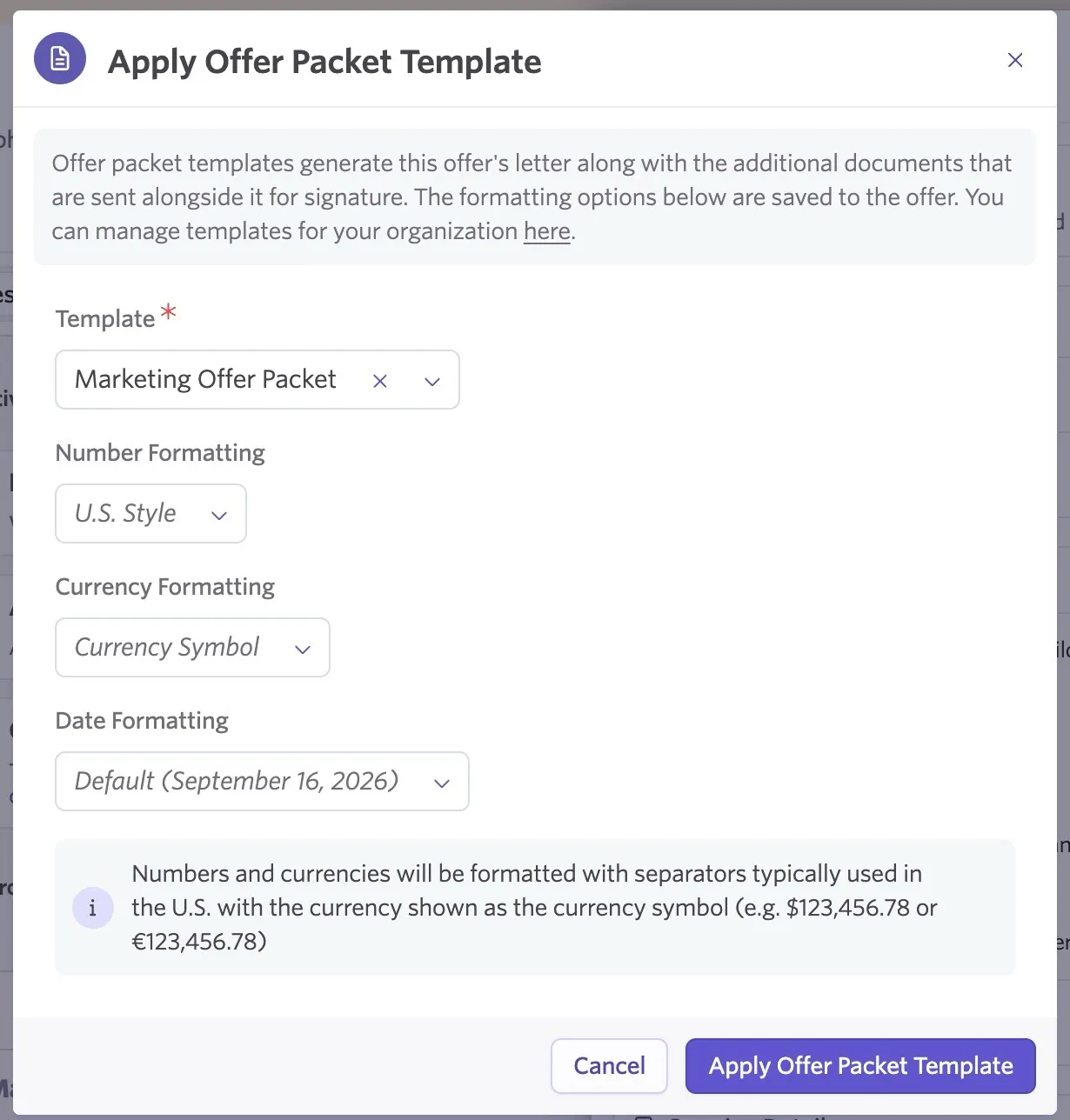
- Select the template you want to use and adjust any of the formatting. Click Apply Offer Packet Template.
- Review the documents added to the offer.
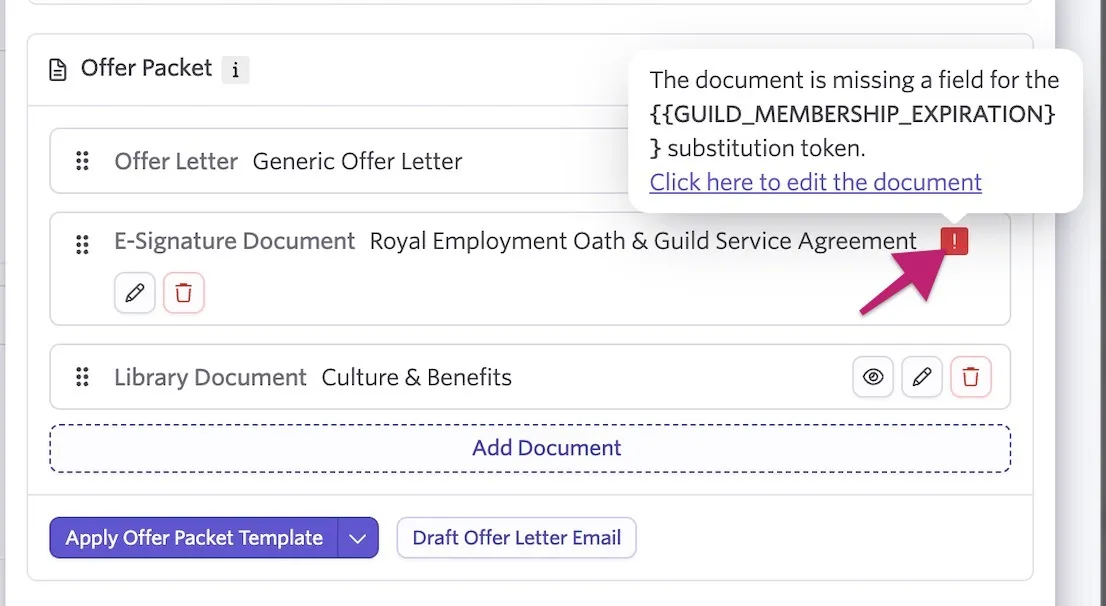
If an E-Signature Document template includes a token that hasn't been filled in for the job or candidate, an error icon appears next to the document. Hover over the icon to see which token is missing.
Ashby may also remove documents from the offer if a document's filter scope doesn't match the job consideration. Ashby lists these documents once the offer packet is generated.
- Make any offer-specific changes, such as editing a document, adding another document, or rearranging the document order.
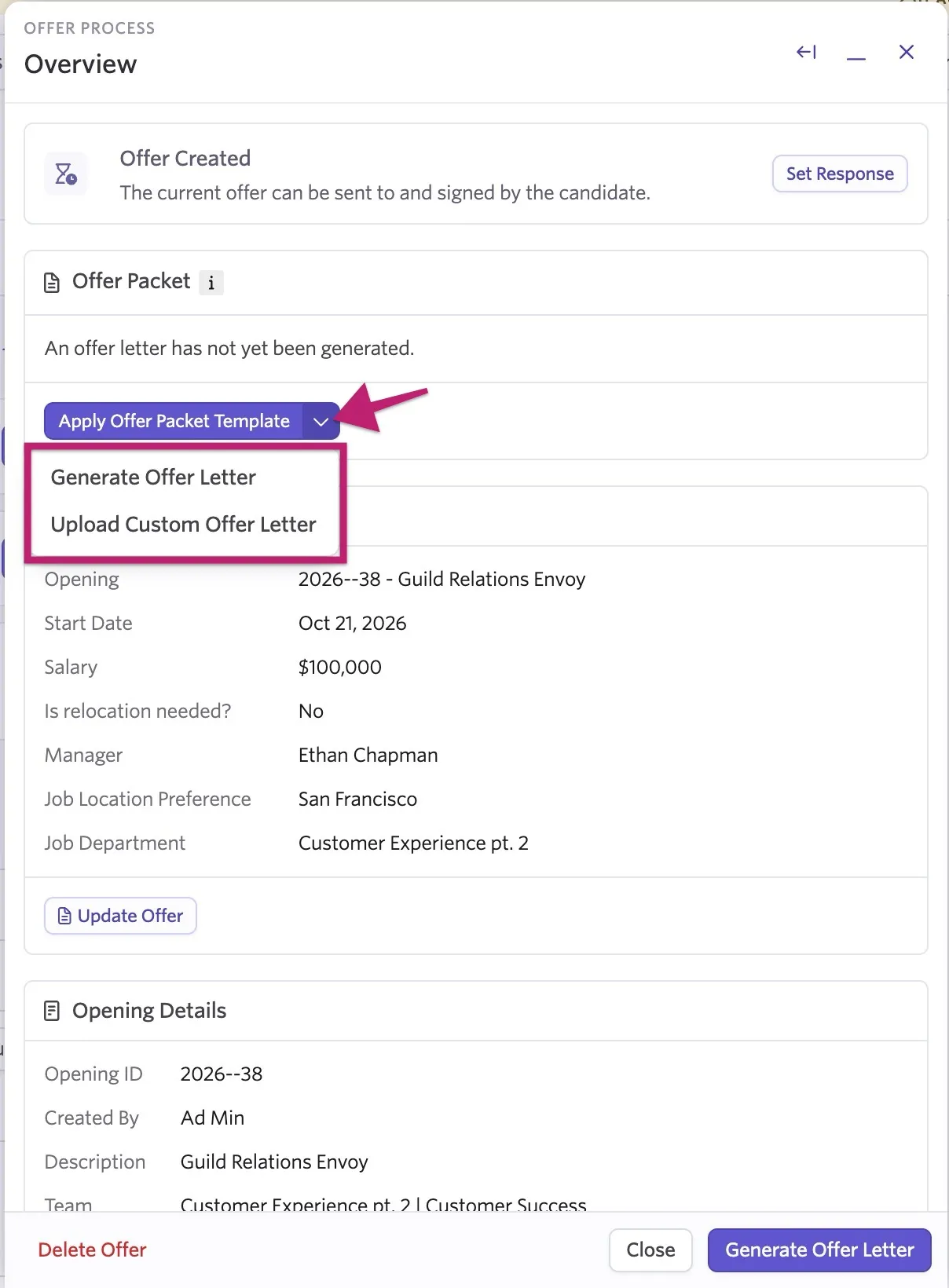
You can also add a regular offer letter instead of applying an Offer Packet Template by clicking the dropdown arrow next to Apply Offer Packet Template and selecting Generate Offer Letter to use another offer letter template or Upload Custom Offer Letter to upload a custom document.
What candidates see
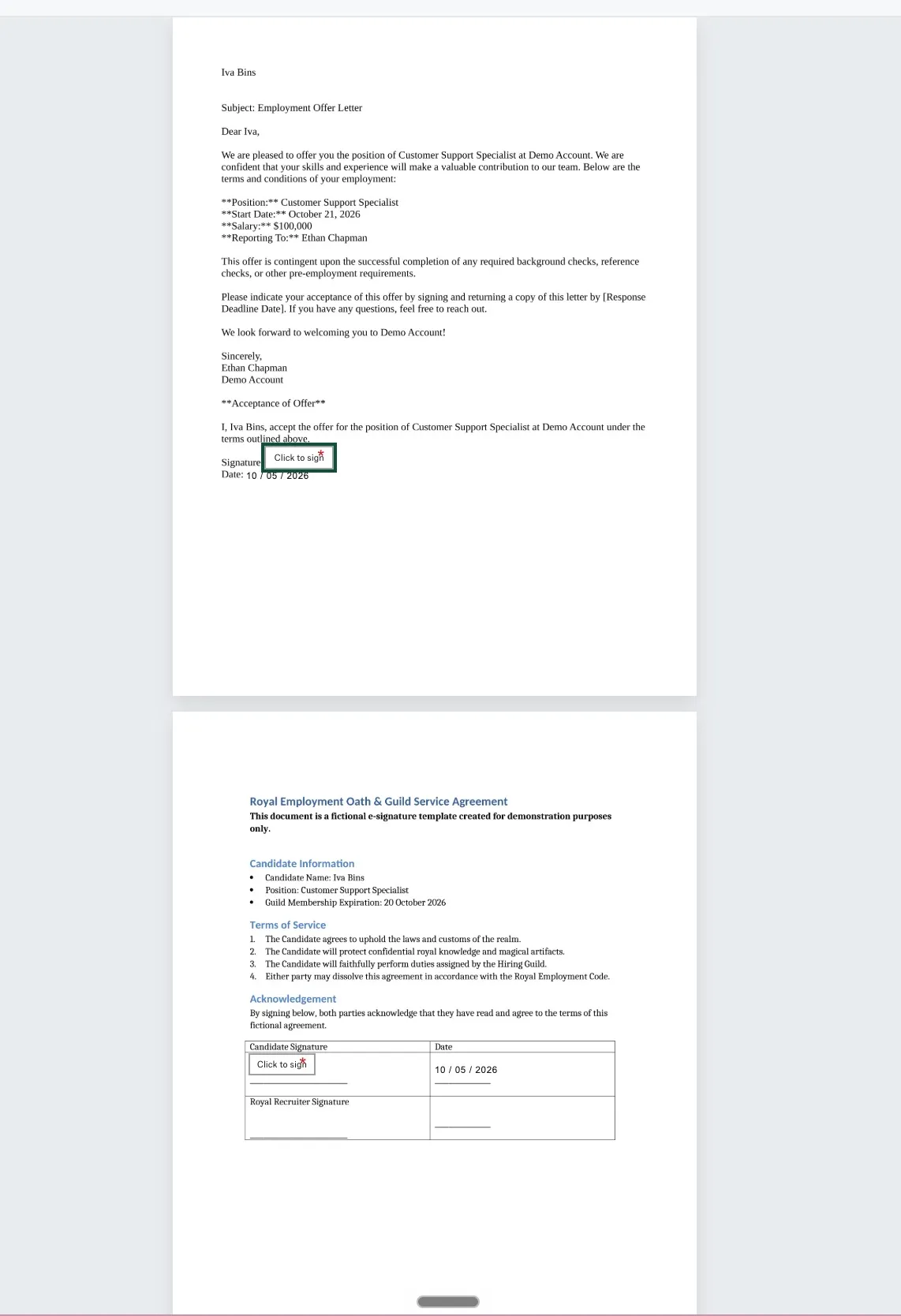
When the candidate opens the signing request, all documents in the packet appear in Dropbox Sign or DocuSign as one continuous document. The candidate scrolls through the whole packet, completes the signature and form fields in each document, and submits everything in one go.
This means candidates:
- Get one email and one link for everything they need to sign
- Can review the offer letter and supporting documents (such as an NDA, benefits summary, or equity agreement) together
- Only need to complete the signing flow once
FAQs
Does every Offer Packet Template need an offer letter?
Yes. An offer letter is required. You can add optional E-Signature Documents and Company Documents.
Can I change the documents for one offer?
Yes. After you apply a template, you can override it for the individual offer by editing a document, adding documents, or rearranging the document order.
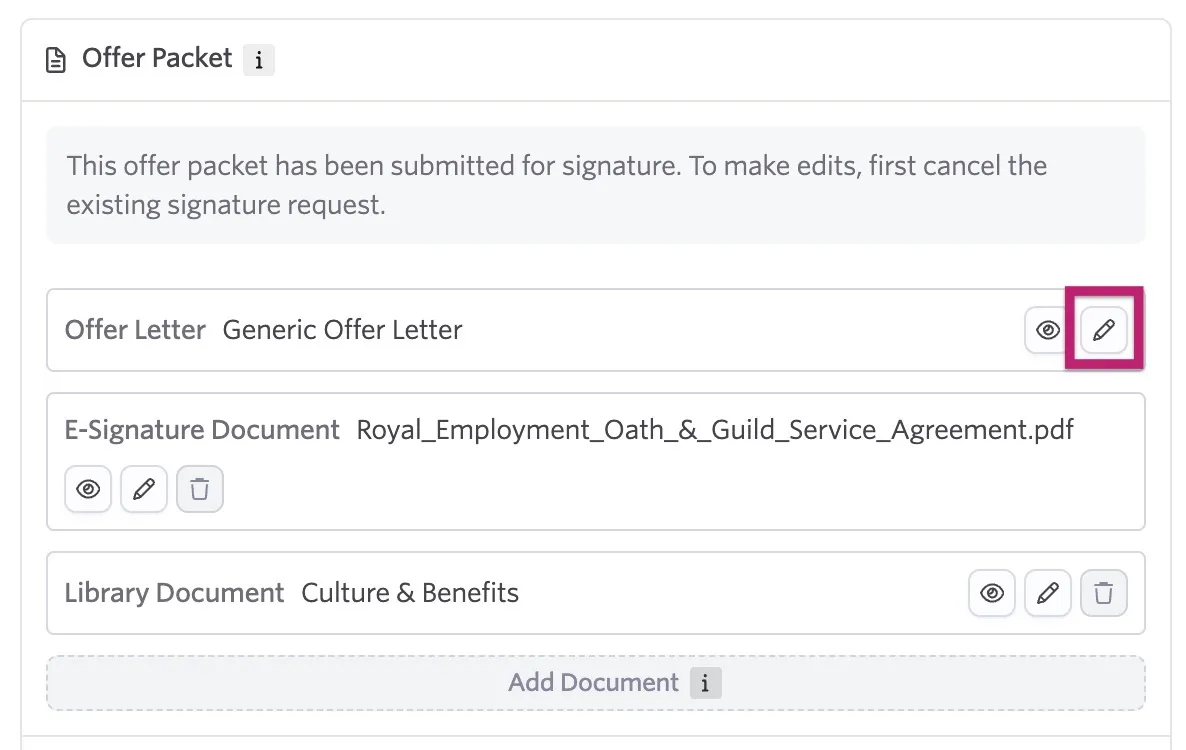
Can an Offer Packet Template include documents that require signatures?
Yes. You can include E-Signature Document templates alongside the offer letter.
Why isn't the Offer Packet Template available to select on a candidate's offer?
Check the filters on the Offer Packet Template and its offer letter template. A packet is available only when the candidate's job consideration matches both scopes. Update the filters or use an offer that matches the configured criteria.
Can I swap out the offer packet if I already added one to a job consideration's offer?
Yes, click the Apply Offer Packet Template button and select the new template on the next screen. A warning notifies you that you are replacing the current offer.