Company Document Library
The Company Document Library gives your team a centralized place to manage reusable PDF documents, such as benefits guides, equity summaries, or confidentiality agreements, that can be included in e-signature offer packets or attached to candidate emails. Instead of uploading the same file repeatedly for each offer or email, you can upload a document once, set optional filters to control which candidates it applies to, and make it available across your team in a single click.
This article covers how to set up and manage documents in the library and how to use library documents when building offers and sending emails.
Permissions & access
Organization Admins have access to the Company Document Library by default — no additional configuration is required. To grant access to an elevated access user, enable the Company Documents permission under Additional User Permissions in their employee profile.
The Company Documents Library is available Legacy Plus, Plus, and Enterprise plans.
Foundations | Legacy Plus | Plus | Enterprise |
|---|---|---|---|
❌ | ✅ | ✅ | ✅ |
Setting up your company document library
Navigate to Admin > Organization Setup > Company Documents to access the document library. From here, you can upload and manage all of your organization's reusable PDF documents.
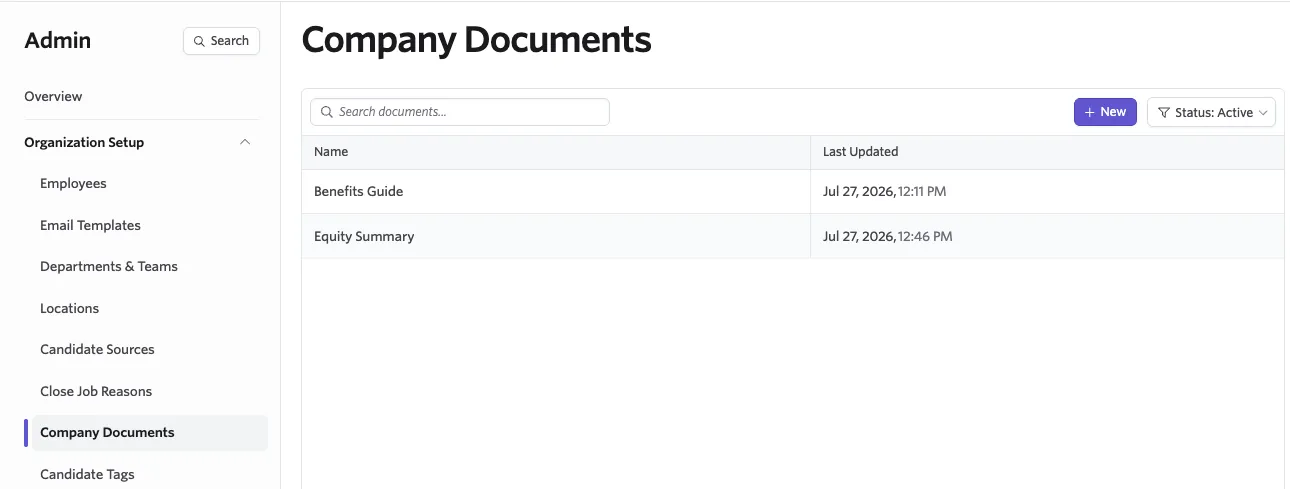
Add a document
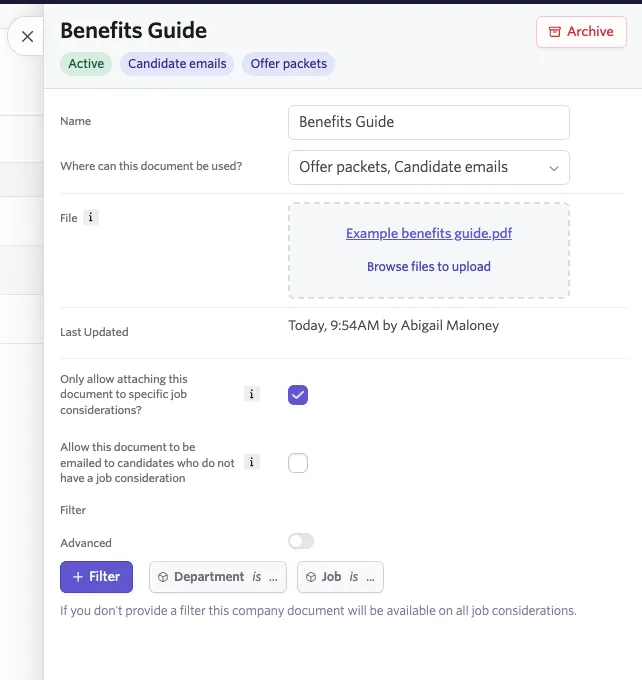
- Navigate to Admin > Organization Setup > Company Documents.
- Select + New in the upper right corner.
- Enter a name for the document. Choose a descriptive name—this is what your team sees when selecting the document on an offer or email.
- Determine where the document can be used:
- In Offer Packet: Can be added to the packet of documents sent to a candidate with an offer. See Using library documents in e-signature offers below for more details on how this works.
- In Candidate Emails: Allows attaching a library document to an email sent to the candidate. See Using library documents in emails below.
- Upload your PDF file by dragging and dropping it, or by selecting Browse files to upload.
- Check the box for Only allow attaching this document to specific job considerations? if you would like to set criteria for when the document can be sent. See criteria configuration steps in Set criteria for document usage (optional) below.
- Check the box for Allow this document to be emailed to candidates who do not have a job consideration if you would to allow this document to also be emailed to candidates without any applications. This checkbox only appears if you've checked the above box and serves as an exception to the defined criteria.
If the Only allow attaching this document to specific job considerations? box is not checked, the document can be sent to any candidate, irrespective of which job they applied to, including if they have no job consideration at all (such as a lead).
- The document is saved automatically.
Only PDF files can be uploaded to the Company Document Library. If you need to upload a document that candidates must sign, use E-Signature Documents instead.
Set criteria for document usage (optional)
Filters let you limit which candidates a document is available for, based on attributes of their job consideration. This is useful when a document is only relevant to candidates in a specific department, location, or at a particular stage of the process.
When adding or editing a document, check the option to Only allow attaching this document to specific job considerations?, then set the criteria below. You can filter by fields such as region, department, interview stage, and more.
You can turn on the Advanced toggle to add more complex critiera, by selecting + Add field to match to build your filter conditions.
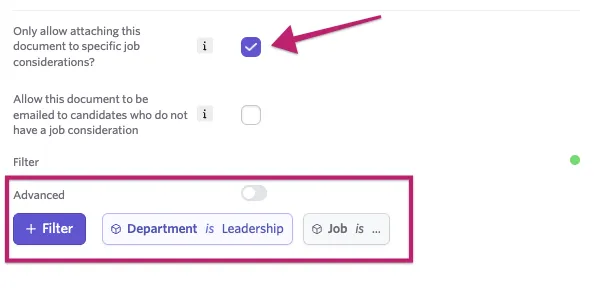
When a user selects a library document on an offer or in an email, only documents whose filter conditions match the candidate's job consideration are shown.
Archive and manage documents
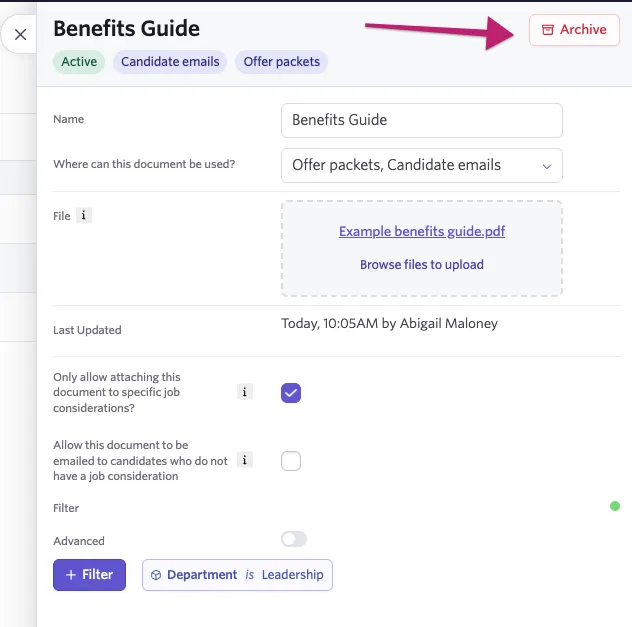
To archive a document, open it from the Admin > Organization Setup > Company Documents page and select the Archive button in the upper right. Archived documents are removed from selection menus but are preserved in any in-progress offers that already reference them.
You can view archived documents by changing the status filter on the top right from Active to Archived.
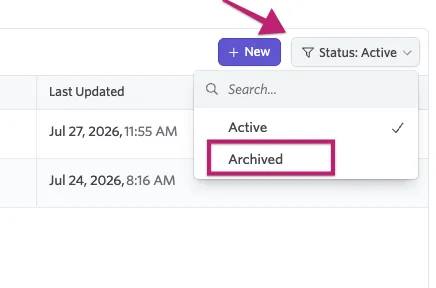
To reactivate an archived document, open it and select Restore.
Ashby tracks version history for library documents internally, but previous versions are not shown. If you need to update a document, simply upload a new file to replace the existing file and the library record will point to the latest file going forward.
Using library documents in e-signature offers
Once a document is in the library, it can be added to an e-signature offer packet alongside the offer letter and any e-signature documents.
- Navigate to the candidate's profile and click View Offer to open an existing offer.
- Select Add Document under the Offer Packet section.
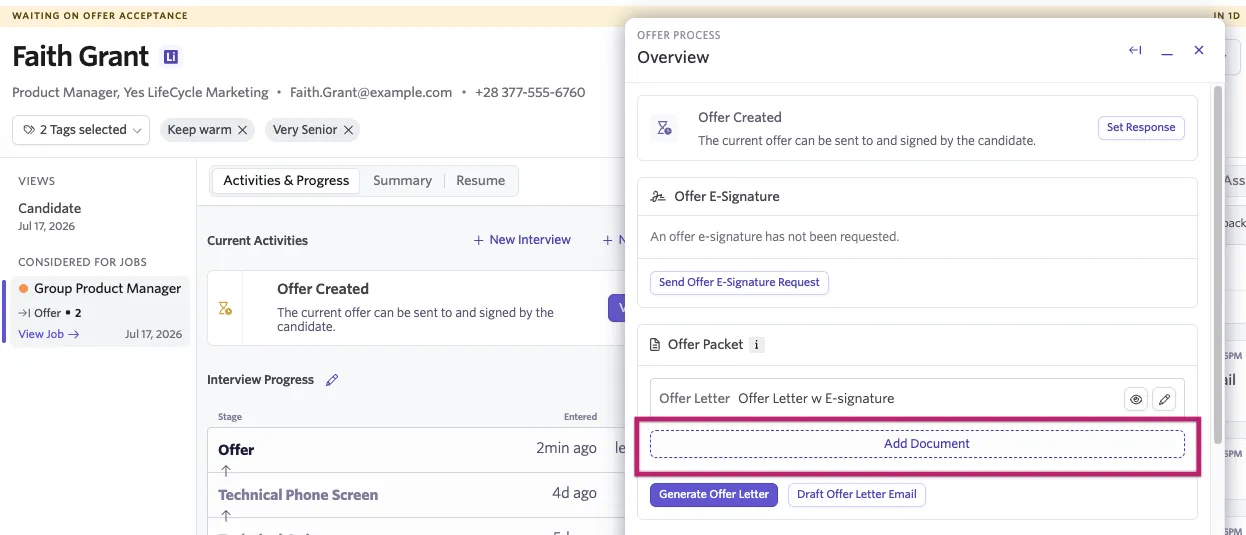
The offer must be fully approved before the Add Document button appears.
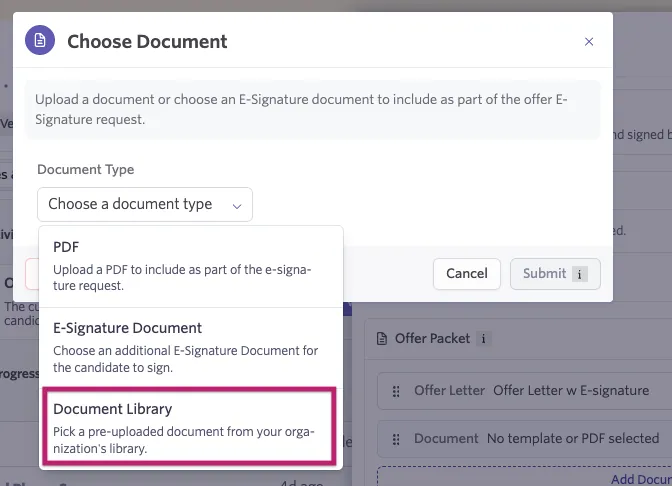
- When prompted to choose a document type, select Document Library.
- Use the search or dropdown to find the document you want to add. Only documents whose filters match the candidate's job consideration are shown.
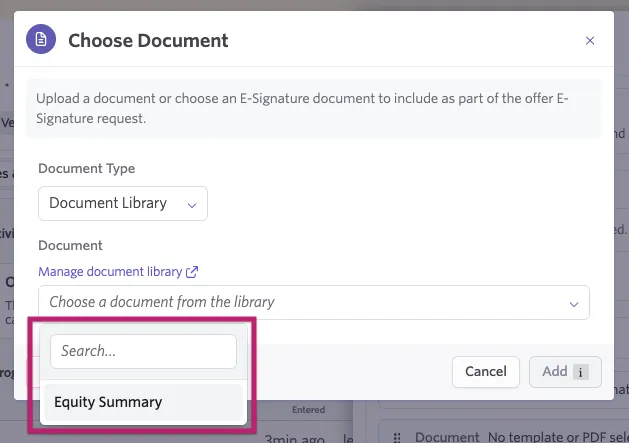
- Select the document and click Add.
- Repeat for any additional documents, then send the offer e-signature request as normal.
You can still upload a one-off PDF directly to an offer using the PDF document type option. The Document Library option is available when you want to select a pre-uploaded document from the company library rather than uploading a new file each time.
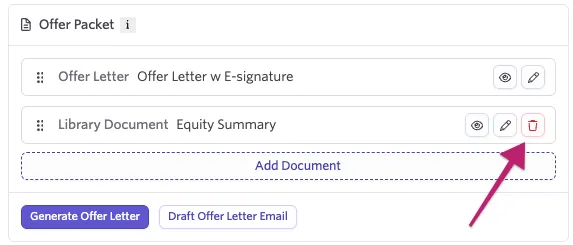
To reorder documents in the offer packet, click dot dots on the left side and drag them in the Offer Packet section of the offer. To remove a library document from an offer, click the trash can icon.
For full details on sending and managing e-signature offers with multiple documents, see Adding Multiple Documents to an E-signature Offer .
Library documents can also be added to Offer Packet TemplatesOffer Packet Templates. If you send the same set of documents with most of your offers, a packet template lets you bundle them together so you don’t have to add each one every time.
Using library documents in emails
Library documents can also be attached to emails sent to candidates. When composing an email from a candidate's profile, select the Add from document library icon from the bottom toolbar. Any documents that match the application will be available to attach.

FAQs
What file types can I upload to the Company Document Library?
Only PDF files are supported. If you need to upload a document that candidates will sign electronically, use E-Signature Documents, which accept .docx files and support signature tokens.
What happens to in-progress offers if I archive a library document?
Archiving a document removes it from the selection menu so it cannot be added to new offers or emails. However, any offers that already reference the archived document are unaffected; the file is preserved and will still be included when those offers are sent.
Can I update the file for an existing library document?
Yes. Open the document in Admin > Organization Setup > Company Documents and upload a new PDF file. The library record updates to reference the new file. Ashby tracks version history internally, though previous versions are not displayed in the UI.
How do filters on library documents work differently from filters on e-signature document templates?
Both use the same scoping filter mechanism, which evaluates conditions against the candidate's job consideration. When a user searches for a document to add to an offer, only documents whose filter conditions match, or documents with no filters set, appear in the results. Setting filters on a library document is useful when a document is only relevant for specific roles, locations, or departments.
Can I see which offers or emails a library document has been used in?
There is currently no reporting or tracking for when and where documents added to the library are used.