Home Page
This guide covers how to navigate the Ashby home page, including how to access interviews you are on the panel for and where to view outstanding tasks.
Overview
When you log into Ashby, you land on the home page. Here you can find the following:
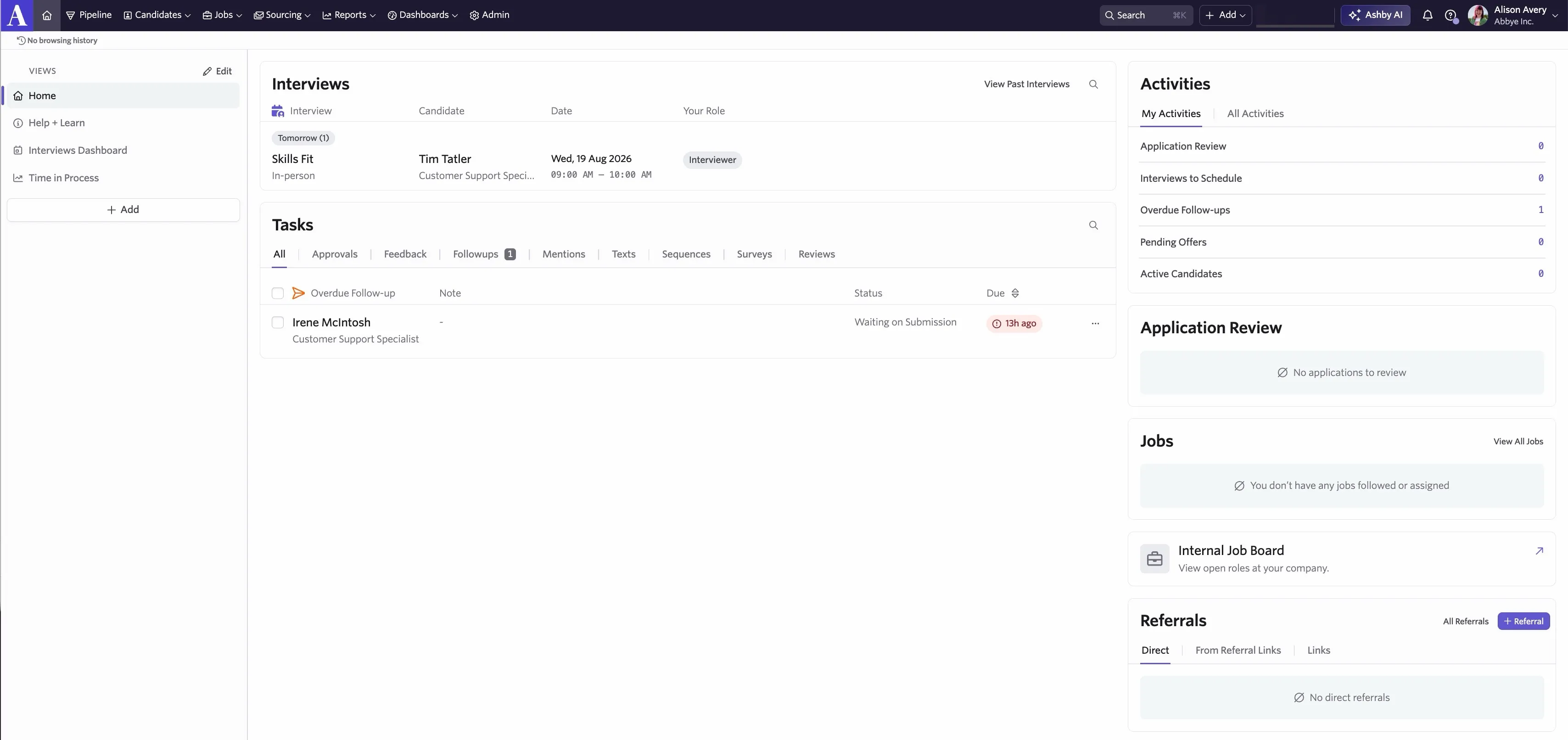
- Navigation bar: Navigate to various areas of Ashby to view your candidates and jobs, set up reports and dashboards, and set up your Ashby organization. Depending on your access role, you may not be able to see all options on your navigation bar. You can find more on permissions at User PermissionsUser Permissions.
- Views: You can pin commonly viewed reports and dashboards here. Click + Add and choose a report, recruiting plan, or dashboard to add to the Views list. You can then click between the Home view and your reports and dashboards to quickly access the data you need.
- Interviews: Here you can see a list of upcoming interviews you are scheduled as an interviewer for and access interviews to add your feedback and scores. Click on an interview to view the briefing, the candidate and interview details, and the feedback form to complete. Depending on the visibility settings for the organization, you may also be able to see other users' feedback prior to the interview (more on Visibility Options for Usersvisibility settings). Click Past Interviews to view a list of all interviews you have been on the panel for previously.
- Tasks: View and action any tasks assigned to you here. Tasks can include:
- Approvals: Reviewing and approving or rejecting offers, jobs, and/or openings as part of a configured approval process.
- Feedback: Providing feedback for an interview.
- Follow-ups: Any overdue follow-up tasks assigned to you on a candidate's profile.
- Mentions: Any tasks generated as part of a note being added to a candidate's profile. The task is assigned to you and appears here if you are @mentioned in the note.
- Sequences: Any actions that need to be taken as part of a sequence (for example, sending InMail via LinkedIn).
- Surveys: If you have been assigned a survey to complete.
- Activities: The Activities section of the home page shows how many candidates need action taken on their job considerations. They are split into the following categories:
- Application Review: The number of candidates currently in the Application Review stage.
- Interviews to Schedule: Candidates who need to be scheduled for an interview. This number includes any candidates who have submitted feedback via a candidate availability link who are awaiting scheduling.
- Overdue Follow-ups: Candidates who have overdue follow-up tasks on their profiles.
- Pending Offers: Candidates in the Offer stage who have yet to receive an offer, who are yet to accept or reject a sent offer, or who have rejected an offer. This number also includes any offers that are awaiting approval.
- Active Candidates: The current number of candidates in Active stages of the pipeline.
- Application Review: If you are set as the Recruiter on the hiring team of a job, or are set as the reviewer on an application review activity, you see any applications you're assigned to review here. If there are outstanding review activities assigned to you as the recruiter when you are removed from the job or job consideration's hiring team, you continue to see that job in the Application Review section until those outstanding assigned activities are completed.
- Jobs: Any jobs you are following are listed here, along with a count of the candidates in the pipeline (not including candidates who have been archived).
- Internal Job Board: If your organization has the internal job board option enabled (more on this at Internal Job BoardInternal Job Board), then you can view your organization's internal job board here.
- Referrals: You can add referrals directly or create referral links from here. More on adding referrals can be found at Referrals and Referral LinksReferrals and Referral Links.
FAQs
How do I leave feedback for an interview I'm on the panel for?
Once you've been scheduled as part of the panel on an interview, you see the upcoming interview in the Interviews section of your home page.

You can click on this interview to see the briefing, candidate details, and feedback form. Head to the Your Feedback tab or click the Enter Feedback button to access the feedback form.
If the interview has already passed, you can also click on the interview details within the Interview Feedback activity in the Tasks section of your home page to access your feedback form.

How do I skip leaving feedback for an interview?
If your feedback is no longer required for an interview, you can click the three dots to the right of the task within Tasks, then click Resolve without Feedback to stop overdue feedback email notifications and remove the task from your home page.
You can still access the interview details and the feedback form via the Past Interviews link within the Interviews section of your home page.

There's a ? icon in the top navigation bar — what is that for?
You can click the ? icon to do the following:
- If you need to reach out to Support, you can find the email address to contact us on this menu.
- Try out Ashby HelpHub for in-app assistance.
- Access documentation in Ashby Knowledge Base and Analytics Help.
- Access Ashby Academy for further learning.
- Install the Ashby Chrome Extension (more on this at Chrome Extension).
- View new product updates under What's New?
Where can I view my feedback and records of previous interviews I've been on the panel for?
To view information about all previous interviews you've been on the panel for, click Past Interviews within the Interviews section on the home page. You can then see your interview history. You can click on any of the interviews listed to view the interview information, including your feedback.