Global User Settings
Use the global settings on an employee's Permissions tab to grant or limit specific capabilities across Ashby. These settings work alongside an employee’s global user role and their job, team, or location access roles. Some settings also depend on an organization-level feature being enabled.
For an overview of global user roles and scoped access roles, see User Permissions. For additional Admin capabilities available to Elevated Access users, see Additional User Permissions.
Permissions & access
Global user settings are available on the following plans:
Foundations | Legacy Plus | Plus | Enterprise |
|---|---|---|---|
✅ | ✅ | ✅ | ✅ |
Plan availability varies by feature; see the Global settings reference table for more information.
You must be an Organization Admin to view or edit another employee's permissions. Organization Admins cannot change their own permissions; another Organization Admin must make that change.
User role
The User Role dropdown sets an employee's global access level: Limited Access, Elevated Access, or Organization Admin. This role establishes the employee's baseline access in Ashby. Elevated Access users also need relevant job, team, or location access roles to access candidates and jobs in those scopes. For details on what each role can do, see User Permissions.
How global settings work with user roles
A global setting adds or limits one specific capability. It does not replace the employee’s User Role or scoped access roles:
- The User Role sets baseline access. Global settings build on top of it.
- Scoped access roles still apply. Elevated Access users need the appropriate job, team, or location access roles to use or view features in those scopes.
- Global settings don’t expand candidate, job, or report access. Turning on a setting doesn’t give an employee access to candidates, jobs, or reports outside their existing role and scopes.
Managing an employee's global settings
- Go to Admin > Organization Setup > Employees.
- Select the employee and open the Permissions tab.
- Under Global Settings, set the relevant option to Yes or No.
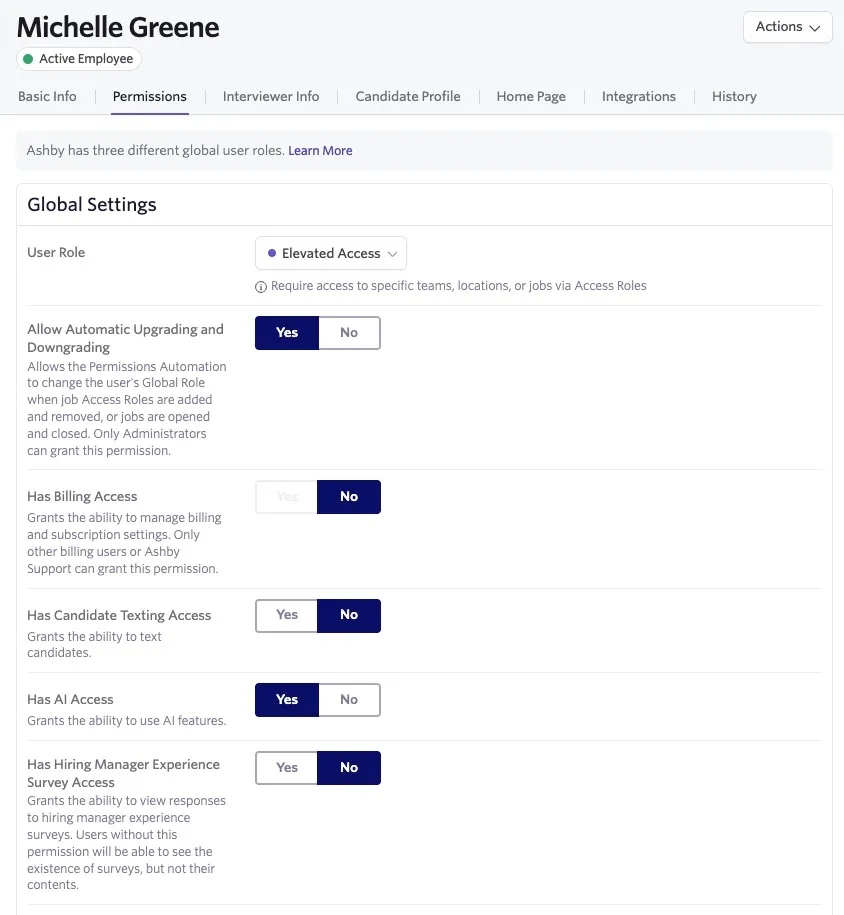
Global settings reference
Setting | What Yes enables | Important details | Plan/User Availability |
|---|---|---|---|
Allow Automatic Upgrading and Downgrading | Allows Permissions Automation to automatically adjust the employee's global role. | The organization must configure the Automatically Adjust User Roles automation. This employee-level setting determines whether the automation applies to this user. See Permissions Automation. |
|
Has Billing Access | Gives the employee access to in-app billing administration. | Billing access is separate from the Organization Admin role. Billing users can view billing details and manage billing settings. See Billing FAQ. |
|
Has Candidate Texting Access | Allows employees to use candidate texting. | The organization must enable and set up candidate texting. The Create or Edit Text Messaging Templates permission controls template creation and editing separately. See Candidate Texting. |
|
Has AI Access | Allows the employee to use enabled AI features and view AI-generated results. | The specific AI feature must be enabled. When set to No, the employee cannot trigger AI actions or view generated results. This setting is Yes for all employees by default. See AI Features in Ashby. |
|
Has Hiring Manager Experience Survey Access | Allows broader access to Hiring Manager Experience survey submissions, reports, and the feedback dashboard. | The employee's job and team access still limits results. Employees can still see surveys assigned to them without this broader access. Organization Admins have this permission by default. See Hiring Manager Experience Surveys. |
|
Has access to all confidential jobs and projects within assigned permissions | Allows Organization Admin users to access confidential jobs and all confidential projects. | This setting does not override scope restrictions such as a No Access role. Users can also receive access to an individual confidential job through a job access role. See What is a confidential job?. |
|
Unlock & Manage Dashboard Access | Allows the user to unlock any dashboard they can view and manage its access list. | This permission does not grant edit access to a locked dashboard. See Confidential Reporting & Content Access Control and Permissions & Sharing Dashboards. |
|